
When a “Facebook token expired” alert shows up in GoHighLevel
If you get an email or in‑app alert that “A Facebook Token Has Expired in Your HighLevel Account”, it means the secure connection between GoHighLevel and Facebook has been cut.

When that happens, things like:
- Facebook lead forms
- Page messages and comments
- Social Planner posts
- Conversion tracking
can silently stop syncing. Leads keep coming into Facebook, but they never reach your GoHighLevel CRM—or your clients.
The fix is usually straightforward if you know which account to open and which settings to touch. This guide walks you through the exact steps, explains why tokens expire in the first place, and shows you how to prevent repeat issues.
Don’t have GoHighLevel set up yet? You can launch a live account and test this workflow end‑to‑end with a free trial:
Start your GoHighLevel free trial
What a Facebook token is (and what breaks when it expires)
When you connect a Facebook Page to GoHighLevel, Facebook issues a short‑lived access token. Think of it as a secure, temporary key that says:
“This person is allowed to let GoHighLevel read and act on behalf of this Facebook Page.”
GoHighLevel uses that token to:
- Pull in Facebook lead ad submissions
- Sync page messages and comments into Conversations
- Publish posts through Social Planner
- Track results across your funnels and campaigns
When the token expires or is revoked, GoHighLevel loses permission to talk to Facebook. Common symptoms include:
- New Facebook leads stop appearing in your Pipelines and Contacts
- Scheduled posts in Social Planner fail or show an error
- Page messages no longer sync to the Conversations inbox
- Ad attribution and reporting start to drift
The good news: in most cases you just need to reconnect Facebook once in the right account, then verify everything is flowing again.
Step‑by‑step: how to fix an expired Facebook token in GoHighLevel
Follow this process as soon as you see the “Facebook token has expired” email or in‑app alert.
1. Open the correct GoHighLevel account
- Log into GoHighLevel.
- In the top‑left, use the “Switch To An Account” dropdown.
- Choose the agency or sub‑account mentioned in the email notification (or the one that owns the affected Facebook Page).
If you run an agency with multiple sub‑accounts, this step is critical—reconnecting the wrong account won’t fix the problem your client is seeing.
2. Go to Settings → Integrations
- From the left‑hand sidebar, scroll down and click Settings.
- In the top navigation inside Settings, click Integrations.
- Look for the Facebook integration card.
If the token has expired, you’ll generally see a warning icon or a “Connect” button instead of a healthy “Connected” status.
3. Reconnect Facebook
- Click Connect (or Reconnect) on the Facebook card.
- A Facebook window will open. Click Continue as Your Name.
- Select the Facebook Page(s) you want GoHighLevel to manage.
- Confirm all requested permissions. Avoid turning off specific toggles unless you’re absolutely sure you don’t need them.
- Click Connect Page to complete the reconnection.
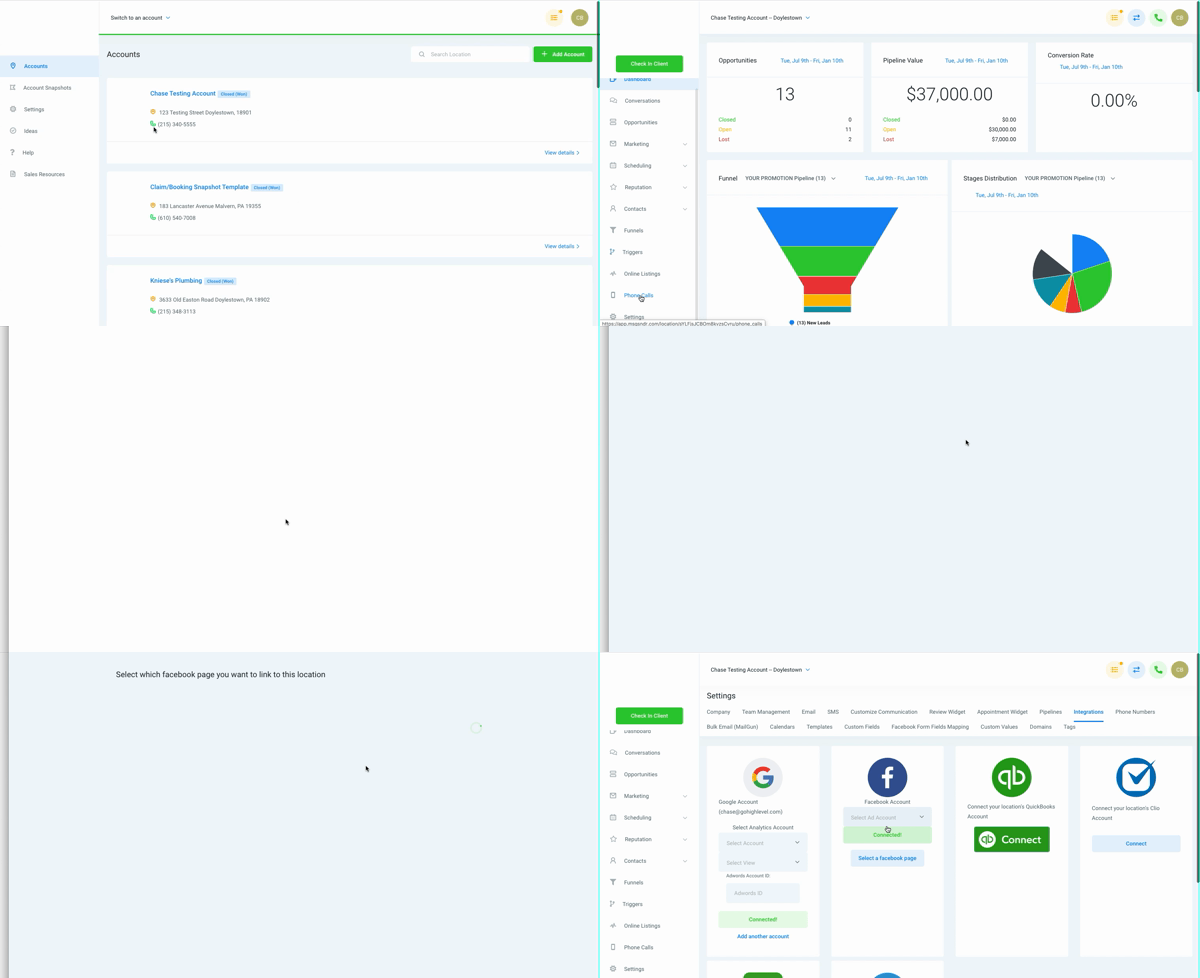
Once the popup closes, you should see Facebook marked as Connected again in the Integrations screen.
4. Test that everything is working
Before you move on, verify that the integration is truly healthy:
- Lead Ads:
Submit a quick test lead form and confirm it appears as a Contact and Opportunity in the right GoHighLevel account. - Social posts:
Use Social Planner to publish a simple test post to the connected Page and confirm it appears on Facebook. - Messages:
Send a message to the Page from a personal profile and confirm it lands in Conversations.
If any of these don’t work, repeat the reconnection steps and make sure you selected the correct Page and permissions in the Facebook popup.
5. Turn the one‑off fix into a repeatable process
If you manage multiple brands or client accounts, you don’t want to rediscover this fix from scratch every time. A simple internal SOP might look like:
- Check which sub‑account the alert references.
- Reconnect Facebook via Settings → Integrations in that account.
- Run the lead, post, and message tests above.
- Document what happened in your internal notes or ticketing system.
If you’d rather have this process designed for you (with automations that alert the right person when something breaks), Revset Labs can help as your GoHighLevel implementation partner.
Why Facebook tokens expire (even when nothing “broke”)
An expired token doesn’t always mean something is wrong with GoHighLevel. Facebook intentionally rotates tokens and cuts access when anything changes around security or permissions.
Some common triggers:
- Password changes on the Facebook profile that originally connected the Page
- Token age / natural expiry – tokens are short‑lived by design
- Manually de‑authorizing the app in Facebook’s Business Integrations
- Logging out of Facebook across devices in a way that invalidates sessions
- Changing Page roles or permissions, or removing the user who connected the Page
- Virtual assistants in other countries logging in without a VPN, triggering security flags
These events all look a little different to Facebook, but the outcome is the same: it protects the Page by cutting off third‑party access until you explicitly reconnect.
How to prevent repeat “token expired” surprises
You can’t stop Facebook from ever rotating tokens—but you can make sure it doesn’t quietly break your campaigns.
1. Use stable admin accounts
- Connect Pages from a primary business owner or marketing admin account, not a short‑term contractor profile.
- Avoid sharing logins; instead, assign proper Page roles through Facebook Business Manager.
2. Limit unnecessary security churn
- Try not to rotate Facebook passwords more often than your security policy requires.
- When you do change passwords, add “Reconnect Facebook in GoHighLevel” to your checklist.
3. Standardize how remote team members log in
If you use VAs or team members in other countries:
- Give them Business Manager access instead of your personal login.
- Require a VPN location that matches your usual login region to reduce security flags.
4. Turn on email alerts for expired social accounts
Inside GoHighLevel’s Social Planner, you can configure alerts so the right people are notified as soon as any connected social account expires:
- Go to Marketing → Social Planner.
- Click the gear icon (Manage Social Accounts).
- Click the blue link: “Setup email notifications for expired Social Media accounts.”
- Choose the user(s) who should get alerts and how often they should be notified.
- Save your changes.
This way your team can reconnect Facebook before clients notice missing leads or failed posts.
Pro tip: Pair these alerts with a short internal playbook and a recurring monthly checklist that includes “Confirm all Facebook tokens are connected in GoHighLevel.”
For agencies: protect your reputation with a proactive monitoring plan
If you’re an agency running dozens of sub‑accounts, an expired Facebook token isn’t just an annoyance—it’s a support ticket, a nervous client, and sometimes a lost deal.
A simple but powerful protection plan:
- Centralize ownership: Decide who on your team “owns” each client’s Facebook integrations and GoHighLevel account.
- Set SLAs: For example, “Reconnect any expired token and verify leads within 2 business hours of an alert.”
- Automate visibility: Use GoHighLevel notifications, internal Slack alerts, and status dashboards so no expired token goes unnoticed.
- Educate clients: Include a short “What to do if you get a Facebook token expired email” section in your onboarding materials.
When you combine this with GoHighLevel’s automation engine, you can route alerts, create follow‑up tasks, and even trigger internal workflows so nothing falls through the cracks.
This is exactly the kind of system Revset Labs designs and implements for clients who want GoHighLevel to feel like a reliable platform, not another tool they have to babysit.
Where GoHighLevel and Revset Labs fit together
GoHighLevel gives you the features: Facebook lead sync, Social Planner, conversations, and reporting. But getting reliable, revenue‑driving outcomes from all of that requires a clean architecture and well‑designed automations.
Revset Labs is an AI Automation and Marketing Agency that helps you:
- Design a clear, scalable GoHighLevel setup across accounts, pipelines, and integrations
- Build done‑for‑you workflows and follow‑ups that turn Facebook leads into booked calls and revenue
- Implement monitoring and alerting around integrations like Facebook so you catch issues early
- Train your team on a simple, repeatable process for keeping everything connected
If you’re not yet on GoHighLevel—or you’re migrating from another CRM—you can:
- Launch your GoHighLevel free trial here, then
- Partner with Revset Labs to turn it into a dependable growth engine instead of a collection of disconnected tools.
Suggested internal links for the published blog
When this article is live on the Revset Labs site, it will pair well with guides such as:
- Getting Started: Set Up the Social Planner in GoHighLevel – for teams that want predictable social posting alongside Facebook integrations.
- Getting Started: Set Up Email, Phone & SMS in GoHighLevel – to make sure all your follow‑up channels are aligned once leads start syncing again.
- Getting Started: Connect Stripe to GoHighLevel – for completing the loop from Facebook lead to paid customer.
(Your content team can link these titles to the appropriate Revset Labs URLs once those posts are published.)