
This guide is for GoHighLevel users whose Facebook Lead Ads are not reliably creating contacts in their sub‑accounts. It walks you through a clear, repeatable troubleshooting process so you can fix sync issues fast and keep every lead.

What this guide covers
In this troubleshooting guide you’ll learn how to:
- Confirm the right Facebook and Business Manager permissions
- Give LeadConnector the access it needs to pull leads
- Map Facebook lead forms correctly inside GoHighLevel
- Test your setup with Facebook’s Lead Ads Testing Tool
- Use Sync Leads and Troubleshoot in GoHighLevel when things still look stuck
- Fix common issues like missing pages, bad page quality, and Messenger/Instagram sync problems
Along the way, you’ll also see where GoHighLevel and Revset Labs fit in if you want a done‑for‑you implementation or ongoing optimization.
If you’re still in setup mode and haven’t connected Facebook yet, complete the basic connection first (for example, your platform’s “Set Up Facebook & Instagram Lead Ads in GoHighLevel” getting‑started guide) and then return to this troubleshooting checklist.
How Facebook Lead Ads connect to GoHighLevel
At a high level, the flow looks like this:
- A prospect submits a Facebook Lead Ad form.
- Facebook stores that lead on the connected Page / Ad Account.
- The LeadConnector integration (on behalf of GoHighLevel) pulls those leads from Facebook.
- GoHighLevel creates or updates a contact in your sub‑account and drops them into your pipeline, campaigns, or workflows.
When any link in that chain breaks—permissions, LeadConnector access, form mapping, or the GoHighLevel integration—you’ll see symptoms like:
- No new contacts appearing in your GoHighLevel sub‑account
- Leads appearing in Facebook’s Leads Center but not in GoHighLevel
- Only some forms or some pages sending leads
- Old campaigns still syncing, new ones not
The rest of this guide walks through a linear troubleshooting flow so you can isolate which piece is failing and fix it.
Pro tip: Once things are stable, you can scale your acquisition with confidence. If you don’t yet have GoHighLevel, you can start a free GoHighLevel trial here and follow along.
Step 1 – Confirm page, ad account, and lead access permissions
Before touching anything inside GoHighLevel, make sure Facebook will even allow your account (and LeadConnector) to access leads.
1.1 Check your Page role
On the Facebook Page that’s running Lead Ads:
- Go to Settings → Page Roles (or equivalent for the New Pages Experience).
- Confirm the user doing the integration has Admin access (or full control in the New Pages Experience).
- If they only have Editor or Advertiser roles, upgrade their permissions or use a proper admin account for the integration.
1.2 Verify Business Manager role
In Business Manager → Users → People:
- Find the person who is integrating Facebook with GoHighLevel.
- Confirm they have at least Employee access to the Business, and are assigned to the relevant Page and Ad Account.
- If they don’t appear at all, add them to the Business and assign the correct assets.
This Business Manager role is separate from Page Role. You need both.
1.3 Ensure Lead Access is enabled
Facebook treats leads as sensitive data. Even if you’re an admin, you may not have lead access yet.
- In your Facebook Page settings, open Leads Access.
- Confirm your business (and the user who is integrating) has access to leads.
- If the LeadConnector app doesn’t appear, search for it and grant access.
If permissions and lead access are wrong, the rest of the troubleshooting will fail—fix this first.
Step 2 – Confirm LeadConnector and GoHighLevel integration
GoHighLevel uses LeadConnector to talk to Facebook. If LeadConnector is missing permissions, disconnected, or not installed, leads will never reach your sub‑account.
2.1 Check LeadConnector in Business Integrations
Inside Facebook:
- Go to Business Settings → Business Integrations.
- Locate LeadConnector.
- Confirm it is active, not expired or removed.
- Click into the app and verify it has access to:
- Your Business Manager
- The correct Facebook Pages
- The Ad Accounts running your Lead Ads
- Lead access (lead retrieval permissions)
If in doubt, remove the integration and reconnect it from GoHighLevel so you can re‑approve all permissions.
2.2 Verify the integration in GoHighLevel
In your GoHighLevel account:
- Go to Settings → Integrations → Facebook (or the equivalent integration section).
- Check that:
- The correct Facebook profile is connected.
- The right Business, Page, and Ad Account are selected.
- The location/sub‑account you’re troubleshooting is actually connected (not a different sub‑account).
If you’re managing multiple client locations, double‑check you are logged into the correct sub‑account before testing.
Want this wired correctly across dozens of client locations? Revset Labs can implement a fully templatized integration and QA process so every GoHighLevel account uses the same proven setup.
Step 3 – Map Facebook lead forms to GoHighLevel fields
Once the integration is connected, GoHighLevel needs to understand which Facebook form fields map to which contact fields.
3.1 Supported field types
Facebook Lead Ads support a range of field types that GoHighLevel can capture, including:
- Text / Large Text (names, custom questions)
- Numerical (budgets, quantities)
- Phone
- Monetary
- Single options, Dropdown, Radio options, Checkbox
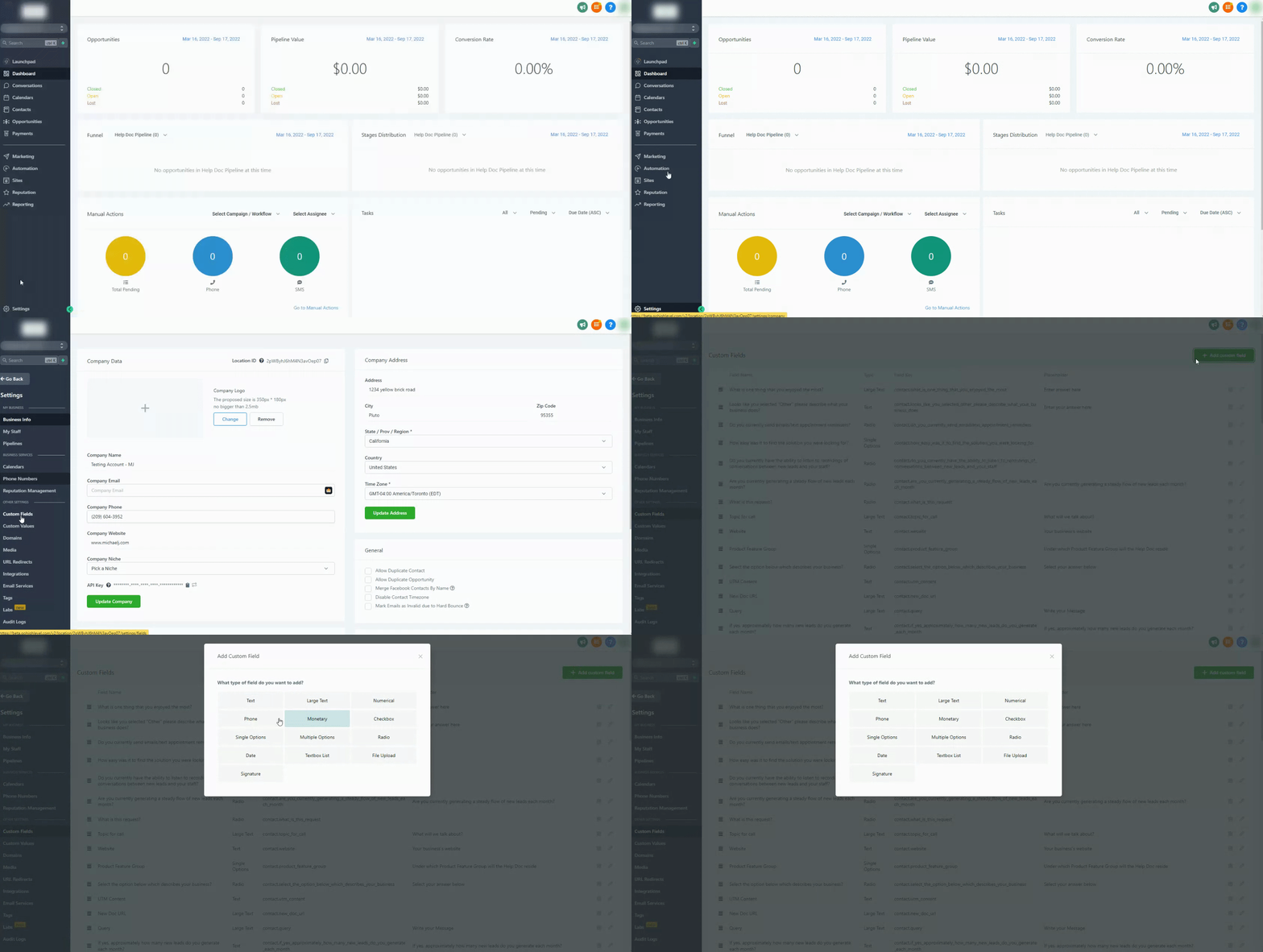
If you use custom or advanced fields, make sure they match one of these supported types and are mapped to meaningful fields in GoHighLevel.
3.2 Configure form field mapping
In GoHighLevel:
- Open Settings → Integrations → Facebook Form Field Mapping.
- For the Page you’re troubleshooting, locate each active Lead Form.
- Ensure:
- Each form shows an active status (often indicated with a blue checkmark or similar).
- Every important Facebook field (name, email, phone, custom questions) is mapped to the correct GoHighLevel field.
- Save your changes and repeat for every form that should create leads in this sub‑account.
If a form is missing from the list, it usually means Facebook hasn’t shared it with LeadConnector yet. Re‑authorize the integration and confirm Lead Access for that Page.
If you’re using GoHighLevel to power more advanced funnels (multi‑step quizzes, qualification logic, conditional follow‑ups), mapping consistency becomes even more important. Revset Labs can help you architect these flows and ensure every form speaks the same data language.
Step 4 – Test with Facebook’s Lead Ads Testing Tool
Before spending more money on ads, use Facebook’s own testing tools to prove that a test lead can flow end‑to‑end.
- Open Facebook Lead Ads Testing Tool in Events Manager.
- Choose the Page and Lead Form you’re troubleshooting.
- Submit a Test Lead.
- Make sure the test event shows as Received inside Facebook.
- Switch to GoHighLevel and confirm:
- A new Contact appears in the correct sub‑account.
- The contact fields (name, email, phone, custom questions) are populated correctly.
- Any automations or workflows attached to your pipeline are triggered.
If the test lead appears in Facebook but not in GoHighLevel, the issue is still with permissions, LeadConnector, or form mapping—re‑check Steps 1–3.
Step 5 – Use Sync Leads and Troubleshoot inside GoHighLevel
If your setup looks correct but historical leads are missing—or you only see new leads from a certain date forward—use GoHighLevel’s built‑in tooling.
5.1 Sync recent leads
Some GoHighLevel accounts include a Sync Leads feature for Facebook integrations. This lets you pull leads from the last 15–30 days even if they didn’t sync in real time.
- From your Facebook integration area, look for Sync Leads.
- Choose the Page and Date Range.
- Run the sync and monitor whether new contacts appear.
This is especially useful right after fixing a permissions or mapping issue so you don’t permanently lose leads.
5.2 Use the Troubleshoot tools
When available in your account, the Troubleshoot view highlights common misconfigurations such as:
- Expired or revoked Facebook tokens
- Pages that aren’t connected to any sub‑account
- Forms that are unmapped or inactive
- Permissions that are missing for LeadConnector
Use this to quickly validate your integration after changes, especially when managing multiple locations.
As you add more campaigns, having a standardized troubleshooting playbook becomes critical. Revset Labs can help your team document and automate these checks so junior staff can resolve 80–90% of issues without escalation.
Common error scenarios and how to fix them
Page Quality issues
If Facebook flags your Page for quality or policy violations:
- Review the Page Quality tab in Facebook.
- Resolve any policy violations, misleading ad copy, or disapproved assets.
- Once Page Quality is restored, re‑test submissions with the Lead Ads Testing Tool.
Poor Page Quality can silently impact delivery and integrations, so don’t skip this.
Permission errors
Symptoms:
- Only some admins can see leads.
- The GoHighLevel integration works for one user but not another.
Fix:
- Confirm that the main integration user has Admin access to the Page, Ad Account, and Business Manager.
- Double‑check Lead Access for both the user and LeadConnector.
- If you changed who owns the Page or Ad Account, remove and re‑add the GoHighLevel integration.
Leads not syncing at all
If no leads are arriving in your sub‑account:
- Confirm the correct Page and Ad Account are selected in GoHighLevel.
- Re‑run form mapping and save.
- Submit a test lead via Facebook’s testing tool.
- If nothing shows up, disconnect and reconnect the Facebook integration from GoHighLevel, re‑authorizing LeadConnector with full permissions.
- Use Sync Leads to recover recent leads once the connection is stable.
Messenger or Instagram messages not appearing
If your Messenger or Instagram DMs aren’t syncing to GoHighLevel:
- Confirm your Instagram account is correctly connected to the Facebook Page.
- Check that your GoHighLevel Instagram and Facebook Messenger integrations are active for this sub‑account.
- Test by sending yourself a DM and confirming whether it appears on the Conversations tab.
These issues are often separate from Lead Ads, but they tend to be misconfigured at the same time—fixing both improves your overall tracking and follow‑up.
Missing or incorrect Pages
If you don’t see the Page you expect when connecting Facebook:
- Make sure that Page is actually owned by the Business Manager you’re using.
- In Business Settings, assign that Page to the correct Business and to the integration user.
Best practices to keep your integration healthy
Once everything is working, use these habits to avoid future surprises:
- Avoid renaming Campaigns, Ad Sets, and Ads mid‑flight if you rely on UTM naming conventions.
- Standardize Lead Forms so every offer uses consistent fields for name, email, phone, and key qualifiers.
- Document your process for adding new Pages or locations so each one gets the right permissions and mapping from day one.
- Audit integrations quarterly—especially if multiple partners, agencies, or admins share access.
When you’ve got a predictable troubleshooting routine like the one in this article, you can scale ad spend confidently knowing that any sync issue can be diagnosed quickly.
If you want a partner to design that routine, wire up advanced automations, and make sure every lead is followed up automatically, Revset Labs can help.
- Revset Labs is an AI automation and marketing agency that builds and maintains GoHighLevel systems for growth‑focused businesses.
- We specialize in multi‑channel lead capture, CRM hygiene, and revenue‑driven follow‑up sequences.
- We can take this exact troubleshooting process and turn it into internal SOPs, QA dashboards, and automated alerts so you never miss another lead.
Start a free GoHighLevel trial to get your account live, then talk to Revset Labs about turning it into a fully automated revenue engine.