
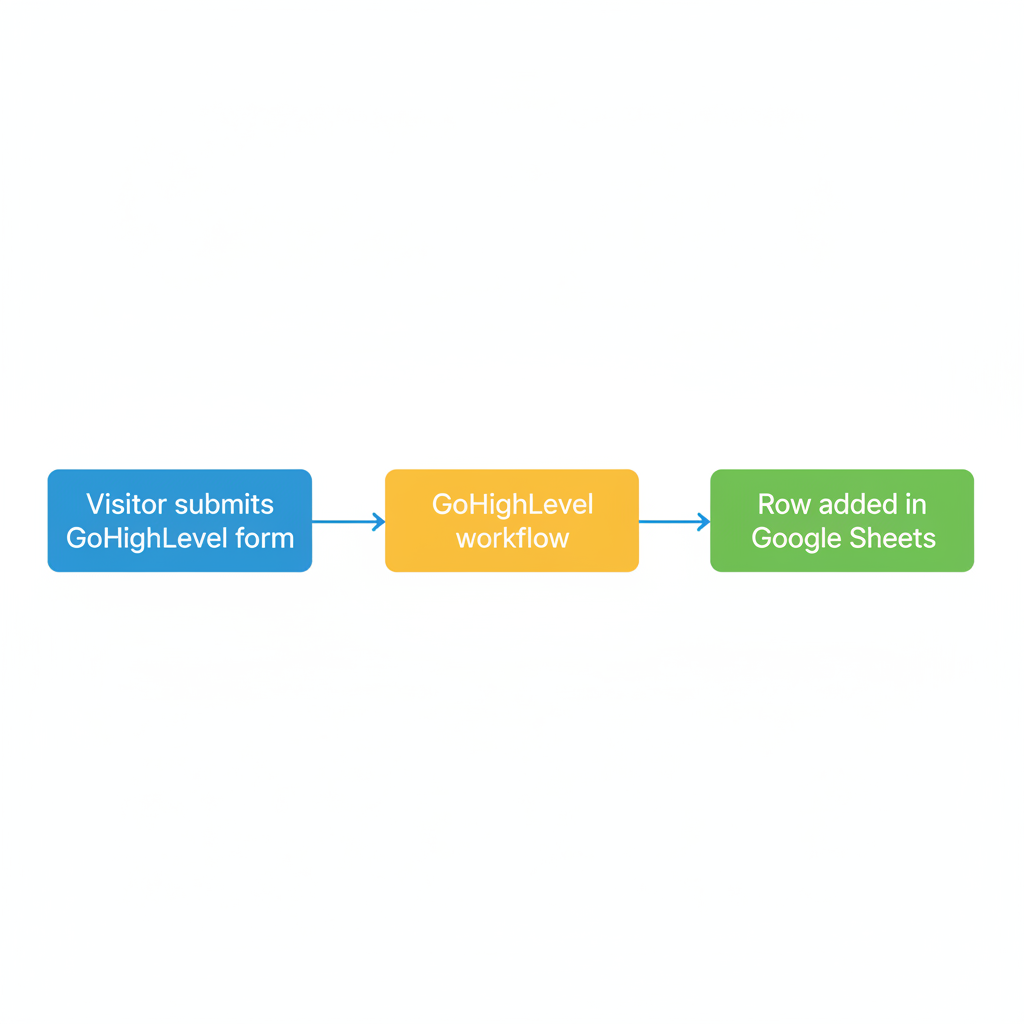
 GoHighLevel form answers to Google Sheets” title=”Workflow flowchart for Export GoHighLevel Form Answers to Google Sheets (Step-by-Step Guide)”>

Why export GoHighLevel form answers to Google Sheets?
When someone fills out a GoHighLevel form, the data is stored inside your account – usually on the contact record and in the form submissions area. That’s great for one contact at a time, but not ideal when you want to:
- See every submission in a single table
- Share data with a wider team without giving full GoHighLevel access
- Build quick custom reports, pivot tables, or charts
- Feed form data into other tools that connect easily to Google Sheets
Exporting form answers to Google Sheets solves all of that. You get a live, filterable view of every submission while GoHighLevel continues to handle tracking, automations, and CRM.
If you’re not using GoHighLevel yet and want a CRM that can automate the entire journey from form fill to closed deal, you can start a free GoHighLevel trial here.
How GoHighLevel stores form submissions by default
Before you hook anything up to Google Sheets, it helps to know where form data lives today.
When a visitor submits a GoHighLevel form:
- A contact is created or updated in your GoHighLevel account
- The submission is logged under Form Submissions in the Sites/Forms area
- That data can trigger workflows, update opportunities, and more
For quick one-off checks, you can review submissions inside GoHighLevel itself. But if you’re constantly exporting CSVs or copy-pasting data into Sheets, it’s time to automate the connection.
Method 1 – Use GoHighLevel’s native Google Sheets workflow action (recommended)
The cleanest way to export form answers to Google Sheets is to use GoHighLevel’s native Google Sheets workflow action. This lets you send each new submission directly to a spreadsheet as a new row.
Prerequisites
You’ll need:
- A GoHighLevel account with access to Workflows and the Google Sheets premium action
- At least one published form inside GoHighLevel
- A Google Sheets spreadsheet with a header row ready for your form fields
Step 1 – Connect your Google account
- In GoHighLevel, go to Settings → Integrations (or open any workflow and add a Google Sheets action to trigger the connection flow).
- Choose Google and connect the Google account that owns the Sheet you want to use.
- Approve the requested permissions so GoHighLevel can create new rows in your spreadsheets.
Step 2 – Build or update the workflow
- Navigate to Automation → Workflows.
- Create a new workflow or open an existing one that should run when the form is submitted.
- Set the trigger to something like Form Submitted → [Your Form Name].
This ensures the workflow only runs when that specific form is completed.
Step 3 – Add the Google Sheets action
- Inside the same workflow, add a new action: Google Sheets → Create Spreadsheet Row (exact label may vary slightly depending on your account).
- Select:
- The Google Drive account you connected earlier
- The spreadsheet that should store the responses
- The worksheet/tab inside that spreadsheet
- GoHighLevel will pull the column headers from your sheet. Map each form field to the correct column (for example, Name → Name, Email → Email, Phone → Phone, Source → Source, etc.).
Step 4 – Test and go live
- Turn your workflow on.
- Open your form as a visitor and submit a test entry using realistic data.
- Check the Google Sheet and confirm a new row appears with every mapped field.
- Fix any mismatches (for example, if a phone number landed in the wrong column) and retest.
Once it’s working, every new form submission will automatically show up as a fresh row in Google Sheets – no CSV downloads or manual imports.
If you’re still evaluating which platform should power your funnels and forms, this is a perfect time to spin up your free GoHighLevel trial and test this workflow end to end.
Method 2 – Use Zapier or Pabbly Connect for advanced automations
If you need more flexibility than the native action provides – for example, writing to multiple sheets, branching logic across several apps, or working around plan limitations – tools like Zapier or Pabbly Connect are a strong option.
When a third-party integration makes sense
Consider Zapier or Pabbly Connect if:
- Your plan doesn’t include the Google Sheets premium action yet
- You want to push the same submission into multiple spreadsheets or workspaces
- You need to enrich data with other tools (for example, Clearbit, Slack, or a data warehouse) before it lands in Sheets
- Your team already runs a lot of processes through one of these automation platforms
High-level setup flow (Zapier/Pabbly Connect)
The exact screens differ by tool, but the pattern is similar:
- Trigger – New GoHighLevel form submission or webhook
- In GoHighLevel, you either use the native app connection (where available) or send form data out via webhook.
- In Zapier or Pabbly, set that event as your trigger.
- Action – Create row in Google Sheets
- Choose Google Sheets → Create Spreadsheet Row.
- Select your spreadsheet and worksheet.
- Map the incoming fields (name, email, phone, custom questions, etc.) to the appropriate columns.
- Optional branches – Add steps for notifications, CRM updates in other tools, or Slack alerts.
- Test & turn on – Send a test submission from your GoHighLevel form and make sure everything appears correctly in Sheets.
This approach adds another moving part (and sometimes an extra subscription), but it gives you very fine-grained control over how form data flows through your stack.
Method 3 – Manually export form submissions to CSV
If you only need data every now and then – for example, for a monthly report – a simple manual export can be enough.
A typical manual export flow inside GoHighLevel looks like this:
- Go to Sites → Forms and open the form whose submissions you want to export.
- Click into the Submissions or Entries tab.
- Use any available filters (date range, status, etc.) to narrow down what you need.
- Click Export (often to CSV).
- Open the downloaded CSV file with Google Sheets or upload it to Google Drive and open with Sheets.
This is quick and requires no setup, but it doesn’t keep Google Sheets in sync. The moment you need fresh data, you’ll be repeating the same export process again.
Turning exported form data into real revenue
Once your GoHighLevel form answers are flowing into Google Sheets, you can do more than just store them.
Here are a few practical use cases:
- Lead quality scoring: Add formulas that score each row based on answers (budget, timeline, niche, etc.).
- Campaign performance tracking: Add columns for UTM parameters or campaign names and build pivot tables to compare results.
- Team handoffs: Share the Sheet with sales, fulfillment, or support so they can work from a live list without needing access to GoHighLevel.
- Data cleanup: Quickly spot duplicates, missing fields, or inconsistent values.
Over time, you may want to move these reports back into GoHighLevel dashboards or a BI tool. For many businesses, though, a well-structured Google Sheet is the fastest way to get everyone on the same page.
To turn these ideas into an always-on system – from form submission to follow-up emails, pipeline updates, and reporting – you can get started with GoHighLevel here and build everything under one roof.
How Revset Labs can help
Revset Labs is an AI automation and marketing agency that helps you turn tools like GoHighLevel and Google Sheets into real business outcomes.
For a setup like this, Revset Labs can:
- Design the end-to-end workflow from form submission to Google Sheets, pipeline updates, and follow-up sequences
- Implement and QA your native Google Sheets action or Zapier/Pabbly integration
- Build reporting dashboards so you can see lead volume, quality, and revenue by source at a glance
- Layer AI on top of your data to draft follow-up emails, summarize submissions, or highlight priority leads
If you’d rather not wrestle with workflows and integrations yourself, Revset Labs can handle the setup so your team can focus on closing deals.
Next steps
To recap, you have three main options:
- Native Google Sheets workflow action – Best for most GoHighLevel users; keeps everything inside one platform.
- Zapier or Pabbly Connect – Ideal when you need more complex, multi-app automations.
- Manual CSV exports – Fine for occasional reporting, but not scalable for daily operations.
Choose the method that fits your current stage, get your first form sending data to Google Sheets, and then iterate from there. As your volume grows, consider consolidating more of your tech stack inside GoHighLevel so you rely less on spreadsheets and more on automated, trackable workflows.
When you’re ready to build a serious lead engine – not just a spreadsheet of names – combine this setup with a full GoHighLevel account by starting your free trial, and lean on Revset Labs for the strategy and systems to make it pay off.