
Managing opportunity status correctly is what keeps your GoHighLevel pipeline honest. If cards never move out of "Open", your team can’t see what’s really working, forecast revenue, or know where to focus next.

This guide shows you exactly how opportunity status works in GoHighLevel, when to use each option (Open, Won, Lost, Abandoned), and three reliable ways to update it — including automation. Along the way, you’ll see how to turn a messy board into a clean, decision-ready pipeline.
If you’re not yet using GoHighLevel but want a CRM that ties together leads, pipelines, automations, and reporting, you can start a free trial here: Start your GoHighLevel free trial.
Understanding opportunity status in GoHighLevel (Open, Won, Lost & Abandoned)
In GoHighLevel, opportunity status is a simple, four-option field attached to every opportunity:
- Open – Active deals you’re still working. The contact is in play and there’s a realistic next step.
- Won – Deals you successfully closed. Payment collected or contract signed.
- Lost – Deals that are no longer going ahead (they chose a competitor, paused the project, or stopped responding despite solid follow-up).
- Abandoned – Deals nobody is working anymore and no follow-up is planned. These often represent unqualified leads or cold opportunities where reviving the conversation doesn’t make sense.
A few critical points:
- These four statuses are fixed — you can’t rename or add more.
- Status is different from your pipeline stages (for example, "New Lead", "Discovery Call", "Proposal Sent"). Stages show where a deal is; status shows whether it’s still alive.
- Reports like win rate, lost reasons, and forecast reliability depend on these four statuses being up to date.
When to move a deal to each status
Use clear internal rules so everyone on the team updates status the same way:
- Mark an opportunity Won when:
- The invoice is paid, or
- The contract is signed and start date is confirmed.
- Mark an opportunity Lost when:
- The prospect explicitly says "no", or
- They go dark after a defined number of follow-ups.
- Mark an opportunity Abandoned when:
- The lead was obviously a bad fit (wrong region, budget, or use case), or
- The deal stalled for reasons outside your control and won’t be reactivated.
- Keep an opportunity Open only when there’s a clear, scheduled next step on the calendar or inside your workflow.
Having these rules written down (even as a simple checklist in your SOPs) keeps your pipeline clean and your numbers trustworthy.
Pair this guide with a foundational article like Getting Started: Set Up Pipelines and Opportunities in GoHighLevel so your stages and statuses work together instead of fighting each other.
Three ways to change opportunity status in GoHighLevel
There are three main ways to change an opportunity’s status:
- Edit the opportunity directly.
- Drag and drop the card between status columns.
- Use workflows to update status automatically.
Each method fits a slightly different use case. You’ll probably use all three.
Method 1: Edit the opportunity directly
This is best for one-off updates when you’re already inside the record.
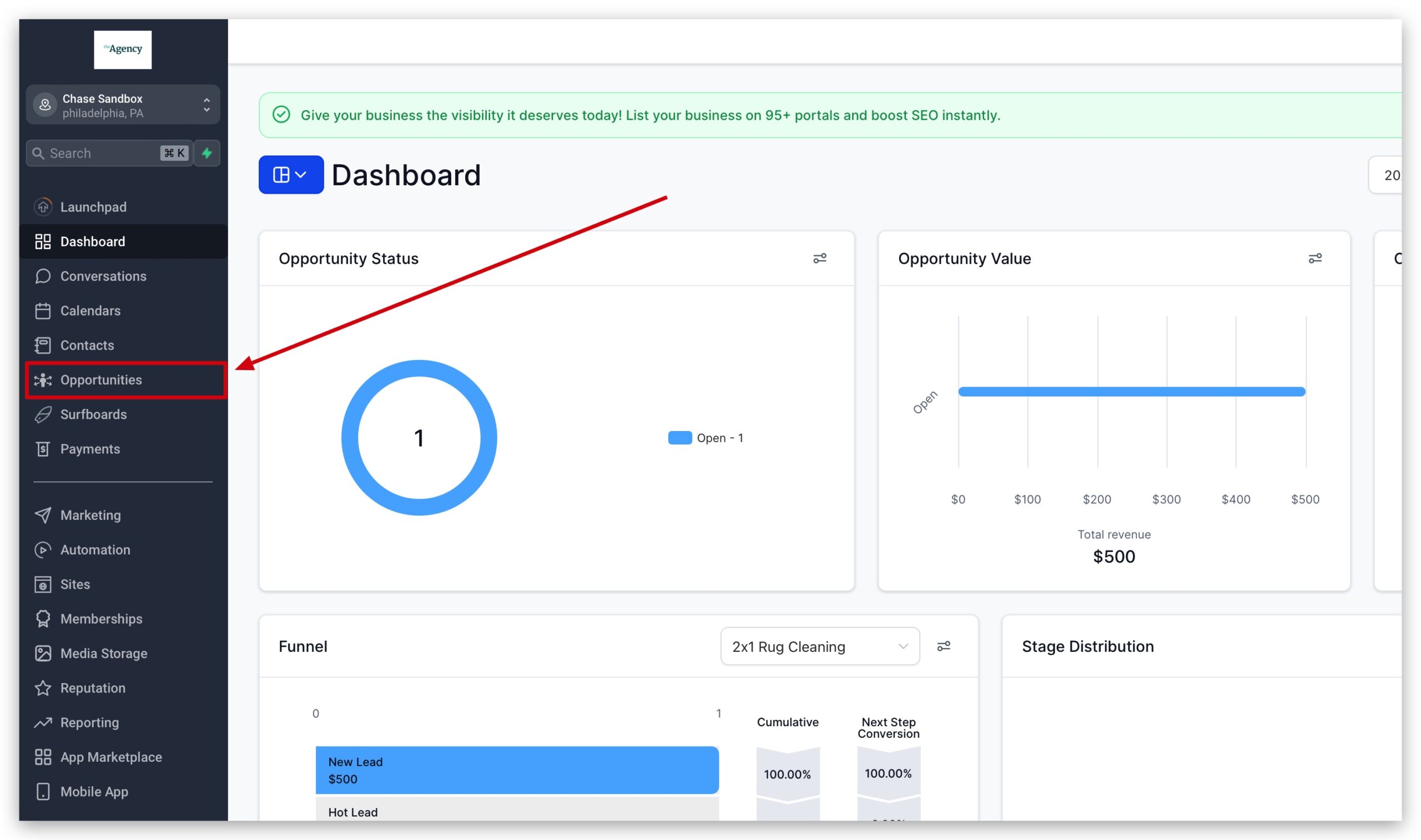
- Open Opportunities
- In GoHighLevel, go to Opportunities from the left sidebar.
- Make sure you’re in the right pipeline and location.
- In GoHighLevel, go to Opportunities from the left sidebar.
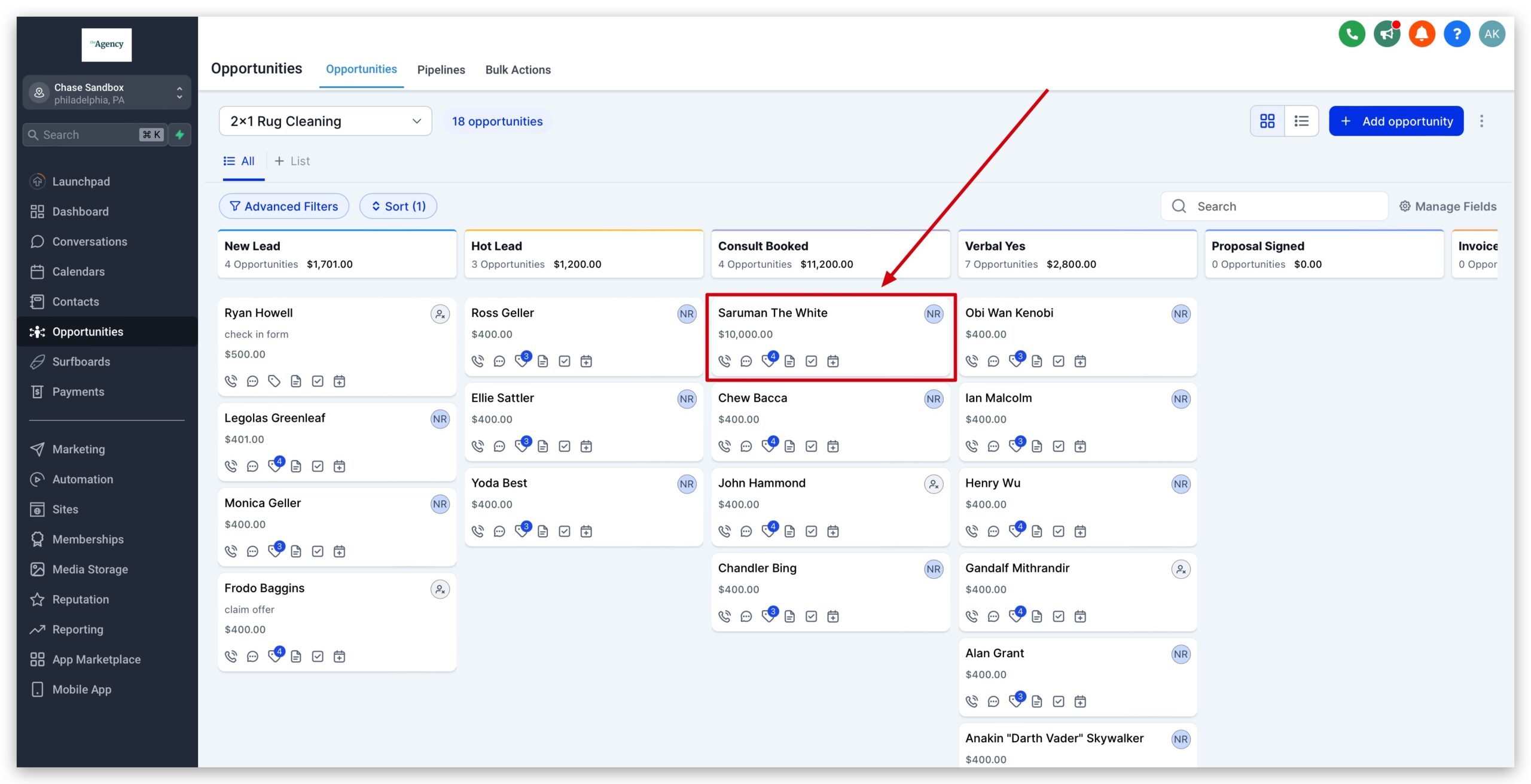
- Find the opportunity
- Use filters (pipeline, stage, owner) or the search bar to locate the card.
- Click the card to open the opportunity details.
- Update the status field
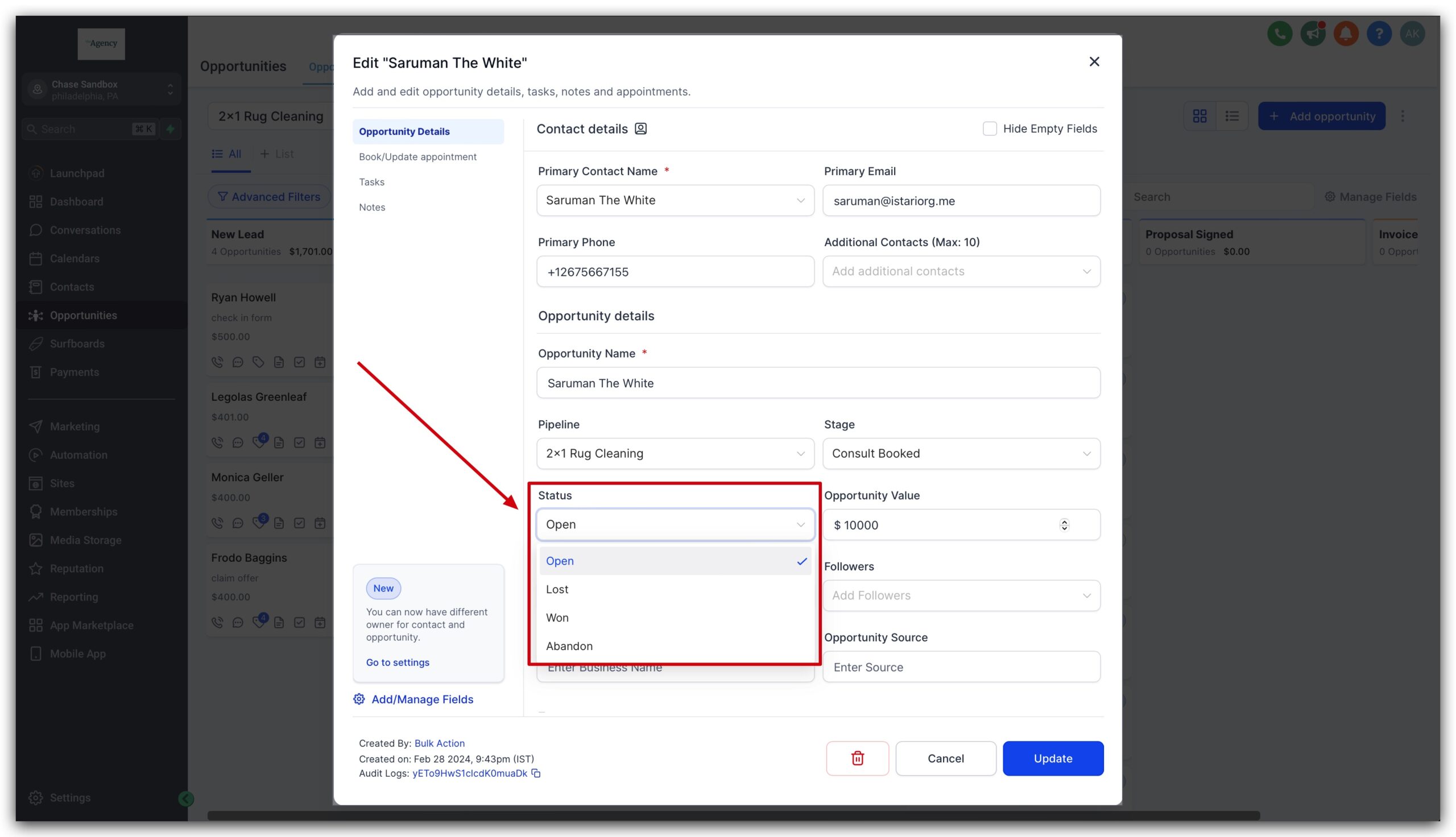
- In the details panel, find the Status field. It will show one of: Open, Won, Lost, Abandoned.
- Click the field and choose the new status from the dropdown.
- Save and add context
- Confirm the change.
- Optional but highly recommended: add a short note in the activity or a custom field explaining why you marked it Won, Lost, or Abandoned (for example, "Won – Paid invoice #1045" or "Lost – went with Competitor B").
This method is precise and great for resolving edge cases after a call or internal review.
Method 2: Drag & drop between status columns
When you’re reviewing a whole pipeline, it’s much faster to drag cards between status columns on the Kanban board.
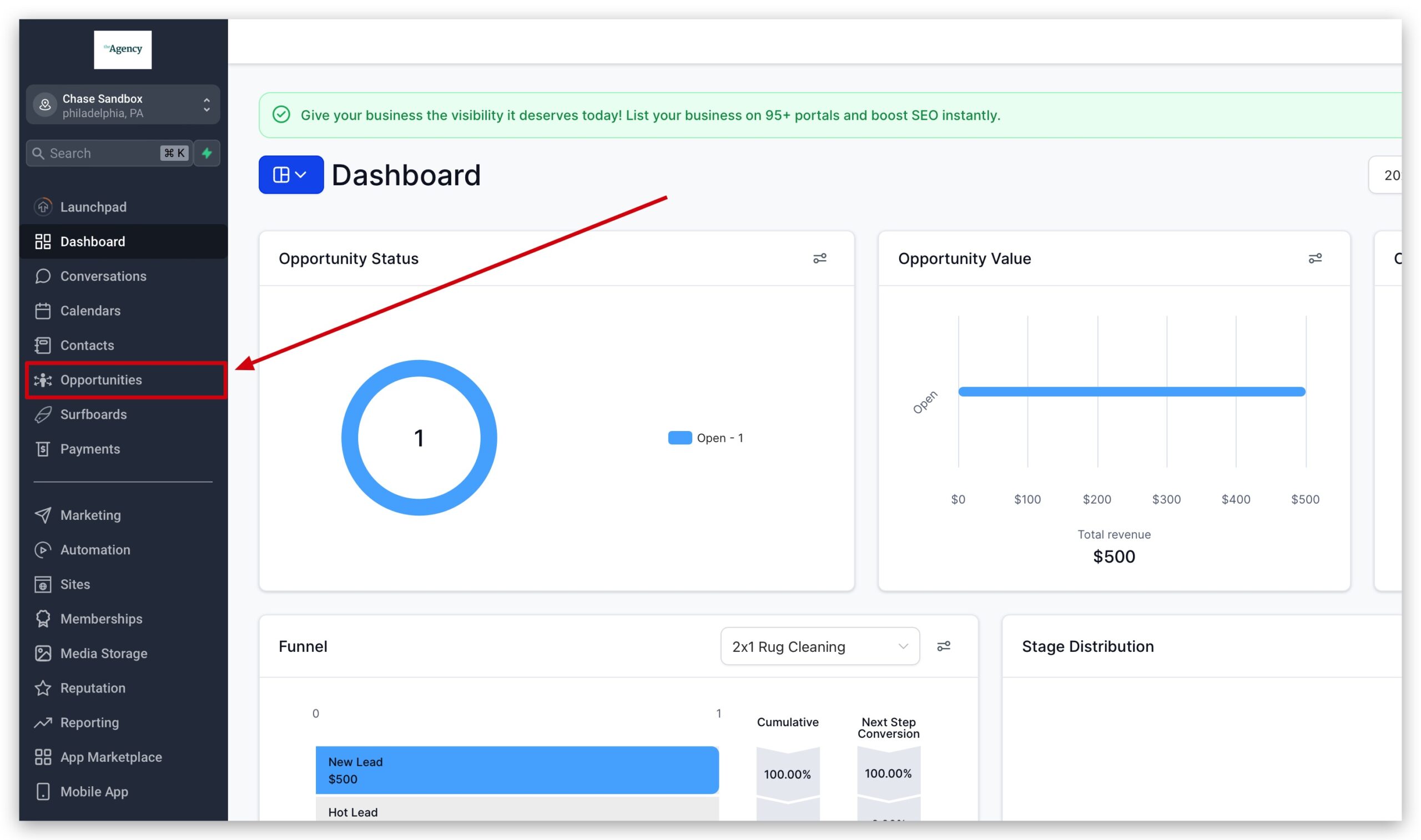
- Open the Opportunities board view
- Go to Opportunities and choose the pipeline you want to clean up.
- Switch to a board/column view grouped by Status if it isn’t already.
- Go to Opportunities and choose the pipeline you want to clean up.
- Identify deals that need updating
- Scan the Open column for deals that are clearly finished.
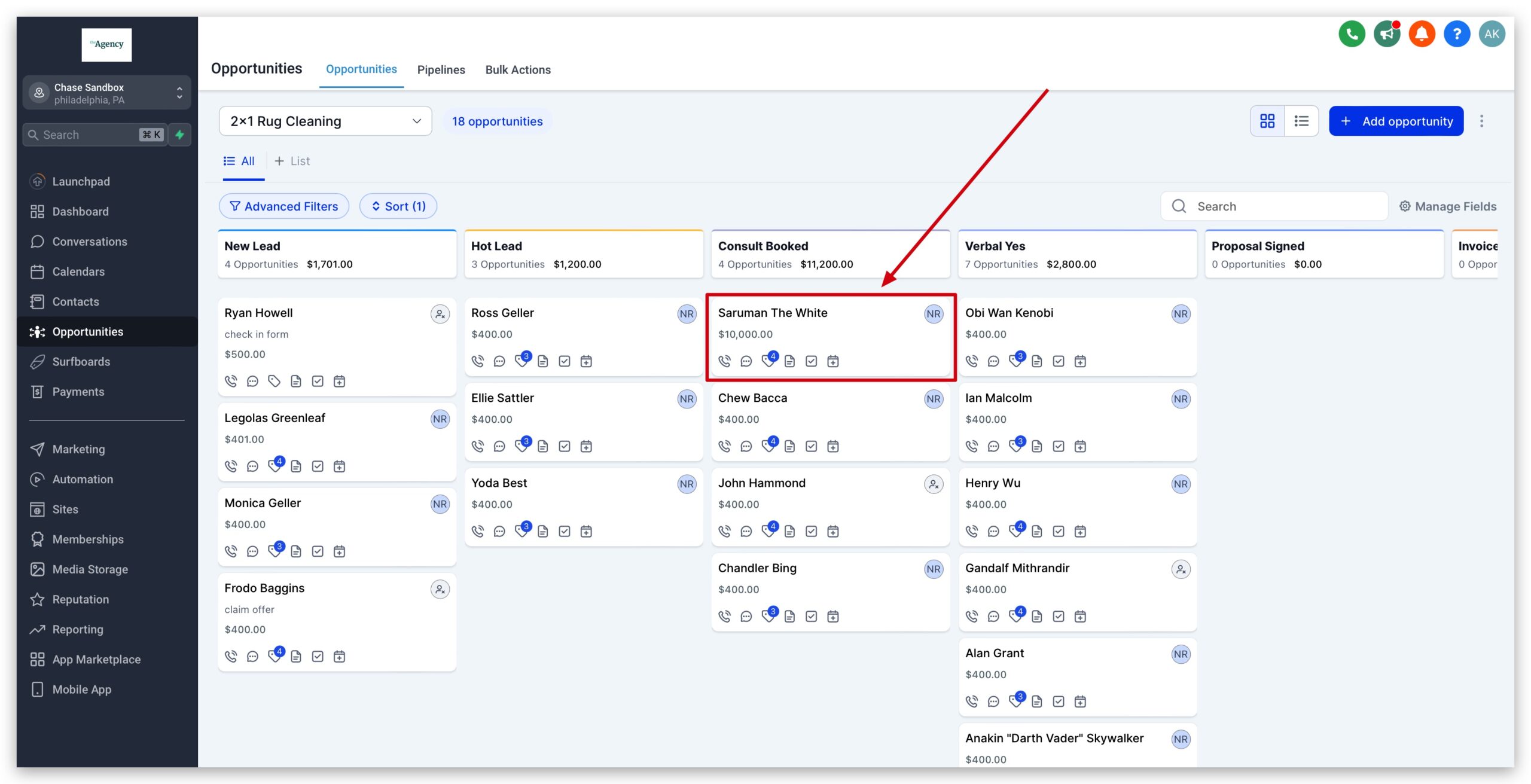
- Look at recent activity (last email, last call, last task) to decide whether they’re Won, Lost, or Abandoned.
- Scan the Open column for deals that are clearly finished.
- Drag and drop cards
- Click and hold an opportunity card.
- Drag it to the appropriate status column (for example, from Open → Won).
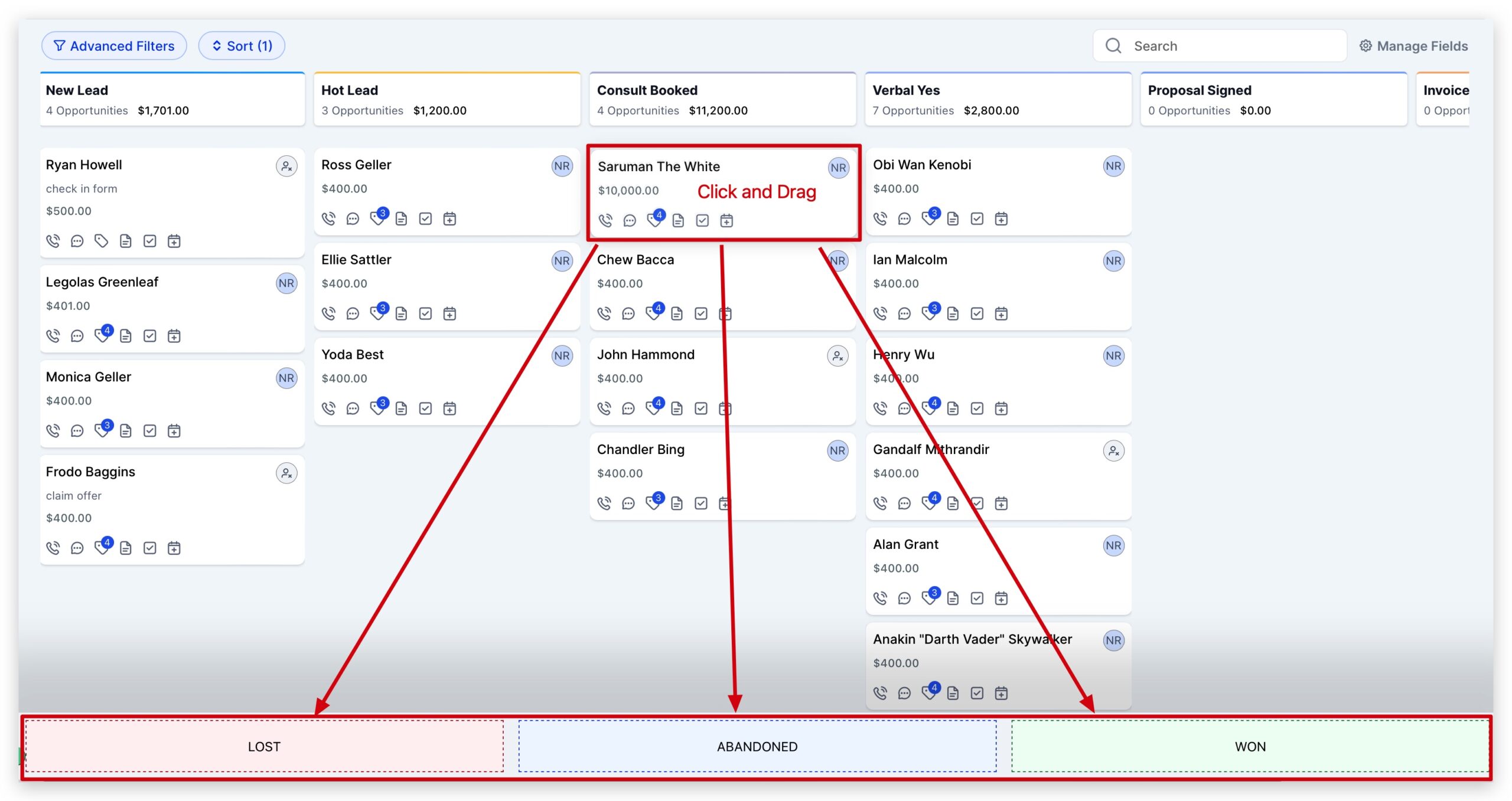
- Release the card. GoHighLevel will automatically update the status field to match the column.
- Repeat in bulk
- Work through your board in batches — for example, review all deals with last activity older than 30 days and decide whether they’re truly Open.
This is the fastest way to do weekly or monthly pipeline hygiene so your reports reflect reality.
Method 3: Automate status updates with workflows
The real leverage comes from updating opportunity status automatically based on what actually happens in your business — payments, bookings, form submissions, and so on.
Here’s how to do it with workflows:
- Open the Automation area
- In GoHighLevel, go to Automation → Workflows.
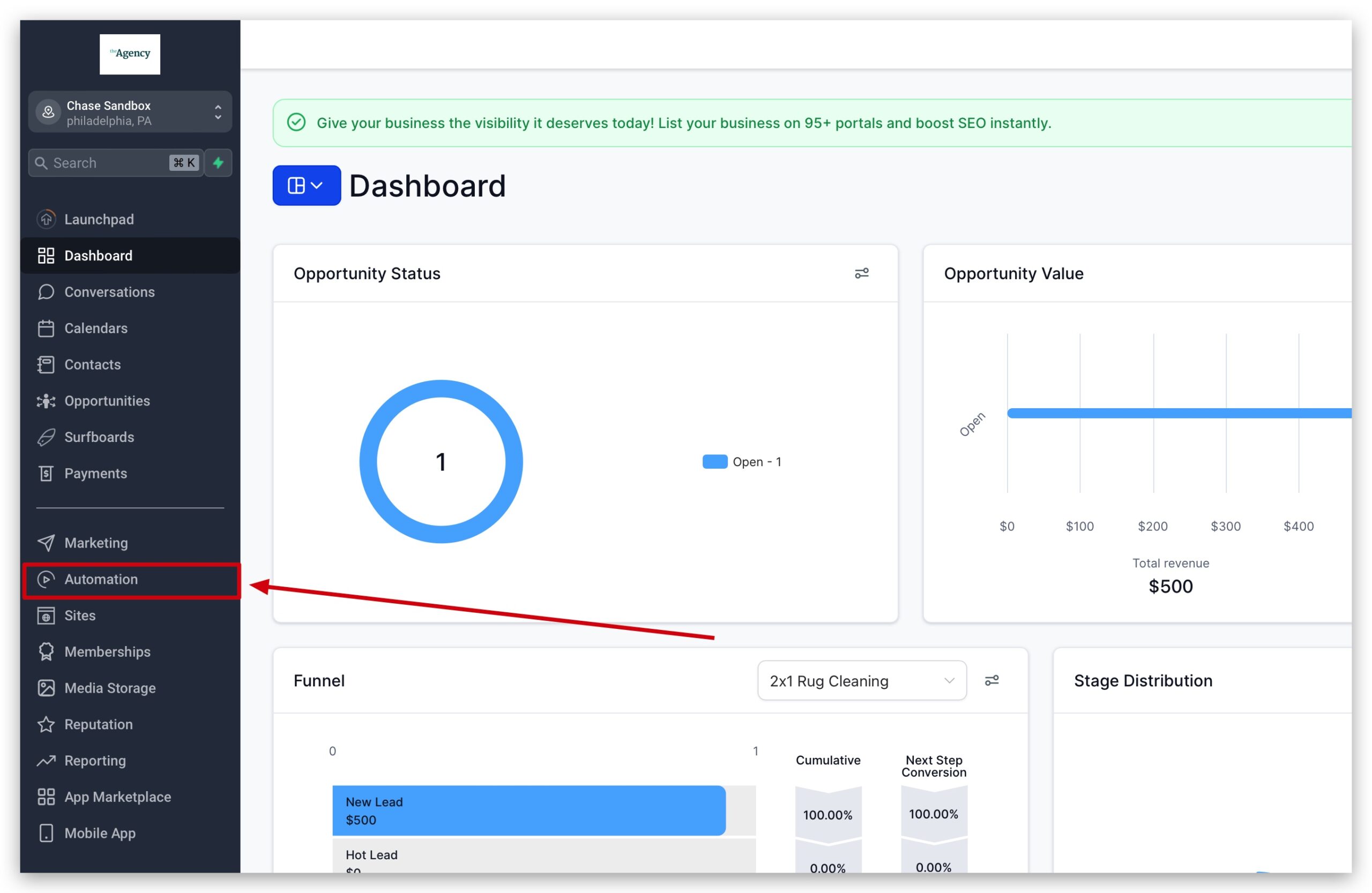
- Create a new workflow or open an existing one that handles your sales process.
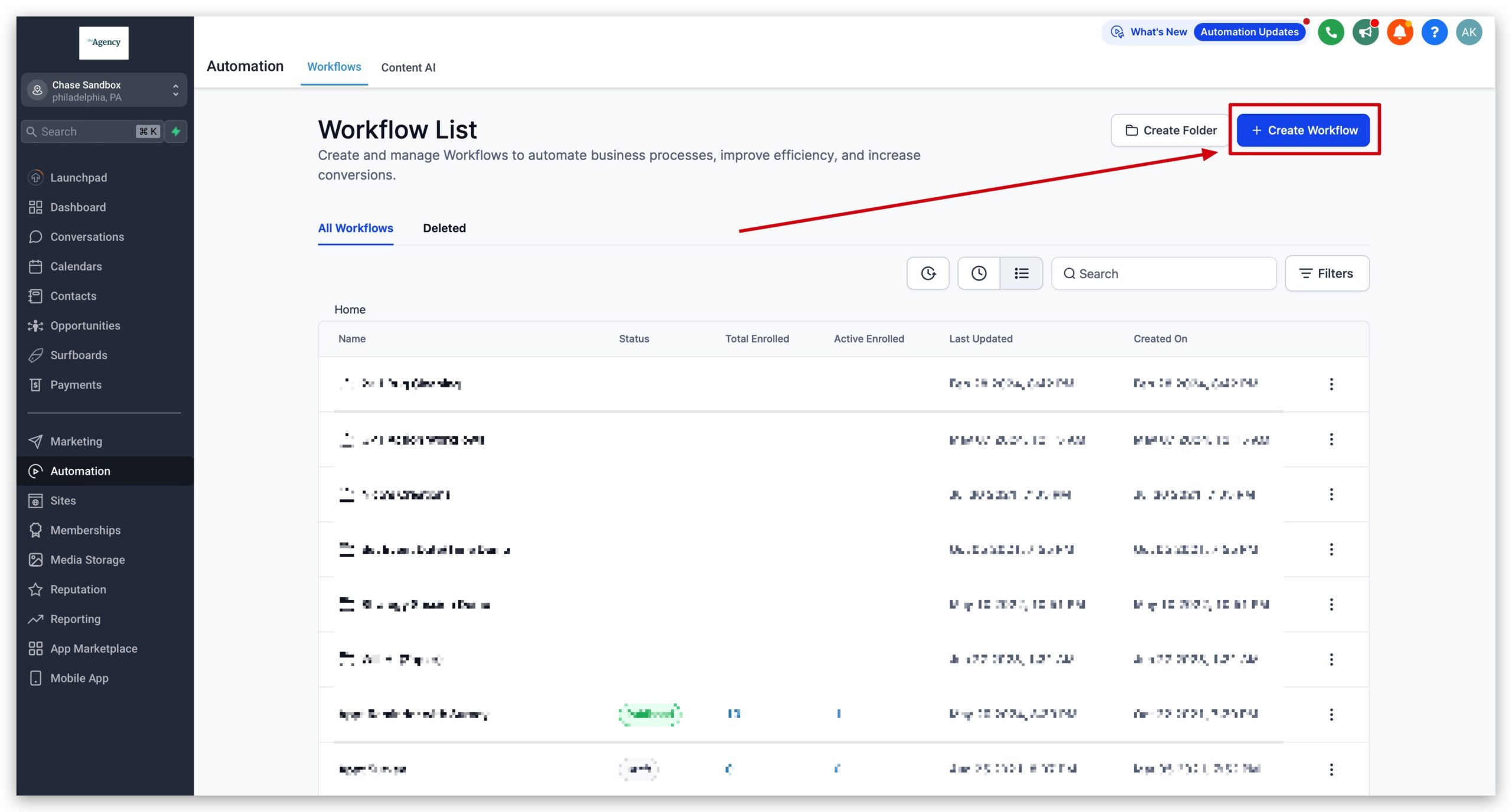
- In GoHighLevel, go to Automation → Workflows.
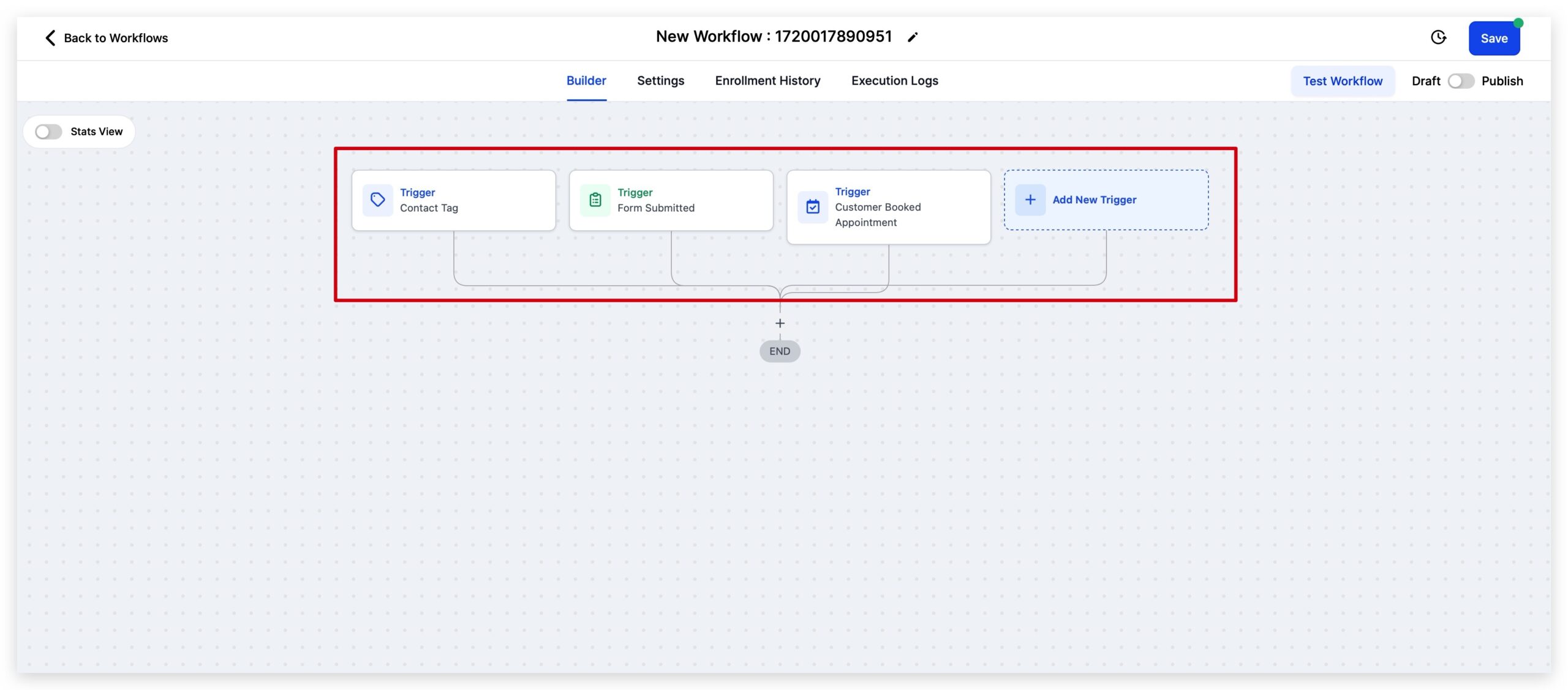
- Choose a trigger
- Pick the event that should cause a status change, such as:
- Invoice paid
- Appointment booked or completed
- Specific form submitted
- Tag added (for example,
Won – Onboarded)
- Pick the event that should cause a status change, such as:
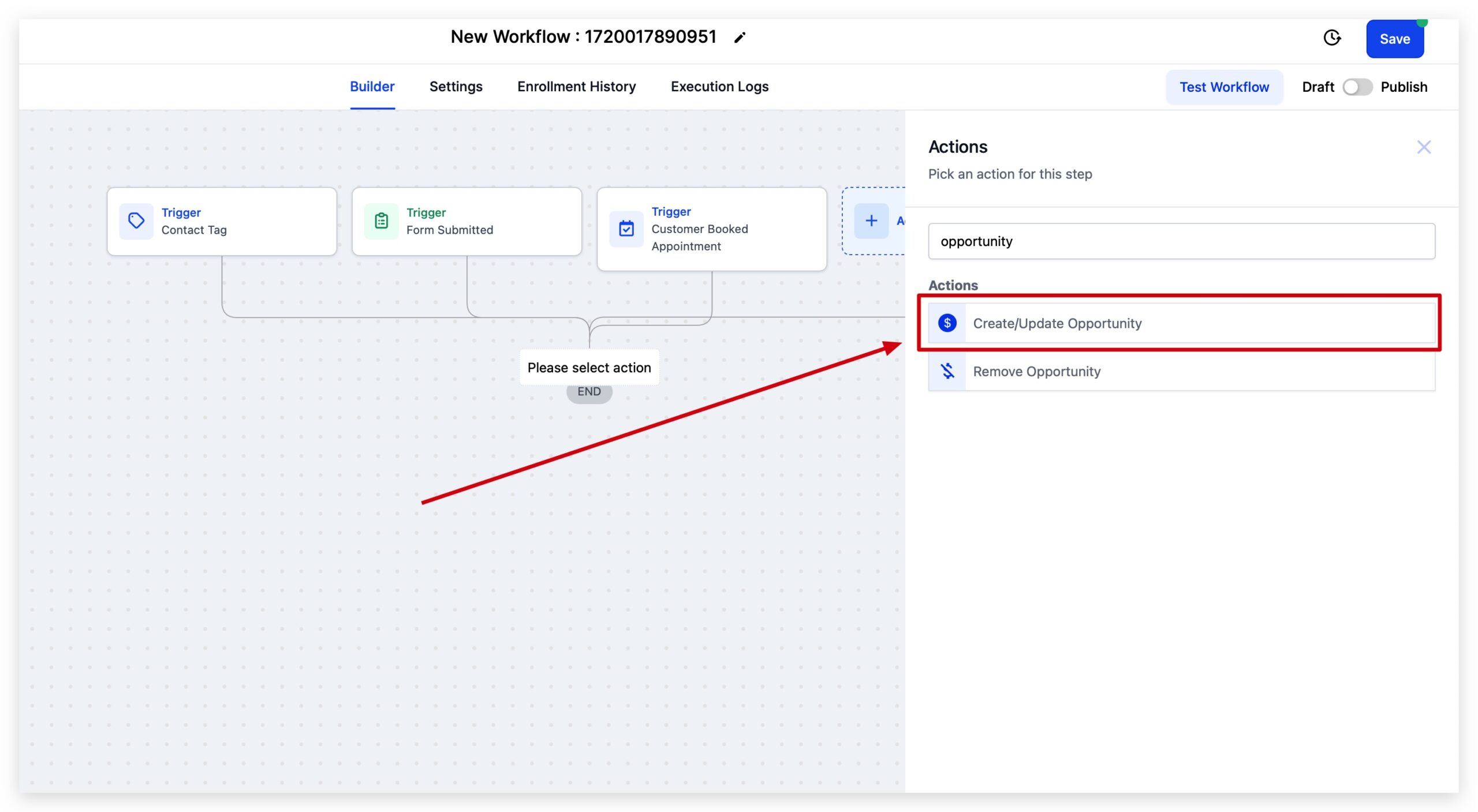
3. Add a Create/Update Opportunity action
* Inside the workflow, click to add a new action.
* Search for Create/Update Opportunity and add it.
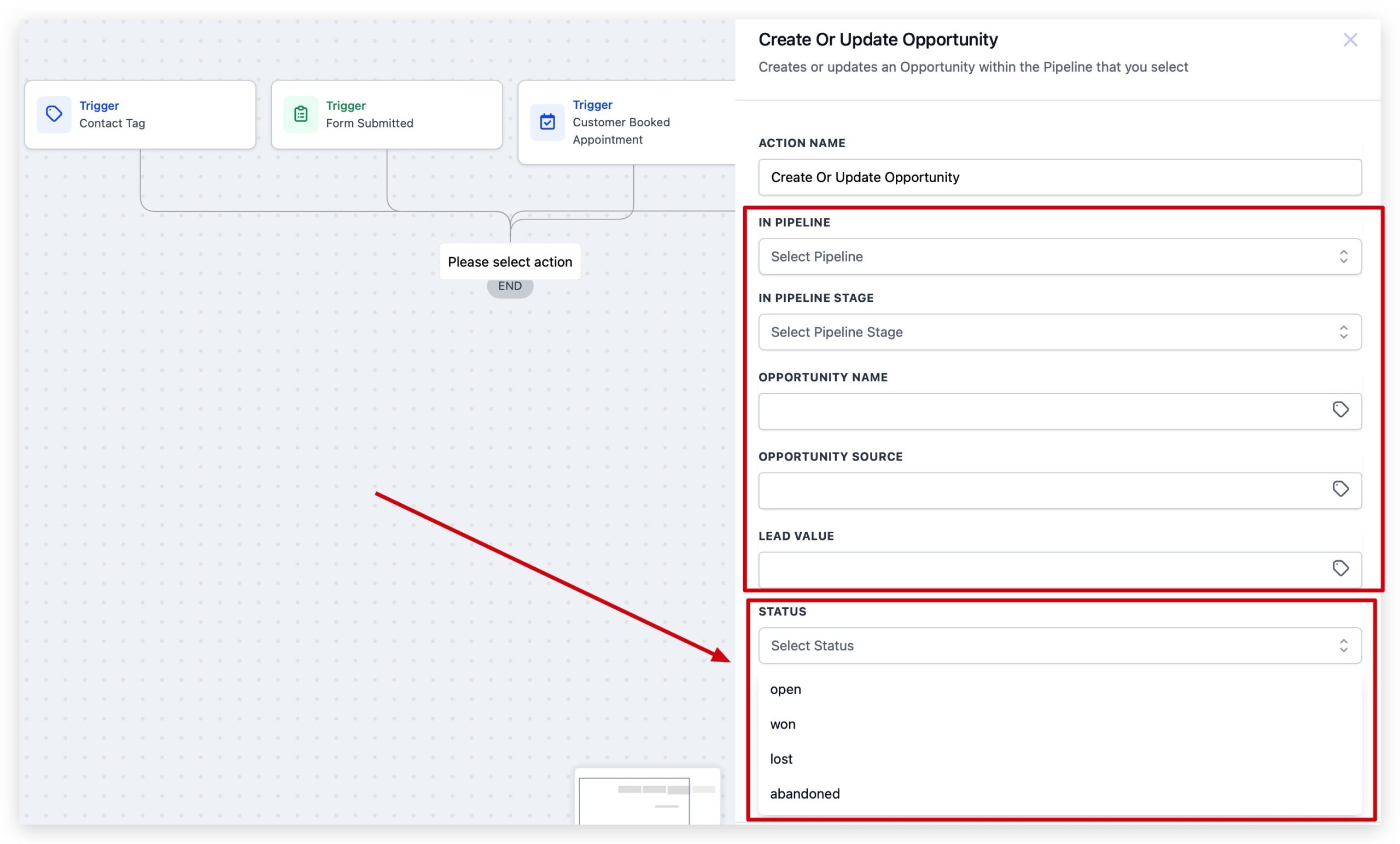
4. Configure the opportunity details
* Choose the correct pipeline and stage.
* Map the contact into the opportunity (name, value, source, owner, and so on).
* Set the Status field to Open, Won, Lost, or Abandoned based on the trigger.
5. Test your workflow
* Run a test contact through the trigger event (for example, a test payment).
* Confirm that GoHighLevel creates or updates the opportunity and the status changes as expected.
Once this is in place, your reports start lining up with real-world events — not just whatever your reps remembered to update.
If you want to go further, you can build separate workflows to automatically move opportunities to Lost or Abandoned after a certain number of missed follow-ups or no-shows.
Example: Auto-mark deals Won after payment
Here’s a practical recipe you can adapt:
- Trigger: Payment collected via GoHighLevel invoice, order form, or checkout.
- Filter (optional): Only apply when the product or pipeline matches your main offer.
- Action 1 – Create/Update Opportunity:
- Pipeline: your main sales pipeline.
- Stage: a "Closed Won" or "Customer" stage.
- Status: Won.
- Value: map from the payment amount.
- Action 2 – Internal notification:
- Send a Slack message, email, or SMS to the account owner with key details.
- Action 3 – Kick off onboarding:
- Add the contact to an onboarding workflow.
- Tag them as a current customer.
Now every time someone pays, GoHighLevel not only logs the transaction — it also closes the deal in your pipeline, updates revenue, and launches the right follow-up.
If you don’t yet have GoHighLevel set up for this level of automation, you can start experimenting risk-free: Try GoHighLevel free.
Best practices for keeping opportunity status clean
A few habits make a big difference in how trustworthy your pipeline becomes:
- Define the handshake between stages and status
- For example, an opportunity can only be set to Won once payment is confirmed, and only set to Lost after three unanswered follow-ups.
- Review "Open" deals on a schedule
- At least once a week, have reps review their Open column and either schedule a next step or move the deal to Won, Lost, or Abandoned.
- Avoid using "Abandoned" as a dumping ground
- Use it intentionally for low-quality or dead-fit leads. This keeps your Lost bucket meaningful for analyzing objections and competitive reasons.
- Use notes or custom fields for reasons
- Capture a short reason when you mark a deal Lost or Abandoned. Later you can use these insights to tighten your targeting and offers.
- Align reporting with your funnel goals
- Build dashboards that show Open vs Won vs Lost by pipeline, offer, and rep so you can see where automation or training would have the biggest impact.
This is where a well-configured GoHighLevel account really pays off: you’re not just updating cards, you’re creating a closed-loop system that feeds better decisions.
Revset Labs — an AI automation and marketing agency — can help you design these workflows, clean up existing pipelines, and roll out the reporting you actually need to run the business.
Next steps
If you’ve been living with a messy Opportunities board, now is a good time to:
- Clean up existing Open deals using drag-and-drop.
- Decide, as a team, when a deal should be marked Won, Lost, or Abandoned.
- Add at least one workflow that updates opportunity status automatically when something important happens (like a payment or booking).
From there, your pipeline stops being a wall of sticky notes and starts behaving like a real command center.
If you’re not using GoHighLevel yet, or you want a fresh, clean account to build this system in, you can get started here: Start your GoHighLevel trial.
And if you’d rather have a partner set everything up — from opportunity pipelines to workflow automation and reporting — Revset Labs can help you implement a complete GoHighLevel system so your team can focus on closing deals instead of chasing tools.