
When you’re running outbound or follow-up campaigns in GoHighLevel, a strong voicemail can quietly do a lot of heavy lifting. The right audio file makes your brand sound professional, delivers a clear next step, and helps your ringless voicemail or voicemail drops actually get heard—without annoying your leads.

This guide walks you through how to create, optimize, and export audio files that work perfectly with GoHighLevel voicemail and voicemail drops, plus a few tricks to boost conversions.
If you’re not using GoHighLevel yet, you can start a free GoHighLevel trial here and follow along as you build out your first campaigns.
What a Custom Voicemail Is (and How GoHighLevel Uses It)
A custom voicemail is a recorded message you upload and use instead of a generic, system-generated greeting. In GoHighLevel, you can use custom audio files for:
- Your normal voicemail greeting
- Voicemail drops inside workflows (ringless or regular)
- Follow-up campaigns that leave a message when a contact doesn’t pick up
The same audio file can be reused across multiple campaigns, so it’s worth taking the time to get it right.
Step 1: Plan a Script That Sounds Like a Real Human
Before you ever hit “record,” write a short script. High-performing voicemail drops in GoHighLevel usually have:
- A quick pattern interrupt – “Hey, it’s Sarah from ACME Roofing—don’t worry, this is super quick.”
- Context – Why you’re calling and how they ended up on your list.
- One clear call to action – Call back, reply to a text, book a time, or visit a page.
- Reassurance – That you’re not trying to spam them.
Keep it under 30–40 seconds. Long, rambling voicemails get skipped.
If you want Revset Labs to help you script and automate these flows, we can design the voicemail, SMS, and email sequence so everything works together instead of in silos.
Step 2: Record Your Audio (Online Tools)
If you just need a clean, simple recording, you can use a browser-based tool—no software install needed. Two easy options are:
Tips when recording:
- Use a quiet room and speak closer to the microphone than you think.
- Smile while you talk—your tone will naturally sound warmer.
- Record two or three takes and pick the best one.
Download the file when you’re happy with it. We’ll optimize it in a later step.
Step 3: Record or Edit With Desktop Apps (Audacity)
If you want more control over sound quality or need to trim/edit the audio, a desktop app is a better fit. The go-to option here is Audacity, a free, open-source audio editor:
You can record directly into Audacity or import a file you recorded elsewhere. Basic workflow:
- Open Audacity and select your microphone input.
- Hit Record, then read your script.
- Trim silence at the beginning and end.
- Use Effect → Normalize to even out volume if needed.
This gives you a clean base file that’s ready to be converted into a GoHighLevel‑friendly format.
Step 4: Optimize File Format & Quality for Voicemail Drops
For voicemail drops to work across carriers, you want small, compatible files—not giant, high-fidelity audio.
Whether you recorded online or in Audacity, keep these guidelines in mind:
- Bitrate / quality: 64 kbps (often labeled “economy” or “small”).
- Sample rate: 8000 Hz (telephone quality—perfectly fine for voice).
- Mono audio: You don’t need stereo for voicemail.
If you’re using an online converter such as Online Audio Converter or Online Audio Converter:
- Upload your audio file.
- Choose MP3 or WAV as the output.
- Set quality/bitrate to 64 kbps.
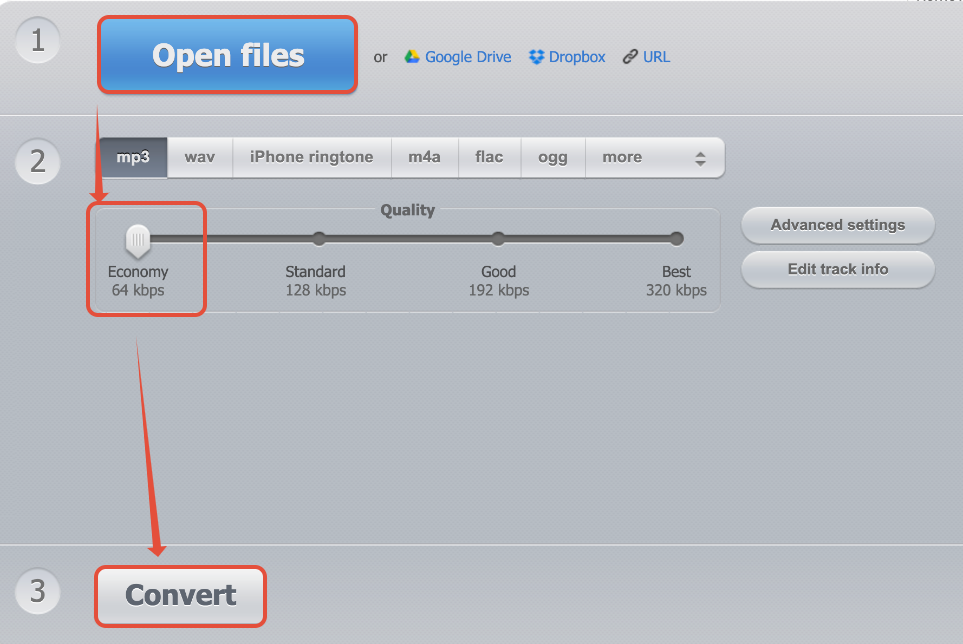
- Convert and download the optimized file.
These settings reduce file size and make your audio more reliable across phone carriers.
Step 5: Export a GoHighLevel‑Ready Voicemail File in Audacity
If you’re working in Audacity, you can dial in the exact format GoHighLevel recommends for voicemail and voicemail drops:
- Drag and drop your audio file into Audacity (or record directly).
- In the bottom left, set the Project Rate (Hz) to 8000.
- Go to Tracks → Resample…, type 8000, and click OK.
- Go to File → Export → Export Audio….
- For Save as type, choose Other uncompressed files.
- Click Options… and set:
- Header:
WAV - Encoding:
U-Law
- Header:
- Click OK, then Save.
You’ll end up with a small, carrier-friendly WAV file that works well for GoHighLevel voicemail actions.
Shortcut: If you prefer, Revset Labs can build this as a repeatable workflow for your team—script templates, recording checklist, export settings, and upload steps—so any rep can add new voicemail drops without breaking campaigns.
Step 6: Upload Your Audio File into GoHighLevel
Once your audio file is ready, it’s time to plug it into GoHighLevel.
Exact navigation can change as the platform evolves, but the general process is:
- Log in to your GoHighLevel account. If you don’t have one yet, start your free GoHighLevel trial here.
- Go to the area where you configure voicemail or voicemail drops (usually as an action inside a workflow or campaign).
- Add a Voicemail or Voicemail Drop step.
- Choose Upload Audio (or similar) and upload the WAV/MP3 file you created.
- Save your workflow.
From there, any contact who hits that step in the workflow will receive your voicemail automatically—either as a direct drop into voicemail or as a standard answered call that rolls to voicemail, depending on your setup.
Best Practices for High-Converting Voicemail Drops
To turn voicemails into booked calls and sales, combine solid audio with smart strategy:
- Match the voicemail to the rest of the funnel. Make sure your voicemail references the same offer and promise as your landing page, SMS, and emails.
- Give one clear next step. “Text BACK with ‘QUOTE’ for pricing,” or “Use the link in the text we just sent to book a time.”
- Sound conversational, not scripted. Read your script out loud a few times, then record from memory so it feels more natural.
- Test different versions. Create 2–3 voicemail files and A/B test across campaigns to see which one drives more replies and bookings.
- Respect compliance. Only send voicemails to contacts who have consented, and follow your local telemarketing and TCPA rules.
When you stitch this together with GoHighLevel workflows—missed call texts, automatic follow‑ups, and pipeline tracking—you get a follow‑up machine that works 24/7.
If you want a done‑for‑you build that plugs voicemail drops directly into your funnels, spin up a GoHighLevel trial through this link and Revset Labs can architect the whole system around it.
How Revset Labs Can Help You Launch Voicemail Campaigns Faster
Revset Labs is an AI automation and marketing agency that specializes in building ROI‑driven systems on top of platforms like GoHighLevel.
For voicemail and voicemail drops, we can help you:
- Design scripts tailored to your audience and offer.
- Set up the full recording and export workflow so anyone on your team can produce new voicemails.
- Build GoHighLevel workflows that combine voicemail drops, SMS, email, and pipelines into a single, trackable system.
- Layer AI follow‑up, lead scoring, and routing on top so your sales team only talks to the best opportunities.
If you’re serious about using GoHighLevel to its full potential, partnering with Revset Labs lets you skip the guesswork and go straight to a proven, automated setup.
FAQ: GoHighLevel Voicemail Audio Files
What audio format works best for GoHighLevel voicemail drops?
For maximum compatibility, export your voicemail as a WAV file with U-Law encoding at 8000 Hz. This is telephone-quality audio that most carriers handle reliably.
Can I use an MP3 file instead of WAV?
In many cases you can, especially if you convert it to 64 kbps mono using an online tool like Online Audio Converter. However, if you run into issues with specific carriers or destinations, switch to the WAV U-Law format described above.
How long should my voicemail drop be?
Aim for 20–40 seconds. Long messages get skipped. Focus on who you are, why you’re calling, and one clear next step.
Do I need a professional microphone?
No. A decent USB mic or even a modern smartphone headset in a quiet room is usually enough. The content and clarity of the message matter more than studio-level gear.
How do I test my voicemail before sending it to a full list?
Add yourself and a few teammates to a test workflow in GoHighLevel that uses your voicemail drop. Run the workflow, listen to how the message lands in each voicemail box, and tweak your audio or script before rolling it out to your whole audience.