

If you’re ready to move off Calendly and run all your scheduling, CRM, and automation in one place, HighLevel gives you everything Calendly does plus lead tracking, pipelines, email/SMS, and revenue workflows.
This guide walks you through a clean Calendly to HighLevel migration without breaking your booking links or automations.
Why move from Calendly to HighLevel?
Calendly is great for simple booking links. HighLevel turns those bookings into a full revenue system:
- Centralize all leads, opportunities, and conversations in one CRM.
- Trigger email, SMS, and pipeline automations the moment someone books.
- Track which campaigns and appointment types actually drive revenue.
- Give your team a single place to manage calendars, contacts, and follow‑up.
If you’re not on HighLevel yet, you can start a free GoHighLevel trial here and follow this guide as you set things up.
What you’ll migrate from Calendly to HighLevel
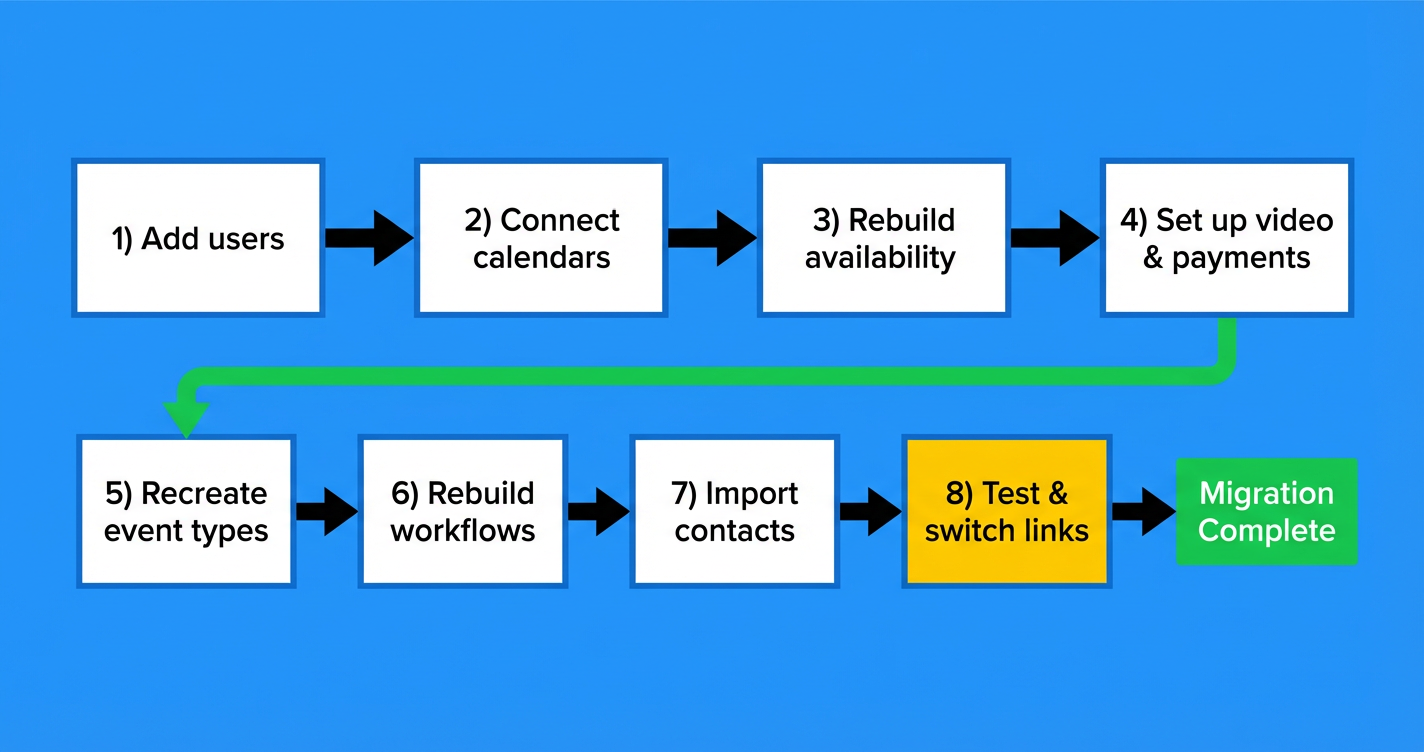
To fully replace Calendly with HighLevel, you’ll migrate these pieces:
- Users – everyone who owns a calendar today.
- Calendar connections – Google, Outlook, or iCloud.
- Availability rules – working hours, buffers, limits, and notice periods.
- Video conferencing – Zoom or other meeting links.
- Payment collection – Stripe or other gateways tied to bookings.
- Event types – the actual appointment types people can book.
- Workflows / automations – reminders, confirmations, follow‑ups.
- Contacts – people who have booked with you through Calendly.
The sections below follow this exact order so you can work through your Calendly to HighLevel migration step by step.
1. Add your users in HighLevel
Before you rebuild anything, make sure every Calendly user that owns a booking link exists inside your HighLevel sub‑account.
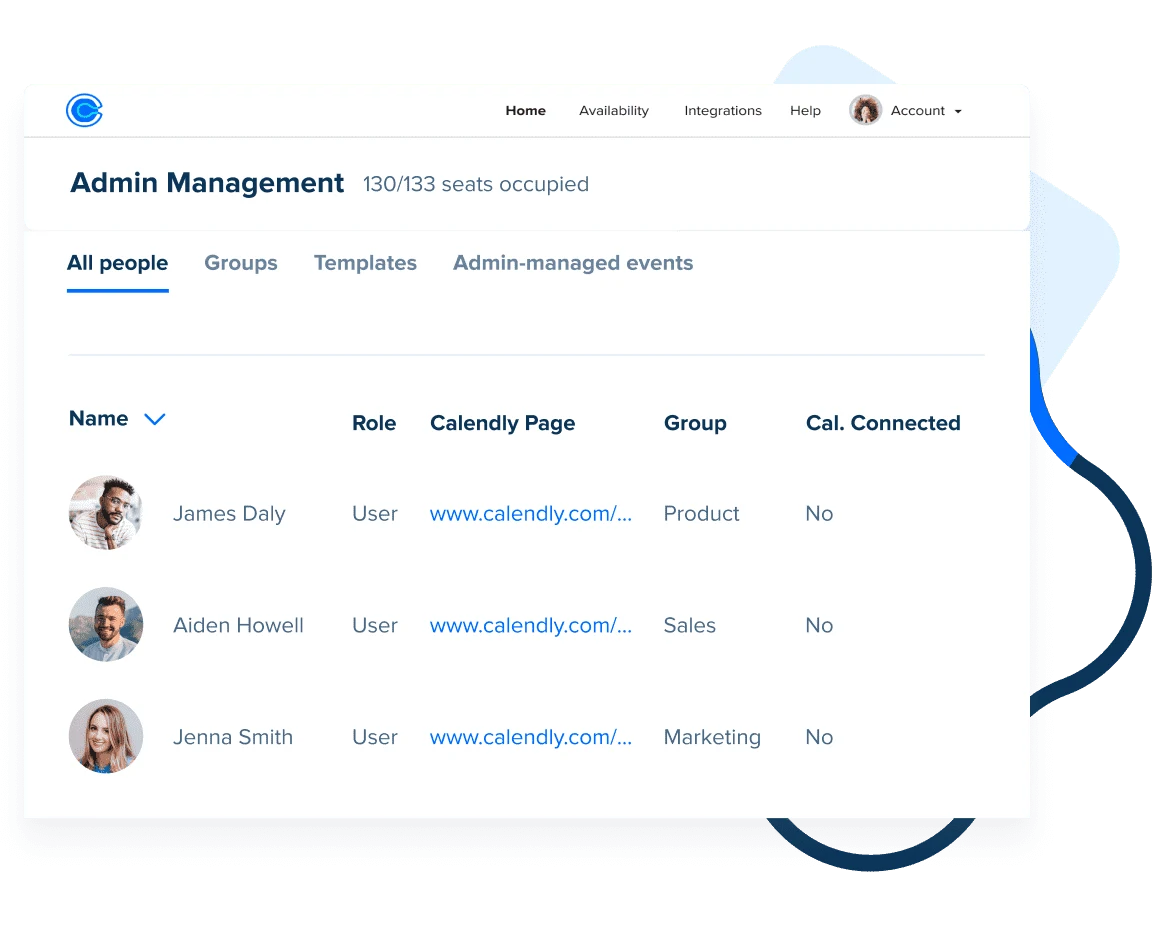
Step 1 – Export your Calendly users
- In Calendly, go to Account → Users.
- Export your users to CSV so you have a list of everyone with calendars and what they do.
- Note who owns which event types (sales calls, onboarding, support, etc.).
Step 2 – Create matching users in HighLevel
- In HighLevel, go to Settings → Team (or Agency Settings → Team if you manage multiple sub‑accounts).
- For each Calendly user, create a matching Employee in the right HighLevel sub‑account.
- Assign appropriate roles and permissions so they can access calendars, contacts, and automations.
Tip: Use a consistent naming convention so it’s easy to match Calendly event owners to HighLevel users later.
If you don’t want to handle the user and permission mapping yourself, Revset Labs can implement this for you as part of a done‑for‑you migration.
2. Connect calendars to HighLevel (Google, Outlook, iCloud)
Calendly reads from your external calendar so you don’t get double‑booked. HighLevel does the same, but you’ll connect calendars directly to HighLevel instead of Calendly.
Step 1 – Disconnect calendars from Calendly
For each user:
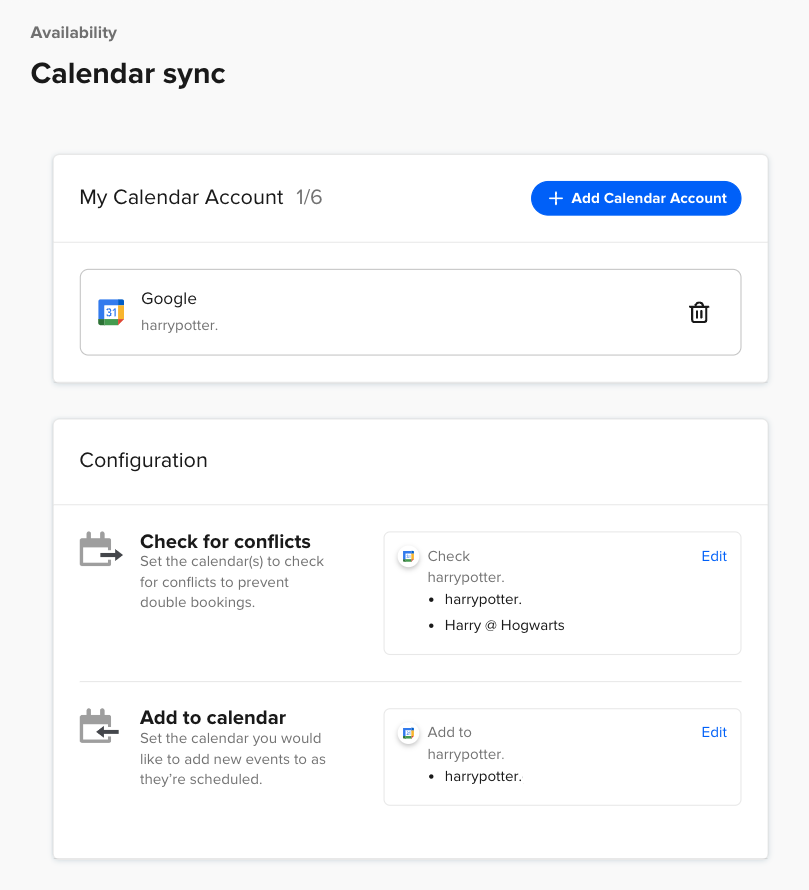
- In Calendly, go to Account → Calendar Sync.
- Note which calendar accounts are connected (Google, Outlook, iCloud).
- Disconnect those calendars so they’re no longer powering live booking links once you’re ready to switch.
(You can keep Calendly connected until your final test window if you prefer a phased cut‑over.)
Step 2 – Connect calendars inside HighLevel
For each user in HighLevel:
- Go to Settings → Integrations.
- Connect their Google or Microsoft calendar account.
- Under Calendars → Calendar Settings → Connections, choose which calendars HighLevel should read from (to detect busy times) and write to (where new bookings are created).
Step 3 – Run a calendar sync test
- Create a test event directly on the user’s Google/Outlook calendar.
- Confirm that time appears as busy inside the HighLevel calendar.
- Book a test appointment through a HighLevel calendar link.
- Confirm the event lands on the correct external calendar with the right title, time zone, and guests.
If that round‑trip works, your Calendly to HighLevel calendar sync is in good shape.
3. Rebuild your availability and scheduling rules
Your Calendly availability is more than just hours on a calendar. It includes buffers, min/max notice windows, and daily booking caps.
Step 1 – Document your Calendly scheduling rules
In Calendly, review each important event type and note:
- Available days and hours (per user).
- Buffer times before/after meetings.
- Minimum scheduling notice (e.g., no same‑day bookings).
- Daily/weekly limits per event type.
- Time zone behavior (invitee vs organizer time zone).
Step 2 – Configure availability in HighLevel
In HighLevel:
- Go to Calendars → Calendar Settings → Availability for each calendar.
- Set working hours to match your Calendly setup.
- Add buffer times before/after appointments.
- Configure minimum notice and maximum appointments per day.
- Confirm default time zone settings at the location and user level.
Pro tip: Use tags or naming like “Sales – 30 min” or “Onboarding – 60 min” so anyone can instantly see what a calendar is for.
Step 3 – Run a calendar sync test
- Create a test event directly on the user’s Google/Outlook calendar.
- Confirm that time appears as busy inside the HighLevel calendar.
- Book a test appointment through a HighLevel calendar link.
- Confirm the event lands on the correct external calendar with the right title, time zone, and guests.
If that round‑trip works, your Calendly to HighLevel calendar sync is in good shape.
4. Set up video conferencing and payments in HighLevel
If you used Zoom or collected payments in Calendly, rebuild those integrations directly in HighLevel so every booking creates the right meeting link and charges the right amount.
Video conferencing
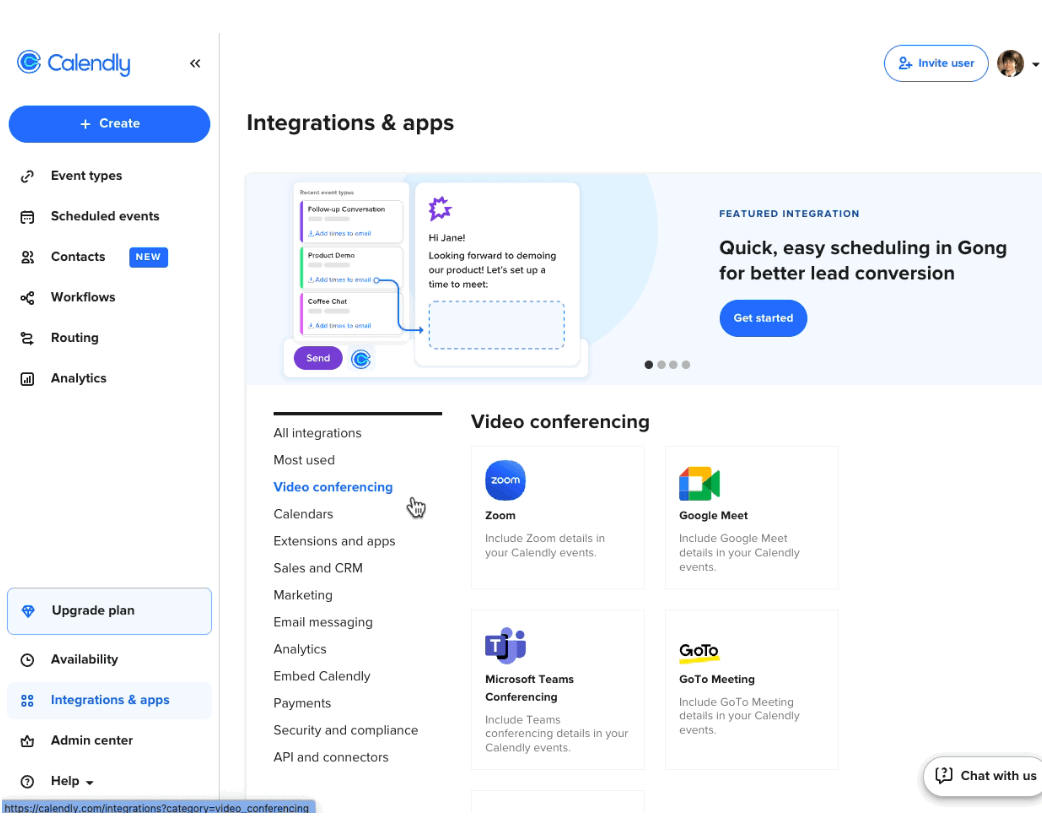
- Go to Settings → Integrations in HighLevel.
- Connect Zoom (or your preferred tool) for each user that needs meeting links.
- In your calendar settings, choose the default meeting location (Zoom, Google Meet, phone, in‑person, etc.).
Payment collection
- Go to Settings → Integrations → Payments.
- Connect Stripe or your preferred payment provider.
- In each paid calendar, decide whether payment is required to book or optional.
- Configure pricing, currencies, and any coupon logic.
Once payments and meeting links are wired into HighLevel, you can safely retire those pieces from Calendly.
If you’d like someone to own this end‑to‑end (including test transactions), Revset Labs can configure payment and conferencing as part of a broader GoHighLevel rollout.
5. Recreate Calendly event types as HighLevel calendars
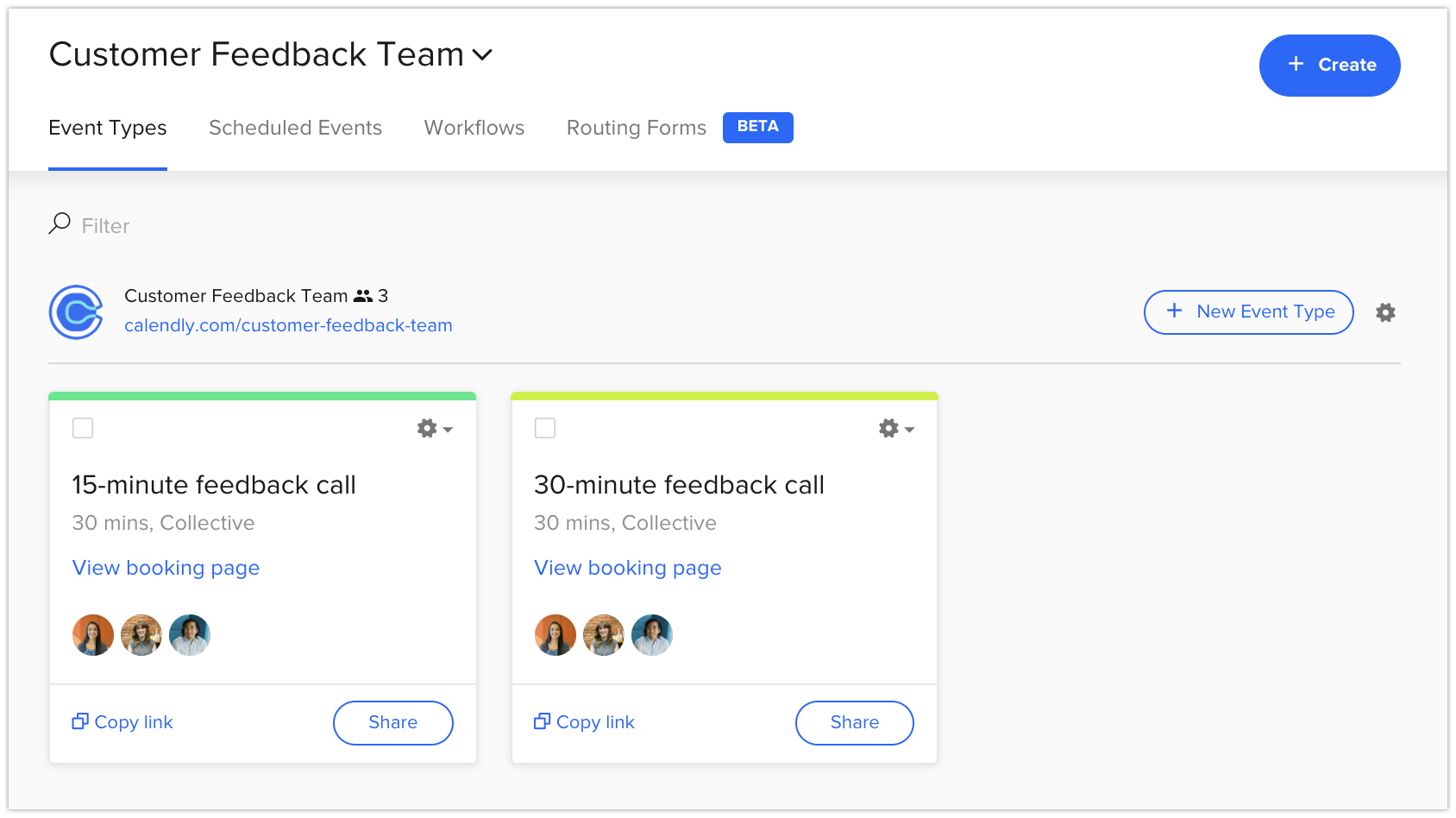
In Calendly, “event types” are the actual links your clients click. In HighLevel, you’ll rebuild these as calendars and appointment types.
Step 1 – Inventory your Calendly event types
For each key event type, capture:
- Event name and purpose (e.g., “15‑Minute Discovery Call”).
- Duration.
- Location (Zoom, phone, in‑person).
- Owner (which user’s calendar it belongs to).
- Any custom questions on the booking form.
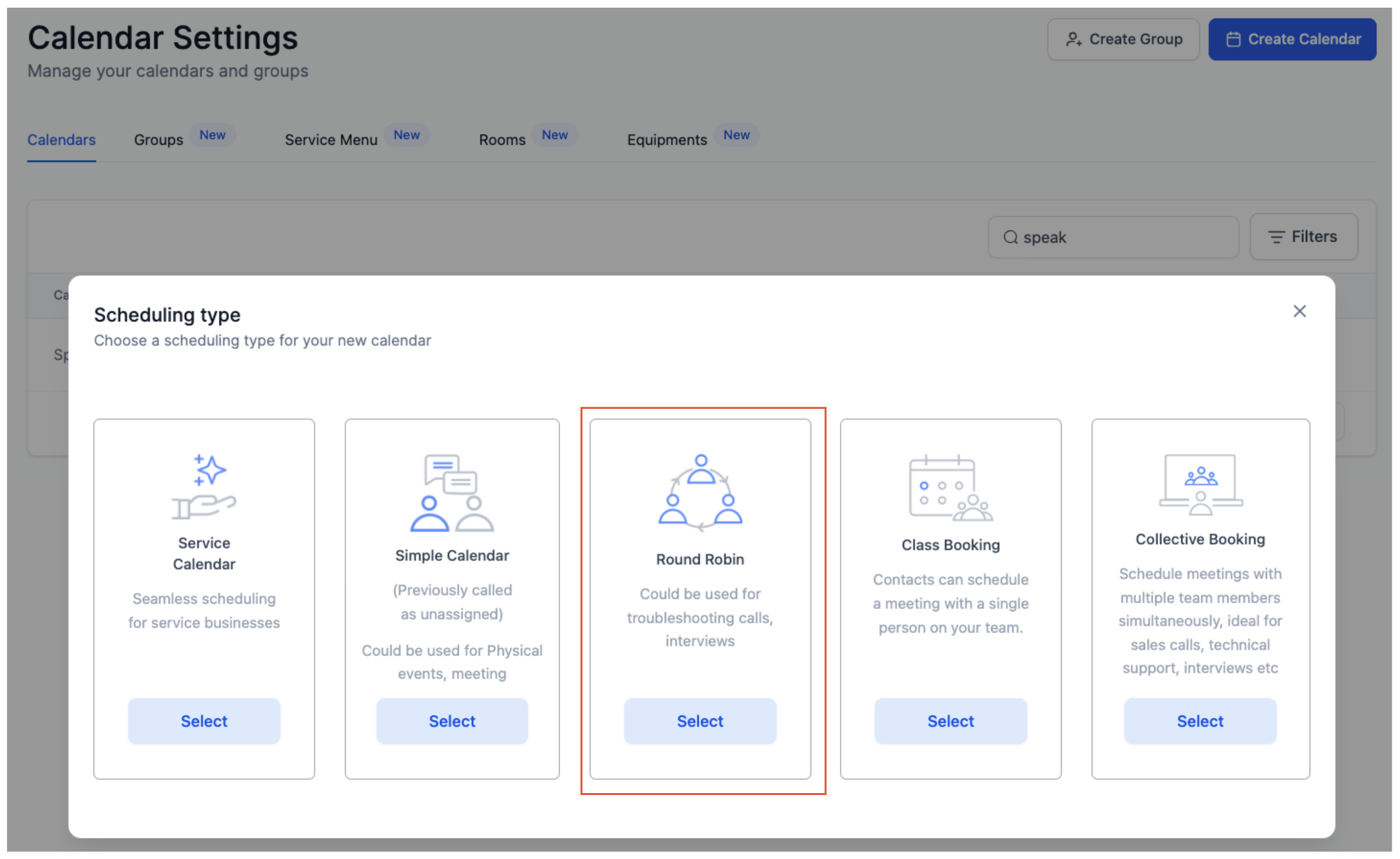
- Routing rules (round‑robin, collective scheduling, etc.).
Step 2 – Build matching calendars in HighLevel
In HighLevel:
- Go to Calendars → Calendar Settings.
- Create a new calendar for each major Calendly event type.
- Assign the correct user(s) as calendar owners.
- Match duration, location, and other core settings.
- Recreate important custom questions as HighLevel form fields.
Step 3 – Generate and store new booking links
- For each HighLevel calendar, copy the public booking link.
- Keep a simple mapping doc:
Old Calendly link → New HighLevel link. - You’ll use this later when you replace links on your website, emails, and funnels.
Optional bridge: You can temporarily integrate Calendly with HighLevel so Calendly bookings flow into the CRM, but this guide is focused on a full Calendly to HighLevel migration where HighLevel becomes the source of truth.
Step 4 – Post-Migration Check
- Test Booking Process: Ensure that the booking process works as expected by performing a test booking through the new HighLevel appointment link. Verify that all settings (e.g., buffer times, form questions, notifications, Zoom link) function correctly.
6. Rebuild your workflows and automations
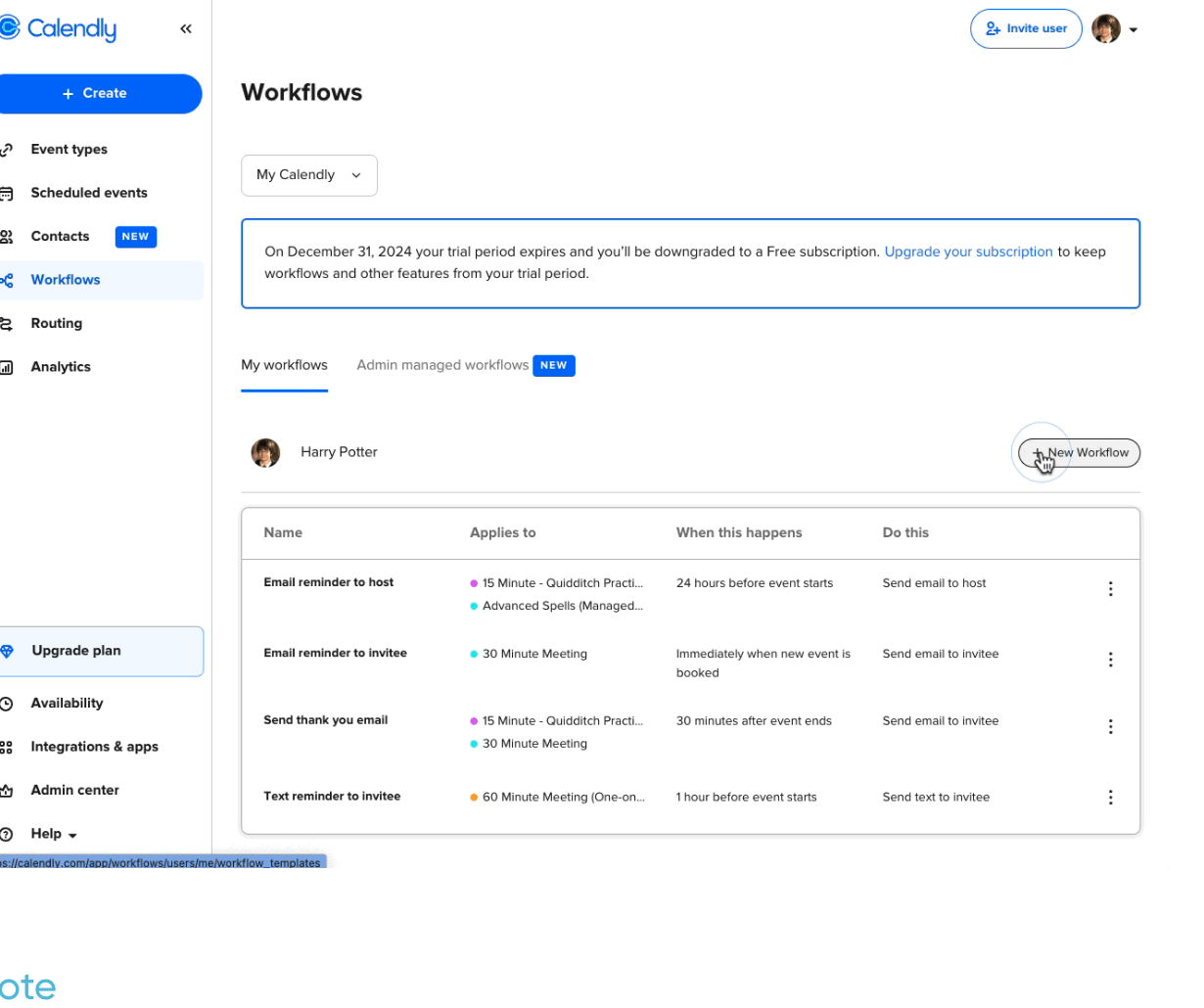
Calendly workflows handle confirmations and reminders. HighLevel workflows can do all of that plus add contacts to pipelines, trigger campaigns, and update custom fields.
Step 1 – Document existing Calendly workflows
For each key event type, list:
- Triggers – event scheduled, rescheduled, or cancelled.
- Timing – when emails/SMS are sent (instant, 24 hours before, 1 hour before, etc.).
- Channels – email vs SMS.
- Content – subject lines, body copy, links, and merge fields.
Step 2 – Recreate workflows in HighLevel
In HighLevel:
- Go to Automations → Workflows.
- Create a workflow per booking journey (e.g., “Sales Call Reminders”, “Onboarding Session Follow‑Up”).
- Use triggers like Appointment Status = Confirmed / Showed / No‑Show / Cancelled.
- Add actions for email, SMS, pipeline status updates, and tasks for your team.
- Bring over proven messaging from your Calendly reminders, then enhance it with HighLevel personalization.
Step 3 – Add post‑appointment follow‑up
This is where HighLevel really outperforms Calendly:
- Automatically send post‑call recap emails.
- Drop no‑shows into a “Re‑engagement” sequence.
- Create pipeline opportunities for high‑intent bookings.
- Tag contacts based on which calendar they used.
To fully unlock this, consider pairing this migration with a fresh HighLevel account set up using a free trial through this link and having Revset Labs design your appointment funnels end to end.
7. Import contacts from Calendly into HighLevel
You don’t want historical bookers stuck in Calendly while new meetings live in HighLevel.
Step 1 – Export contacts from Calendly
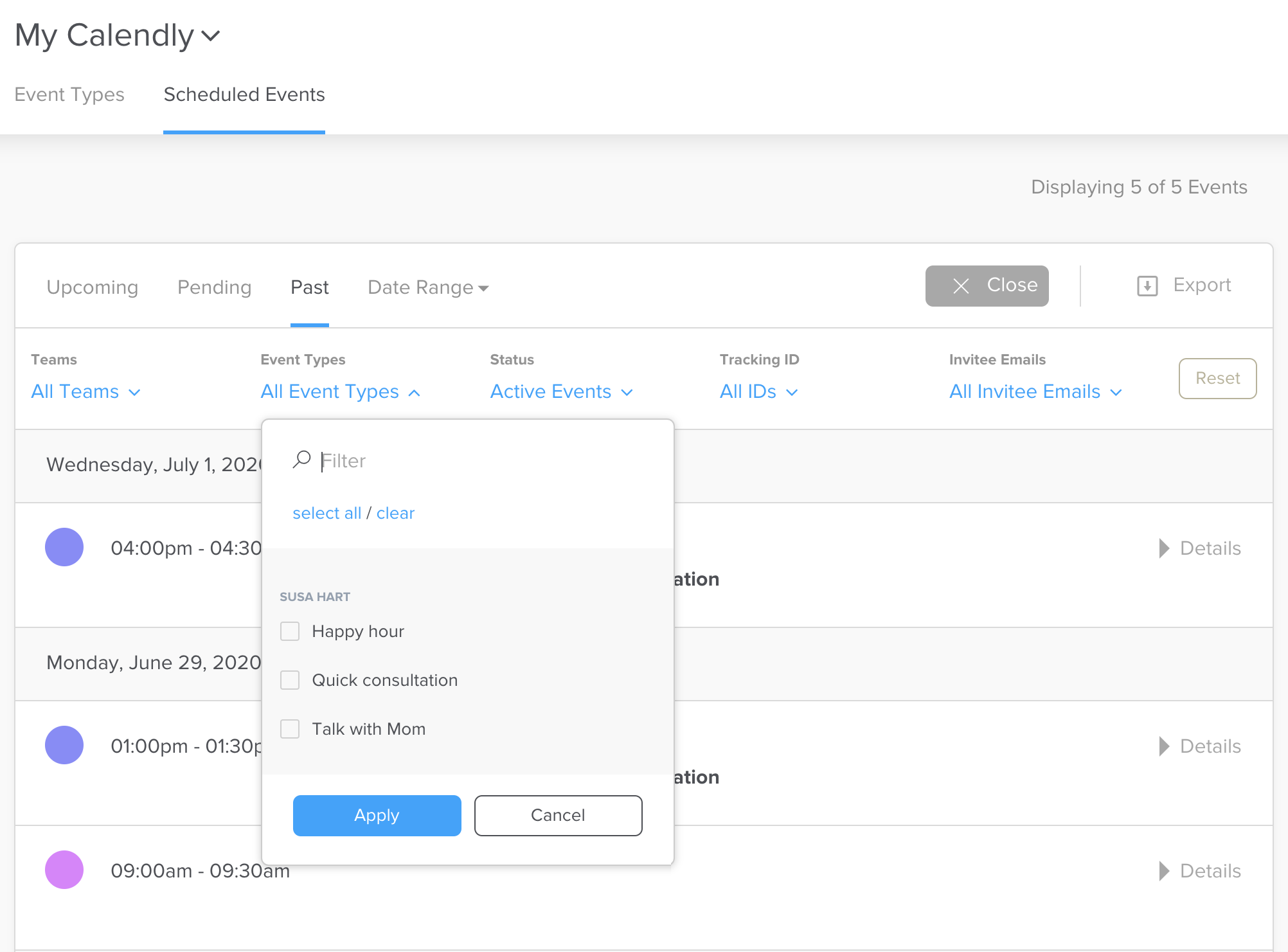
- In Calendly, export past invitees to CSV.
- Make sure you capture at least: name, email, phone (if collected), and which event they booked.
Step 2 – Clean and tag your CSV
Before importing into HighLevel:
- Remove obvious duplicates.
- Standardize phone numbers with country codes.
- Add a column like Source = Calendly.
- Optionally add Last Calendly Event Type for later segmentation.
Step 3 – Import into HighLevel
- In HighLevel, go to Contacts → Import.
- Upload your CSV and map fields to HighLevel properties.
- Use tags (e.g.,
source_calendly) so you can build segments and reports later.
Once imported, every future booking will enrich these same contact records instead of living in a separate scheduling tool.
8. Test, switch links, and go live
With your Calendly to HighLevel migration basically complete, all that’s left is to test thoroughly and replace your public links.
Step 1 – End‑to‑end testing
For each critical booking path:
- Click the new HighLevel booking link.
- Schedule a test appointment.
- Confirm the event appears correctly on the external calendar and inside HighLevel.
- Verify meeting links, payment collection (if applicable), and reminder messages.
Step 2 – Replace Calendly links everywhere
Update:
- Website buttons and embedded widgets.
- Email signatures.
- Nurture sequences and campaign emails.
- Ads and landing pages.
- Any PDFs or onboarding docs that reference Calendly URLs.
Whenever you swap a link, test it once live.
Step 3 – Decommission Calendly
Once you’re confident all major flows are running through HighLevel:
- Downgrade or cancel your Calendly subscription.
- Keep exports of users and past bookings for your records.
From this point on, HighLevel is your single source of truth for bookings, contacts, and pipeline.
Additional Calendly to HighLevel migration tips
- Start with one team or booking type. Migrate your core sales or demo calls first, then roll out to onboarding and support.
- Standardize naming. Use consistent names for calendars, pipelines, and workflows across teams.
- Measure lift. Compare show rate, close rate, and revenue per booking before vs. after the migration.
- Protect deliverability. If you’re adding new reminder emails, warm up domains and keep copy helpful and clear.
Revset Labs can handle this entire Calendly to HighLevel migration for you—from mapping and build‑out to QA and launch—so your team just logs into a finished system.
FAQs: Calendly to HighLevel migration
How long does a Calendly to HighLevel migration take?
For a small team with a handful of event types, you can usually complete the migration in a day or two, including testing. Larger teams with complex routing and automations may need a week or more to rebuild and validate everything.
Can I run Calendly and HighLevel side by side for a while?
Yes. Many teams keep Calendly live while they stand up HighLevel, then swap links only after they’ve tested the new flows. Just make sure you’re clear internally on which tool is the “source of truth” during that window.
Will my existing Calendly links keep working after I migrate?
Old Calendly links will keep working as long as your Calendly subscription is active, but they won’t benefit from your new HighLevel workflows. That’s why it’s best to replace links everywhere once you’ve finished your tests.
What if I don’t have time to rebuild everything myself?
You can still take advantage of HighLevel’s all‑in‑one CRM by letting a specialist handle the heavy lifting. Revset Labs can audit your Calendly setup, map it to HighLevel, rebuild calendars and workflows, and manage the cut‑over so your team experiences minimal disruption.
If you’re ready to centralize your scheduling, CRM, and follow‑up, start your free GoHighLevel trial and use this migration guide as your implementation checklist.