
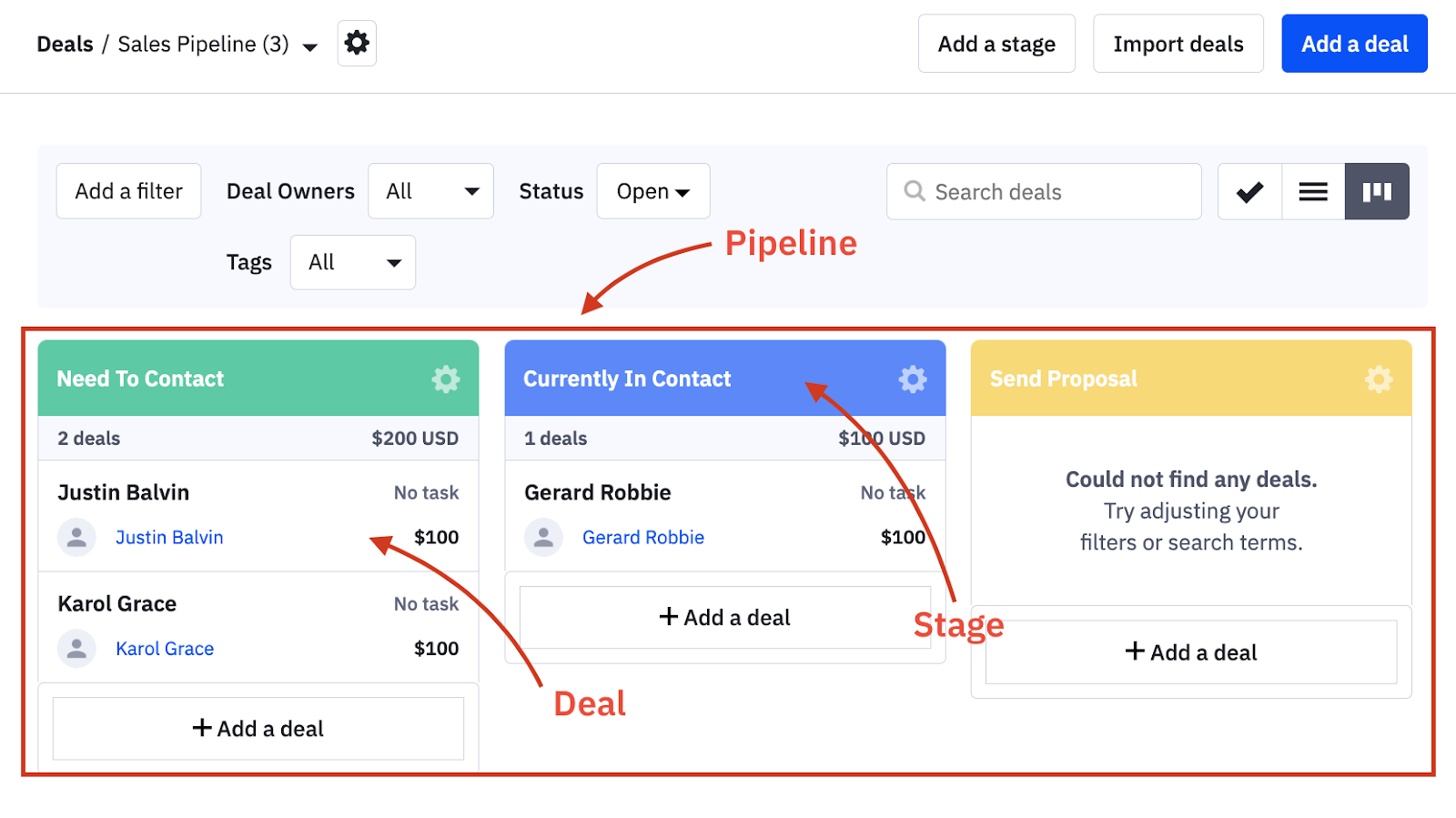
Switching from ActiveCampaign to GoHighLevel is one of those moves that can quietly transform your operations—if you migrate the right things, in the right order, without breaking what’s already working.This guide walks you through a practical, low‑stress migration path. You’ll see exactly what to move, how to structure your data in GoHighLevel, and how to keep campaigns running while you transition.If you haven’t opened your GoHighLevel account yet, you can start a free trial here so you can follow along as you read: Start your free GoHighLevel trial.—## What You’re Moving from ActiveCampaign to GoHighLevelBefore you touch any settings, get clear on the building blocks you’re migrating. In almost every ActiveCampaign account, these core assets show up:- Contacts – people and companies, including custom fields and tags.- Deals / Pipelines – open opportunities and their stages.- Email templates – one‑off campaigns and automation emails.- Landing pages – opt‑in pages, thank‑you pages, tripwire offers.- Forms – embedded or hosted forms used across your site.- Automations – all the logic that glues emails, tags, and actions together.In GoHighLevel, these map to:- Contacts and Custom Fields– Opportunities & Pipelines– Email Templates & Campaigns– Funnels & Websites– Forms & Surveys– Workflows (automations)Your job is to move each of these in a clean, controlled way—ideally while keeping ActiveCampaign live until GoHighLevel is fully tested.—## Step 1 – Migrate Contacts Cleanly into GoHighLevelContacts are the foundation for everything else. If you rush this step, you’ll fight bad data forever.### 1. Export contacts from ActiveCampaign1. Log in to ActiveCampaign and go to Contacts.2. Filter down to the audience you actually want to bring over (for example, exclude unsubscribes, bounced contacts, and obvious test data).3. Click Export and choose the fields you need:- Email- First name / Last name- Phone number- Tags- Key custom fields (industry, lifecycle stage, plan type, etc.)4. Name your CSV export (avoid special characters like # or &).5. Download the CSV file.### 2. Prepare the CSV for HighLevelClean data now so you don’t have to fix it inside GoHighLevel later:- Standardize dates to YYYY-MM-DD where possible.- Use UTF‑8 encoding so accented characters import correctly.- Strip emojis and odd symbols from free‑text fields that don’t need them.- Validate emails – remove rows with obviously invalid addresses.- Consider splitting lists into separate CSVs if you want different tags or pipelines on import.### 3. Import contacts into GoHighLevel1. Log in to GoHighLevel and navigate to Contacts.2. Click Import Contacts and upload your cleaned CSV.3. Map each CSV column to the right HighLevel field (create Custom Fields in GoHighLevel where needed).4. Apply tags like Imported – ActiveCampaign and any list‑based tags you want to preserve.5. Start the import and wait for it to complete.### 4. Verify your imported contacts- Spot‑check a handful of contacts to confirm:- Names, emails, phone numbers, and tags came through correctly.- Key custom fields are mapped and visible.- Run quick filters for your most important segments to make sure counts look reasonable.> Tip: Once contacts are in GoHighLevel, you’re already in a position to run simple broadcasts and pipelines—even before the rest of the migration is complete. If you’re starting from scratch and want to follow these steps hands‑on, open a new GoHighLevel account here: Launch your GoHighLevel account.—## Step 2 – Move Deals and Pipelines (Opportunities)Next, you’ll bring over your pipeline so your sales team can keep working without disruption.### 1. Export deals from ActiveCampaign1. In ActiveCampaign, go to Deals.2. Filter to the pipelines and stages you care about (for example, exclude closed‑lost if you don’t need that history).3. Export deals with fields like:- Deal title / name- Deal value- Pipeline- Stage- Owner- Associated contact email- Close date and other relevant custom fields### 2. Prepare the deals CSV- Make sure every deal has a matching contact that already exists in your contact CSV.- Normalize pipeline and stage names so you can map them 1:1 to HighLevel.- Remove obviously dead or duplicate deals to avoid cluttering your new system.### 3. Import deals as Opportunities in GoHighLevel1. In GoHighLevel, go to Opportunities.2. Confirm your pipelines and stages are configured the way you want.3. Click Import Opportunities and upload your deals CSV.4. Map columns to:- Opportunity name- Value- Pipeline- Stage- Contact (email)- Owner / assignee5. Run the import and then open a few key deals to verify values, stages, and assignments.### 4. Confirm your pipeline views- Switch between pipelines and stages to check that counts line up with what you had in ActiveCampaign.- Create views or filters for high‑priority opportunities so sales can hit the ground running on day one in GoHighLevel.—
 ## Step 3 – Bring Over Email TemplatesNow that your data is in place, you can move the assets your team uses every day.### 1. Share templates from ActiveCampaign1. In ActiveCampaign, go to Campaigns → Campaign Templates.2. For each template you want to keep, click the gear icon and choose Share.3. Copy the share link for each template.### 2. Import templates into GoHighLevel1. In GoHighLevel, navigate to Marketing → Emails → Templates.2. Click Create New Template → Import Template.3. Paste the ActiveCampaign share link.4. Name the template clearly (for example,
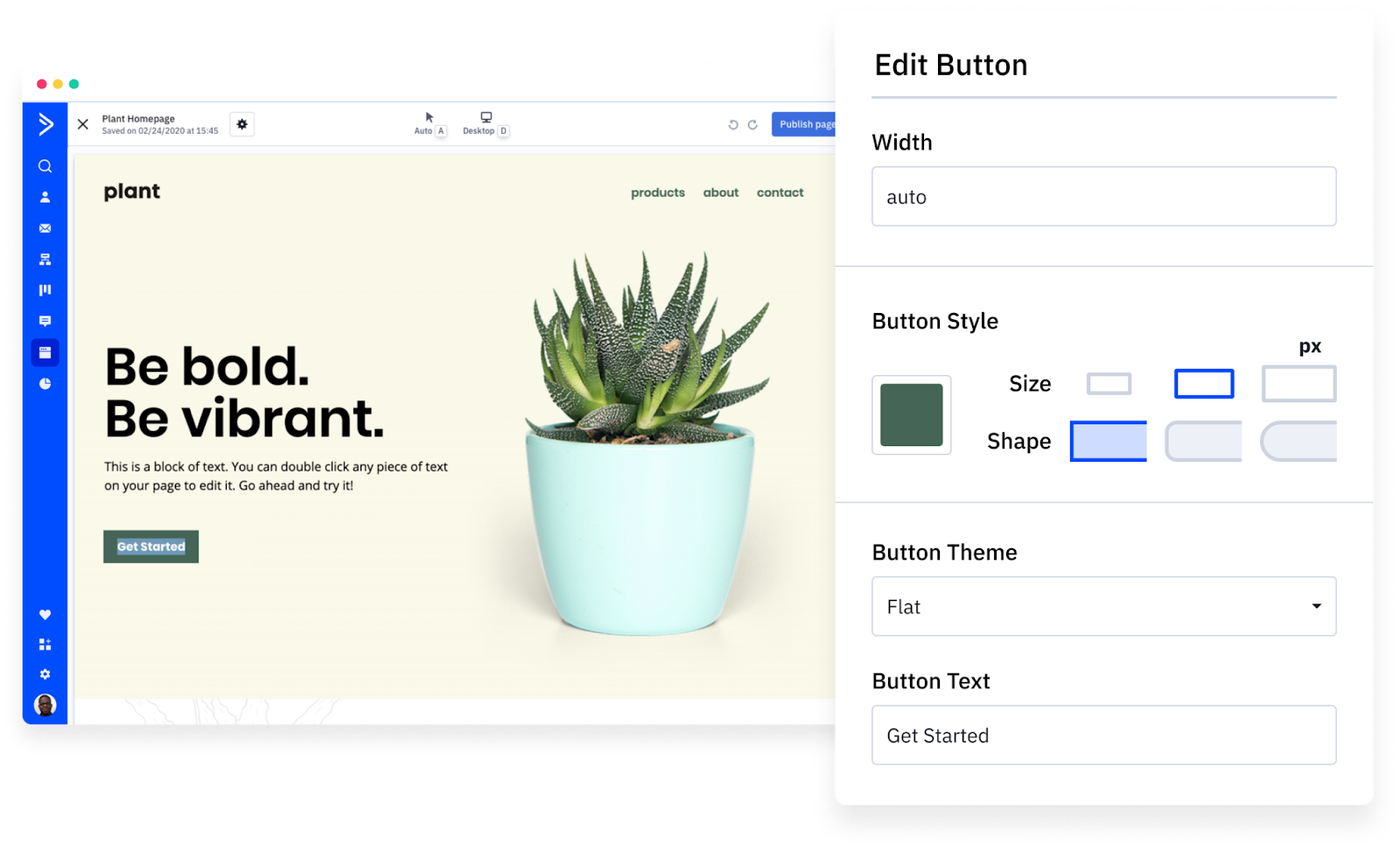
 Nurture – Welcome, Webinar – Replay, etc.).5. Save, then open the template in the editor to adjust branding, fonts, and links.### 3. Optimize templates for GoHighLevelWhile you’re importing, it’s a great time to tighten strategy:- Simplify layouts for better mobile performance.- Standardize buttons and CTAs so they point into your new GoHighLevel funnels.- Add dynamic content (where relevant) using GoHighLevel’s merge fields.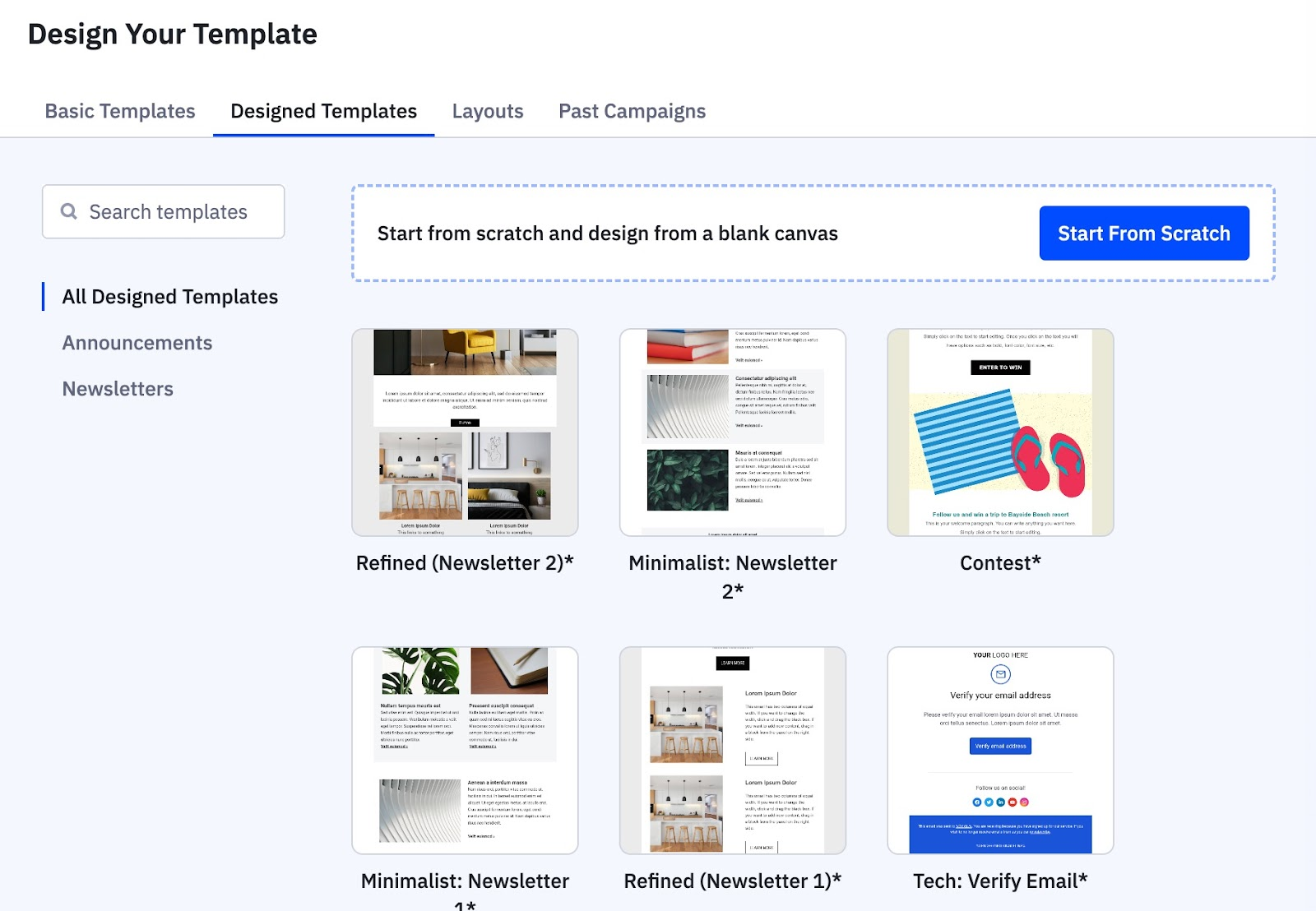 When you’re ready to test these templates inside real campaigns, you can spin up a trial account here: Try GoHighLevel for your email marketing.—## Step 4 – Rebuild Landing Pages in GoHighLevelInstead of trying to “clone” every ActiveCampaign landing page pixel‑for‑pixel, focus on the funnels that actually drive revenue.### 1. Audit existing landing pages- List your current pages and group them by funnel (lead magnet, webinar, tripwire, core offer, etc.).- Identify the top performers by traffic, conversion rate, or revenue.- Decide which pages should be migrated as‑is, and which should be redesigned or retired.### 2. Recreate key pages using GoHighLevel funnels1. In GoHighLevel, go to Funnels & Websites → Funnels.2. Create a new funnel and add steps for:- Opt‑in / lead capture- Thank‑you / confirmation- Upsell or booking page (if relevant)3. Use the drag‑and‑drop builder to replicate your core layouts and messaging.4. Swap in GoHighLevel forms, surveys, and calendars where relevant.### 3. Connect tracking and offers- Update all buttons and CTAs so they point to the right GoHighLevel actions.- Add tracking scripts (Meta Pixel, Google Analytics/Tag Manager, etc.) at the funnel level.- Test each step of the funnel with a real opt‑in before you send traffic.—
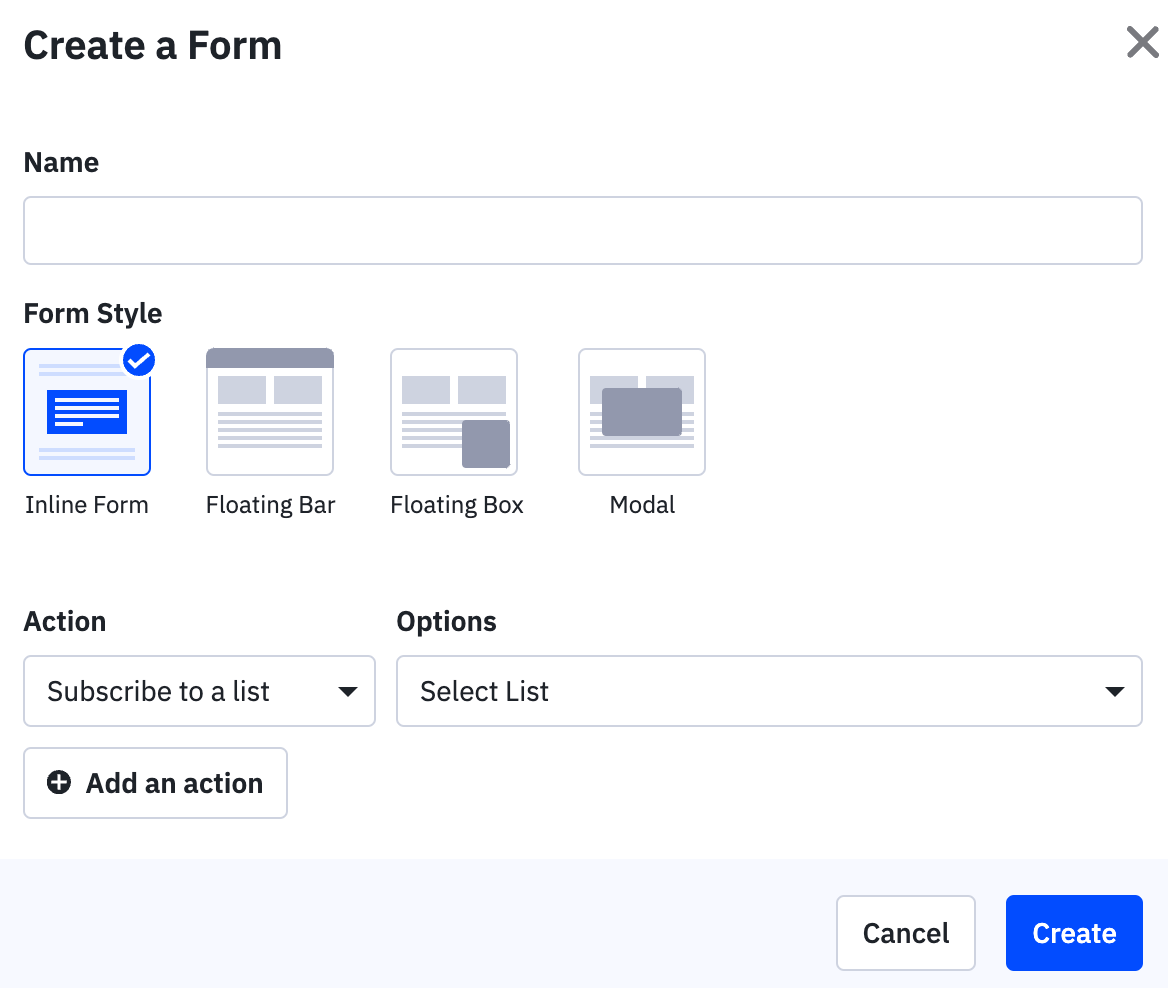
 ## Step 5 – Rebuild Forms for Lead CaptureForms are the front door to your database. Getting them right in GoHighLevel keeps your data clean and your automations firing.### 1. Catalog your existing forms- List where each ActiveCampaign form currently lives (homepage, blog, landing pages, pop‑ups, etc.).- Note which lists, tags, and automations each form connects to.### 2. Recreate forms in GoHighLevel1. In GoHighLevel, go to Sites → Forms.2. Create a new form for each major use case (newsletter, lead magnet, demo request, etc.).3. Add fields that match or improve on your ActiveCampaign forms.4. Configure actions on submission:- Add tags- Add to a pipeline- Trigger a workflow### 3. Embed forms in your funnels and site- Replace embedded ActiveCampaign forms on your website with GoHighLevel forms.- For pages you rebuilt in GoHighLevel funnels, use the native form elements rather than external embeds.> Pro move: Keep form fields lean (only ask for what you actually use). GoHighLevel’s workflows can always gather richer data later.—
 ## Step 6 – Rebuild Automations as GoHighLevel WorkflowsThis is where migration projects tend to stall. The good news: GoHighLevel’s Workflows give you more flexibility once you’re set up.### 1. Document your current automations- Export or screenshot each ActiveCampaign automation.- Note:- Trigger (form submit, tag added, page visit, purchase, etc.)- Entry conditions and goals- Email sends and delays- If/else branches- Webhooks, tasks, and CRM updates### 2. Rebuild in GoHighLevel Workflows1. In GoHighLevel, go to Automation → Workflows and create a new workflow.2. Choose the trigger that mirrors your ActiveCampaign automation.3. Recreate steps using:- Wait steps for delays- If/Else branches for segmentation- Send Email / SMS for messaging- Add/Remove Tag, Move to Stage, Create Task, and more for CRM actions4. Where logic is overly complicated in ActiveCampaign, simplify. GoHighLevel often lets you replace several nested rules with a single, clearer branch.### 3. Test automations before turning them on- Run internal test contacts through each workflow.- Check:- Correct emails fire in the right order.- Tags and stages update as expected.- No one gets duplicate or conflicting messages.If you’d rather skip the heavy lifting, Revset Labs can rebuild and optimize your key automations directly in GoHighLevel while you focus on strategy and offers.—## Step 7 – Test, Launch, and Decommission ActiveCampaignWith data, assets, and automations in place, you’re ready to move production traffic.### 1. Run GoHighLevel and ActiveCampaign in parallel- For a short period (often 1–4 weeks), keep both tools active.- Send new leads into GoHighLevel while old automations wind down in ActiveCampaign.- Monitor key metrics closely: deliverability, open rates, reply rates, pipeline movement, and revenue.### 2. Switch traffic and campaigns fully to GoHighLevel- Update all public links (website, ads, emails) to point to your GoHighLevel funnels and forms.- Confirm your team is working opportunities from GoHighLevel pipelines only.### 3. Decommission ActiveCampaign- Once you’re confident campaigns are performing well in GoHighLevel:- Export one final backup from ActiveCampaign.- Cancel or downgrade your plan.From this point on, your CRM, marketing automation, pipelines, and funnels all live in one place.—## How Revset Labs Can Help with MigrationRevset Labs is an AI Automation and Marketing Agency that specializes in building revenue systems on top of GoHighLevel.If you’d rather not own every technical detail of migration, Revset Labs can help you:- Audit your current ActiveCampaign setup and prioritize what to migrate.- Clean your data and map it to a scalable GoHighLevel structure.- Rebuild funnels, forms, and automations so they’re easier to manage and optimize.- Layer AI and automation on top of GoHighLevel to increase lead quality and conversion rates.Think of this guide as your blueprint—and Revset Labs as the partner that can execute it end‑to‑end if you want expert help.—## FAQs: ActiveCampaign to GoHighLevel Migration**How long does it take to migrate from ActiveCampaign to GoHighLevel?**For a small account with a few core funnels, you can often complete migration in a few days to a couple of weeks. Larger, more complex accounts with many automations may take 4–6 weeks including testing.**Do I have to migrate every automation and list?**No. Migration is a great time to declutter. Focus on the automations, lists, and segments that still drive results. Retire old or low‑value flows instead of blindly recreating them.**Will I lose historical email engagement data?**You typically won’t bring every historical open and click into GoHighLevel, but you can preserve the most important indicators via tags or custom fields (for example,
 Engaged – 90 Days). Keep full CSV exports from ActiveCampaign for compliance and analysis.**Can I run campaigns while I’m migrating?**Yes—as long as you plan carefully. Run limited campaigns in GoHighLevel while legacy sequences finish in ActiveCampaign. The key is to clearly segment who is in which system so contacts don’t get duplicate emails.**Do I need an agency or developer to migrate?**If your setup is simple, you can absolutely follow this guide and handle migration yourself. For multi‑brand, multi‑pipeline, or high‑volume setups, partnering with a specialist like Revset Labs can dramatically reduce risk and shorten the time to value.
