
 GoHighLevel (Email, SMS & In-App Alerts Setup Guide)”>

Connecting the right notifications in GoHighLevel is what turns your account from “nice to have” into a real command center.
Done well, you and your team see every new lead, booking, and missed call in time to act—without getting hammered by noisy alerts on every little update.
This guide walks you through how to activate and tune GoHighLevel notifications so you:
- Know exactly where to turn notifications on
- Decide which alerts should be email, SMS, or in‑app only
- Avoid duplicate or spammy notifications (including the common Twilio SID issue)
- Use notifications as part of a larger revenue‑generating workflow
Along the way, you’ll see how GoHighLevel plus Revset Labs can give you a clean, reliable alert system that supports your pipeline instead of distracting you from it.
Don’t have GoHighLevel yet? You can spin up a free trial here and follow along step‑by‑step: Start your GoHighLevel free trial.
Notification types in GoHighLevel (and when to use each)
At a high level, GoHighLevel can notify you and your team in three main ways:
- In‑app notifications – Alerts that show up inside the platform (web and mobile app) when certain events happen.
- Email notifications – Messages sent to you, your team, or your clients via email.
- SMS notifications – Text messages sent to team members or clients.
Think of them like this:
- In‑app: Best for real‑time visibility while you’re actively working in GoHighLevel.
- Email: Best for anything that needs context, is less time‑sensitive, or should be searchable later.
- SMS: Best for high‑priority events where speed matters (new leads, missed calls, appointment changes).
A simple mental model:
- Critical = SMS + in‑app (new high‑intent lead, missed call)
- Important = in‑app + email (new appointment booked, form completed)
- Nice to know = in‑app only or dashboard reporting (minor status changes, low‑intent activity)
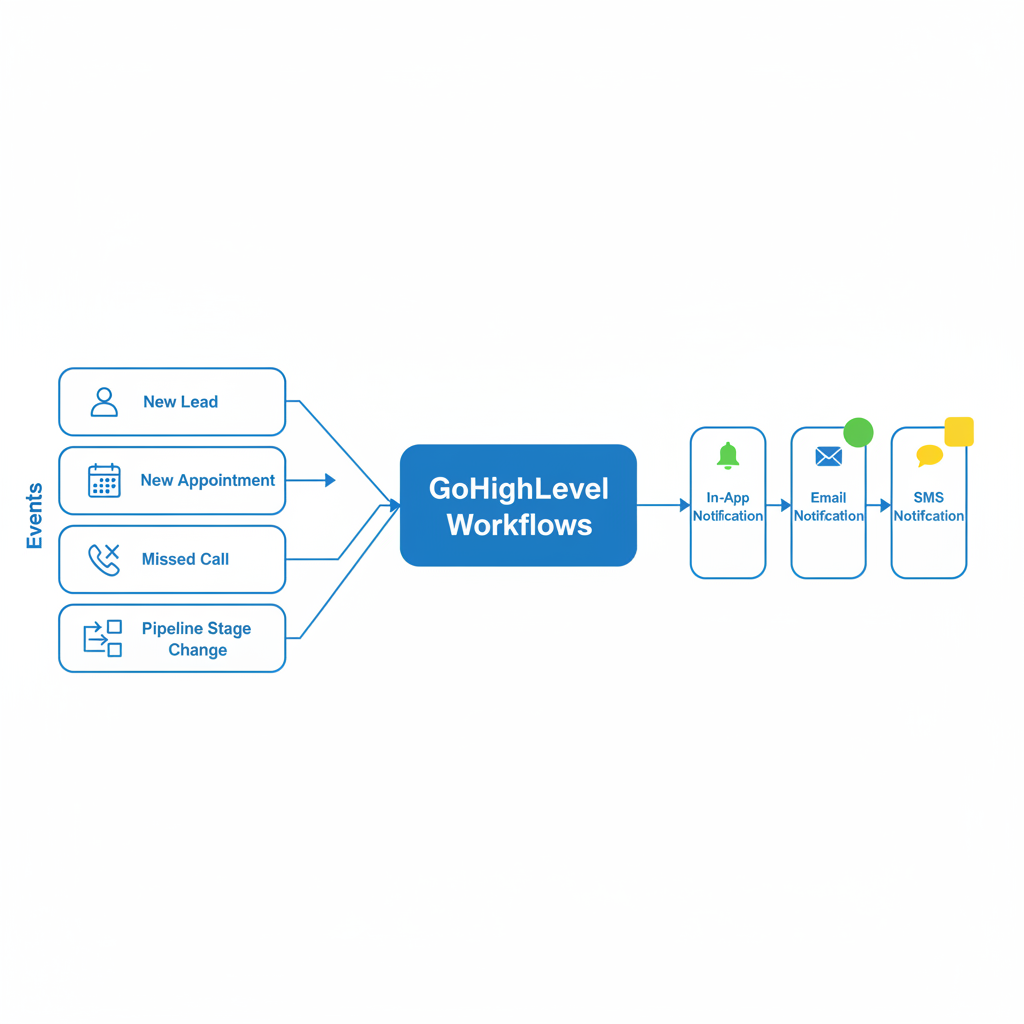
The flowchart image attached to this task shows this visually: events (new lead, new appointment, missed call, pipeline change) feed into GoHighLevel Workflows, which then send out in‑app, email, or SMS notifications depending on your configuration.
Where to activate notifications in GoHighLevel
There isn’t a single “notifications toggle” in GoHighLevel. Instead, you’ll turn on the right alerts in three places:
- User profile notifications – What each user on your team personally receives
- Calendar & appointment notifications – How bookings and changes are communicated
- Workflows & automation – Custom notifications you design around key events
1. User profile notifications (per‑user settings)
Use this layer to control what you (or another user) personally see in‑app and via email.
To configure user notifications:
- Log into your GoHighLevel account.
- Click your avatar in the top‑right corner and go to Settings → My Profile.
- Look for the Notifications or Email & In‑App Notifications area.
- For each event type (new lead, assigned contact, task, etc.), choose which channels you want enabled:
- In‑app
- (In some accounts) Mobile push
Best‑practice starting point for owners and sales leaders:
- Enabled (in‑app + email):
- New lead assigned to you
- New opportunity in your pipeline
- New appointment booked, rescheduled, or cancelled
- Enabled (in‑app only):
- Tasks assigned to you
- Pipeline stage changes on your owned opportunities
- Disabled by default:
- Low‑priority signals like certain tag changes or non‑critical system events
You can always dial this up or down once you’ve seen a week of real traffic.
If you haven’t yet connected your personal inbox, it’s worth pairing these notification settings with a two‑way synced email. The guide Getting Started: Connect Your Personal Inbox in GoHighLevel shows you how.
2. Calendar and appointment notifications
If you use GoHighLevel calendars for bookings, you’ll configure appointment notifications at the calendar level.
To configure calendar notifications:
- In your sub‑account, go to Calendars → Calendars.
- Select the calendar you want to edit.
- Open the Notifications tab (sometimes labelled Confirmation & Reminders).
- Decide which notifications you want GoHighLevel to send:
- To clients: confirmation emails/SMS, reminder sequences, reschedule/cancel alerts
- To your team: new appointment alerts, daily schedule summaries, cancellations
- Set the exact timing (for example, reminders 24 hours, 3 hours, and 15 minutes before the appointment).
A clean default setup looks like this:
-
Client notifications
- Confirmation email immediately after booking
- SMS reminder 24 hours before
- SMS reminder 1–2 hours before
- Email follow‑up after the appointment with next steps
-
Team notifications
- Email notification to the assigned user when a new appointment is booked
- Daily schedule email each morning (optional)
Because calendar notifications are so close to the money (no‑shows, cancellations, reschedules), they’re worth testing end‑to‑end before launching.
3. Workflow‑based notifications (your most powerful layer)
Finally, you can design custom notifications using GoHighLevel Workflows.
This is where you map “when X happens, send Y type of notification to Z person”.
Common workflow triggers for notifications:
- New lead created (from a form, funnel, website, or integration)
- Opportunity enters a specific pipeline stage (for example, “Discovery Call Booked”)
- Missed call from a key number or pipeline
- Form or survey submitted (for higher‑intent actions)
Example notification actions you can add to a workflow:
- Internal notification email to an owner or sales rep
- Internal SMS to a closer when a hot lead comes in
- Create task for a follow‑up call
- Send email or SMS to the contact themselves
A simple, high‑ROI recipe:
- Trigger: New Lead enters pipeline stage “New Lead”.
- Action: Internal SMS to the assigned owner:
“New lead {{contact.first_name}} from {{source}}. Reply YES to claim and call within 5 minutes.” - Action: Task due in 1 hour: “Call {{contact.first_name}} about {{offer}}”.
- Optional: Email to the lead with a calendar link to book a call.
This kind of workflow turns your GoHighLevel account into a simple “lead‑to‑conversation” machine, driven by targeted notifications instead of noise.
If you’re still evaluating the platform, you can test these workflows during your trial: Try GoHighLevel with Revset Labs’ affiliate link.
How to avoid notification overload (and duplicates)
Because GoHighLevel lets you trigger email, SMS, and in‑app alerts from multiple places, it’s easy to accidentally over‑notify yourself or your clients.
Start with a "critical few" rule
For the first 2–4 weeks, only turn on notifications for events that are:
- Close to revenue (new leads, new appointments, missed calls)
- Time sensitive (anything that needs action within a few hours)
- Easy to act on (you know exactly what to do next)
Once the team trusts the system, you can layer in secondary notifications like pipeline stage changes or task assignments.
Use one "owner" per notification
A common mistake is sending the same internal alert to everyone.
Instead:
- Decide who owns each event (for example, sales lead, account manager, or support).
- Route the internal notification only to that person or role.
- Use tags or pipelines—not CC’d notifications—to keep the rest of the team aware at a higher level.
Avoid duplicate SMS/email notifications
If you’re seeing duplicate notifications (especially SMS), check for these issues:
-
Same Twilio account connected to multiple sub‑accounts
The original GoHighLevel help doc for “Activate Notifications” points out a key gotcha: if the same Twilio Account SID is connected to multiple sub‑accounts, a single event can fire through more than one workflow stack, which can lead to duplicates.- Wherever possible, keep one Twilio account per GoHighLevel agency, and be intentional about which sub‑accounts own which numbers.
- Avoid reusing the same numbers and SID in multiple sub‑accounts that run similar workflows.
-
Multiple workflows watching the same trigger
If you cloned campaigns or workflows, it’s easy to end up with two separate workflows that both:- Trigger on the same event (for example, “Pipeline Stage changes to New Lead”), and
- Send an almost identical notification.
Periodically audit your workflows to make sure only one workflow is responsible for each core notification.
-
Calendar + workflow overlap
Double check that you’re not sending:- A built‑in calendar confirmation
- and a workflow‑driven confirmation
- and another workflow‑driven internal alert
In most setups, you’ll use calendar notifications for client‑facing reminders and workflows for internal alerts and more advanced logic.
If you clean up these three areas and still see duplicates, review recent activity in a test contact and walk through exactly which workflows fired. Often a single misconfigured condition or an extra trigger is all it takes.
Turn notifications into a revenue system, not just alerts
Notifications on their own are just pings.
Notifications connected to clean workflows and pipelines become a revenue system.
Here’s how to connect the dots:
-
Define the key events that matter to your business
Examples:- New lead from paid ads
- Lead books a strategy call
- Proposal sent
- Missed inbound call
-
Design the ideal response for each event
For example:- New lead → called within 5 minutes → moved to “Contacted”
- Missed call → instant SMS reply + task for callback
- Proposal sent → email + SMS reminder at 24 and 72 hours if no reply
-
Map GoHighLevel notifications to those responses
- Internal SMS to the owner when a hot event fires
- Internal email with full context for anything complex
- In‑app notifications and tasks for follow‑ups
-
Use dashboards to measure
Once your notification system is live, use GoHighLevel’s reporting to monitor:- Time‑to‑first‑touch on new leads
- No‑show rates on booked calls
- Conversion rates by pipeline stage
If you also run funnels, you can tie this article together with the guide Getting Started: Launch a Funnel in GoHighLevel so every new funnel lead automatically routes into the right notification workflows.
Want to move faster? You can experiment with all of this inside a trial account: Launch GoHighLevel with a free trial.
How Revset Labs can help you design a sane notification strategy
Revset Labs is an AI Automation and Marketing Agency that lives inside GoHighLevel every day.
If you’re tired of:
- Missing hot leads because no one saw the alert in time
- Or drowning in noisy notifications that nobody trusts
…we can help you design a simple, opinionated notification system that fits your business.
Typical projects include:
- Mapping your lead and client journeys into GoHighLevel pipelines
- Designing workflow‑based notification rules for new leads, calls, and appointments
- Cleaning up old, conflicting campaigns that cause duplicate notifications
- Adding AI‑powered summaries and next‑step suggestions to the places your team already works
When your team trusts that GoHighLevel will always surface the right events, they stop refreshing dashboards and start focusing on the conversations that close deals.
If you’d like help with that, reach out to Revset Labs and mention this “Activate Notifications in GoHighLevel” guide—we’ll start by auditing your current setup and recommending a clear rollout plan.
Still in research mode? That’s fine too. You can Start a GoHighLevel free trial and see how far you get with this guide before bringing in a partner.
FAQ: GoHighLevel notifications
Where do I turn on notifications in GoHighLevel?
You’ll configure notifications in three places:
- User profile – under Settings → My Profile → Notifications, where each user chooses their own email and in‑app alerts.
- Calendars – inside each calendar’s Notifications tab for client reminders and booking alerts.
- Workflows – where you design custom internal notifications and follow‑up sequences based on triggers like new leads, pipeline changes, or missed calls.
Together, these three layers let you control who gets notified, on which channel, and at which point in your funnel.
Why am I getting duplicate notifications in GoHighLevel?
The most common causes of duplicate notifications are:
- The same Twilio Account SID connected to multiple GoHighLevel sub‑accounts that all run similar workflows
- Cloned workflows that watch the same trigger and send the same alert twice
- Calendar notifications plus workflow notifications both firing for the same event
Audit your Twilio connections, consolidate overlapping workflows, and clearly decide which system (calendar vs workflow) owns each notification. That usually removes duplicates.
Can each user customize their own notifications?
Yes. Every user can configure their own notification preferences inside Settings → My Profile. This is especially useful for teams where owners, sales reps, and service providers care about different signals. You can keep a common baseline (for example, everyone sees new leads assigned to them) while letting power users dial in more detailed alerts.
What types of notifications does GoHighLevel support?
Out of the box, GoHighLevel supports in‑app notifications, email notifications, and SMS notifications. You can mix and match these per event. For example, you might:
- Send in‑app + SMS for new leads
- Send email + in‑app for new appointments
- Use in‑app only for low‑priority system events
You can also combine notifications with tasks, pipeline movement, and automations so that every alert is tied to a clear next step.