
Why your GoHighLevel contact list matters
If you get GoHighLevel set up but your contacts are messy, duplicated, or scattered across tools, everything else in the platform suffers.
A clean, well-structured contact list is what powers:
- Accurate pipelines and sales forecasting.
- Reliable automations and follow-up.
- Clear reporting on which channels and campaigns actually work.
This article walks through how to create, edit, and manage contacts in GoHighLevel, when contacts are created automatically, how to use custom fields, and how to keep your data clean so every workflow you build on top is trustworthy.
Throughout, we’ll highlight opportunities to:
- Use GoHighLevel more effectively.
- Layer in automations that save time.
- Bring in Revset Labs when you want done‑for‑you setup or more advanced, AI‑powered workflows.
Core ways contacts are created in GoHighLevel
GoHighLevel is designed so you’re not stuck manually adding every single person into your CRM. Contacts can be created in several ways:
- Manually – You or your team create a new record from the Contacts tab.
- Automatic creation from forms and surveys – When a prospect fills in a GoHighLevel form or survey, a contact is created automatically.
- Calendar bookings – When someone schedules an appointment using a GoHighLevel calendar, a contact is added or updated.
- Live chat and funnels – Conversations started through the chat widget or funnels can automatically create or enrich contacts.
- Imports and integrations – You can import lists from a CSV or sync data in from other tools.
This guide focuses on the basics inside the GoHighLevel UI: creating, editing, deleting, and extending contacts so everything downstream works the way you expect.
How to create a new contact (step by step)
Follow these steps to manually add a new contact from inside GoHighLevel:
- Navigate to Contacts
- From the main left-hand menu, click Contacts.
- You’ll see your existing list along with filters and search.
- Click “Add Contact”
- In the top-right of the Contacts screen, click Add Contact.
- This opens a New Contact panel.
- Fill in core details
Focus on the fields that will actually drive communication and segmentation:
- Name – First and last name for personalized outreach.
- Email – Used for broadcasts, workflows, and automation.
- Phone – Required for SMS and calling workflows.
- Tags – Add tags such as
Lead,Webinar, orHigh Intentto segment later.
- Add any important custom fields
If you’ve created custom fields (we’ll cover this below), fill in key business‑specific info such as:
- Service type or plan.
- Lead source or campaign.
- Account manager.
- Click “Save”
- Once you’ve entered the details, click Save.
- The new contact is now part of your GoHighLevel database and available to every team member with access.
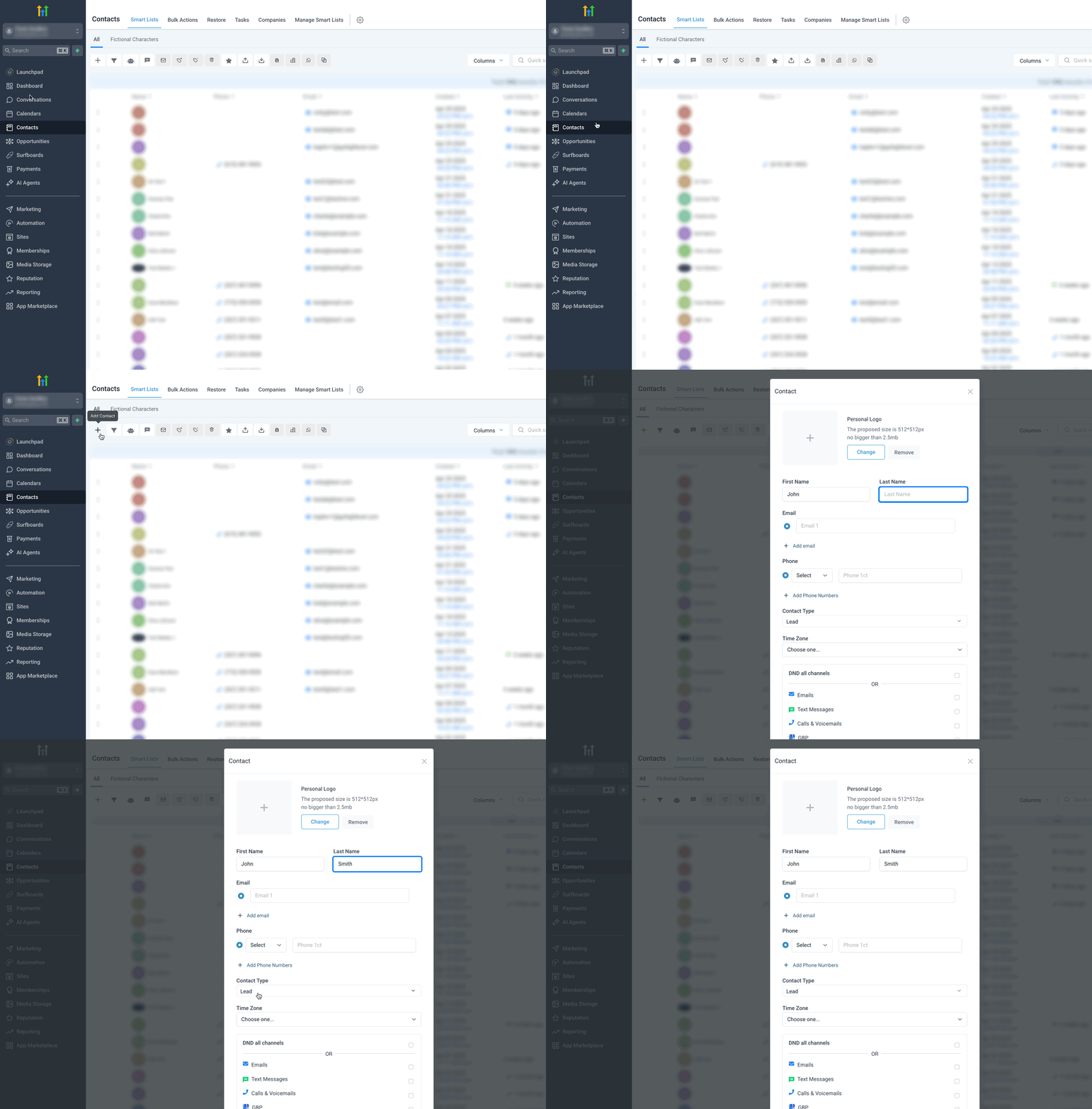 GoHighLevel” title=”GIF demonstrating the process of creating and saving a new contact in GoHighLevel“>
- (Optional) Add the contact to workflows or pipelines
After saving, open the contact record and:
- Add them to a pipeline stage (for example, New Lead).
- Enroll them into a nurture workflow.
- Trigger a one‑off SMS or email to start the relationship immediately.
Pro tip from Revset Labs: Standardize a simple “new contact checklist” for your team. The same fields, tags, and first‑touch actions every time makes your reporting and automations dramatically cleaner.
Editing an existing contact safely
Real‑world contact data is never static. People change emails, phone numbers, companies, and preferences. Here’s how to safely update a contact in GoHighLevel:
- Open the Contacts tab
Go to Contacts and use search, filters, or tags to find the record you want to edit.
- Select the contact
Click on the contact’s name to open the contact card.
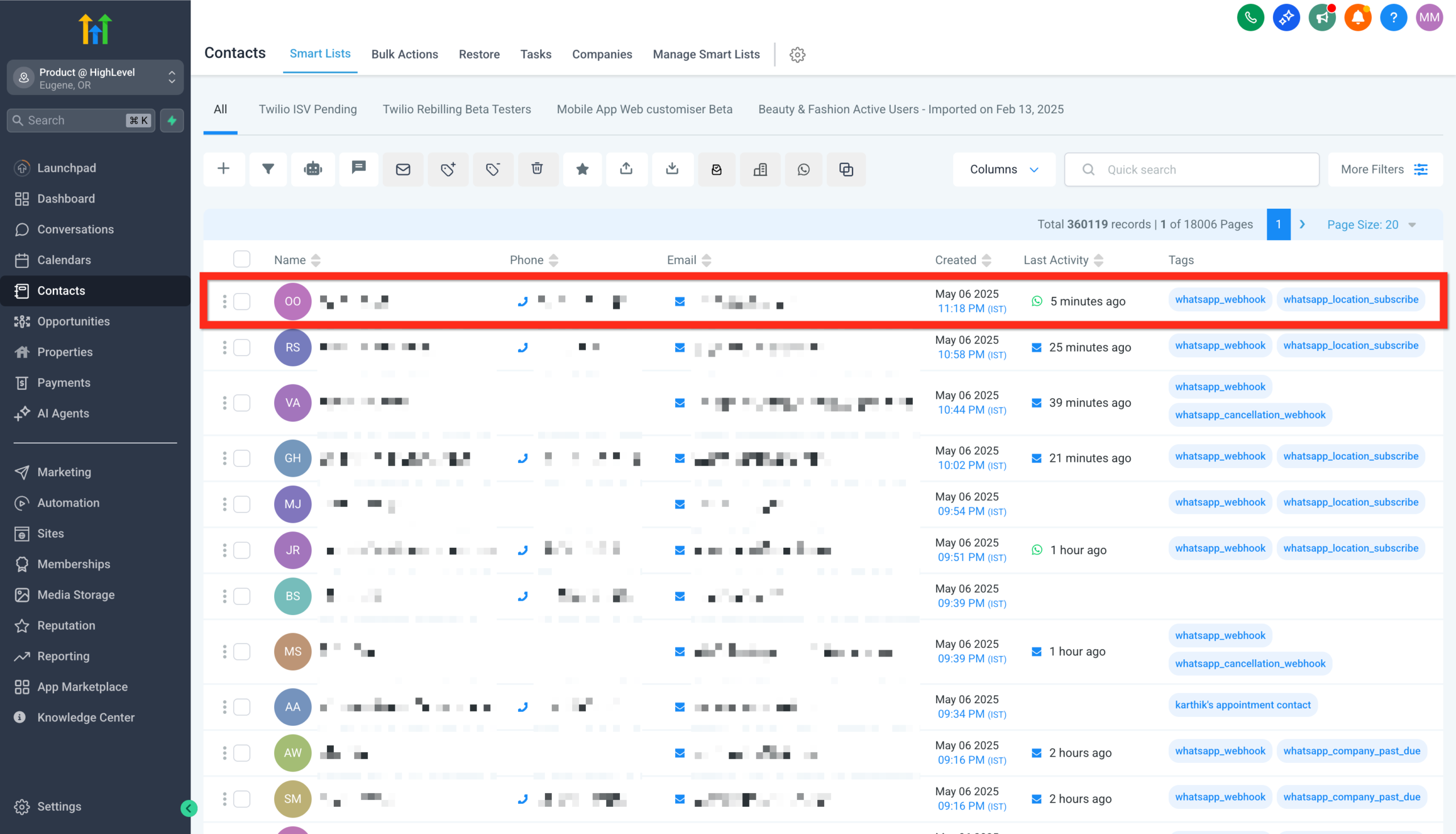 GoHighLevel” title=”Screenshot showing a contact card opened for editing in GoHighLevel“>
3. Update information
* On the left, edit fields like name, email, phone, tags, and custom fields.
* On the right, you can see conversations, activities, and opportunities to confirm you’ve got the right person.
4. Save your changes
Click Save to commit edits.
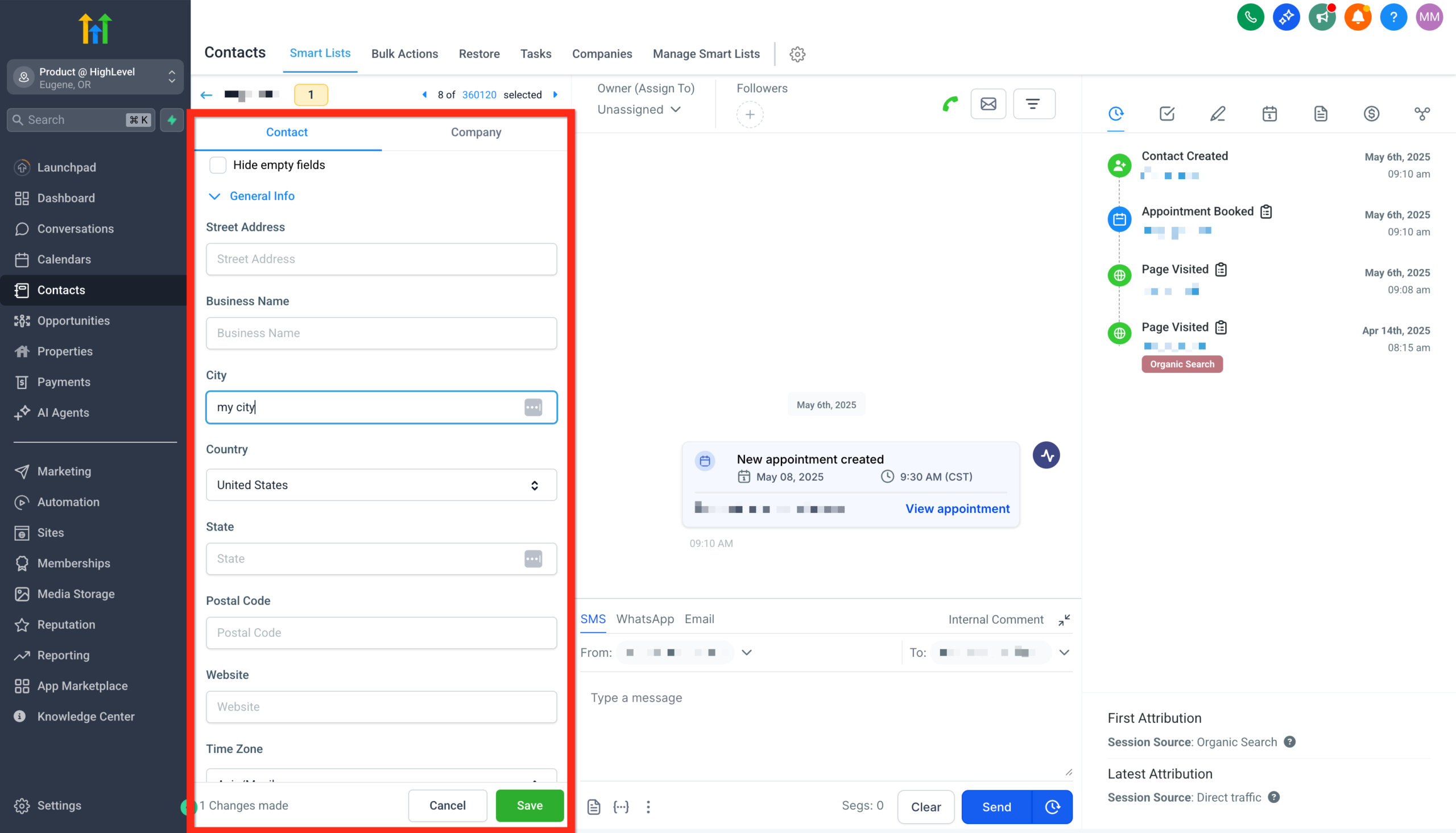
5. Review active workflows
If you made a big change (for example, new email or new lifecycle stage), quickly check:
- Which workflows the contact is currently in.
- Whether pipelines or deals need to be moved.
Revset Labs recommendation: Avoid editing contacts purely from conversations if you’re changing critical fields like email. Always open the full contact card so you can see the big picture and avoid breaking existing automations.
Deleting a contact (and what it actually removes)
Deleting a contact in GoHighLevel is a serious action because it also removes related data. Use it when you’re sure a record should no longer exist in your system.
What gets removed when you delete a contact
When you delete a contact:
- Their conversations (email, SMS, chat) are removed.
- Related notes, opportunities, tasks, appointments, manual actions, and community group ownerships go with them.
- Any active campaigns and workflows tied to that contact are stopped.
- The contact can typically be restored within a limited time window (for example, two months), but assume deletion is permanent for anything compliance‑sensitive.
How to delete a contact
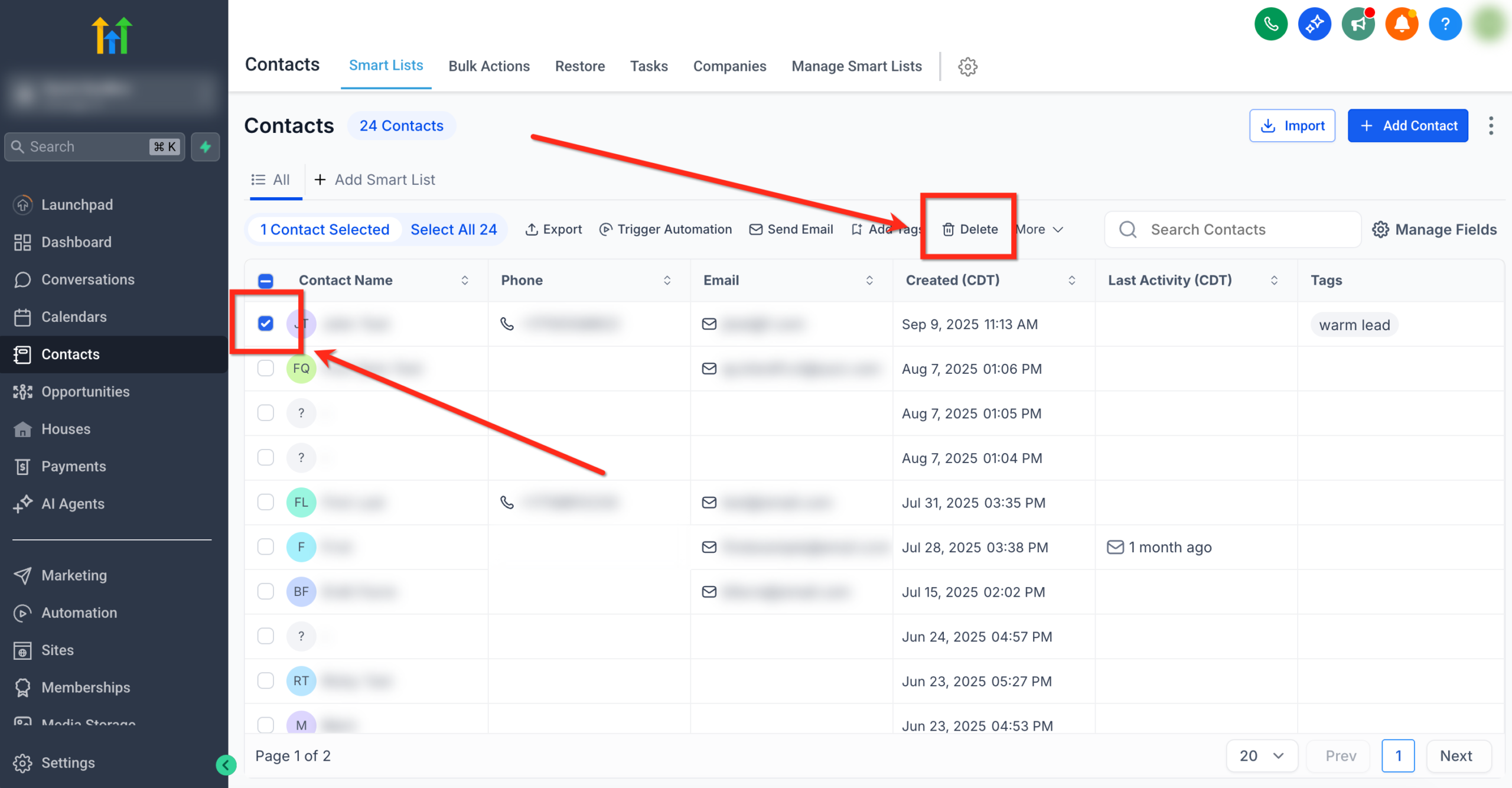
- Go to Contacts.
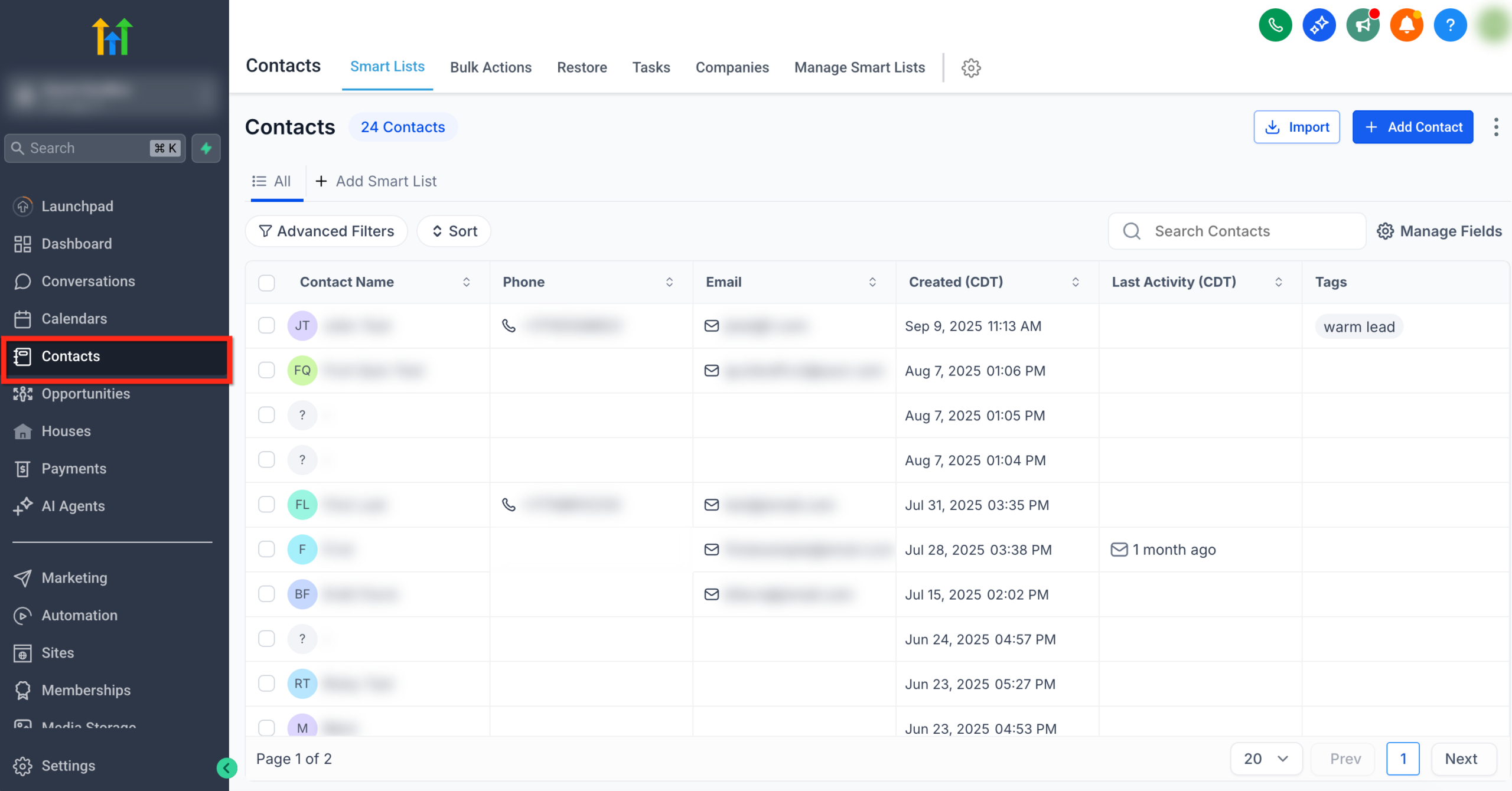 GoHighLevel main menu” title=”Screenshot of the Contacts tab in the GoHighLevel main menu”>
 - Find the contact via search or filters.
- Use the checkbox next to their name to select them.
- Click Delete.
- In the confirmation popup, type DELETE and click Delete again.
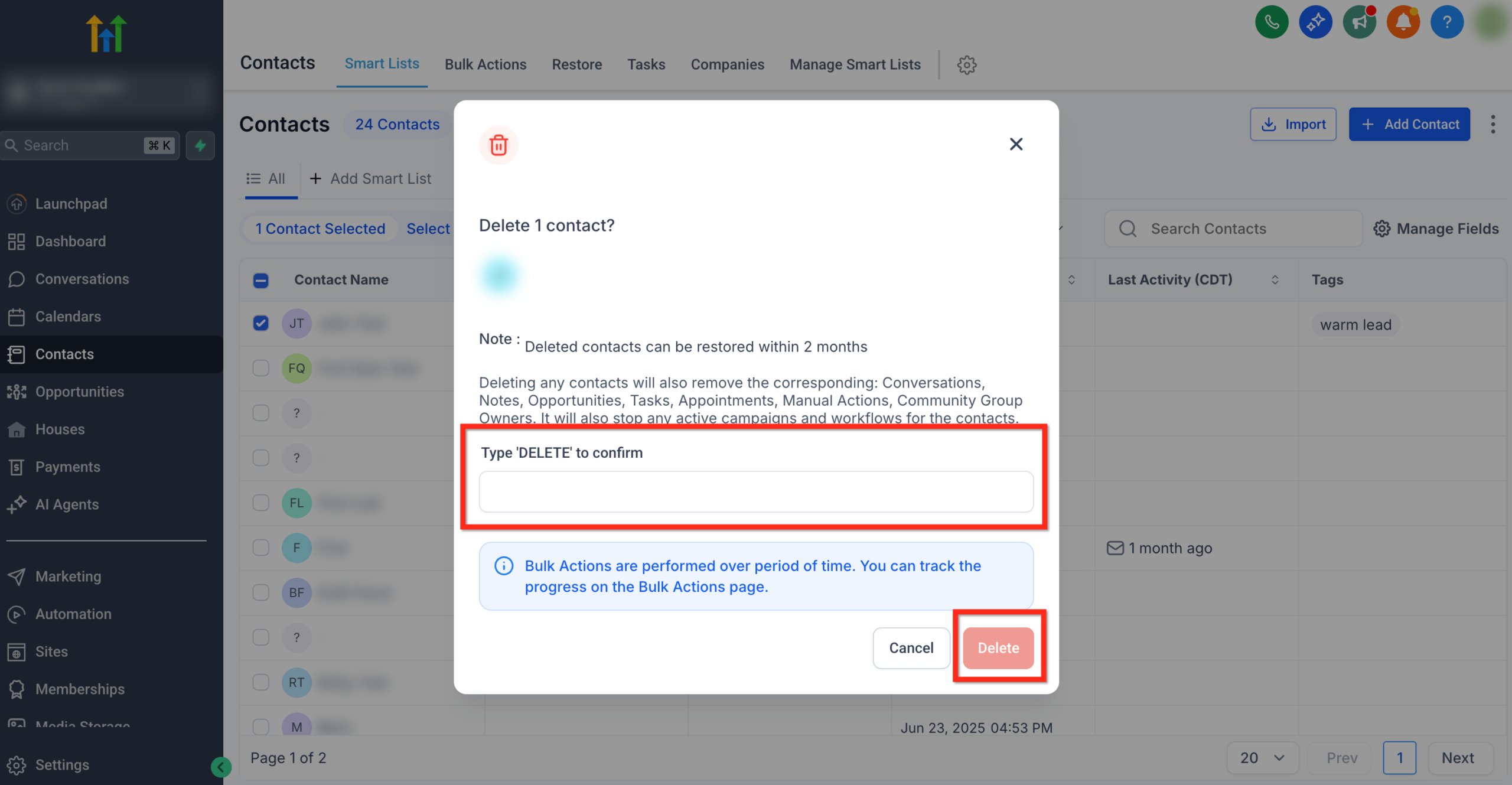
Best practice: Reserve deletions for spam, test data, and truly bad records. For most real people, it’s safer to tag them as
Do Not Contactor move them to a “Closed/Lost” stage instead of erasing history.
Using custom fields to make GoHighLevel fit your business
Out of the box, GoHighLevel gives you standard CRM fields. Custom fields let you model the things that matter specifically to your business.
When to create a custom field
Create a custom field when:
- Your team keeps adding the same info into notes (for example, “industry” or “monthly budget”).
- You want to filter or segment contacts using a data point that doesn’t exist yet.
- You need to push or pull structured data between GoHighLevel and another system.
How to create a new custom field
- Open Settings
- Click Settings in the left sidebar.
- Choose Custom Fields.
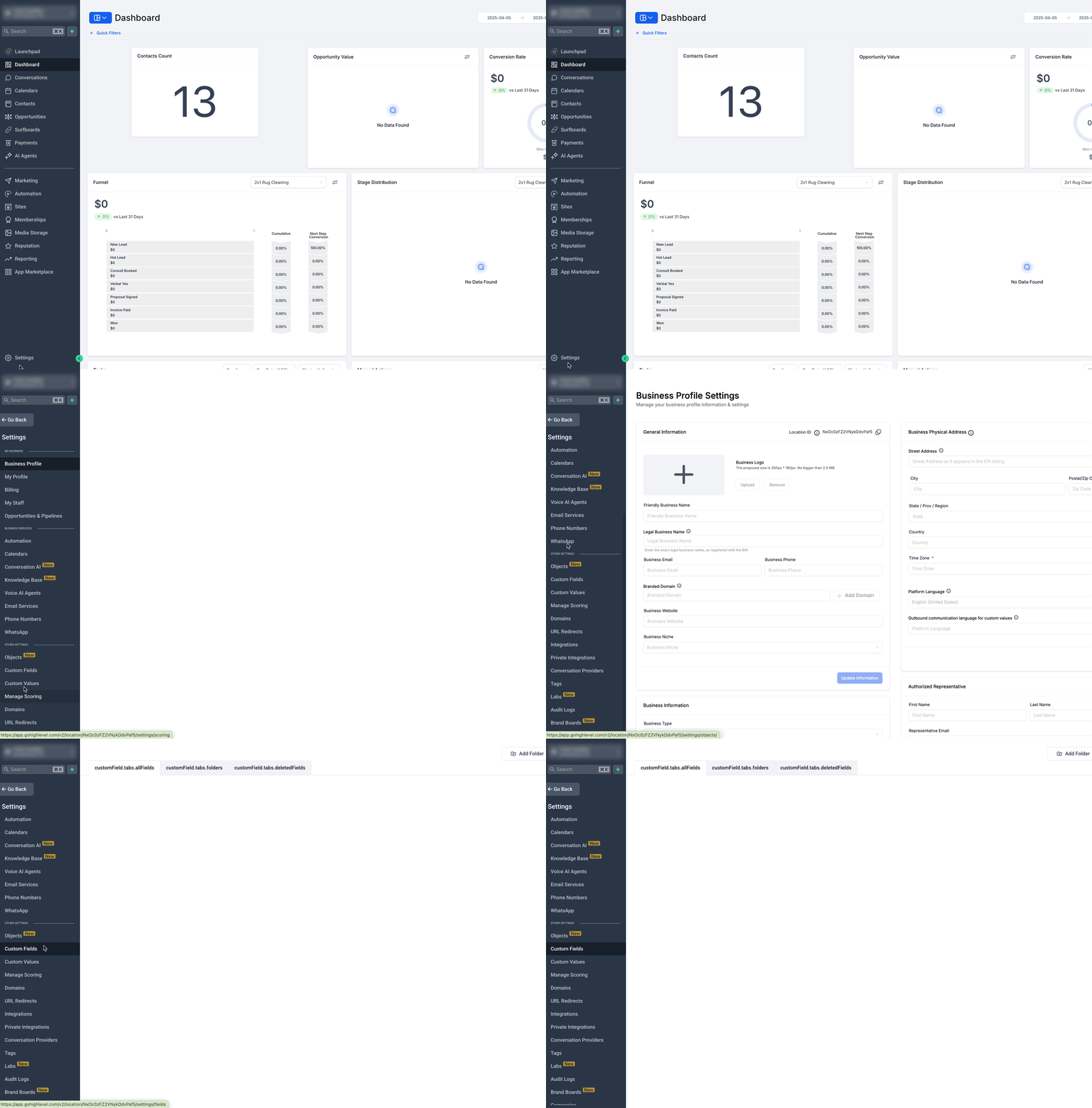 GoHighLevel” title=”GIF demonstrating navigation to the Custom Fields settings in GoHighLevel“>
- Add a new field
- Click Add Field.
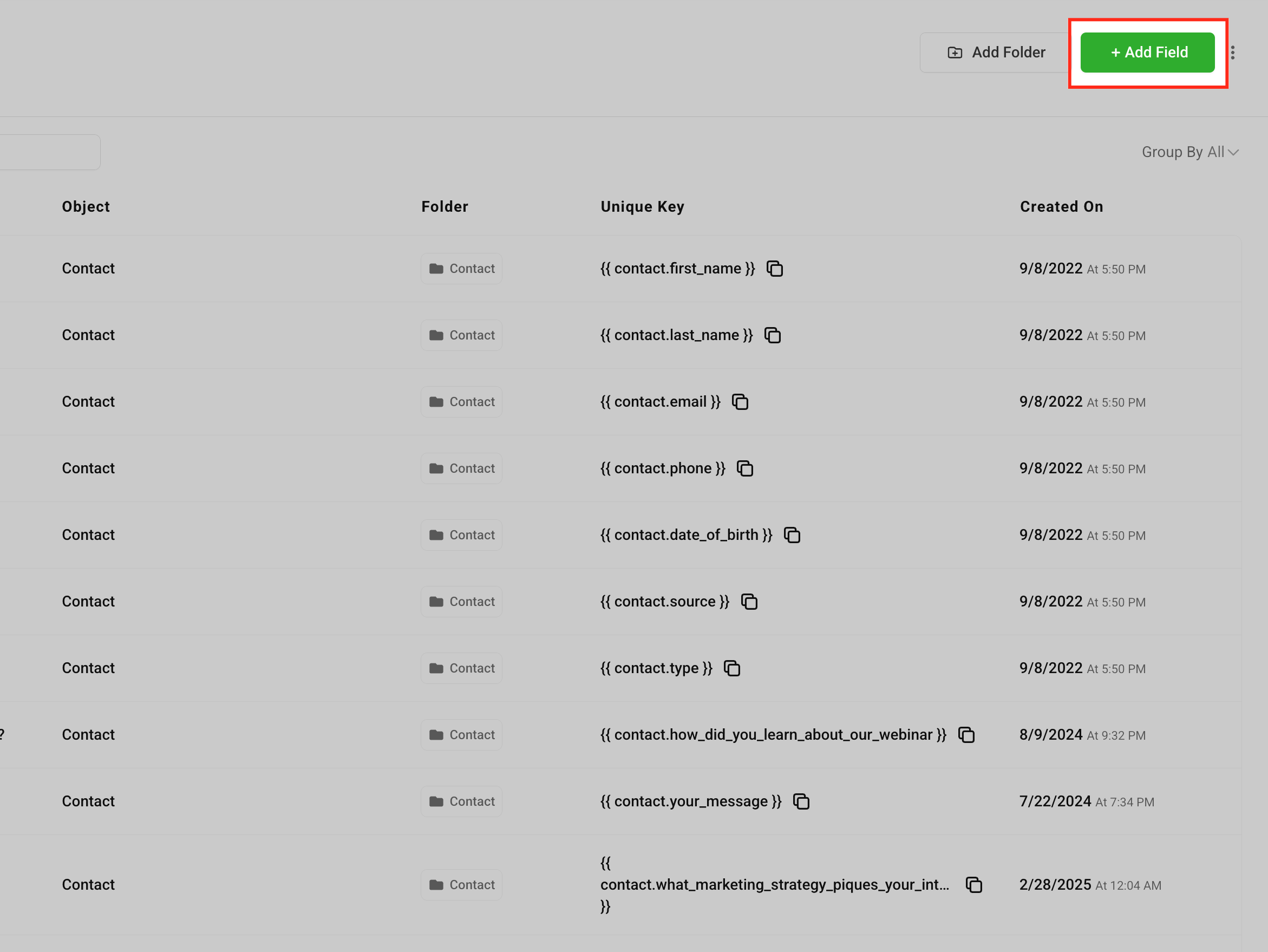
- Click Add Field.
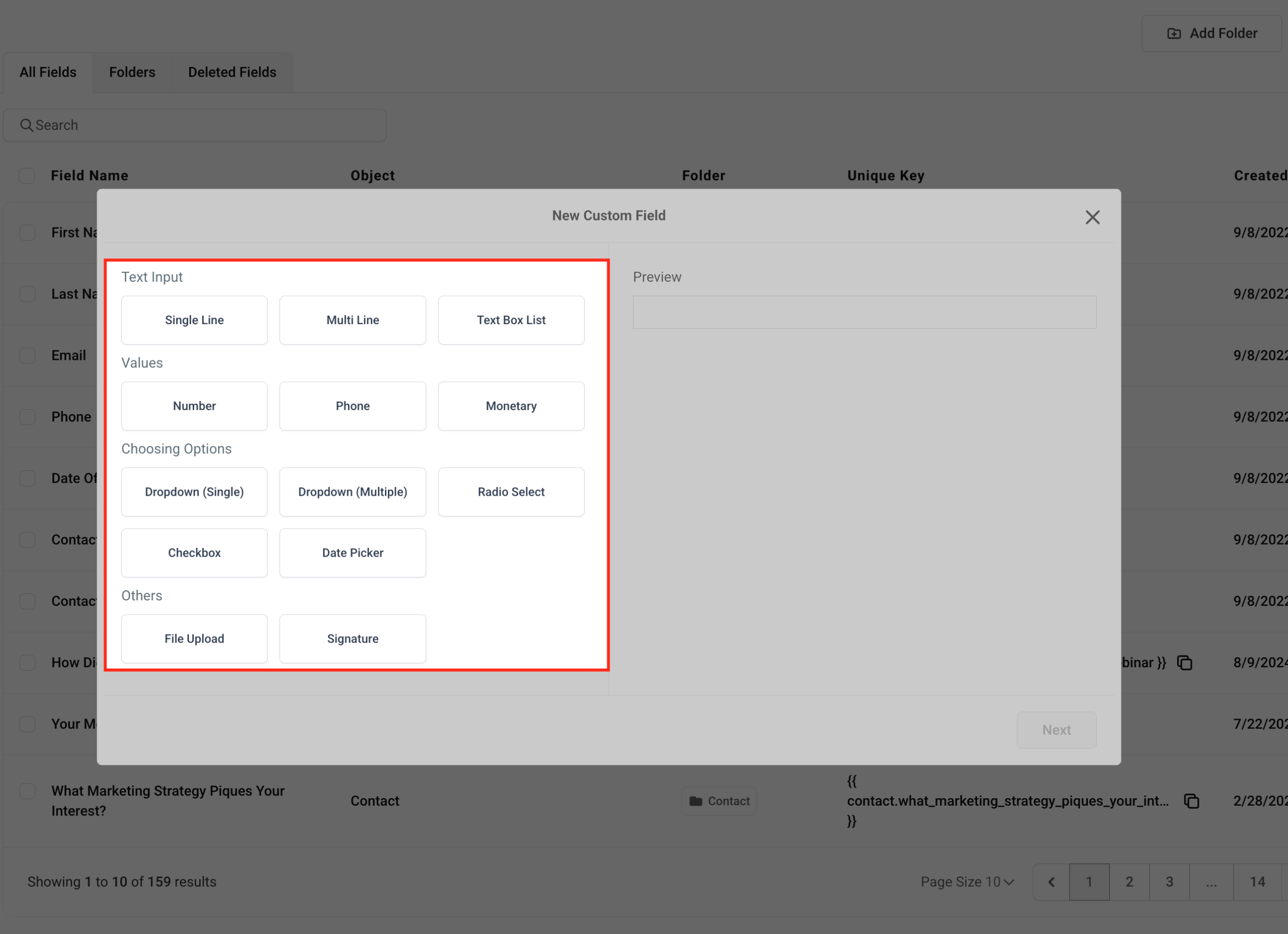
- Choose the field type
Common options include:
- Text – for short pieces of information.
- Dropdown – for controlled lists like plan types or industries.
- Date – renewals, contract start dates, etc.
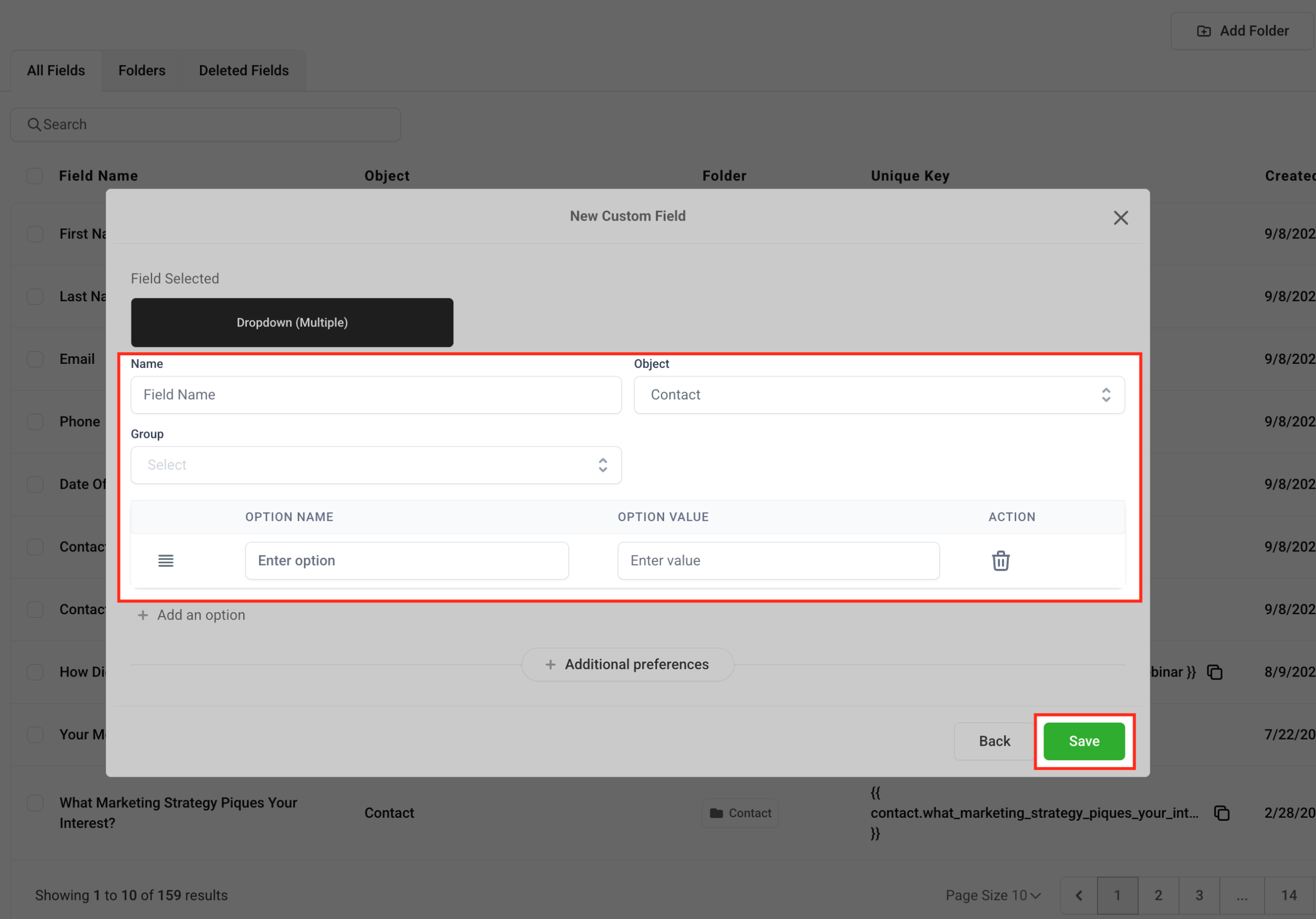
- Configure details
- Name the field clearly (for example,
Service Planinstead ofPlan). - Add it to a logical group so your layouts stay organized.
- Set a helpful placeholder to guide your team.
- Name the field clearly (for example,
- Save the field
Click Save and then test it on a real contact to make sure it behaves as expected.
From here, the custom field is available to:
- Contact records and forms.
- Conditions and actions inside workflows.
- Reporting and filters.
Where Revset Labs helps: We often come in to redesign a client’s custom field strategy—cleaning up duplicates, standardizing names, and wiring fields into automations and dashboards so leadership finally has clean, reliable data.
Turning contacts into workflows, pipelines, and reporting
Creating contacts is the starting line, not the finish.
Once your data is clean, you can start turning every new contact into a predictable journey inside GoHighLevel:
1. Automations
Use workflows to react to contact events, such as:
- A new contact being created from a form or manually.
- A tag being added (for example,
High Intent). - A custom field changing value (for example,
Onboarding Stage).
Common automation ideas include:
- Sending a welcome email + SMS when a new contact is added.
- Creating an internal task for sales to do a quick discovery call.
- Starting a nurture sequence if someone is interested but not ready to buy yet.
2. Pipelines
Contacts really become opportunities once they’re tied to deals or stages.
- Add contacts into appropriate pipelines (for example, New Enquiry, Discovery, Proposal, Closed Won/Closed Lost).
- Move opportunities automatically when key events happen (booking a call, signing a contract, making a first payment).
3. Reporting
Clean contacts with consistent fields unlock better reporting:
- How many new contacts are created per week and from which source?
- What percentage of new contacts move to qualified opportunity within 14 days?
- Which lead sources produce the highest lifetime value?
Revset Labs frequently builds GoHighLevel dashboards and supporting automations so owners can see these numbers without exporting spreadsheets.
Helpful internal resources to go deeper
Once you’re comfortable creating and managing contacts, the next step is to connect more of your GoHighLevel ecosystem so everything speaks the same language.
Here are two companion guides you can review next:
- Connect your personal inbox to GoHighLevel – Learn how to sync Gmail/Outlook so every client email is visible on the contact record:
Connect Your Personal Inbox to GoHighLevel (Gmail & Outlook Guide)
- Forward emails from Conversations – See how to escalate and share email threads without leaving HighLevel:
How to Forward Emails from Conversations in HighLevel (Step-by-Step Guide)
These articles, together with this contact‑management guide, form a strong “getting started” foundation.
Where GoHighLevel fits – and how to try it
If you’re still evaluating tools, GoHighLevel is an all‑in‑one platform that combines:
- CRM and pipelines.
- Email, SMS, and chat.
- Automations and workflows.
- Funnels, forms, and calendars.
If you want to see contact management, automations, and pipelines working together before you commit, you can test everything with a free trial.
Start your 30‑day GoHighLevel trial using this link.
Set up contacts, connect your inbox, and build a simple follow‑up workflow—you’ll quickly see whether it fits your business.
How Revset Labs can help you go further
Revset Labs is an AI Automation and Marketing Agency that helps founders and marketing teams turn tools like GoHighLevel into real growth systems.
Typical projects include:
- Designing contact data architecture (fields, tags, stages) that matches your actual customer journey.
- Implementing done‑for‑you GoHighLevel setups—forms, calendars, chat widgets, funnels, and pipelines.
- Building AI‑powered workflows that summarize conversations, qualify leads, and nudge deals forward without manual chasing.
- Creating reporting dashboards so you can see pipeline health, conversion rates, and campaign ROI at a glance.
If you’d like strategic help turning “a list of contacts” into a predictable revenue engine, Revset Labs can map, build, and optimize the entire stack with you.
FAQs: Creating and managing contacts in GoHighLevel
Do I always have to create contacts manually?
No. Forms, surveys, calendar bookings, and many other entry points can create contacts automatically. Manual creation is best for ad‑hoc additions, phone enquiries, or legacy data that hasn’t been imported yet.
Can I recover a contact after deleting it?
Deleted contacts can sometimes be restored within a limited time window, but you should treat deletion as close to permanent—especially for compliance‑sensitive data. When in doubt, use tags and stages instead of deletion.
What’s the difference between tags and custom fields?
Tags are best for quick labels and segmentation (for example Webinar, VIP, Cold Lead). Custom fields store structured data you might want to report on or sync to other tools (for example industry, plan type, or renewal date).
How many custom fields is too many?
If your team feels overwhelmed when looking at the contact record, you probably have too many. Focus on fields that drive a real decision, action, or report. Revset Labs often consolidates and renames fields during clean‑up projects.
Can I trigger automations when a new contact is created?
Yes. In Workflows, you can use triggers like Contact Created, Tag Added, or Field Updated to start automated sequences the moment someone is added to your database.