
You’ve built a form in GoHighLevel, leads are definitely submitting it… but you can’t see where the answers are going.

The good news: GoHighLevel is very consistent about where form data lands. Once you understand the flow, it becomes easy to audit lead capture, fix “missing” submissions, and plug those responses straight into automations.
This guide walks through every place GoHighLevel form responses show up, how they connect to contact records and appointments, and how to turn those submissions into reliable follow-up.
If you’re still evaluating the platform, you can start a free GoHighLevel trial here and follow along as you set things up.
Where GoHighLevel form responses show up (quick overview)
Every time someone submits a GoHighLevel form, their responses can surface in four main places:
- Forms > Submissions – a central log of every submission on that form.
- The contact record – answers are written into the contact’s fields and additional info.
- Calendar appointments – if the form is tied to a calendar, responses appear in the appointment modal.
- Notifications & workflows – email alerts and automations you configure off the back of the submission.
The rest of this article breaks down each location, when you’ll use it, and what to do if data doesn’t appear where you expect.
How GoHighLevel handles a form submission behind the scenes
Before we dive into screens and menus, it helps to understand the basic flow when a visitor hits Submit:
- Form data is captured – every field on the form (including custom fields) is bundled into a submission.
- A contact record is created or updated – GoHighLevel matches the submission to an existing contact (usually by email or phone) or creates a new one.
- The submission is logged – the full payload is stored so you can review all submissions in one place.
- Optional automation fires – any workflows, notifications, or pipeline actions you’ve attached to the form are triggered.
When your system is healthy, you should always be able to trace a form response along that path: submission → contact → follow‑up.
If you don’t yet have GoHighLevel wired into a complete funnel like this, it’s a great moment to fix that. You can spin up a free GoHighLevel trial and build your form-to-follow-up system the right way from day one.
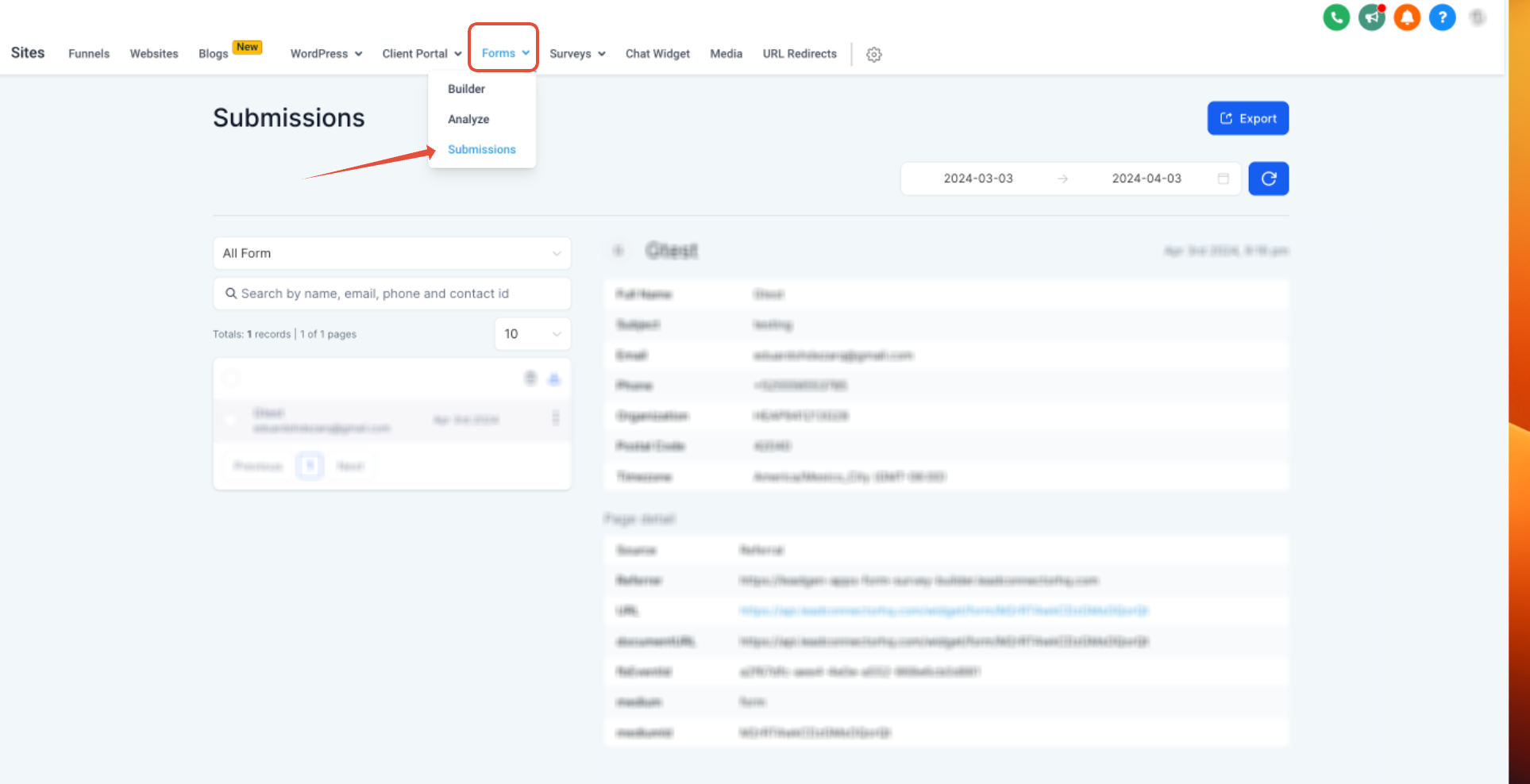
1. View every form submission in one place (Sites > Forms > Submissions)
The fastest way to confirm that a form is working is to look directly at its submissions list.
To see form responses in GoHighLevel:
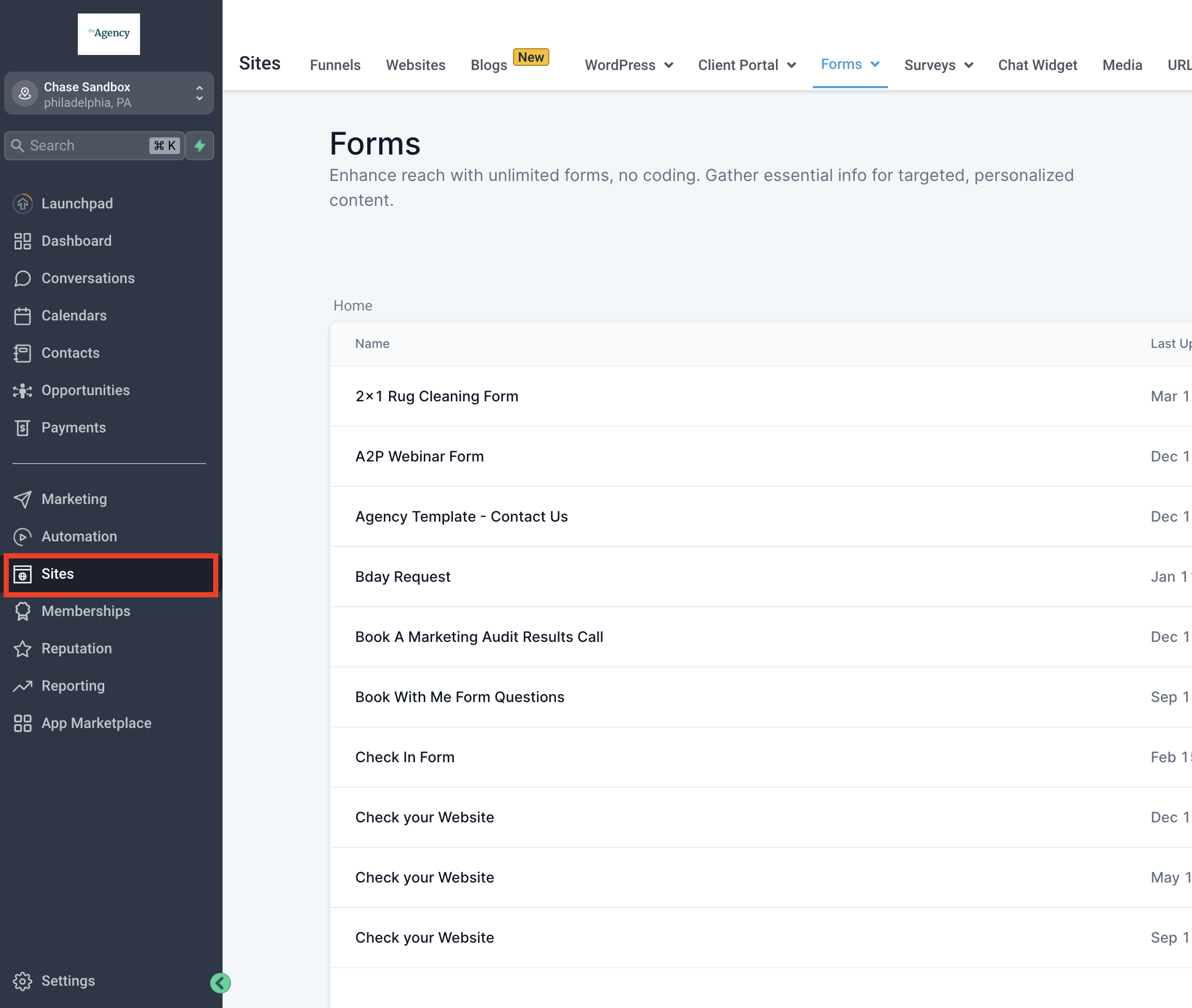
- Go to Sites in the left-hand menu.
- Click Forms.
- Open the specific form you care about.
- Click the Submissions tab.
Here you’ll see a table of every time that form was submitted, along with key details like:
- Contact name and email
- Date and time of submission
- Answers to each field on the form
You can use search and filters to quickly find a specific person or timeframe.
Best use cases for Forms > Submissions:
- Quickly confirming that a form is live and capturing data
- Troubleshooting a complaint like “I filled out the form but no one got back to me”
- Spot-checking responses before importing or exporting them elsewhere
The supporting flowchart image attached to this article visually maps this flow from submission into your system so your team can see where each piece of data ends up.
2. See form answers on the contact record
Forms are most powerful when they enrich your contacts, not just a log of submissions.
Whenever a form is configured to map fields to contact properties or custom fields, those answers are written into the person’s record.
To view form responses on a specific contact:
- Go to Contacts.
- Search for and click on the relevant person.
- Review their Contact Details and any custom fields you’ve mapped from the form.
Typical examples:
- A "Service Interest" dropdown writes to a custom field used to segment contacts.
- A "Budget" field stores in the contact record so your team can prioritize.
- A "Use Case" text area gives sales and success reps instant context before reaching out.
Because this data lives on the contact, you can use it to:
- Build smart segments and saved searches
- Trigger workflows (for example: budget over a certain amount → send to a specific pipeline)
- Personalize emails, SMS, and in-app messaging
If you’d like help designing those field mappings and automations, Revset Labs (an AI Automation and Marketing Agency) can build the end‑to‑end system for you so every form response feeds a clear, revenue-focused journey.
3. View form submissions inside calendar appointments
If you use forms as part of a booking flow (for example, a form embedded in a calendar widget), those responses are accessible right inside the appointment.
To see form responses for an appointment:
- Go to Calendars.
- Find and click the relevant appointment in your calendar.
- In the appointment modal, open the Forms tab.
You’ll see the submission that was completed alongside the booking, which is perfect for:
- Reviewing qualification questions before a sales call
- Making sure required intake details are present for consultations
- Giving your team context without forcing them to jump between modules
This view is especially powerful when paired with pipelines and workflows, because your team can both see the answers and act on them from the same place.
4. Notifications, email alerts, and automated follow-up
The fourth “location” for form responses isn’t a single screen—it’s the communication you trigger automatically when someone hits Submit.
You can set up two main layers:
A. Email notifications from the form builder
Inside the form editor:
- Open your form in Sites > Forms.
- Click the notification (bell) icon.
- Enable Email Notification to send alerts to your team when the form is submitted.
- Optionally enable an Auto Responder to email the person who filled out the form.
This ensures nobody on your team has to keep refreshing a dashboard to know when a hot lead has arrived.
B. Workflows triggered by form submissions
For more advanced setups, you can use workflows to react to form submissions and the data they contain. Common patterns include:
- Creating or updating an opportunity in a sales pipeline
- Adding the contact to a nurturing campaign based on their answers
- Alerting specific team members in Slack, email, or SMS
- Kicking off onboarding sequences when someone requests access or signs up
This is where GoHighLevel really shines: a single form can become the front door to a fully automated, multi‑step follow‑up machine.
If you don’t have that machine built yet, this is exactly the kind of system Revset Labs designs and maintains for clients—tying together forms, pipelines, messaging, and reporting so no lead slips through.
You can start a free GoHighLevel trial and, once you’re in, let Revset Labs handle the heavy lifting on architecture and automations.
5. Troubleshooting: when you can’t find a form response
If a lead insists they filled out a form but you can’t see their responses anywhere, run through this quick checklist:
-
Confirm the right form and location
Double-check you’re looking at the correct form under Sites > Forms and the correct sub-account. -
Submit a test entry yourself
Fill out the form using your own email address. Then:- Check Forms > Submissions for the new entry.
- Search for your contact record and confirm fields updated.
- Look at any relevant calendar appointments if the form is part of booking.
-
Verify field mappings
Make sure each form field is mapped to a contact field or custom field. If it isn’t, the data may exist only in the submission log, not on the contact. -
Check automation conditions
If you expect a pipeline change, tag, or notification but don’t see it, inspect the workflow conditions. A small mismatch (for example, wrong form selected or a typo in a value) can block the trigger. -
Confirm the form is published and embedded correctly
If you cloned pages or funnels, an old form might still be embedded. Grab the current form embed code or URL and ensure your live pages are using it.
Running this checklist usually reveals whether the problem is “no submission was created” or “the submission exists, but automation didn’t fire the way you expected.”
Turning form responses into a revenue engine
Knowing where GoHighLevel form responses show up is step one. Step two is turning those responses into a repeatable, revenue‑producing system.
At a minimum, aim for this baseline:
- Every form submission appears in Forms > Submissions.
- The right data is mapped into contact fields so you can segment and personalize.
- Any booking-related forms surface clearly inside calendar appointments.
- Team members get notifications or task assignments for high‑value submissions.
- Workflows nudge each new contact through a clear next step (demo, call, onboarding, purchase).
GoHighLevel gives you all the building blocks. If you want a proven architecture instead of guesswork, Revset Labs can help you design the form strategy, build the automations, and keep everything optimized over time.
And if you’re not yet on the platform—or you’re testing it for a new brand—you can try GoHighLevel with this free trial link and start capturing form responses in a way that’s actually usable for your team.