
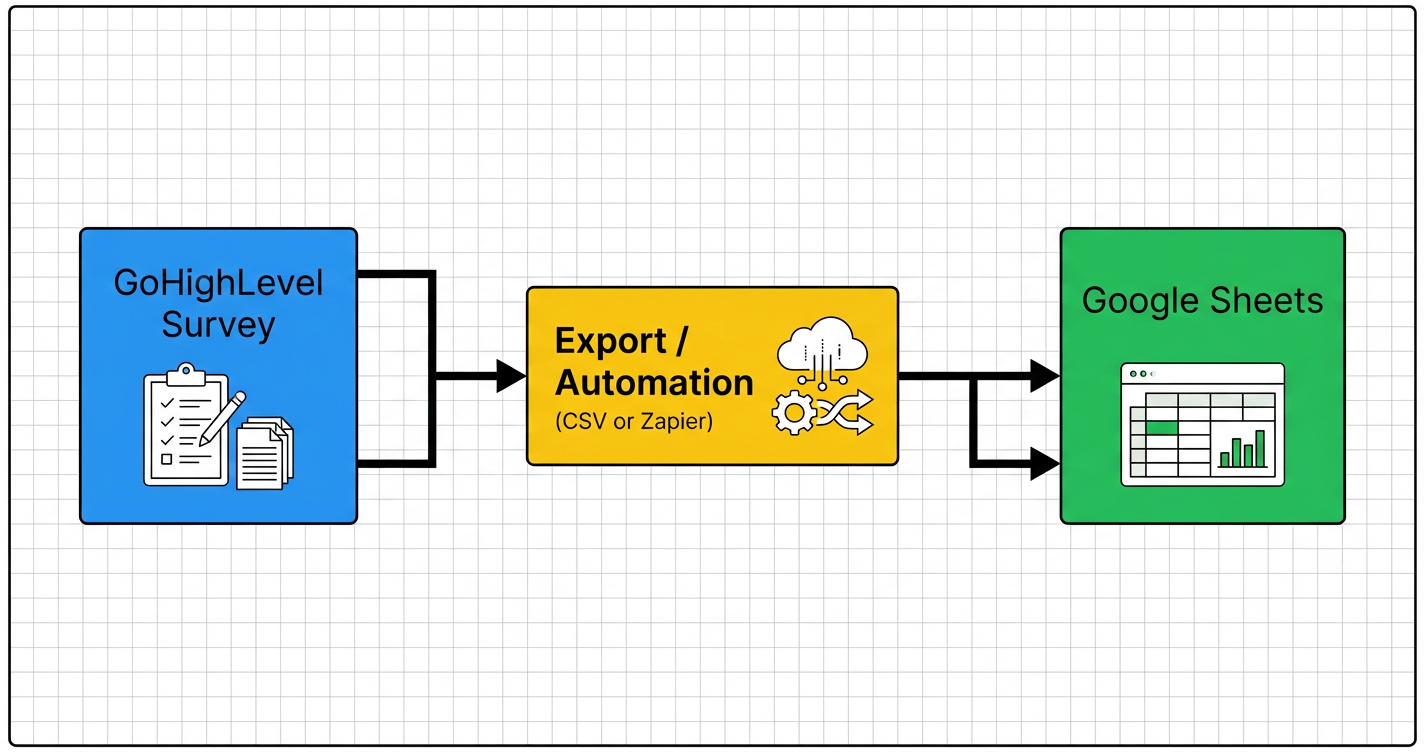
If you collect feedback, NPS scores, or post‑purchase surveys in GoHighLevel, Google Sheets is still one of the fastest ways to analyze results, build quick dashboards, and share insights with your team.This guide shows you how to reliably export GoHighLevel survey answers to Google Sheets – both as one‑off downloads and as an automated, always‑up‑to‑date feed you can plug into reporting. > If you don’t have a GoHighLevel account yet, you can start a free GoHighLevel trial here so you can follow along in your own workspace. —## When you should export survey answers to Google SheetsGoHighLevel already shows survey answers on the contact record and in basic reports. Google Sheets is useful when you want to:- Build custom dashboards and charts (for NPS, CSAT, onboarding feedback, etc.).- Slice data by team, location, funnel, or offer without learning a new BI tool.- Share results with stakeholders who live in spreadsheets.- Run quick ad‑hoc analysis, filters, and pivot tables.There are two main ways to get GoHighLevel survey answers into Google Sheets:1. Manual exports – best for one‑off snapshots, audits, or quarterly reviews.2. Automated syncs – best when you want a live sheet that updates every time a new survey is submitted.The sections below walk through both options step by step.
 —## Option 1 – One‑time export of survey answers (CSV → Google Sheets)Use this when you:- Need a point‑in‑time export (for example, last quarter’s NPS survey).- Want to do a deep dive in Sheets but don’t need it to keep updating.### Step 1: Locate your survey and responses in GoHighLevel1. Log in to your GoHighLevel account.2. In the left navigation, go to Sites → Surveys.3. Open the survey whose answers you want to export.4. Click into the Submissions or Responses view so you can see individual entries.If you are not sure where survey responses show up in your account, it’s worth reviewing your internal documentation or the HighLevel help article on where survey answers are stored first.### Step 2: Export survey answers as CSVFrom the survey submissions screen:1. Look for an Export or Download option (usually near the top‑right of the table).2. Choose CSV as the export format. This keeps data structure simple and Google‑Sheets‑friendly.3. Confirm the export. HighLevel will either:- Immediately download a
 .csv file to your browser, or- Email you a link to download the file once it’s ready (for larger datasets).Save the CSV somewhere predictable, for example:- reports/surveys/nps-survey-q1-2026.csv> Tip: If you run the same survey regularly, standardize your filenames now. It makes it much easier to compare results over time.### Step 3: Import the CSV into Google SheetsIn Google Sheets:1. Go to sheets.google.com and click Blank or open an existing reporting workbook.2. Click File → Import → Upload.3. Drag in your exported CSV or choose it from your computer.4. In the import settings, choose Insert new sheet(s) so the survey data lands on its own tab.5. Click Import data.You should now see every survey submission as a row and each survey question as a column.### Step 4: Clean and structure your dataDepending on how your survey was set up, you may want to:- Freeze header rows so titles stay visible while you scroll.- Convert timestamps to your local time zone.- Standardize values for multiple‑choice questions (for example, Very satisfied vs very satisfied).- Use Filters or Filter views to slice by:- Survey date range- Location or pipeline- Offer, funnel, or campaignFrom here you can build pivot tables, charts, or dashboards just like any other dataset in Sheets.—## Option 2 – Automatically sync new survey answers to Google SheetsIf you run high‑volume surveys or depend on live dashboards, manually exporting CSVs gets old fast. Instead, you can use an automation tool (such as Zapier, Make, or a webhook‑to‑Sheets flow) to push each new survey submission into Google Sheets in real time.The exact screens vary by tool, but the pattern is always the same:> GoHighLevel survey submission → Automation platform → Add row to Google SheetsBelow is an example using Zapier, which has direct GoHighLevel and Google Sheets integrations.### Step 1: Prepare your Google Sheet1. Create a new Google Sheet (or a dedicated tab in an existing reporting workbook).2. Add a header row with one column for each survey field you care about, for example:- Submitted At– Contact Name– Email– Phone– Survey Name– Question 1 – Overall satisfaction– Question 2 – Primary goal– Question 3 – Comments3. Keep column names short and clear – you’ll map GoHighLevel fields to these headers in Zapier.### Step 2: Create a "New Survey Submission" trigger in Zapier1. In Zapier, click Create Zap.2. Choose GoHighLevel (or HighLevel) as the Trigger app.3. Select the trigger event closest to New Survey Submission or New Form/Survey Submission.4. Connect your GoHighLevel account and select the correct sub‑account.5. Choose the specific survey you want to watch (or leave it broader if you want multiple surveys to feed the same sheet).6. Test the trigger so Zapier pulls in a recent submission sample.If you don’t see any sample data, submit a test survey in GoHighLevel first, then retest.### Step 3: Add a "Create Spreadsheet Row" action for Google Sheets1. For the Action app, choose Google Sheets.2. Select Create Spreadsheet Row (or Create Spreadsheet Row in a specific worksheet).3. Connect your Google account.4. Pick the Spreadsheet and Worksheet you prepared in Step 1.5. In the field mapping screen, map each survey field from the GoHighLevel trigger to the right Google Sheets column, for example:- Submitted At → Created Date from the survey submission.- Contact Name → Contact → Full Name.- Email → Contact → Email.- Phone → Contact → Phone.- Question 1 – Overall satisfaction → the answer field for Question 1, and so on.6. Test the action to send a sample row into your sheet.You should see a new row appear in your Google Sheet with the sample data.### Step 4: Turn on your automation and monitorOnce the test looks good:1. Turn the Zap ON.2. Submit another test survey response in GoHighLevel.3. Confirm that the new submission appears as a fresh row in Google Sheets within a few minutes.Going forward, every new survey answer will land in your sheet without any manual exports. You can build dashboards, pivot tables, and Looker Studio reports on top of this data just like you would with any other live feed.> If you’d rather skip the integration plumbing, Revset Labs can design and implement a full survey analytics pipeline for you – from survey design in GoHighLevel to automated Google Sheets dashboards and follow‑up workflows.—## Best practices for reliable survey→Sheets reportingHowever you export survey answers, a bit of upfront structure makes your reporting far easier to maintain.### 1. Keep a consistent survey structure- Avoid renaming or re‑ordering questions in live surveys; that can break existing automations and dashboards.- If you need a new version, consider duplicating the survey and updating mappings and reporting for the new one.### 2. Use stable identifiers- Add hidden fields or tags for things like pipeline, offer, or funnel so you can group results in Sheets without guessing.- Where possible, use dropdowns or multiple‑choice answers instead of free text for key metrics (for example, satisfaction scores, "How likely are you to recommend us?" etc.).### 3. Standardize your Sheets schema- Reuse the same column order and naming across survey tabs (for example, one tab per survey, but shared Submitted At, Location, NPS Score columns).- Add a simple data dictionary on a separate tab explaining what each column means.### 4. Protect your source data- Treat the raw survey responses sheet as append‑only – don’t sort or manually edit it.- For analysis, create separate tabs that reference the raw sheet with formulas like =QUERY or =FILTER.### 5. Don’t forget privacy and compliance- Limit access to Sheets that contain PII to the people who truly need it.- If you work in regulated industries, confirm your export + storage approach aligns with your data retention and compliance requirements.—## Where GoHighLevel and Revset Labs fit inExporting survey answers to Google Sheets is just the first step.With GoHighLevel and a bit of automation, you can:- Trigger workflows when someone leaves low‑score feedback (for example, open a task, assign an owner, or start a save sequence).- Tag and segment contacts based on survey answers for smarter follow‑up.- Feed survey data into pipelines and opportunities so your team can see satisfaction trends alongside revenue.If you’re still evaluating whether GoHighLevel is the right hub for your funnels, CRM, and automations, you can start a free GoHighLevel trial and test these survey exports end‑to‑end before committing.Revset Labs is an AI automation and marketing agency that helps teams:- Design surveys and feedback loops that actually drive action.- Implement HighLevel workflows that respond intelligently to survey data.- Build reporting stacks (Google Sheets, dashboards, Looker Studio) that leadership actually uses.If you’d like this entire "survey → Sheets → action" loop set up for you, Revset Labs can architect and implement it directly inside your GoHighLevel account so you can focus on talking to customers, not wiring tools together.—## FAQs: Exporting GoHighLevel survey answers to Google Sheets### What’s the easiest way to export survey answers from GoHighLevel to Google Sheets?For occasional exports, the simplest path is to download survey submissions from Sites → Surveys as a CSV and then import that file into Google Sheets as a new tab. This gives you a clean snapshot for analysis without setting up any integrations.### Can I keep my Google Sheet updated automatically when new answers come in?Yes. Use an automation tool such as Zapier or Make to trigger on new GoHighLevel survey submissions and then append each submission as a new row in Google Sheets. Once configured, this gives you a near real‑time survey report without manual exports.### Which fields should I include in my export?Include at least:- Submission timestamp- Contact name, email, and phone- Survey name- All question responsesIf you rely heavily on segmentation, also export tags, location, pipeline, or offer where available so you can group results correctly in Sheets.### How often should I export survey answers if I’m not using automation?That depends on how often you use the data. Many teams export weekly or monthly for operational surveys (like onboarding feedback) and after each major campaign or launch for one‑off surveys. The key is to pick a cadence and stick to it so reports stay current.### Do I need a developer to connect GoHighLevel surveys to Google Sheets?No. For most setups, you can handle this with out‑of‑the‑box exports or point‑and‑click tools like Zapier. If your reporting stack is more complex, a partner like Revset Labs can help you architect the data flows and dashboards so everything stays reliable at scale.
