
If your sales or support team lives in GoHighLevel, manual call actions are one of the simplest ways to make sure the right people get on the phone with the right leads at the right time—without losing the structure and reporting of an automated workflow.This guide walks you through exactly how Manual Call actions work, how to add them to a workflow, and how to manage the call queue so nothing slips through the cracks.Along the way, you’ll see how to combine manual calls with automation, plus when it makes sense to bring in tools like Revset Labs and GoHighLevel together to scale your follow-up.

Not using GoHighLevel yet? You can start a free GoHighLevel trial here and follow along as you build.
Why manual call actions matter in GoHighLevel
Most GoHighLevel accounts start with emails, SMS, and pipelines. Manual Call actions are the missing piece that lets you:
- Route high-intent leads straight to a human without abandoning your automation.
- Give your team a clean, prioritized call queue instead of scattered reminders.
- Track outcomes on every call and push contacts deeper into a funnel based on what happens live.
Instead of hoping someone remembers to dial the phone when a hot lead comes in, a Manual Call action turns that moment into a structured task, inside a workflow that can continue automatically once the call is done.
If you want help designing these end-to-end systems, Revset Labs (an AI automation and marketing agency) can map your current process, automate the repetitive pieces, and plug your team into a predictable, trackable call pipeline on top of GoHighLevel.
How Manual Call actions work inside a workflow
At a high level, a Manual Call action does three things:
- Creates a call task for a specific contact when a workflow reaches that step.
- Places that task in the Manual Actions tab under Conversations, so your team can work a focused call queue.
- Pauses the workflow for that contact until the manual task is completed (typically when the task is deleted from Manual Actions or moved according to your settings).
A simple flow might look like this:
- Trigger: New lead submits a form.
- Automated welcome email sequence.
- Wait 1 day.
- Manual Call action: Have a rep call the lead.
- After the task is completed, continue with either additional automation or a different follow-up path.
You get the best of both worlds: automation that never forgets, plus human conversations exactly where they move the needle most.
Want a GoHighLevel account that’s already wired for this kind of hybrid automation? Spin up a free GoHighLevel trial and test Manual Call workflows as you read.
Step-by-step: Add a Manual Call action to a GoHighLevel workflow
The core setup follows the same pattern no matter which niche you’re in. Here’s the full process, broken down.
1. Open or create your workflow
- In your GoHighLevel sub-account, use the left navigation to go to Marketing.
- Click Workflows.
- Either:
- Click + Create Workflow to start from scratch, or
- Open an existing workflow you want to enhance with a manual call step.
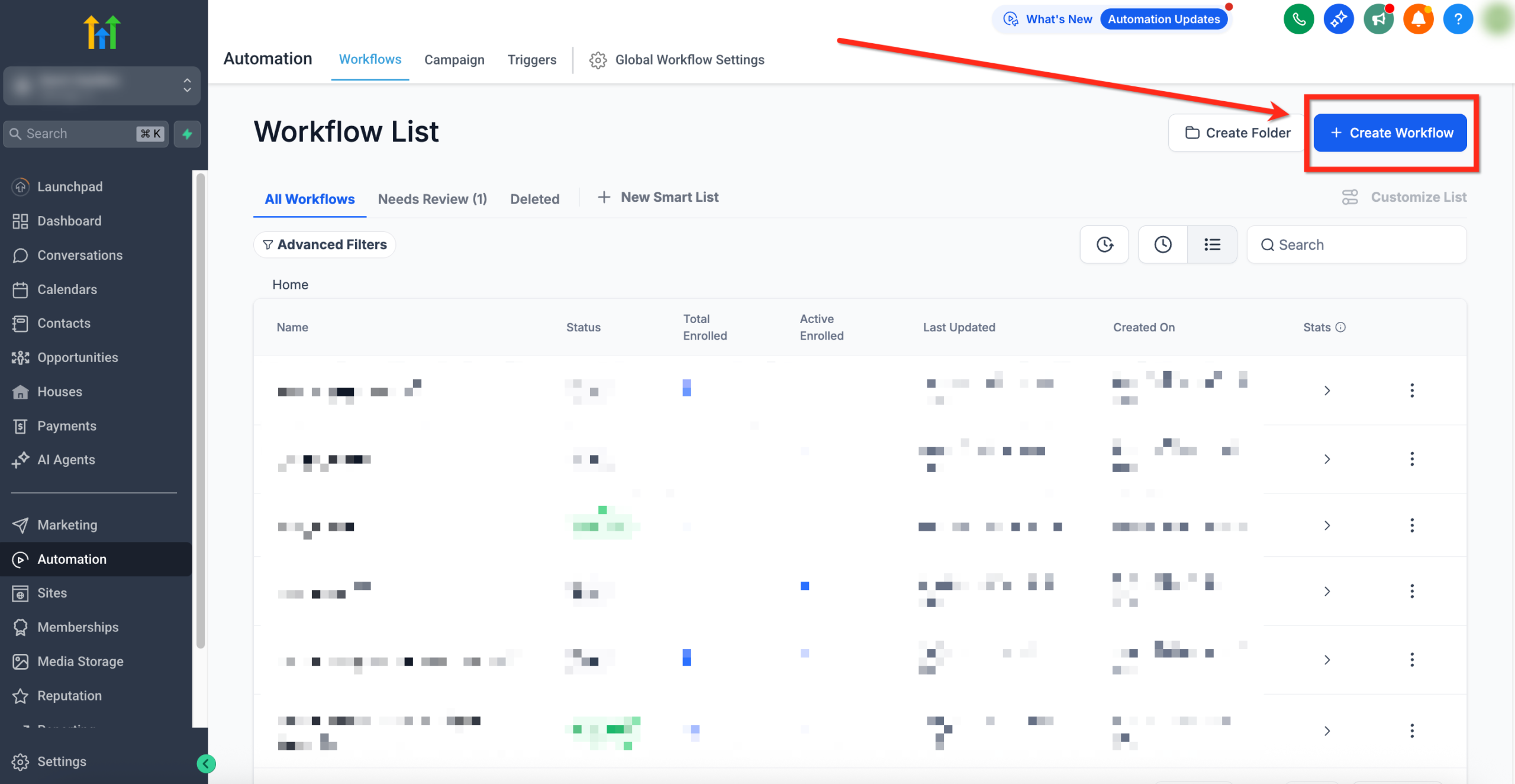
If you’re starting fresh, choose a template that’s close to your use case (for example, "Lead Form Follow-Up" or "Appointment Reminder") to save time.
2. Add the right trigger
Every workflow needs a clear starting point so GoHighLevel knows when to generate the Manual Call task.
Common triggers for manual call flows include:
- Form submitted (e.g., a lead magnet or consultation form)
- Pipeline stage changed (e.g., moved to "Proposal Sent")
- Tag added (e.g., "High Intent – Pricing Page")
- Appointment booked or missed
In the workflow builder:
- Click + Add Trigger at the top of the workflow.
- Select your trigger type.
- Configure any filters (for example, only create a call for contacts with a certain tag or from a specific pipeline).
The more precise your trigger, the more focused—and profitable—your call queue will be.
3. Insert the Manual Call action
Now you’ll tell GoHighLevel when to create the call task.
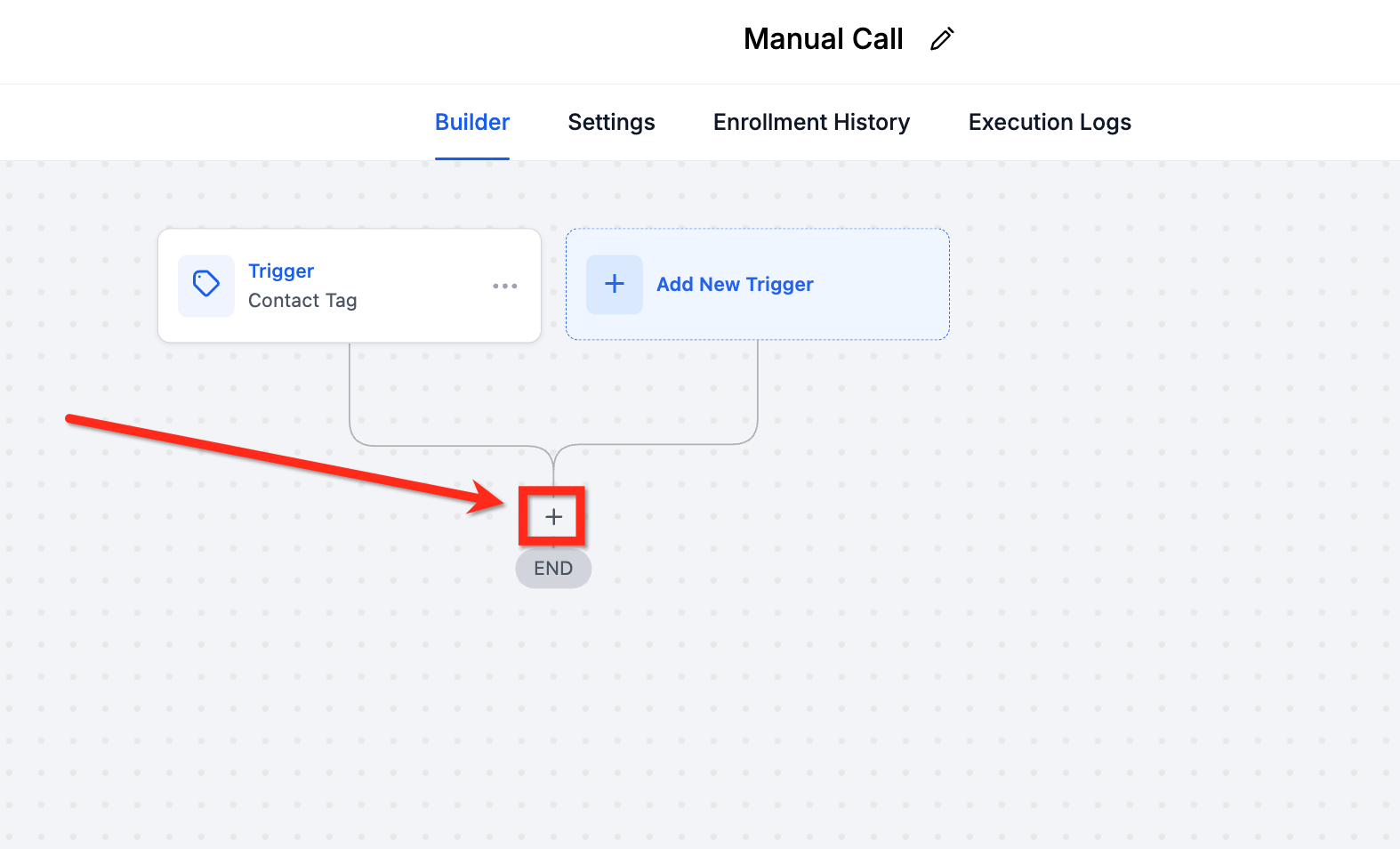
- Hover below the step after which the call should happen (for example, after a wait step or email sequence).
- Click the + button to add a new action.
- Search for and select Manual Action to Call.
- Give the action a clear internal name like "Manual Call – New Lead within 24 Hours".
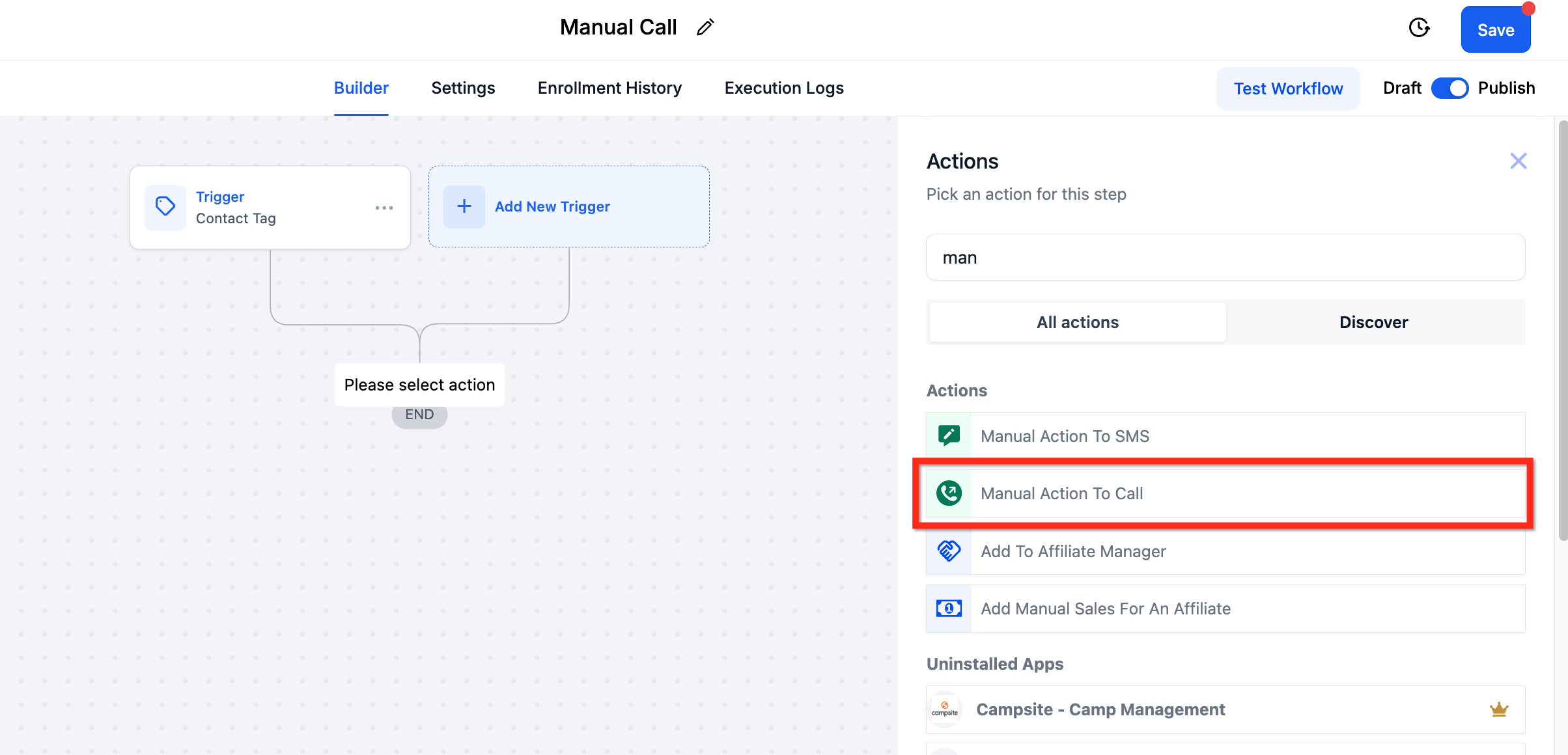
Inside the action settings, you can also:
- Set assignment rules (specific user vs. round-robin).
- Choose how many contacts to show at once in the queue.
- Add notes or a short call script so every rep knows the angle.
This is also a good place to link out to any internal documentation your team uses for handling objections or qualifying leads.
4. Assign the call tasks to the right people
Who should actually make the calls? You have a few options:
- Single owner – Ideal for solo operators or when you want one specialist handling a certain pipeline.
- Round-robin across a team – Best for larger sales teams; GoHighLevel distributes calls evenly.
- Role-based routing – Combine pipeline stages, tags, or conditions so that different reps get different kinds of leads.
Think through: - Time zones and working hours.
- Languages and regions.
- Deal size or segment (e.g., high-ticket vs. low-ticket).
If you’re not sure how to design this, Revset Labs can help map your real-world process into a routing strategy that GoHighLevel can automate—without burying your team in complexity.
5. Save and publish the workflow
When your trigger and Manual Call action look right:
- Click Save in the top-right corner of the workflow builder.
- Click Publish to turn the workflow on.
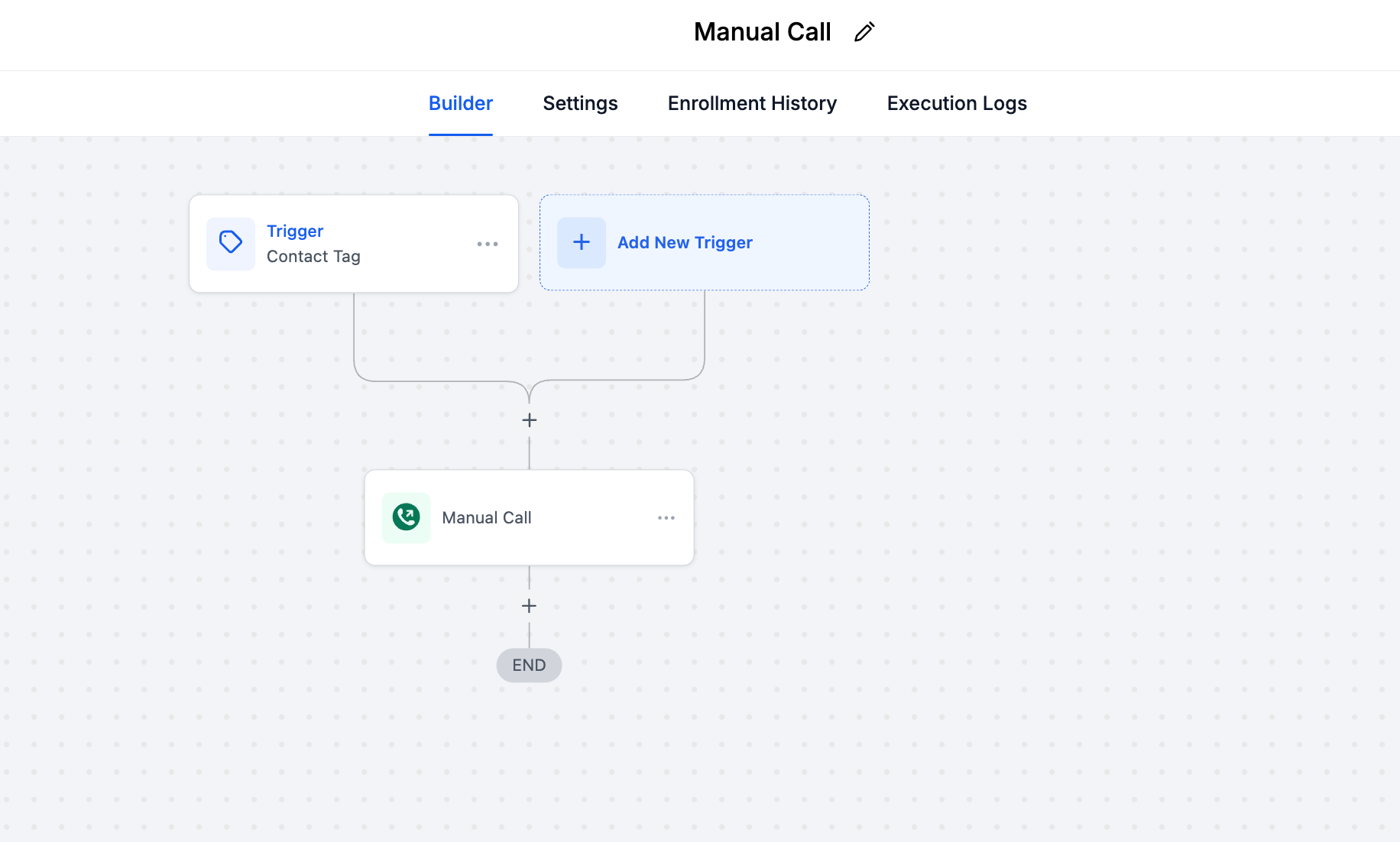
From this point forward, every contact that meets your trigger conditions and reaches the Manual Call step will automatically generate a task in your Manual Actions call queue.
Working your Manual Actions call queue
The power of Manual Call actions depends on how consistently your team works the queue.
Here’s the day-to-day flow inside GoHighLevel:
- In the left navigation, click Conversations.
- At the top, open the Manual Actions tab.
- You’ll see a list of pending call tasks with contact names and any notes from the workflow.
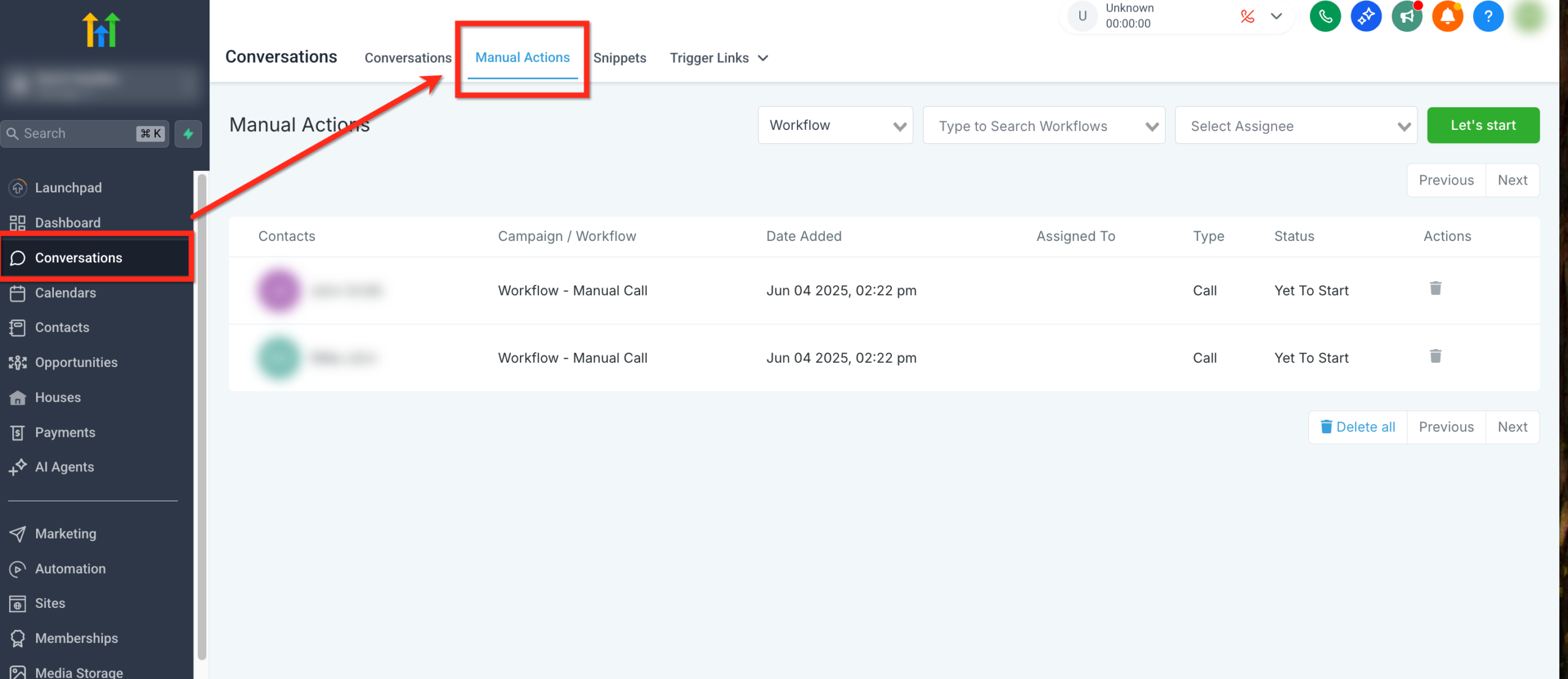
- Click Let’s Start to begin a calling session.
Within this view, reps can:
- Dial the next contact in the queue.
- Log notes and outcomes directly on the contact record.
- Move quickly from one call to the next without jumping between screens.
Important: The workflow only continues for a contact when the Manual Call task is completed—usually by deleting or resolving the task in Manual Actions. Simply calling the lead from somewhere else in the app does not move them forward in the workflow.
Build this expectation clearly into your team’s process so you don’t end up with stuck leads.
Best practices for high-converting Manual Call workflows
Once you have the basics working, a few strategic tweaks can dramatically improve results.
1. Prioritize speed-to-lead
For net-new leads, your Manual Call action should usually fire within minutes, not days. Consider:
- Triggering the workflow immediately on form submit.
- Skipping any long wait steps before the first call.
- Using conditions to fast-track leads that visit pricing or demo pages.
If you’re setting this up from scratch, starting with a proven template and tailoring it to your offer is often faster than building from zero. Launching GoHighLevel with a free trial gives you a live environment to experiment in before rolling out to your full team.
2. Give reps context and a clear script
A Manual Call action is much more effective when the caller can see:
- Why the contact entered the workflow.
- Which emails/SMS they’ve already received.
- What they’ve done recently (booked, no-showed, clicked, etc.).
Add that context into the workflow step notes, and keep a short call framework handy:
- Confirm who they are and why you’re calling.
- Ask one or two qualifying questions.
- Present the next best step (book, reschedule, upgrade, etc.).
3. Use conditions to branch follow-up
Manual calls don’t have to be the end of the line. You can:
- Send people who book a call into a confirmation and nurture sequence.
- Drop no-shows into a reactivation workflow with another Manual Call later.
- Move unqualified leads into a lighter-touch nurture track.
By combining Manual Call actions with conditional logic, you get a simple version of a sales playbook that runs automatically in the background.
4. Report on outcomes, not just activity
Set standards for how reps log call results:
- Connected / not connected
- Booked / not booked
- Qualified / disqualified
Over time, you can look at: - Which workflows generate the most booked calls.
- Which segments are worth a manual touch.
- Where additional automation (texts, emails, tasks) can warm people up before the call.
Revset Labs frequently helps teams read this data and then redesign their funnel so manual calls happen where they have the most leverage—while GoHighLevel handles everything else.
Common questions about Manual Call actions in GoHighLevel
What is a Manual Call action in GoHighLevel?
A Manual Call action is a workflow step that creates a call task for a contact and places it in the Manual Actions tab under Conversations. It pauses the workflow until someone on your team completes that task, giving you tight control over when humans step in.
Where do Manual Call tasks show up?
All Manual Call tasks generated by workflows live in Conversations → Manual Actions. Your team can start a calling session from there, move through the queue, and log outcomes without leaving the screen.
Does the workflow move forward automatically after the call?
Yes—but only when the Manual Action task is completed (usually by deleting/resolving it from the Manual Actions view). Calling the contact from another part of GoHighLevel without clearing the task will leave them stuck at that step.
Can I assign Manual Call tasks to specific users?
Yes. In the Manual Call action settings, you can:
- Assign every task to a specific user, or
- Use round-robin so a group of users share the workload.
This makes it easy to route different workflows to different teams or specialists.
How does this compare to using a power dialer only?
A standalone power dialer can give you speed, but it usually lives outside your marketing and CRM engine. By building your call queue with Manual Call actions inside GoHighLevel:
- Every call is tied to a workflow and a contact record.
- You can trigger follow-up automation based on outcomes.
- Reporting lives in one place.
If you need help deciding when to use pure automation, when to use manual calls, and how to connect it all, Revset Labs can design that architecture on top of GoHighLevel for you.
Turn your manual calls into a predictable revenue system
Manual Call actions are a simple feature with outsized impact: they turn scattershot follow-up into a reliable, trackable system your team can actually work every day.
When you combine that with:
- Smart triggers based on real buying signals,
- Clear scripts and call outcomes, and
- Automated nurture around the edges,
…you end up with a workflow that consistently turns leads into booked calls and revenue.
If you’re ready to see it in action, start your free GoHighLevel trial and build your first Manual Call workflow using this guide.
And if you’d rather have a specialist own the strategy, build the workflows, and plug your team into a fully-automated pipeline, Revset Labs can help you implement all of this end-to-end—so your sales team just logs in, works the queue, and closes deals.