
Why customized review requests matter for your reputation
Your online reviews are one of the strongest buying signals your prospects see. The problem isn’t getting happy customers—it’s turning those happy customers into consistent 5‑star reviews without adding more manual follow‑up to your team’s plate.

GoHighLevel’s Reputation Management makes this scalable by automatically sending SMS and email review requests after a visit, call, or completed job. When you customize those messages to match your brand voice and timing, you:
- Increase the % of customers who actually click and leave a review
- Steer reviews toward the platforms that matter most to your business
- Keep messaging compliant, friendly, and on‑brand
In this guide, you’ll learn how to customize your GoHighLevel review request messages (SMS & email), set smart follow‑up cadences, and turn Reputation Management into a reliable 5‑star review engine.
If you’re not using GoHighLevel yet, you can start a free GoHighLevel trial here and follow along as you set everything up.
What you need before you start
Before you customize review requests, make sure you have:
- An active GoHighLevel account with the Reputation module available
- At least one location created and connected
- Access to Reputation → Settings in that location
If you’d rather have a specialist set this up for you, Revset Labs—an AI automation and marketing agency—can design your entire review capture workflow, copy, and automation inside GoHighLevel for you.
Step 1: Set up your GoHighLevel review link
Everything in Reputation Management flows through a single review link. This is the URL your SMS and email templates will send people to.
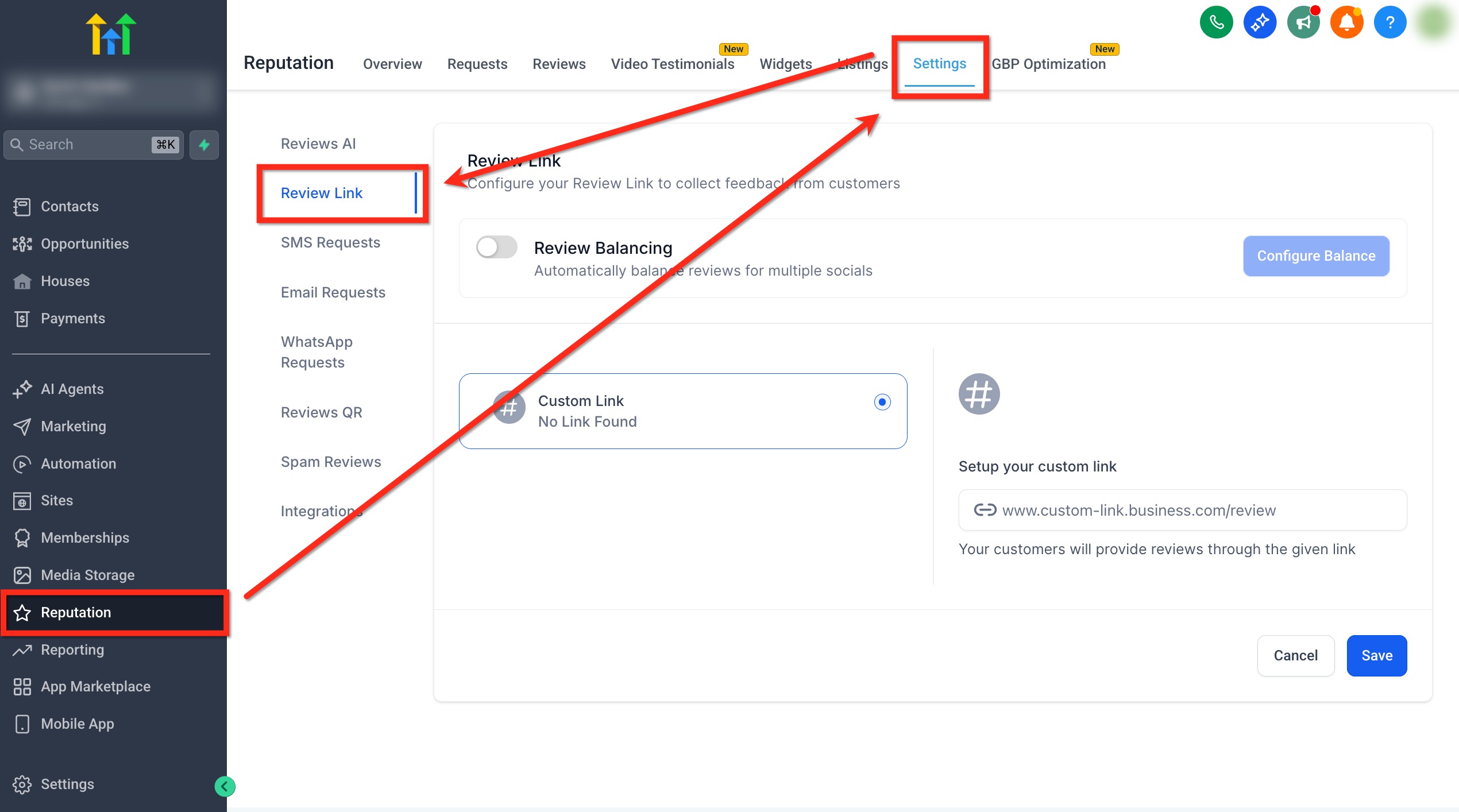
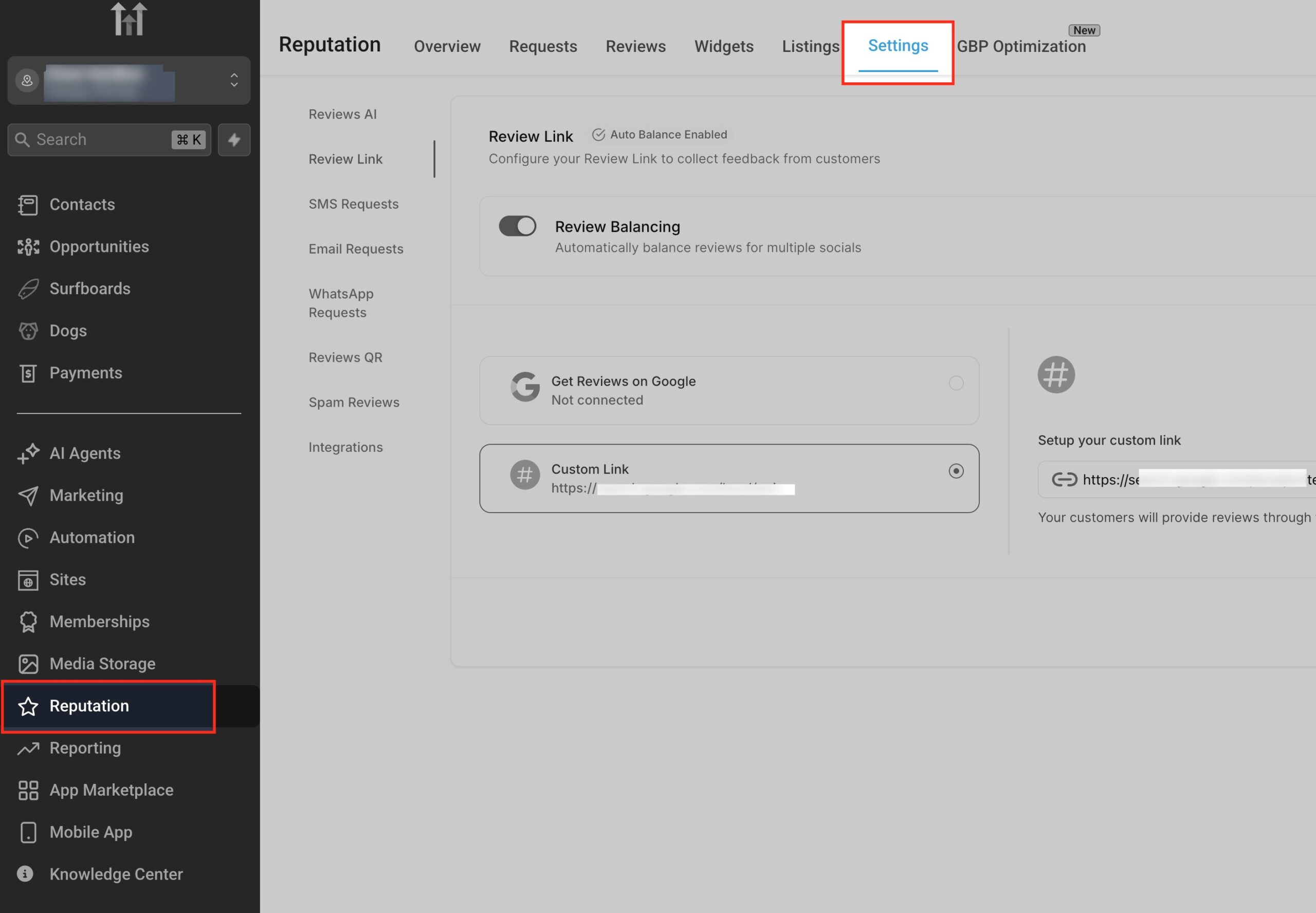
- Go to Reputation → Settings → Review Link.
- Choose how you want GoHighLevel to handle reviews:
- Review Balancing (recommended for most businesses):
- Turn this on to let GoHighLevel distribute reviews across connected platforms like Google.
- Great when you want a natural mix of Google, Facebook, and other reviews.
- Custom Link:
- Select this if you want to send all reviews to a single page—such as a dedicated reviews landing page.
- Paste in the URL of that page.
- Review Balancing (recommended for most businesses):
- Save your settings.
Best practice:
- Make sure the destination page is mobile‑friendly—almost all review requests are opened on phones.
- Keep the page simple: a short thank‑you message and a big button that opens your preferred review platform.
Once this link is in place, GoHighLevel can insert it automatically into every SMS and email review request.
Step 2: Configure SMS review request messages
SMS is usually the highest‑converting review channel—customers see it instantly and it only takes a tap to respond.
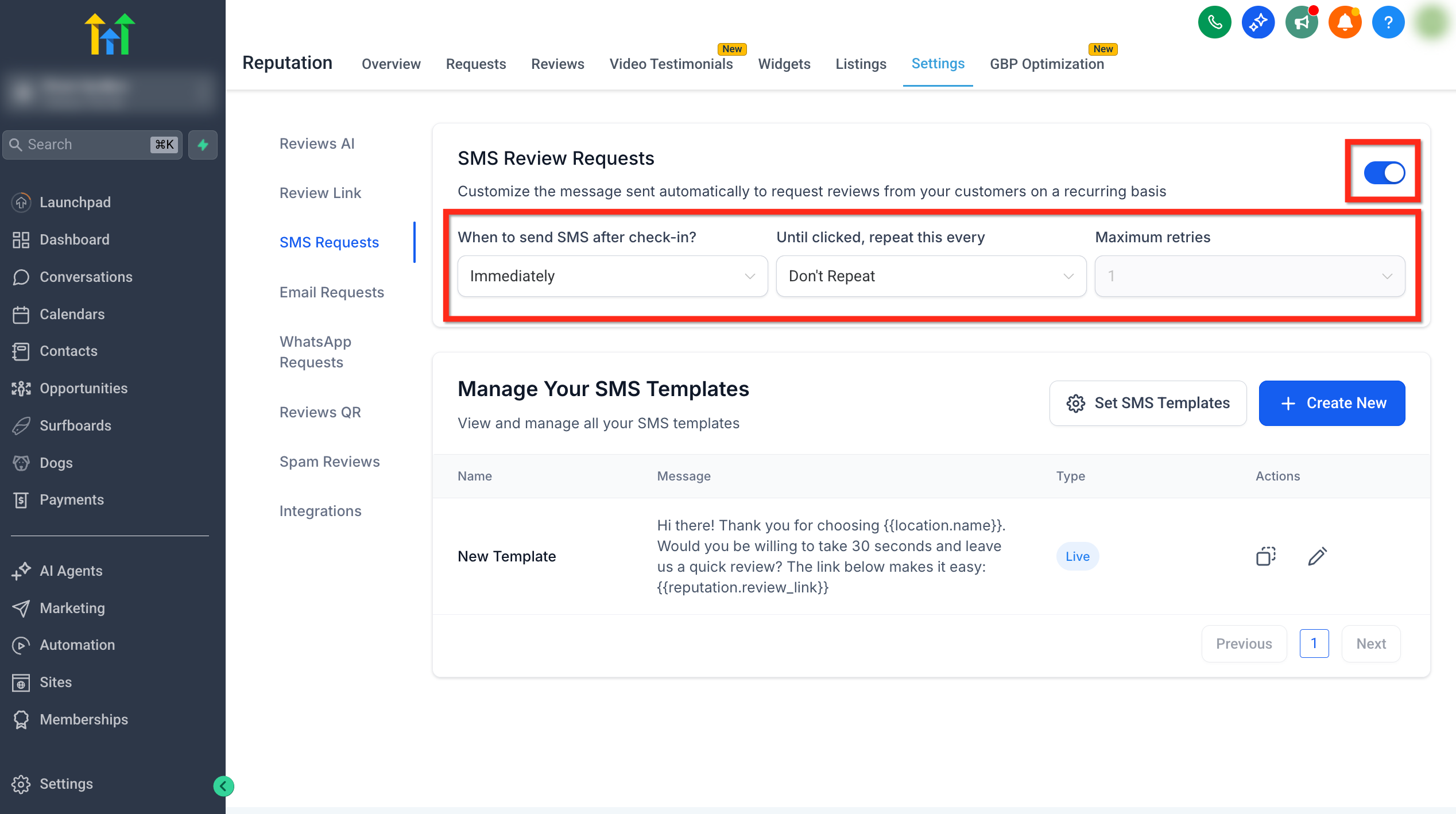
2.1 Enable SMS review requests
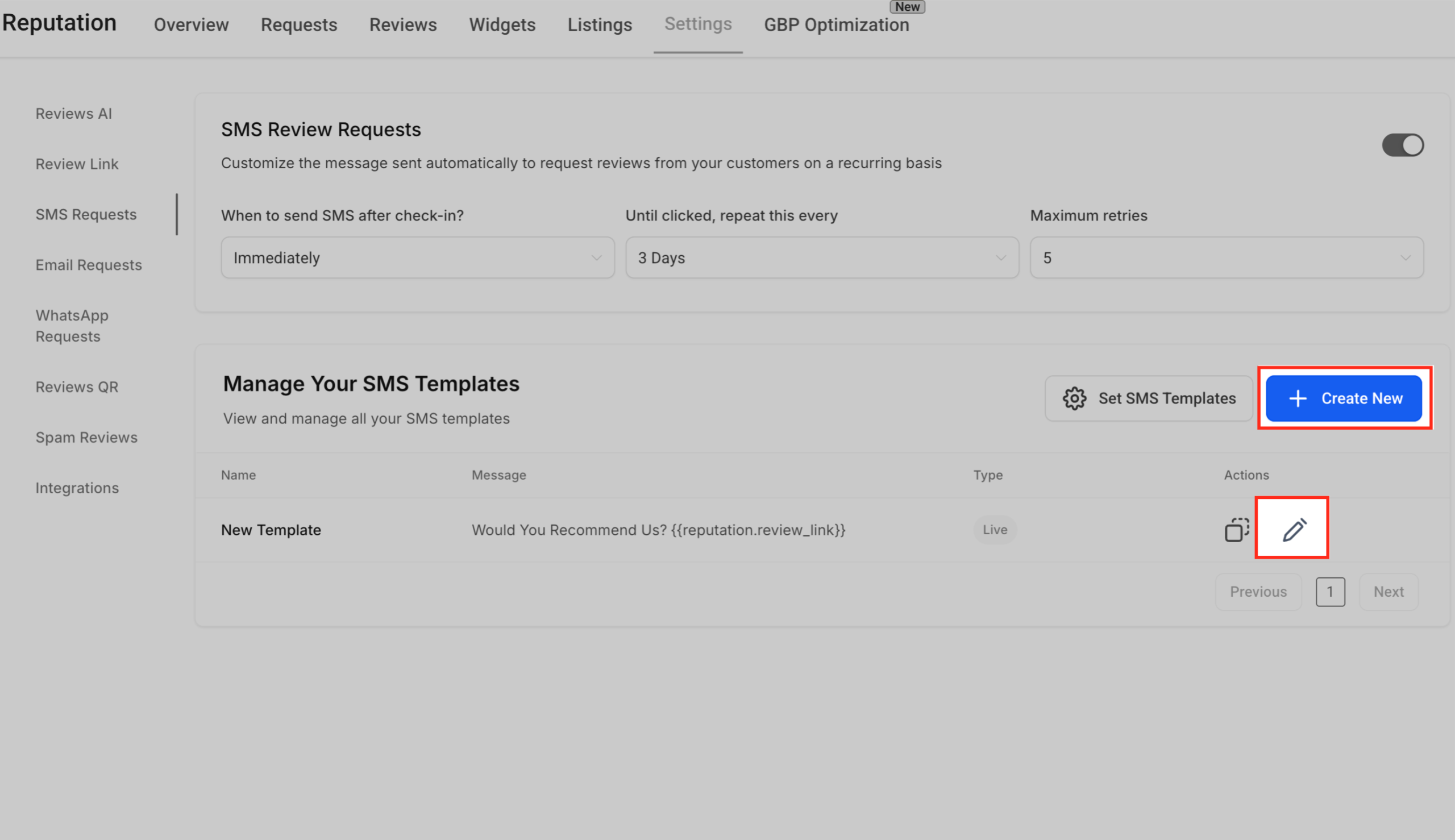
- Go to Reputation → Settings → SMS Requests.
- Toggle Enable SMS Review Requests to On.
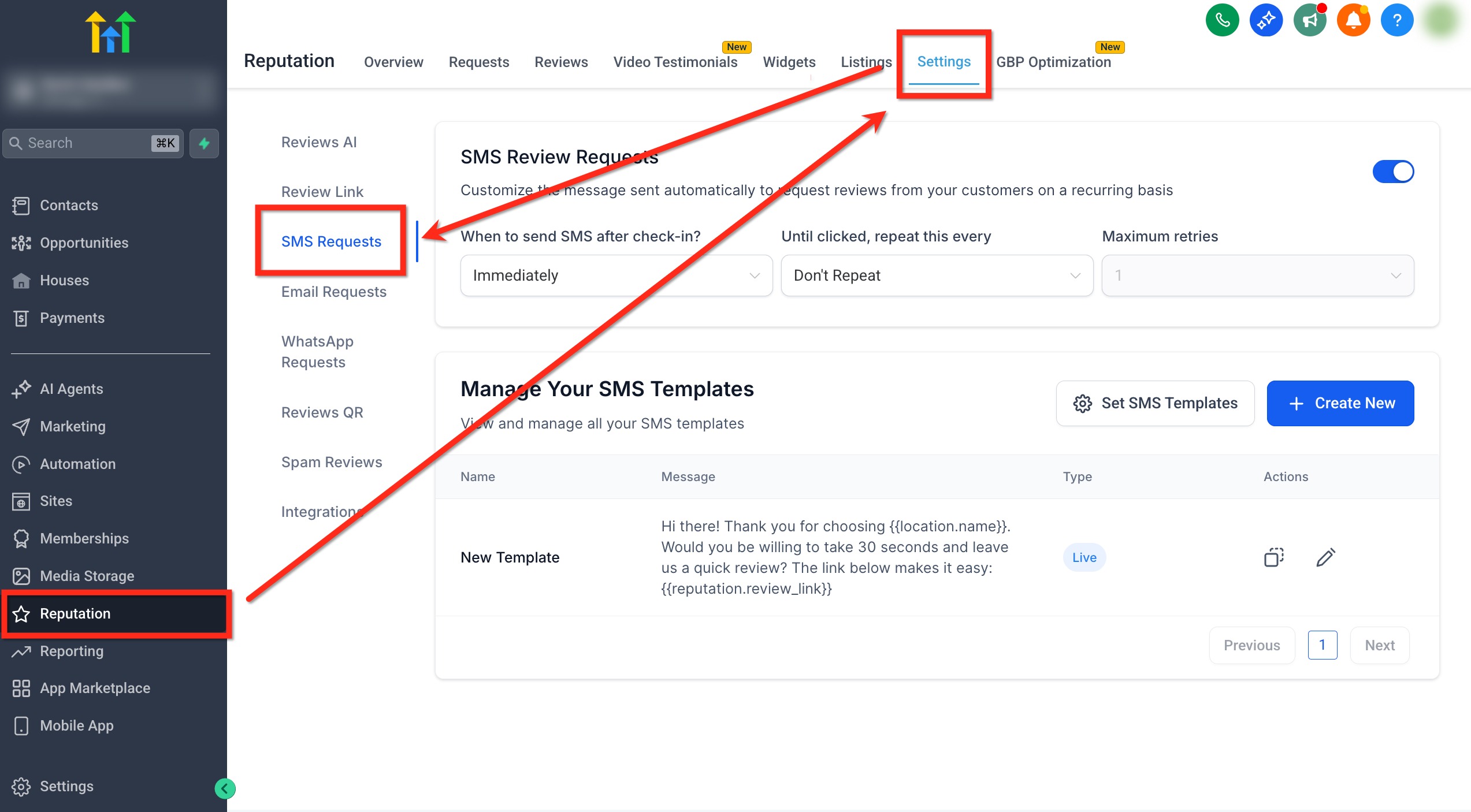
This tells GoHighLevel to send automated SMS review requests whenever a contact hits your chosen reputation trigger (for example, a pipeline stage, appointment status, or tag).
2.2 Set timing, frequency, and retries
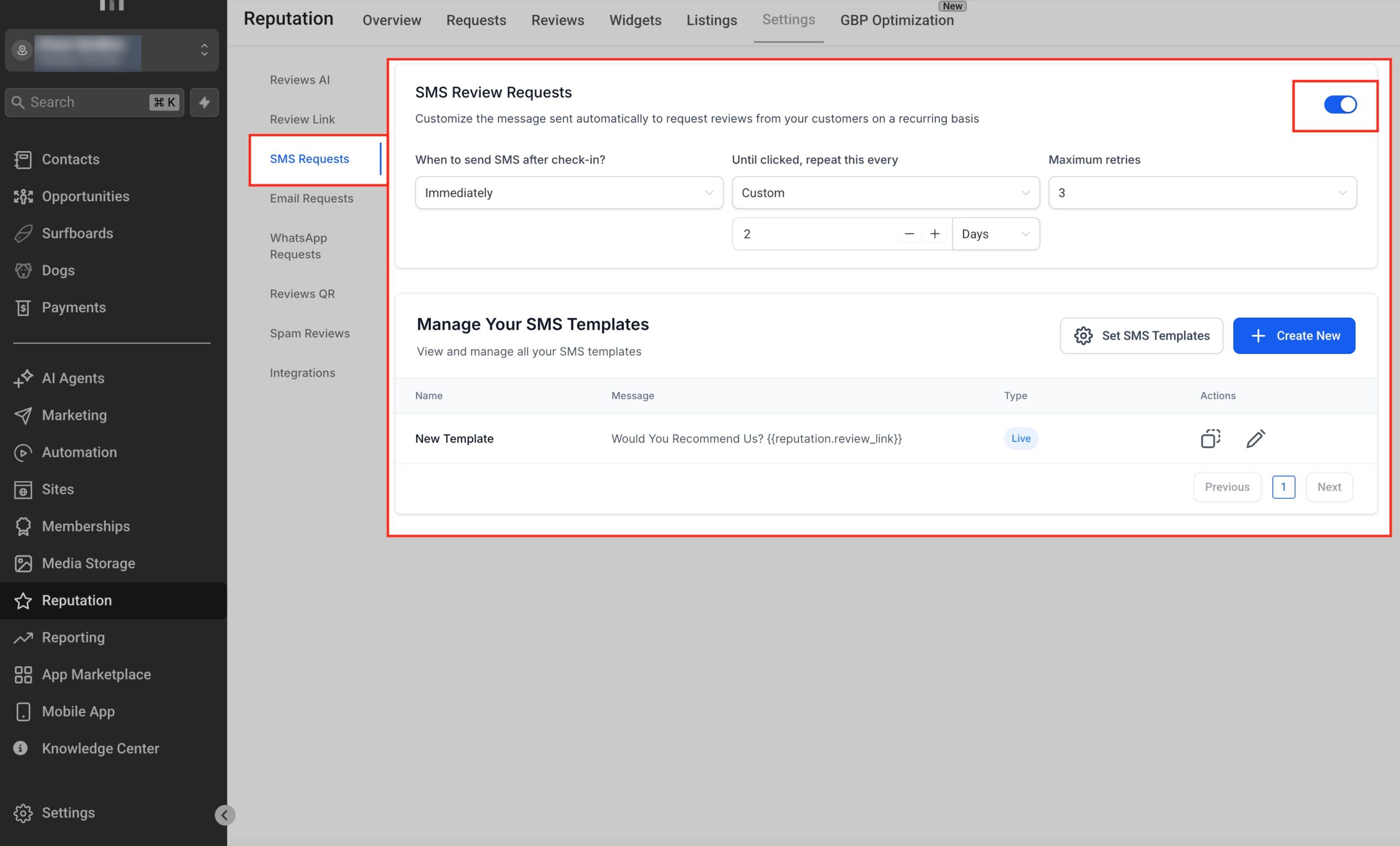
Still under SMS Requests, configure:
-
When to send SMS after check‑in?
Choose how soon the first message should go out after the trigger fires. Common options:- Immediately for restaurants, personal care, and quick‑response businesses
- 1–3 hours later for professional services or B2B, so the interaction isn’t interrupted
-
Until clicked, repeat this every
Decide how often to resend if the customer hasn’t clicked the review link—e.g. every 3 days. -
Maximum retries
Limit the number of follow‑ups (for example, 2–3). You want to stay persistent without feeling pushy.
2.3 Create high‑converting SMS templates
Next, you’ll define the actual messages customers see.
- In SMS Requests, click Create New to make a new SMS template.
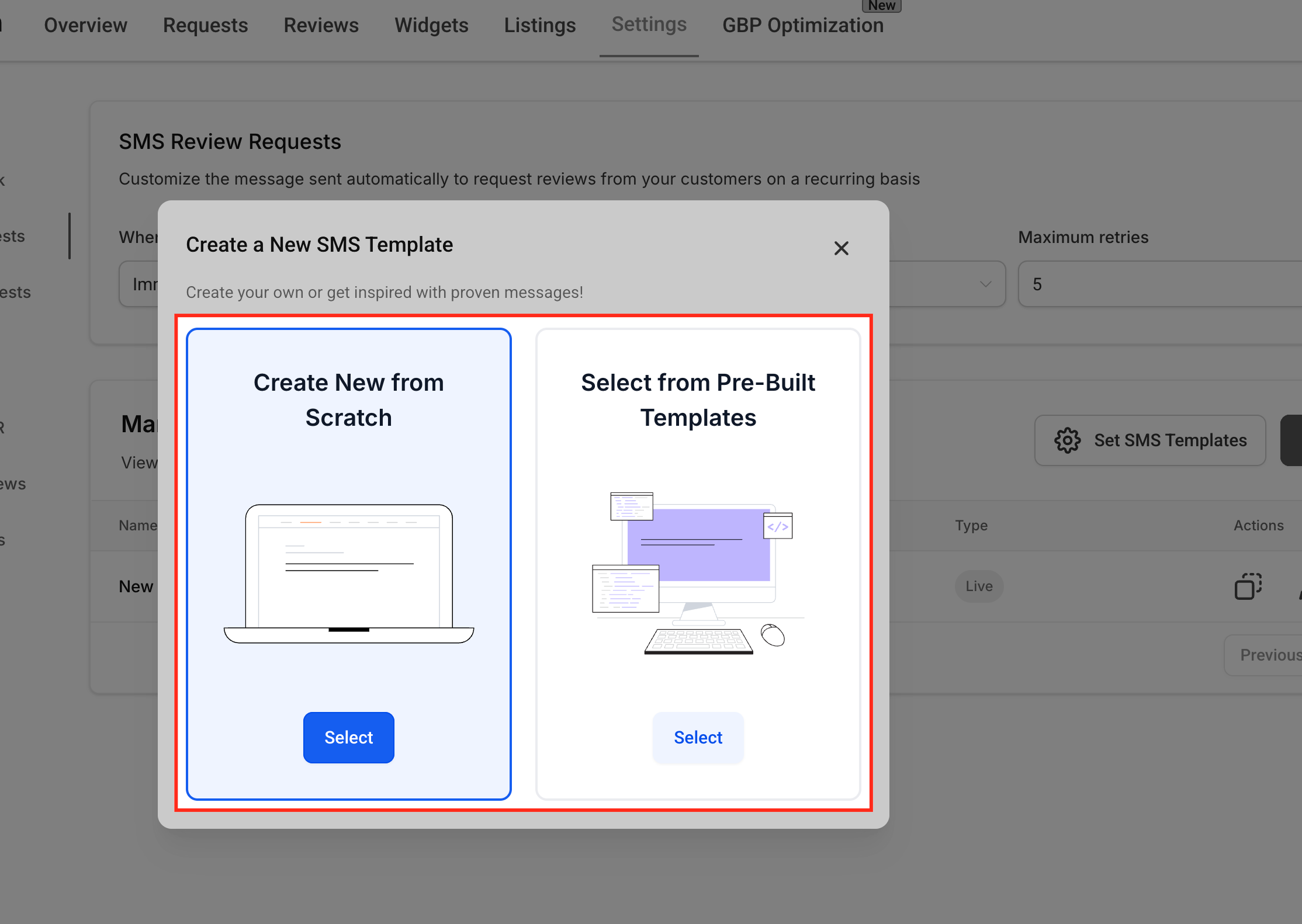
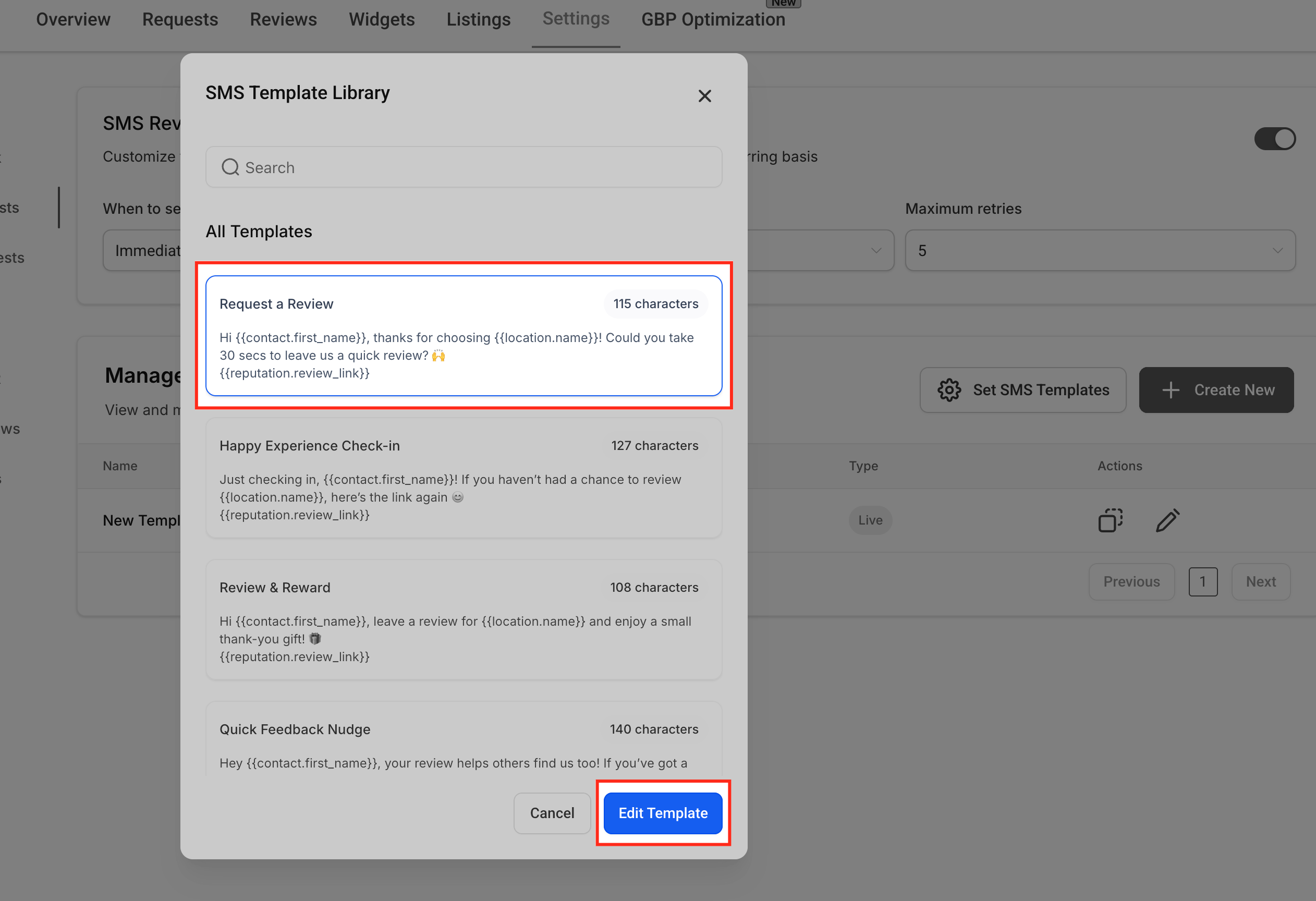
- Choose whether to Create New from Scratch or use a pre‑built template as a starting point.
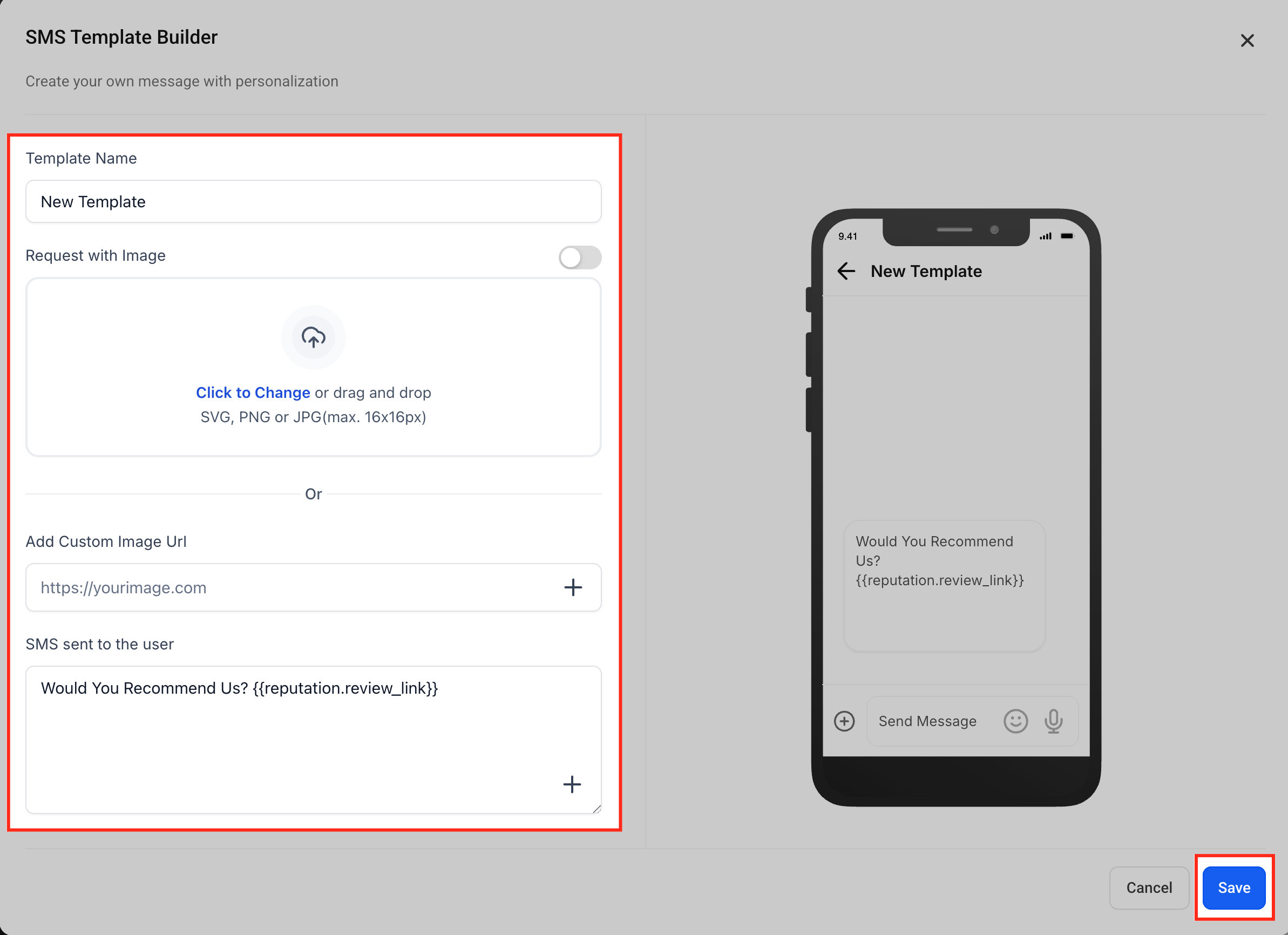
- Configure your template:
- Template name – something descriptive like
Review Request – After Visit. - Request with Image (optional) – enable if you want to include a simple, on‑brand image.
- Message content – write a short, friendly message and insert the review link.
- Template name – something descriptive like
Use personalization tokens so each message feels 1:1:
{{contact.first_name}}– customer’s first name{{location.name}}– your business name{{reputation.review_link}}– your dynamic review link
Example SMS template:
Hi {{contact.first_name}}, thanks for choosing {{location.name}} today! It would mean a lot if you could take 30 seconds to share your experience: {{reputation.review_link}}
You can create additional templates for different services or locations, then assign them to different automation flows.
If you want a done‑for‑you library of high‑converting SMS templates tailored to your niche, Revset Labs can build and plug them directly into your GoHighLevel account.
Step 3: Configure email review request messages
Email gives you more room for context, visuals, and branding. It’s a great companion to SMS, especially for customers who prefer email communication.
3.1 Enable email review requests
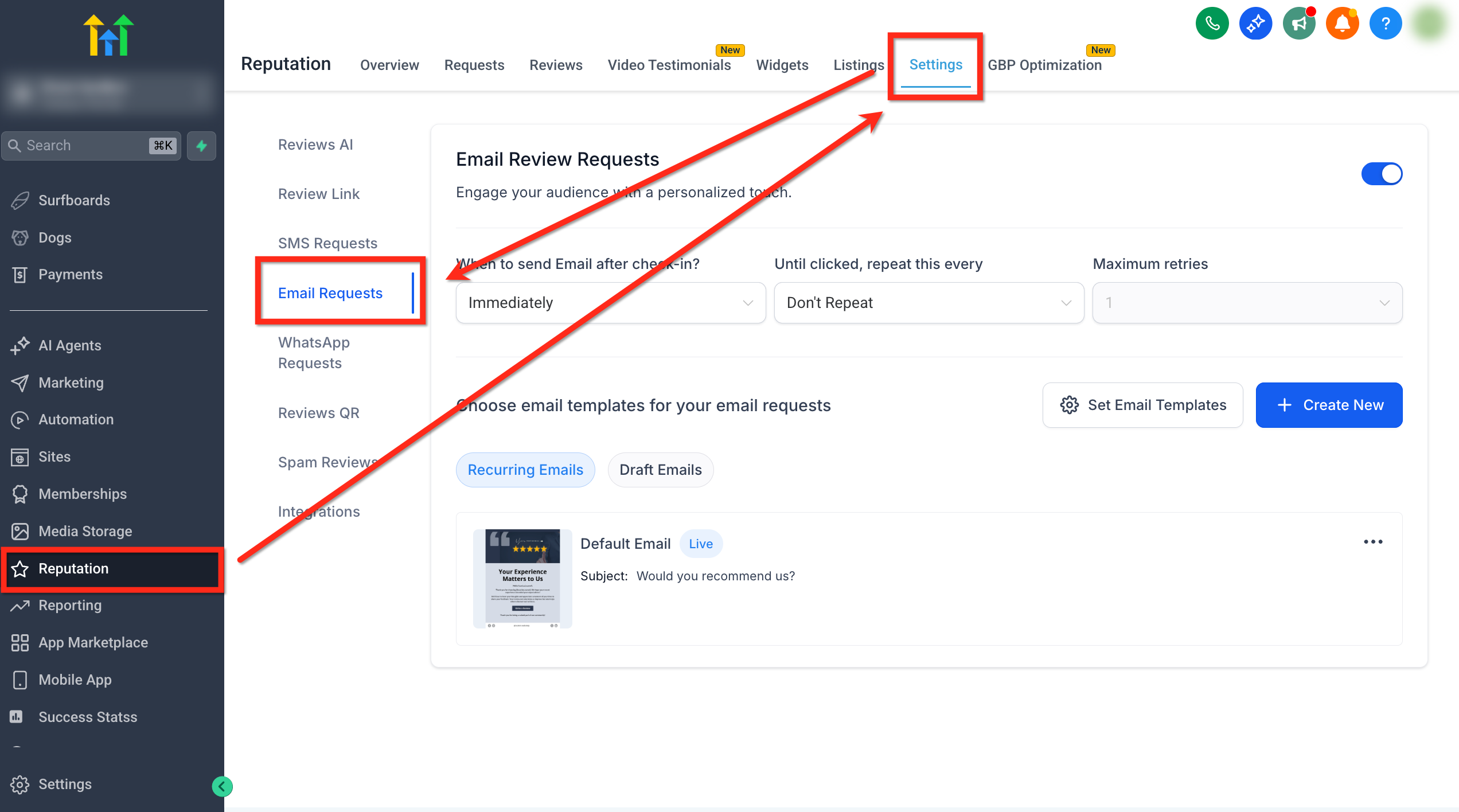
- Go to Reputation → Settings → Email Requests.
- Toggle Enable Email Review Requests to On.
3.2 Set email timing, frequency, and retries
Configure the same cadence logic you used for SMS:
-
When to send Email after check‑in?
Choose the initial delay before the first email. -
Until clicked, repeat this every
Set the reminder interval (e.g. every 3–5 days). -
Maximum retries
Cap the total number of follow‑up emails.
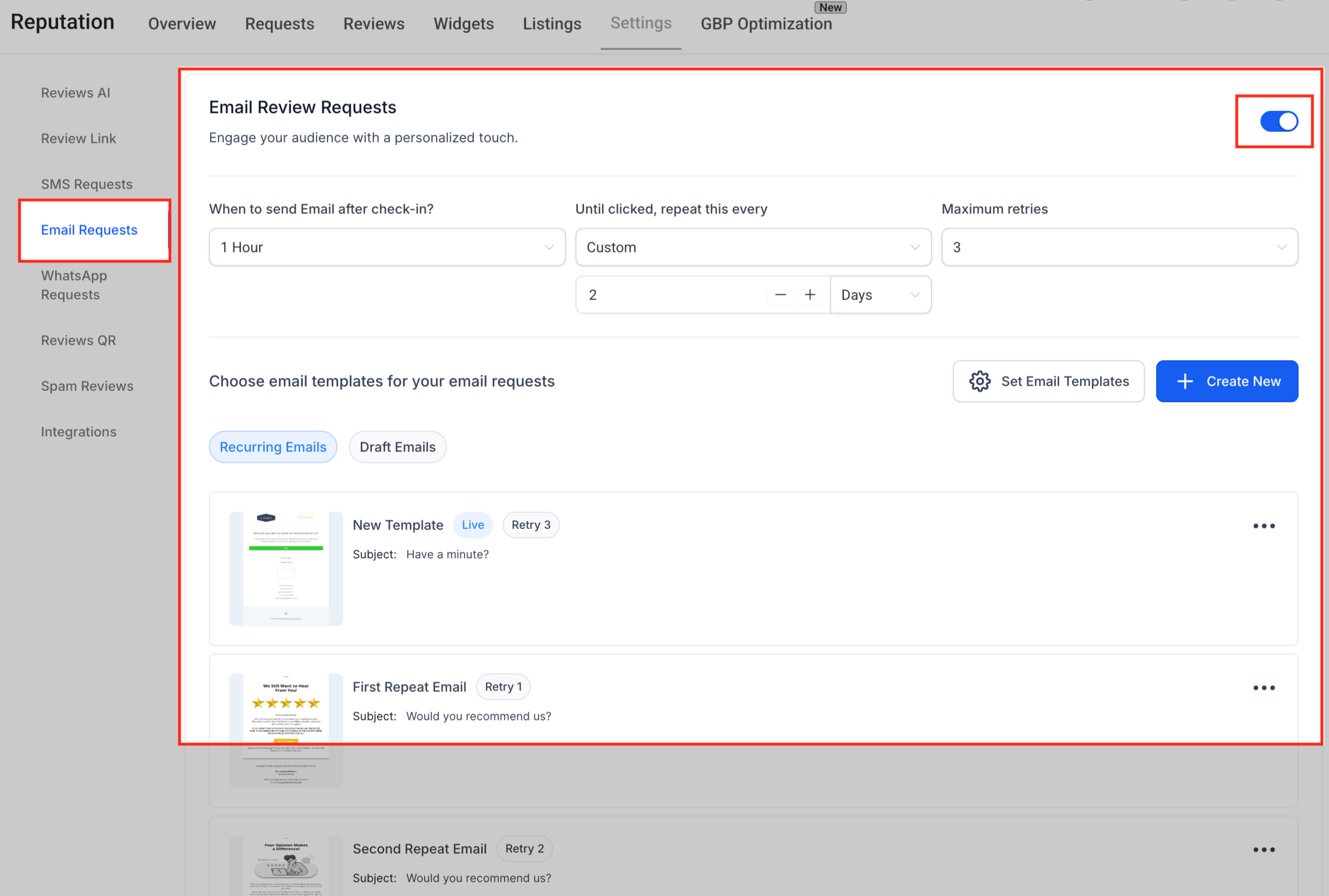
Align these with your customer journey—B2B or high‑ticket offers might use slower, more spaced‑out reminders than a quick consumer visit.
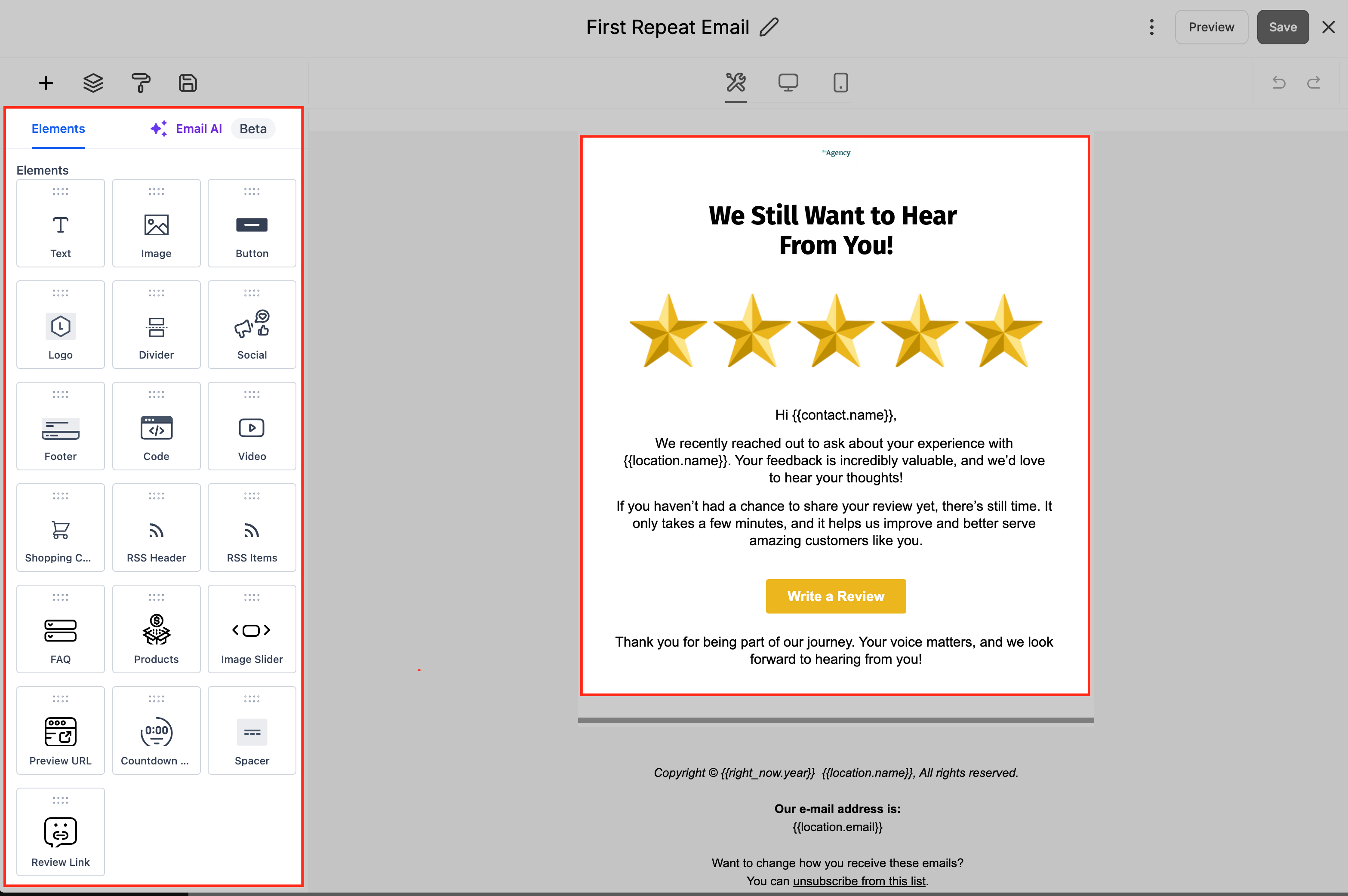
3.3 Build branded email templates
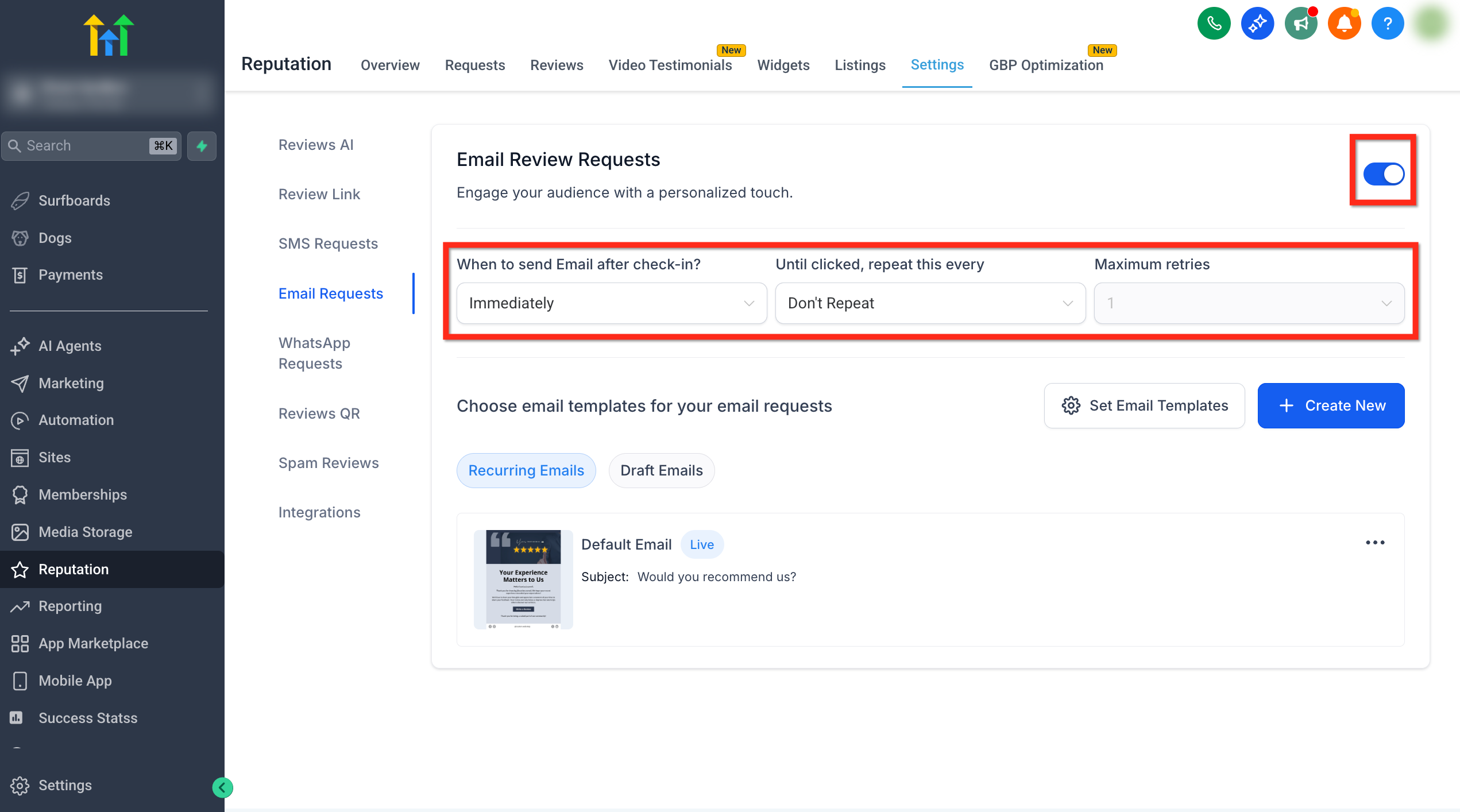
- In Email Requests, click Create New.
- Choose Create New from Scratch or Import from Template Library.
- Use the drag‑and‑drop email builder to add:
- A concise header and subheading
- Short body copy explaining why their review matters
- A prominent button or link that uses the review link element
- Optional supporting image or brand elements
Again, lean on personalization:
{{contact.first_name}}{{location.name}}- Service‑specific fields where relevant
Example email content (body copy):
Subject: How was your recent experience with {{location.name}}?
Hi {{contact.first_name}},
Thanks again for choosing {{location.name}}. Your feedback helps us keep improving and makes it easier for other customers to find us.
Would you mind taking 30 seconds to leave a quick review?
We really appreciate your support!
— The {{location.name}} team
(Replace [#] with the review button element that uses your GoHighLevel review link.)
If you’re starting from scratch with email design, it’s often faster to let Revset Labs create a reusable review request email template system for you—optimized for mobile, dark mode, and deliverability.
Step 4: Assign templates to live and retry sequences
Creating templates isn’t enough—you also need to plug them into your live and retry sequences so GoHighLevel knows which message to send and when.
4.1 Assign SMS templates
- In Reputation → Settings → SMS Requests, click Set SMS Templates.
- Choose which template should be used as the Live (first) message.
- Assign templates for each Retry slot (for example, Retry 1, Retry 2, Retry 3).
- Click Save.
Use each retry to slightly vary the angle while keeping the ask simple:
- Retry 1: Friendly reminder
- Retry 2: Emphasize how reviews help your small business
- Retry 3: Final nudge with gratitude
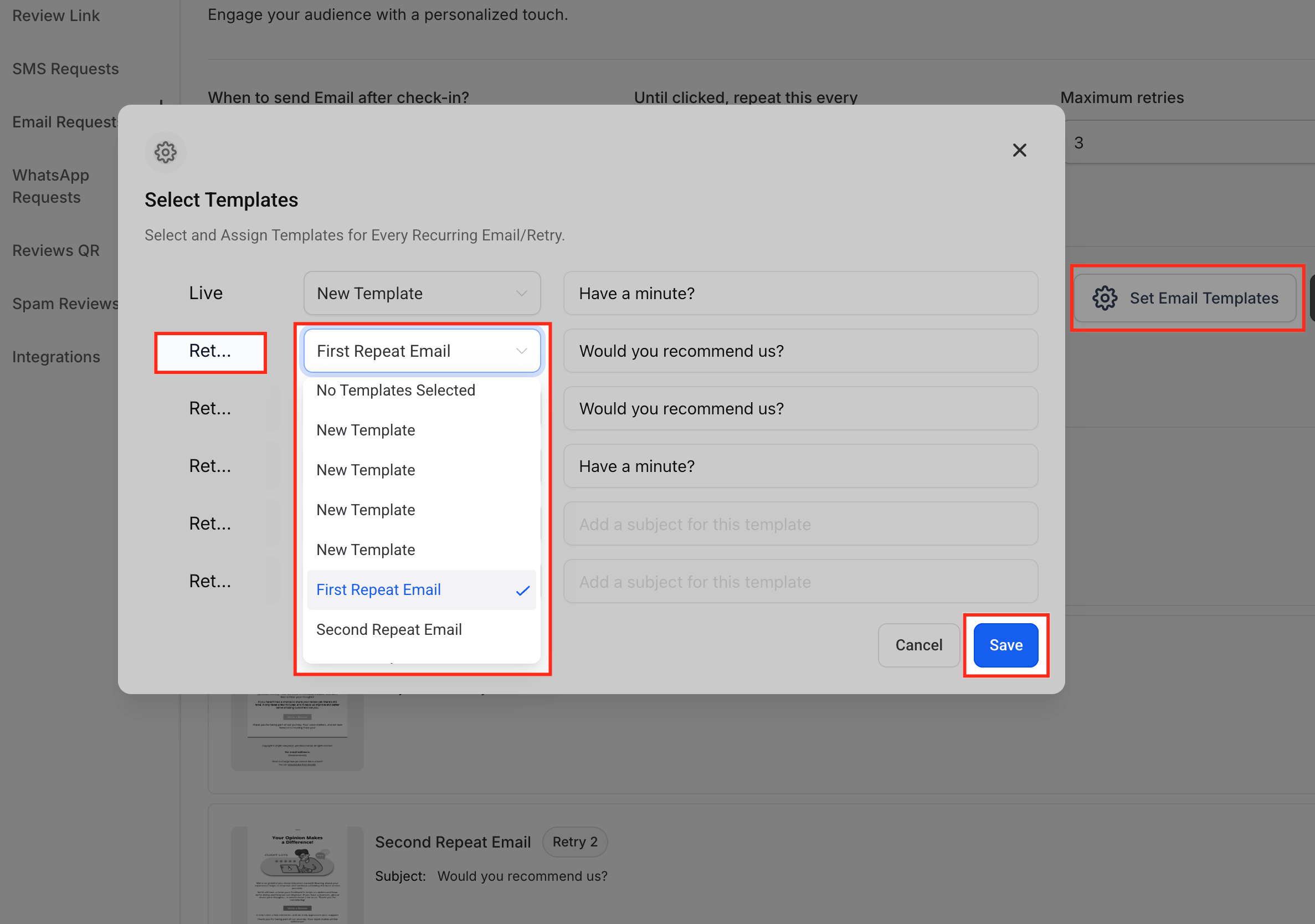
4.2 Assign email templates
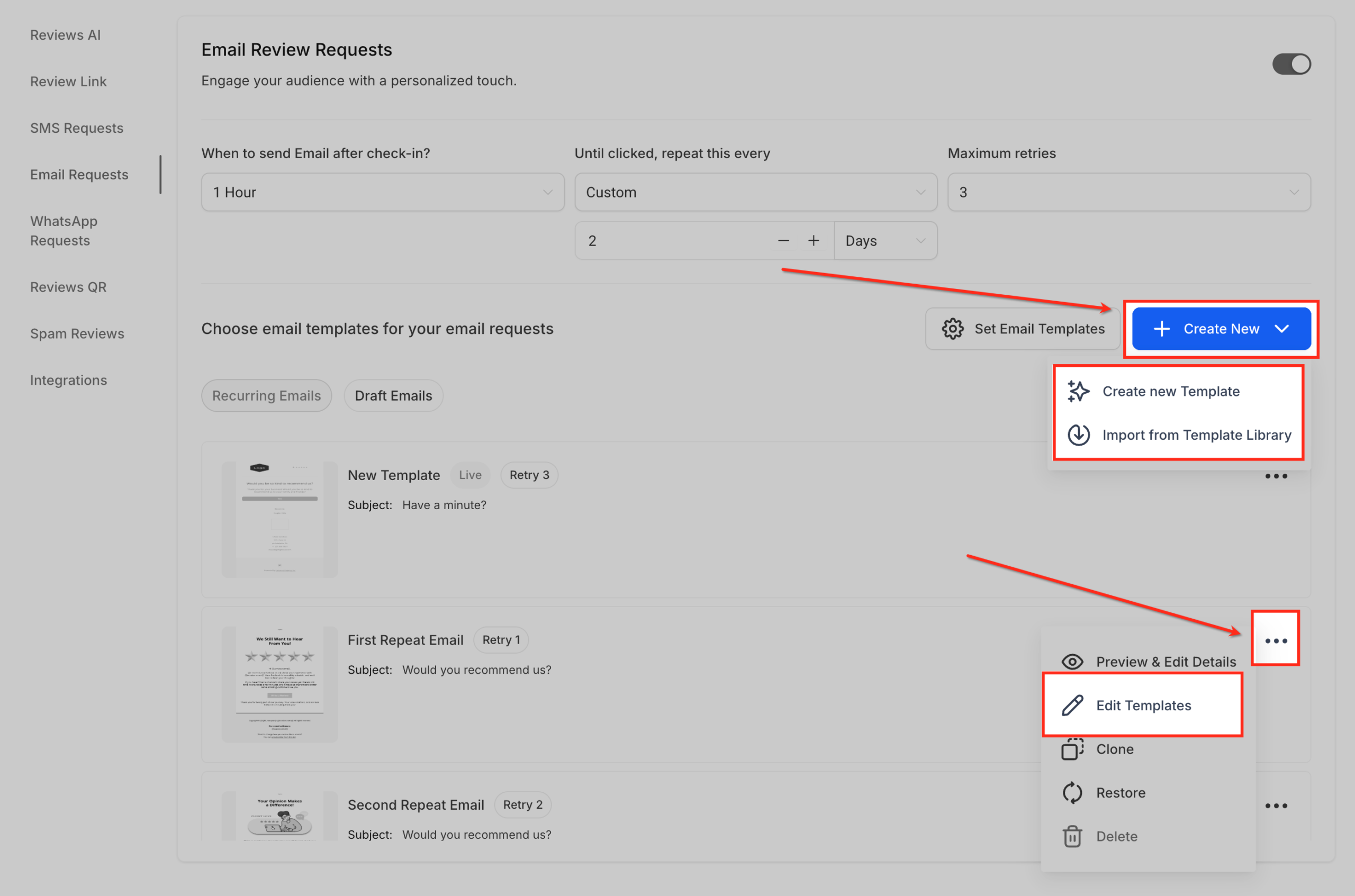
- In Reputation → Settings → Email Requests, click Set Email Templates.
- Assign your chosen template as the Live email.
- Choose follow‑up templates for each Retry slot.
- Click Save.
Make sure your retry emails get progressively shorter. Customers should be able to understand the request and click the review link in a few seconds.
Step 5: Pro tips to get more 5‑star reviews from every sequence
Once your SMS and email review requests are live, a few small tweaks can significantly increase your 5‑star review rate.
Personalize wherever possible
- Always include the customer’s first name.
- Reference the specific service or visit when you can.
- Sign off with a real person or team name, not just the business name.
Make the action frictionless
- Put the review link or button above the fold—no scrolling required.
- Avoid long paragraphs; 2–3 short lines are enough.
- Test your messages on mobile to confirm everything is easy to tap.
Stay compliant and avoid “review gating”
Many platforms (including Google) disallow selectively asking only happy customers for reviews or hiding negative pathways.
- Ask all customers for feedback in a neutral, friendly way.
- Don’t promise rewards in exchange for positive reviews.
- Use internal surveys or conversations to resolve issues, then invite updated feedback later.
Monitor and iterate inside GoHighLevel
Use the Reputation dashboard to:
- Track how many requests were sent vs. clicked
- See which channels (SMS vs email) perform best
- Identify locations, teams, or services that consistently drive great reviews
As you spot patterns, update your templates, timing, and retry logic to keep improving.
Where GoHighLevel and Revset Labs fit into your review engine
A strong review flow isn’t just about sending messages—it’s about connecting the dots between your customer experience, automations, and marketing.
- GoHighLevel gives you the all‑in‑one platform to automate review requests, manage conversations, and see results in one place. If you’re ready to centralize your CRM, pipelines, and review engine, sign up for GoHighLevel here.
- Revset Labs helps you design and implement the system:
- Mapping the ideal review request journey for your business
- Writing high‑converting SMS and email templates for each touchpoint
- Building and testing the automations inside GoHighLevel
If you want a fully built review engine instead of another DIY project, partnering with Revset Labs means you get:
- A done‑for‑you implementation in your GoHighLevel account
- Clear reporting so you know exactly how many reviews you’re generating
- Automation that keeps running in the background while you focus on delivering great service
Your next steps
- Log into GoHighLevel and configure your Review Link in Reputation → Settings.
- Turn on SMS and Email Requests, then set smart timing and retry rules.
- Write or import branded templates that sound like you and make it effortless to click and review.
- Plug those templates into your live and retry sequences.
- Monitor results weekly and keep iterating.
Want to shortcut the learning curve? Start your free GoHighLevel trial, then loop in Revset Labs to build a complete, automated reputation system that steadily stacks 5‑star reviews on autopilot.