
Running paid campaigns that drive a ton of phone calls but can’t see exactly which clicks turned into conversations? That’s where GoHighLevel’s call tracking number pools come in.

Instead of showing the same phone number to every visitor, a number pool dynamically swaps in different tracking numbers on your site or funnel. Each call is then tied back to the visitor’s traffic source, ad, or keyword—so you can double down on what actually generates revenue.
If you’re not using GoHighLevel yet, you can start a free GoHighLevel trial here and follow this guide as you set things up.
What is a call tracking number pool in GoHighLevel?
A call tracking number pool in GoHighLevel is a group of tracking numbers the platform rotates through for your website or landing pages.
Instead of hard‑coding one “call now” number everywhere, GoHighLevel:
- Assigns a unique tracking number to each visitor (from the pool).
- Shows that number on your site or funnel pages.
- Forwards the call to your main business number when someone dials it.
- Logs the call with source and session data so you can attribute results to campaigns.
This is ideal when you:
- Run paid ads (Google, Meta, etc.) that push traffic to the same page.
- Get repeat visitors who may call on a second or third visit.
- Care about keyword‑level or campaign‑level attribution for phone calls.
Without a number pool, you’re blind to which channels and ads are actually turning visitors into conversations.
Want an all‑in‑one system for funnels, CRM, automation, and call tracking? Launch GoHighLevel with a free trial and plug these steps in from day one.
Pre‑work: what you need before you set up a call tracking number pool
Before you create your pool, make sure you have:
- A main business phone number where you want calls forwarded.
- At least one website or funnel in GoHighLevel where you’ll add the tracking script.
- Rough expectations for traffic and call volume so you can size the pool correctly.
A few important guidelines:
- Do not use a GoHighLevel/Twilio (LC) number as the forwarding number. This can create call loops and failed connections. Always forward to an external business line.
- Start with at least 4 tracking numbers in the pool. For higher traffic, bump this up to avoid reusing the same tracking number too frequently.
Step‑by‑step: how to set up a call tracking number pool in GoHighLevel
The original GoHighLevel help article gives you the basics. Below is an expanded, marketer‑friendly walkthrough you can hand to a team member.
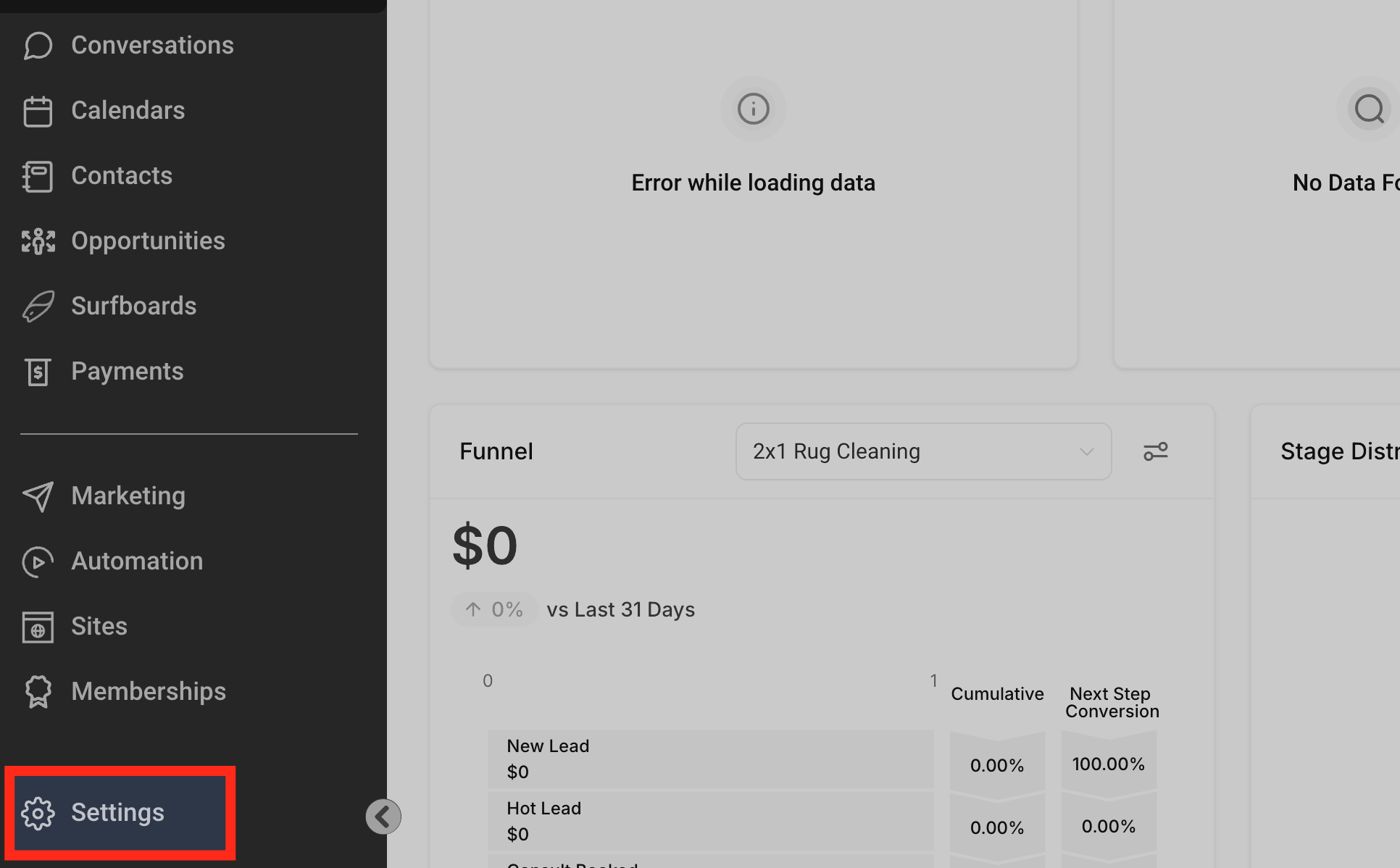
1. Open Settings in your GoHighLevel account
- Log into your GoHighLevel sub‑account.
- In the left sidebar, click Settings.
2. Go to the Phone Numbers tab
- Inside Settings, click Phone Numbers.
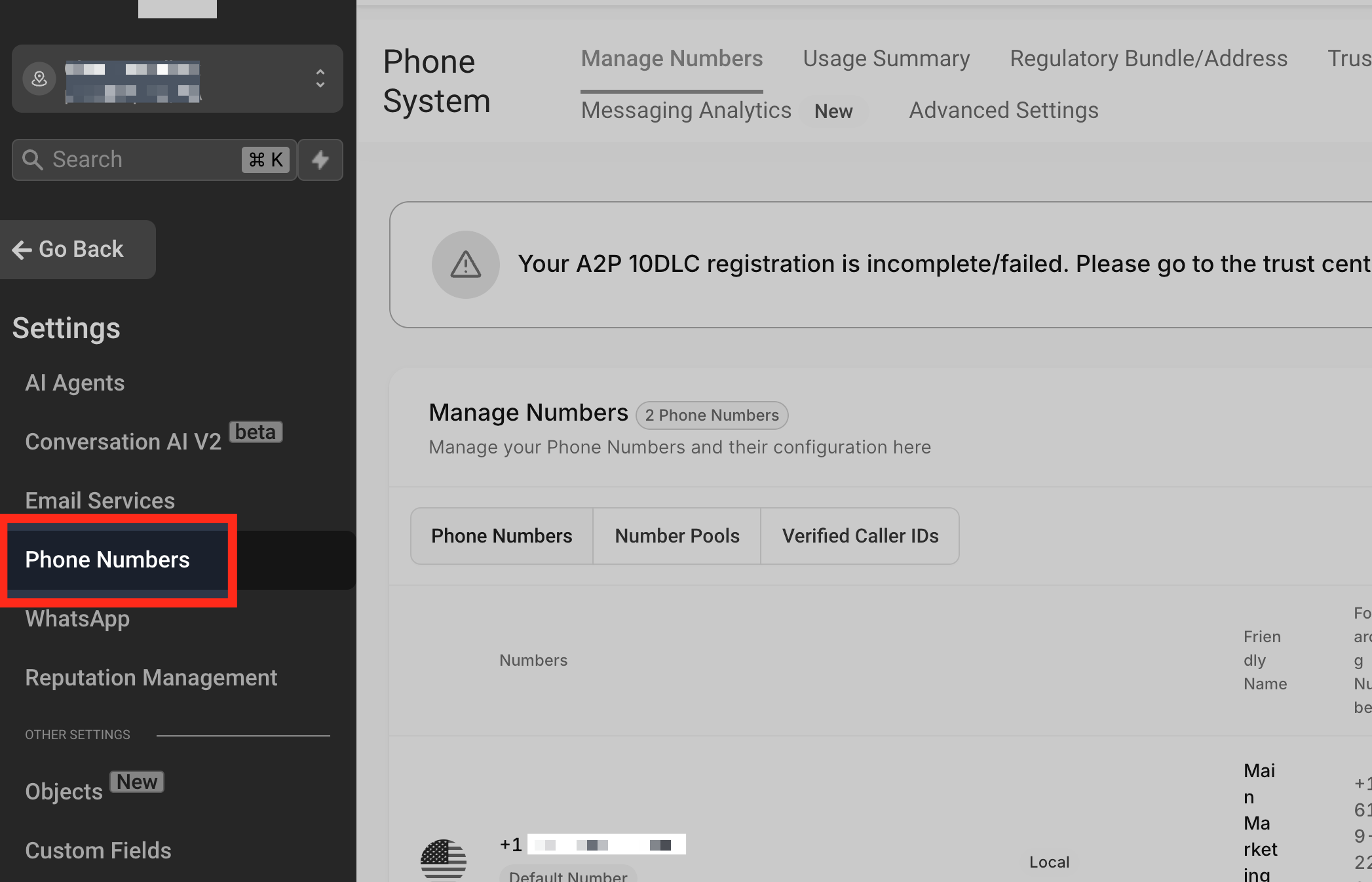
- This screen shows all the existing numbers and call settings for your sub‑account.
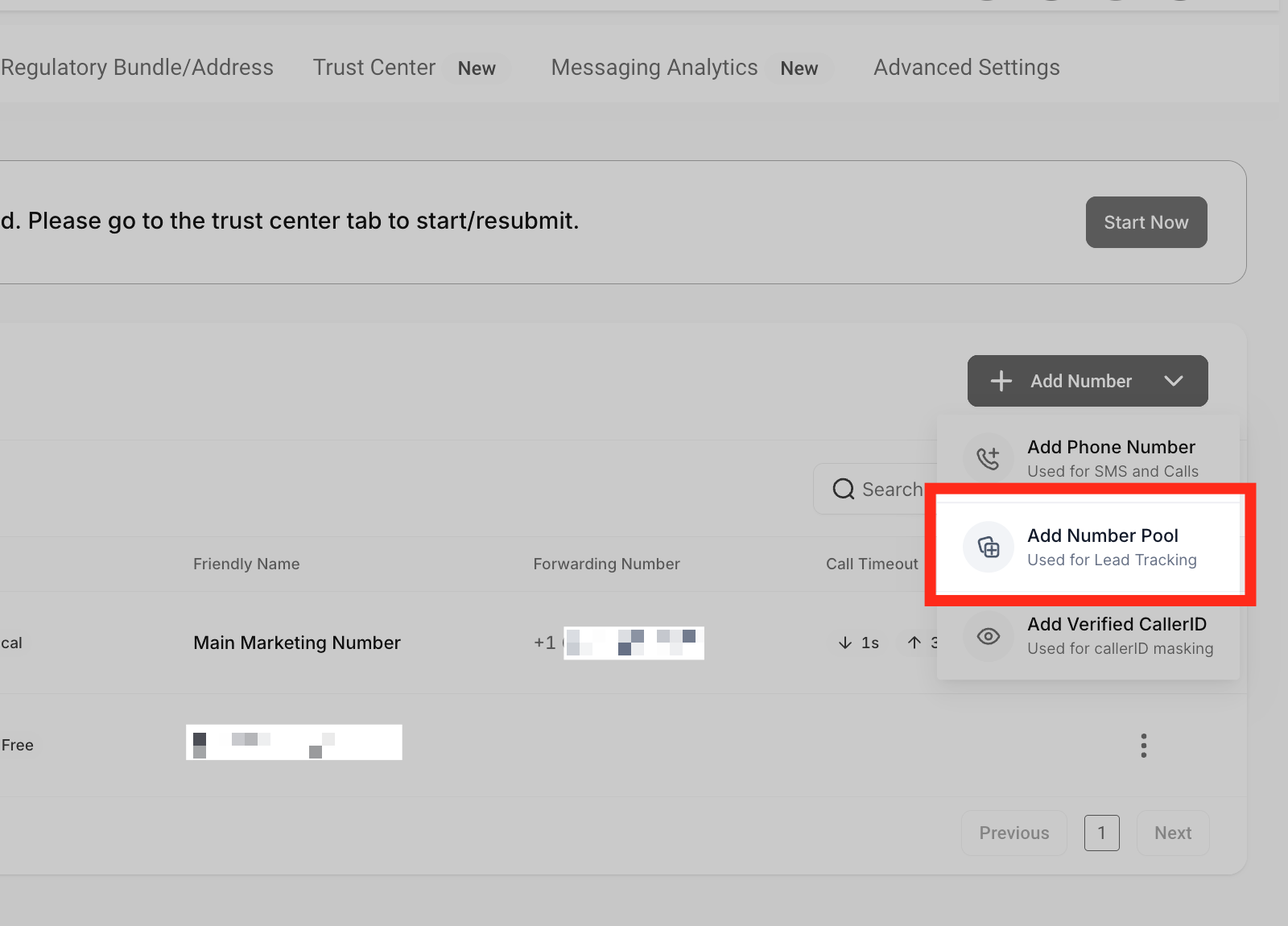
3. Add a new number pool
- Click the Add Number dropdown in the top‑right.
- Choose Add Number Pool.
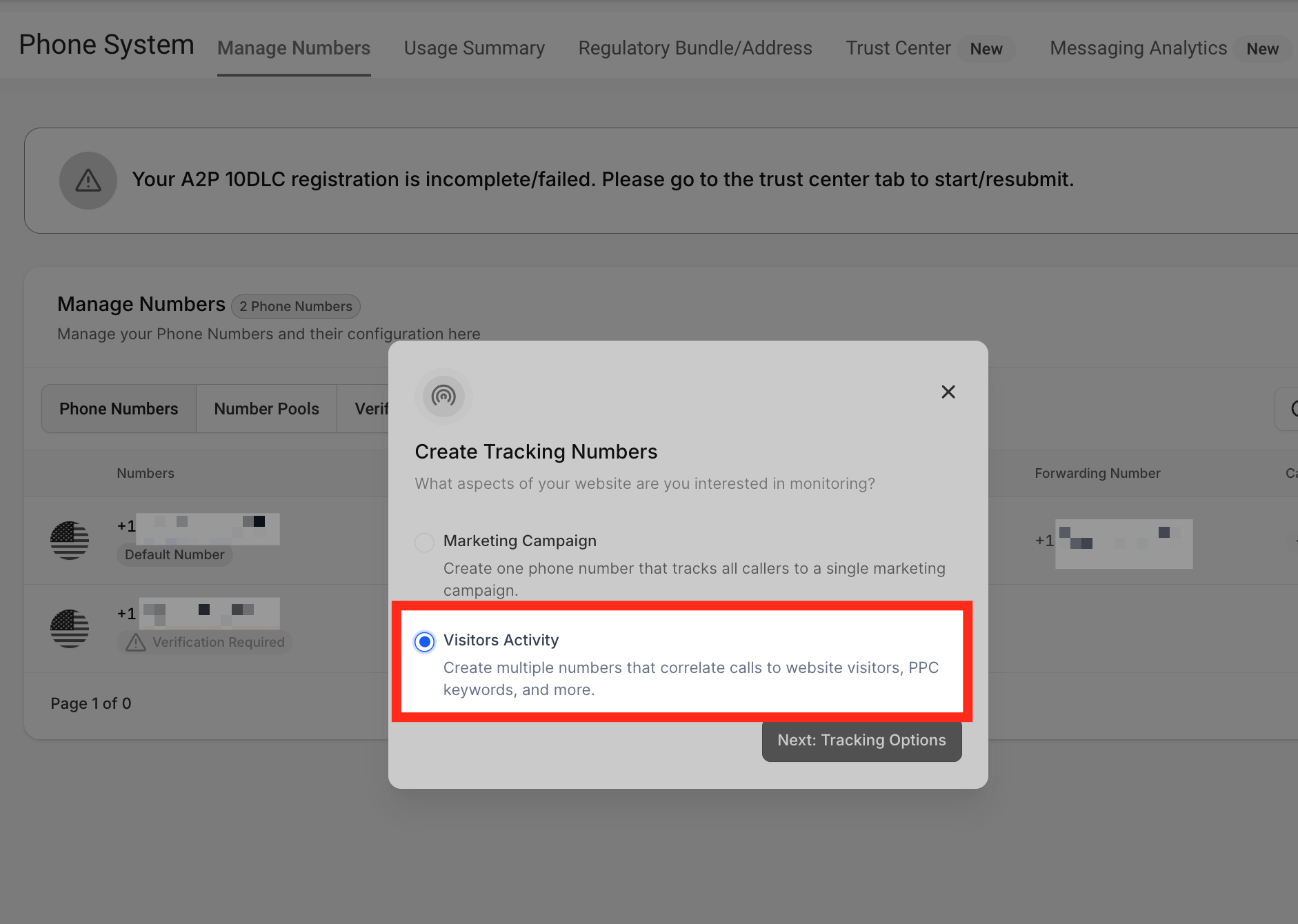
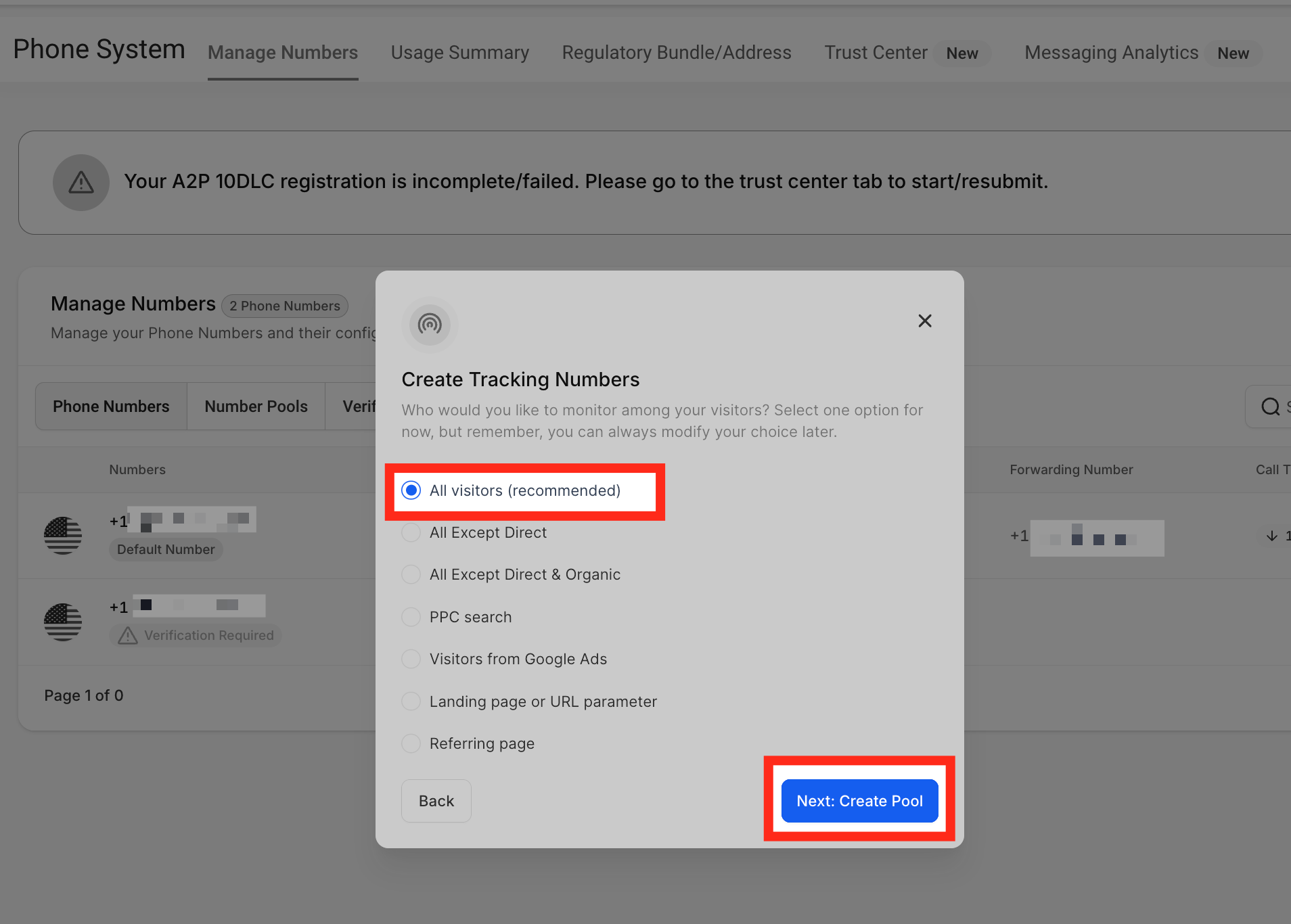
4. Choose “Visitors Activity” for call tracking
On the first screen of the wizard:
- Select Visitors Activity as the pool type. This tells GoHighLevel you’re tracking calls from website or funnel visitors.
- Under Which visitors do you want to track?, choose All visitors in most cases.
- Click Next: Create Pool.
5. Configure your number pool details
Next, you’ll configure how the pool behaves:
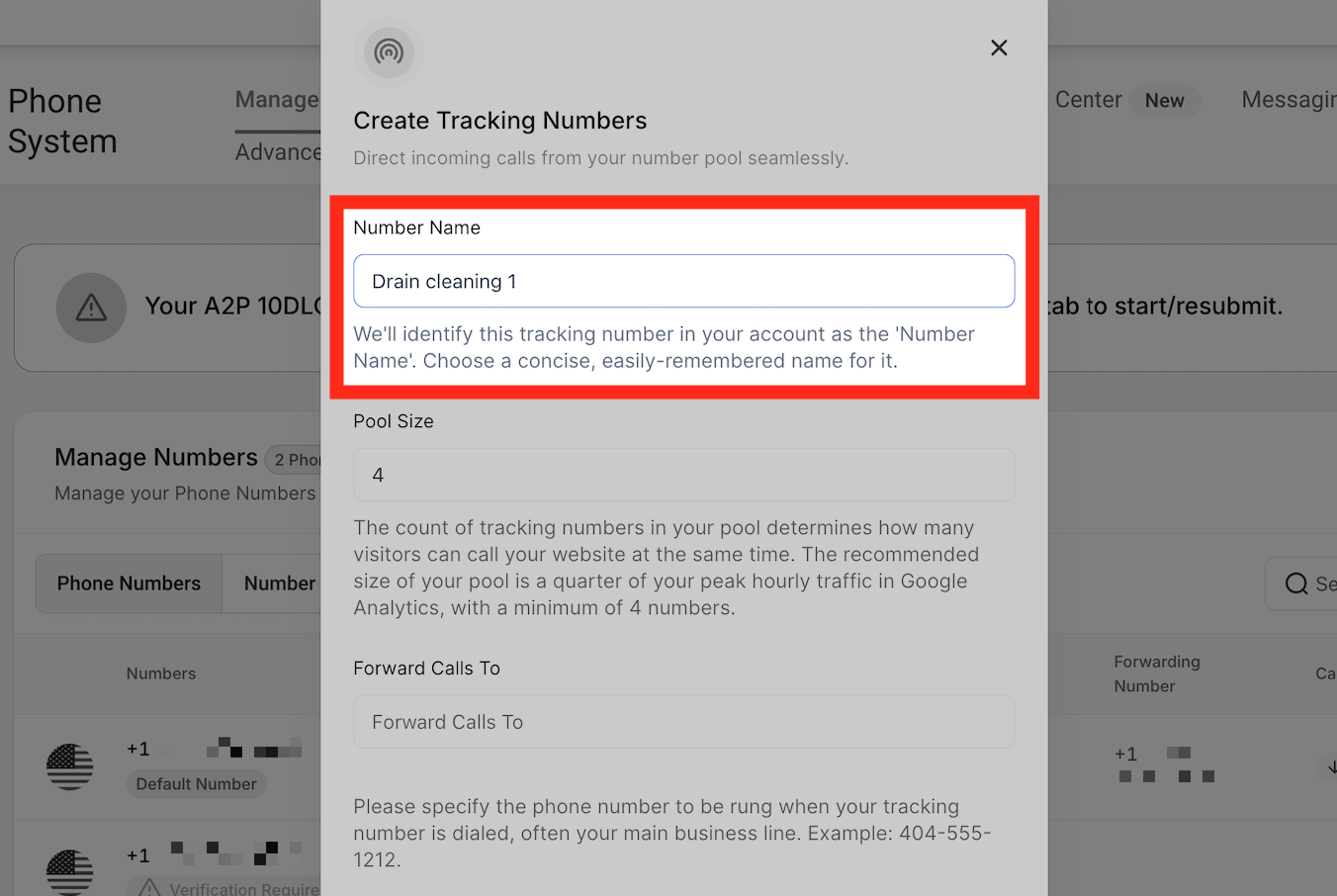
- Number Name – Give the pool a clear, descriptive name such as
GHL – Main Website – Call TrackingorGHL – Google Ads – Calls.
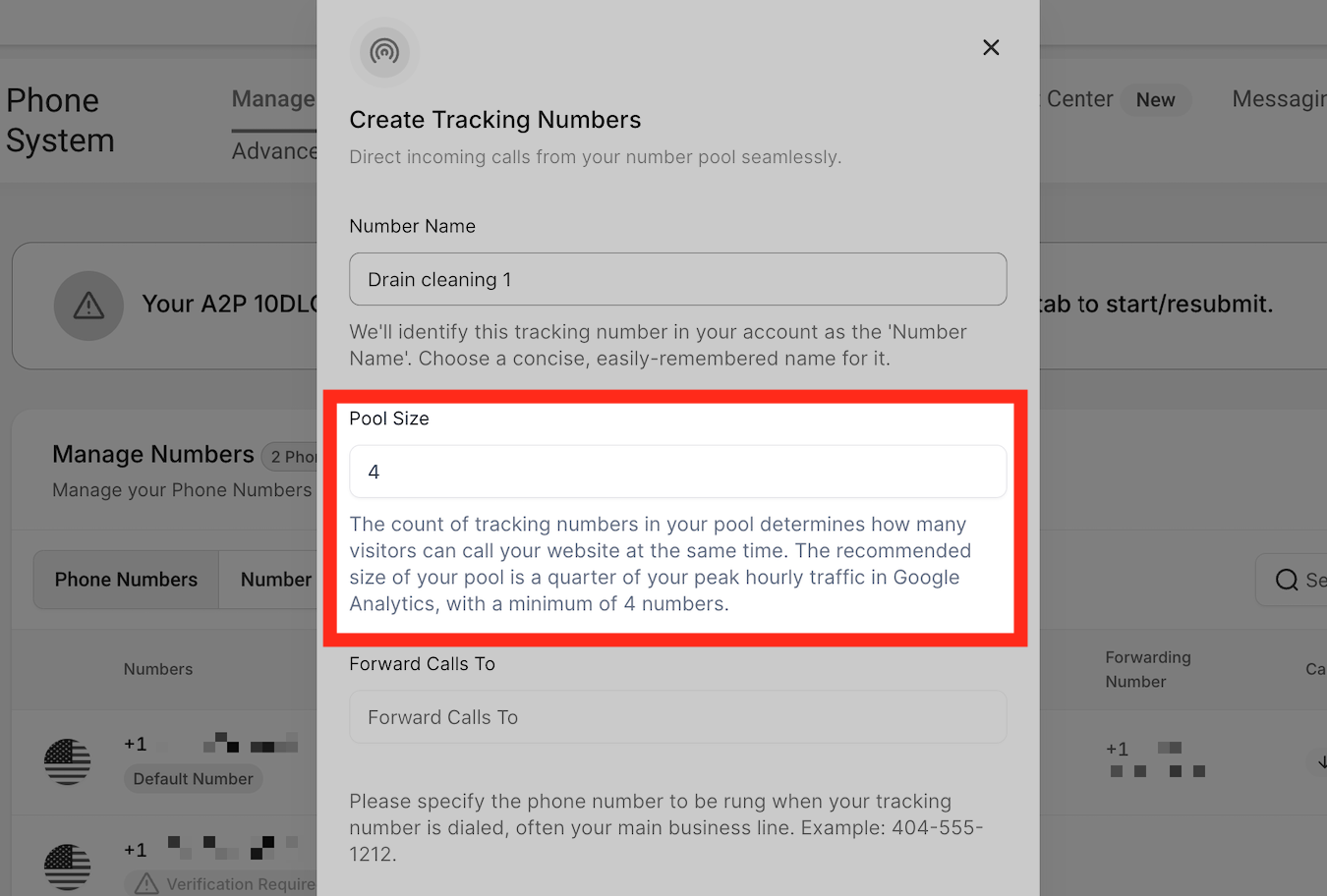
- Pool Size – Start with 4–10 numbers, depending on how much traffic and how many calls you expect.
- Lower traffic (a few calls per day): 4 numbers is usually fine.
- Higher traffic (10–50 calls per day): consider 8–12 numbers.
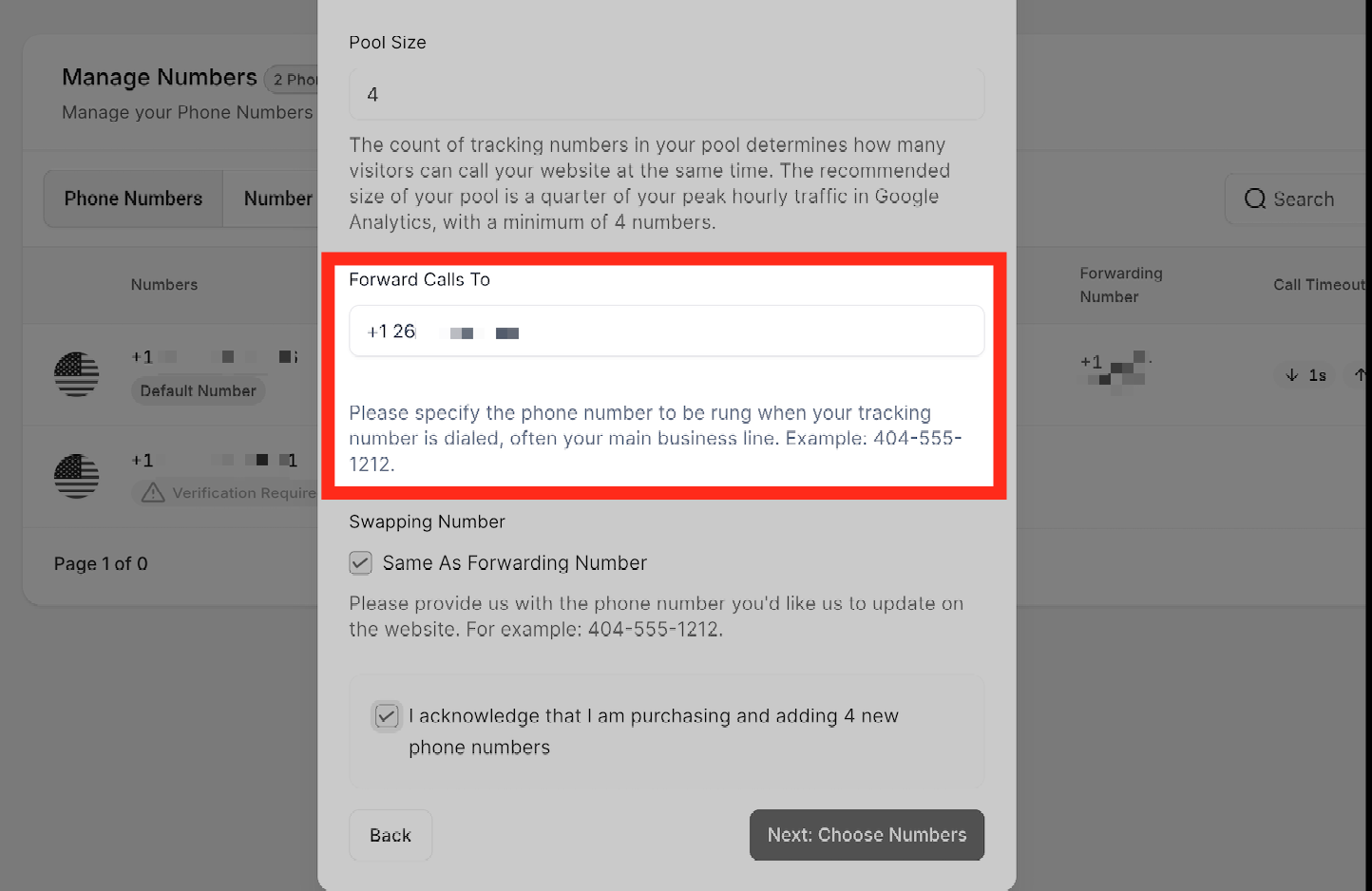
- Forwarding Number – Enter your main business phone number (an external line where calls should ring).
- Avoid using a GoHighLevel/Twilio (LC) number as the forwarding destination to prevent call loops.
- Avoid using a GoHighLevel/Twilio (LC) number as the forwarding destination to prevent call loops.
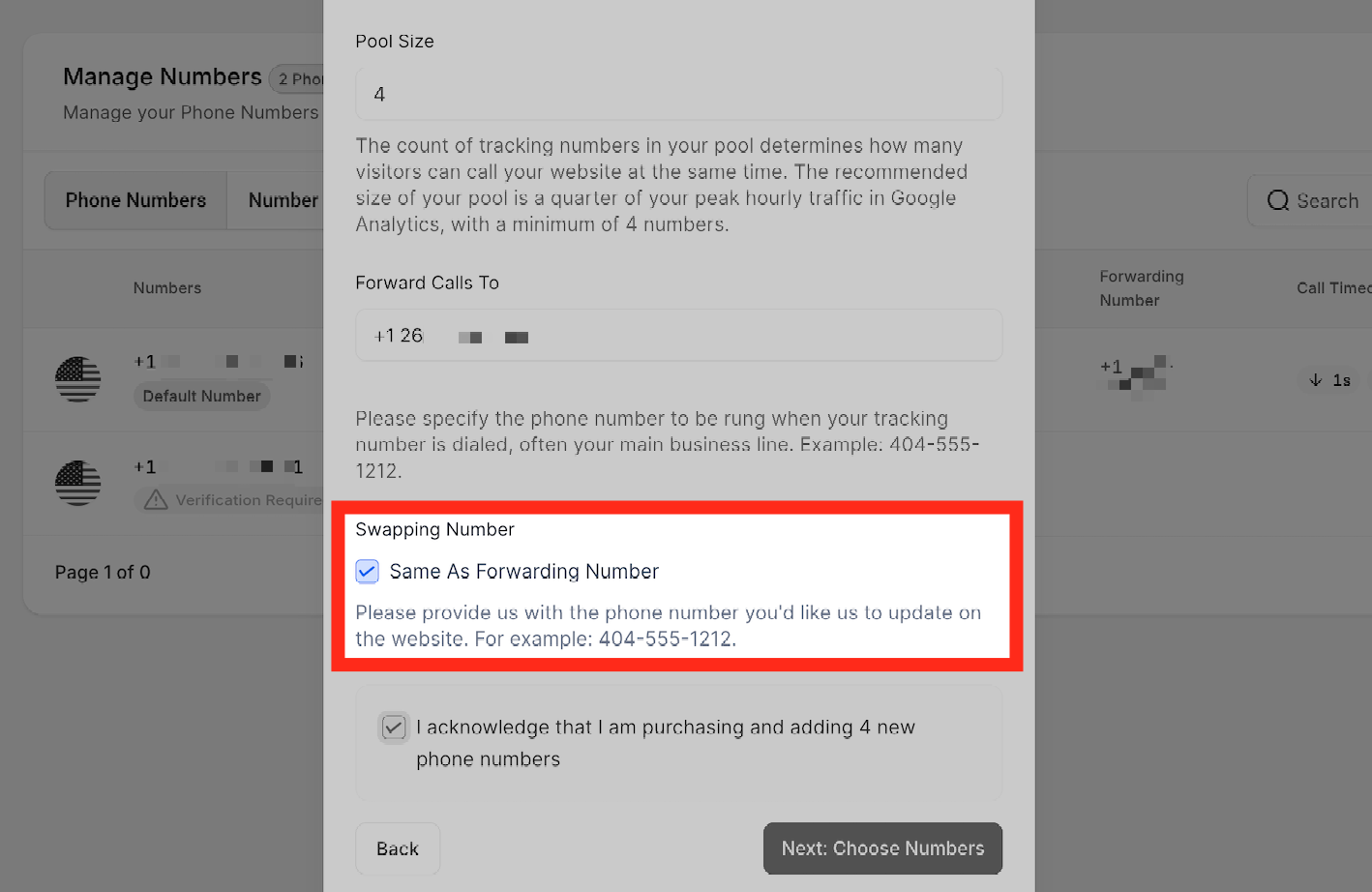
- Swapping Number – Add the “original” number that appears on your website now.
- If you want the same number to be both your public and forwarding number, leave the Use this as my forwarding number box checked.
- If you want to display a different number on the site than where calls are forwarded, uncheck the box and provide two separate numbers.
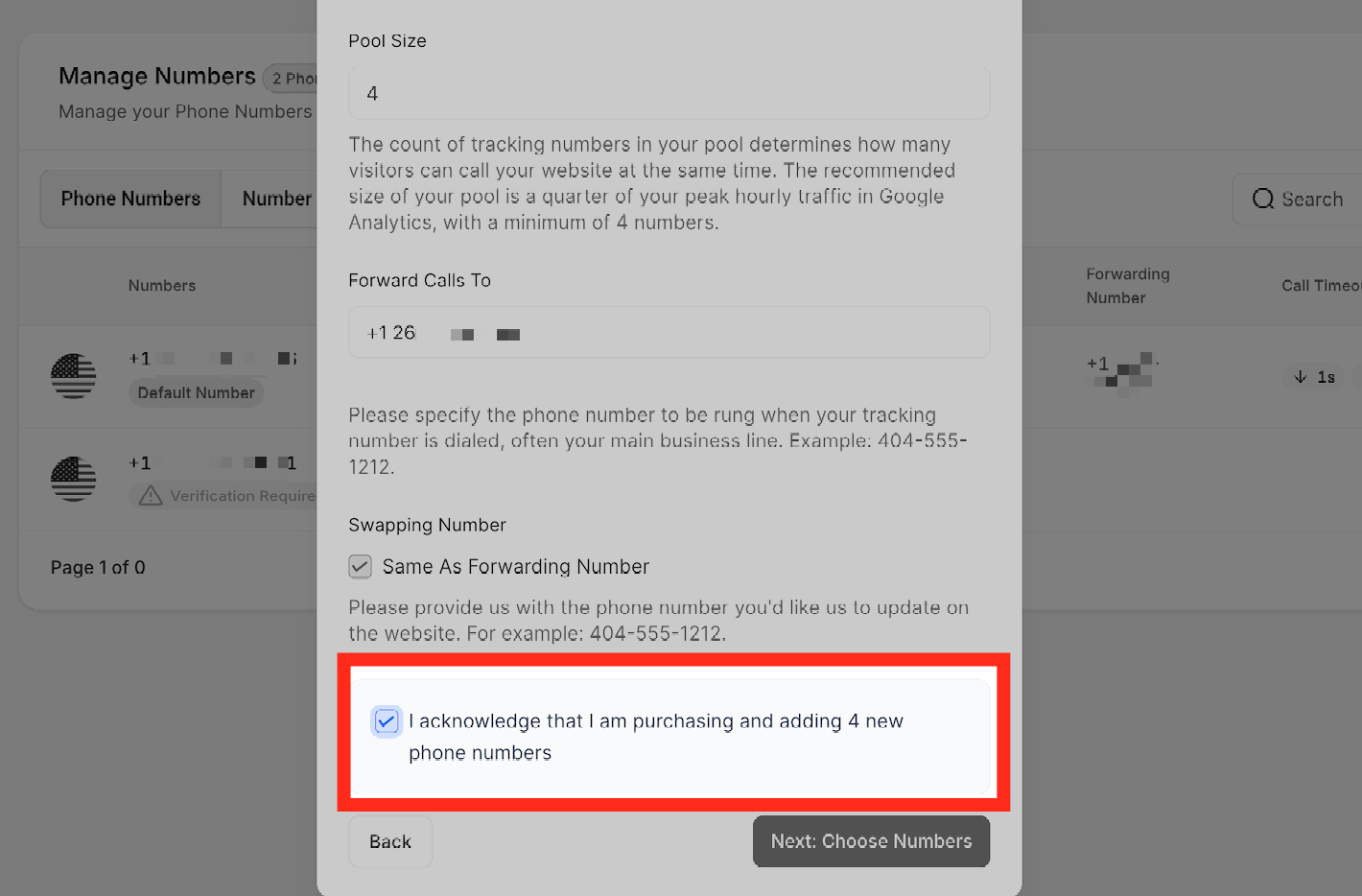
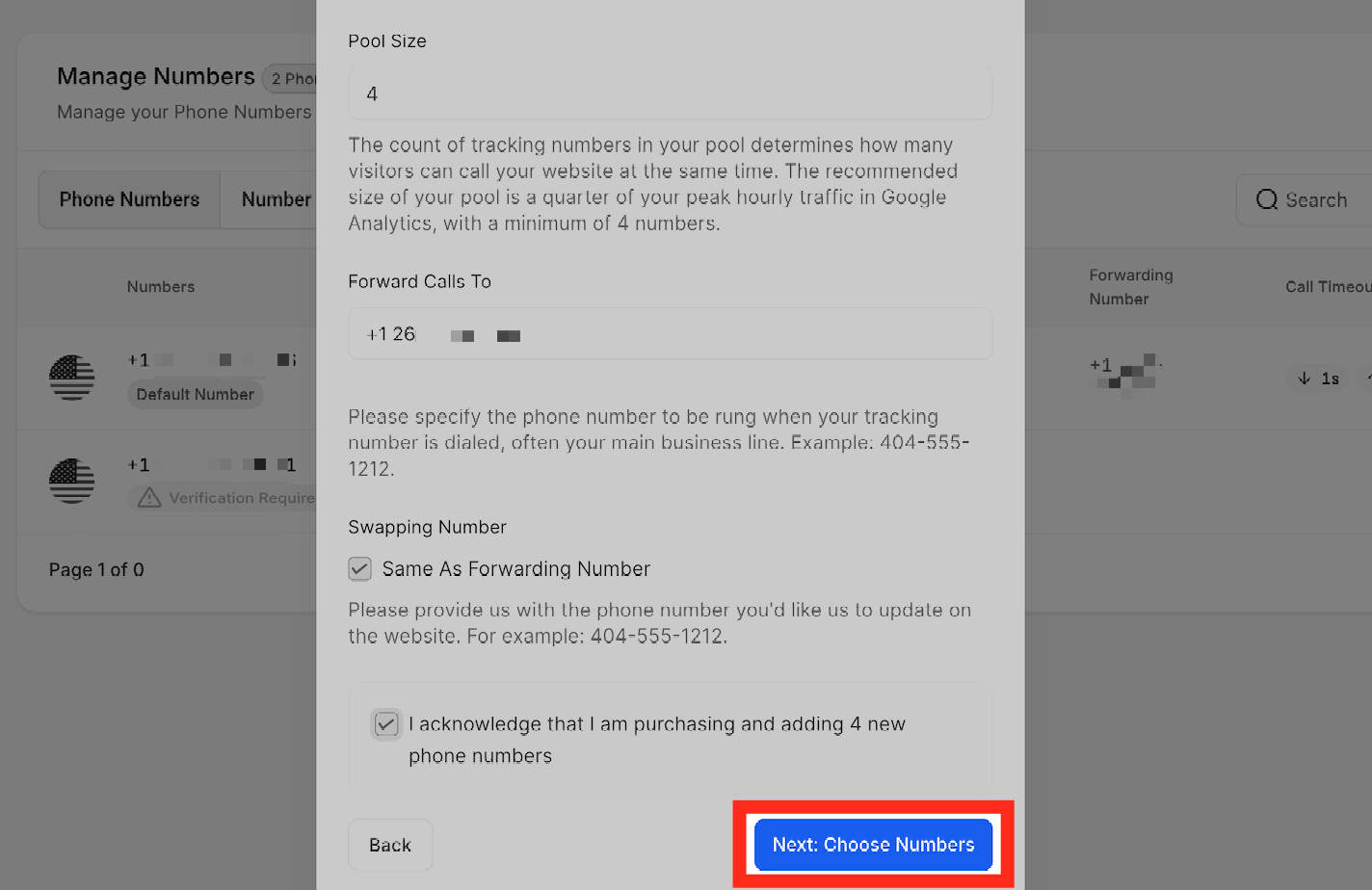
Acknowledge that GoHighLevel will purchase new tracking numbers for your pool, then click Next: Choose Numbers.
6. Choose local or toll‑free tracking numbers
On the next screen, choose the actual numbers that will make up your pool:
- Local numbers – Best if you want callers to see a familiar local area code.
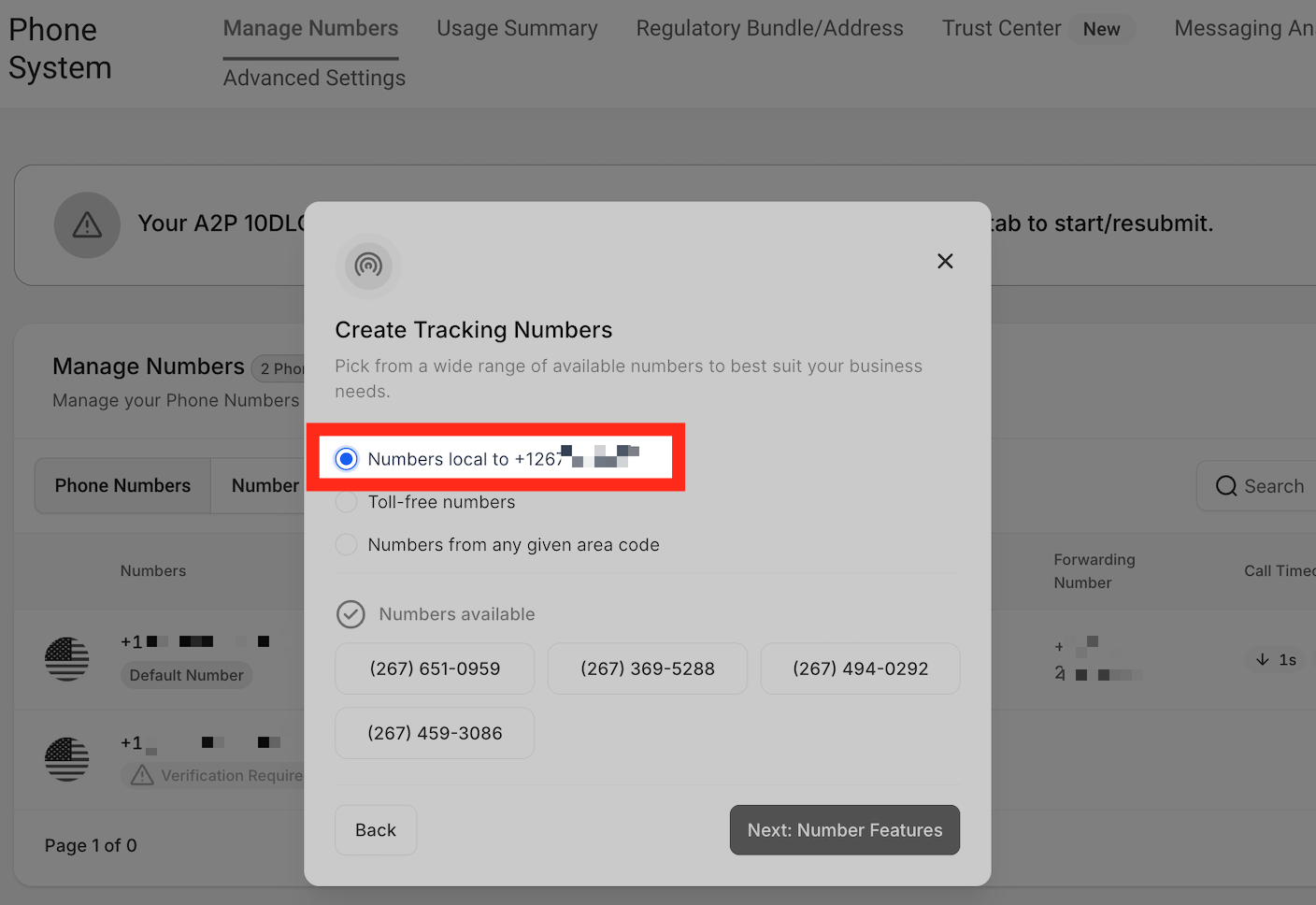
- Toll‑free numbers – Useful for national brands where local presence matters less.
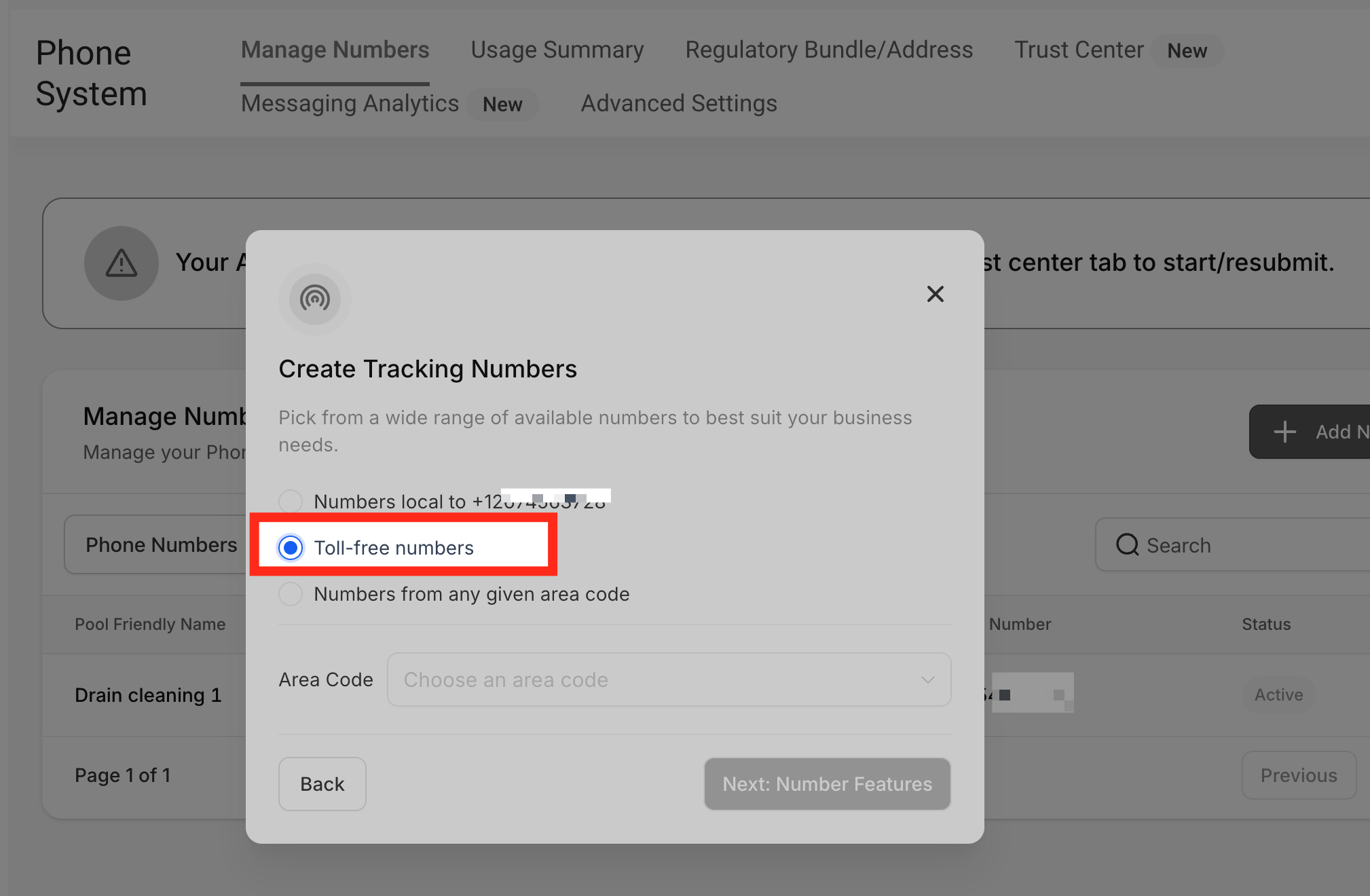
To see the available toll-free numbers, Choose the area code from the dropdown menu.
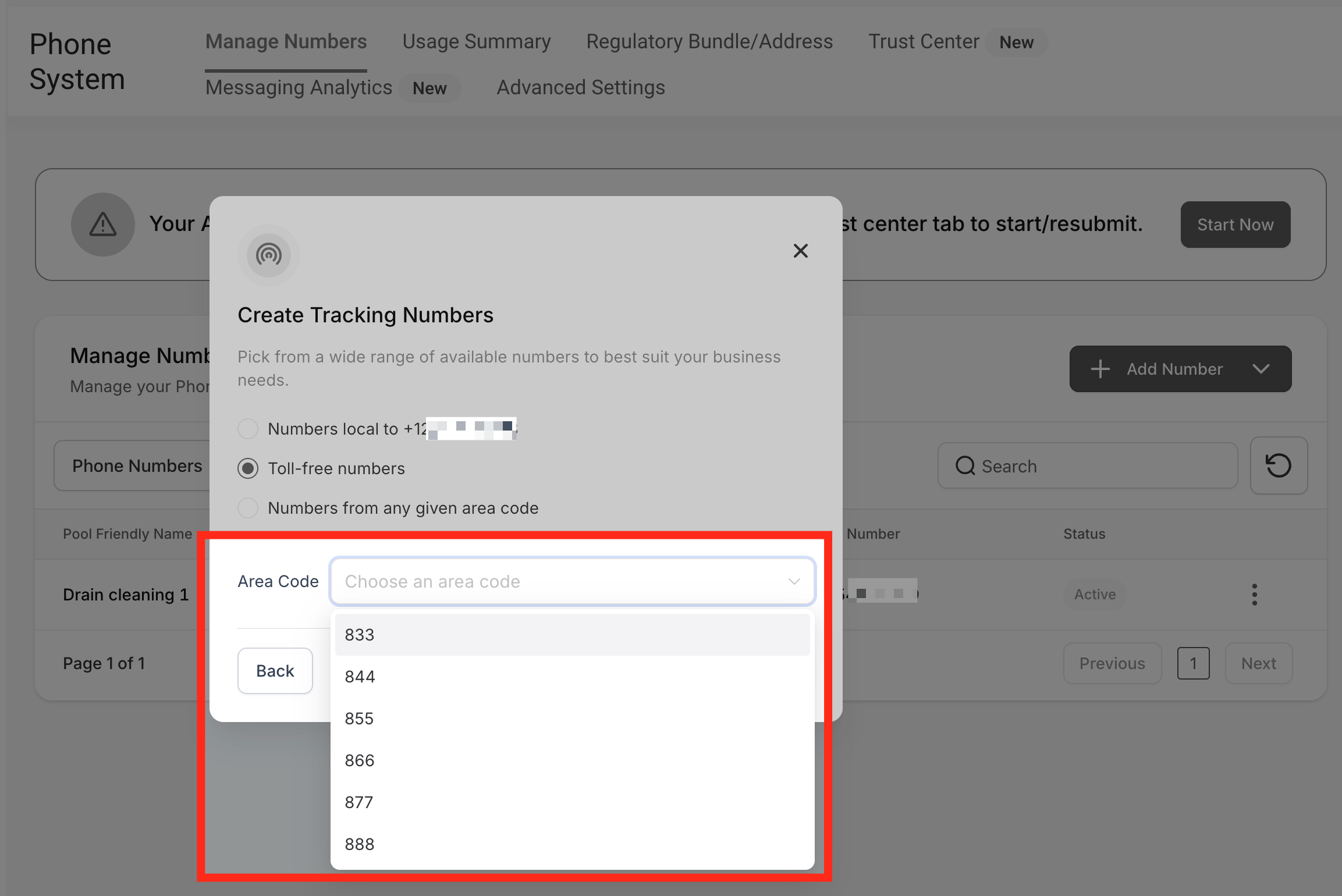
- Different area codes – You can search other area codes if your ideal one has limited availability.
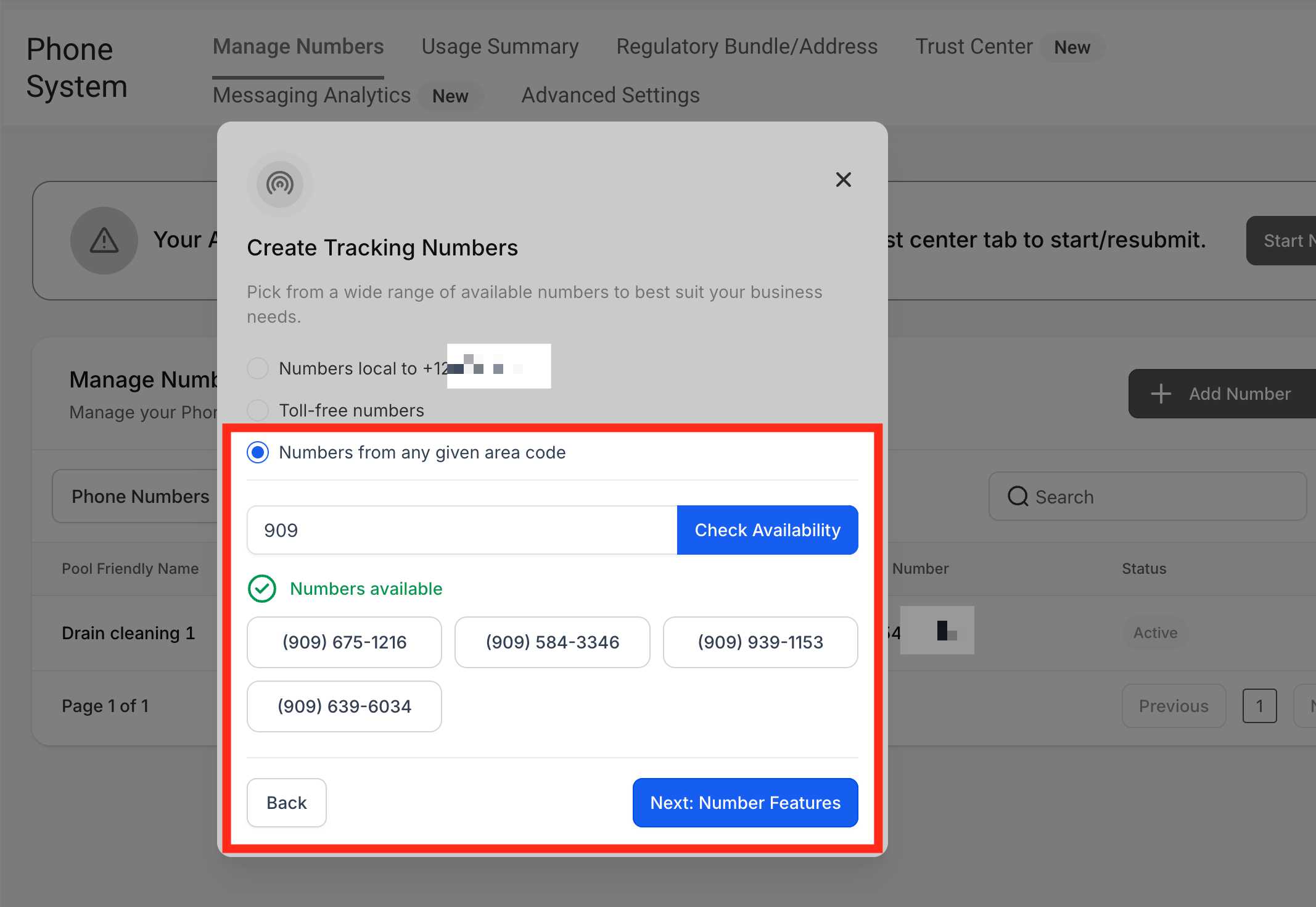
Select the numbers that fit your brand and geography, then click Next: Number Features.
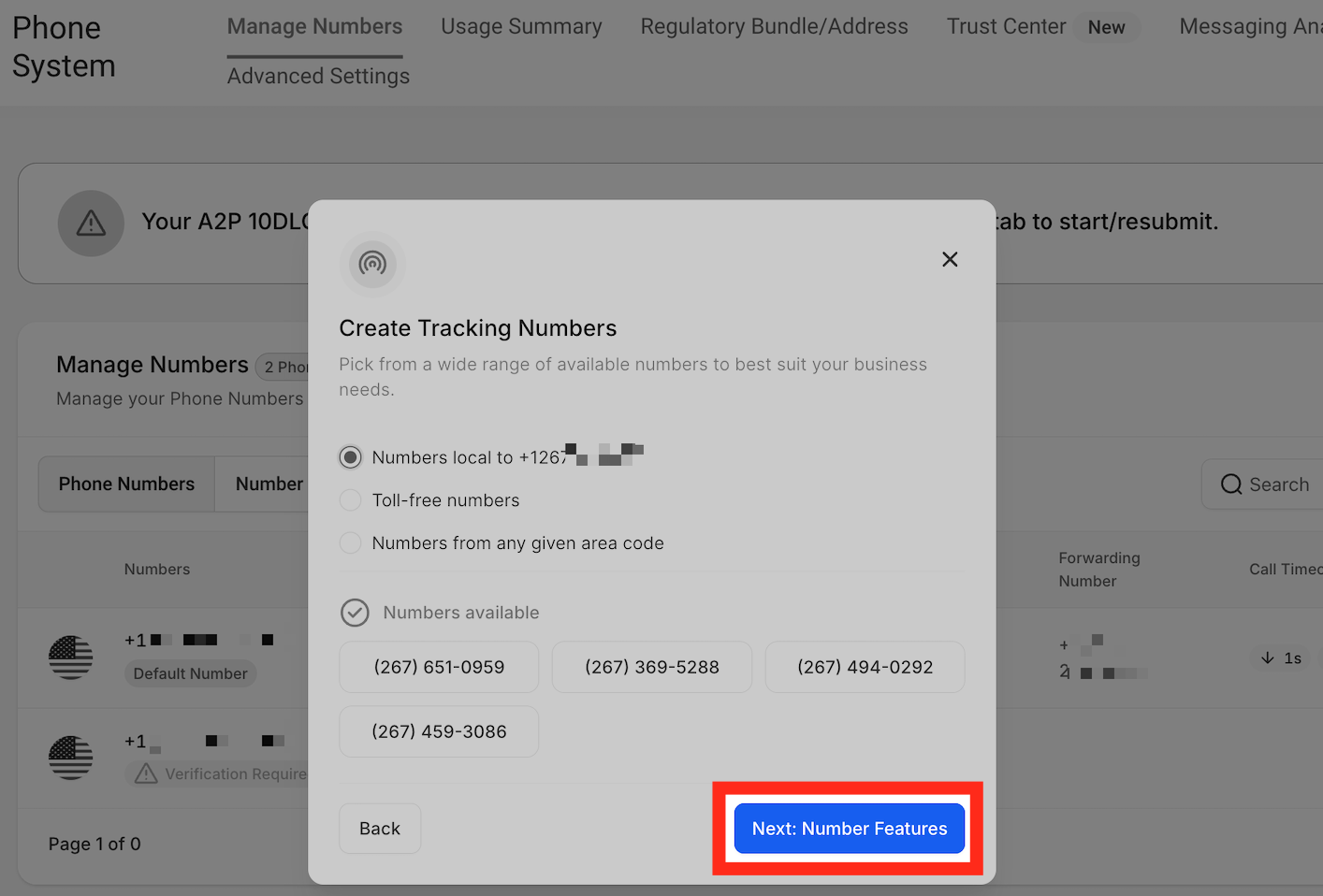
7. Configure call features (whisper and recording)
Now you’ll define how calls behave when they come in:
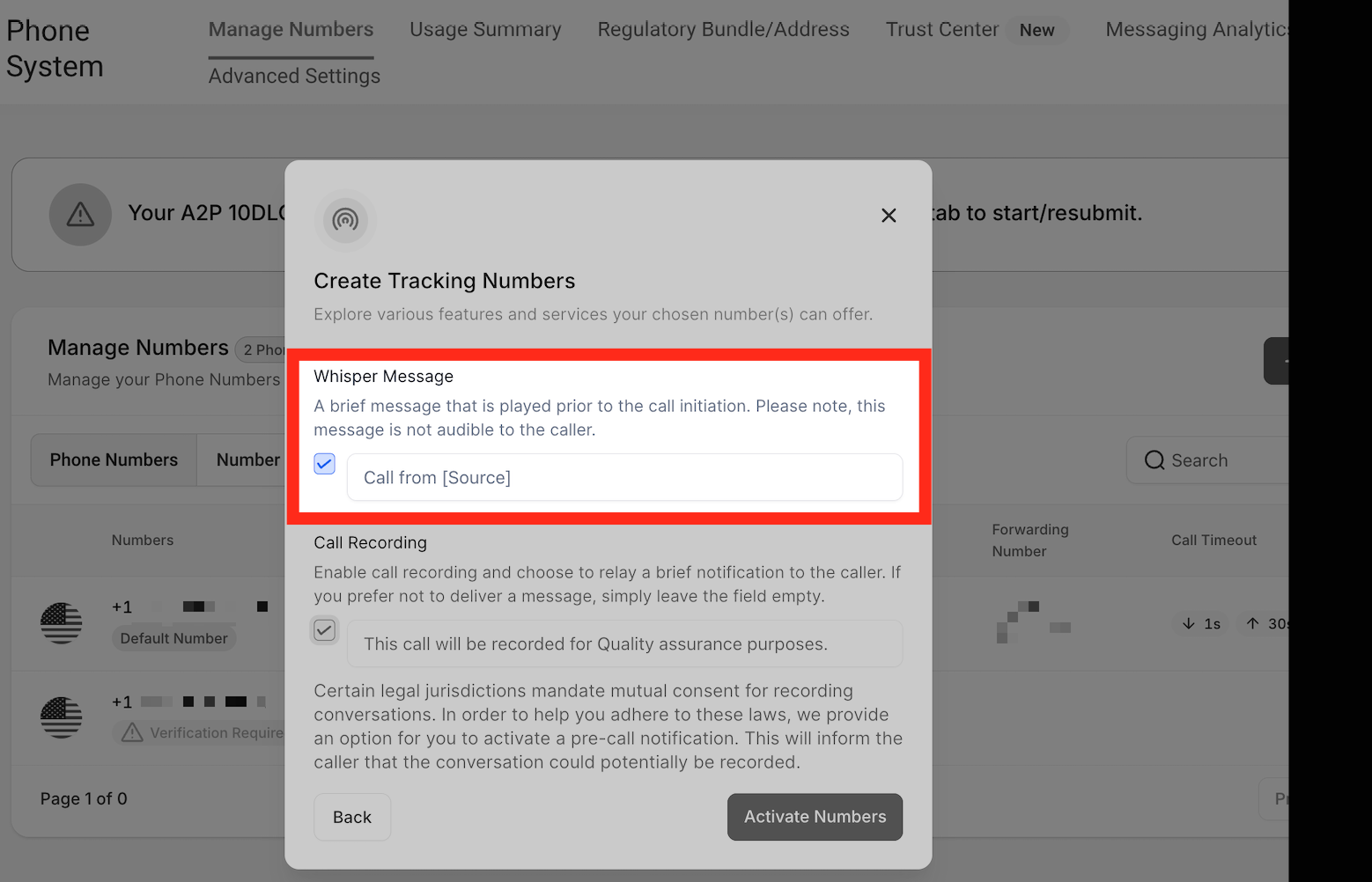
- Whisper Message – A short audio message you hear before the caller is connected (for example, “Call from Google Ads” or “Website tracking pool”). This helps your team know the source without affecting the caller experience.
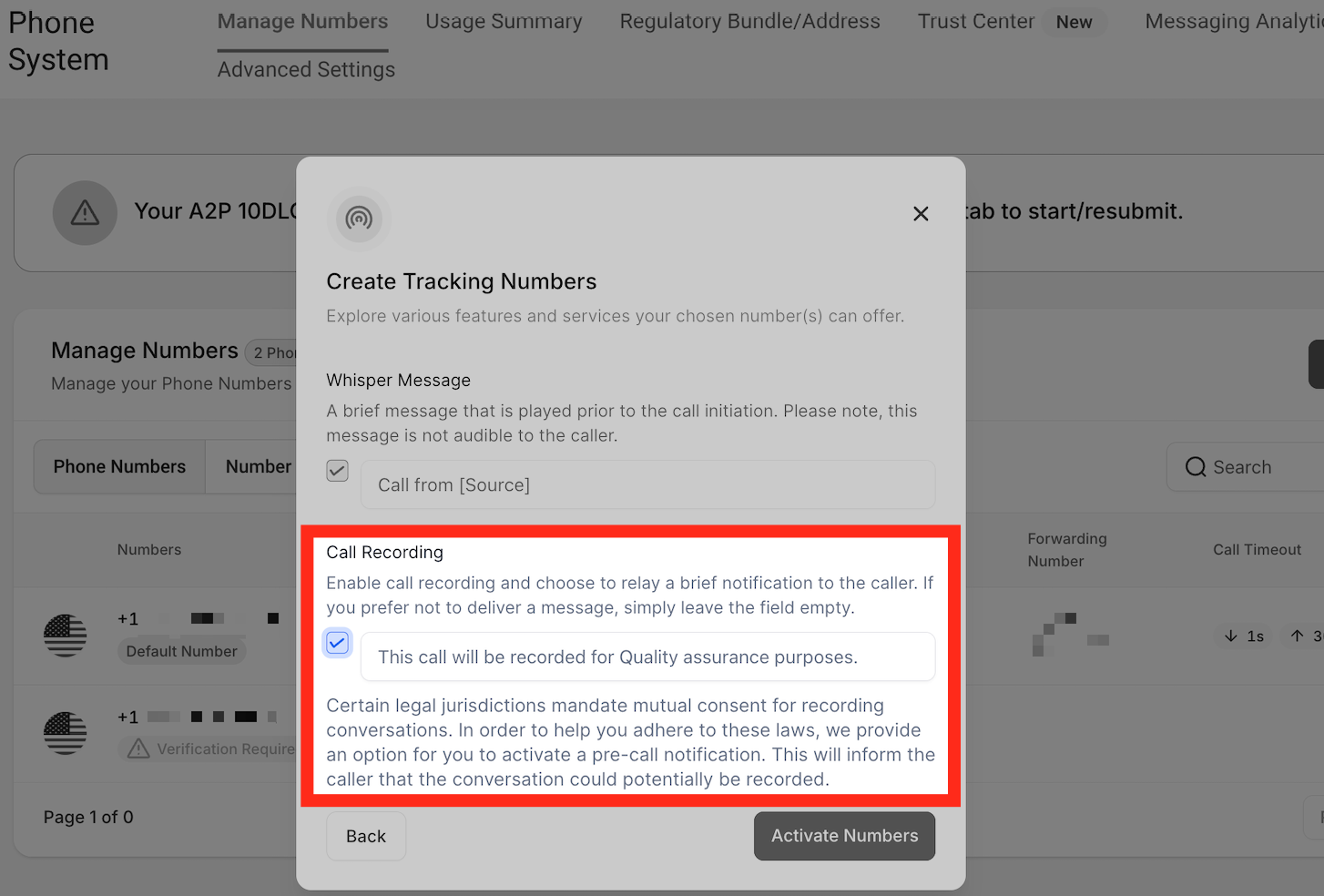
- Call Recording – Turn on call recording if you want to review conversations or use them for quality and training.
- Add a short message like: “This call may be recorded for quality and training purposes.”
- Make sure you comply with local call‑recording laws in your region.
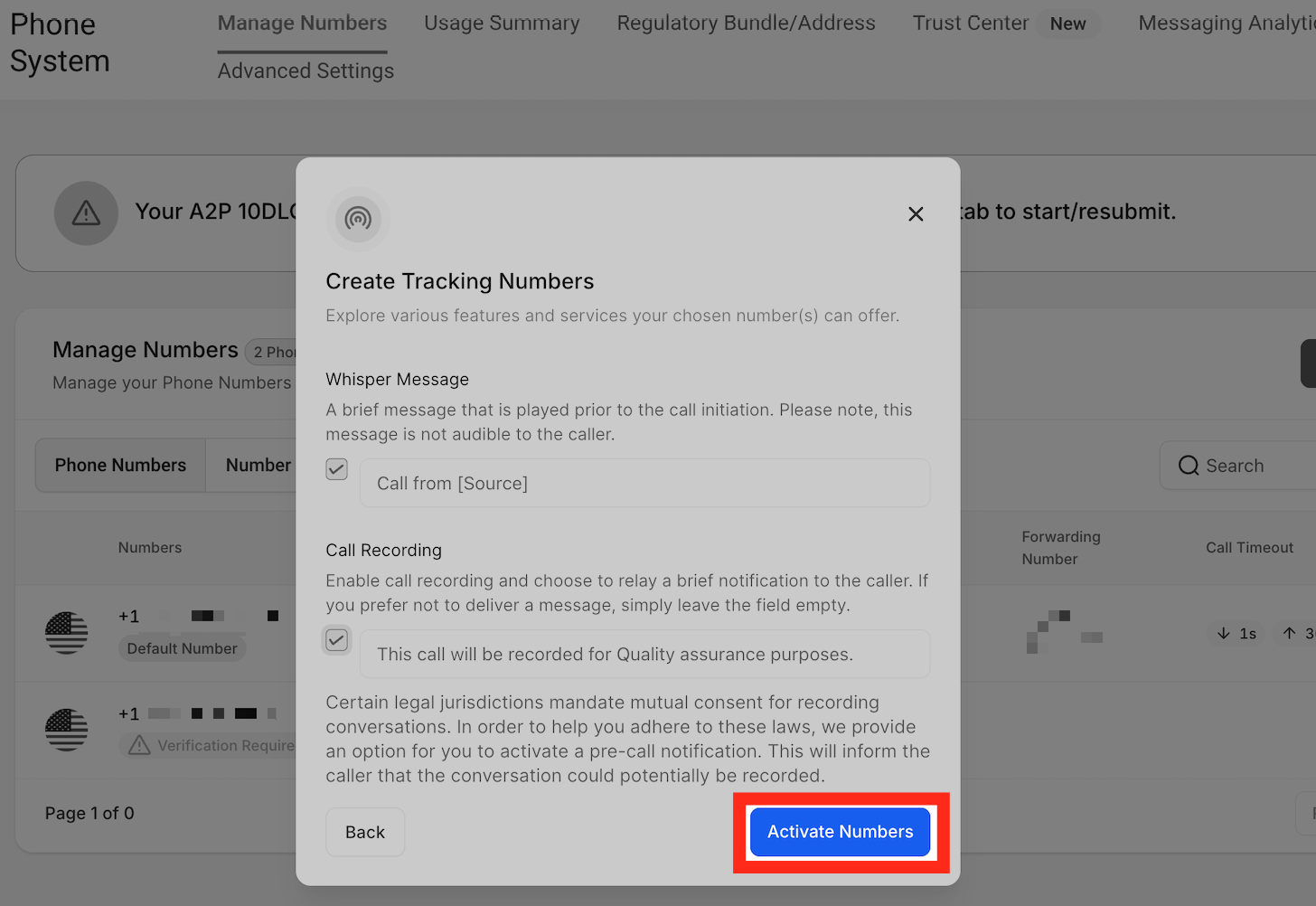
When you’re done, click Activate Number to finish creating the pool.
8. Add the GoHighLevel number pool snippet to your site or funnel
The pool is created, but GoHighLevel still needs to know where to perform number swapping. To connect the pool to your pages:
- Go back to Settings → Phone Numbers → Number Pools.
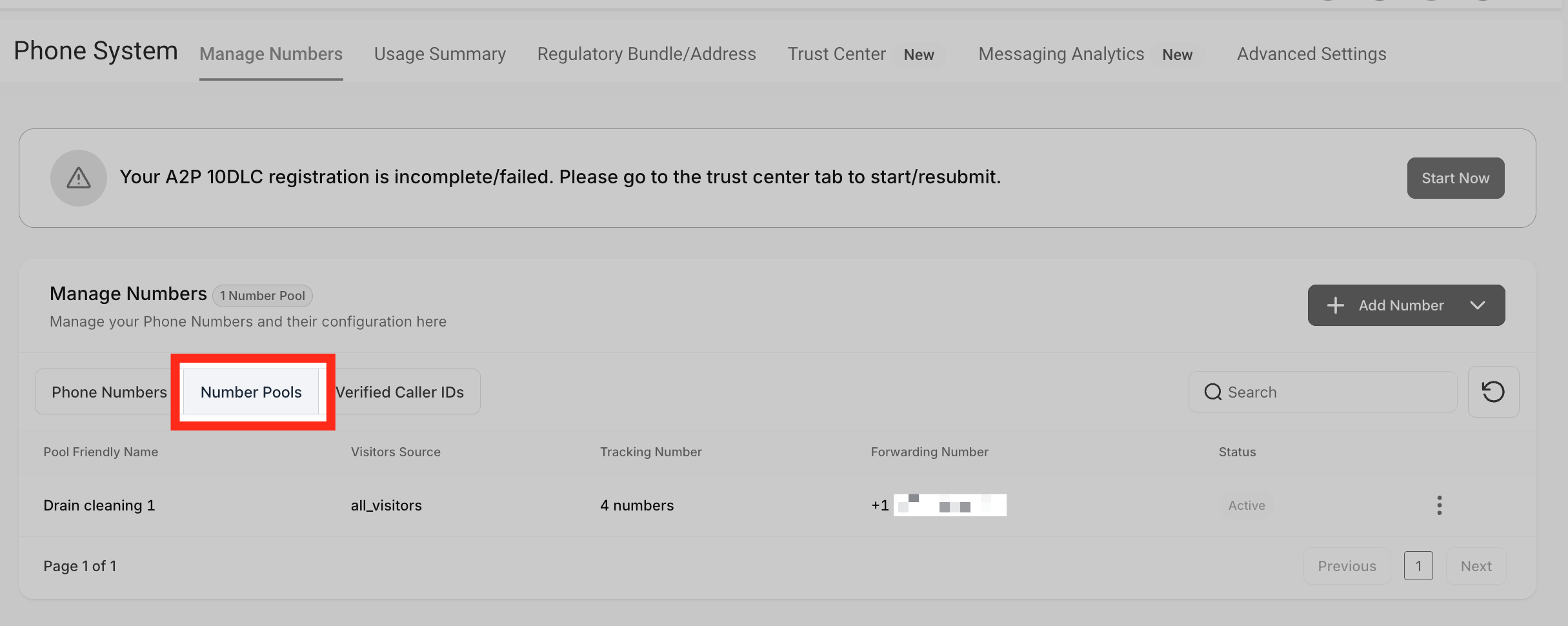
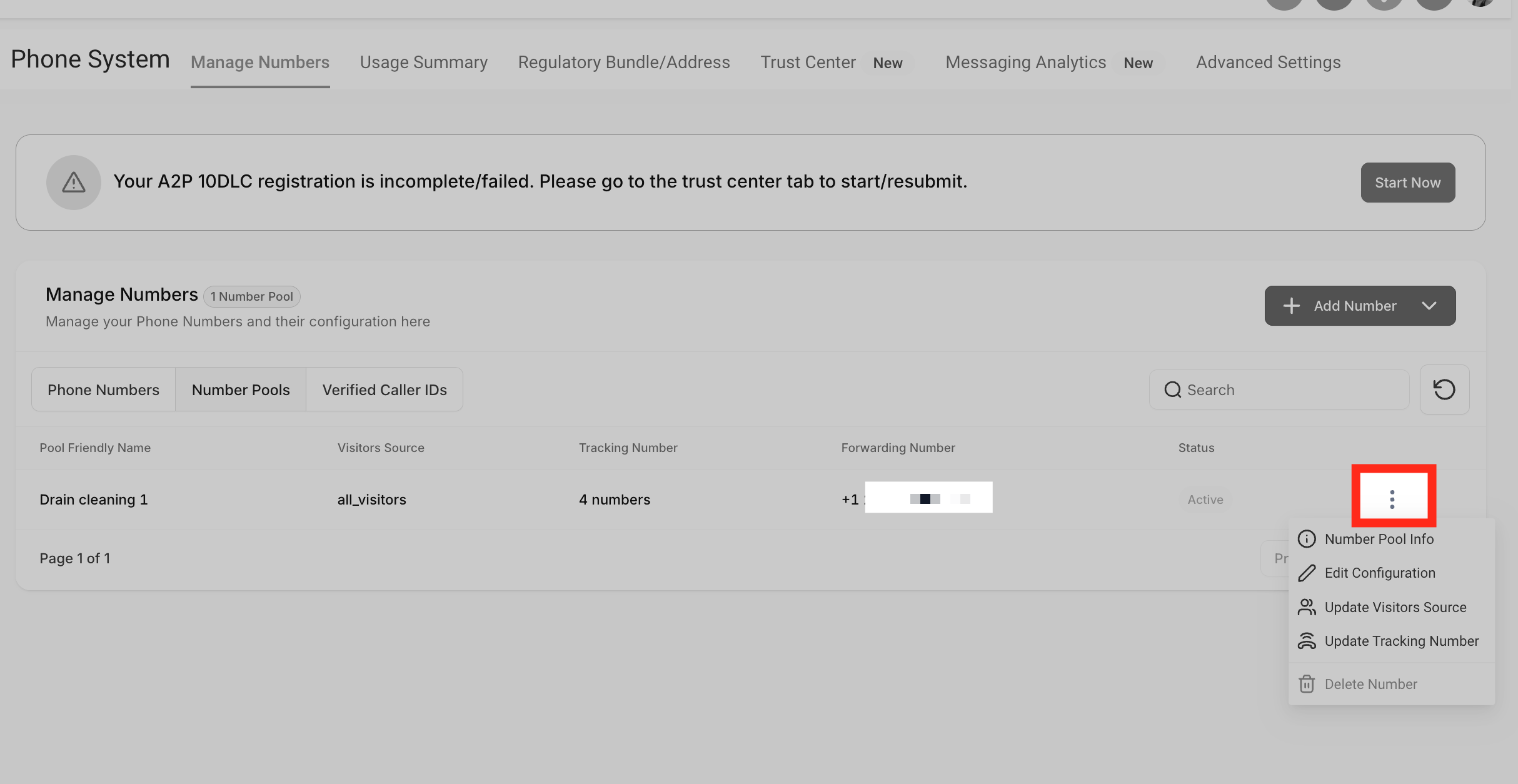
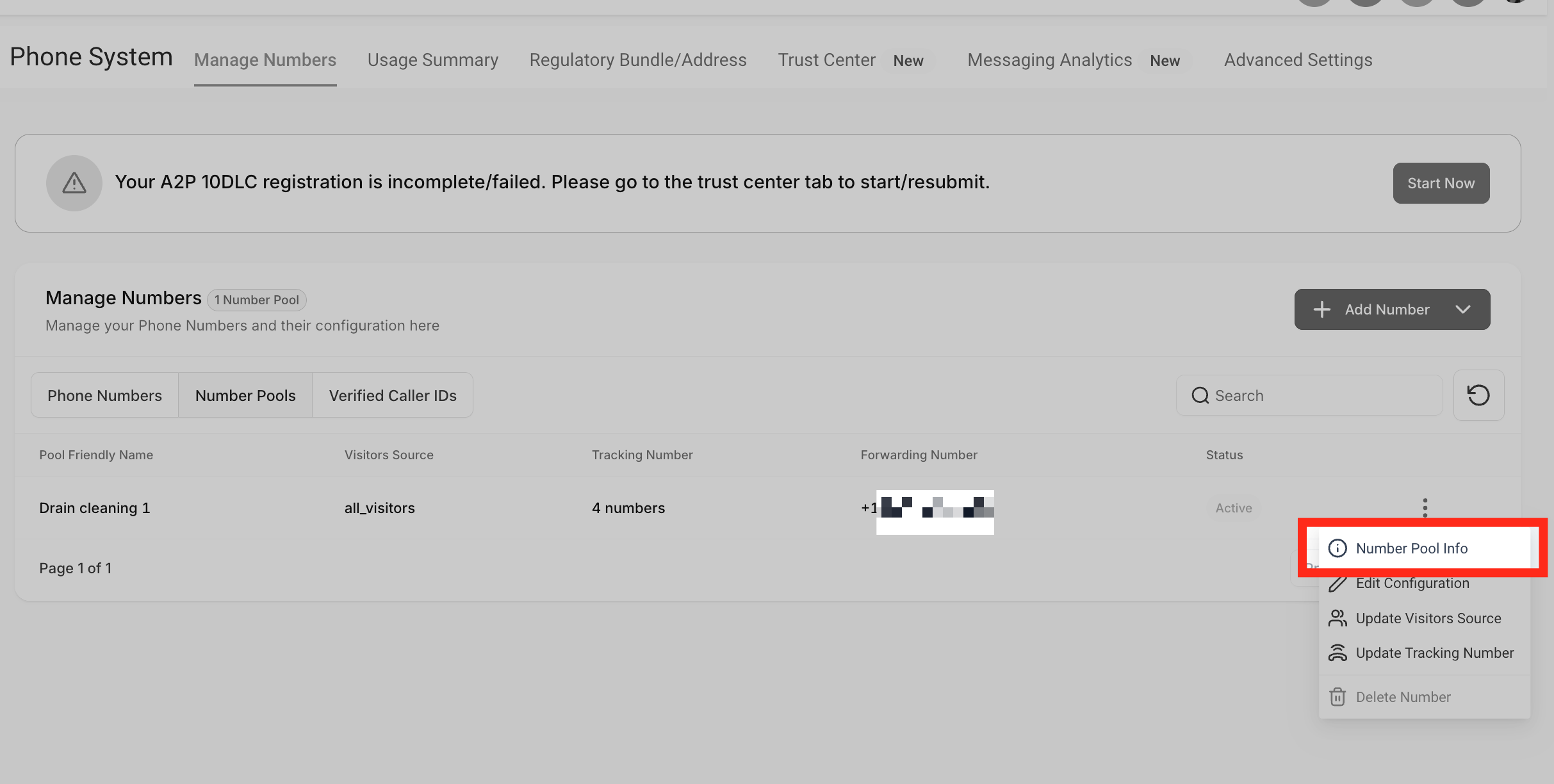
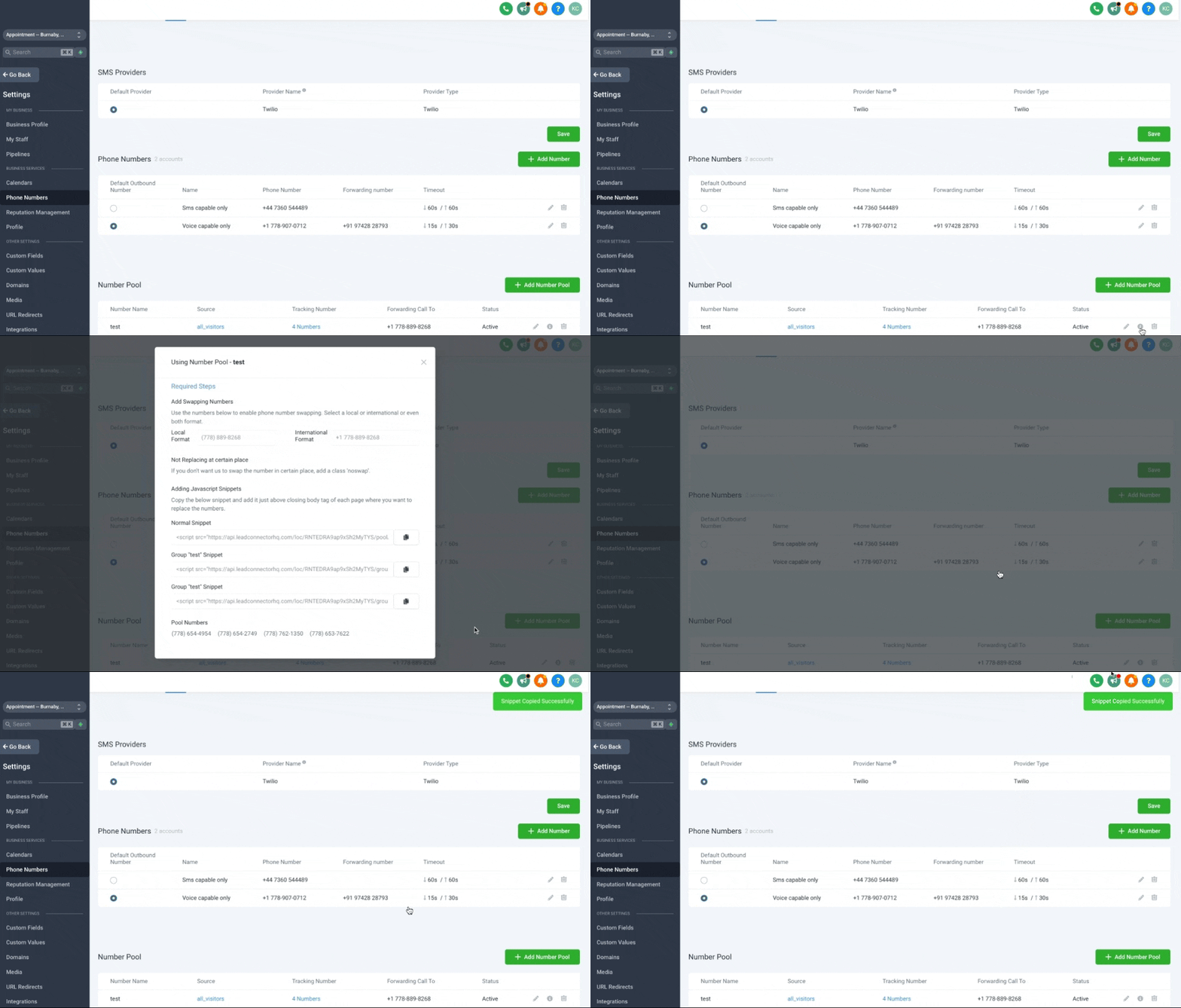
- Find your new pool, click the three dots on the right, and choose Number Pool Info.
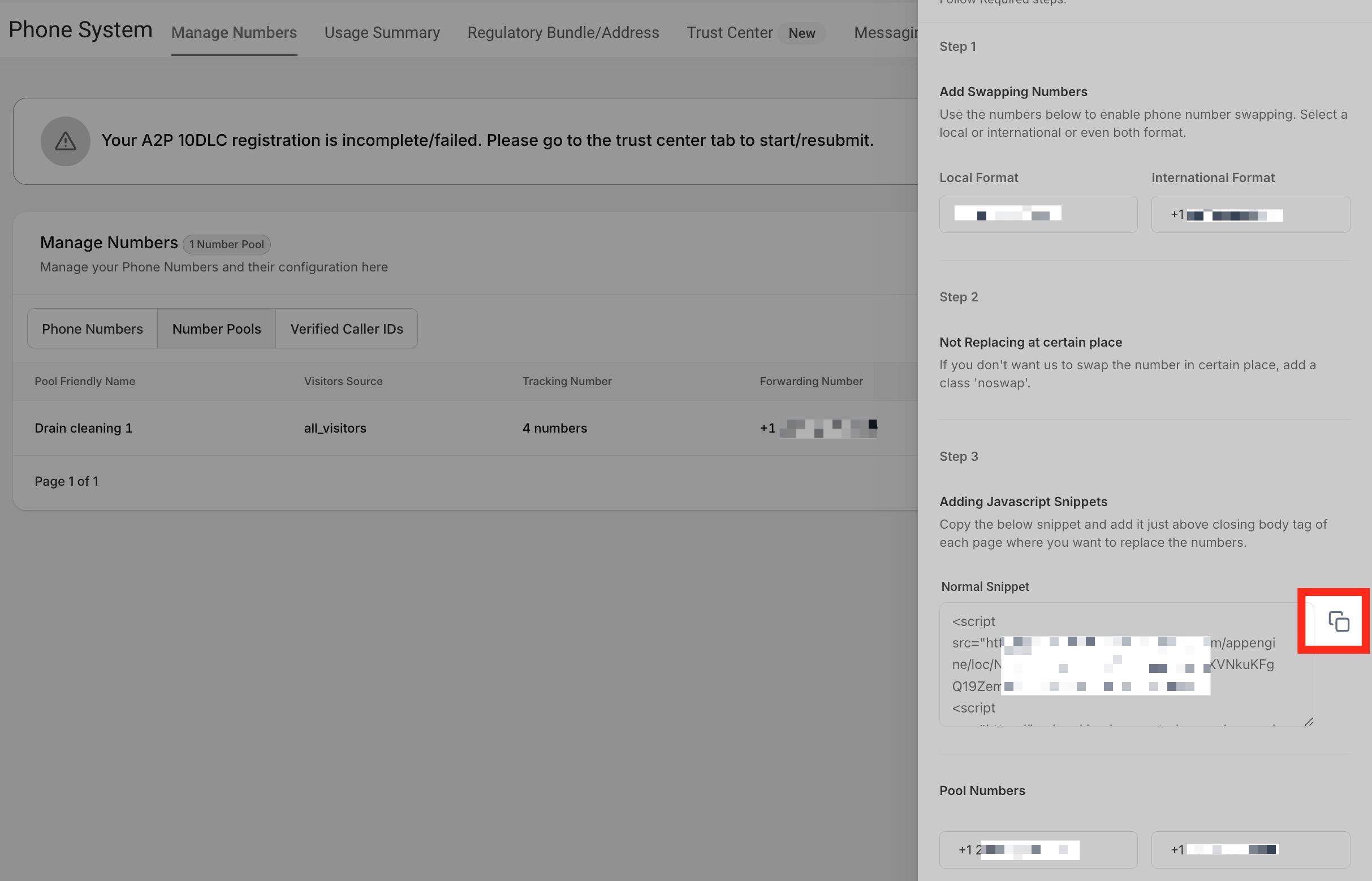
- Copy the Normal Snippet Code.
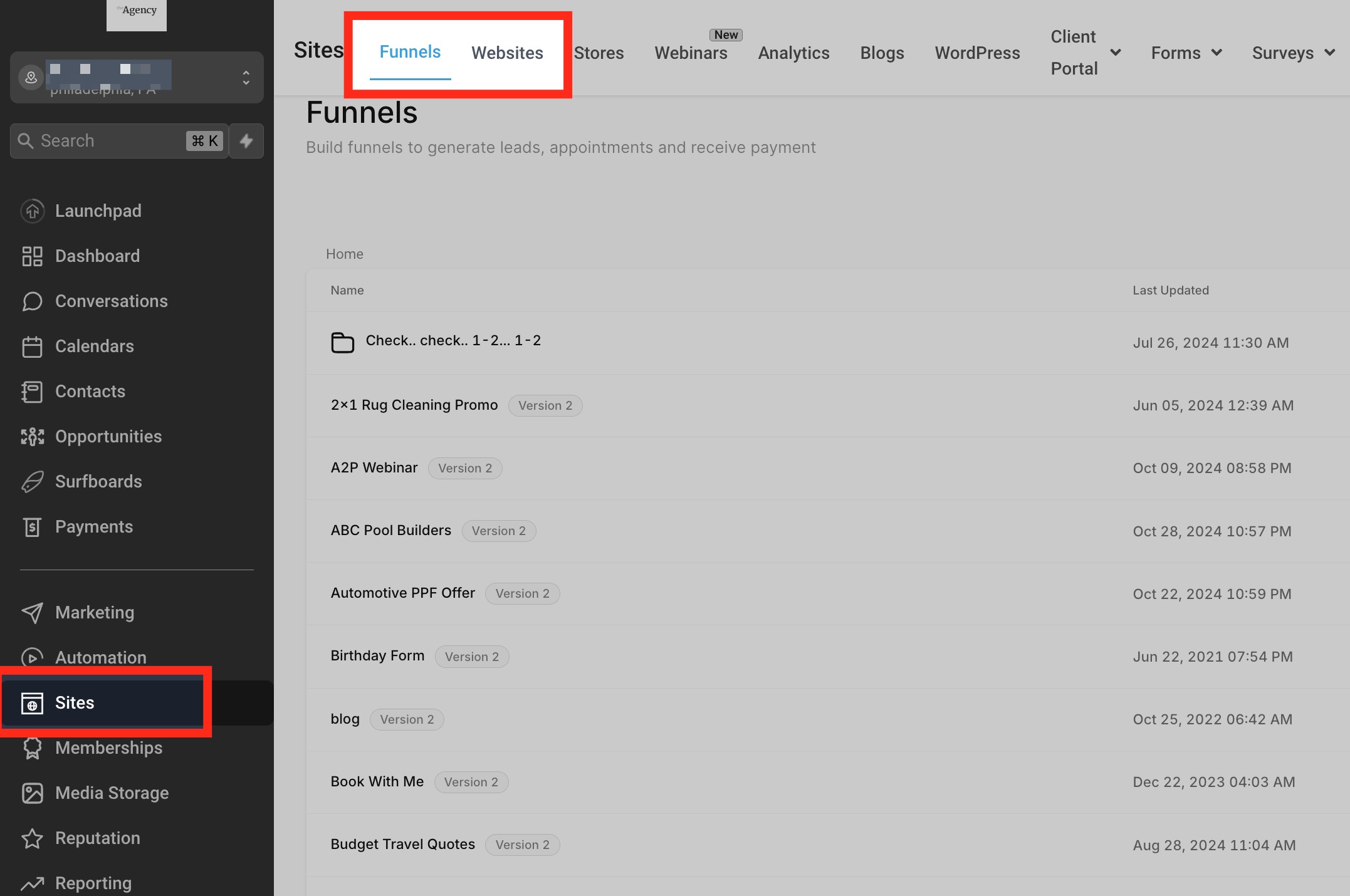
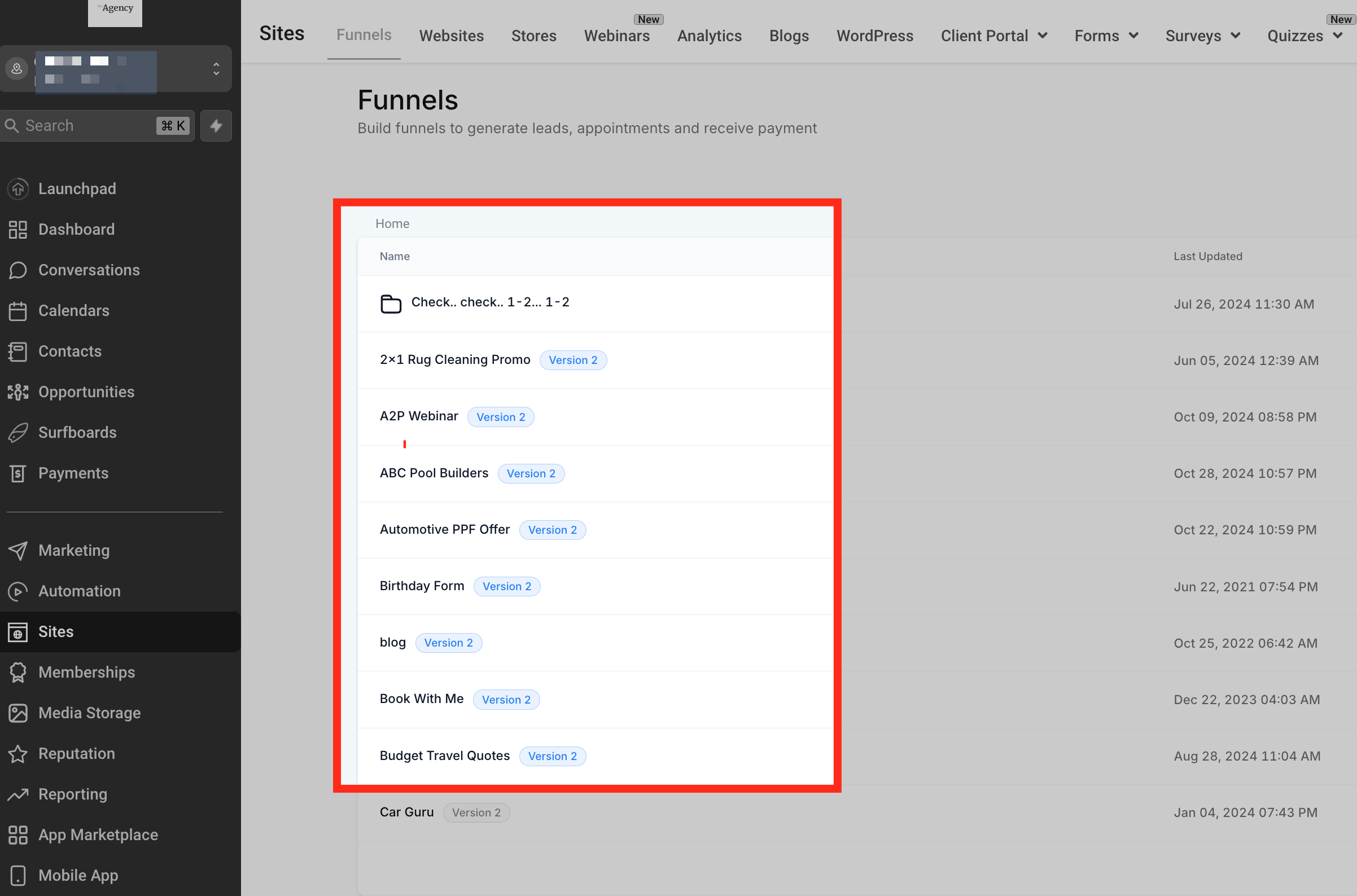
- In GoHighLevel, go to Sites → Funnels or Sites → Websites.
- Open the funnel or site where you want to track calls.
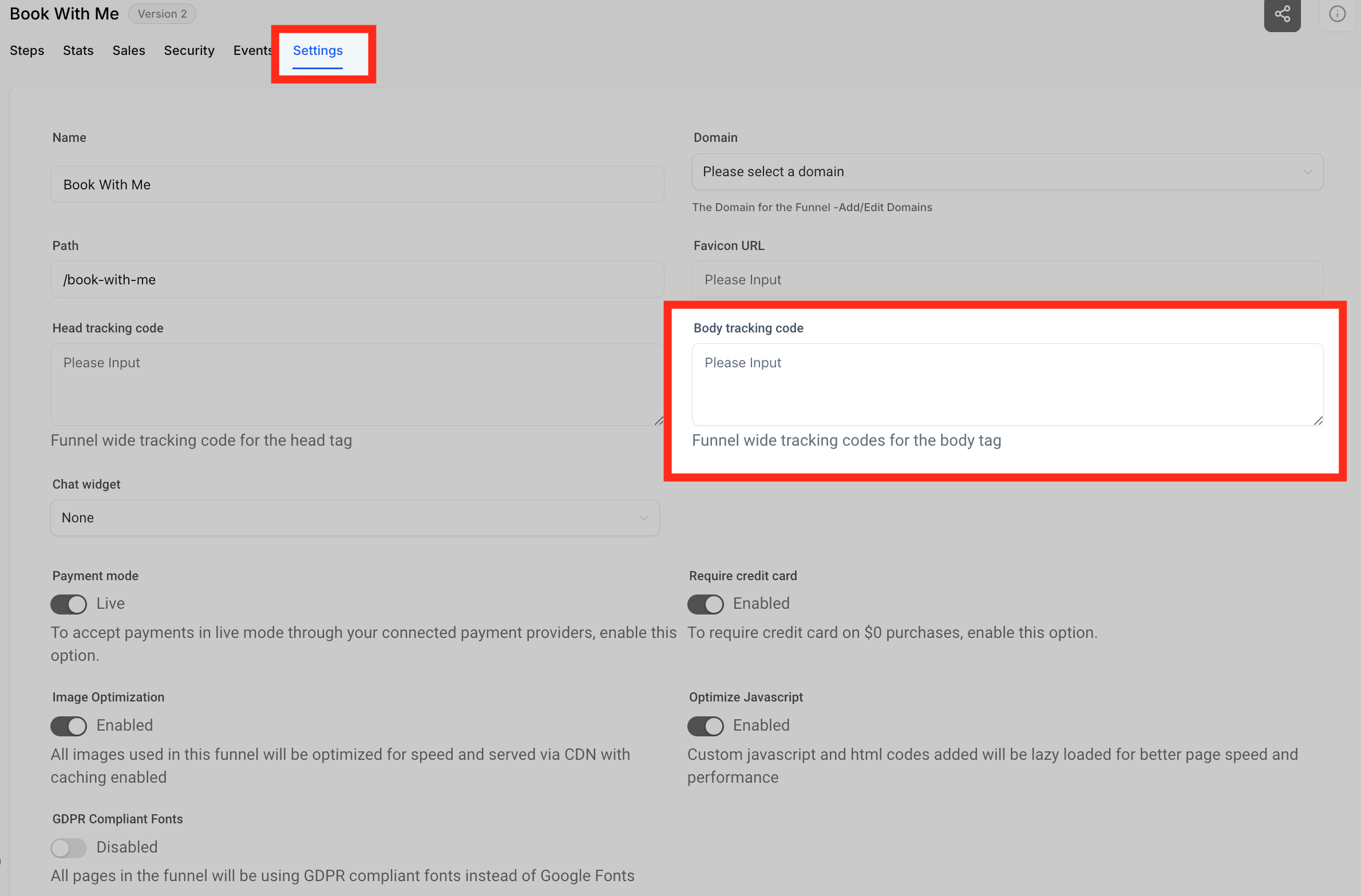
- Click the Settings tab.
- Paste the snippet into the Body Tracking Code field (usually at the bottom).
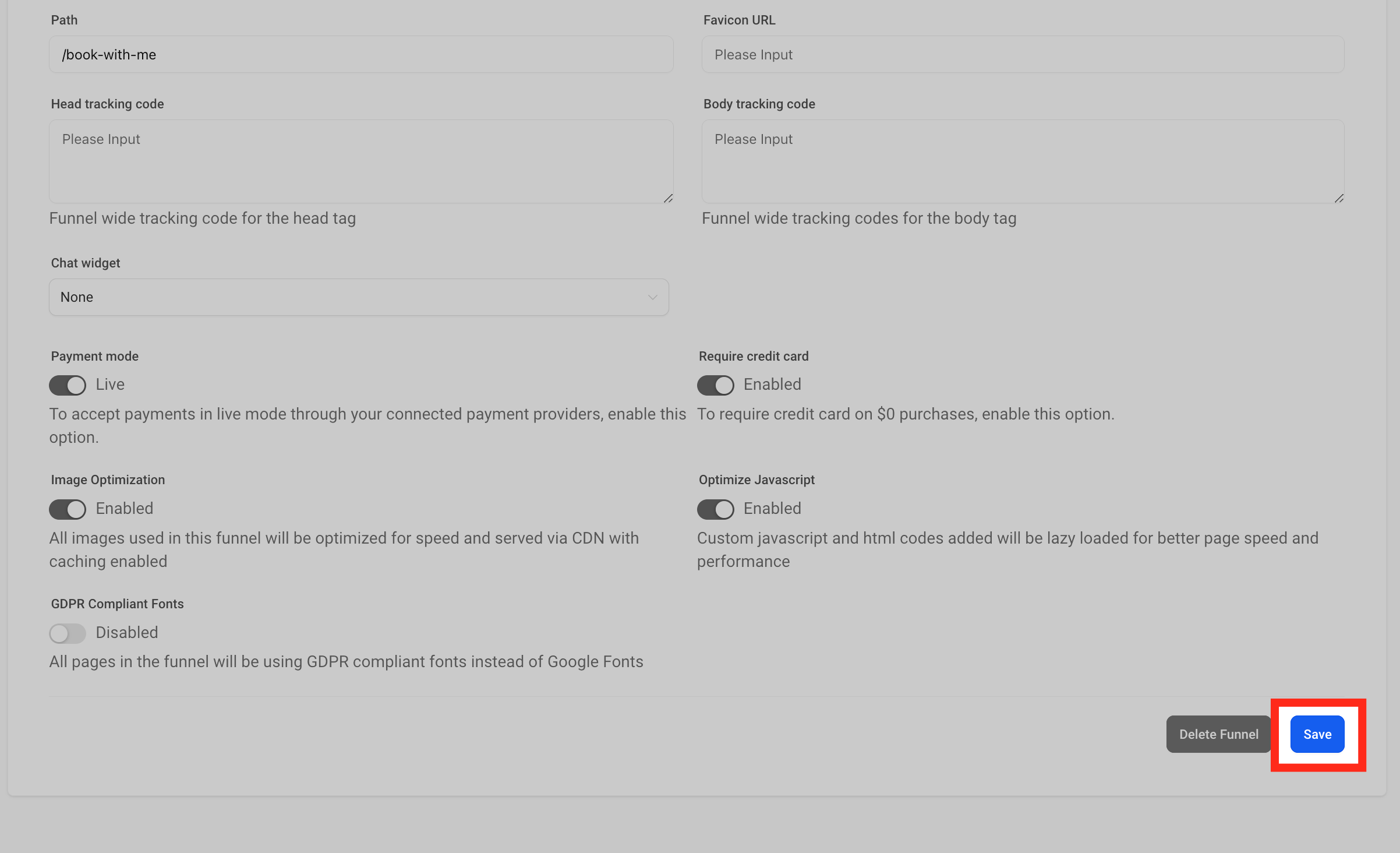
- Click Save and republish your funnel or site if needed.
At this point, GoHighLevel can begin dynamically swapping numbers from your pool for visitors who land on those pages.
If you want to apply the snippet to a single page within a funnel or website, rather than the entire site/funnel:
- From the page editor, click the Tracking Code icon (usually a
< />symbol) at the top left.
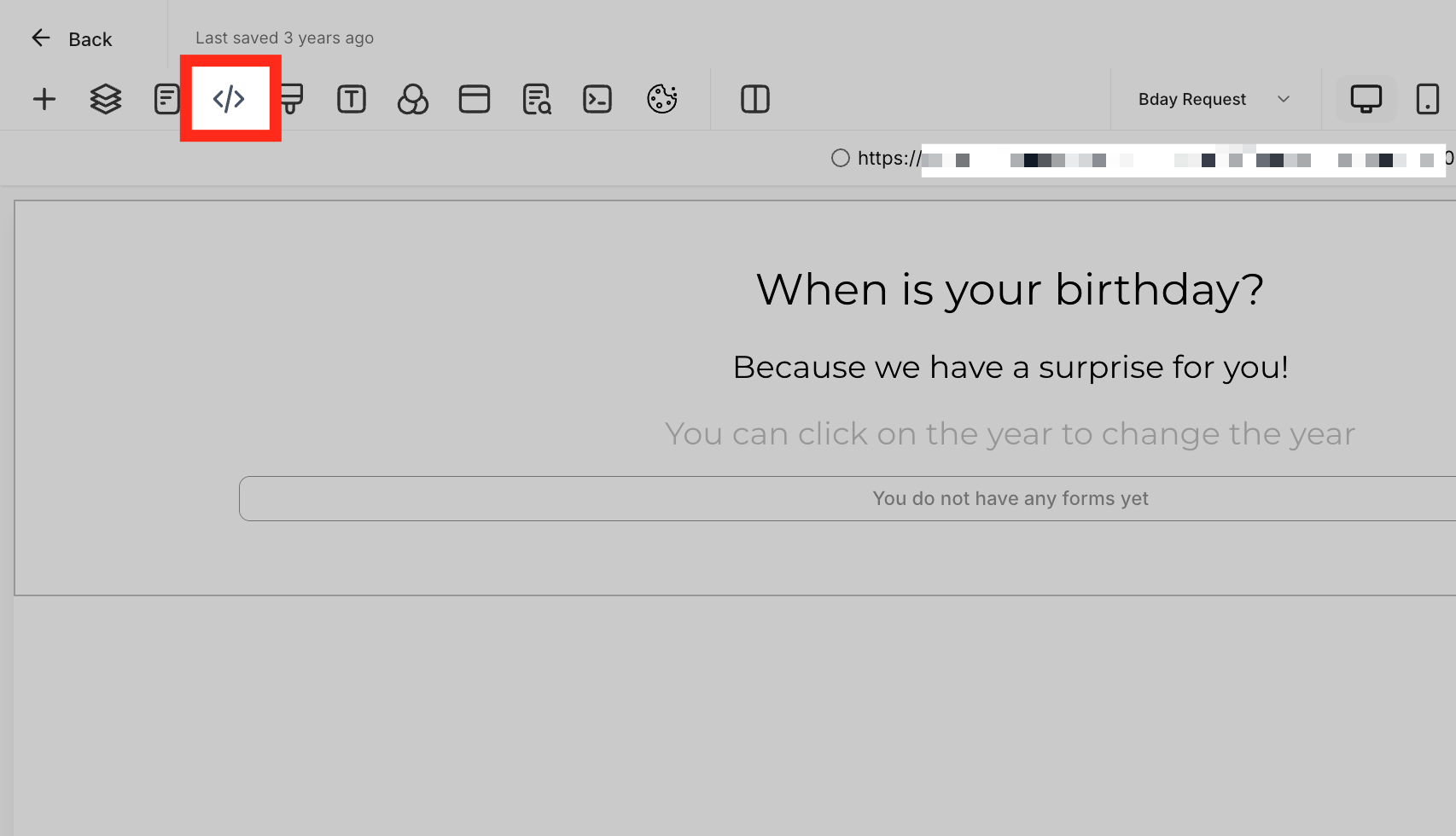
- Select Footer Tracking.

- Paste the snippet into the code editor.
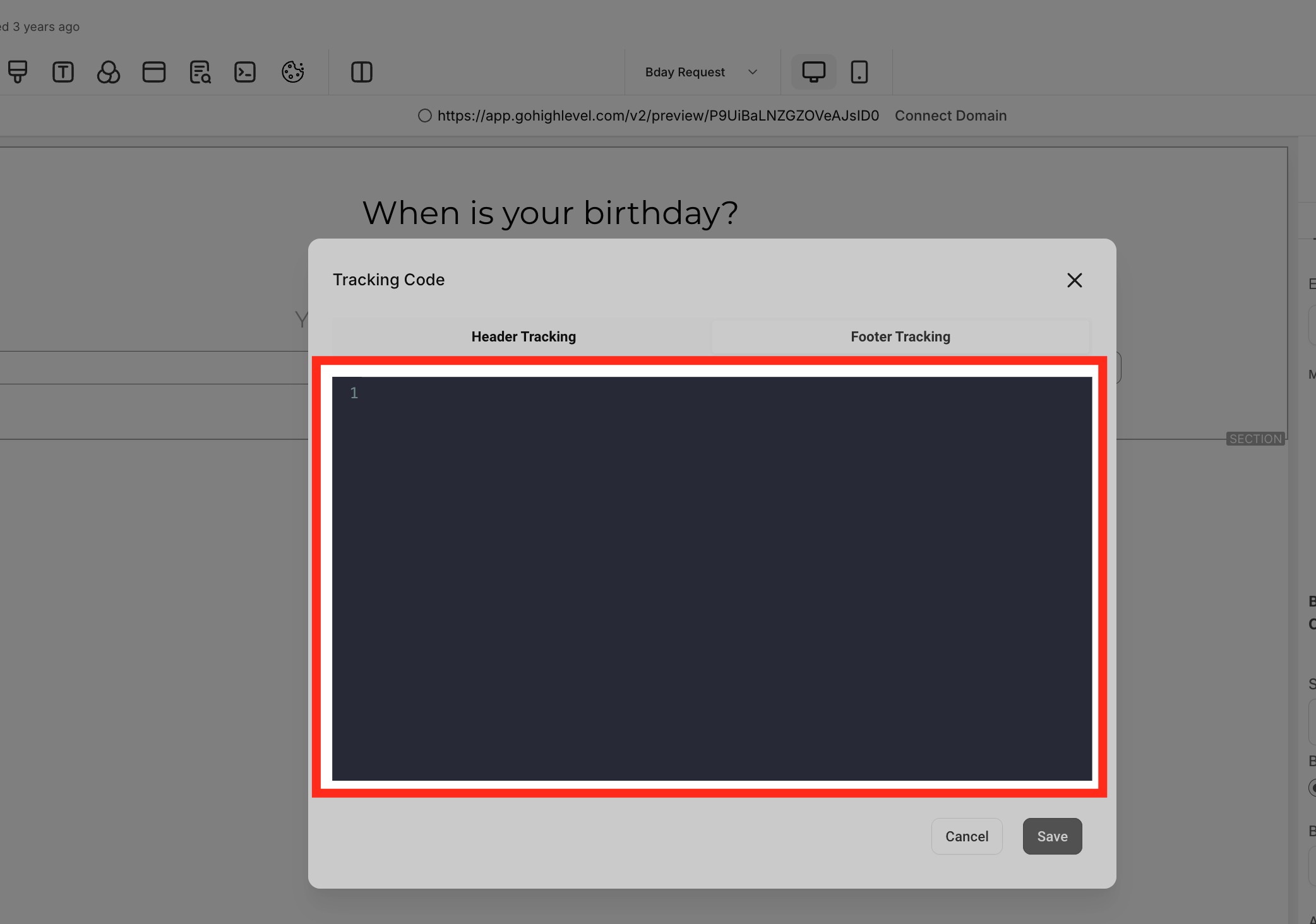
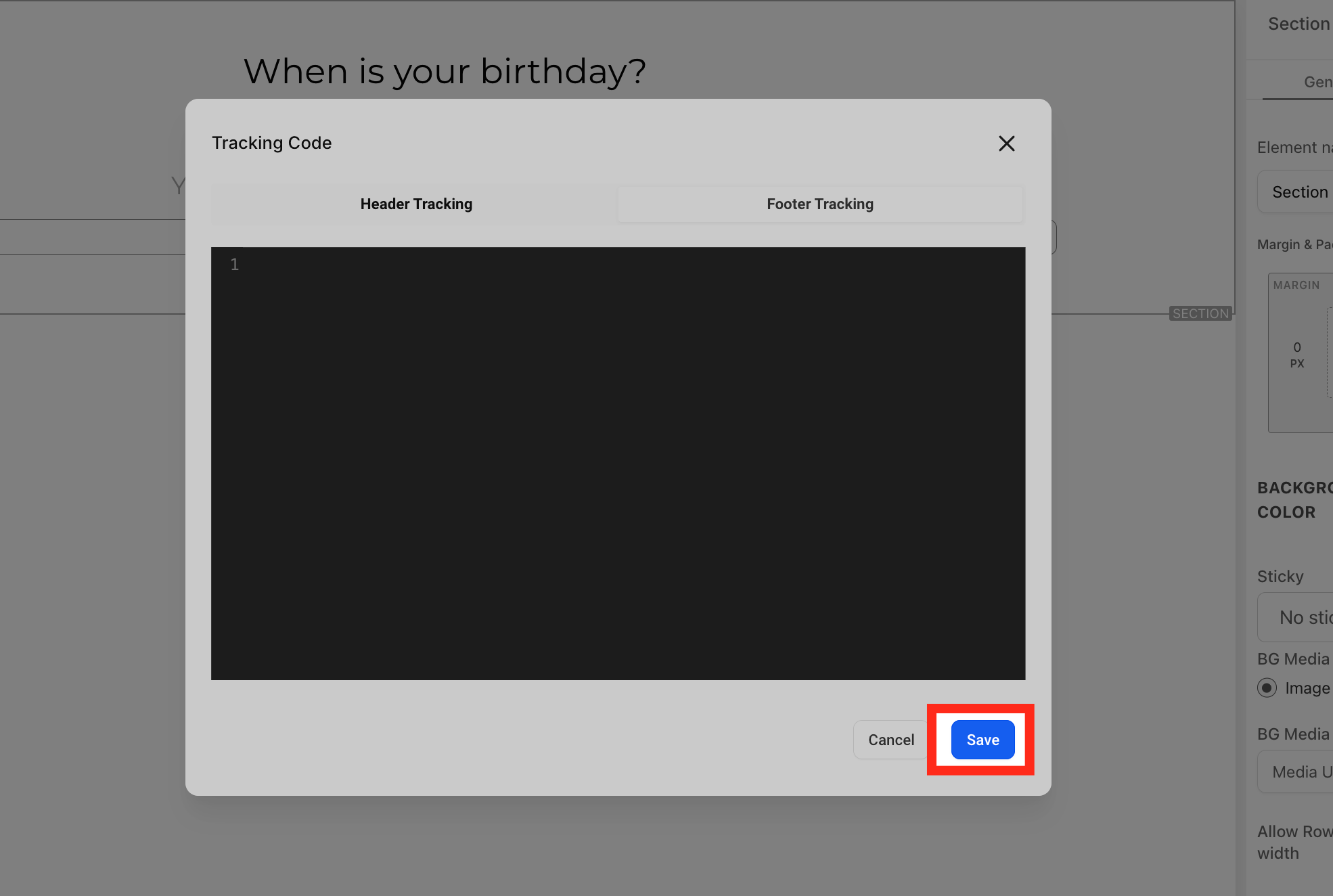
- Click Save to apply.
How to test your GoHighLevel call tracking number pool
Before you rely on the data, run a few quick tests:
- Open your site in an incognito window and load the page where you added the tracking snippet.
- Refresh the page a few times—you should see the phone number change between visits as GoHighLevel swaps numbers from the pool.
- Call the number from a test phone.
- Confirm that the call forwards correctly to your main business number.
- In GoHighLevel, check Reporting → Call Reporting (or the relevant reporting section) to verify the call and its source were logged.
If you don’t see the number change or calls aren’t logging, double‑check that:
- The snippet is in the Body Tracking Code section for the correct funnel or site.
- You’re using the normal snippet, not a test or dev snippet.
- No other scripts are overwriting your phone number on the page.
You would enter the following into your incognito browser yourwebsite.com/landing-page then hit enter.
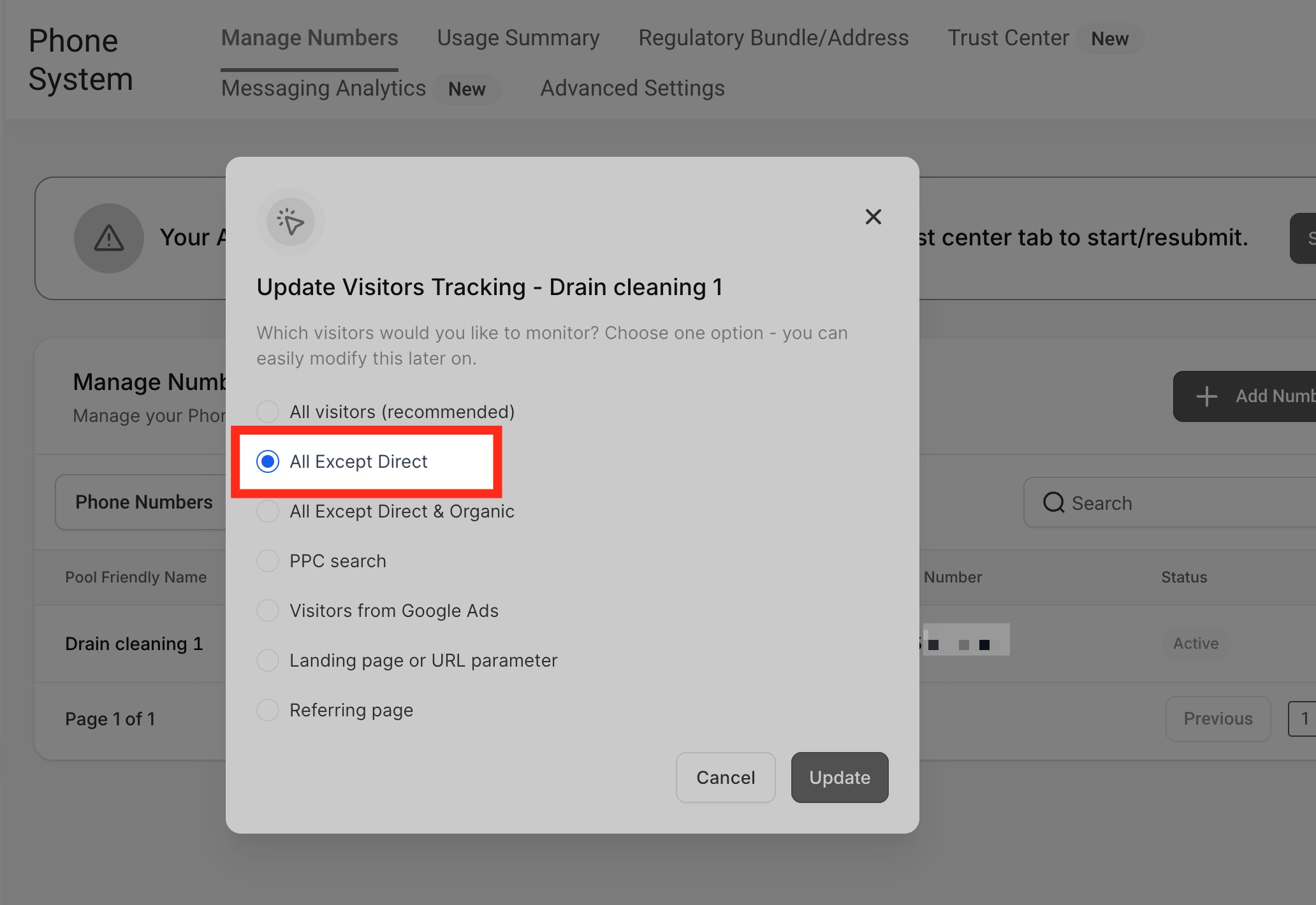
If the Tracking Option All Except Direct is selected, we must link the landing page URL from another webpage instead of entering the link directly from the browser to test.
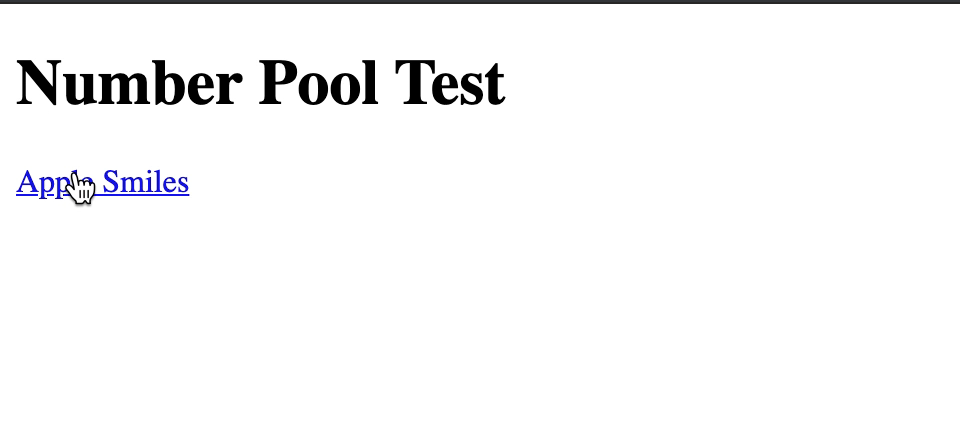
e.g. link Apple Smiles with yourwebsite.com/landing-page
Reading call tracking reports and optimizing campaigns
Once calls start flowing, GoHighLevel gives you visibility into:
- Which traffic sources trigger the most calls (paid, organic, direct, email, etc.).
- Which campaigns and funnels generate the highest‑quality conversations.
- Whether certain keywords or ad groups drive more phone conversions.
Your website visitors search the keywords, then they land on your website and call the tracking number, we will be able to attribute the source, and keyword in the call reporting tab.
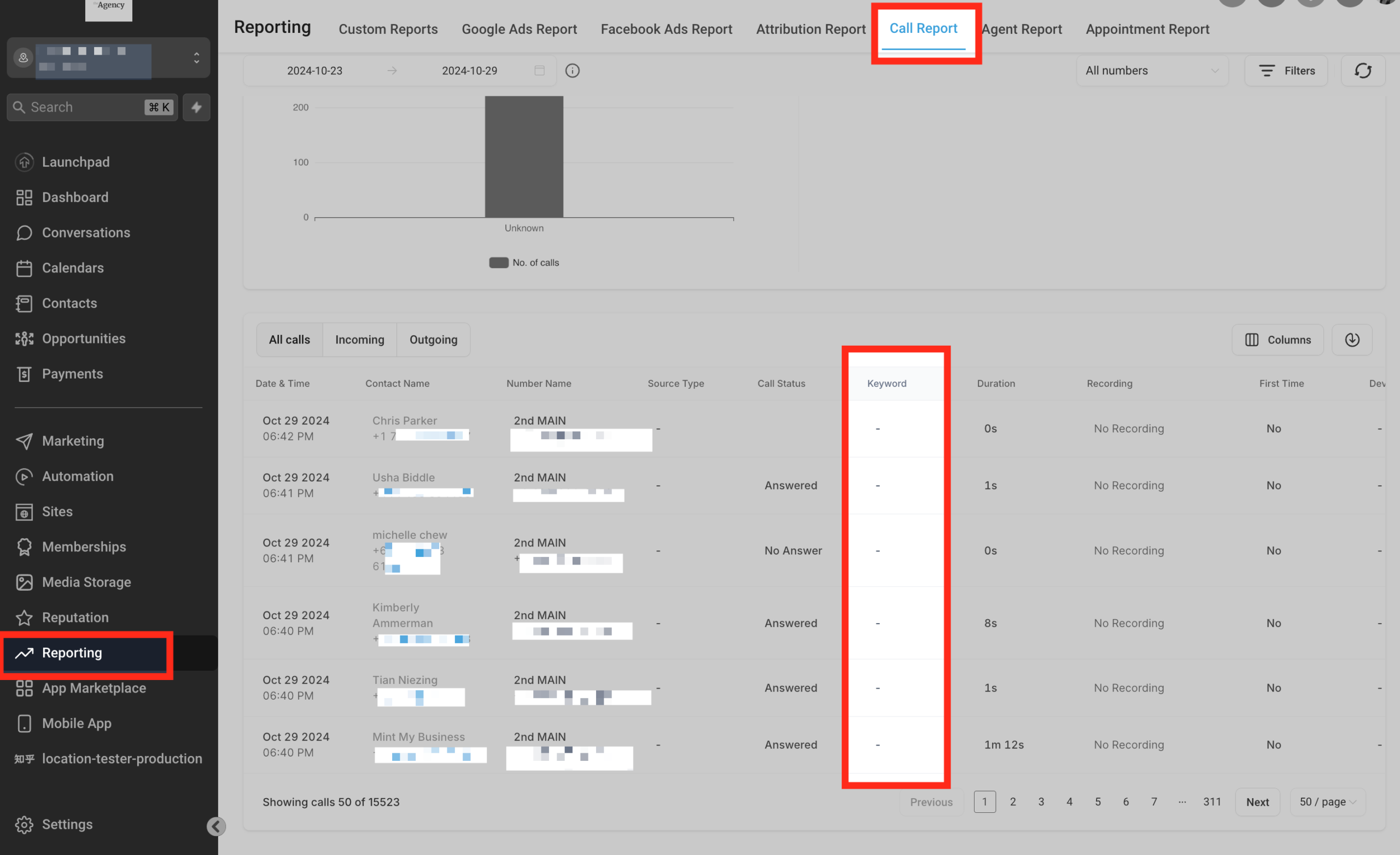
After you scroll to the right and click the arrow down button here, you can also look at the link the contact was visiting. You can also click the contact's name to view their activities:

Use this data to:
- Shift budget toward campaigns that produce real conversations—not just clicks.
- Align sales scripts with the campaigns driving the most calls.
- Identify pages or funnels with high traffic but low call volume and improve their offers or CTAs.
This is where call tracking stops being “nice to have” and starts directly impacting revenue.
Common mistakes to avoid with call tracking number pools
A few pitfalls we see teams run into:
- Forwarding to a GoHighLevel/Twilio number – This can create call loops and broken routing. Always forward to an external business line.
- Pool too small for traffic – If you’re getting dozens of calls per day, 2–3 numbers isn’t enough. Increase pool size so GoHighLevel can attribute calls accurately.
- Forgetting to update older funnels or sites – If you add the snippet to one funnel but not others, you’ll end up with blind spots in your reporting.
- Not testing after changes – Any time you update funnels, scripts, or phone settings, re‑test the pool.
- Ignoring compliance – If you’re recording calls, make sure your script and privacy policy match local regulations.
How To Set Up Keyword Tracking
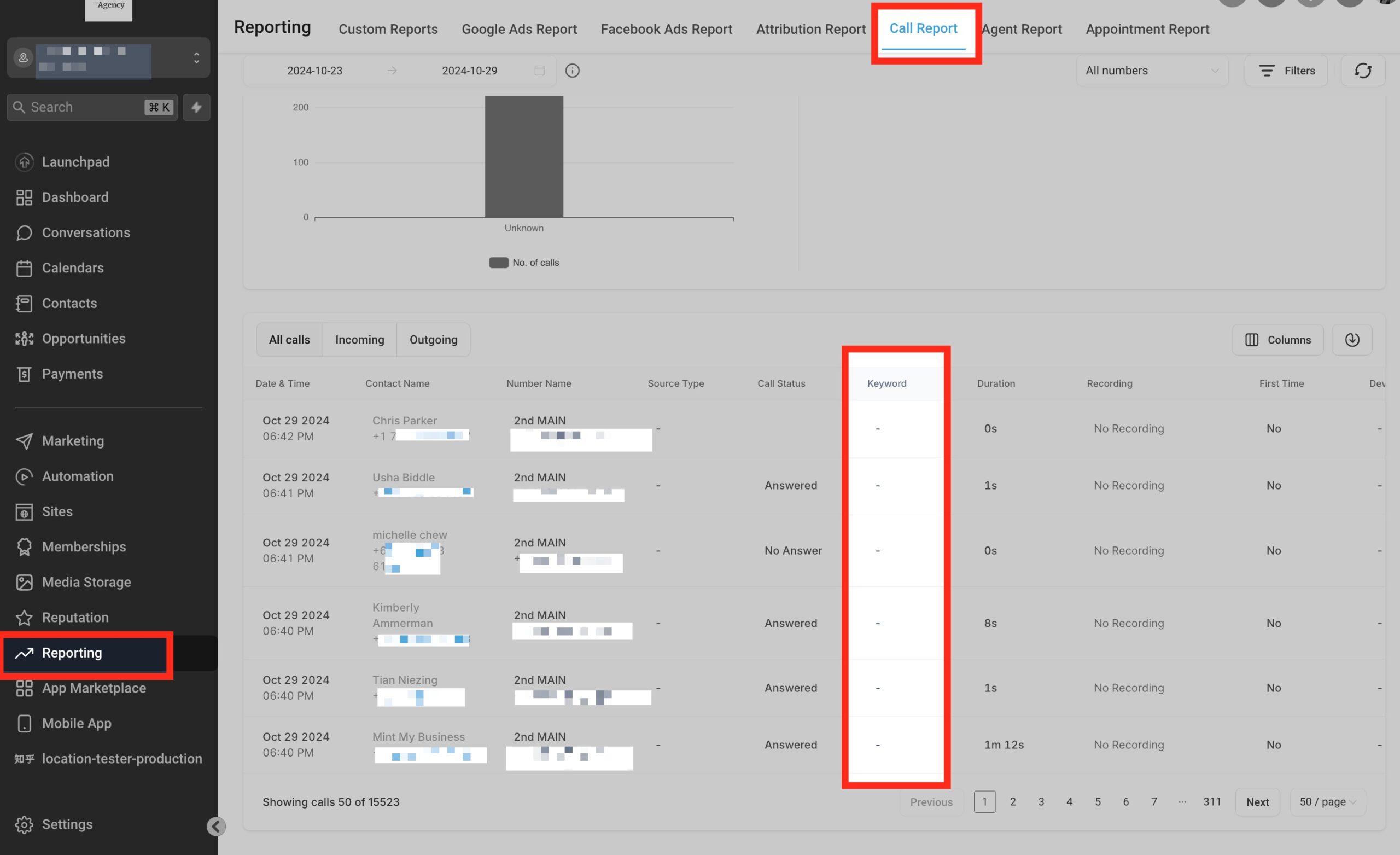
For HighLevel to display the keyword that was searched before the call was initiated, you'll need to add the following parameter to the ad URL in Google Ads: ?keyword={keyword}
So if you have a Google Ad with a url like yourwebsite.com/landingpage you would update that url to be: yourwebsite.com/landingpage/?keyword={keyword}
Related: New Feature Released — Call Tracking!!
To swap numbers in a button:
You can use an anchor tag and set href with the phone no and text as you want.
e.g. <a href="tel:(972) 421-5139" class="btn btn-blue">Call Us</a>
Group ID
It will help to swap only one number but not each and every number from different number pools. So it will find the best matching number pool and swap number.
Use-case Example:
If the user is running two ads. If the leads land on the first ad, the website will show a different number; if they land on the second ad, the website will show another different number.Then they need to change the source according to the ad and set the group using a Group ID.
Edit the number pool > Click on Add/Edit Group Id > Name the group Id > Click Update.
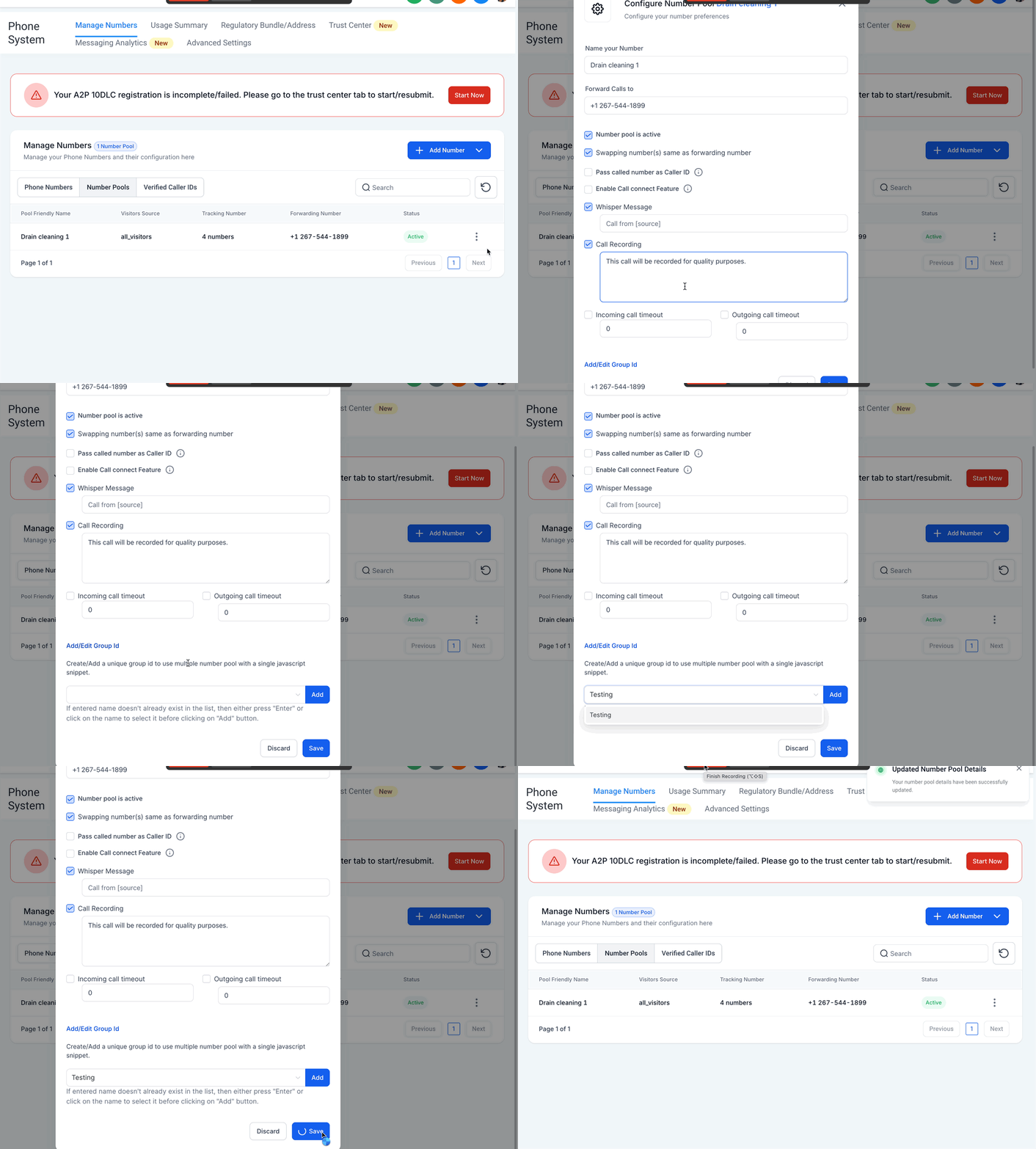
You can click on the information icon to copy the Group snippet to integrate it in the footer of your website:
FAQ: GoHighLevel call tracking number pools
Why do I need a number pool instead of one tracking number?
A single tracking number can tell you that calls came from “the website,” but it can’t reliably identify which campaigns, keywords, or visitor sessions drove those calls. A number pool assigns unique numbers per visitor session, so you can tie calls back to specific channels and campaigns.
Once the website visitors call the tracking number, we can attribute keywords in the Call reporting tab. So this column keyword will be filled out with those data:
How big should my GoHighLevel number pool be?
For low traffic pages (a few calls per day), a pool of 4–6 tracking numbers is usually fine. For higher traffic or heavier ad spend, consider 8–12 numbers so GoHighLevel doesn’t have to reuse numbers too frequently.
Can I use a GoHighLevel/Twilio number as the forwarding number?
No. Your forwarding number should be an external business line, such as your main office or sales line. Using an LC/Twilio number as the destination can cause call loops and failed connections.
Where do I paste the number pool script in GoHighLevel?
Paste the Normal Snippet Code from your number pool into the Body Tracking Code section of the funnel or website settings for every page where you want numbers to swap.
Will this work with my paid ads?
Yes. When you drive traffic from Google Ads, Meta Ads, or other paid channels to a page with the number pool snippet installed, GoHighLevel will dynamically swap numbers and log calls so you can see which campaigns and keywords are working.
Done‑for‑you help: let Revset Labs build your tracking and automation
Setting up a call tracking number pool is just one part of a high‑performing GoHighLevel stack. You still need:
- Funnels that convert visitors into leads and calls.
- Nurture sequences that follow up automatically when people don’t call.
- Reporting that your team can actually use to make decisions.
Revset Labs is an AI Automation and Marketing Agency that specializes in building end‑to‑end GoHighLevel systems—so you get clean tracking, smart automations, and revenue‑focused reporting without duct‑taping tools together.
If you want a partner to design and implement your tracking, funnels, and automations inside GoHighLevel, Revset Labs can handle the heavy lifting so your team can stay focused on closing deals.
And if you’re ready to start from scratch or migrate into GoHighLevel, you can launch your free GoHighLevel trial here and then hand this article (and your account) to Revset Labs to build out a complete system.