
If you send email from GoHighLevel, your Mailgun private API key is one of the most important pieces of your deliverability setup. It’s the secure bridge that lets GoHighLevel send email through Mailgun on behalf of your domains.

When the key is missing, wrong, or tied to the wrong region, you’ll see bounces, delays, or emails that never leave the system. The good news: once you understand how the pieces fit together, the setup is straightforward.
This guide walks you step by step through setting up your Mailgun private API key in GoHighLevel, verifying your DNS records, and troubleshooting the most common issues—so your campaigns actually reach the inbox.
Why your Mailgun private API key matters in GoHighLevel
GoHighLevel doesn’t deliver email by itself. Instead, it connects to a dedicated email service provider (ESP) like Mailgun.
Your Mailgun private API key is what:
- Authenticates GoHighLevel to send mail through your Mailgun account.
- Links GoHighLevel to the correct sending domain(s) in Mailgun.
- Lets GoHighLevel read back delivery, bounce, and spam events from Mailgun.
If the key is wrong, revoked, or tied to the wrong region/account, GoHighLevel can’t talk to Mailgun—and your emails either fail silently or start bouncing.
Not on GoHighLevel yet but planning your outbound and automation stack? You can start a free GoHighLevel trial here and follow this guide while you set up your email infrastructure.
Key Benefits of Using a Mailgun Private API Key
Understanding the value of this connection helps you choose the right place to configure it and avoid sending issues. The bullets below highlight how a correct setup improves reliability, control, and scalability when emailing from GoHighLevel.
- Centralized authentication: Use one key at the Agency level to power multiple Locations when appropriate.
- Location-level control: Override the Agency key at a specific Location when a client needs their own Mailgun account and domain.
- Domain dropdown visibility: Selecting a verified US-region domain from a dropdown reduces misconfiguration and ensures you send from the correct domain.
- Reply handling enablement: A valid key plus a proper receiving route helps replies land in Conversations for the right sub-account.
- Security & rotation: Keys can be regenerated in Mailgun and updated in HighLevel to maintain account security.
- Scalability: Multi-client agencies can standardize setup, speed onboarding, and align with client-owned infrastructure when needed.
Before you start: prerequisites and checklist
Preparing the environment first prevents common blockers where the domain doesn’t appear in GoHighLevel or emails fail to send. Confirm each item before pasting your key.
- Active Mailgun account with at least one verified sending domain (green check) set up under the US region.
- Access to the GoHighLevel Agency view and the relevant Location with permissions to open Settings → Email Services.
- DNS for the Mailgun domain is correctly configured (DKIM, SPF, MX, and tracking CNAME if you use link tracking).
- Any Mailgun IP allowlist will be temporarily relaxed if needed to allow GoHighLevel to sync domains (restore after validation).
Region and Domain Visibility (US vs. EU)
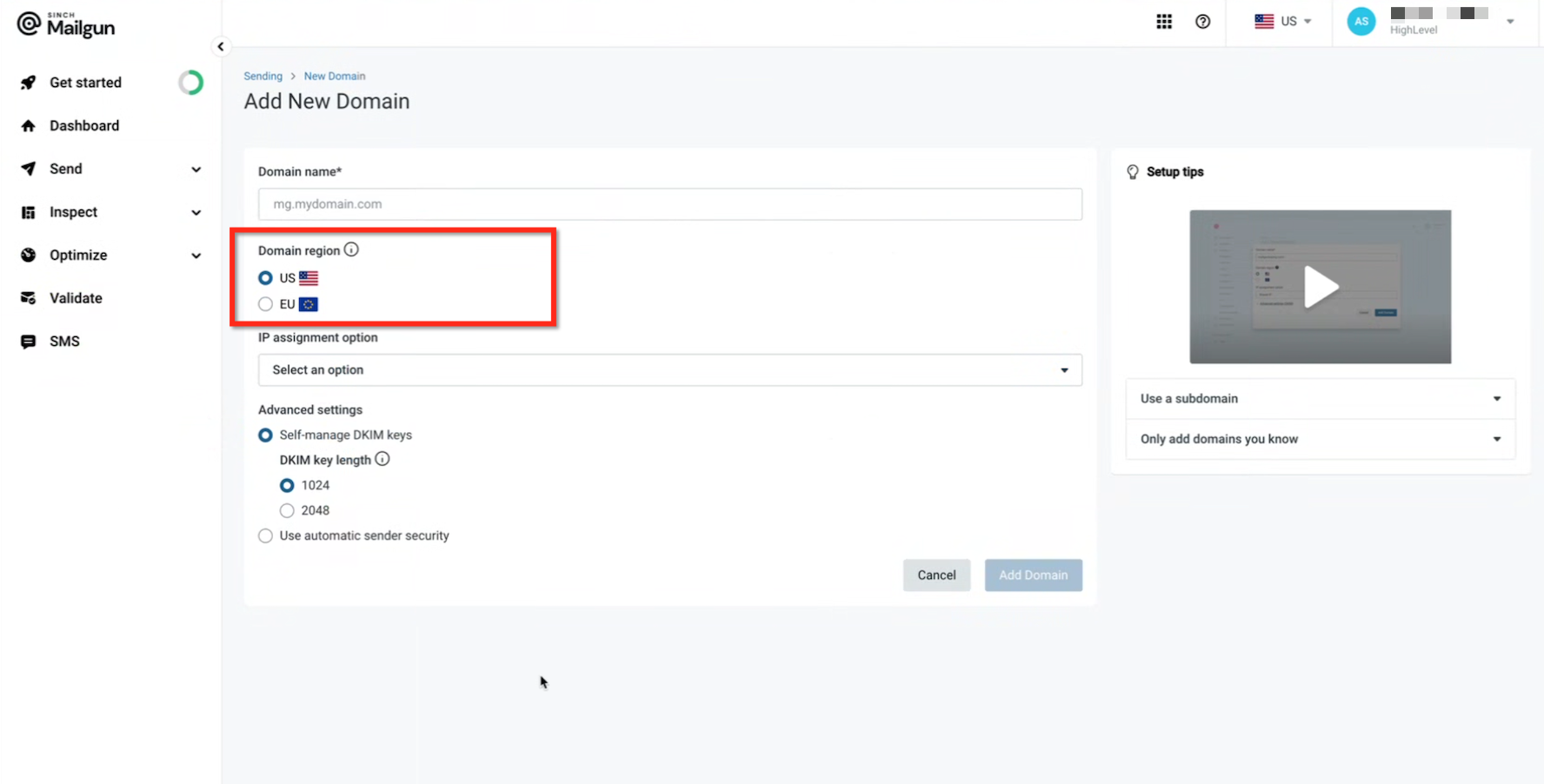
GoHighLevel reads verified domains from Mailgun’s US region only. If a domain is created in the EU region, it will not populate in the GoHighLevel domain dropdown.
Ensure the Mailgun domain lives in the US and shows as Verified.
If your domain is in the EU, create/migrate a US‑region domain for use with GoHighLevel.
How To Set Up the Mailgun Private API Key in GoHighLevel
Following the steps in order prevents the most common misconfigurations. Start in Mailgun to retrieve the key, then paste it into GoHighLevel at the Agency or Location level, select your domain, and validate.
Step 1: Retrieve your Mailgun private API key
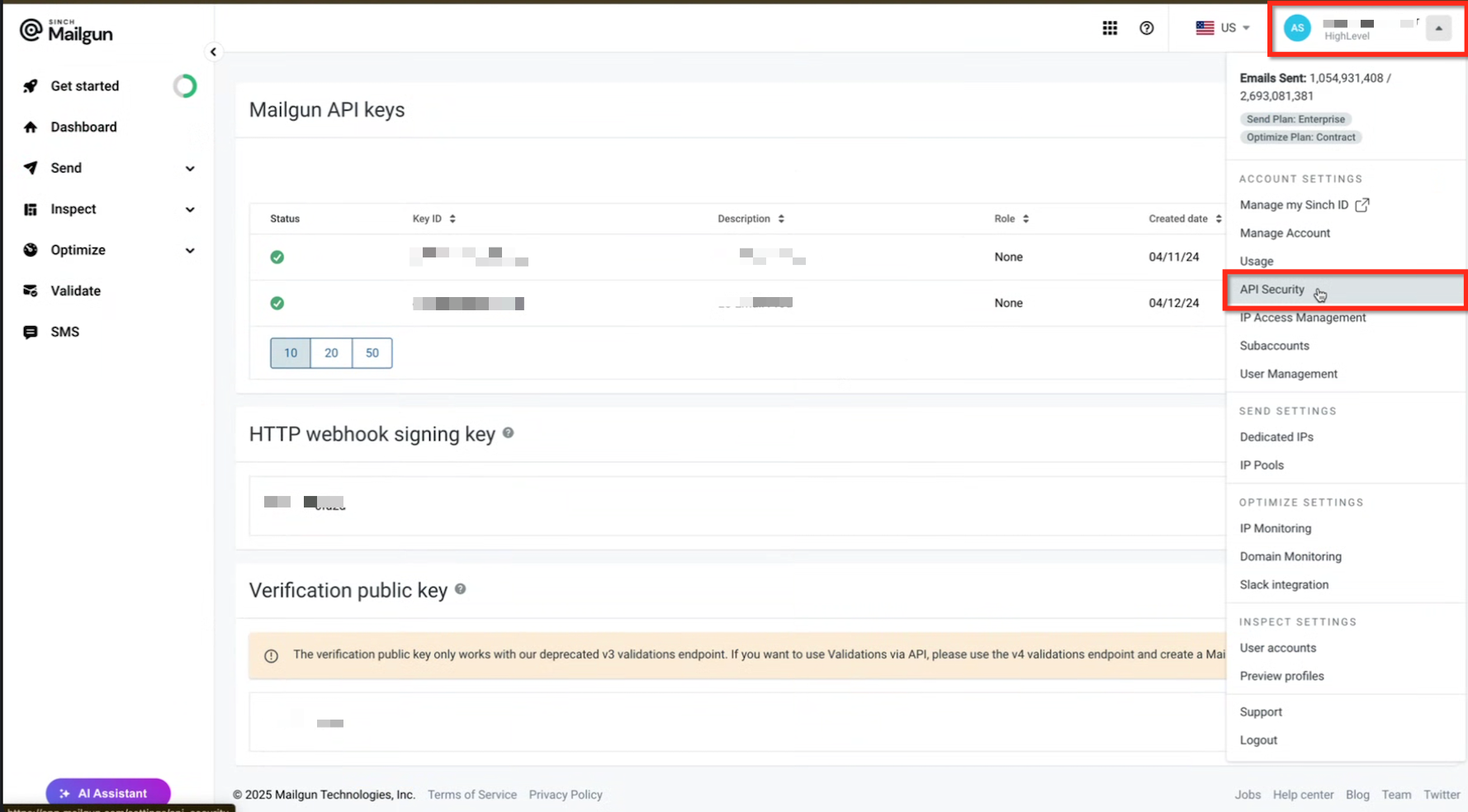
Log in to Mailgun. Click your profile avatar (top-right) → API Security. Create a new key if needed, or copy the existing Private API key.
In the API Keys section, locate your Private API key.
If you don’t have one yet, or you’ve rotated keys before, click to create a new Private API key.
Click the eye icon to reveal the key and copy it to your clipboard.
Security best practices:
- Treat this key like a password. Do not share it in screenshots, Loom videos, or unencrypted chat.
- If you believe the key has been exposed, revoke it in Mailgun and generate a new one. You’ll need to update it in GoHighLevel immediately afterward.
Step 2: Add the private API key in GoHighLevel
You can configure Mailgun at two levels inside GoHighLevel:
- Agency level – one Mailgun account and domain used across many Locations.
- Location level – each Location can have its own Mailgun settings.
Both options use the same Private API key from Mailgun; the difference is where you paste it.
Option A: Configure Mailgun at the Agency level
Use this when you want all or most Locations to send from the same Mailgun account and domain.
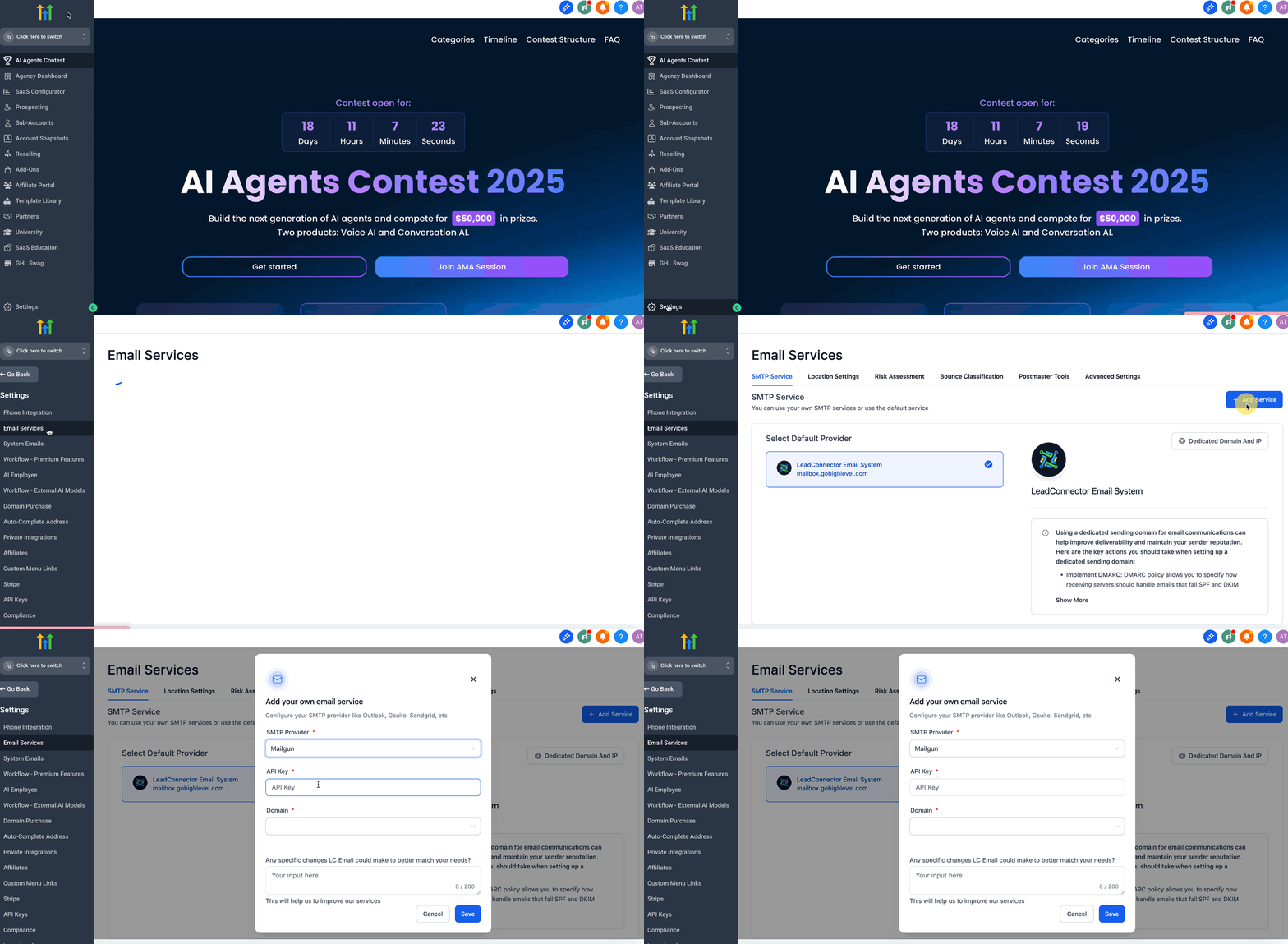
- Log in to your GoHighLevel Agency view.
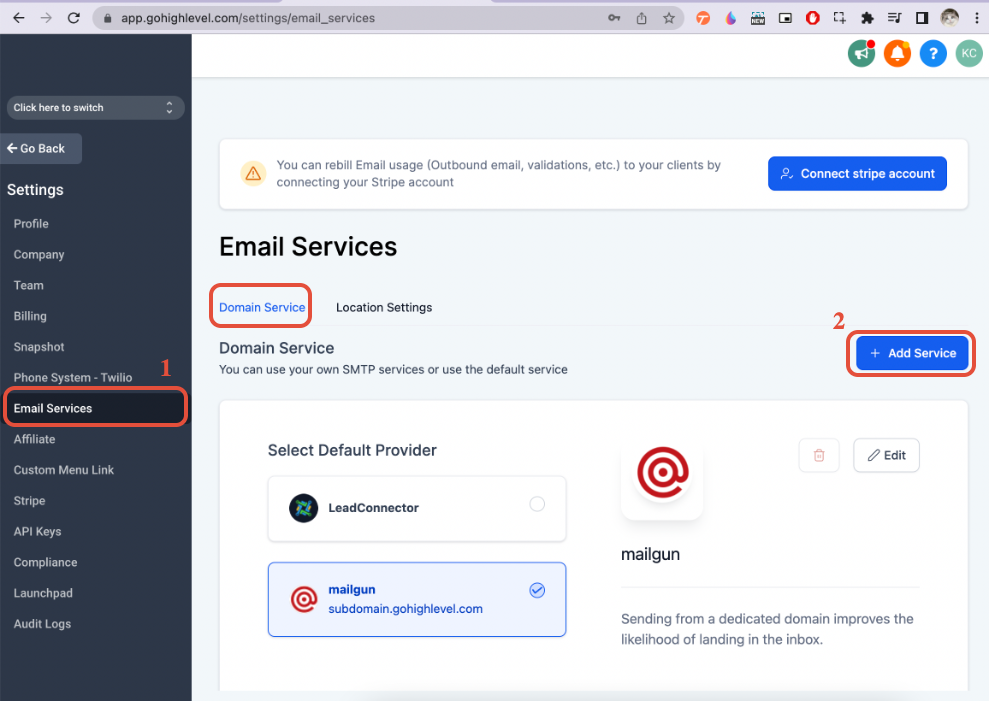
- Go to Settings → Email Services.
- Choose Mailgun as the provider.
- Paste your Mailgun private API key into the API key field.
- From the domain dropdown, select your verified Mailgun US-region domain.
- Click Save.
(Optional) Open a Location to confirm the domain appears in its dropdown after sync.
This is how a successful Connection would look-
Option B: Configure Mailgun at the Location level
Use this when a specific Location needs its own Mailgun account or domain—for example, when you run an agency model with multiple client sub-accounts.
- Switch into the Location you want to configure.
- Go to Settings → Email Services within that Location.
- Select Mailgun as the provider.
- Paste the same Mailgun private API key (or a different one if you use a separate Mailgun account for that client).
- Select the appropriate verified Mailgun domain from the dropdown.
- Click Save.
Location-level Mailgun settings override Agency-level settings for that Location. This is useful when most Locations share one configuration, but a few clients need their own dedicated domain or Mailgun account.
Location Settings Considerations
You can configure each location with your client's own Mailgun or your Mailgun.
We can use the same Mailgun API and the same domain/subdomain for multiple locations.
We can use the same Mailgun API and different domains/subdomains for multiple locations.
We can use the different Mailgun API and domains/subdomains for multiple locations.
You can also set up a unique domain/subdomain for each location to capture cold inbound emails. Learn more about Cold Email Inbound Setup here.
Step 3: Verify your Mailgun domain and DNS records
Even with the correct private API key, GoHighLevel can’t send reliably until your Mailgun domain is verified.
In your Mailgun dashboard:
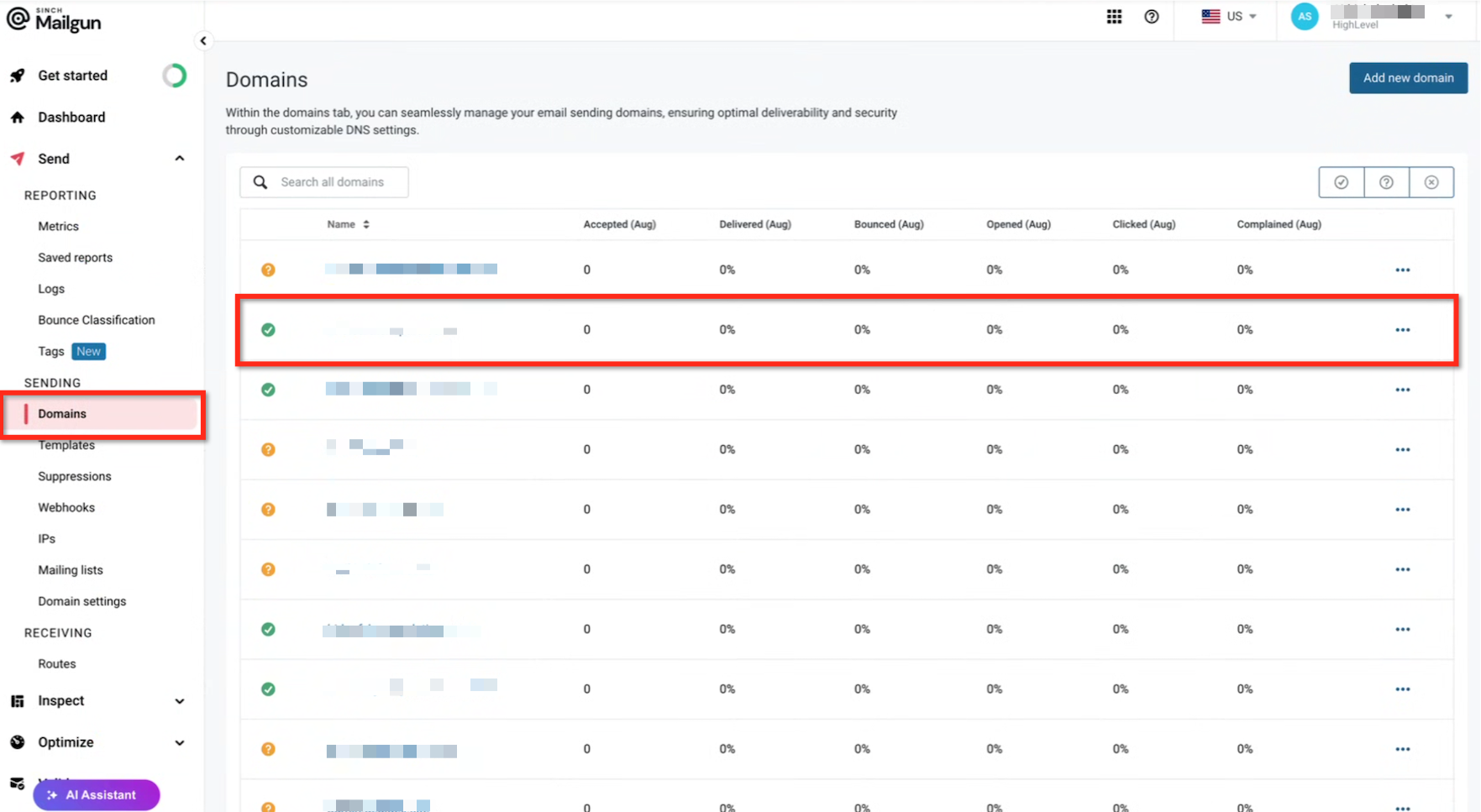
- Go to Sending → Domains and select your sending domain (for example
mail.yourdomain.com). - Confirm that the domain is in the US region and shows a verified or active status.
- Review the required DNS records Mailgun shows for this domain:
- SPF – authorizes Mailgun to send on behalf of your domain.
- DKIM – cryptographically signs messages for better inbox placement.
- MX – routes bounces and email replies correctly.
- Any CNAME records required for tracking or additional domain verification.
- Log in to your DNS provider (Cloudflare, GoDaddy, Namecheap, Route 53, etc.) and confirm each record is added exactly as provided.
- After saving DNS changes, return to Mailgun and click Check DNS records. It can take anywhere from a few minutes to a couple of hours for everything to show as verified.
Only when the domain displays a green verified checkmark should you consider the DNS side complete.
Step 4: Send a test email from GoHighLevel
Now that the API key and domain are wired up, it’s time to test real-world sending.
- In GoHighLevel, create a simple one-off email or a test campaign from the Location that should use Mailgun.
- Send the email to a personal inbox you can access (Gmail, Outlook, etc.).
- Confirm that the email:
- Arrives successfully.
- Shows the correct from address using your Mailgun domain.
- Doesn’t immediately land in spam (if it does, see the troubleshooting section below).
- In Mailgun, check your Logs to confirm that the message:
- Was accepted.
- Shows a delivered status.
- Doesn’t show authentication or policy errors.
If this test works, your core Mailgun + GoHighLevel integration is healthy.
Step 5: Troubleshoot common Mailgun + GoHighLevel issues
If something doesn’t work during setup or testing, it’s usually one of a handful of patterns.
Issue 1: Your Mailgun domain doesn’t appear in the GoHighLevel dropdown
Check these items:
- Region mismatch: Make sure the domain is created in the US region in Mailgun. EU-region domains will not show up.
- Unverified domain: If DNS records are missing or still propagating, the domain might not appear. Finish DNS setup and wait for verification.
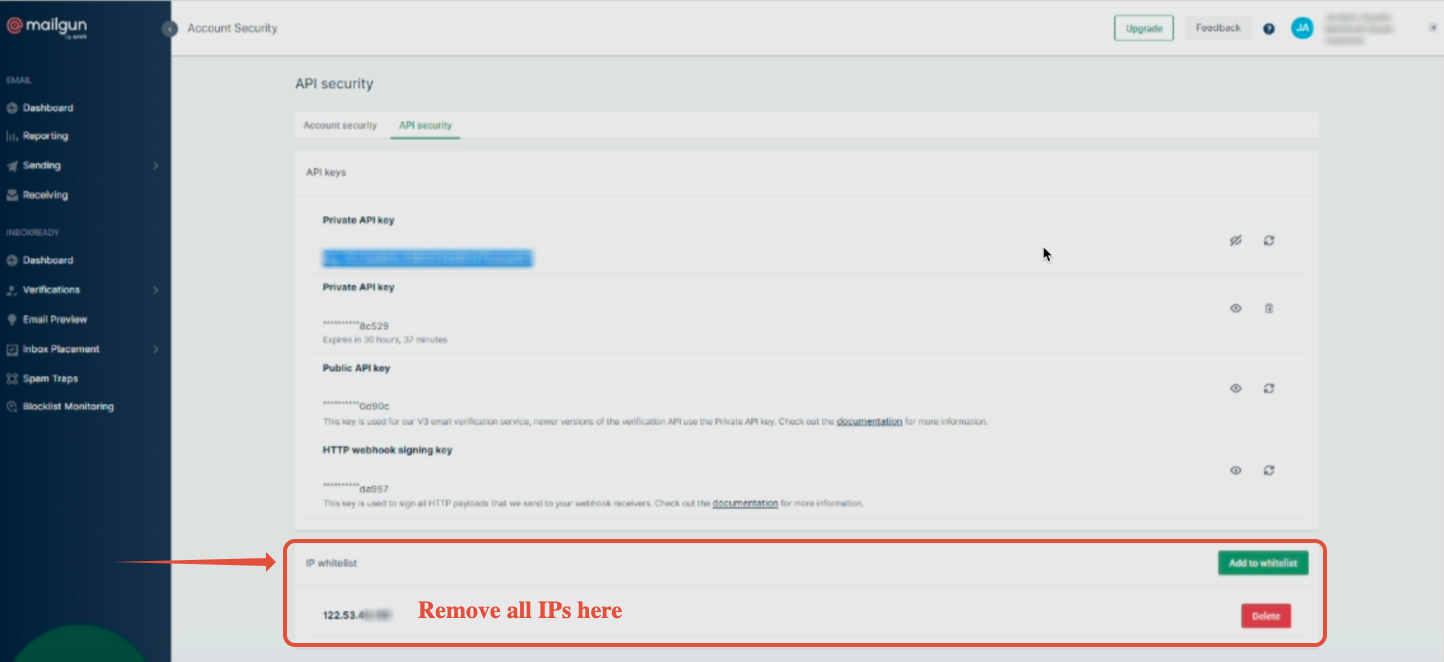
- IP whitelisting: If you’ve locked down your Mailgun account to specific IPs, temporarily remove IP whitelisting while GoHighLevel syncs the domain list. Once synced, you can re-apply your restrictions.
Issue 2: Emails are not sending or are getting stuck
Run through this checklist:
- Confirm the private API key in GoHighLevel matches the one in Mailgun (no extra spaces, characters, or old keys).
- Make sure the domain selected in GoHighLevel matches the one you actually configured in Mailgun.
- Check Mailgun Logs for errors like
Domain not found,Authentication failed, orSending denied. - Verify that the Location you’re sending from is configured to use Mailgun (and not another provider or stale settings).
Issue 3: Deliverability is poor or emails land in spam
If messages send but land in spam folders:
- Double-check that SPF and DKIM records are valid and passing.
- Set up DMARC for your root domain to improve trust and alignment.
- Avoid sending from brand-new domains with large cold lists; warm up slowly.
- Keep your lists clean—remove hard bounces and unengaged contacts.
This is where having a well-designed email and automation strategy around GoHighLevel really pays off.
How Revset Labs and GoHighLevel can help you go beyond basic setup
Setting up the Mailgun private API key is just the first building block. The real leverage comes from what you do after email is reliably sending—nurture sequences, pipeline automation, and full-funnel reporting.
Revset Labs is an AI automation and marketing agency that helps GoHighLevel users:
- Design and implement done-for-you email and SMS automations.
- Build multi-step funnels that turn new leads into booked calls and sales.
- Clean up messy tech stacks so Mailgun, GoHighLevel, and your CRM work together instead of fighting each other.
If you’re still evaluating GoHighLevel, you can start a free GoHighLevel trial here and then layer Revset Labs on top to architect the automations, reporting, and campaigns that actually move revenue.
Quick FAQs
Q: Do I need the Private or Public API key?
Use the Private API key. Public keys won’t authenticate the provider in GoHighLevel.
Q: My domain is verified in Mailgun EU. Why can’t I select it in GoHighLevel?
GoHighLevel reads verified domains from the US region. Create or migrate a US‑region domain to use it in GoHighLevel.
Q: What happens if I paste a key at both the Agency and the Location?
The Location configuration overrides the Agency provider for that Location, allowing client‑specific domains and sending.
Q: Can multiple Locations share one Mailgun key?
Yes. Paste the key at the Agency level to make its verified US‑region domains available across Locations. Use Location‑level keys when a client must be isolated.
Q: My domain doesn’t appear even after saving the key—what next?
Re‑check the US region and domain verification, temporarily relax the Mailgun IP allowlist to sync, then restore it. Also, confirm you’re saving at the intended level.
If you’d like strategic help mapping out your funnels, automations, and tracking around GoHighLevel, Revset Labs can help you go from “my emails send” to “my entire pipeline runs on autopilot.”