
Why Mailgun + SiteGround + GoHighLevel Matters for Deliverability
If you’re using GoHighLevel to run campaigns, Mailgun is the engine that actually pushes your emails out. When Mailgun isn’t configured correctly at the DNS level, you’ll see:

- Emails landing in spam or promotions
- Failed or delayed messages
- Inconsistent results across campaigns
This guide walks you through how to correctly connect Mailgun to a SiteGround-hosted domain, so GoHighLevel can send reliably on your behalf.
Throughout the guide, you’ll see where this setup fits into your broader funnel and where tools like GoHighLevel and partners like Revset Labs can make the process faster and safer.
What You Need Before You Start
Make sure you have:
- An active GoHighLevel account (or you can start a free GoHighLevel trial here).
- A custom domain hosted on SiteGround (for example,
companyname.com). - A Mailgun account with login access.
- Access to SiteGround DNS Zone Editor for the domain you want to send from.
You’ll get the cleanest deliverability if you decide up front whether you’ll use your main domain (e.g.companyname.com) or a sending subdomain (e.g.mg.companyname.comorreplies.companyname.com). The next section helps you choose.
Step 1: Choose Main Domain vs. Subdomain for Mailgun
You can connect either your main domain or a subdomain to Mailgun.
Option 1 – Main domain (companyname.com):
- Simple to understand for small teams.
- Higher risk of conflict if you already use Google Workspace, Microsoft 365, or another email provider.
Option 2 – Subdomain (mg.companyname.com,replies.companyname.com, etc.): - Keeps transactional/marketing email traffic separate from your main inboxes.
- Reduces risk of breaking existing email hosting.
- Best practice for most GoHighLevel users.
Recommendation: If your main domain already handles day‑to‑day inbox email (Gmail, Outlook, etc.), use a subdomain specifically for Mailgun.
When you’ve decided, you’re ready to add that domain or subdomain inside Mailgun.
Step 2: Add Your Domain in Mailgun
- Log in to your Mailgun account.
- Go to Sending → Domains and click Add New Domain.
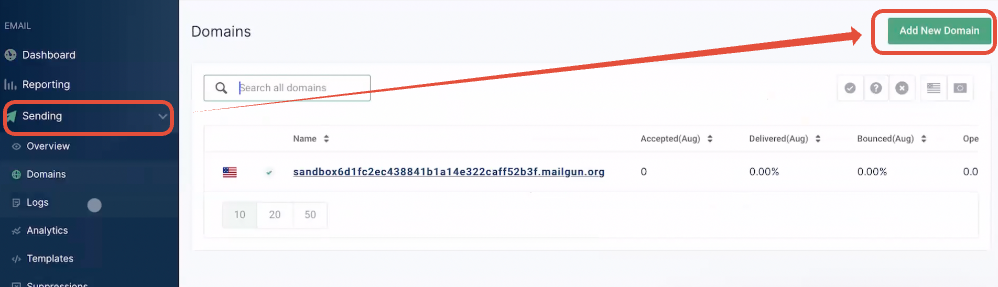
- Enter the exact domain or subdomain you decided on in Step 1:
- Example (main domain):
companyname.com - Example (subdomain):
mg.companyname.com
- Example (main domain):
- Make sure the region is set to US, not EU (GoHighLevel expects US‑region Mailgun accounts).
- Click Add Domain.
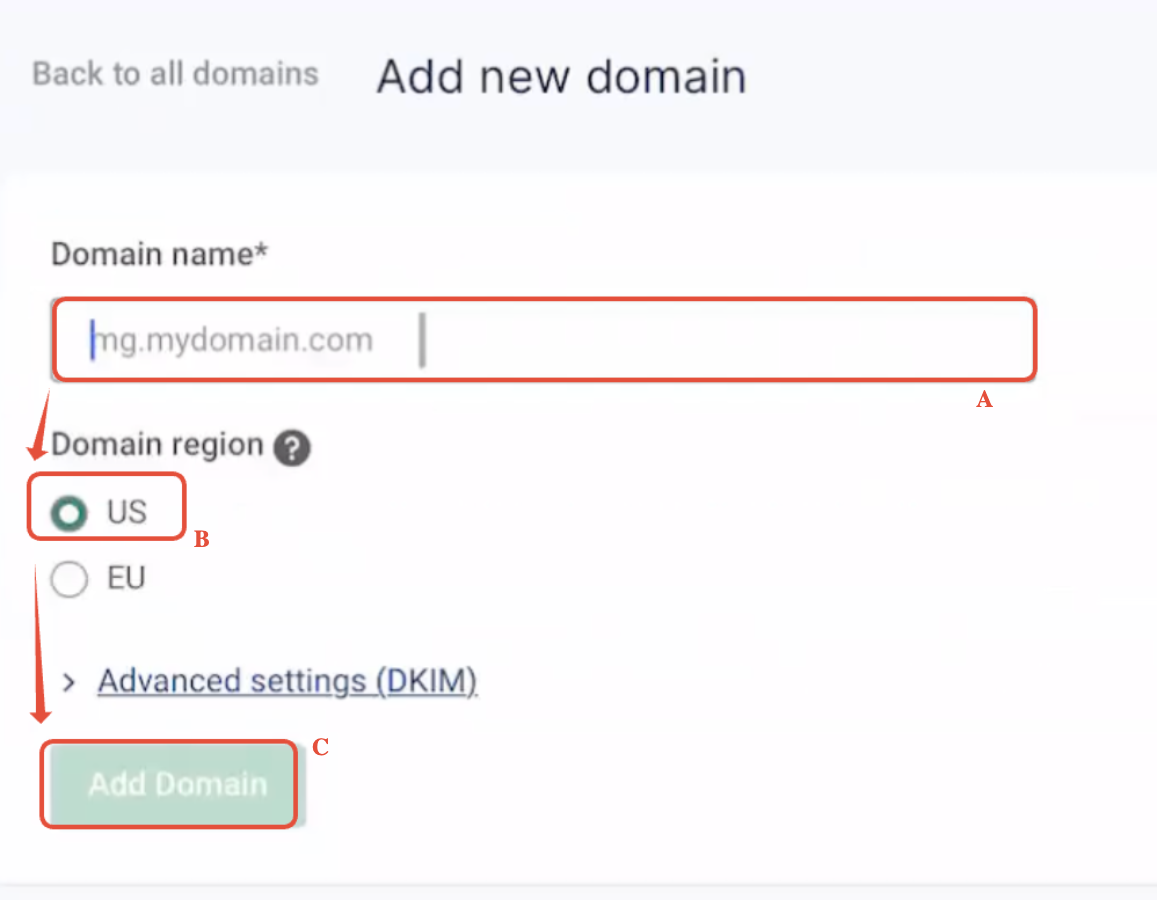
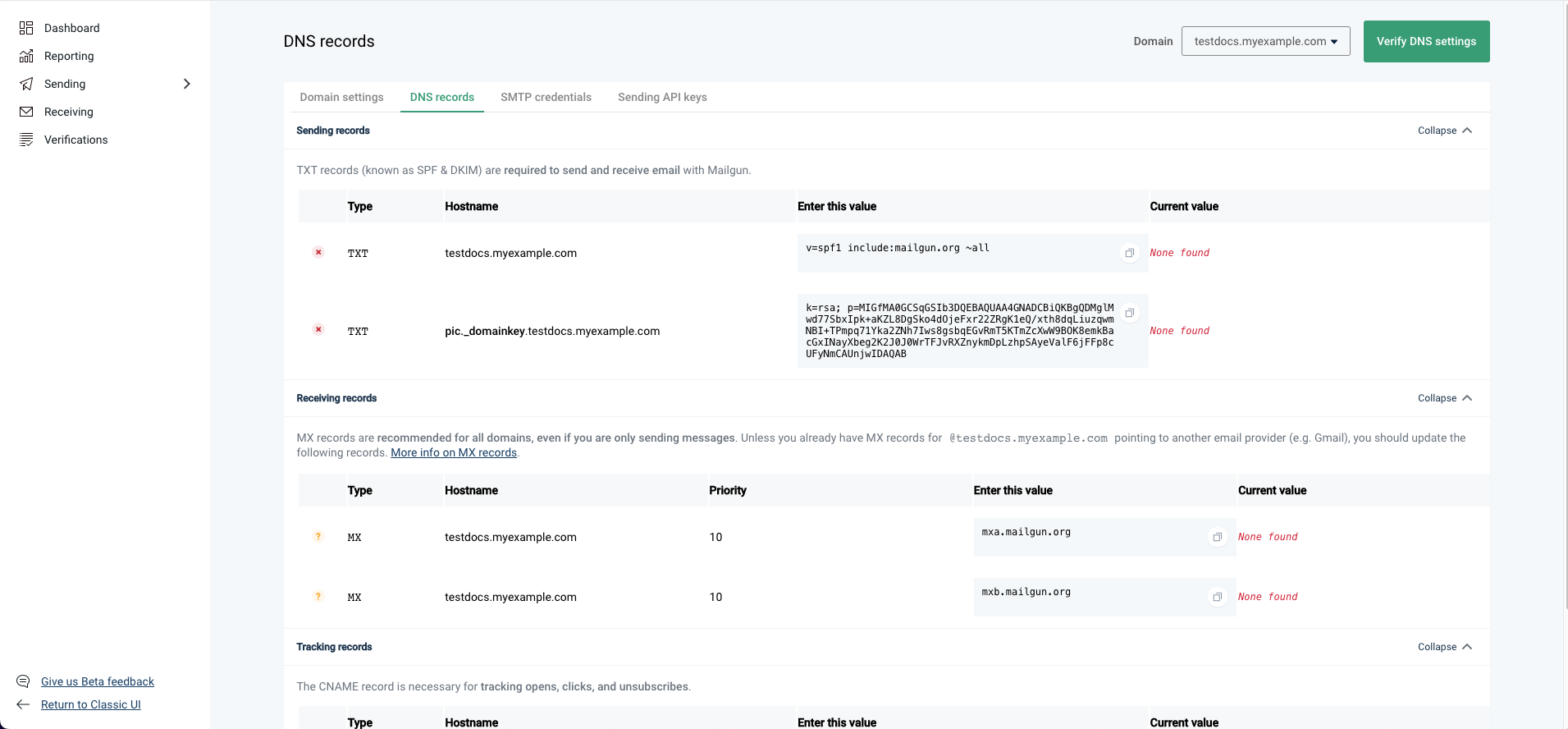
Mailgun will now show you a list of DNS records (TXT, MX, and CNAME) that must be added in SiteGround. Keep this tab open while you switch to SiteGround.
If you’re still evaluating GoHighLevel as your all‑in‑one CRM and automation platform, this is a perfect time to spin up your free trial so you can plug Mailgun directly into real campaigns once DNS is live.
Step 3: Configure SiteGround DNS for Mailgun
Now you’ll copy the DNS records from Mailgun into SiteGround so Mailgun is authorized to send on behalf of your domain.
- Log in to your SiteGround account.
- Open Site Tools → Domain → DNS Zone Editor for the correct domain.
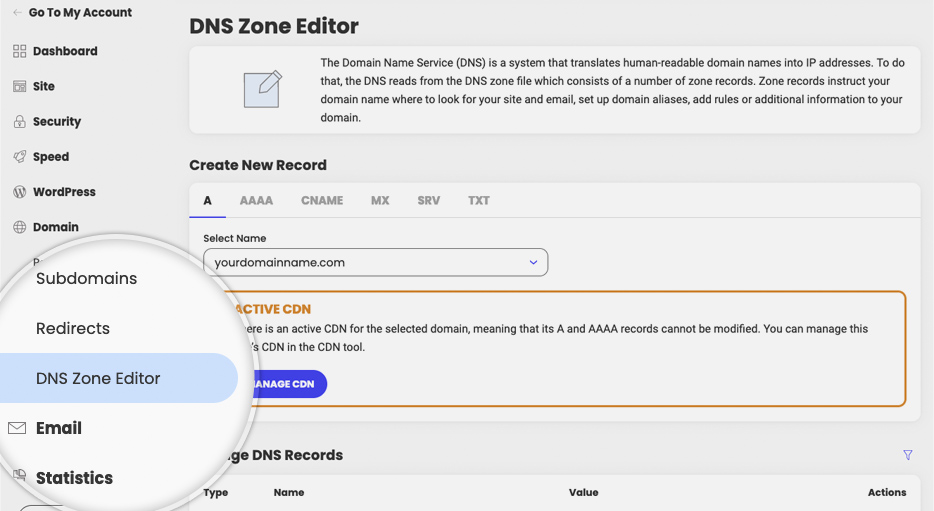
You’ll add four types of records:
- SPF TXT record
- DKIM TXT record
- MX records
- CNAME record
3.1 Add the SPF TXT Record
- In SiteGround, go to the TXT tab.
- Click Add New Record (or Create depending on your UI).
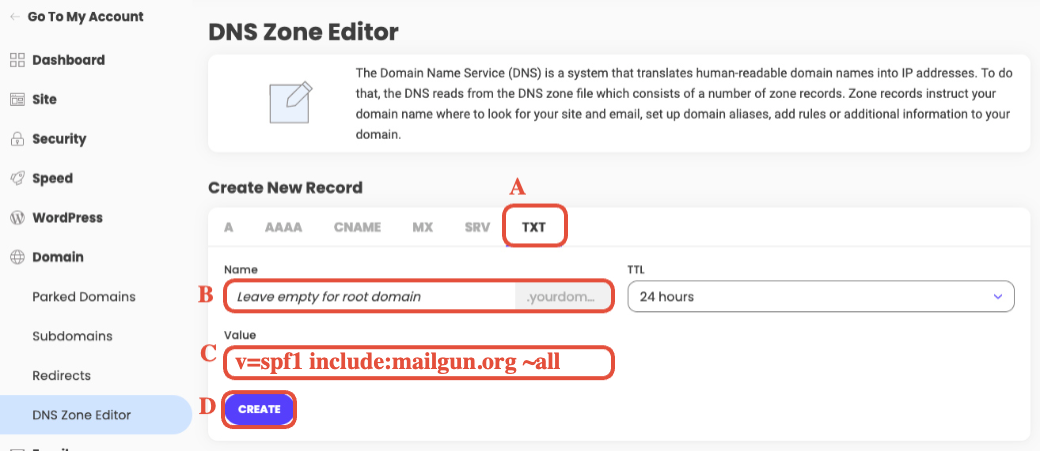
- Use these values:
- Name
- If you’re using a subdomain like
mg.companyname.com, enter just the subdomain prefix, e.g.mg. - If you’re using the main domain, enter
@or leave the field blank (SiteGround treats this as the root domain).
- If you’re using a subdomain like
- Value
- Paste Mailgun’s SPF value, typically:
v=spf1 include:mailgun.org ~all
- Paste Mailgun’s SPF value, typically:
- Name
- Save the record.
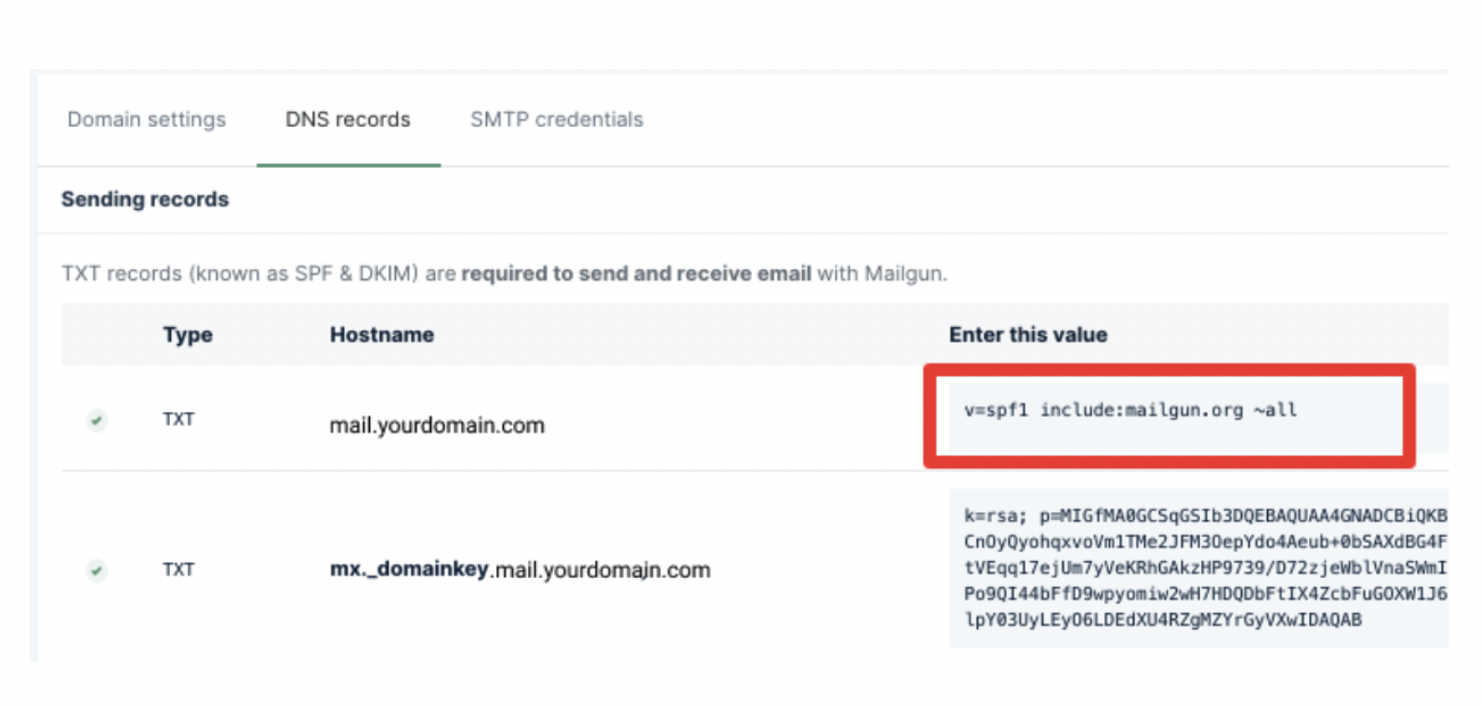
This TXT record tells receiving servers that Mailgun is allowed to send on behalf of your domain.
3.2 Add the DKIM TXT Record
DKIM proves that your messages have not been tampered with in transit.
- Still in the TXT tab, click Add New Record again.
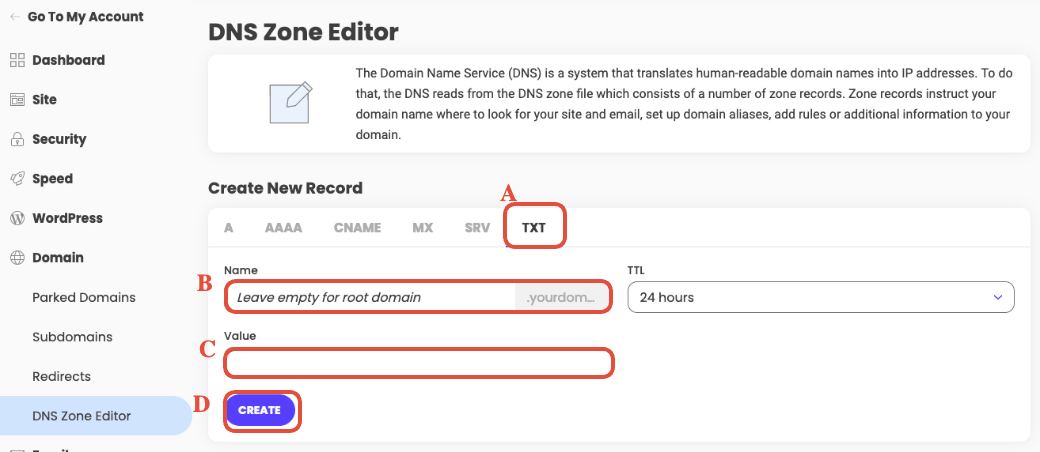
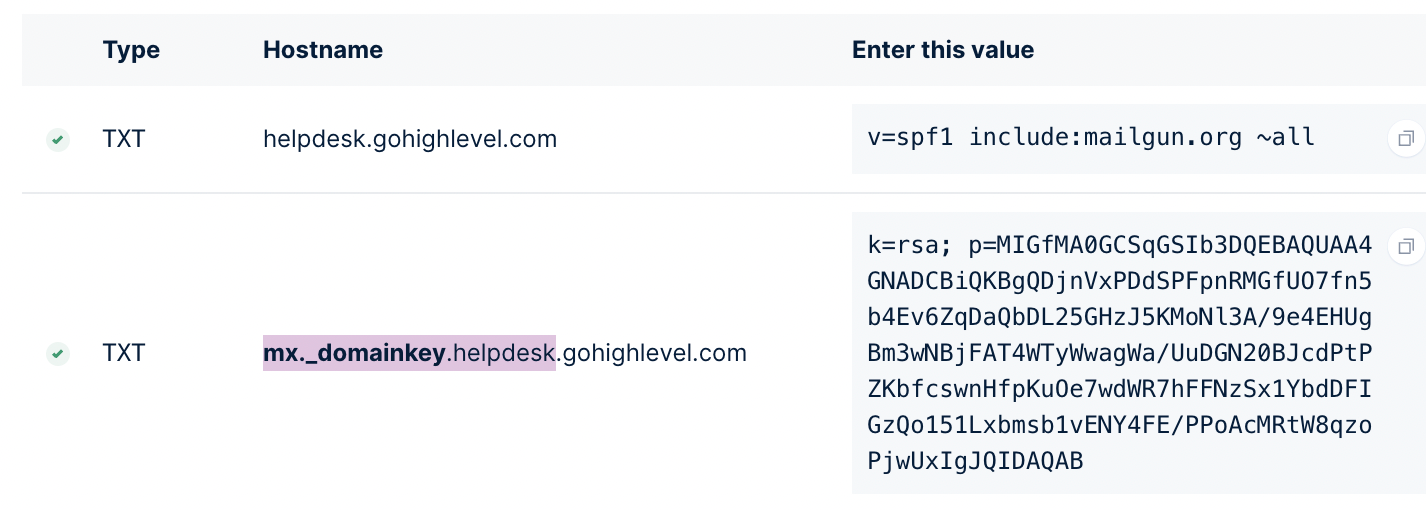
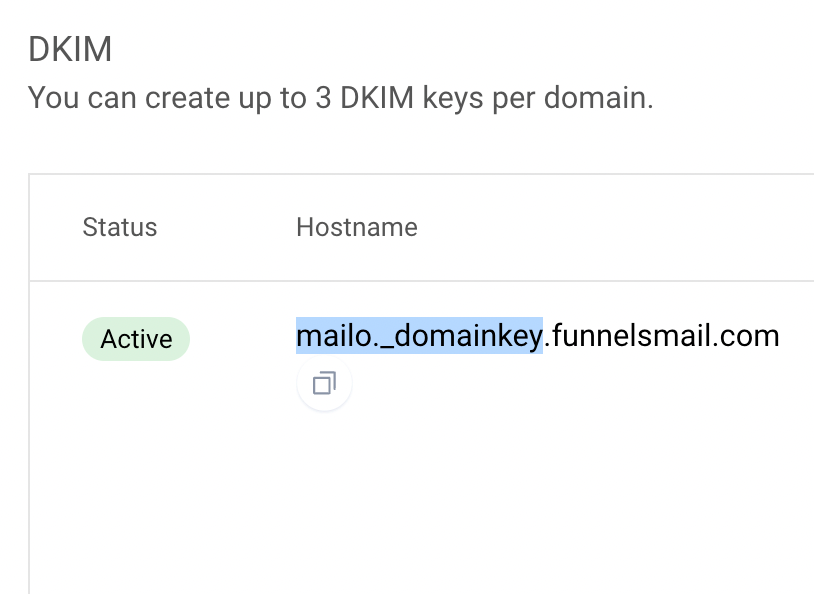
- In Name, copy the host name from the DKIM record Mailgun shows.
- Example from Mailgun:
mx._domainkey.mg.companyname.com - In SiteGround, you would enter:
mx._domainkey.mg.
- Example from Mailgun:
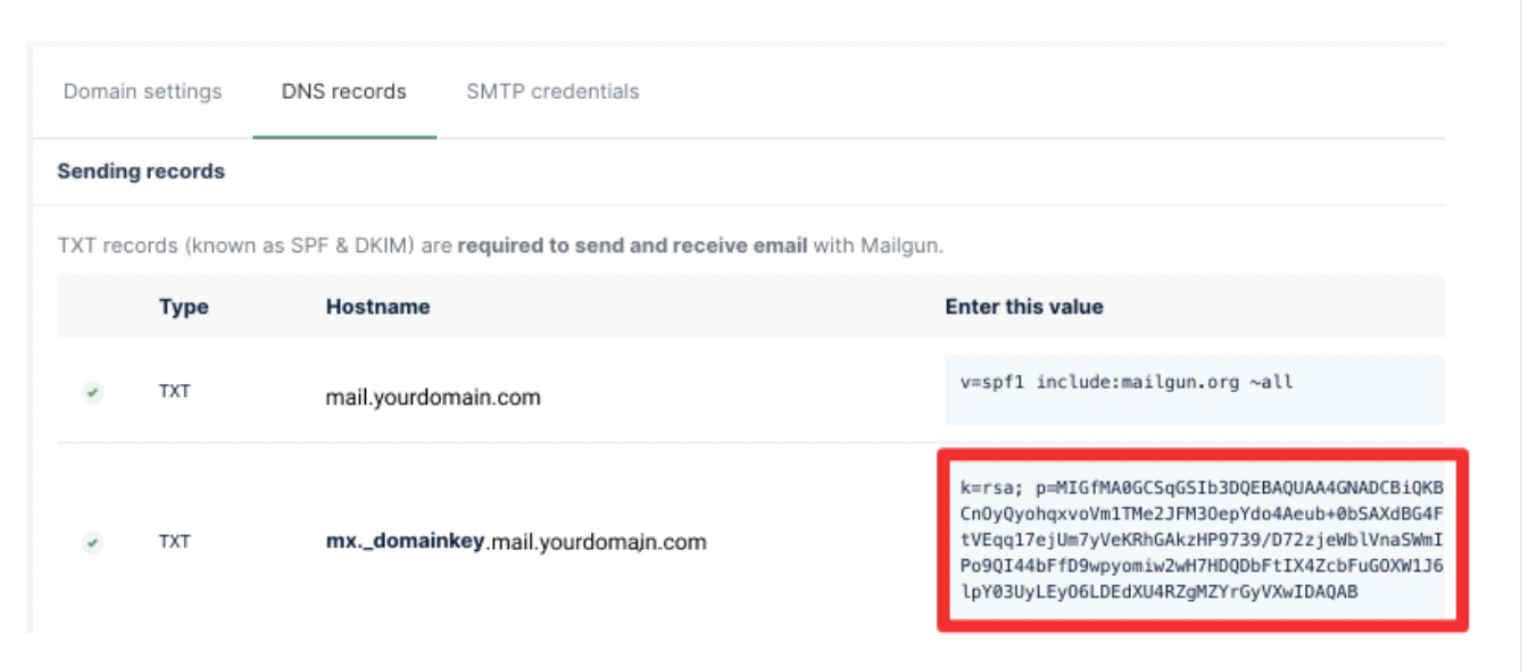
- In Value, paste the long DKIM string Mailgun provides (it usually starts with
v=DKIM1; k=rsa; p=…).
- Save the record.
3.3 Add the MX Records
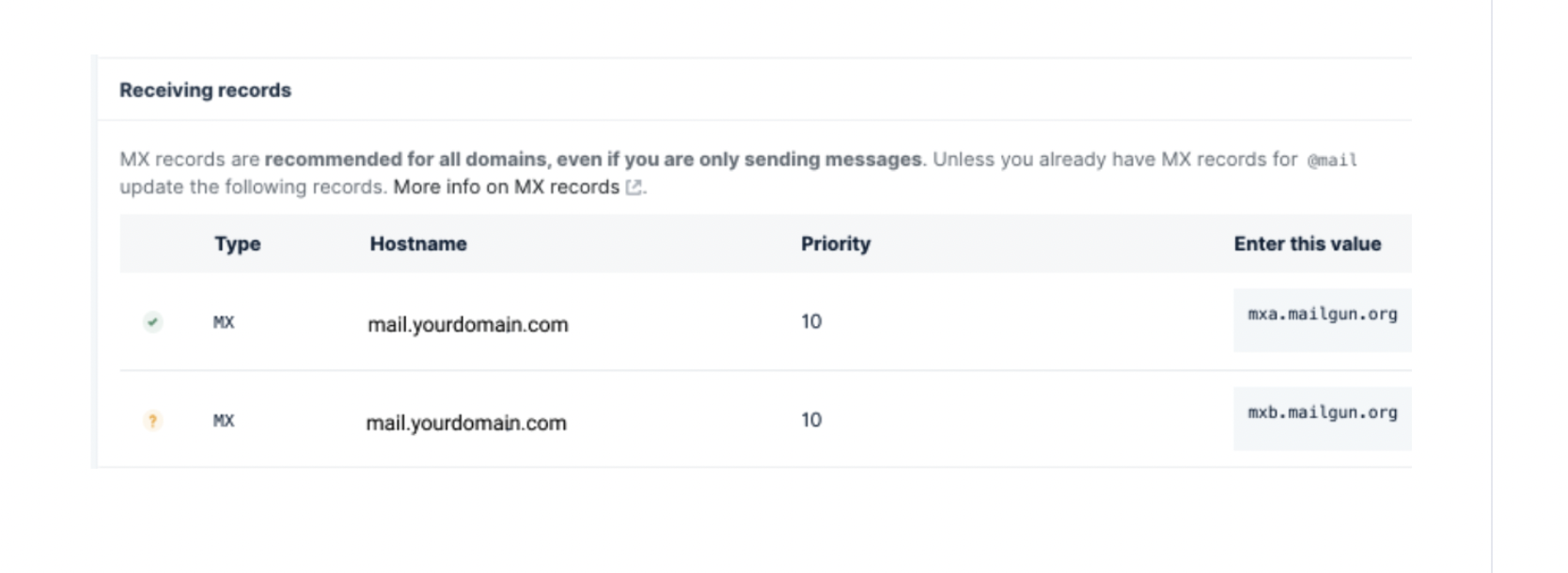
Mailgun’s MX records help with bounce handling and route some email back through Mailgun.
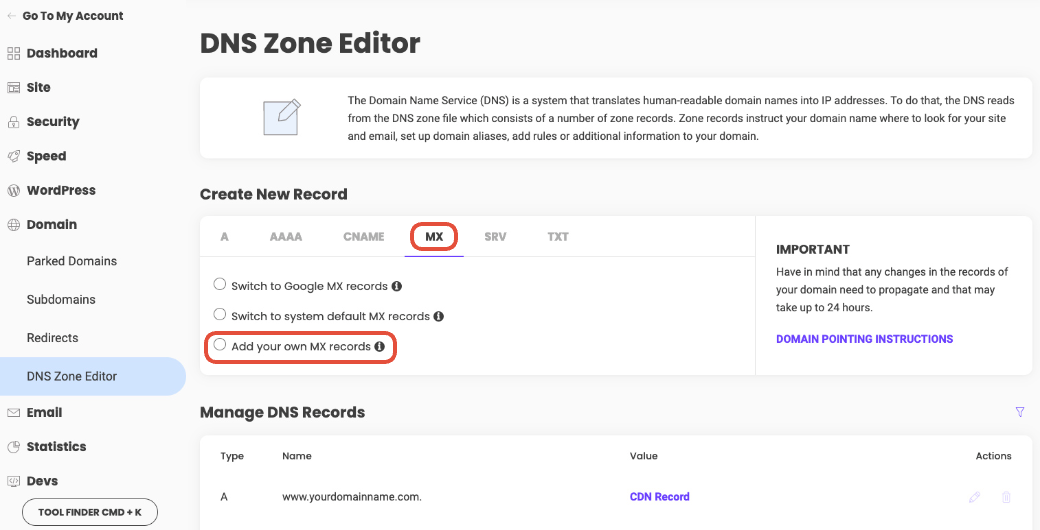
- Switch to the MX tab in SiteGround’s DNS Zone Editor.
- Choose Add your own MX records (if prompted).
If you have a Gsuite account to capture incoming emails for the main domain. Make sure you are using a subdomain for Mailgun. Check out Can I Use the Same Domain Name for Mailgun and for Google Apps (Or Another Email Server)?
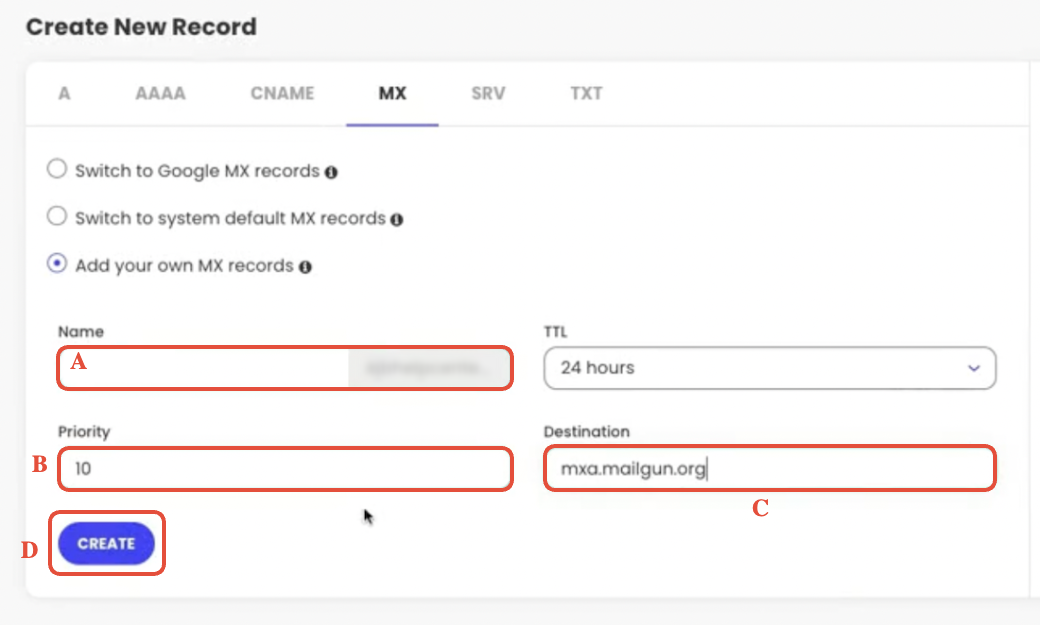
- For the first MX record:
- Name:
mgfor a subdomain likemg.companyname.com@for the main domain.
- Priority:
10 - Destination:
mxa.mailgun.org
- Name:
- For the second MX record:
- Same Name and Priority.
- Destination:
mxb.mailgun.org.
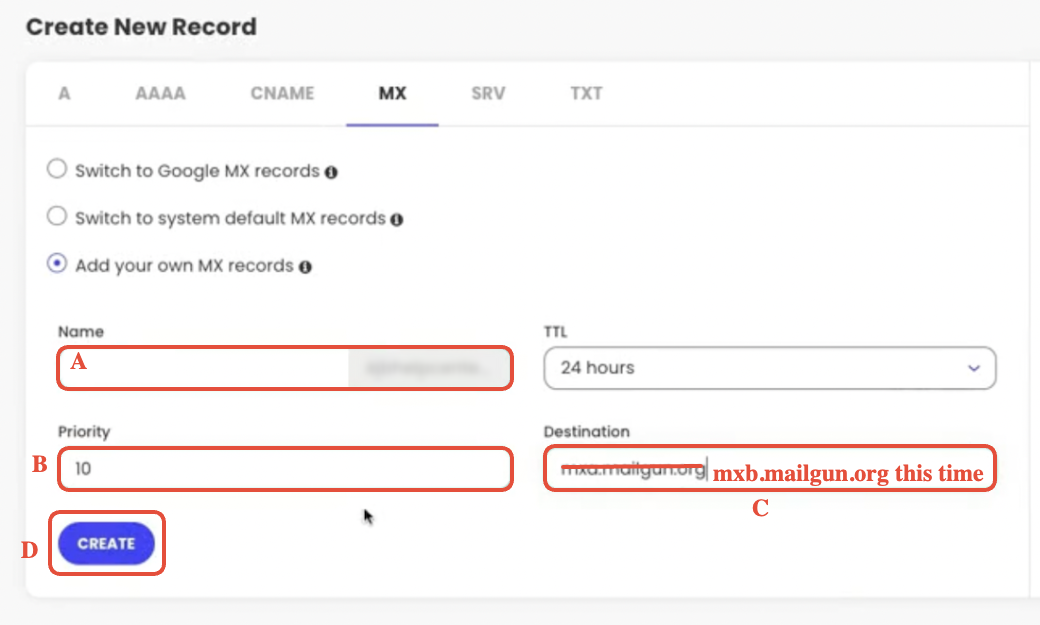
Important: If your main domain already uses MX records for Google Workspace or another email host, do not replace those MX records on the main domain. Use a dedicated subdomain for Mailgun instead.
3.4 Add the CNAME Record
Finally, you’ll add a CNAME record used by Mailgun for link tracking.
- Go to the CNAME tab in SiteGround.
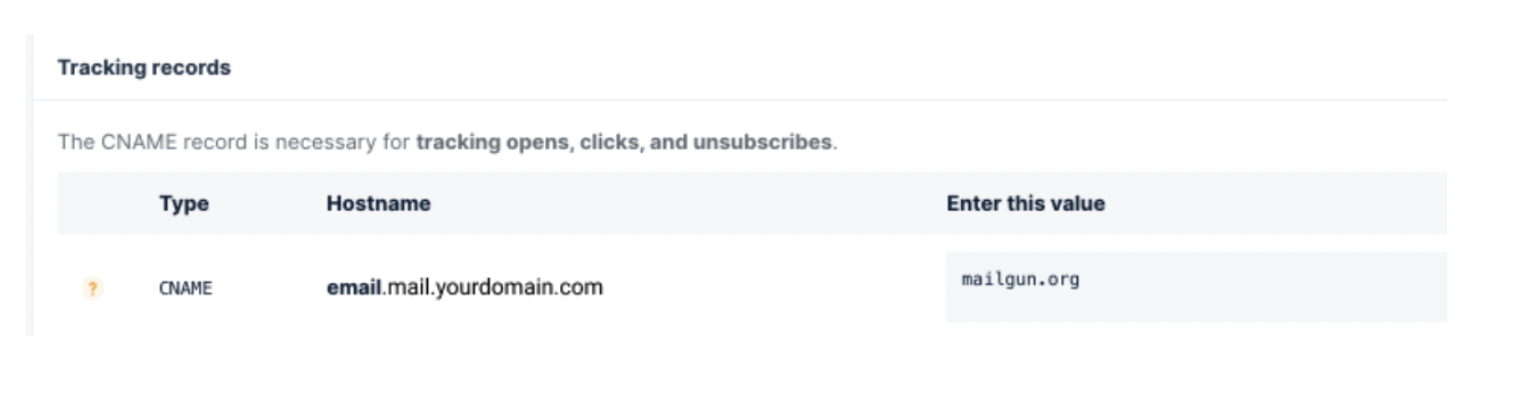
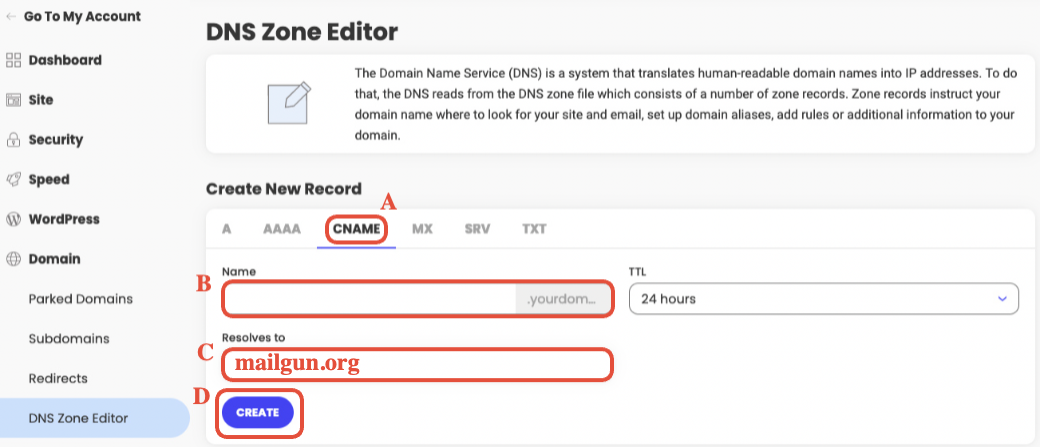
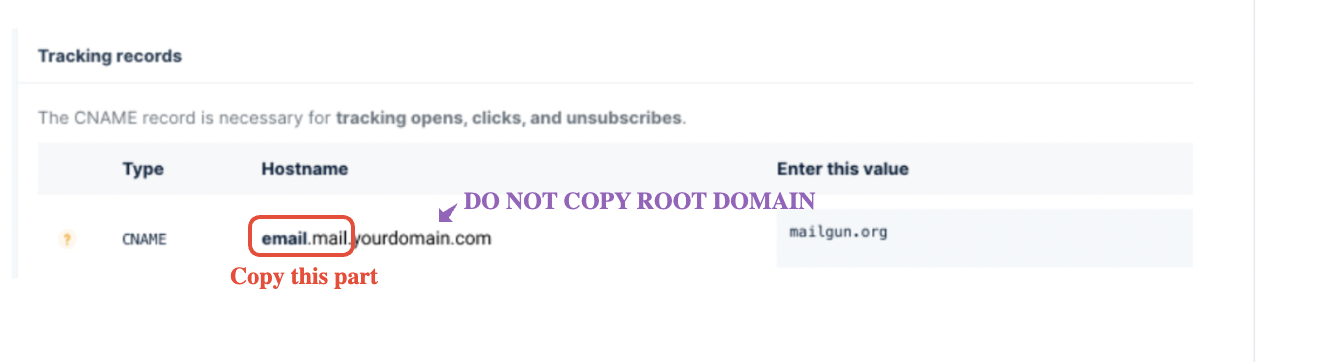
- In Name, copy the host name from Mailgun up to the subdomain portion.
- Example from Mailgun:
email.mg.companyname.com - In SiteGround, enter:
email.mg.
- Example from Mailgun:
- In Resolves to, enter:
mailgun.org(or the exact value Mailgun displays). - Save the record.
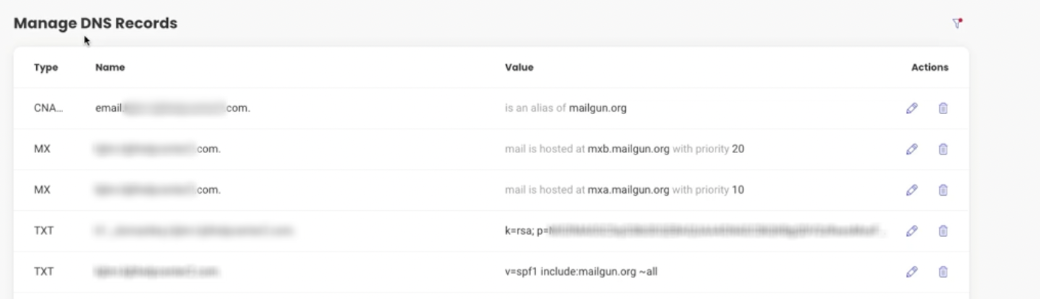
At this point, all core Mailgun records (SPF, DKIM, MX, CNAME) should be present in your SiteGround DNS.
Step 4: Verify DNS Settings in Mailgun
- Return to your Mailgun dashboard.
- Open the domain you just configured.
- Click Verify DNS Settings.
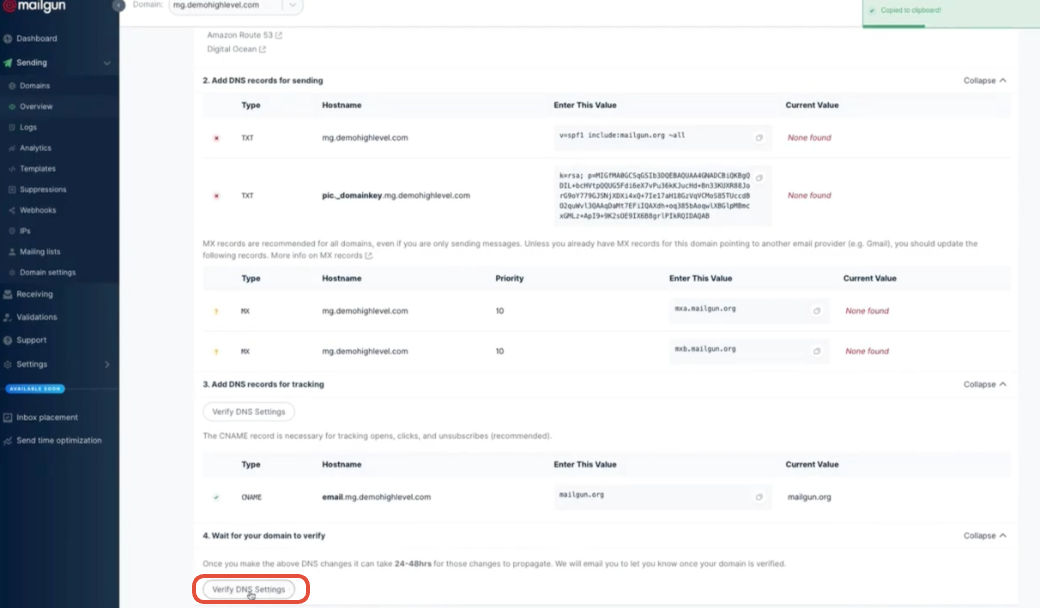
Mailgun will check each record and show which ones have propagated.
- If everything is green, you’re done with DNS.
- If some records are still pending:
- Wait 15–30 minutes and refresh. In some cases DNS can take a few hours to fully propagate.
- Double‑check that each Name/Host matches what Mailgun expects (especially for DKIM and CNAME, which are easy to mistype).
Once Mailgun shows the domain as Verified, you’re ready to plug it into GoHighLevel.
Step 5: Connect Mailgun to GoHighLevel
With Mailgun verified, you can now use it as the sending provider for GoHighLevel.
- Log in to GoHighLevel.
- Navigate to Settings → SMTP & Mailgun Service (or the Email Services area, depending on your account view).
- Choose Mailgun as the provider.
- Paste in your Mailgun API key and select the domain you just verified.
- Save your settings.
From here, GoHighLevel will route outbound emails for campaigns, automation, and pipelines through your Mailgun domain.
If you don’t yet have a GoHighLevel account, you can start your free trial and follow these same steps so your new workspace launches with a correctly authenticated email sender from day one.
Step 6: Test and Troubleshoot Deliverability
Before you lean on this setup for live campaigns, run a few quick checks.
6.1 Send Test Emails
- Create a simple test campaign or automation in GoHighLevel.
- Send to a few inboxes you control (Gmail, Outlook, company email).
- Confirm:
- Emails arrive quickly.
- The "From" address uses the domain or subdomain you configured.
- Messages land in Primary/Inbox where possible instead of spam.
6.2 Watch for Common Setup Issues
If something looks off:
- DNS still pending in Mailgun
Wait a bit longer, then verify again. DNS propagation can take up to 24–48 hours, especially for new domains. - Wrong region
If your Mailgun account is in the EU region while GoHighLevel expects US, you may see connection issues. Confirm you created the domain in the US region. - Conflicting MX or TXT records
If you tried to use your main domain and replaced existing MX records, inbound email may break. In that case, roll back and move Mailgun to a subdomain. - Typos in host names
DKIM and CNAME host names must match Mailgun exactly. Even a missing.mgcan cause verification to fail.
As you start sending real sequences, keep an eye on open rates, click‑throughs, and bounce reports inside GoHighLevel and Mailgun. Healthy metrics confirm that your DNS and sender reputation are in good shape.
Where Revset Labs Fits In
Getting Mailgun, SiteGround, and GoHighLevel working together is a critical foundation for your funnel—but it’s only one piece.
Revset Labs is an AI automation and marketing agency that helps GoHighLevel users:
- Design complete lead‑to‑customer journeys with email, SMS, and pipelines.
- Build and optimize automations that react to opens, clicks, and replies.
- Improve deliverability with smarter segmentation, sending schedules, and copy.
If you’d rather not spend hours inside DNS panels and automation builders, Revset Labs can set up the technical pieces for you and then layer in AI‑assisted nurture sequences, follow‑ups, and booking flows—all running on top of your authenticated Mailgun domain and GoHighLevel account.
Pair this guide with a GoHighLevel free trial, and you’ll have a production‑ready sending setup plus a partner who can help you turn that infrastructure into revenue.