
Improving call quality inside GoHighLevel is rarely about a single magic setting. Most problems come from a handful of fixable issues—unstable internet, overloaded Wi‑Fi, browser glitches, or a misconfigured network.

This guide gives you a practical, step‑by‑step way to diagnose and fix bad VoIP call quality in GoHighLevel so your team can get back to clear, reliable conversations.
Revset Labs is an AI automation and marketing agency that helps GoHighLevel users turn the platform into a predictable revenue engine. As you work through this guide, we’ll point out where GoHighLevel shines—and where it makes sense to bring in expert help.
Why Call Quality Breaks in GoHighLevel (and Why It Matters)
When calls are choppy, robotic, or delayed, it usually comes down to:
- Unstable or slow internet – jitter, latency, and packet loss.
- Competing bandwidth – other people or apps saturating the network.
- Browser or app issues – outdated versions, bad cache, or extensions.
- Device and audio setup – laptop mic/speakers, Bluetooth dropouts, or wrong input/output.
- Network configuration – firewalls or routers interfering with VoIP traffic.
Fixing these issues pays off quickly:
- Fewer dropped calls and “can you hear me?” moments.
- Better client experience and higher close rates.
- Less time your team spends troubleshooting instead of selling.
If you’re still evaluating platforms, you can start a free GoHighLevel trial and use this same checklist from day one so calling “just works.”
Quick Checklist: Fix Bad VoIP Call Quality in GoHighLevel
Before you dive into detailed troubleshooting, run through this fast checklist:
- Use wired internet (Ethernet) instead of Wi‑Fi wherever possible.
- Close bandwidth‑heavy apps (streaming, large downloads, cloud backups, screen‑recording uploads).
- Test your speed and stability – aim for at least 10 Mbps up/down, low latency, and no packet loss.
- Use Google Chrome (latest version) for the GoHighLevel web app.
- Clear Chrome cache/cookies and restart your browser.
- Use a wired USB headset or high‑quality headphones instead of laptop speakers/mic.
- Disable unnecessary browser extensions during calls.
- Check your firewall/router to ensure UDP ports 10000–20000 are open for WebRTC.
- Note any in‑app warnings like
high-rtt,high-jitter, orhigh-packet-loss—they tell you what’s wrong.
You can also follow the visual GoHighLevel VoIP Call Quality Troubleshooting Flowchart in this article to quickly decide what to try next.
Step 1 – Stabilize Your Internet Connection
VoIP lives and dies on the quality of your internet connection.
- Run a speed test (e.g., Speedtest.net) from the same device you use for calls.
- Target at least 10 Mbps download and 10 Mbps upload for a smooth experience when multiple people are online.
- Pay attention to:
- Latency (ping/round‑trip time) – try to keep it under 150 ms.
- Jitter – ideally under 30 ms.
- Packet loss – should be 0%.
If results are poor:
- Switch from Wi‑Fi to Ethernet. This is often the single biggest improvement.
- Move closer to the router if Ethernet isn’t an option.
- Restart your modem and router (unplug for 30 seconds, then plug back in).
- If your whole office is struggling, talk to your ISP about upgrading bandwidth or improving your connection type.
Step 2 – Reduce Competing Bandwidth on the Network
Even a fast connection can struggle if too many things are using it at once.
During calling hours, try to:
- Pause or reschedule large downloads and uploads.
- Avoid 4K video streaming or game downloads on the same network.
- Disable automatic cloud backups or sync jobs that run in the background.
If your router supports Quality of Service (QoS):
- Prioritize VoIP and real‑time traffic.
- De‑prioritize bulk tasks like file downloads and streaming.
This keeps your GoHighLevel calls from competing with non‑critical traffic.
Step 3 – Optimize Browser and HighLevel App Settings
GoHighLevel’s dialer is built around web‑based VoIP, so your browser matters.
- Use Google Chrome (not Safari, Edge, or an outdated browser).
- Confirm Chrome is fully up to date.
- Clear cache and cookies if you haven’t done so in a while.
- Log out of GoHighLevel and log back in after making changes.
If your team prefers the desktop app, make sure it’s on the latest version and restart it regularly.
Tip: If call quality is bad in one browser, try a quick test call in another (e.g., Chrome vs. Brave). If it improves, that’s a strong hint the original browser or extensions were the problem.
Step 4 – Fix Headset, Mic, and Audio Permissions
Bad audio often comes from the physical setup, not the dialer.
- Use a wired USB headset or high‑quality wired earbuds.
- Avoid relying on laptop speakers/microphone or unstable Bluetooth devices.
- In Chrome, click the lock icon next to the URL and make sure microphone and camera access are allowed for your GoHighLevel domain.
- In your OS sound settings, double‑check the default input and output devices match the headset you intend to use.
Do a test call after any change so you can confirm whether it helped.
Step 5 – Validate Network and Firewall Configuration
Even with good internet and hardware, restrictive network settings can break VoIP.
Ask your IT team or network admin to confirm:
- UDP ports 10000–20000 are open for WebRTC traffic.
- Firewalls, proxies, or VPNs are not rewriting or blocking VoIP packets.
- Any security appliances that shape traffic are configured to prioritize real‑time voice.
If your team uses VPNs, test calls with and without the VPN to see if it impacts quality. Some VPNs introduce latency and packet loss that make calls unusable.
Step 6 – Understand GoHighLevel Call Quality Alerts
GoHighLevel surfaces real‑time network signals to help you understand why a call sounds bad.
Common alerts include:
high-rtt(high round‑trip time) – your audio is taking too long to travel back and forth, which creates echo or delay.high-jitter– packets are arriving at inconsistent intervals, which can cause robotic or stuttering audio.high-packet-loss– some voice packets never arrive, leading to gaps or drop‑outs.low-mos(Mean Opinion Score) – an overall score that indicates poor perceived call quality.
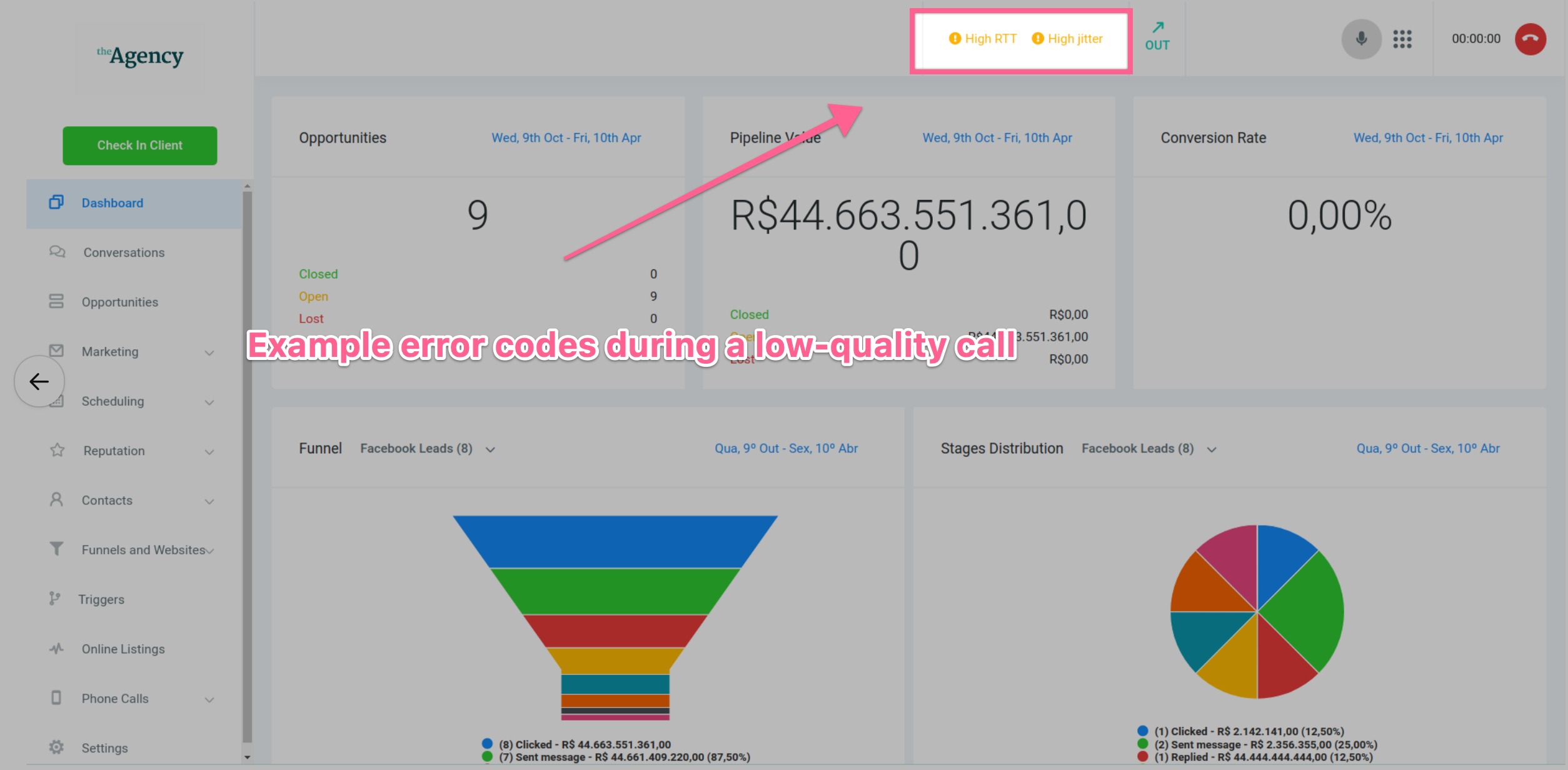
Use these alerts as a shortcut:
- If you see high jitter or packet loss, focus on Wi‑Fi vs. Ethernet, other bandwidth‑heavy apps, and ISP stability.
- If you see high RTT, look at VPNs, long network paths, and overloaded routers.
When support asks for examples, screenshots of these alerts plus the date/time and contact are extremely helpful.
Step 7 – When to Contact GoHighLevel Support (and What to Include)
If you’ve:
- Tested your internet connection,
- Tried wired vs. Wi‑Fi,
- Closed heavy apps,
- Verified your headset and permissions,
- And checked firewall/ports…
…but calls are still bad, it’s time to involve GoHighLevel support.
When you submit a ticket or start a chat, include:
- Specific call examples (date, time, timezone, contact name/number).
- Type of issue (robotic audio, one‑way audio, dropped calls, echo, etc.).
- Network details (speed test results, wired vs. Wi‑Fi, ISP, use of VPN).
- Any visible in‑app alerts (
high-rtt,high-jitter,high-packet-loss,low-mos).
The more complete your initial report, the faster support can narrow down whether it’s a local network problem, a carrier route, or something else.
If you’re setting up GoHighLevel from scratch, this is also a good moment to spin up a free GoHighLevel trial in a clean environment and compare results.
Turn This Into a Repeatable Troubleshooting Playbook
You don’t want your team reinventing the wheel every time someone says, “The call sounds weird.” Turn this guide into a simple playbook:
- Start with the quick checklist in this article.
- Follow the VoIP Call Quality Troubleshooting Flowchart image to decide what to try next.
- Document which fixes work best in your specific environment (e.g., “VPN off for calls,” “always use wired headsets,” “Chrome only”).
- Train new team members on this process during onboarding.
Once call quality is stable, you can focus on what actually grows the business: better scripts, tighter follow‑up workflows, and smarter automations inside GoHighLevel.
How Revset Labs Can Help You Get Reliable GoHighLevel Calling
If you’d rather not play part‑time VoIP engineer, Revset Labs can help you:
- Audit your current GoHighLevel setup and calling workflows.
- Standardize how your team places and receives calls.
- Design automations that trigger follow‑ups, tasks, and pipelines based on call outcomes.
- Build reporting that shows which agents, campaigns, and numbers are driving revenue.
Start by launching GoHighLevel with a free trial, then bring in Revset Labs to turn it into a stable, conversion‑focused calling machine.
When call quality is handled, every conversation becomes an opportunity instead of a risk.