
SMS that don’t send from GoHighLevel are almost always traceable to a handful of predictable issues: contact settings, Twilio/LC Phone configuration, or carrier filtering.

This guide walks you through how SMS delivery works inside GoHighLevel, how to read error messages, and a practical, step‑by‑step process to fix failed texts and restore reliable messaging.
If you’re still evaluating platforms, you can start a free GoHighLevel trial here and follow along as you set things up.
How SMS Delivery Works in GoHighLevel
Every SMS you send from GoHighLevel passes through three layers before it lands on your contact’s phone:
- GoHighLevel layer – Where your workflow, campaign, and contact settings live.
- LC Phone / Twilio layer – The underlying messaging provider that accepts or rejects the message.
- Carrier / handset layer – The recipient’s mobile network and device.
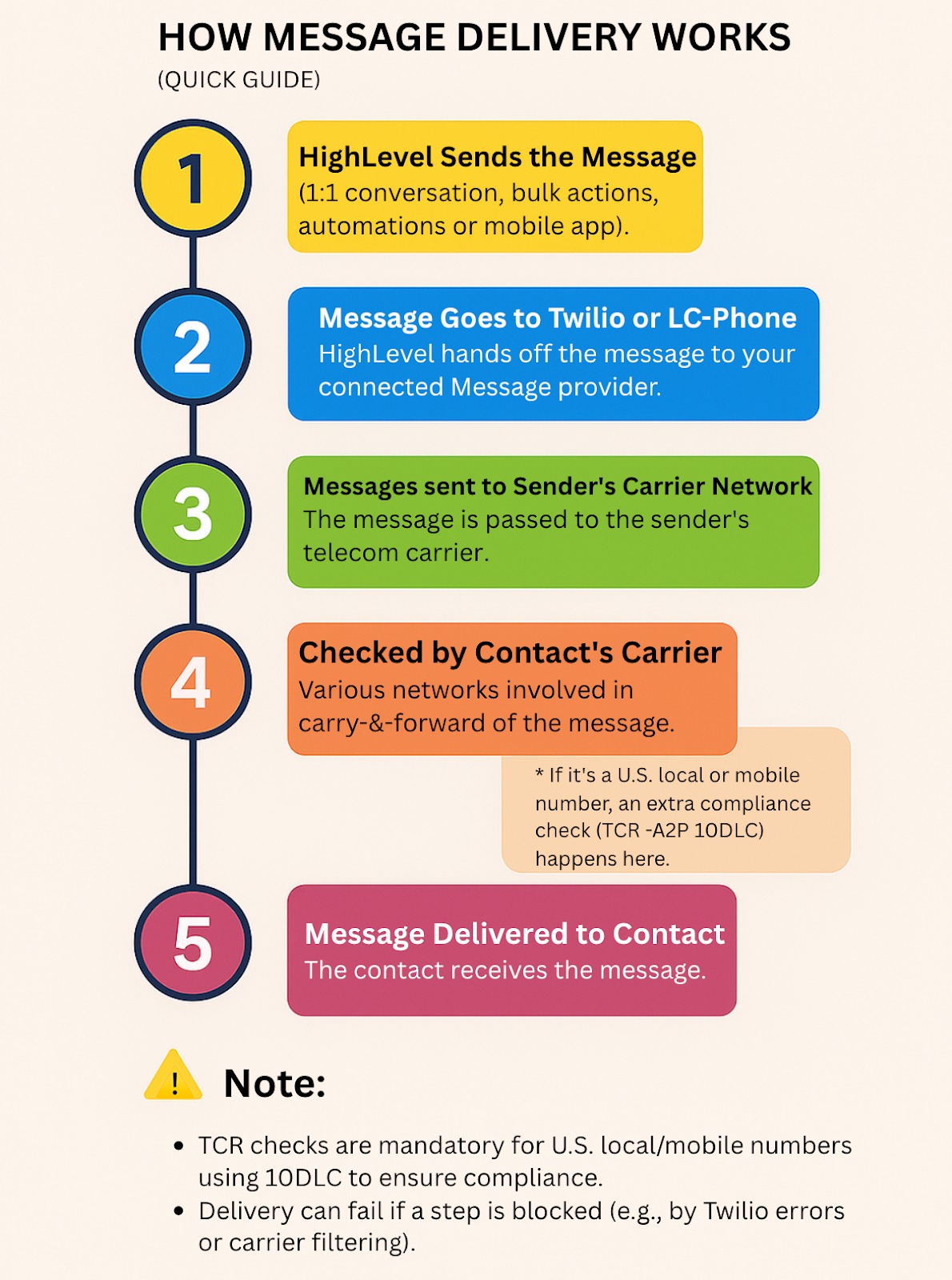
If delivery fails at any of these layers, the message won’t show up on the handset – even though you may still be billed for the attempt.
Thinking in layers makes troubleshooting faster:
- Layer 1 (GoHighLevel): Is the contact allowed to receive texts from you? Is the number valid? Has the sub‑account hit limits?
- Layer 2 (LC Phone / Twilio): Did the provider return a specific error code (30003, 30005, 30007, etc.)?
- Layer 3 (Carrier / handset): Is the phone off, out of coverage, or blocking your traffic?
Your job when troubleshooting is to quickly identify which layer is failing, fix the root cause, and then rerun your automation or resend the message.
Where to Find SMS Error Messages in GoHighLevel
Before you change any settings, confirm what actually happened to the message.
Inside Conversations in GoHighLevel you’ll see:
- A failed or warning badge on messages that didn’t send.
- A short error message or code when you hover over or open the message details.
In most cases, when a message fails to send or deliver, we display an error in the conversation view that appears like this:
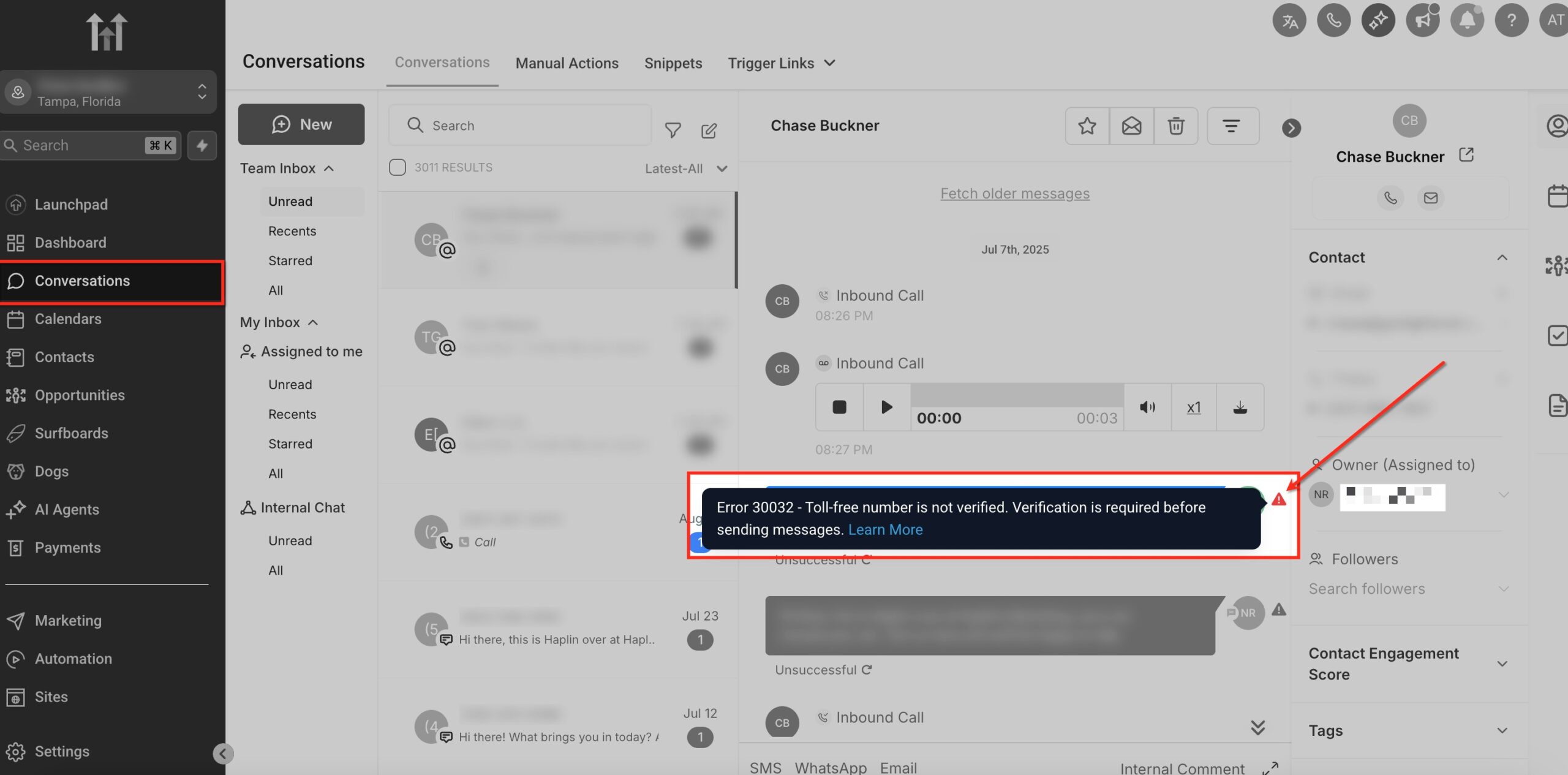
The error message and error code will provide you with clues about what is going wrong and how to proceed from there.
For deeper digging, you can:
- Open the message details in LC Phone/Twilio to see the exact Twilio error code (for example
30003,30005,30007). - Use Twilio’s Message Logs in their console if you’re managing Twilio directly.
Make a note of:
- Whether the message is queued, failed, or undelivered.
- Any numeric error codes (3000X).
- Whether this is happening to one contact or across many contacts/campaigns.
This information points you to the right layer to fix.
Why Your GoHighLevel SMS Is Not Sending (and How to Fix It)
Most “GoHighLevel SMS not sending” issues fall into one of three buckets. Work through them in order.
1. Issues at the GoHighLevel Layer
These are problems inside your GoHighLevel account or contact data.
Contact DND (Do Not Disturb) is Enabled
If a contact has DND enabled, GoHighLevel will intentionally stop sending them SMS – even if your workflow runs perfectly.
How to fix it:
- Open the contact record.
- Check the DND toggle for Phone/SMS.
- If they’ve given fresh consent, turn DND off and resend.
Pro tip: Use a short confirmation workflow (for example, “Reply YES to keep getting SMS updates”) to keep your list clean and compliant.
The Number Is a Landline or Invalid
If you’ve enabled phone number validation, GoHighLevel may block messages to landlines or obviously invalid numbers.
How to fix it:
- Validate the number with the contact.
- Update the record to a mobile‑capable number.
- If you truly need to send to mixed lists, review whether strict validation is the right choice for your use case.
New Sub‑Account Under Ramped Sending
Brand‑new sub‑accounts are often placed on ramped sending to prevent spam and protect deliverability. You might see some bulk or workflow messages fail once you hit a limit.
How to fix it:
- Start with smaller test sends and transactional sequences.
- As engagement and sending history improve, limits typically increase.
- If you’re an established, compliant sender and still constrained, contact GoHighLevel support.
Daily Message Limit Reached
If a sub‑account hits its daily message limit, GoHighLevel will block additional automated or bulk sends until the next day.
How to fix it:
- Review sending volume for the day.
- If your use case justifies it, raise the limit in your LC Phone/Twilio configuration or with support.
- Stagger large broadcasts over multiple days.
Sending Suspended for High Errors, Opt‑Outs, or Complaints
Hugh bounce rates, opt‑outs, or spam complaints can trigger sending suspension for the sub‑account.
How to fix it:
- Audit recent campaigns for:
- Misleading opt‑in methods.
- Overly aggressive frequency.
- “Spammy” content (all caps, excessive emojis, deceptive claims).
- Tighten your compliance and list hygiene.
- Work with GoHighLevel support to reinstate sending.
If you’d rather have experts audit your flows, Revset Labs can review your GoHighLevel pipelines, opt‑in methods, and campaigns and set up compliant, high‑converting automations for you.
2. Issues at the LC Phone / Twilio Layer
When LC Phone/Twilio rejects a message, you’ll typically see a 3000X error code. Here are some of the most common ones when troubleshooting SMS delivery in GoHighLevel.
Number on Twilio’s DND / Opt‑Out List (for example, 21610)
If a contact previously texted STOP, UNSUBSCRIBE, or a similar keyword, Twilio places them on a DND list. Messages to that number will fail.
How to fix it:
- Ask the recipient to text START (or your equivalent opt‑in keyword) to your sending number.
- Only message contacts who have explicitly opted back in.
30001 – Queue Overflow
This happens when a message sits in Twilio’s queue for too long (typically more than 4 hours) and then expires.
How to fix it:
- Shorten the validity period for time‑sensitive messages.
- Avoid queuing massive blasts without pacing.
30002 – Suspended Sub‑Account
If your Twilio/LC Phone sub‑account is suspended during sending, messages will fail.
How to fix it:
- Log into LC Phone/Twilio and check for suspension notices.
- Resolve any compliance issues noted in their message.
- Once reactivated, retry your sends.
30003 – Unreachable Destination Handset
The carrier couldn’t reach the handset – it might be off, out of coverage, or temporarily unavailable.
How to fix it:
- Retry later.
- Confirm with the contact that the number is correct and active.
30005 – Unknown Destination Handset
The number is invalid or no longer in service.
How to fix it:
- Verify the number directly with the contact.
- Remove hard‑invalid numbers from your list to protect deliverability.
30007 – Carrier Filtering
The carrier blocked your message because it looked like spam or violated their rules.
How to fix it:
- Avoid shortened or “shady” links; use branded or full URLs where possible.
- Remove all‑caps shouting, excessive punctuation, and misleading claims.
- Make sure you have clear, documented opt‑in for every contact.
This is also where a well‑designed messaging strategy pays off. If you need help building compliant, high‑converting SMS campaigns inside GoHighLevel, Revset Labs can map and implement them for you end‑to‑end.
3. Issues at the Carrier / Handset Layer
Even if GoHighLevel and Twilio accept your message, it can still fail at the carrier or device layer.
Common reasons include:
- Blocked numbers: The contact has manually blocked your number.
- Device configuration: The phone is set to filter unknown senders.
- Attachment too large: MMS attachments exceed carrier file size limits.
- Message body too long: The message is split into segments and mishandled by the carrier.
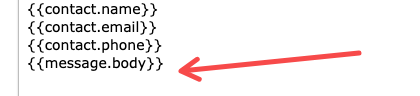
- If you are using a trigger to send a message. Check the body of the message. Also, check to see if there is a custom value of {{message.body}}
- For example, if someone replies via email and their email exceeds the limit of 1600 characters, the message will not send if you have the custom value {{message.body}}
- International restrictions: Your account doesn’t have permission to send cross‑border traffic.
How to fix it:
- Keep MMS file sizes within carrier‑approved limits.
- Shorten long messages or break them into logical, separate sends.
- Confirm that your LC Phone/Twilio configuration includes the right geo permissions.
- When possible, have the contact confirm they haven’t blocked your number.
Super‑Quick Checklist Before You Click “Send”
Use this pre‑flight checklist for any important GoHighLevel SMS campaign:
-
Confirm consent & expectations
- List is opted‑in with clear expectations.
- DND is off for contacts who want messages.
-
Validate numbers
- No obvious landlines or invalid formats.
- High‑risk segments cleaned or re‑verified.
-
Scan message content
- No misleading claims or spammy formatting.
- Links are trustworthy (ideally branded) URLs.
- Message length is reasonable.
-
Check sending limits & health
- Sub‑account hasn’t hit daily limits.
- No current suspensions or serious error spikes.
-
Send a test to yourself first
- Trigger the exact workflow/campaign.
- Check how long it takes to arrive and whether all merge fields and links work.
If you’re just getting your GoHighLevel instance off the ground, this is a great time to spin up a free GoHighLevel trial and build your SMS foundations the right way from day one.
FAQ: Common Questions About SMS Delivery in GoHighLevel
Why am I getting charged for failed messages?
As soon as a message is accepted for delivery by the messaging provider, it typically incurs a charge – even if it later fails at the carrier or handset layer. This is standard across most SMS providers, including Twilio.
The best way to avoid paying for failed messages is to keep your list clean, respect DND/opt‑out, and follow deliverability best practices so carriers don’t block your traffic.
How do I know exactly why a message failed in GoHighLevel?
Start in Conversations to see whether the message was sent, failed, or undelivered, along with any error text. Then:
- Open the message details in LC Phone/Twilio to see the exact error code and status.
- Use Twilio’s Message Logs for a full history if you manage Twilio directly.
Once you know the error code, you can match it to the right fix using the sections above.
Can I automate responses when messages fail?
Yes. GoHighLevel includes a Messaging Error – SMS workflow trigger you can use to:
- Tag or update contacts with repeated failures.
- Notify your team when a high‑value contact’s SMS fails.
- Automatically send an email or other fallback channel instead.
Set up these safety nets so important opportunities don’t slip through when SMS has a temporary issue.
How can I improve long‑term SMS deliverability in GoHighLevel?
Deliverability is a function of consent, content, and consistency:
- Use clear, direct opt‑in language and honor opt‑out immediately.
- Send helpful, expected messages instead of random blasts.
- Avoid spammy content and suspicious links.
- Regularly remove invalid or unengaged numbers.
Over time, this builds a strong sender reputation with carriers and keeps your texts landing instead of getting filtered.
Turn Reliable SMS into a Revenue Channel
When GoHighLevel is configured correctly, SMS becomes one of the highest‑ROI channels in your stack – especially when combined with email, pipelines, and automations.
If you’re:
- Migrating into GoHighLevel and want SMS set up correctly from day one, or
- Already live but fighting delivery issues, inconsistent workflows, or patchy reporting,
Revset Labs can help. We’re an AI automation and marketing agency that designs and implements done‑for‑you GoHighLevel systems – from clean data structures and messaging strategies to fully built campaigns, workflows, and dashboards.
And if you’re not on GoHighLevel yet but want a platform that centralizes your funnels, CRM, and messaging, you can try GoHighLevel free and then bring in Revset Labs to turn it into a revenue engine.