
Automated email and SMS notifications are the difference between a lead you close this week and a lead that quietly disappears. In GoHighLevel, you can use workflows to trigger internal alerts and client-facing messages the moment a new contact hits your system—without your team lifting a finger.

This guide walks you through how to set up revenue-ready new lead notifications, why they matter, and how to avoid common pitfalls like notification overload and rate limits.
Why automated new lead notifications matter
When someone fills out a form, books a call, or opts in to an offer, they’re at peak intent. Every minute you wait to follow up, your chances of closing the deal drop.
Well-built GoHighLevel notifications help you:
- Respond in minutes, not days – Your sales team gets instant internal alerts when a new lead comes in.
- Give leads a fast confirmation – New leads receive an email or SMS confirming you’ve got their details and what happens next.
- Keep your pipeline organized – Every notification is tied to a workflow, so you can track and improve your follow-up sequences.
If you don’t yet have a GoHighLevel account, you can start a free trial here and follow along as you set this up.
How GoHighLevel handles new lead email & SMS notifications
In GoHighLevel, notifications are driven by Workflows. A workflow watches for a specific event (like a new lead) and then runs a series of actions, such as:
- Sending an internal notification to you or your team.
- Sending an email or SMS directly to the new lead.
- Updating fields, adding tasks, or moving the opportunity in your pipeline.
For new leads, you’ll typically combine:
- Internal notifications – So your sales team knows who to follow up with and how they came in.
- Client notifications – So the lead gets instant reassurance and clear next steps.
Step 1: Create a workflow for new lead notifications
- In your GoHighLevel account, go to Automation → Workflows.
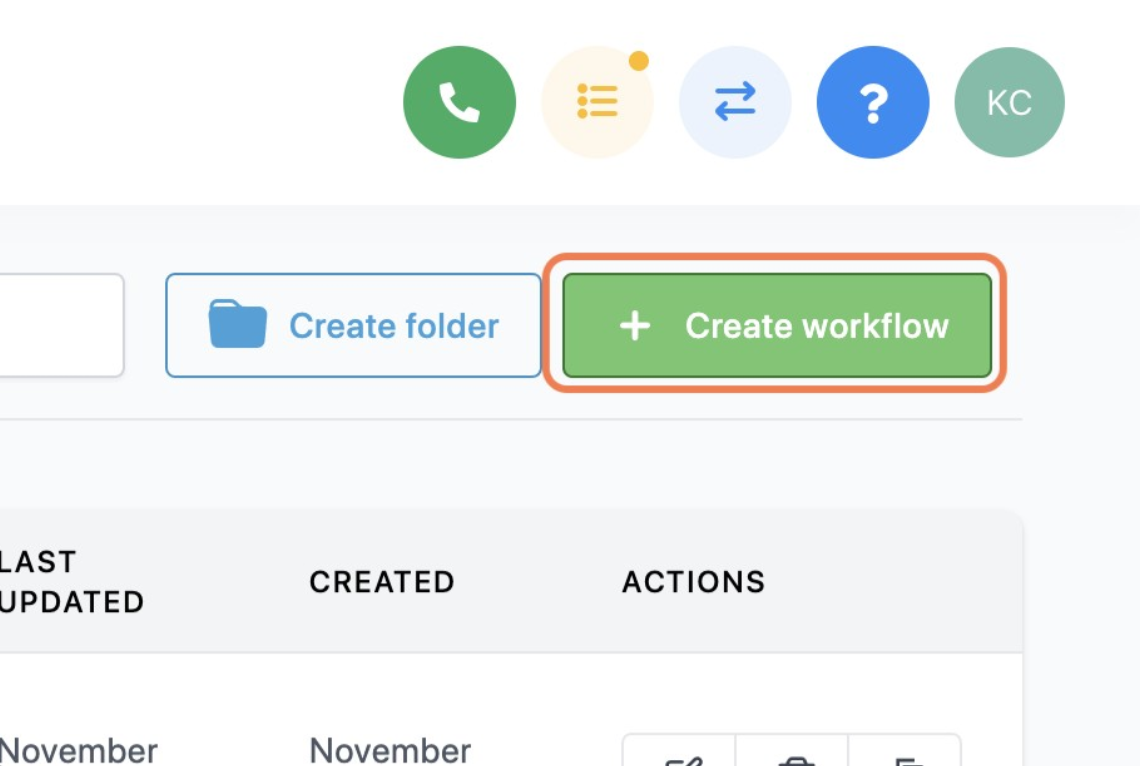
- Click Create Workflow and choose Start from Scratch.
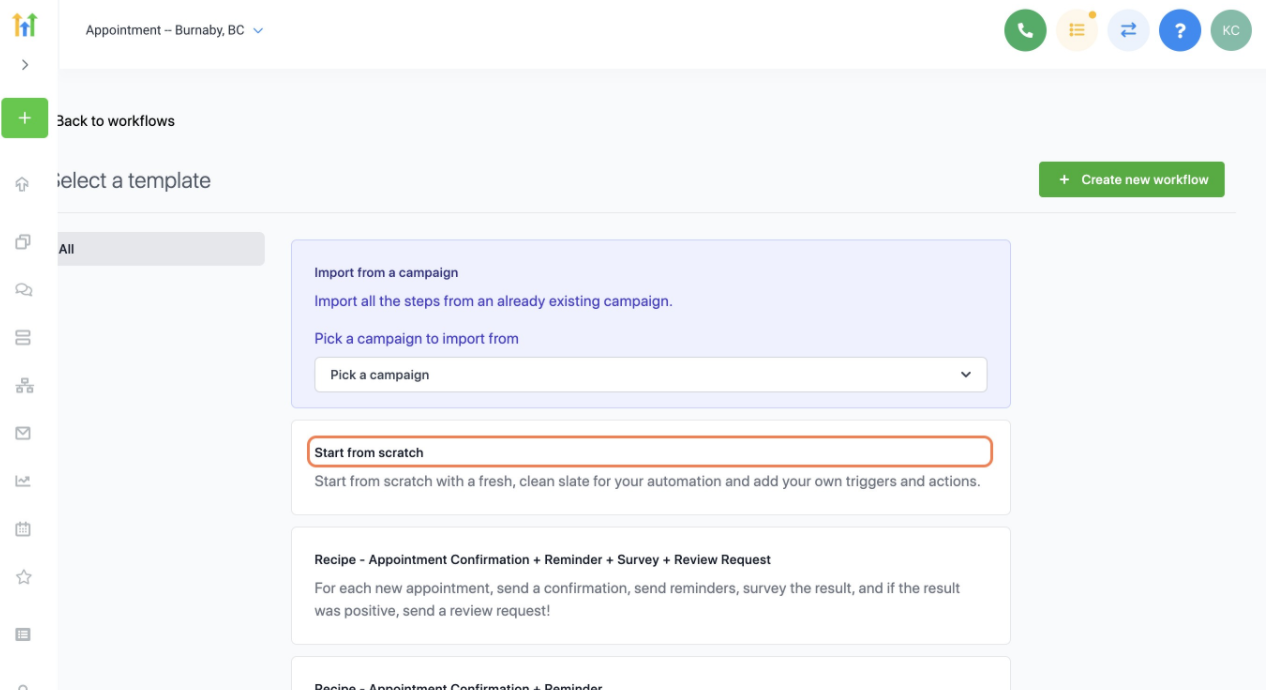
- Give the workflow a clear, action-based name, such as “New Lead – Internal + Client Notifications”.
- Save the workflow so you can start adding triggers and actions.
This workflow will become the central place where you manage all notifications related to brand-new leads.
Step 2: Choose the right trigger for "new lead"
Next, you’ll tell GoHighLevel what counts as a "new lead" for this workflow.
Common trigger options include:
- Contact Created – Fires every time a brand-new contact is added to your account (via forms, imports, API, etc.).
- Form Submitted / Survey Submitted – Fires when someone completes a specific form, suchm as a lead magnet or consultation form.
- Pipeline Stage Changed – Fires when a contact moves into an early pipeline stage like "New Lead" or "New Opportunity".
To add your trigger:
- In your workflow, click Add New Workflow Trigger.

- Select the trigger type that best represents a new lead for this funnel.
- Add filters so you don’t notify the wrong people. Examples:
- Only trigger when Funnel = Main Lead Gen Funnel.
- Only trigger when Source = Facebook Ads.
- Only trigger when Pipeline Stage = New Lead.
- Save the trigger.
A well-defined trigger keeps your notifications focused on the right contacts instead of spamming your team with noise.
Step 3: Decide who should be notified (and how)
You can send notifications to:
- Internal users – You, your sales reps, account managers, or a shared team inbox.
- The lead – To confirm their details and set expectations.
Internal notifications (you and your team)
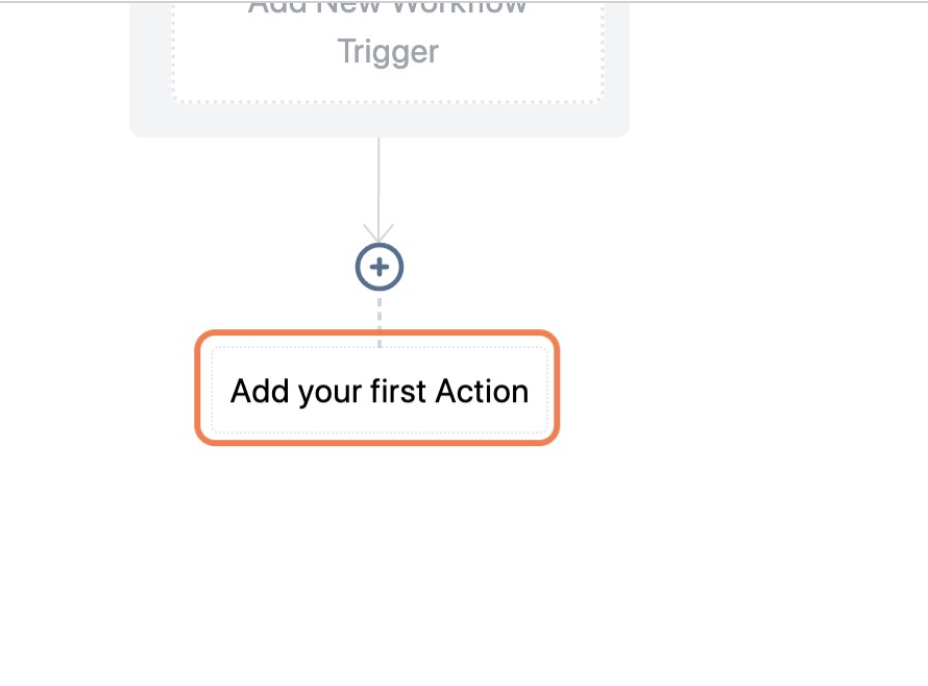
- In the workflow, click + Add Action under your trigger.
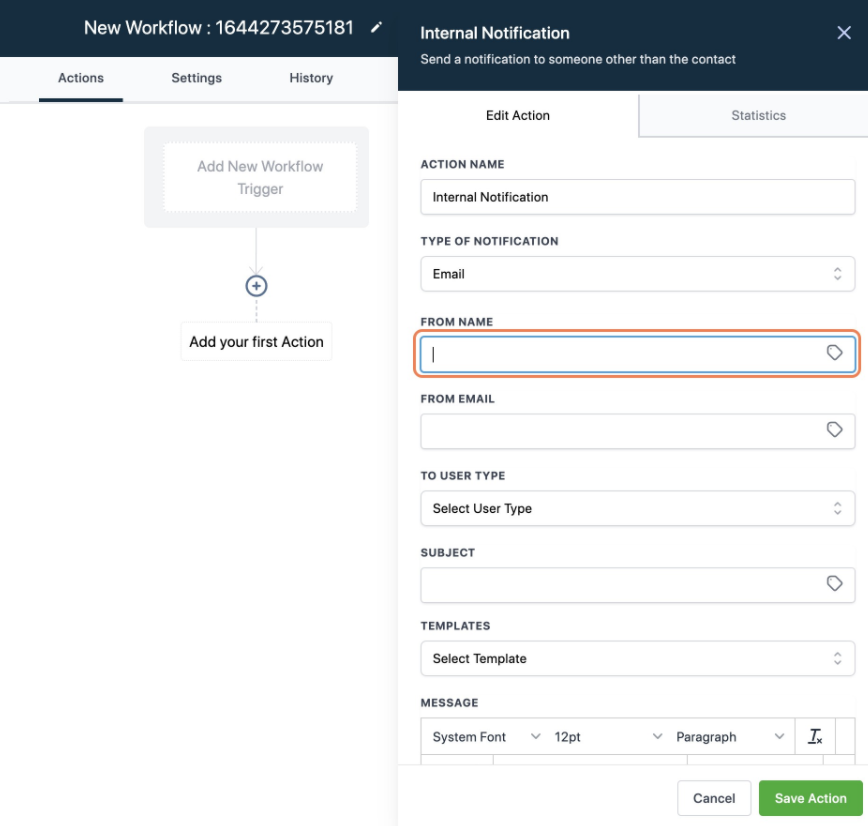
- Choose Send Internal Notification.
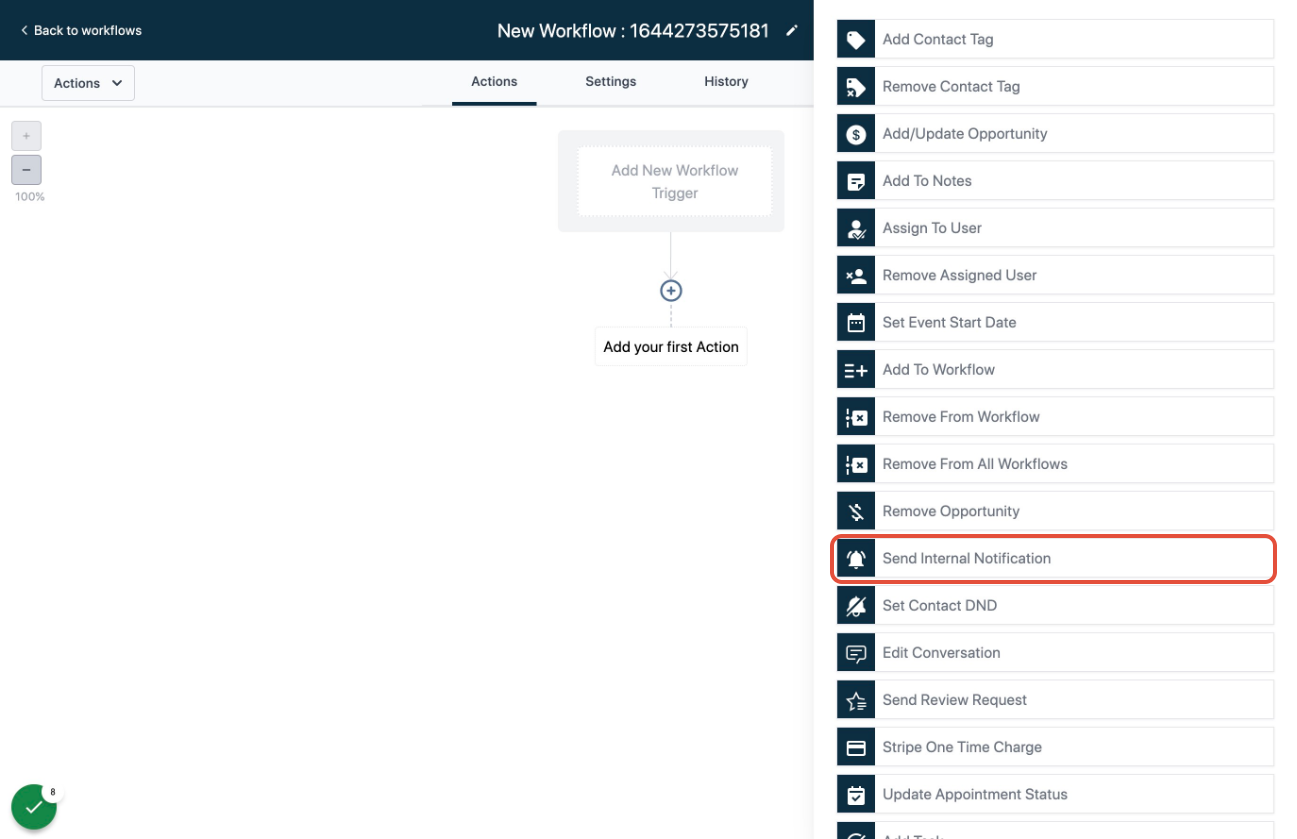
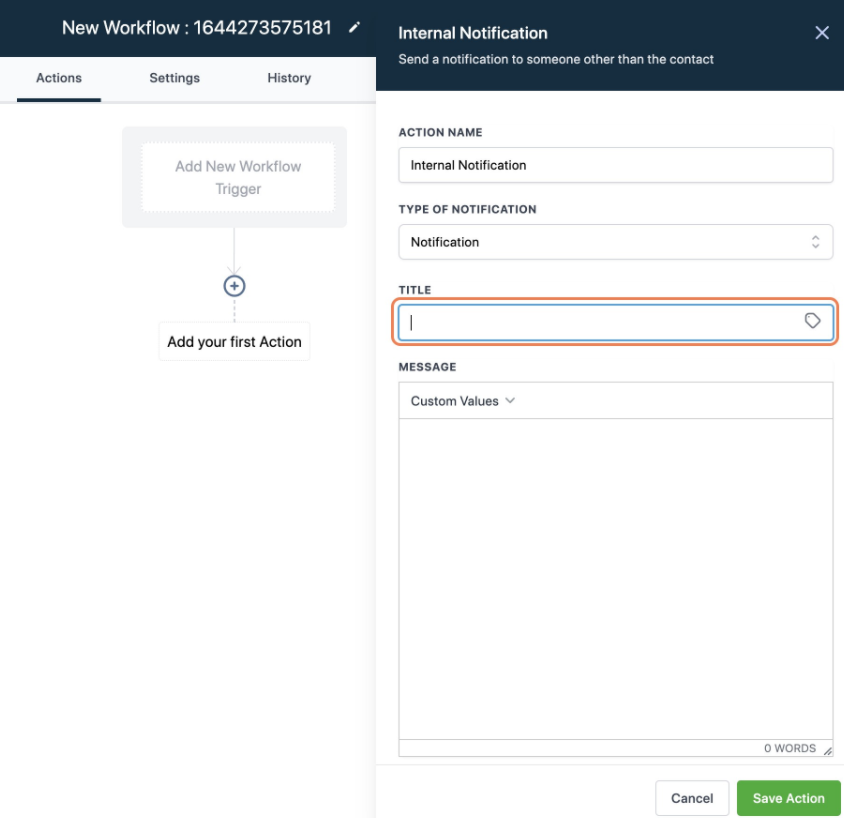
- Pick your notification type:
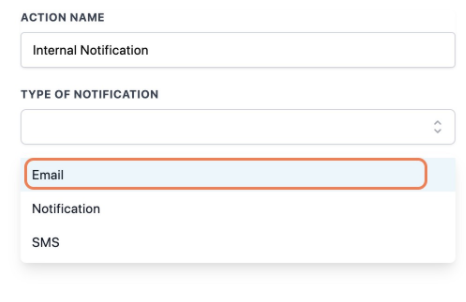
- Email – Send a formatted email to a specific user or email address.
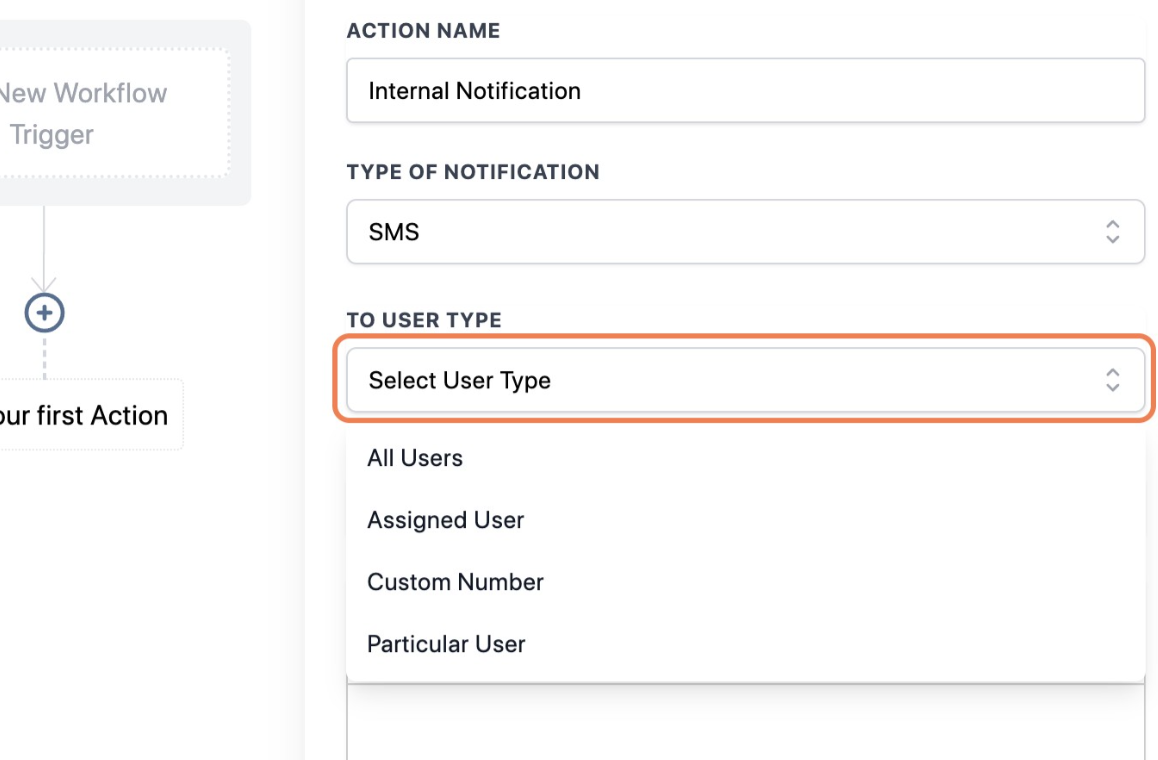
- SMS – Send a quick text to a team member for fast follow-up.
- In-App – Trigger a notification inside GoHighLevel for assigned users.
- Email – Send a formatted email to a specific user or email address.
- Configure who receives the alert. You can notify:
- A specific user (for example, the assigned sales rep).
- A team role (for example, everyone marked as "Sales").
- A custom email address (for shared inboxes like sales@yourdomain.com).
Include key details in the internal notification so your team can act fast:
- Lead name and contact info.
- Source or campaign.
- Offer or funnel step they completed.
- Any notes or qualifying answers from your form/survey.
Client notifications (the new lead)
Right after the internal notification, add actions that talk directly to the lead.
- Click + Add Action again.
- Choose Send Email or Send SMS (or both).
- Use personalization tokens (like {{contact.first_name}}) so messages feel 1:1 instead of generic.
- Clearly confirm what will happen next.
Example SMS template:
"Hey {{contact.first_name}}, thanks for reaching out to {{location.name}}! We got your details and will follow up within the next 15 minutes. If you have any urgent questions, reply to this text."
Example email template:
Subject: We’ve received your request – here’s what happens next
Hi {{contact.first_name}},
Thanks for getting in touch with {{location.name}}.
We’ve received your details and our team will review your request shortly. You can expect a follow-up within the next {{custom.followup_timeframe}}.
In the meantime, feel free to reply to this email if you have any questions.
– The {{location.name}} Team
If you’re new to GoHighLevel and want a proven starting point, you can spin up a free trial here and clone notification workflows as you go.
Step 4: Add logic so notifications stay relevant
Not every lead should trigger the same message. Use workflow conditions to keep notifications targeted.
Here are a few useful patterns:
- Split by lead source – Send different internal notes or scripts if the lead came from paid ads vs. referrals.
- Split by pipeline or status – Only notify your closers when a lead reaches a high-intent stage.
- Split by time of day – During off-hours, send an automated SMS to the lead and queue an internal notification for the next business day.
In your workflow, you can:
- Add If/Else branches based on fields like tag, source, or pipeline stage.
- Route contacts down different paths with different email/SMS copy and different internal routing.
- Add Delays so you don’t overwhelm the lead with too many messages all at once.
This kind of logic is where GoHighLevel shines—and where a thoughtful setup can dramatically improve reply rates.
Step 5: Test and monitor your new lead notifications
Before you roll this out to all your traffic, test thoroughly:
- Use a test contact – Create a contact with your own email and phone number.
- Run through the funnel (or manually trigger the workflow) to confirm:
- Internal notifications go to the right people.
- Client-facing email and SMS messages arrive quickly and look correct.
- Check the Workflow execution logs in GoHighLevel to verify each action is firing as expected.
- Ask your team if the notifications are useful or noisy and adjust the content and routing.
Over time, watch:
- How quickly your team is following up after notifications.
- Which notification channels (email vs SMS) get the best engagement.
- Whether adding or removing certain alerts changes close rates.
If you’d like an expert to review your setup, Revset Labs can audit your GoHighLevel workflows and build out a complete lead follow-up system that your team can rely on day after day.
GoHighLevel workflow notification rate limits
GoHighLevel includes rate limiting to protect deliverability and keep the platform stable.
As of this writing, the system enforces:
- Up to 500 notifications per 5 minutes per user, across email, SMS, and in-app notifications.
In practice, this means:
- If you bulk-import a large list and trigger workflows on all of them at once, notifications may queue or slow down.
- Aggressive multi-step workflows can quickly stack notifications if you aren’t careful.
Best practices to stay safe:
- Stagger large imports and launches.
- Use delays and filters to avoid sending multiple near-identical alerts to the same user.
- Regularly review workflows to remove outdated or redundant notifications.
Where GoHighLevel fits in your automation stack
GoHighLevel doesn’t just send notifications—it sits at the heart of your marketing and sales automation.
When you use workflows to trigger smart email and SMS alerts, you:
- Shorten your response times.
- Give every lead a consistent, on-brand first experience.
- Free your team from chasing inboxes and DMs across multiple tools.
If you’re evaluating platforms, this is one of the biggest reasons many agencies and businesses standardize on GoHighLevel. You can start a free trial here and build your new lead notification system in a single afternoon.
How Revset Labs can help you go further
Revset Labs is an AI automation and marketing agency that specializes in building revenue-focused systems on top of GoHighLevel.
If you’d rather not wrestle with workflows, triggers, and rate limits yourself, we can help you:
- Design a complete lead follow-up strategy (from capture to booked call and beyond).
- Implement and QA your GoHighLevel workflows, notifications, and pipelines.
- Layer on AI-driven routing, qualification, and messaging so your team spends time only on the highest-value opportunities.
You bring the offer and the traffic—we’ll handle the automation, so no new lead slips through the cracks.