
Is your calendar full of "What time did we actually book this for?" messages between your team and clients? In GoHighLevel, a single setting – Contact Timezone – controls whether contacts can book in their own timezone or are locked to your business timezone.

For some businesses, letting contacts pick their timezone is perfect. For others, it creates confusion, no‑shows, and support headaches. In this guide, Revset Labs walks you through when it makes sense to disable Contact Timezone and exactly how to do it inside GoHighLevel.
Along the way, we’ll show you how this setting fits into your broader scheduling strategy – and how GoHighLevel plus smart automation can remove timezone drama altogether.
What the Contact Timezone Setting Does in GoHighLevel
When a contact is scheduling an appointment, they are given the option to select the timezone they reside in so the appointment gets booked for the proper time relative to their schedule.
If you want to remove the ability for contacts to adjust the timezone when scheduling appointments, you can turn this feature off and ONLY allow contacts to schedule appointments in the timezone assigned to the HighLevel sub-account.
When Contact Timezone is enabled, GoHighLevel lets a contact choose their own timezone when they book on your calendar widget.
- Your calendar runs in your business timezone.
- The contact can pick a different timezone from a dropdown.
- GoHighLevel converts the time automatically so both sides see the right local time.
Example:
- Your business is in San Francisco (PST).
- A contact in New York (EST) books a slot labeled 5:00 PM.
- With Contact Timezone enabled, that booking is stored as 5:00 PM EST and appears as 2:00 PM PST on your calendar.
- With Contact Timezone disabled, that same 5:00 PM slot is always 5:00 PM PST. The contact in New York would see it as 8:00 PM their time.
This is powerful when you serve clients across multiple regions. But if you mostly work in one local timezone, that extra flexibility can backfire.
If you’re still evaluating GoHighLevel for your business, you can start a free trial here: Try GoHighLevel free. Once you’re inside, the steps below will be quick to follow.
When It Makes Sense to Disable Contact Timezone
Disabling Contact Timezone forces all bookings to use your business timezone only. That can be exactly what you want if:
- You run a local or regional service business (clinic, gym, studio, agency focused on one market).
- Most of your clients are in the same timezone as your team.
- You want every appointment on the calendar to line up with your onsite operating hours.
- You’ve seen clients accidentally choose the wrong timezone and show up early, late, or not at all.
A simple decision rule you can use:
- If most of your pipeline is global or national, keep Contact Timezone enabled.
- If 90%+ of your revenue comes from one primary timezone, strongly consider disabling it.
Revset Labs often recommends disabling Contact Timezone for:
- Brick‑and‑mortar locations.
- Local professional services (law, accounting, financial advisors).
- Agencies serving a well‑defined metro or region.
For hybrid/global businesses, we’ll usually keep it enabled but pair it with clear copy on the booking page and automated reminders to avoid confusion.
How to Disable Contact Timezone in GoHighLevel (Step‑by‑Step)
Disabling the contact timezone will prevent users from scheduling appointments in time zones other than the business's timezone.
If you have a client whose business is near a timezone border (or maybe the business is in a popular tourist town that receives customers from other time zones), you may want to prevent people from being able to book appointments in their time zones.
To prevent people from being able to book appointments in their time zones, navigate to Settings > Business Profile, then scroll down until you see the "General" section on the right side of the screen and activate the "Disable Contact Timezone" checkbox.
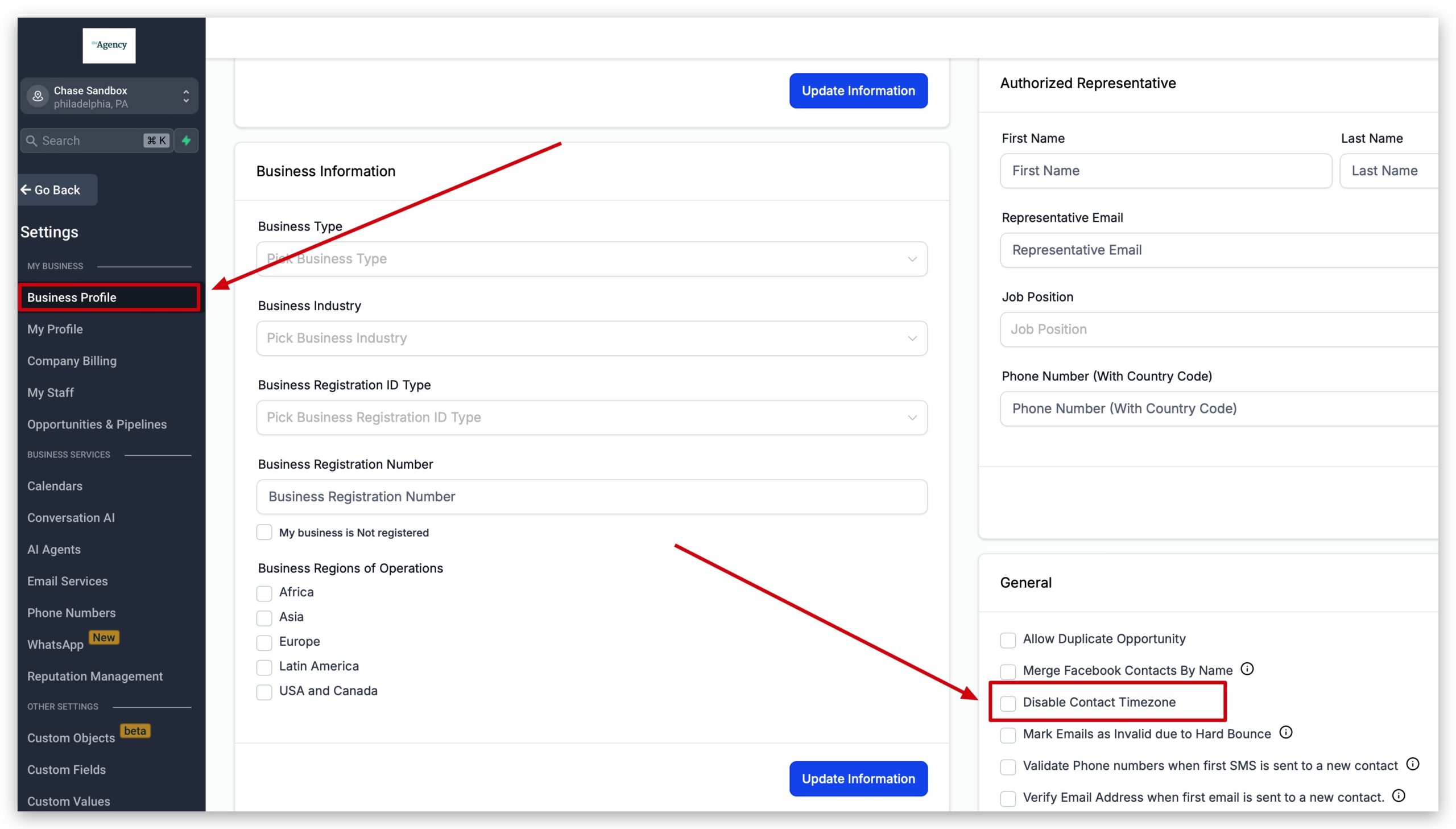
Follow these steps inside your GoHighLevel sub‑account:
- Open your sub‑account.
- From the main GoHighLevel dashboard, pick the sub‑account where you want this behavior.
- Go to Settings.
- In the left sidebar, click Settings.
- Open Business Profile.
- Inside Settings, select Business Profile.
- Find the Disable Contact Timezone option.
- In the General section on the right, look for the checkbox labeled Disable Contact Timezone.
- Check the box.
- Turn the setting on by checking the box.
- Save your changes.
- Click Save at the bottom if needed.
Once this is done, your calendars in that sub‑account will no longer show a timezone selector to contacts. Every booking will use your business timezone.
If you’re setting up GoHighLevel from scratch and want this configured alongside your funnels, pipelines, and notifications, Revset Labs can help you implement the full system so you don’t have to worry about missing details.
Make Sure Your Sub‑Account Timezone Is Correct First
It is very important to have your sub-account's timezone set properly, especially if you are not allowing contacts to adjust the timezone manually when scheduling.
To view and/or adjust your sub-account's timezone, navigate to Settings > Business Profile and find the "Time Zone" field located on the right side of the screen under the "Business Physical Address" options.
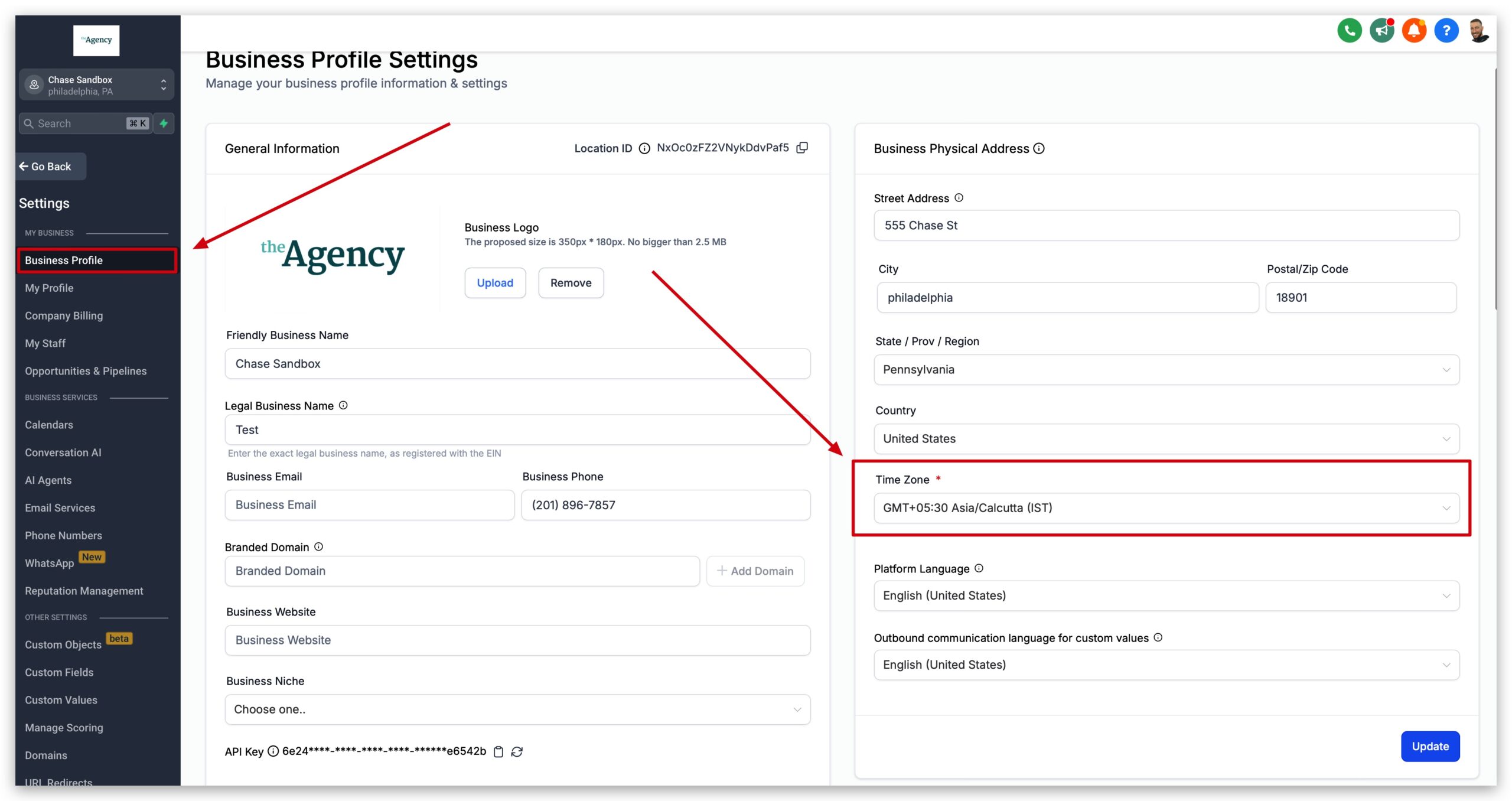
- In your sub‑account, go to Settings → Business Profile.
- On the right, under Business Physical Address, find the Time Zone field.
- Choose your correct local timezone from the dropdown.
- Save your changes.
Best practices:
- Match the timezone to where your team physically operates most of the time.
- If you have teams in multiple regions, use the timezone that anchors your primary service hours.
- Review this setting any time you expand to a new region or relocate your office.
What Contacts See After You Disable Contact Timezone
The screenshots below are examples of when your calendars will look like depending on whether you have enabled or disabled the Contact Timezone feature.
Contact Timezone DISABLED
With the "Disable Contact Timezone" box selected, users will no longer see the time zone dropdown selector in the calendar widget (see screenshot below), and all appointments will be made in whatever time zone is set within the location settings.
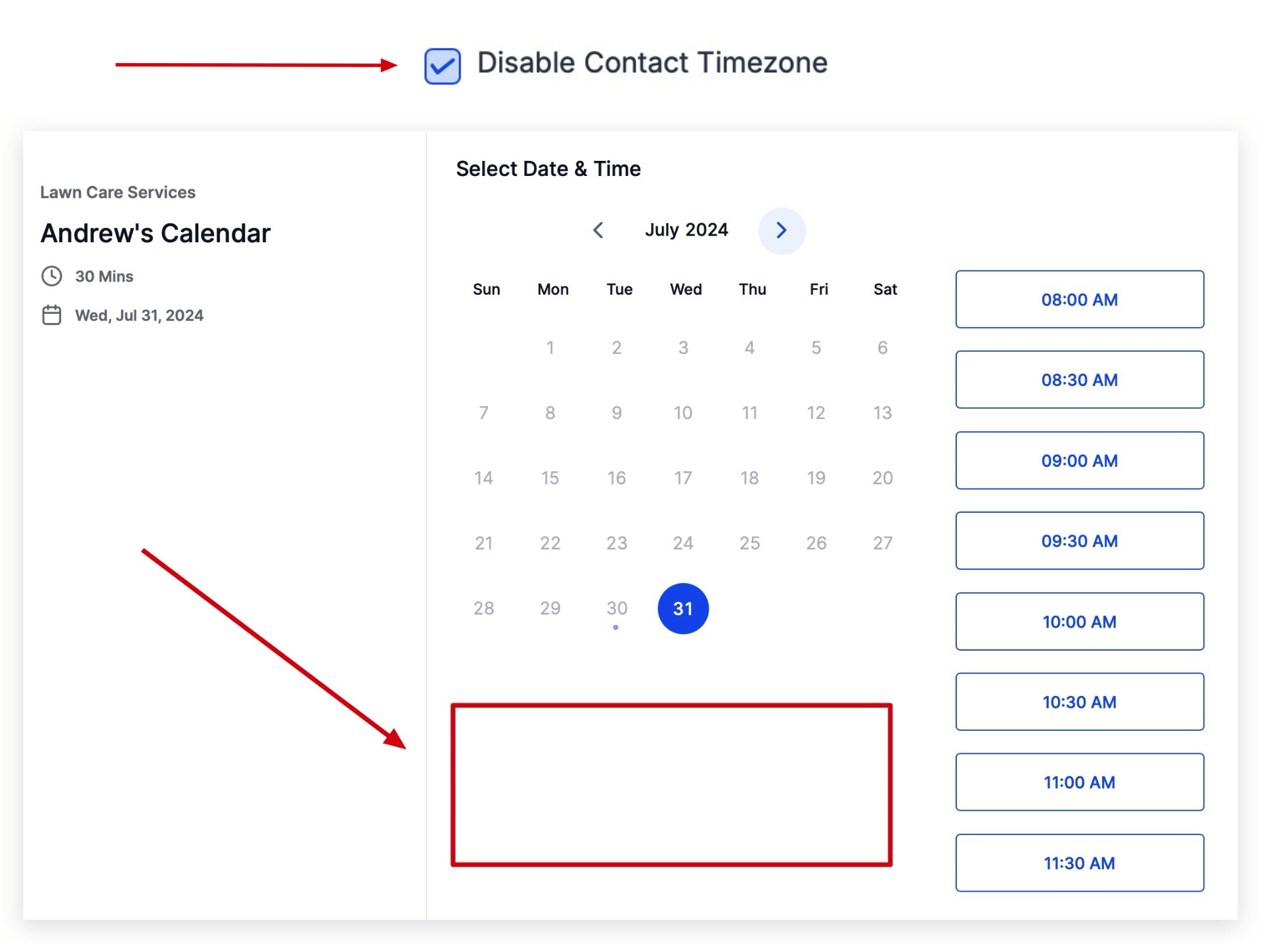
Once you disable Contact Timezone and save your Business Profile:
- The timezone dropdown disappears from your public calendar widget.
- Every available slot is displayed in your business timezone only.
- Contacts simply pick a date and time – no extra timezone choices.
Contact Timezone ENABLED (default setting)
This screenshot shows the default calendar widget with the timezone preference. By default, the contact timezone is enabled, giving your contacts the ability to change the timezone where the appointment is being scheduled.
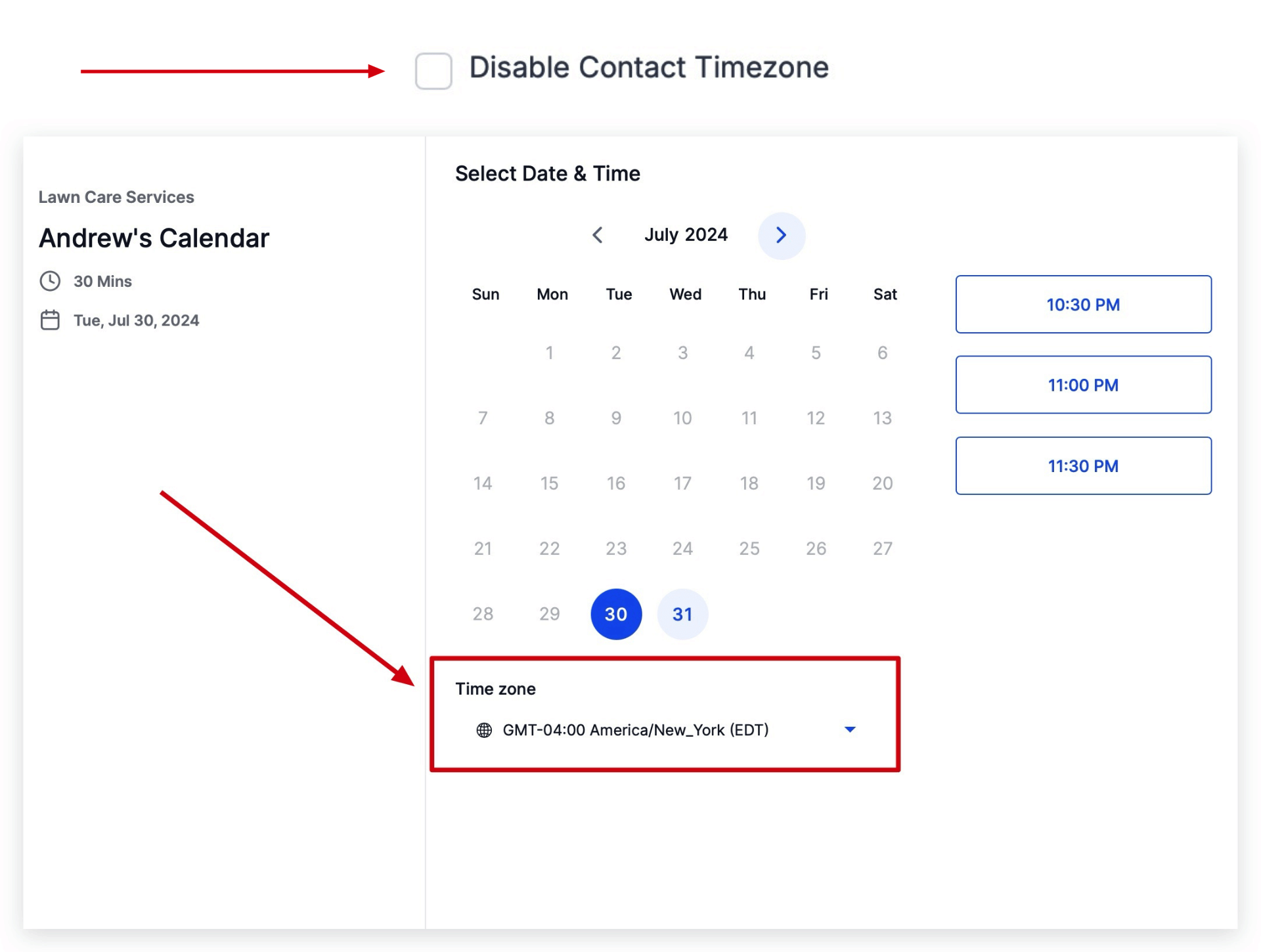
With Contact Timezone enabled:
- The booking widget shows a timezone selector (for example, “America/New_York”).
- Contacts can switch this to their preferred timezone before confirming.
With Contact Timezone disabled:
- There is no selector. The widget assumes your business timezone.
- This keeps things simple for local audiences and reduces edge‑case mistakes.
If you serve a mix of local and remote clients, you can still:
- Clarify the timezone in your calendar description (for example, “All times shown in Pacific Time”).
- Use reminder emails and SMS to restate the appointment time in the contact’s timezone using GoHighLevel workflows.
How This Fits Into Your Scheduling and Automation Strategy
Timezone handling doesn’t live in isolation. It impacts:
- Calendar availability – which slots are safe for your team to handle.
- Automation timing – when confirmation and reminder messages are sent.
- Reporting – how you interpret show rate by day and hour.
A few ideas Revset Labs often implements for clients:
- Workflows that send reminders at smart intervals before the appointment, adjusted for the contact’s timezone where appropriate.
- Separate calendars for local vs. global offers, each with its own Contact Timezone behavior.
- Funnel flows that automatically steer traffic into the right calendar based on country, campaign, or offer.
If you’d like a done‑for‑you setup that connects your calendars, funnels, and automations inside GoHighLevel, Revset Labs can design and implement it for you so you can focus on serving clients.
Not using GoHighLevel yet? You can spin up a free trial in a few clicks: Start your GoHighLevel free trial. We recommend configuring timezone behavior as part of your initial onboarding.
FAQs About Disabling Contact Timezone in GoHighLevel
Should I disable Contact Timezone if I work with clients in multiple countries?
Usually, no. If you regularly book calls across multiple countries or timezones, keeping Contact Timezone enabled makes booking easier for contacts. Instead of disabling it, focus on:
- Clear copy on the booking page (“Choose your timezone before confirming”).
- Reminder workflows that restate the time in the contact’s timezone.
Will changing this setting modify appointments I already booked?
No – disabling Contact Timezone affects new bookings going forward. Existing appointments retain the time they were booked for. Still, it’s good practice to:
- Review any high‑stakes meetings after changing settings.
- Send a quick confirmation message if you’ve had timezone confusion in the past.
Does disabling Contact Timezone affect my team’s internal calendar view?
Your internal GoHighLevel calendar always displays appointments based on your business timezone. Disabling Contact Timezone simply removes the option for contacts to choose their own timezone on the booking widget; it doesn’t change how your team sees the calendar.
If you want expert help configuring calendars, pipelines, and automations inside GoHighLevel so the tech just works in the background, Revset Labs can help. And if you’re just getting started with the platform, grab your free trial here: Get started with GoHighLevel.