
When you’re reselling GoHighLevel as your own platform, the login experience needs to feel 100% on‑brand. A white label domain for the GoHighLevel desktop web app lets clients log in at something like app.yourdomain.com instead of a generic HighLevel URL—while HighLevel continues to power everything under the hood.

This guide walks you through exactly how to set up that white label domain, why it matters for your agency, and how to avoid the most common DNS and SSL issues.
If you’re still evaluating GoHighLevel, you can follow along and test this on a free trial: Start a free GoHighLevel trial here.
What a GoHighLevel white label domain actually does
A GoHighLevel white label domain replaces the default HighLevel login URL with your own branded subdomain. For example:
- Default:
https://app.gohighlevel.com(or a similar HighLevel URL) - White label:
https://app.youragency.com
Once configured:
- Your clients log in at your branded URL.
- The login screen shows your logo and your legal links (Privacy Policy, Terms & Conditions).
- HighLevel automatically issues an SSL certificate so the page loads securely over HTTPS.
This is separate from the API domain (used for forms, surveys, calendars, and other system links). You’ll configure that later for fully branded funnels and automations.
From an agency and revenue standpoint, a white label domain:
- Makes GoHighLevel feel like your own SaaS product.
- Increases client trust because the URL, logo, and legal pages are all yours.
- Reduces support noise (“Is this the right login page?”) because the URL is simple and memorable.
If you’re not yet on GoHighLevel but you’d like to sell it as your own platform, you can spin up a trial account and follow this exact process: get your GoHighLevel free trial.
Prerequisites before you start
Before touching DNS, make sure you have:
- A domain you control (for example
youragency.com). - Access to the DNS settings for that domain (Cloudflare, GoDaddy, Namecheap, etc.).
- An active GoHighLevel agency account (not just a sub‑account).
- URLs for your Privacy Policy and Terms & Conditions pages.
You’ll also want to decide on the subdomain you’ll use for the desktop web app:
- Common patterns:
app.yourdomain.com,login.yourdomain.com, orportal.yourdomain.com. - Avoid using your root domain (like
yourdomain.com) for the app. Keep that for marketing pages and SEO.
Once that’s clear, you’re ready to connect your white label domain.
Step 1 – Create the CNAME record in your DNS
First, you’ll point your chosen subdomain to HighLevel using a CNAME record.
- Log into your DNS provider (Cloudflare, GoDaddy, Namecheap, etc.).
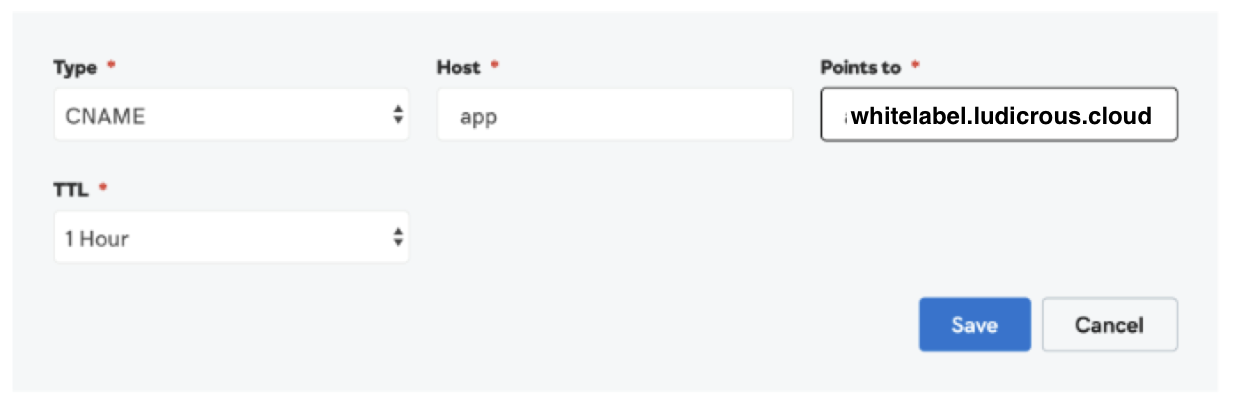
- Add a new CNAME record:
- Host / Name: the subdomain you chose, such as
app. - Value / Target:
whitelabel.ludicrous.cloud. - TTL: leave at the default unless your provider requires something specific.
- Host / Name: the subdomain you chose, such as
- Save the record.
Behind the scenes, this tells the internet:
“Whenever someone goes to
app.yourdomain.com, send them to HighLevel’s white label infrastructure atwhitelabel.ludicrous.cloud.”
Cloudflare‑specific notes
If you’re using Cloudflare:
- Set the Proxy status to DNS only (gray cloud), not proxied (orange cloud).
- Proxied CNAMEs can interfere with how SSL certificates are issued, causing browser security warnings.
Double‑check for conflicts
Your CNAME record should be the only record for that subdomain.
- Remove any existing A or CNAME records that also point
app.yourdomain.comsomewhere else. - Conflicting records are a common reason SSL fails or the domain loads the wrong site.
Step 2 – Add the white label domain in GoHighLevel
With DNS in place, tell GoHighLevel which subdomain you’re using.
- Switch to Agency View in GoHighLevel.
- Go to Settings → Company → Whitelabel → Whitelabel Domain.
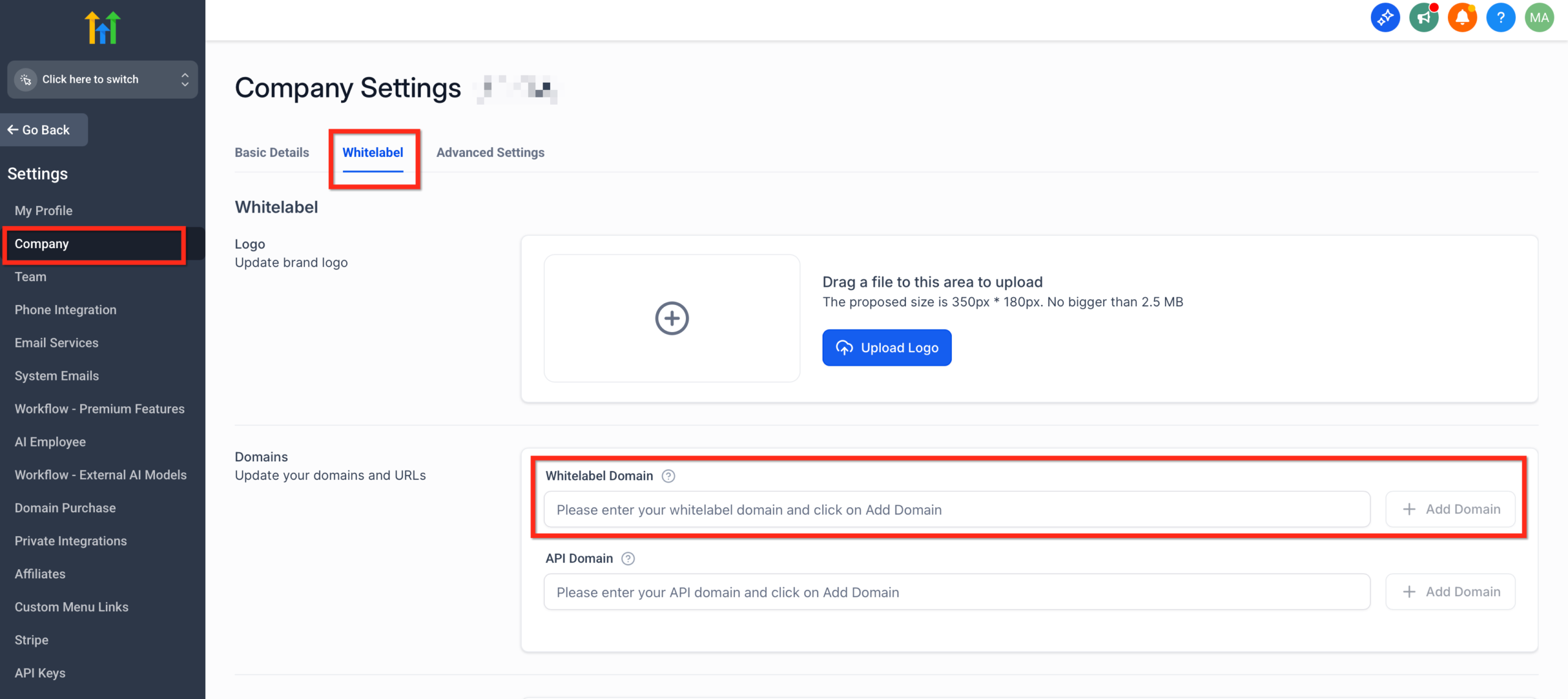
- Enter your full subdomain, for example:
app.yourdomain.com
- Click Update (or Update Company) to save.

That’s all GoHighLevel needs to start listening for traffic on your new domain. Once DNS is fully propagated, HighLevel will automatically attach an SSL certificate so the login page loads over HTTPS.
Updating an existing white label domain
If you’re changing an old white label domain to a new one:
- In Whitelabel Domain, click the trash icon to delete the current value.
- Click Update Company to commit the change.
- Re‑enter your new subdomain (for example
app.newdomain.com). - Click Update Company again and allow time for DNS and SSL to refresh.
This “remove, save, then re‑add” sequence prevents the old domain from sticking in the configuration.
Step 3 – Upload your logo and legal links
Next, brand the login page so it looks like your own SaaS.
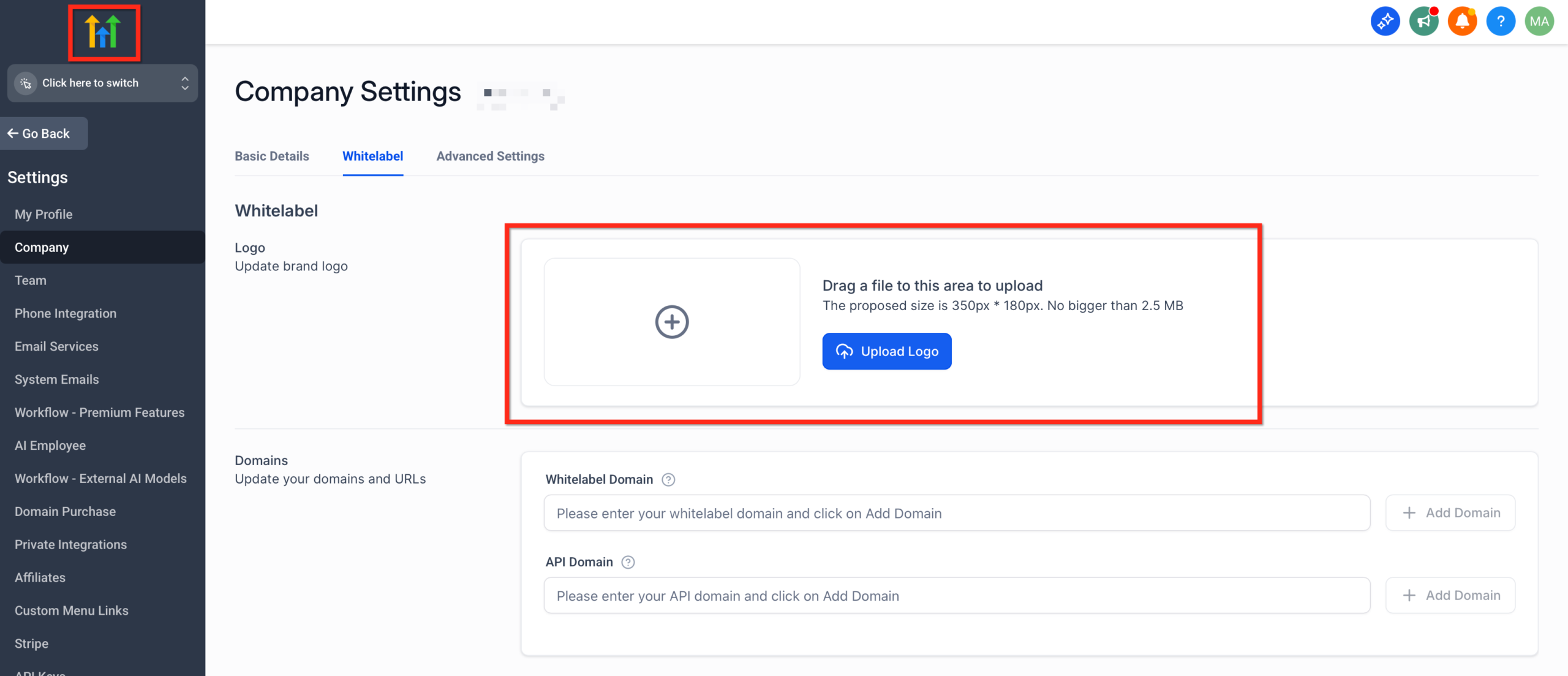
- In Agency View → Settings → Company, locate the logo upload area.
- Upload your agency logo (commonly up to ~350×180 px and under 2.5 MB).
- Add URLs for your Privacy Policy and Terms & Conditions.
- Save your changes.
On the white labeled login page, your clients will now see:
- Your logo instead of GoHighLevel’s.
- Your legal pages in the footer.
- Your own branded URL in the browser bar.
This combination makes the GoHighLevel desktop app feel like a fully branded product your agency built.
Step 4 – Wait for DNS + SSL, then test your branded login URL
DNS and SSL are the final pieces.
- Give DNS some time to propagate. It can be quick, but in some regions it may take up to 30–60 minutes.
- After waiting, visit
http://app.yourdomain.com(HTTP, not HTTPS). HighLevel will automatically redirect to HTTPS once SSL is ready. - Confirm that you see:
- Your login page at your new domain.
- Your logo.
- Your legal links.
If everything looks good, your GoHighLevel white label domain for the desktop web app is live.
Tip: This is a great moment to show clients the new login page on a live call. The “Wow, this is your own platform?” reaction is a huge value driver.
If you haven’t yet committed to GoHighLevel but want to sell your own branded CRM + marketing automation platform, set up an account and follow this same flow: claim your GoHighLevel free trial.
White label domain vs. API domain (branded links)
HighLevel lets you brand two different domains:
- Whitelabel Domain – used for the desktop web app login and app URL (for example
app.yourdomain.com). - API Domain – used for system‑generated links in emails and SMS, including:
- Forms and surveys
- Calendars and booking links
- Trigger links
- Short links
- Review links
To create a fully white‑labeled experience, you’ll eventually want both:
- Whitelabel domain for where people log in and use the app.
- API domain for every link they click from your emails, SMS, and funnels.
You configure the API domain from Agency View → Settings → Company → API Domain, and optionally override it at the sub‑account level when clients need their own branded links.
Troubleshooting common white label domain issues
Even when you follow the steps, DNS and SSL can be finicky. Here are the most common problems and how to resolve them.
The domain isn’t loading at all
Symptoms:
- Visiting
app.yourdomain.comshows a browser error like “Server IP address could not be found” or “This site can’t be reached.”
Checks:
- Make sure you created a CNAME record, not an A record.
- Confirm the Host/Name matches exactly (for example
app, notapp.or the wrong subdomain). - Use a DNS checker (like
dnschecker.org) to verify thatapp.yourdomain.compoints towhitelabel.ludicrous.cloudglobally. - Give propagation more time—some DNS providers cache aggressively.
SSL or HTTPS errors
Symptoms:
- “Your connection is not private.”
- Protocol errors like “The client and server don’t support a common SSL protocol version or cipher suite.”
Checks:
- Confirm there are no conflicting records (like an A record and a CNAME for
app.yourdomain.com). You should have only the CNAME towhitelabel.ludicrous.cloud. - If using Cloudflare, make sure the CNAME is DNS only (gray cloud).
- Check that your browser and device support TLS 1.2 or 1.3, which GoHighLevel requires.
- Wait a bit longer—SSL certificates are issued automatically once DNS is settled.
The old login domain still appears
Symptoms:
- You changed your whitelabel domain, but your browser keeps loading the old URL or design.
Fix:
- In Whitelabel Domain, remove the existing value and click Update Company.
- Re‑enter the new subdomain and save again.
- Clear your browser cache or open an incognito window.
- Wait for DNS and SSL to update, then retest.
Cloudflare keeps causing redirect or SSL issues
If you’re on Cloudflare and running into endless redirects or certificate problems:
- Double‑check that the CNAME is set to DNS only.
- Make sure you’re not forcing HTTPS at the Cloudflare level in a way that conflicts with GoHighLevel’s own redirects.
- Use Cloudflare’s Full or Full (strict) SSL mode rather than Flexible when possible.
Frequently asked questions
Can I use my root domain for the GoHighLevel white label login?
Technically you could, but it’s not recommended. Your root domain (for example youragency.com) is usually best reserved for your main marketing site and SEO content. Use a subdomain like app.youragency.com, login.youragency.com, or portal.youragency.com for the GoHighLevel desktop app.
How long does it take for DNS and SSL to be ready?
In many cases you’ll see the new white label domain working within minutes, but DNS can take up to 24 hours to fully propagate, depending on your provider and caching. SSL certificates are issued automatically by GoHighLevel once DNS is correct—if it’s taking unusually long, recheck that your CNAME points to whitelabel.ludicrous.cloud and that there are no conflicting records.
What’s the difference between the GoHighLevel white label domain and the API domain?
- The white label domain brands the login and app URL for the desktop web app.
- The API domain brands links in emails, SMS, funnels, and widgets (forms, surveys, calendars, short links, review links, trigger links, etc.).
Most agencies should configure both so that every client touchpoint—from the login screen to automated messages—stays on your domains.
Do I need to upload my logo and legal links again for whitelabeling?
Yes. GoHighLevel pulls the branding for your white label login page from your Agency Company settings, not from individual sub‑accounts. Upload your logo and add your Terms & Conditions and Privacy Policy URLs there so every white labeled login page stays consistent.
We use Cloudflare. Should we keep the orange proxy on?
No. For the GoHighLevel white label domain, set the CNAME’s Proxy status to DNS only. Leaving it proxied (orange cloud) can interfere with SSL issuance and cause redirect issues.
Which TLS versions does GoHighLevel support?
GoHighLevel supports TLS 1.2 and TLS 1.3. Very old browsers or devices that don’t support these may not be able to connect over HTTPS.
Turning your white label domain into a real offer
Setting up a white label domain is step one. The real leverage comes from packaging GoHighLevel as your own SaaS offering—complete with branded login, automated onboarding, and revenue‑producing snapshots.
If you’re ready to:
- Launch a white labeled GoHighLevel instance as a recurring revenue product.
- Automate client onboarding, fulfillment, and renewals.
- Build funnels, campaigns, and workflows that actually drive retention.
You can:
- Spin up an account using this link: Launch your GoHighLevel white label instance.
- Partner with Revset Labs, an AI Automation and Marketing Agency, to design the automations, funnels, and in‑app experiences that sit on top of your GoHighLevel stack.
Revset Labs helps agencies turn GoHighLevel into a real SaaS business—without drowning in setup and tech. Once your white label domain is live, you can focus on selling the offer while the platform quietly does the heavy lifting in the background.