Agencies that run on GoHighLevel live and die by how easy it is for clients to take action. A white-labeled mobile app lets your brand sit on your clients’ home screens instead of GoHighLevel’s—so they log in more often, respond faster, and feel like they’re using your platform, not someone else’s.

This guide walks you through how to white label the GoHighLevel Android app, from setting up your Google Play developer account to publishing and promoting your own branded app.
What “White Labeling” the GoHighLevel Android App Actually Means
When you white label the GoHighLevel Android app, you’re not building a mobile app from scratch. Instead, you’re:
- Rebranding GoHighLevel’s existing Android app with your agency’s name, colors, and icon.
- Publishing it under your own Google Play developer account.
- Giving clients a fully branded mobile experience that still runs on GoHighLevel’s infrastructure.
Your clients see your app name, your logo, and your colors—but everything under the hood is powered by GoHighLevel.
If you’re not on GoHighLevel yet and want to follow along with this guide, you can start a free trial here: Start your free GoHighLevel trial.
Prerequisites Before You Start
Before you touch any settings, get these pieces in place. Having them ready will make the white-label process much smoother.
1. The right GoHighLevel setup
You’ll need:
- An active GoHighLevel account (Agency plan or SaaS mode recommended).
- Access to the white-labeled mobile app feature in GoHighLevel.
- Admin access to the account so you can configure branding and submit app details.
If you’re planning to roll this out as part of a SaaS offer, make sure your sub-account structure and default snapshots are already dialed in—your mobile app should reinforce a system that’s been thought through, not a random collection of features.
2. Your brand assets
Prepare the following before you start:
- App name – The public name clients will see in the Play Store and on their home screen.
- Short app description – A one-line summary of what your app helps clients do.
- Full app description – 2–4 paragraphs describing benefits, key features, and who it’s for.
- App icon – Square image (512 × 512 px recommended) that’s simple, readable, and works at small sizes.
- Brand colors – Primary and secondary colors that match your visual identity.
- Screenshots – Clean screenshots of the app experience (GoHighLevel will often provide base assets, but customizing them with your brand where permitted is ideal).
- Privacy policy URL – A publicly accessible page that covers data handling and user privacy.
3. A Google Play developer account
You’ll publish the app under your own Google Play developer account, not GoHighLevel’s. That means Google views you as the publisher.
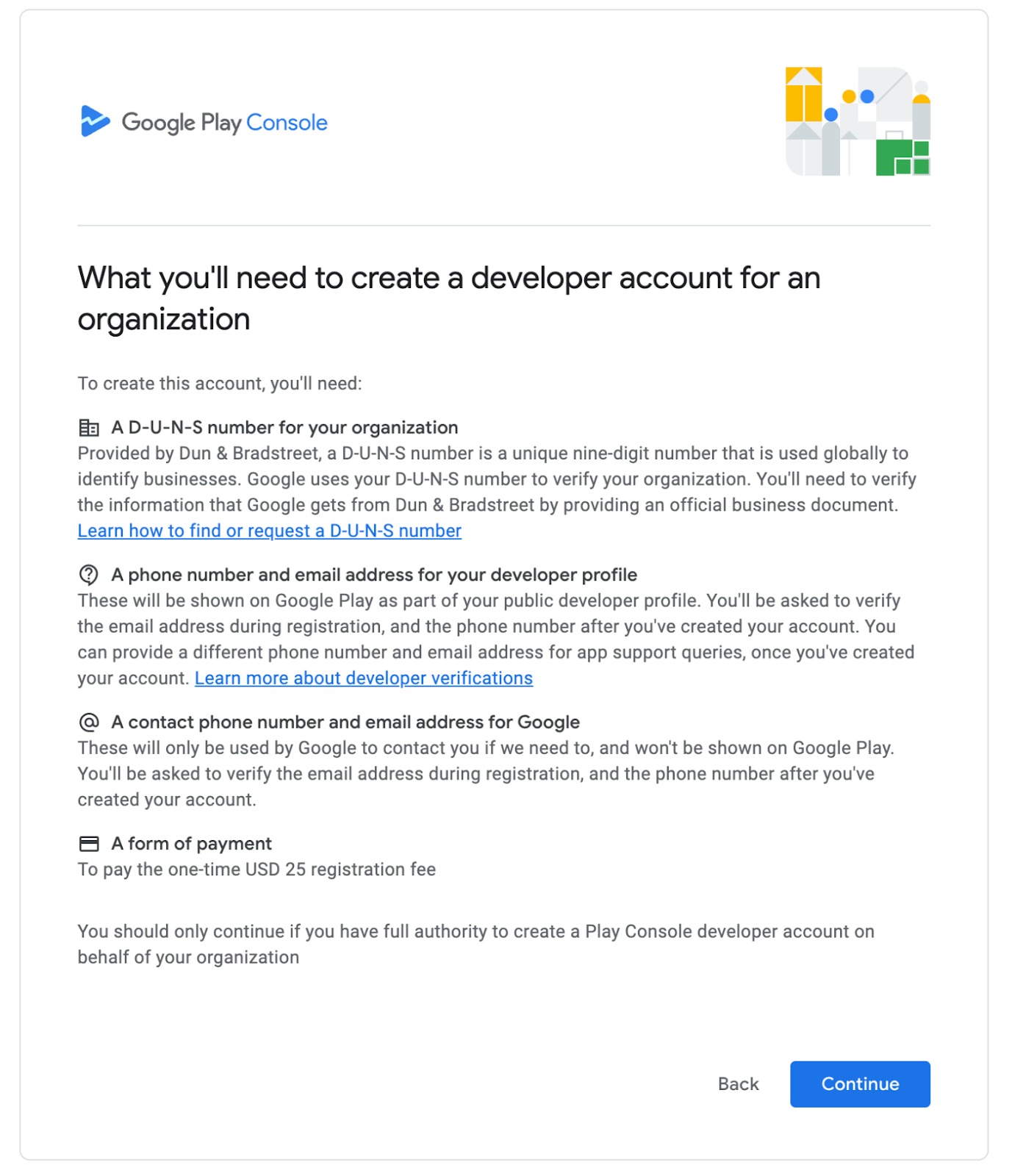
At a minimum, you’ll need:
- A business-based Google account (not a personal Gmail).
- Legal business name and address.
- Business phone number and support email.
- A public-facing website that clearly lists your company details.
- A valid government-issued ID for identity verification.
- A one-time $25 USD registration fee for the Google Play Console.
Once these prerequisites are in place, you’re ready to set up your developer account.
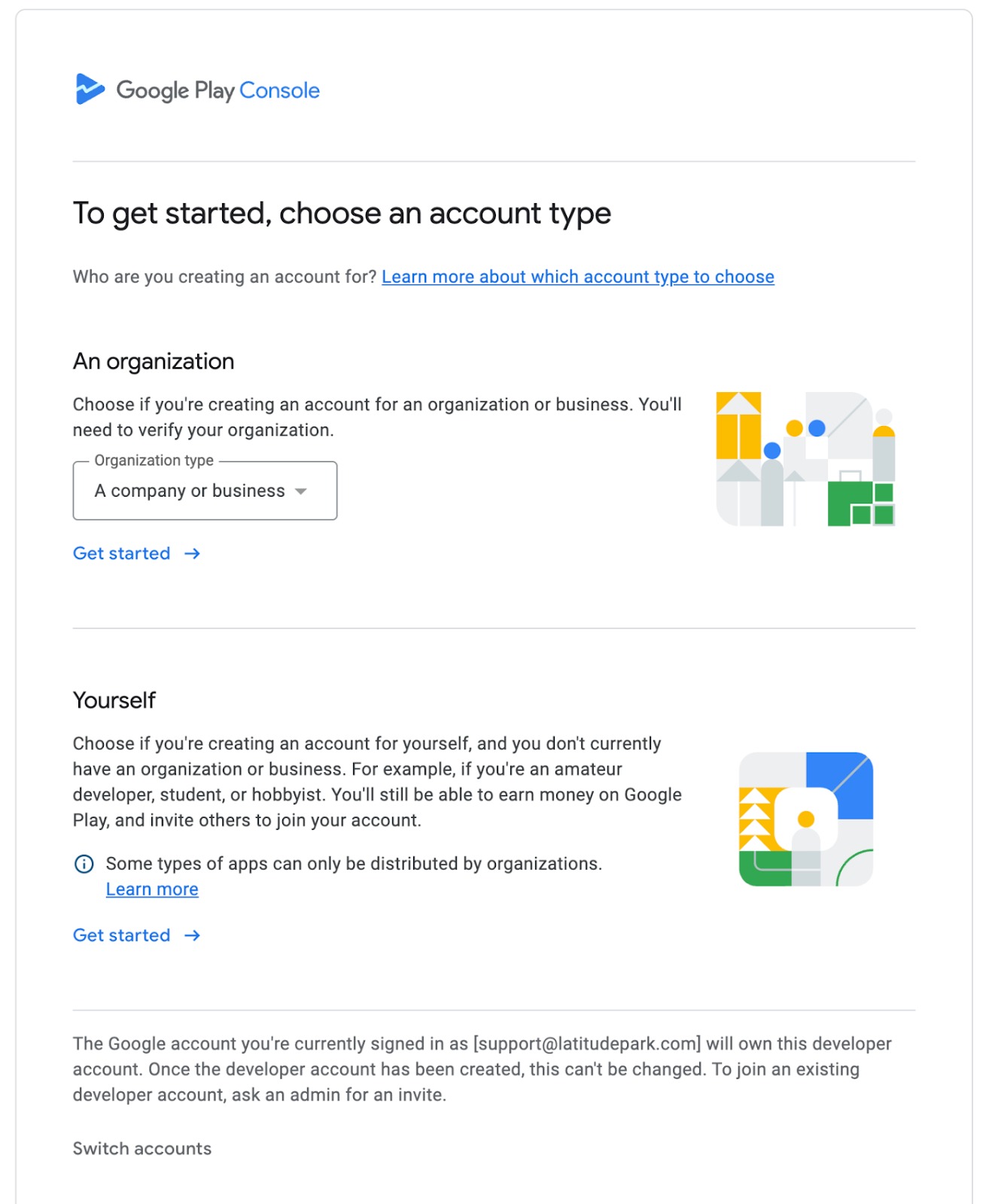
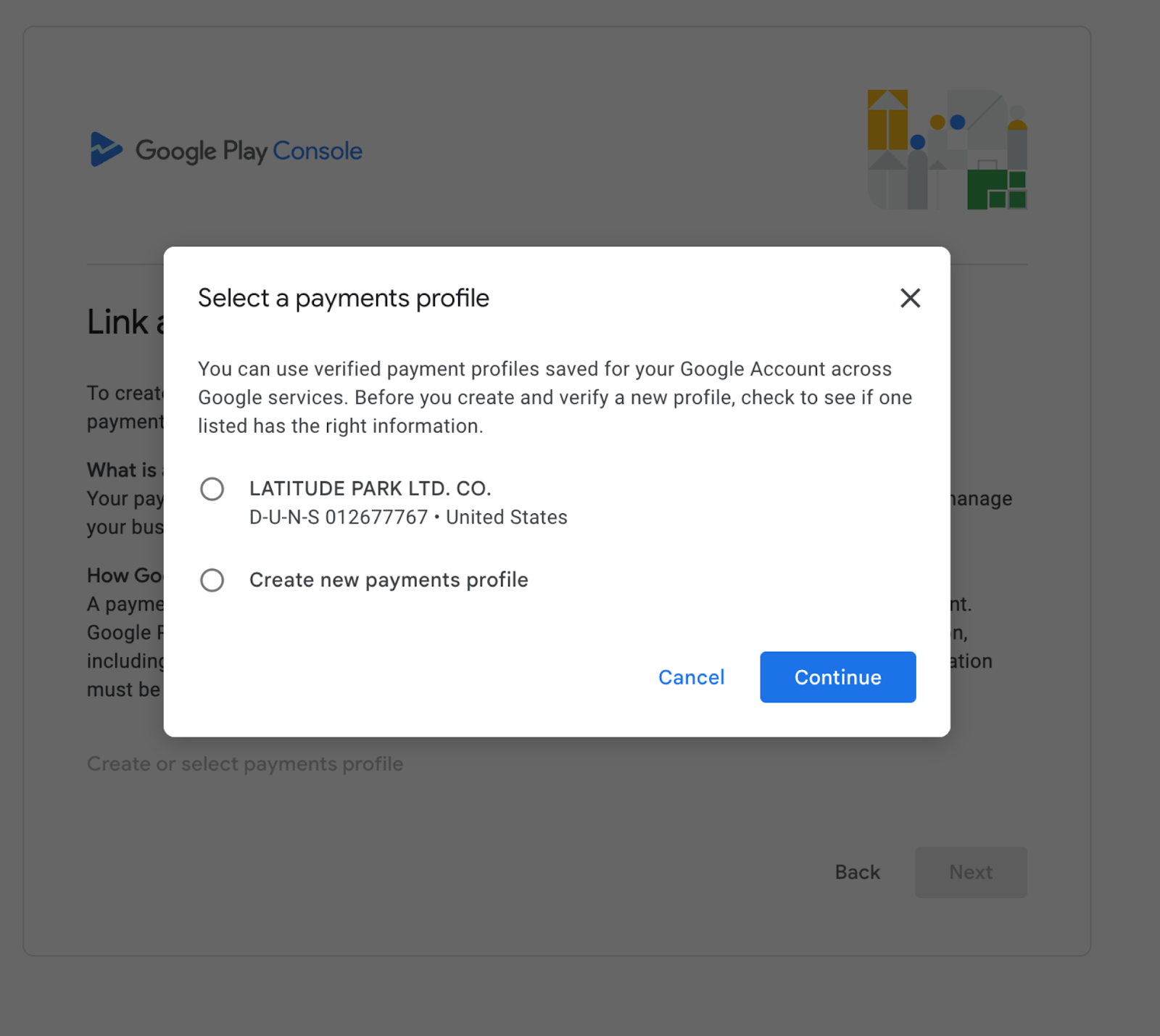
Step 1: Set Up Your Google Play Developer Account
The Google Play Console is where you’ll manage your white-labeled GoHighLevel Android app going forward—store listing, releases, updates, and policy compliance all live here.
Follow these high-level steps:
1. Create or sign in to your Google account
- Go to the Google Play Console.
- Sign in with a dedicated business Google account. Avoid using a personal Gmail—separating business and personal access will save headaches later.
2. Accept the developer agreement and pay the fee
- Read and accept the Developer Distribution Agreement.
- Pay the one-time $25 USD registration fee via credit or debit card.
This unlocks your developer profile but does not fully verify it yet.
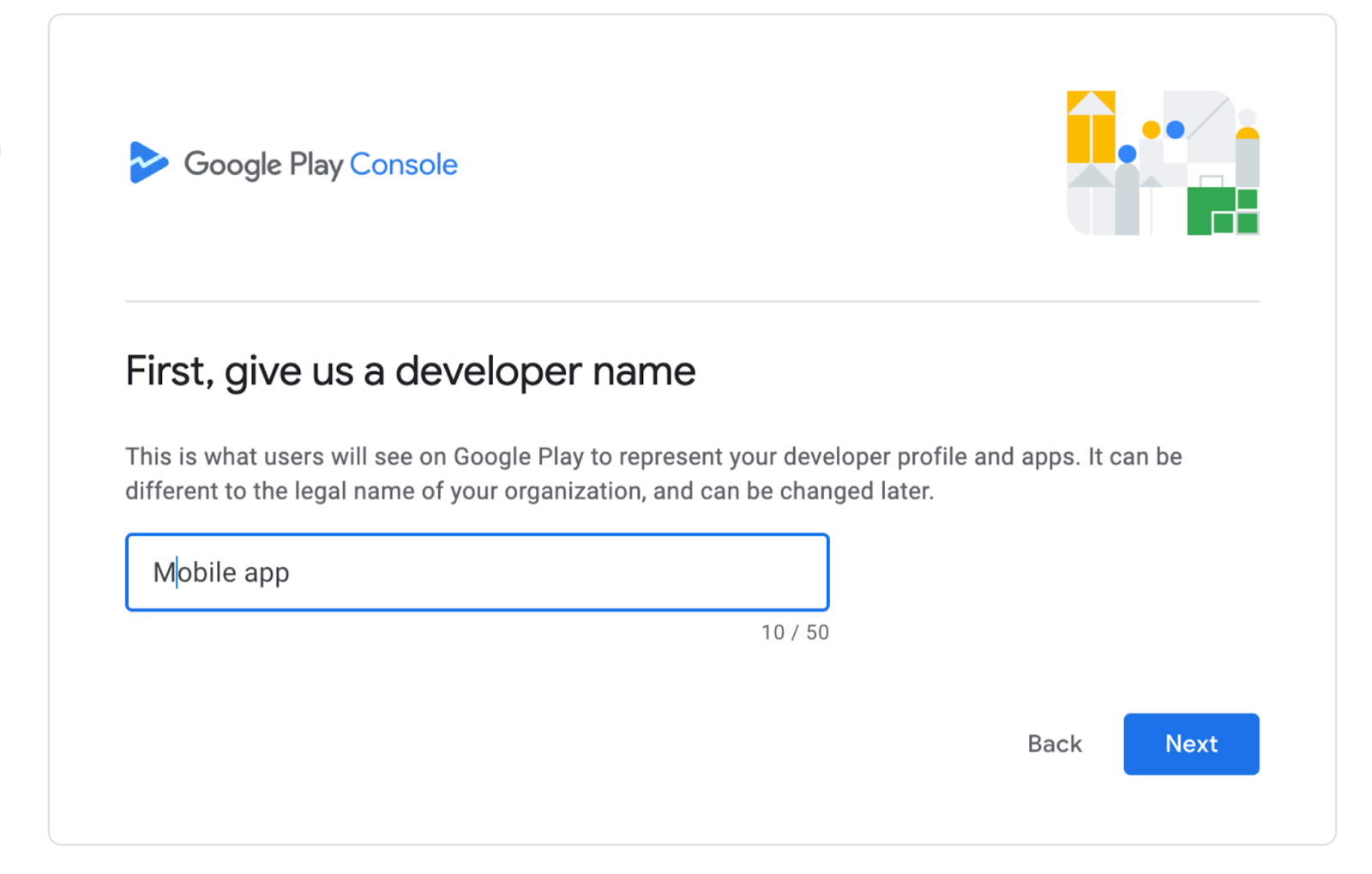
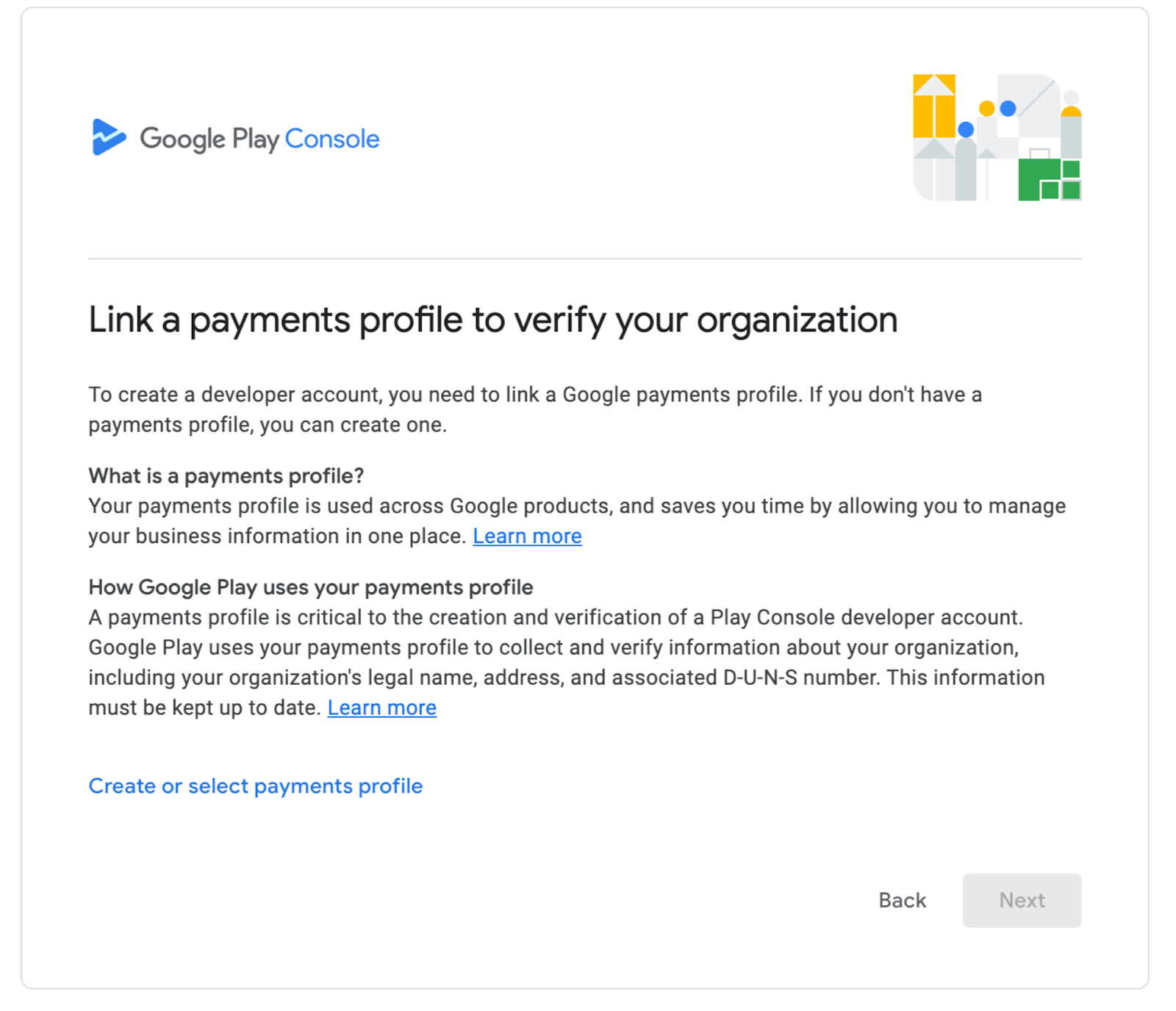
3. Complete your developer profile
Google will ask for:
- Your legal business name (matching your official registration).
- Business address, country, and support contact details.
- A public website URL that accurately represents your business.
Make sure your website:
- Shows your company name and contact information.
- Describes what you do (marketing, CRM, SaaS, etc.).
- Loads reliably and looks legitimate—thin or placeholder sites can slow down verification.
4. Verify your website and identity
Google may require:
- Website ownership verification via Google Search Console.
- Identity verification with a government-issued ID.
Follow the prompts inside the Play Console. Verification can take anywhere from a few hours to 24–48 hours depending on workload and regional checks.
Once approved, your Google Play developer account is ready and you can move on to configuring the app itself.
Step 2: Configure Your White-Labeled GoHighLevel Android App
With your developer account live, the next step is to configure how your white-labeled GoHighLevel app will look and behave.
Inside GoHighLevel, you’ll typically use the white-label mobile app settings or the self-service Whitelabelled Mobile App Customizer to:
1. Set your app name and branding
- Choose an app name that clearly signals your brand and purpose (for example, "Acme CRM" or "GrowthHub Client Portal").
- Confirm how that name appears in the app header, splash screen, and notifications.
- Apply your brand colors to primary buttons, navigation, and highlights while keeping contrast strong for readability.
2. Upload your app icon and splash screen
- Upload a clean, simple icon that still looks sharp at small sizes.
- Avoid long words or tiny text—focus on a bold mark, 1–2 letters, or a simple symbol.
- Configure your splash screen (the screen that appears while the app loads) with your brand colors and, where permitted, your logo or mark.
3. Choose which modules clients can access
Decide what your ideal client experience should include. Common modules are:
- Conversations – For SMS, email, and social DMs.
- Opportunities / Pipelines – For tracking deals.
- Calendars & appointments – For bookings and meetings.
- Contacts – For viewing and managing leads and customers.
Turn on only the pieces that match how you want clients to use the app. A focused, opinionated experience usually performs better than throwing every feature at them.
4. Map the app to your sub-accounts
If you’re running SaaS mode or managing multiple client sub-accounts:
- Confirm how clients log in and which sub-account they land in by default.
- Test with a real client login so you see exactly what they see.
At this point, the branded app shell is ready. Next, you’ll connect it to your Google Play developer account for publishing.
Conversion tip: If you’re still evaluating platforms, this is where GoHighLevel’s white-label power really shines. Instead of funding a custom app build, you can launch a branded experience quickly and invest that saved budget into acquisition and retention. You can start with a free trial here: Launch GoHighLevel with a free trial.
Step 3: Prepare Your App for Review and Publishing
Publishing any app on the Google Play Store involves a store listing, content review, and a production release. GoHighLevel will typically provide the actual app binary; your job is to wrap it in a compliant, conversion-ready listing.
1. Create a new app in the Play Console
In the Google Play Console:
- Click Create app.
- Choose a default language and enter your app name.
- Select App as the app type and choose the appropriate category (for example, Business or Productivity).
- Confirm whether the app is free or paid (GoHighLevel-based apps are usually free for end users since you charge via your own plans).
2. Build a strong store listing
You’ll need to provide:
- Short description – One sentence that explains what clients can do inside the app.
- Full description – 2–4 paragraphs highlighting outcomes (faster follow-up, better pipeline visibility, centralized communication) rather than just features.
- High-quality screenshots – Show real, realistic screens: conversations, pipelines, calendars, dashboards.
- App icon – The same one you configured during branding.
- Feature graphic (optional but recommended) – A banner-style visual that reinforces your brand.
Think of this page as a mini landing page for your SaaS. A well-written description and strong visuals make your brand look established and trustworthy.
3. Complete policy, privacy, and content details
Google will ask you to:
- Provide your privacy policy URL.
- Fill out data safety and permissions forms.
- Complete a content rating questionnaire.
Answer accurately and conservatively. Misrepresenting permissions or data usage is a fast way to get delayed—or rejected.
4. Upload your build and submit for review
GoHighLevel will supply the Android build (typically an .aab file) and instructions on how to connect it to your listing.
Once the build is uploaded and associated with a release:
- Choose your target countries/regions.
- Roll out to production (or start with an internal/closed testing track if you want to test with a few clients first).
- Submit the app for review.
Reviews can take from a few hours to several days depending on your region and app category. Keep an eye on Play Console notifications for any requested changes.
Step 4: Roll Out and Promote Your White-Labeled App
Once your app is approved, the real leverage comes from how you roll it out.
1. Add the app to your onboarding flows
- Include the Play Store link in your welcome emails and onboarding checklists.
- Add a step in your onboarding forms that asks clients to download the app and log in at least once.
- Record a short Loom-style walkthrough showing clients exactly how to use the app for key workflows.
2. Automate promotion inside GoHighLevel
Use GoHighLevel automations so the app becomes part of your default experience:
- Trigger an email + SMS with the app link whenever a new sub-account is created.
- Add the app link to your Launchpad or main dashboard so it’s always visible.
- Build a quick re-engagement campaign targeting users who haven’t logged in via mobile recently.
3. Train your team to sell the app as a value-add
Your white-labeled app is a retention asset. Make sure your sales and success teams know how to position it:
- As a way for clients to manage leads from anywhere.
- As proof that your agency runs on a serious platform, not duct-taped tools.
- As justification for higher retainers or SaaS fees.
Best Practices and Common Pitfalls
To keep your white-labeled GoHighLevel Android app approved, stable, and useful, keep these best practices in mind.
Keep your branding simple and legible
- Avoid overly busy icons or tiny text.
- Use strong contrast between background and text.
- Test how everything looks on smaller, older devices—not just a high-end phone.
Stay ahead of Google policy changes
- Watch for Play Console alerts about privacy, permissions, and data safety updates.
- Keep your privacy policy up to date and aligned with how GoHighLevel handles data.
Test before rolling out widely
- Start with your own account and a small group of power users.
- Confirm logins work as expected for all sub-account types.
- Make sure push notifications behave the way you intend.
Don’t oversell features clients won’t use
A focused, easy-to-navigate app beats a cluttered one. Turn off modules that don’t directly support your core use cases.
Where Revset Labs Fits In
If you want the benefits of a white-labeled GoHighLevel Android app without getting buried in technical details, Revset Labs can help.
As an AI automation and marketing agency, Revset Labs can:
- Design a clean, on-brand mobile experience that matches your funnel and offer.
- Configure GoHighLevel, snapshots, and automations so the app feels like part of a cohesive system.
- Build onboarding and re-engagement campaigns that drive real usage—not just downloads.
You bring the niche and offer. Revset Labs helps you turn it into a scalable, mobile-ready platform powered by GoHighLevel.
If you’re ready to turn GoHighLevel into a fully branded, mobile-first experience, start with a free trial today: Get started with GoHighLevel.
Quick FAQ: White-Labeling the GoHighLevel Android App
Do I need to build an app from scratch?
No. You’re customizing GoHighLevel’s existing mobile app with your brand and publishing it under your own developer account.
Can I charge extra for access to the app?
Yes. Many agencies package the white-labeled app into higher-tier retainers or SaaS plans. Just make sure your pricing aligns with the value you’re delivering.
What happens if my account or app is suspended?
Google can remove apps that violate policies, and GoHighLevel can enforce its own terms of service. Stay compliant with both sets of rules, keep your privacy policy accurate, and avoid misleading claims in your store listing.
How long does it take to get approved?
Assuming your developer account is verified and your listing is complete, most straightforward business apps are reviewed within a few days. Complex permission requests or missing information can slow things down.