
Most agencies treat GoHighLevel snapshots as a one-time setup tool. But the real leverage comes when you can safely load a new snapshot into an existing sub-account without breaking what’s already working.This guide walks you through a clean, low-risk process for loading a snapshot into an existing GoHighLevel sub-account, plus the strategy behind when and how to use snapshots as part of your overall system design.If you’re still evaluating platforms, you can start a free GoHighLevel trial and follow along in your own account.## Why load a snapshot into an existing sub-account?Snapshots let you clone a complete GoHighLevel setup—funnels, automations, pipelines, calendars, email/SMS campaigns, and more—into another sub-account.For existing sub-accounts, this is useful when you:* Roll out a new offer or service and want to drop in a proven funnel and automation pack.* Standardize all clients onto an updated “agency operating system” without rebuilding from scratch.* Rescue messy accounts by layering in a clean structure while keeping live data intact.Done well, snapshots save weeks of implementation time and make your agency dramatically more scalable. Done poorly, they can overwrite live assets and confuse your team.## Before you load a snapshot: prep and risk managementBefore you click Load Snapshot, slow down and get a few basics in place:1. Clarify the goal for this sub-account. * Are you adding a new funnel, updating pipelines, or replacing an entire setup? * Decide upfront which parts of the snapshot you actually need.2. Audit what’s already live. * List key assets you must protect: live funnels, calendars, pipelines, automations, and integrations. * Note any naming conventions or custom objects you rely on today.3. Decide when you’re comfortable overriding. * If the existing account is a sandbox, you can safely override more. * If this is a mature, revenue-generating account, plan to skip most conflicts and manually merge later.4. Confirm you have the right permissions. * From the Agency view, make sure your user role can load snapshots. * If you don’t see the Load Snapshot option later, an admin will need to enable it under User → Roles & Permissions.If you’d rather not own this risk yourself, Revset Labs—an AI automation and marketing agency—can design a snapshot strategy, map your current systems, and handle safe deployment into production accounts.## Step-by-step: load a snapshot into an existing GoHighLevel sub-accountThe high-level flow looks like this:1. Manage Client2. Actions → Load Snapshot3. Pick Snapshot4. Select Assets5. Resolve Conflicts (Override vs Skip)6. Confirm & MonitorUse this as a checklist alongside the in-app flow (see the snapshot loading diagram for a visual reference).### 1. Open the correct sub-account from Agency view1. Log in to GoHighLevel and switch to Agency View.2. In the left-hand menu, click Sub-Accounts.3. Find the sub-account you want to update.4. Click the three-dot menu to the right of that sub-account and select Manage Client.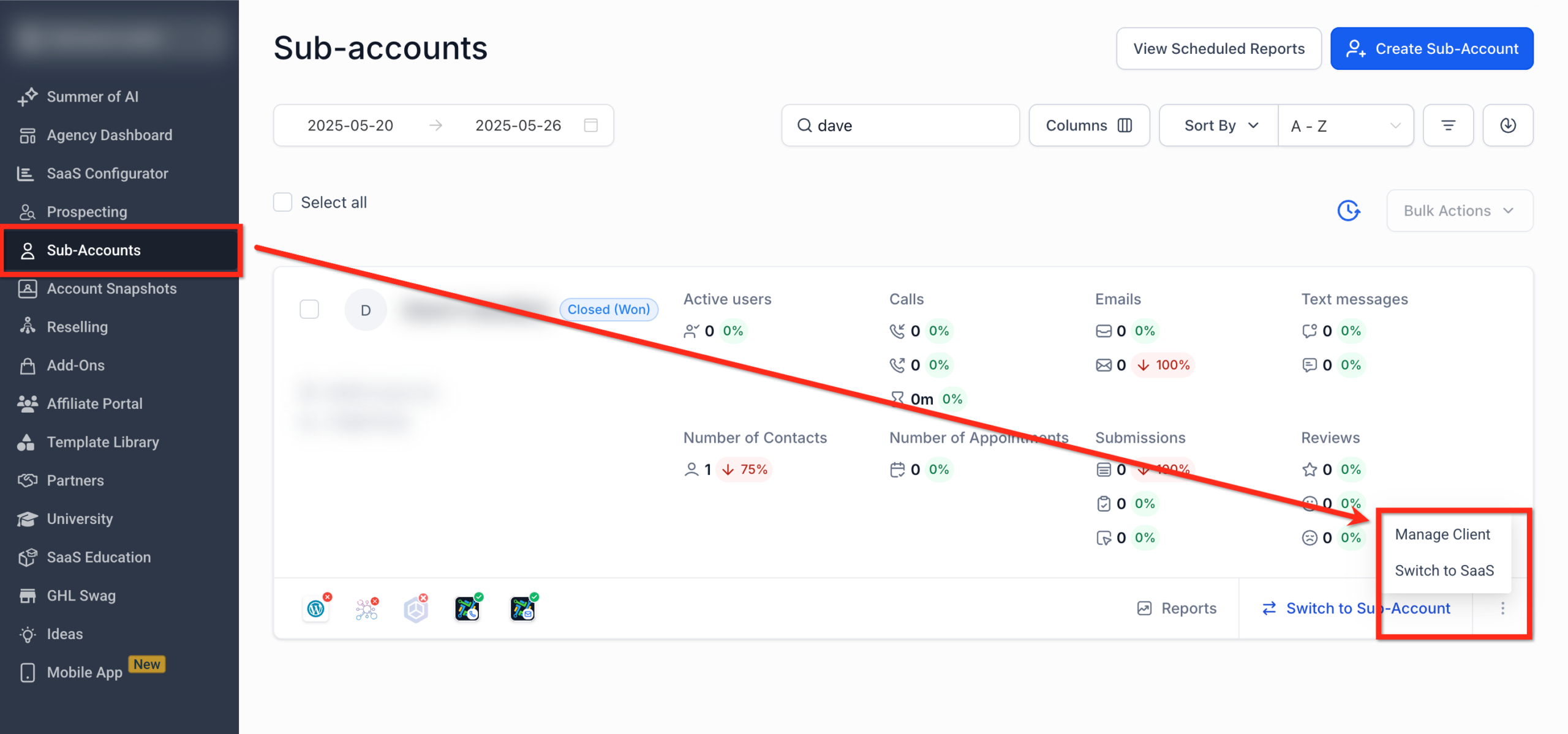 You’re now inside the client’s sub-account where the snapshot will be applied.### 2. Use Actions → Load Snapshot1. In the top-right corner, click the blue Actions button.2. Choose Load Snapshot from the dropdown.
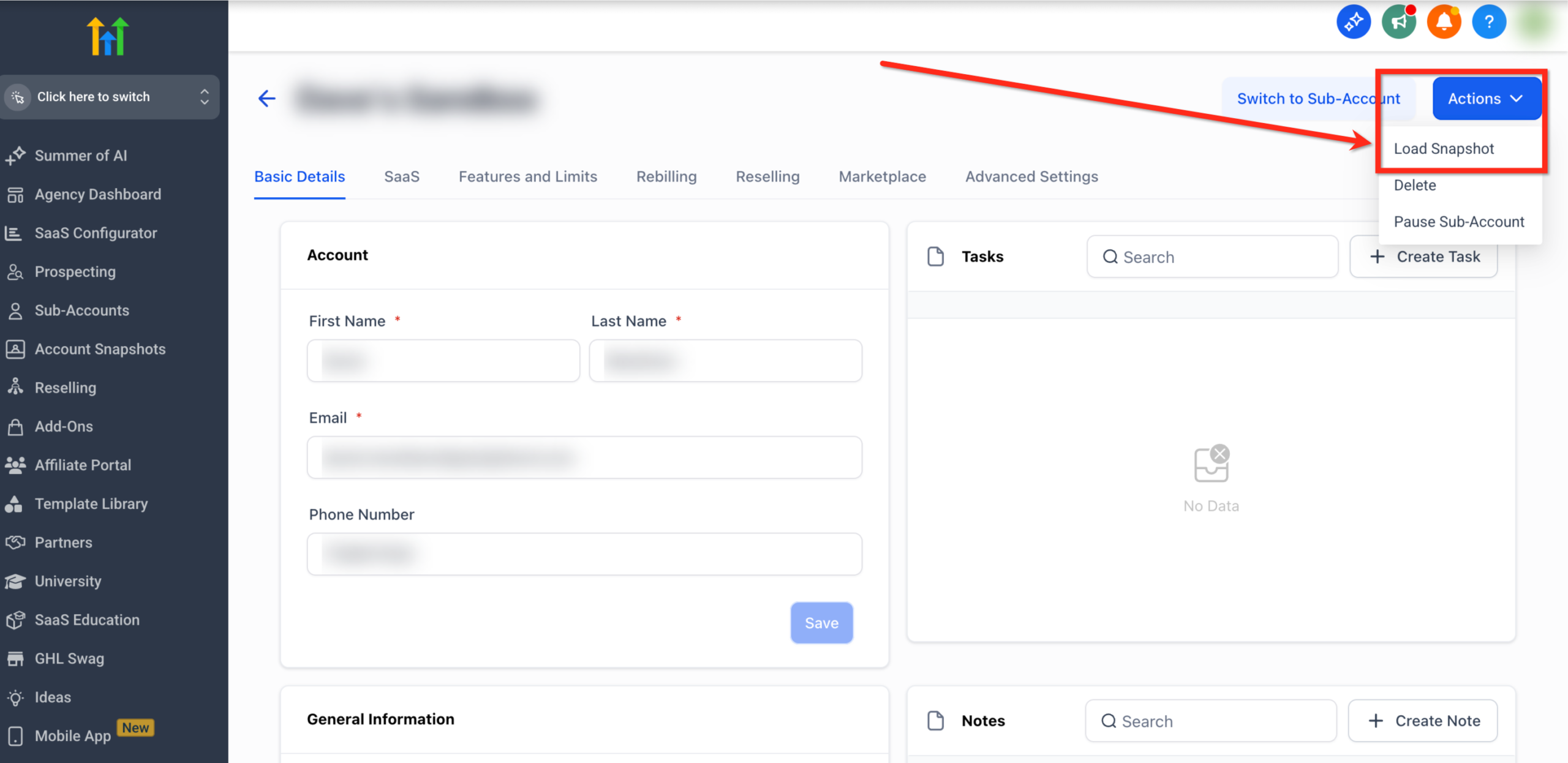 If you don’t see Load Snapshot here, you likely don’t have the correct permissions at the agency level. Ask your agency owner or admin to enable snapshot access for your role, then return to this step.### 3. Pick the snapshot you want to load1. In the Load Snapshot popup, open the Pick a Snapshot dropdown.2. Select the snapshot you want to import into this sub-account.3. Click Proceed.
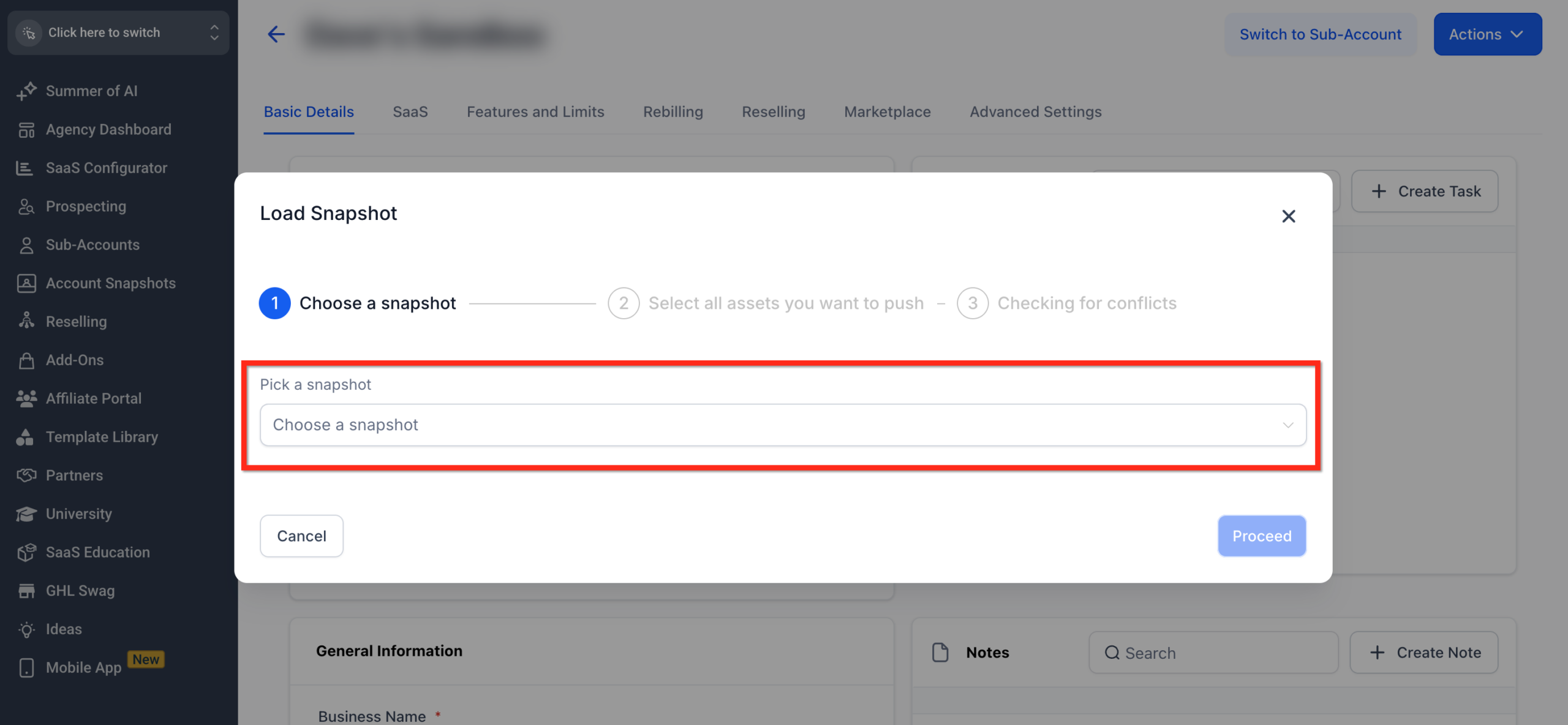 Best practices when choosing a snapshot:* Use clear naming like
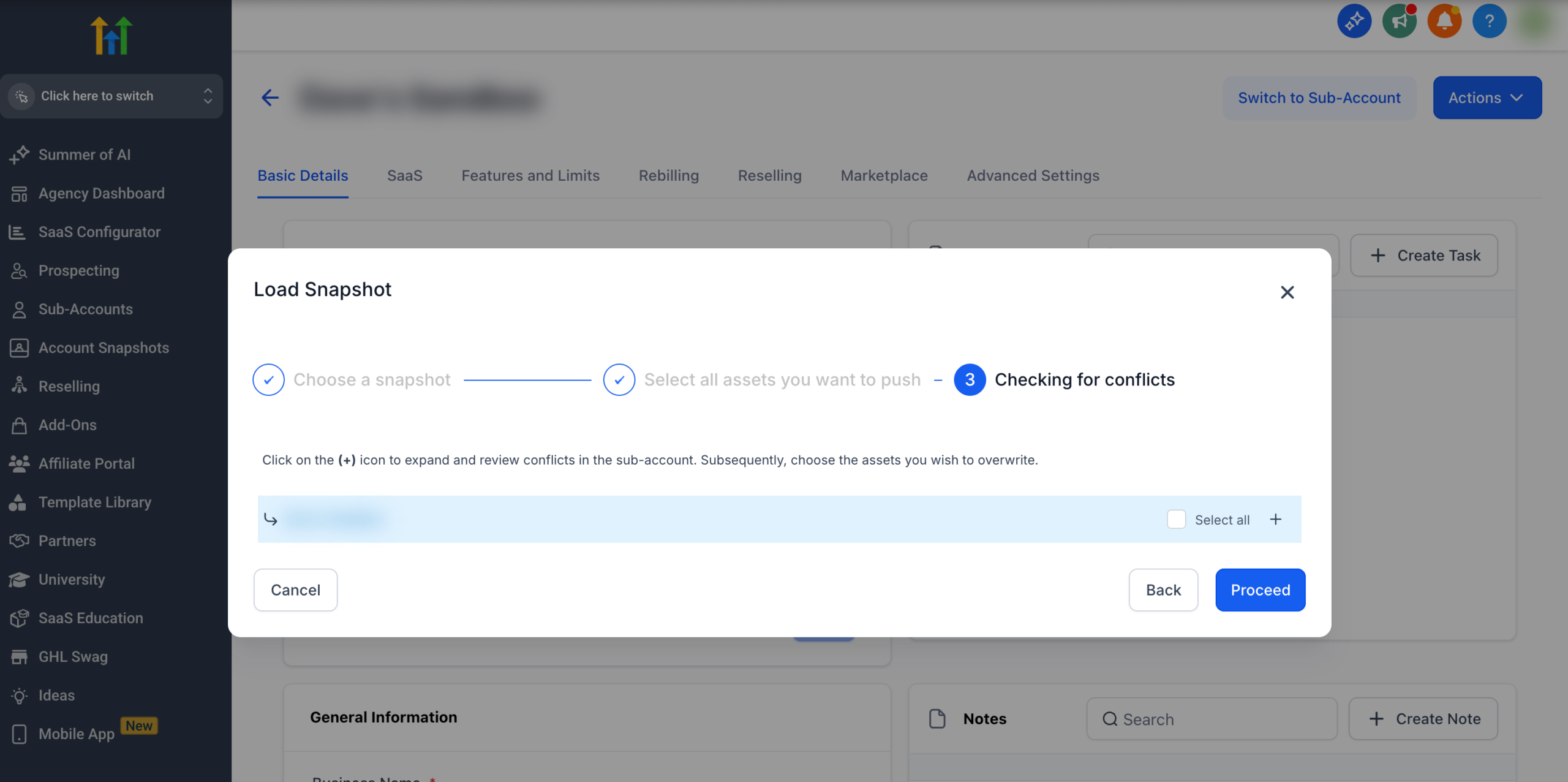
 SAAS Onboarding v2 – 2026-02 so it’s obvious which version you’re using.* Maintain a short description that explains what’s inside and who it’s for.* Keep a separate “dev” or “beta” version of snapshots you’re still testing.New to GoHighLevel and snapshots? You can spin up your own free GoHighLevel trial and start building a reusable snapshot library for your offers.### 4. Select which assets to importNext, you’ll see a list of all the assets included in the snapshot.You can:* Select All – import every available asset from the snapshot.* Select by section – check only the categories you need (for example, Funnels, Workflows, Calendars).* Drill down – click the + icons to expand a category and select individual assets.For existing sub-accounts, importing only what you need is usually safer than importing everything. A few guidelines:* If the client already has funnels and campaigns live, start with just the new funnels, workflows, and pipeline settings you’re adding.* If you’re performing a full rebuild, you may intentionally select all assets and rely on the conflict resolution step to control overrides.When you’re happy with your selections, click Proceed.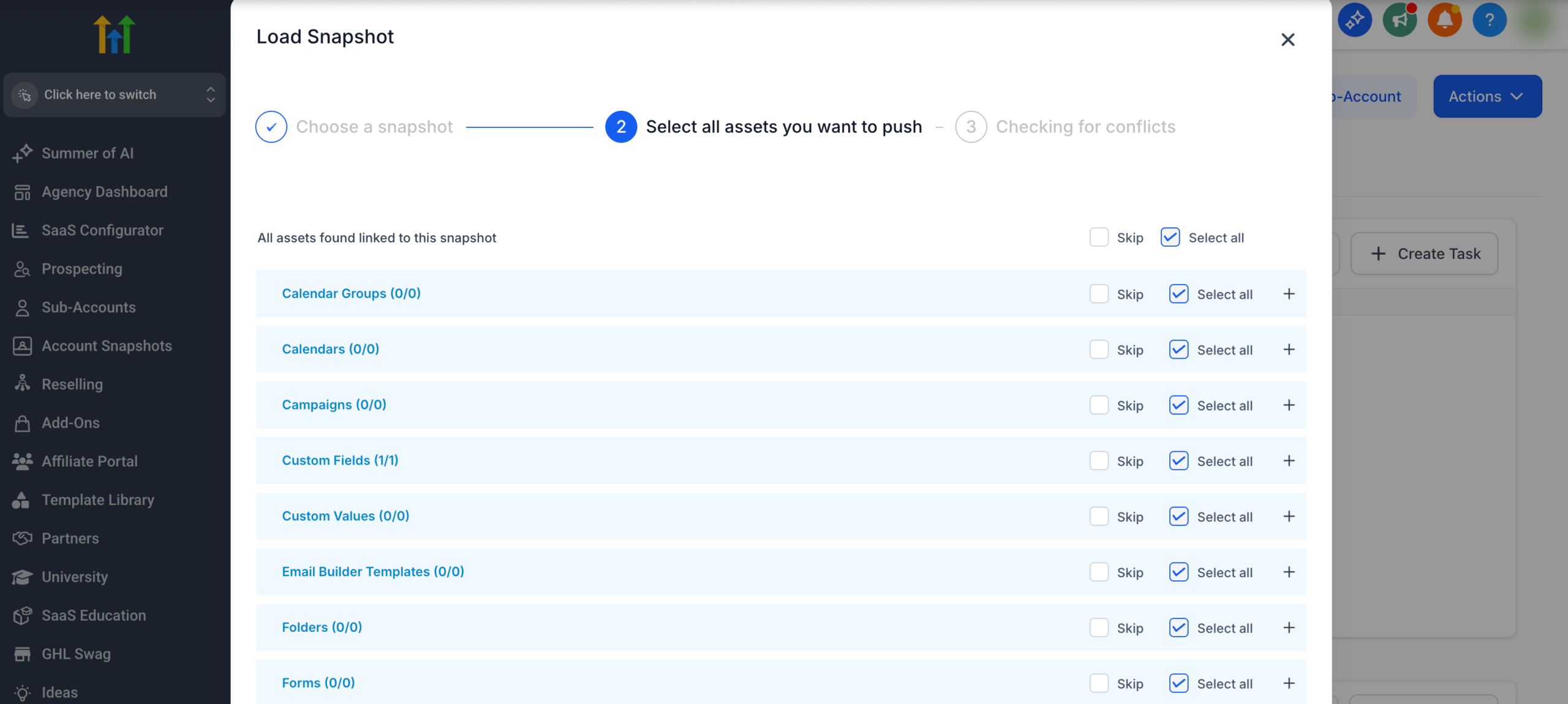 ### 5. Resolve conflicts (Override vs Skip)GoHighLevel will now compare the snapshot assets with what already exists in the sub-account and surface any conflicts—for example, an identical funnel name or a workflow with the same ID.For each conflict you can:* Override – replace the existing asset in the sub-account with the version from the snapshot.* Skip – keep the current asset and do not import the conflicting snapshot item.How to think about conflicts:* If the sub-account is new or lightly used, it’s often safe to override.* If the sub-account is mature and driving revenue, lean toward skipping and manually merging later.* Where naming is ambiguous, rename snapshot assets before the next deployment so it’s obvious what’s being applied.Take your time here—this is the key step that keeps snapshots from breaking live systems.
 ### 6. Confirm and monitor the importOnce you’re confident in your selections:1. In the confirmation prompt, type
 confirm.2. Click the blue Proceed button to start the import.3. Watch for the success notification that the snapshot is being pushed into the sub-account.4. Keep an eye on your email for a confirmation that the transfer is complete.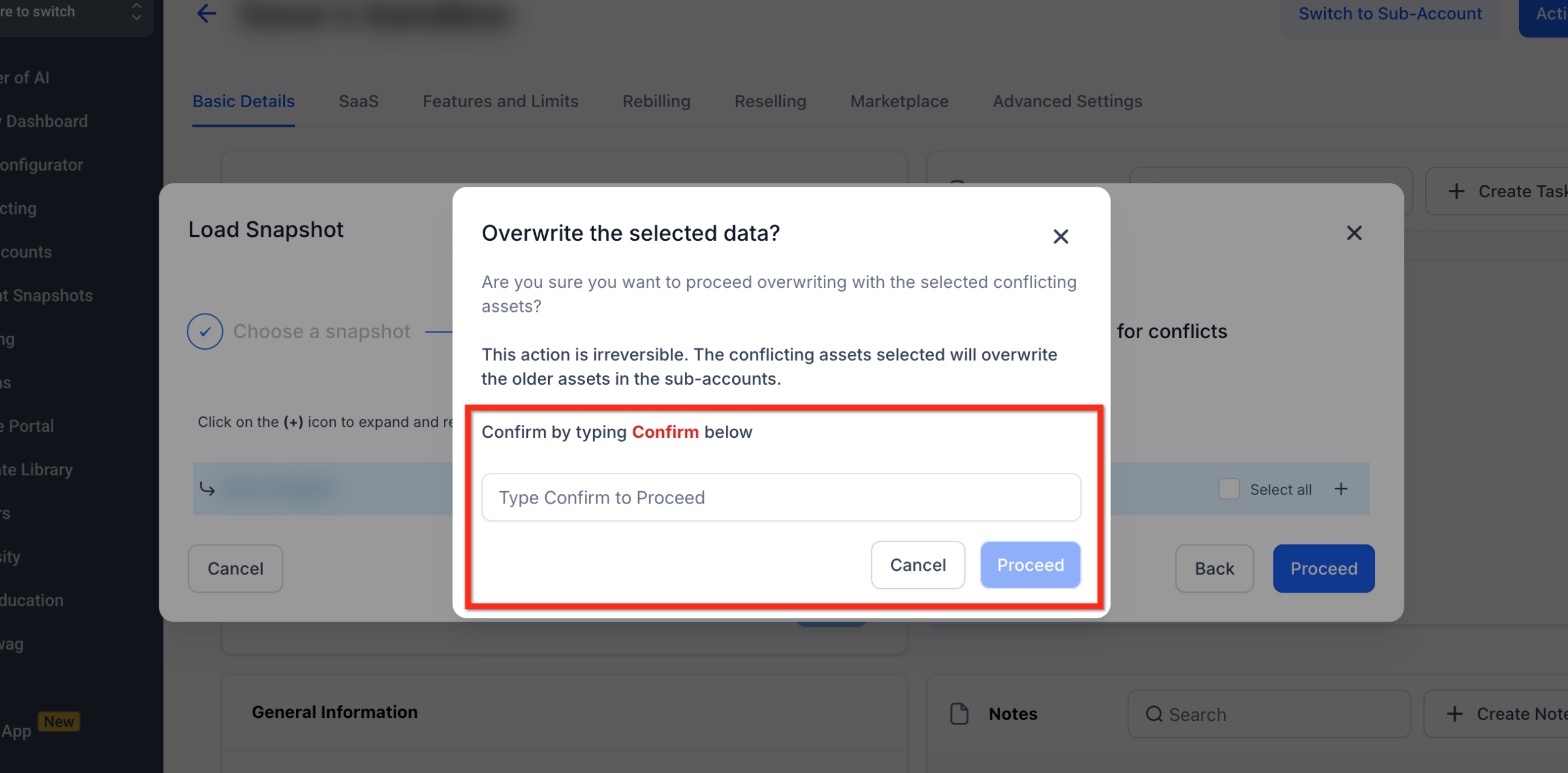 After the import finishes:* Test key user journeys (funnel opt-ins, calendar bookings, pipeline movements, automations).* Confirm that any critical live assets (like core pipelines or calendars) still behave as expected.* Document what changed in this sub-account so your team knows which parts now follow the new snapshot standard.## Real-world use cases and best practicesHere are a few scenarios where loading snapshots into existing sub-accounts is especially powerful:* Rolling out a new offer across your client base. * Build one complete funnel + automation snapshot. * Load it into each existing client sub-account. * Customize copy and offers per client without rebuilding the underlying system.* Standardizing pipelines and reporting. * Use snapshots to ship a consistent pipeline structure, opportunity stages, and reporting dashboards. * Load that snapshot into every client that needs unified reporting.* Rescuing messy legacy accounts. * Create a clean "golden template" snapshot. * Load it into older accounts, skipping conflicts where you need to preserve legacy assets. * Gradually migrate live campaigns onto the new structure.A few additional best practices:* Keep a change log for each sub-account whenever you load a snapshot.* Maintain a staging sub-account where you can test new snapshots before touching production.* Schedule snapshot loads during low-traffic windows to reduce risk.## Where GoHighLevel and Revset Labs fit into your systemGoHighLevel gives you the all-in-one SaaS infrastructure—CRM, funnels, automations, and communications. Snapshots are how you scale that infrastructure across dozens or hundreds of sub-accounts without losing your mind.Revset Labs works alongside that platform as your AI automation and marketing partner. We help agencies and businesses:* Design "golden" GoHighLevel snapshots that match your offers and fulfillment model.* Automate how those snapshots are maintained and deployed as your strategy evolves.* Build revenue-focused funnels and follow-up sequences that plug directly into your snapshot library.If you want done-for-you implementation instead of wrestling with setups yourself, consider pairing a GoHighLevel trial with a Revset Labs engagement so you launch with a scalable, automation-first foundation.## FAQs: loading snapshots into existing sub-accounts### Will loading a snapshot delete my current data?No. Loading a snapshot does not automatically delete everything in the sub-account. Existing assets are only replaced when you choose Override on a conflict. If you select Skip, your current version is preserved and the conflicting snapshot asset is not imported.### Can I load multiple snapshots into the same GoHighLevel sub-account?Yes. You can load more than one snapshot into the same sub-account. Each time, you’ll walk through asset selection and conflict resolution. Be especially careful when snapshots contain overlapping funnels, workflows, or pipelines—plan your overrides and skips ahead of time.### What happens if I accidentally override an asset I needed to keep?Overrides are effectively permanent inside that sub-account—there’s no one-click "undo." If you override something critical, your options are to:* Rebuild or restore the previous asset manually (for example, from another sub-account that still has the old version).* Load a different snapshot that contains the older version and selectively import it.This is why it’s so important to test in a staging account first and to be deliberate during the conflict resolution step.### Can I preview what’s in a snapshot before I load it?There’s no full in-app preview of every asset in a snapshot today. However, you can:* Load the snapshot into a test sub-account first and explore the assets there.* Maintain your own documentation (or Loom walkthroughs) for what each snapshot contains.Both approaches make it much easier to decide what to import versus skip in production accounts.### Do I need a separate sub-account just to test snapshots?You don’t have to—but it’s strongly recommended. A dedicated staging or internal account lets you:* Safely test new snapshots and updates.* Standardize naming and structure before pushing changes to clients.* Train your team on the new flows without touching live revenue.Once everything looks solid in staging, you can confidently repeat the same Load Snapshot → Select Assets → Resolve Conflicts → Confirm process in your client sub-accounts.
