
Why refreshing GoHighLevel snapshots actually matters
Snapshots are the backbone of a scalable GoHighLevel agency.

They let you clone entire client setups—funnels, workflows, pipelines, calendars, forms, and more—into new sub-accounts in a few clicks. But there’s a catch: your snapshot is only as good as the last time you refreshed it.
If you’re constantly improving your automations, funnels, and campaigns inside a client sub-account but never refresh the source snapshot, every new account you spin up is:
- Missing your latest optimizations
- Carrying old copy, outdated offers, or broken automations
- Slowing the team down because someone has to “fix things after import”
This guide walks you through exactly how to refresh or update snapshots in GoHighLevel, what happens behind the scenes, and how to safely push updates to existing client accounts—without breaking live workflows.
If you’re not on GoHighLevel yet and want a platform built for agencies, you can start a free GoHighLevel trial here.
Quick recap: what GoHighLevel snapshots are
In GoHighLevel, a snapshot is a reusable template of a sub-account. It can include, for example:
- Funnels and websites
- Workflows and legacy campaigns
- Triggers and automations
- Pipelines and opportunity stages
- Calendars and booking settings
- Forms, surveys, and custom fields
- Tags, templates, and other configuration
Instead of rebuilding all of this for every new client, you:
- Perfect the setup inside one sub-account.
- Capture it as a snapshot.
- Import that snapshot into new sub-accounts.
Over time, you’ll keep improving that “source of truth” account. That’s why learning to refresh and push updates from your snapshots is so important.
When you should refresh a snapshot
You don’t need to refresh snapshots for every tiny cosmetic tweak, but you should refresh when:
- You’ve improved a core workflow (for example, added better logic to a lead nurture sequence).
- You’ve changed offers, pricing, or pipelines that are part of your standard template.
- You’ve added new funnels, forms, or calendars that every client should have by default.
- You’ve cleaned up tags, custom fields, or automations and want new accounts to start from the cleaner version.
A solid baseline: any time you’d be annoyed if a new client didn’t get the latest version, refresh the snapshot.
If you’re just getting started and don’t yet have a GoHighLevel account, you can spin up a new GoHighLevel workspace here.
How to refresh a snapshot in GoHighLevel (step-by-step)
Follow these steps from inside your agency account.
1. Go to Agency View
- Log in to GoHighLevel.
- Switch to Agency View (not a specific sub-account).
2. Open Account Snapshots
In the left-hand navigation, click Account Snapshots.
You’ll see a list of existing snapshots, typically named by niche or use case (for example, Real Estate Onboarding, Local Lead Gen, Coaching Funnel).
3. Choose the snapshot you want to refresh
Find the snapshot that represents the “template” you’ve been improving.
- Confirm it’s the correct one (check name, description, and which sub-account it was built from).
4. Click the Refresh icon
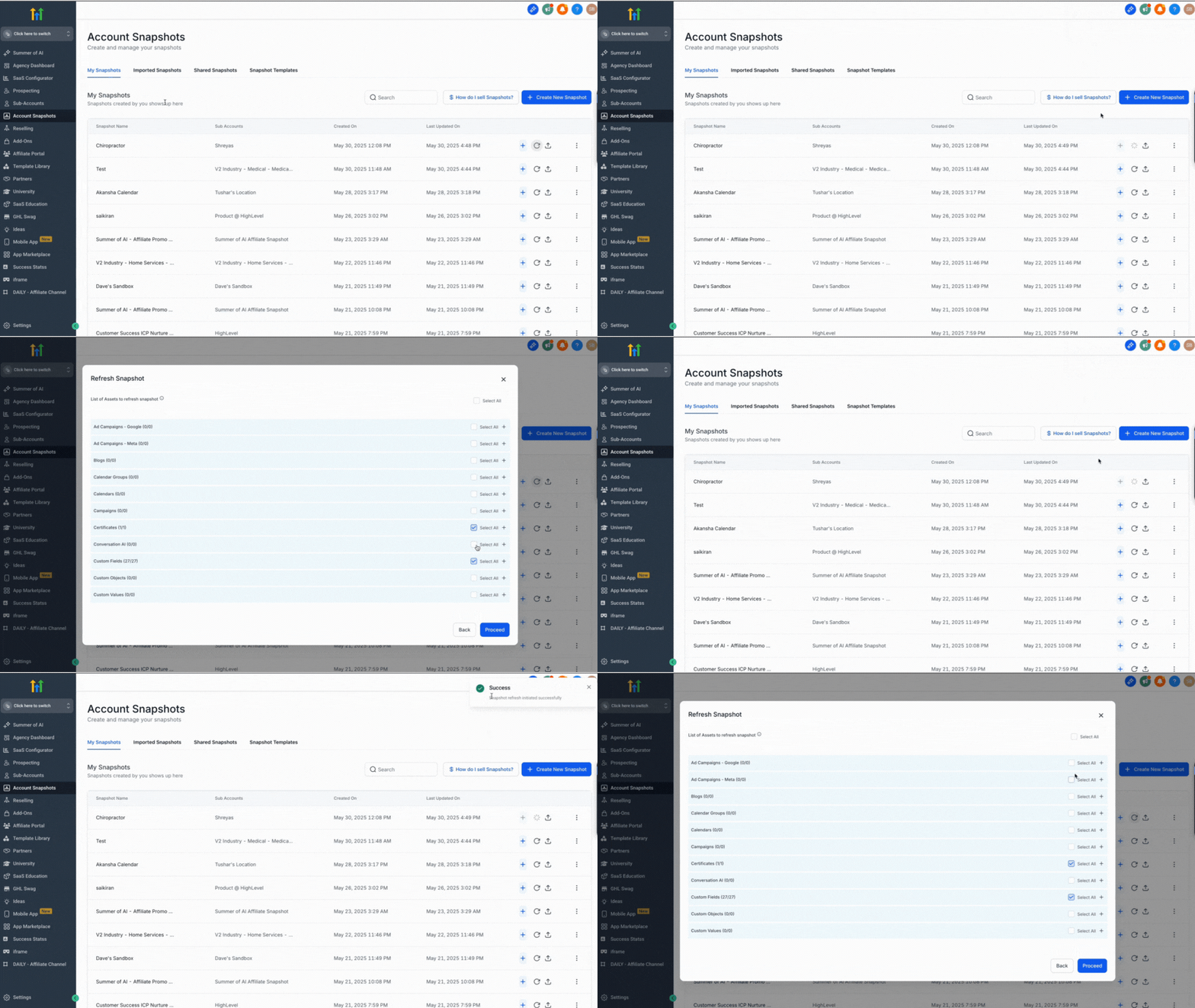
Next to the snapshot, click the Refresh icon (circular arrow).
GoHighLevel will scan the linked sub-account to detect new or modified assets since the last snapshot refresh.
5. Select which assets to include
You’ll now see a list of assets that can be added or updated in the snapshot, such as:
- New or edited workflows
- Funnels and websites
- Forms, surveys, calendars
- Pipelines and opportunity stages
Select the assets you actually want to fold into the snapshot. This is your chance to:
- Include only production-ready workflows.
- Exclude experimental funnels or in-progress automations.
6. Confirm and run the refresh
Click Refresh to start the process.
During the refresh you’ll see a progress indicator and a count of how many assets are being loaded. Behind the scenes, GoHighLevel creates an updated version of your snapshot that includes the assets you selected.
What happens if assets fail during a snapshot refresh?
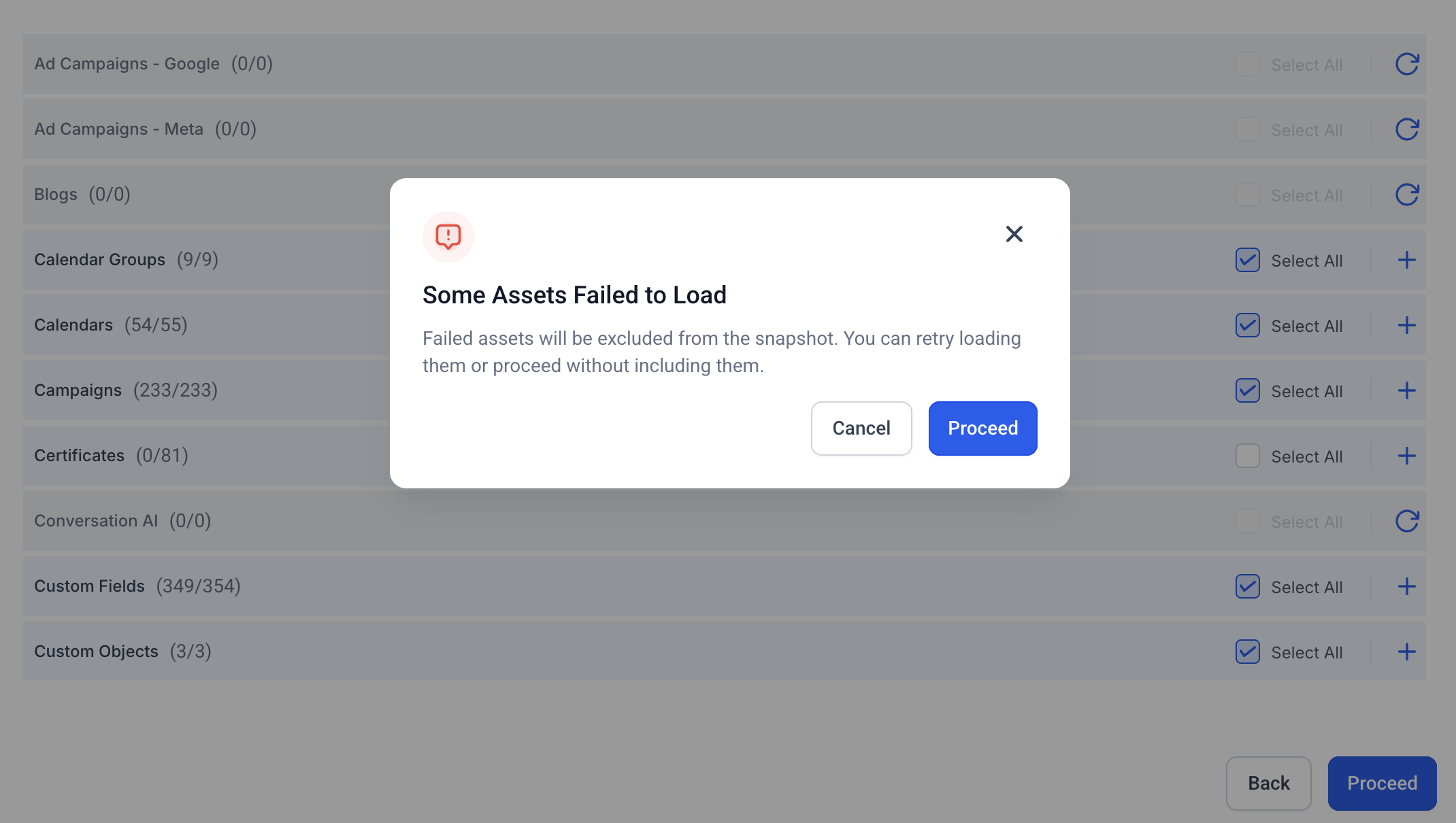
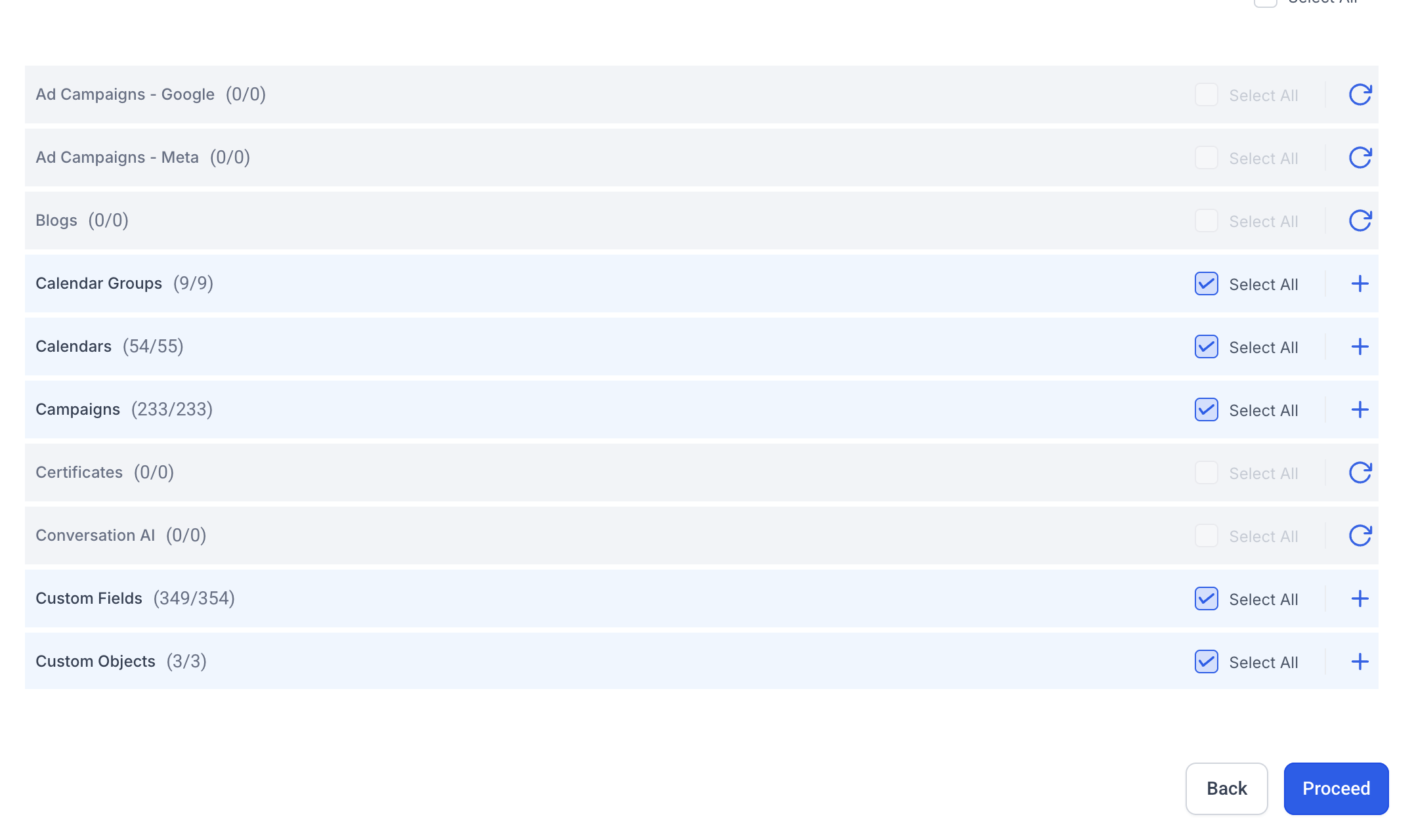
Sometimes, one or more assets might fail to load during refresh—often due to temporary issues like timeouts.
GoHighLevel handles this gracefully:
- The system marks only the problematic assets as failed.
- The rest of the selected assets continue to process and are added to the snapshot.
You can then retry loading only the failed assets rather than rerunning the entire refresh. This helps you:
- Avoid reprocessing large snapshots multiple times.
- Quickly resolve transient issues.
- Keep your snapshot version moving forward instead of getting stuck.
How snapshot refreshes affect contacts in workflows
Refreshing a snapshot doesn’t just change assets; it can also impact workflows that were created from that snapshot.
For example, if you:
- Remove a wait step
- Delete an action
- Replace part of a workflow with a newer structure
…GoHighLevel automatically cleans up any contacts who were waiting on deleted steps in workflows created from that snapshot. Instead of leaving those contacts stranded in a non-existent step, HighLevel removes them from that part of the automation so they don’t get stuck.
Practically, this means you can safely modernize workflows inside your source sub-account, then refresh the snapshot without leaving old contacts hanging in limbo.
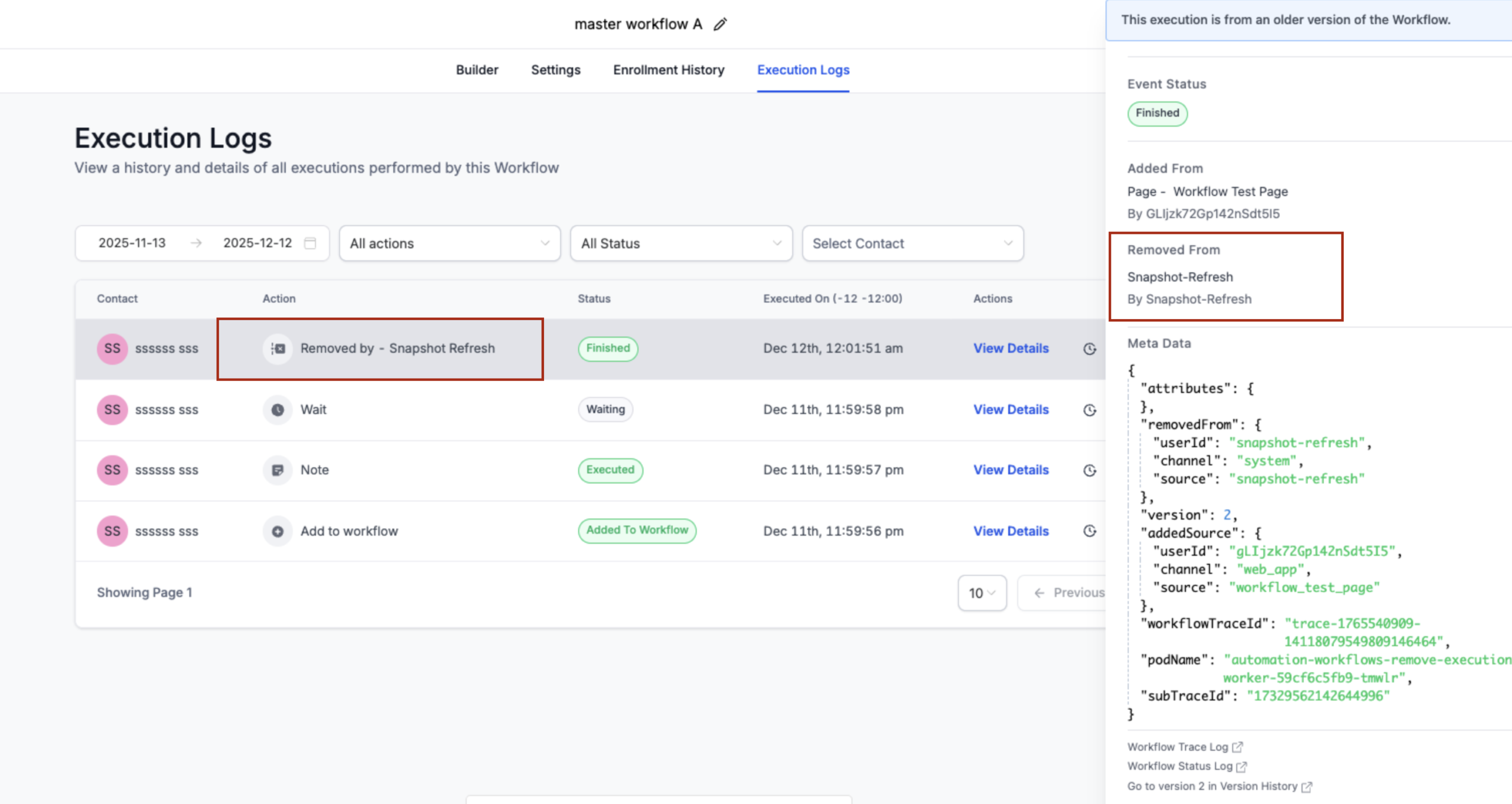
A one-time heads-up appears the next time you open an affected workflow (shown only when it applies).
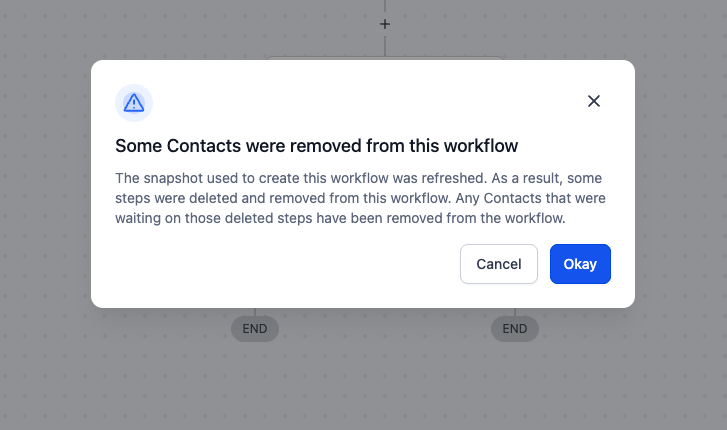
In Execution Logs, the workflow records an entry labeled “Removed by – Snapshot Refresh” with more details in the side panel.
Using "Push Updates" to sync refreshed snapshots to client accounts
Refreshing a snapshot updates the template. To actually push those changes into existing client sub-accounts, you’ll use Push Updates.
After you’ve refreshed a snapshot:
- Go back to the Account Snapshots screen.
- Locate the snapshot you just refreshed.
- Click Push Update.
You’ll now be able to:
-
Select which sub-accounts receive the update
Choose from sub-accounts that previously imported this snapshot. -
Choose which asset types to push
For example:- Only workflows
- Only specific forms or funnels
- A targeted set of updated assets
-
Confirm and apply
GoHighLevel syncs the selected changes into each target sub-account.
A few important notes:
- Updates only push to sub-accounts inside your own agency.
- External agencies that imported your snapshot via link must re-import a new link to get changes.
- Push Updates are additive and selective, not a full destructive overwrite. You’re syncing updated assets, not wiping accounts.
This makes it realistic to maintain a single “master” snapshot and keep dozens or hundreds of client accounts aligned with your latest best practices.
Snapshot refresh workflow at a glance
Your high-level workflow for maintaining clean snapshots looks like this:
- Update the client sub-account (improve workflows, funnels, offers).
- Refresh the snapshot and select the right assets.
- Push updates into chosen sub-accounts.
Use this simple loop every time you roll out a meaningful improvement. A consistent refresh cadence—monthly or after major changes—prevents drift and keeps all clients on the same, battle-tested system.
Best practices for managing snapshots at scale
As you grow, snapshot management becomes a key operational system. A few best practices:
1. Keep a clearly labeled “master” account
Designate one sub-account as the source of truth for a given niche or offer. All strategic improvements should be tested and finalized there before you refresh the snapshot.
2. Use clear naming and versioning
Adopt a simple naming convention, such as:
RealEstate_Onboarding_v1RealEstate_Onboarding_v2Coaching_Funnel_v1.1
Document what changed between versions so your team always knows what’s live.
3. Test updates in a staging sub-account
Before you push updates into paying client accounts:
- Import the refreshed snapshot into a test sub-account.
- Run through key flows (lead capture, nurture, booking, purchase).
- Check that tags, automations, and pipeline stages behave as expected.
Once it passes, you can safely use Push Updates for real clients.
4. Standardize offers, tags, and tracking
Snapshots work best when your underlying strategy is consistent:
- Use standardized tag schemas across clients.
- Align pipeline stages so reports roll up cleanly.
- Build tracking and attribution into the snapshot so every new client is measurable out of the gate.
5. Build snapshots around outcomes, not features
Your clients don’t buy “a CRM”; they buy outcomes—more booked calls, more MQLs, more revenue.
Design snapshots around complete, outcome-focused systems (for example, Lead Gen + Nurture + Booking for a niche) and then keep those systems sharp through regular refreshes and updates.
If you’d like a proven, outcome-first GoHighLevel build instead of starting from scratch, you can launch GoHighLevel with this free trial link and then layer in a pre-designed system with help from a specialist.
Where GoHighLevel fits in your automation stack
When used with well-maintained snapshots, GoHighLevel becomes the operational core of your agency:
- New clients launch faster because you’re importing a refined template, not rebuilding from zero.
- Your team works from a unified playbook instead of reinventing workflows per account.
- Improvements made for one client can be rolled out to many with a single refresh and Push Update.
That’s also where GoHighLevel shines compared to piecing together multiple tools—CRM, email, funnels, SMS, calendars—separately. Having a single platform makes it realistic to maintain snapshots and keep everything in sync.
If you’re ready to consolidate tools and standardize your delivery, you can get started with GoHighLevel here and build your first snapshot-powered client template.
How Revset Labs can help you implement snapshot-driven delivery
Revset Labs is an AI automation and marketing agency that helps teams turn GoHighLevel into a real growth engine—not just another tool.
If you’d rather not:
- Design snapshot architectures from scratch
- Worry about which workflows are safe to push
- Maintain versioning and documentation yourself
…Revset Labs can help you:
- Map your offers and fulfillment into clear, snapshot-ready systems
- Build and optimize GoHighLevel workflows, funnels, and pipelines
- Set up a repeatable refresh and Push Update cadence so every client account stays current
That way, your agency runs on clean, up-to-date systems while you focus on strategy, sales, and client results.
If you’re serious about scaling with GoHighLevel, start by creating your GoHighLevel account here, then explore how a done-for-you automation partner like Revset Labs can help you move faster with less complexity.