
Agency Company Settings in GoHighLevel: Why They Matter
Agency Company Settings are the foundation of your GoHighLevel agency account. They control how your brand shows up to every client, which domains and links they see, and how secure and consistent their experience feels across subaccounts.

If you skip or rush this setup, you end up with:
- Inconsistent branding across client portals and funnels
- System emails and links showing GoHighLevel instead of your agency
- Confusing time zones, addresses, and contact details
- Security gaps or legacy settings that don’t match how you operate today
Dialing in these settings once gives you a clean, scalable base for every new subaccount you spin up.
If you’re not on GoHighLevel yet, you can start a free trial here: Start your GoHighLevel free trial. It’s the platform this entire guide is built around.
Revset Labs is an AI Automation and Marketing Agency that helps agencies and small teams implement GoHighLevel in a way that actually supports their funnel strategy and ops, not just the tech. This guide walks you through the Agency Company Settings step-by-step so you can get it right the first time.
Who This Guide Is For
This article is written for:
- Agency owners setting up GoHighLevel for the first time
- Ops and implementation leads responsible for technical configuration
- Marketers and account managers who need consistent branding and links across funnels, calendars, and portals
If you manage more than one client account inside GoHighLevel, properly configuring Agency Company Settings will save you hours of cleanup later.
How to Access Agency Company Settings in GoHighLevel
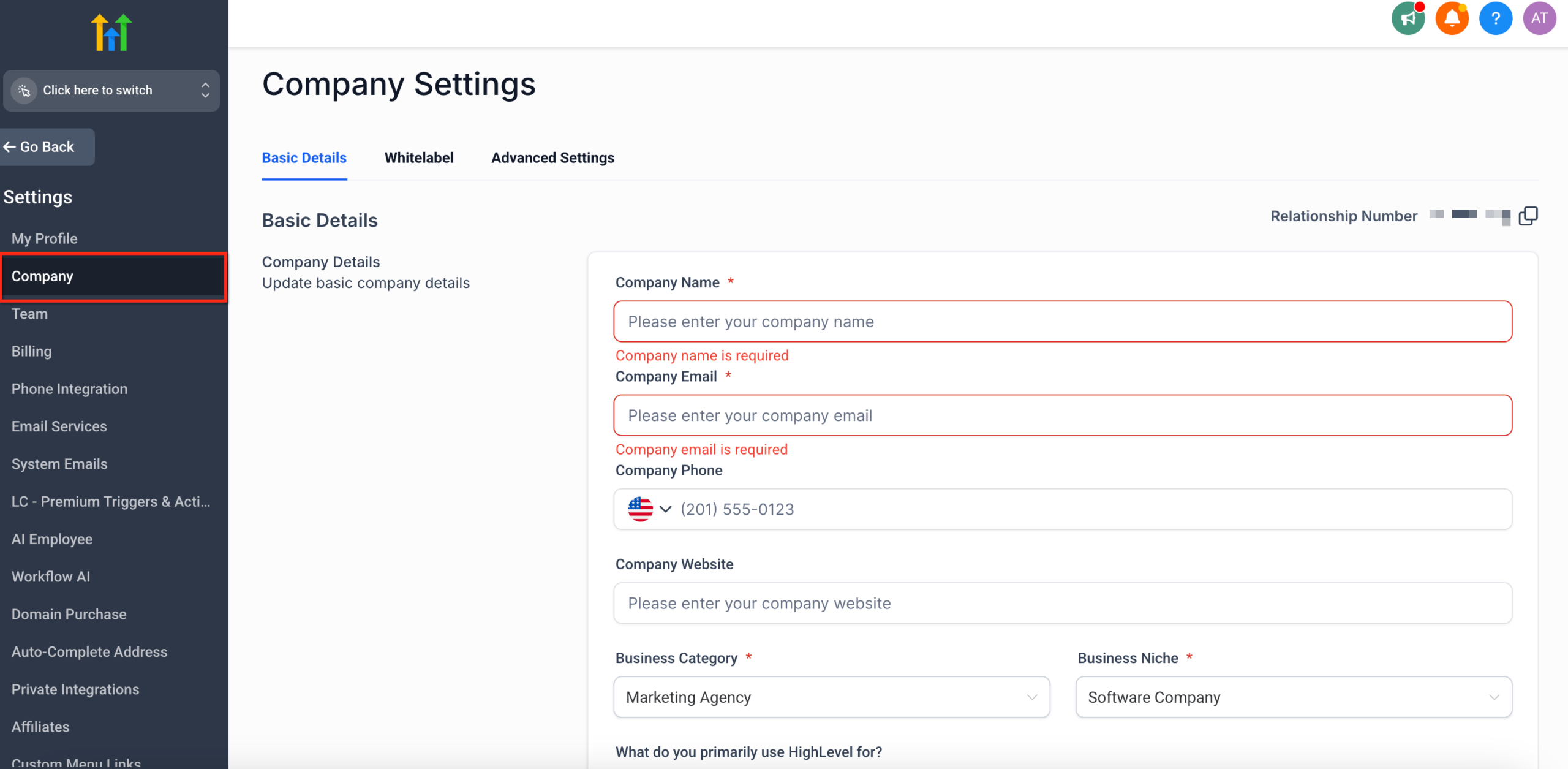
- Log into GoHighLevel.
- Switch to Agency View (top-left of the interface).
- In the bottom-left corner, click the Settings gear icon.
- Open the Company tab.
Step 1: Click the Settings gear icon on the bottom-left navigation panel and select the Company tab at the top.
From here, you’ll work mainly across three areas:
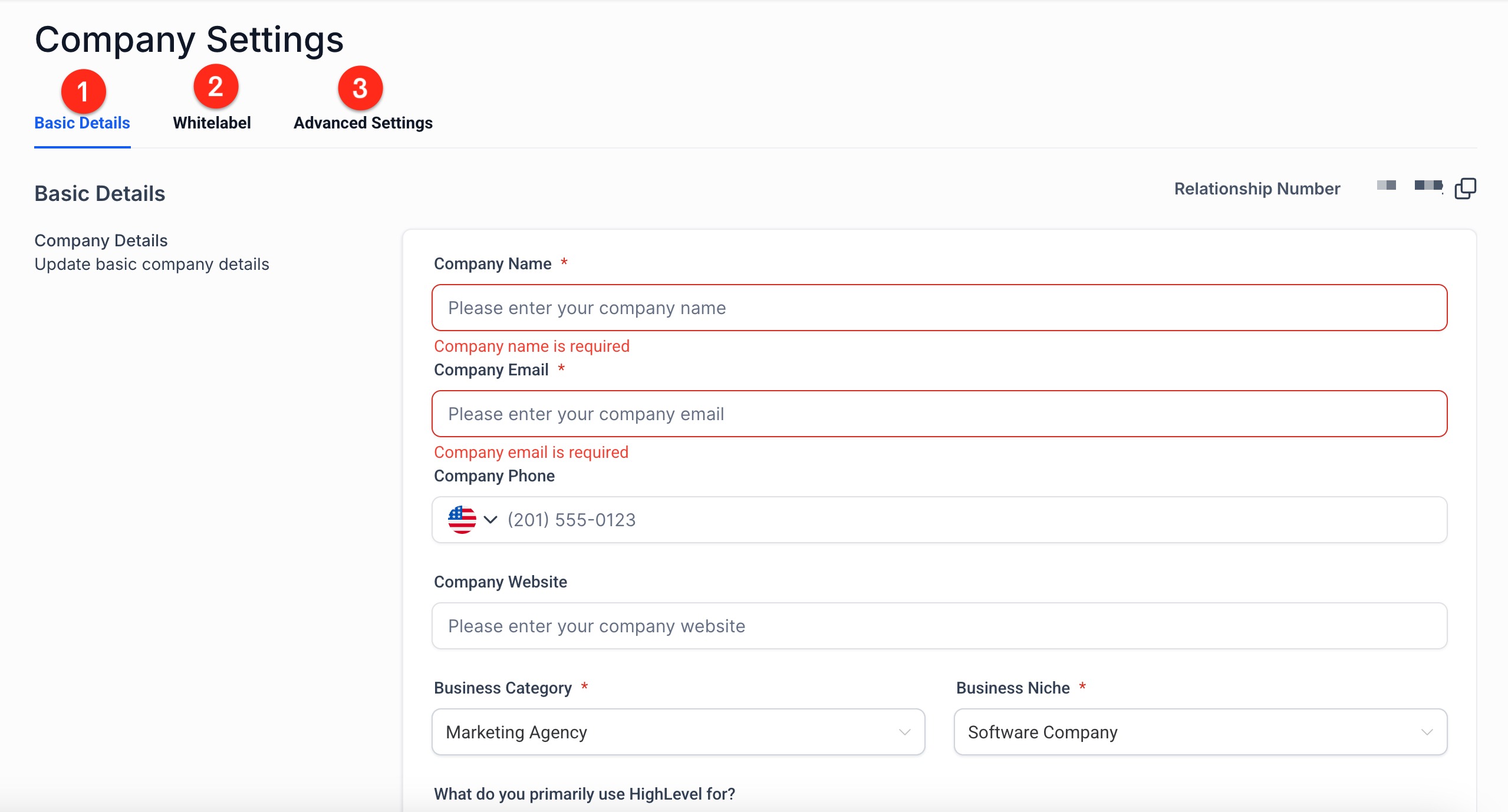
- Basic Details – your core business identity and global preferences
- Whitelabel – branding, domains, and client-facing appearance
- Advanced / Security – security, session behavior, and experience optimization
We’ll go through each area in order.
Step 1: Configure Your Basic Company Details
The Basic Details section tells GoHighLevel who you are and how the platform should behave by default for your agency and subaccounts.
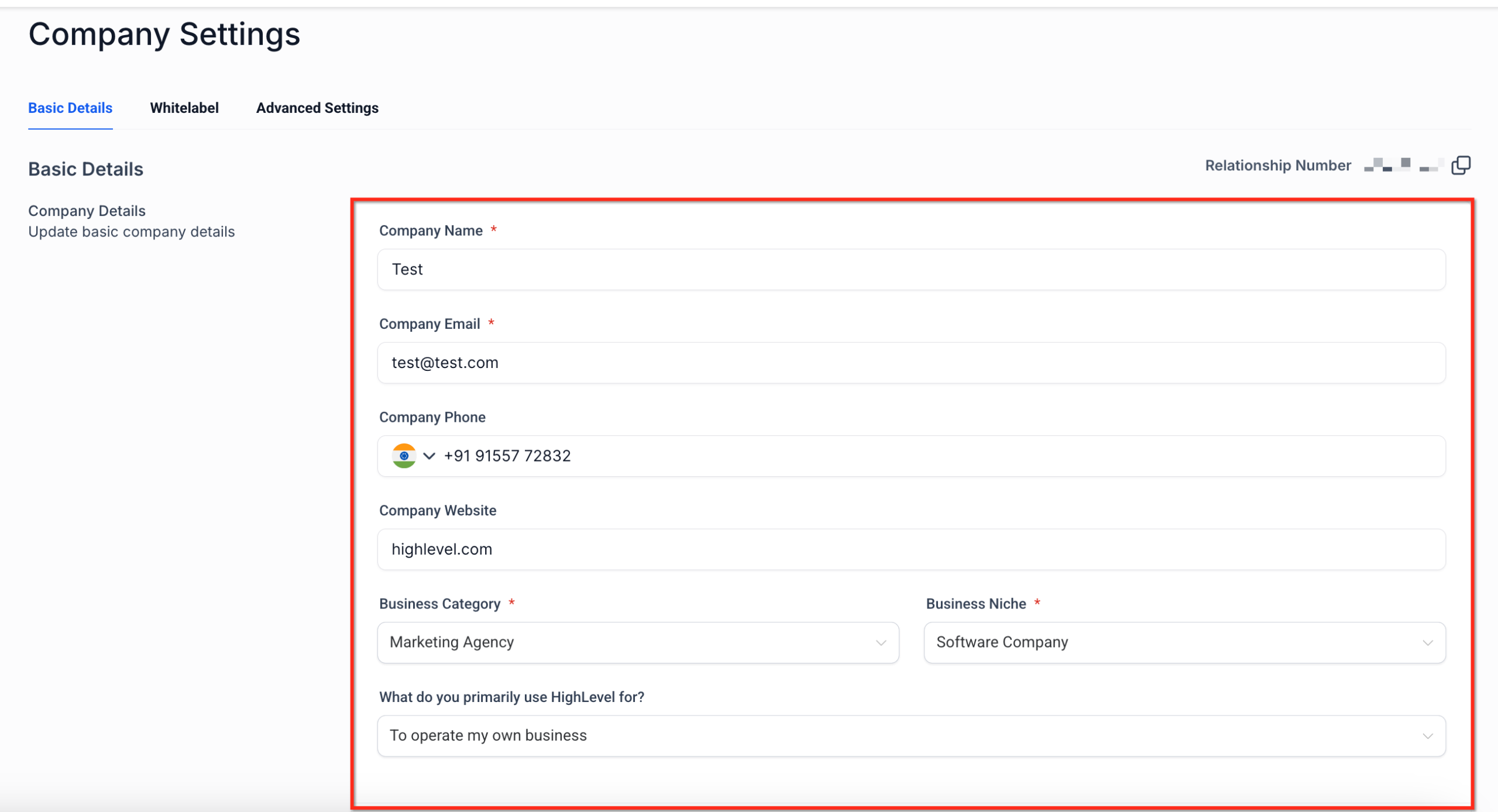
1. Company Identity
Fill out these fields carefully and keep them consistent with your legal and marketing presence:
- Business Name – The name you want clients to see everywhere.
- Primary Email & Phone – Support or success inbox/number your clients can use.
- Website URL – Your main agency website.
- Business Category / Usage Type – Helps GoHighLevel categorize how you use the platform.
These values often appear in system-generated emails, invoices, and some UI areas. Treat this as your source of truth.
2. Address and Time Zone
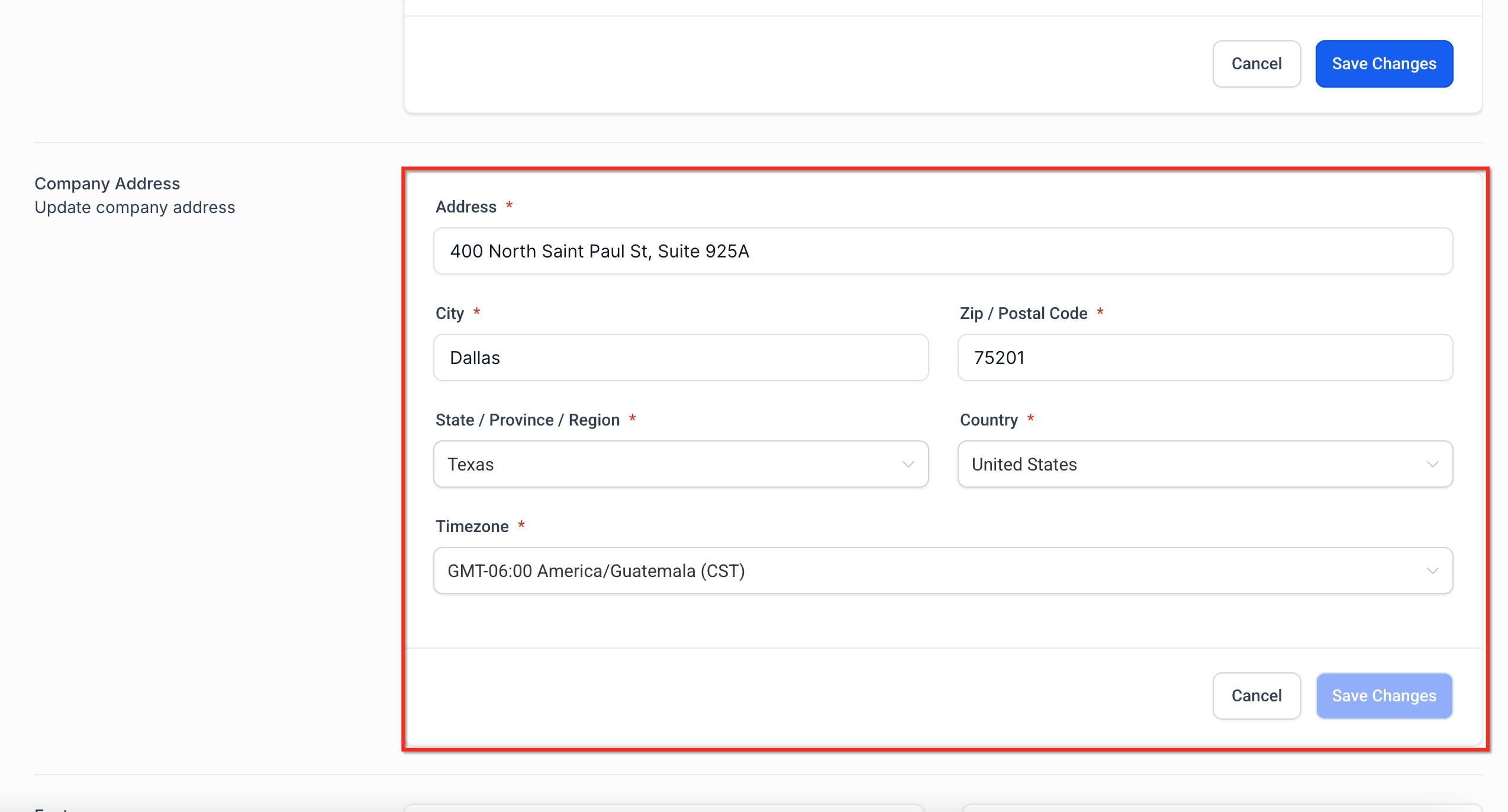
Next, set your physical address and time zone:
- Use your official business address, not a temporary coworking space (unless that’s your actual registered address).
- Choose the time zone your team primarily operates in.
This impacts:
- Default time zone for new subaccounts
- How scheduled communications and reporting align with your working hours
If you later move or change headquarters, you can update the address from the same screen.
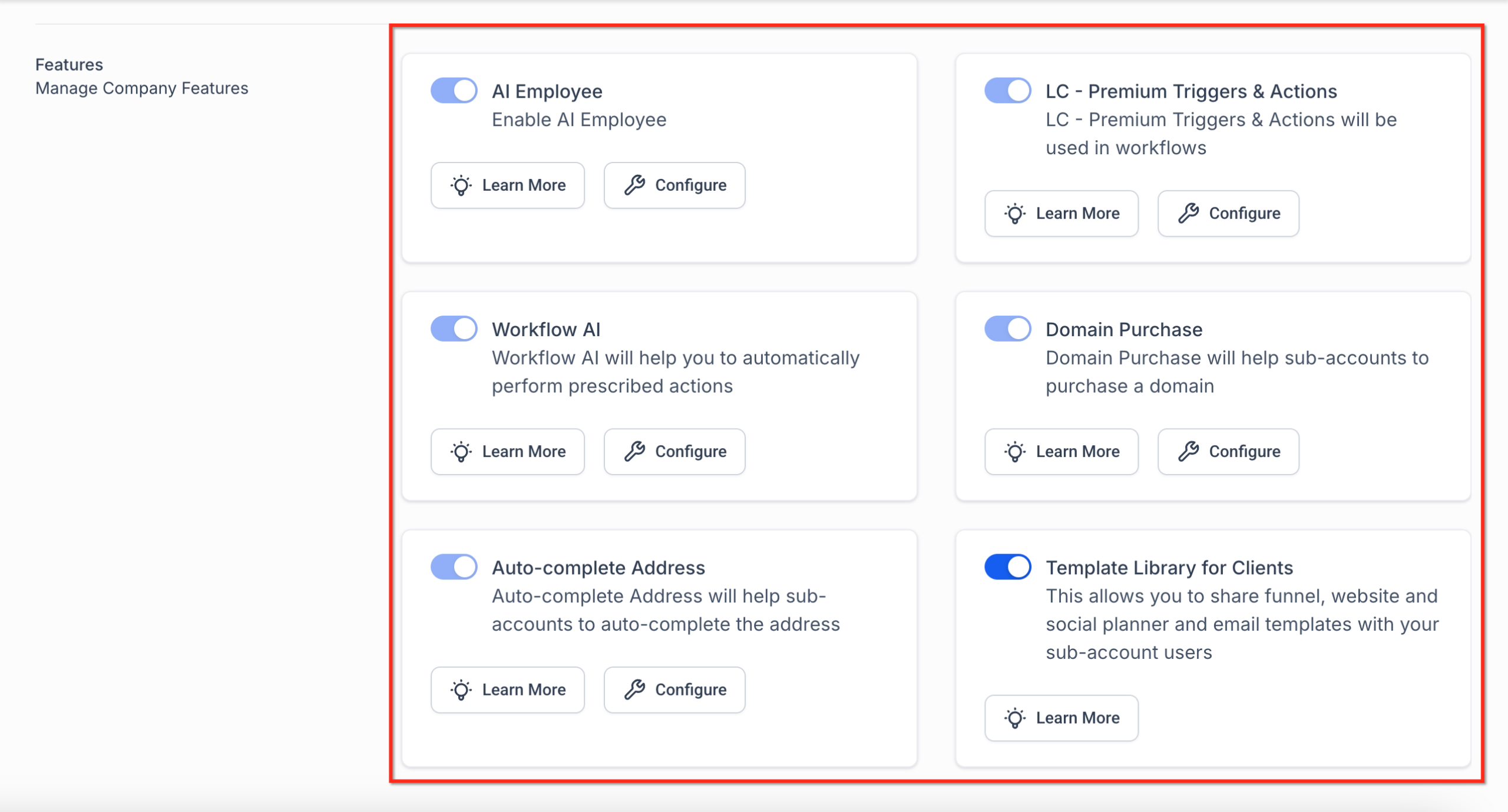
3. Global Feature Toggles
Depending on the current GoHighLevel feature set, you’ll see toggles such as:
- AI Employee / Workflow AI
- Auto-complete Address
- LC Premium Triggers & Actions
- Domain Purchase
- Template / Snapshot Library options
Use these guidelines:
- Enable features that support the way you sell and service (for example, Workflow AI if you lean into automation).
- Turn off anything experimental you don’t plan to use yet; this reduces clutter and confusion for your team.
If you’re not sure how a feature impacts your stack, Revset Labs can help you map it to your funnel and automation strategy before you flip the switch.
Ready to centralize more of your client delivery in one place? Set up your account with a free trial: Launch your GoHighLevel account.
Step 2: Set Up Whitelabel Branding & Domains
The Whitelabel area is where your GoHighLevel instance stops looking like “GoHighLevel” and starts looking like your agency’s own platform.
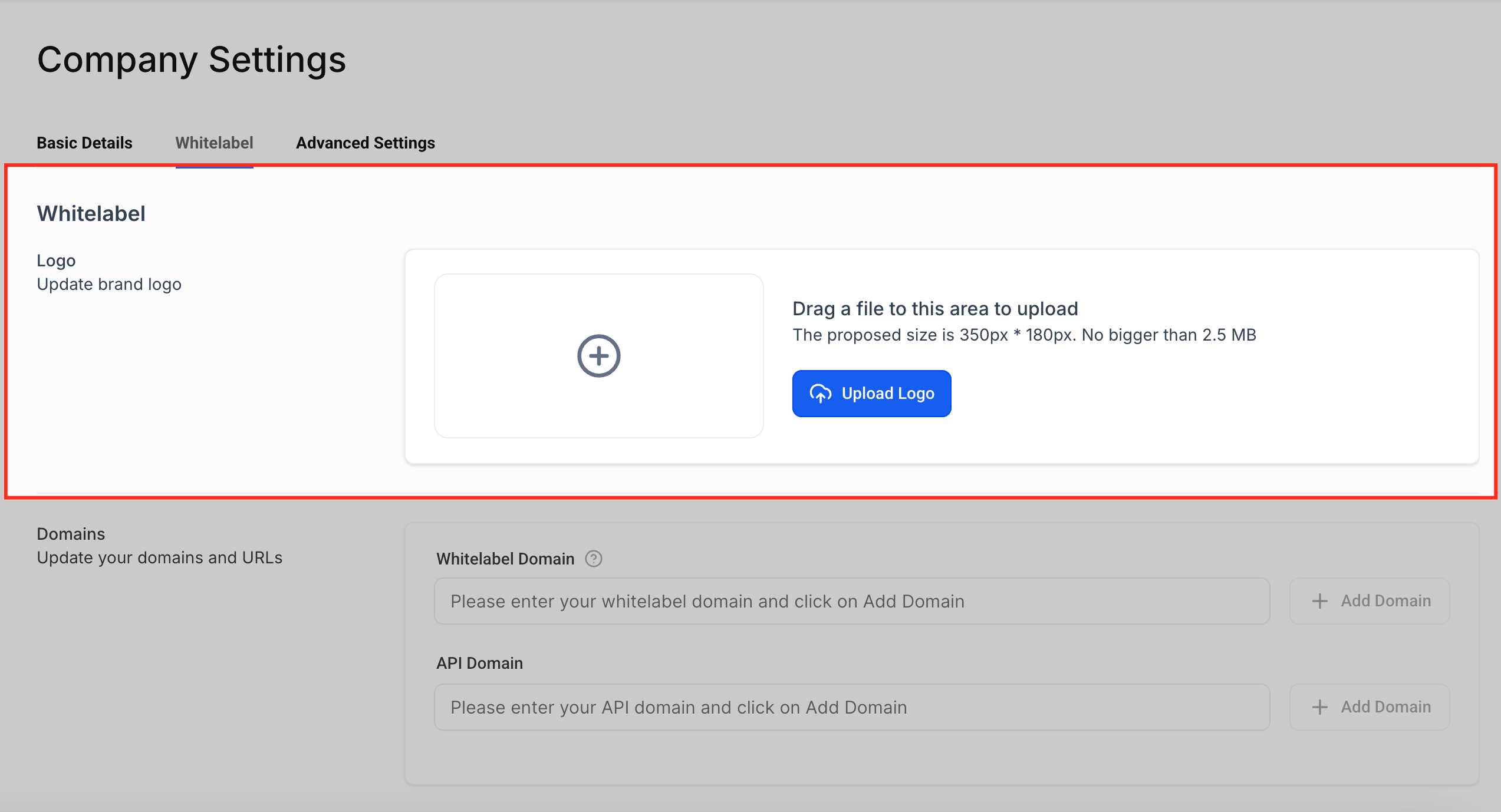
1. Upload Logos and Favicons
Within the Whitelabel settings, you’ll typically find options for:
- Primary logo for the platform interface
- Login page / portal logo
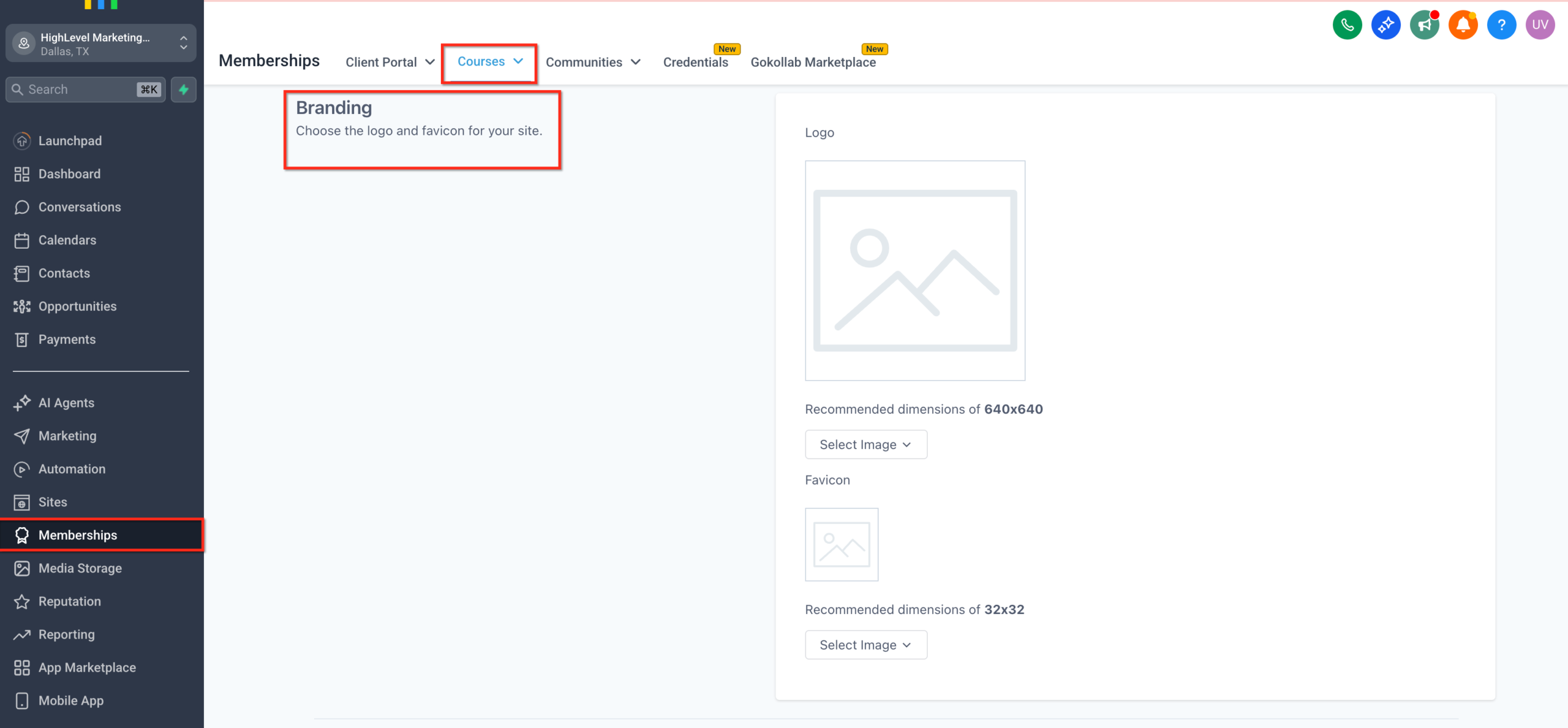
- Favicons for sites, client portals, and membership areas
Best practices:
- Use clean, high-resolution PNGs or SVGs.
- Keep logo versions consistent (don’t rotate between completely different marks).
- Use square or near-square images for favicons so they render crisply in browser tabs.
Favicon Specifics
Favicons are the small icons that appear in browser tabs and link previews. HighLevel supports favicons on specific branded experiences (sites, client portals, and membership/course sites). Use this guide to understand where you can set a favicon and how it displays across your brand. Note: There isn’t a separate agency-wide favicon upload in Company → Whitelabel at this time. Use the asset-specific options below.
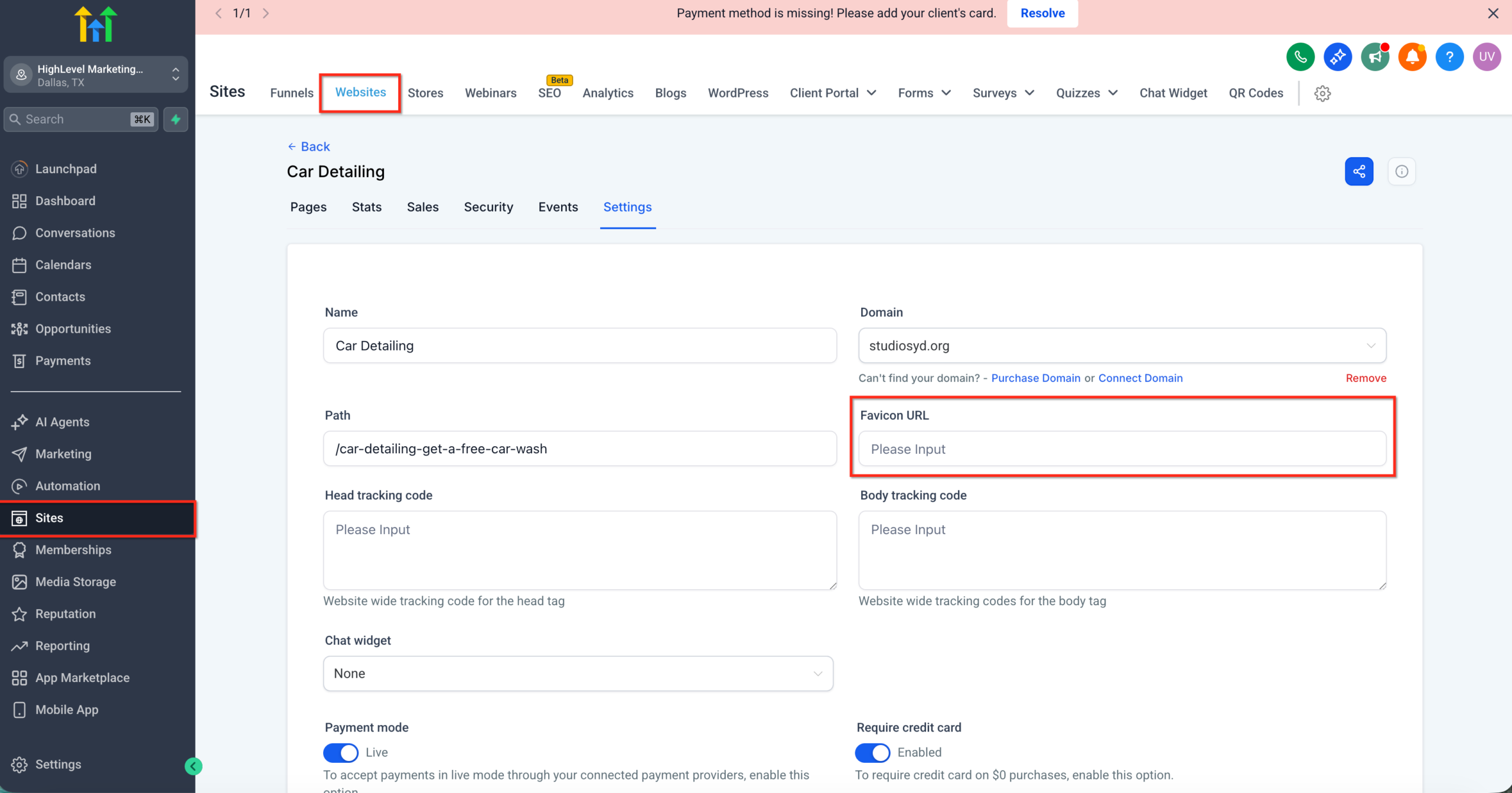
Websites & Funnels: Set the favicon from the site builder so it appears across your site pages. Path: Sub-account → Sites → open site → Site Settings → Favicon.
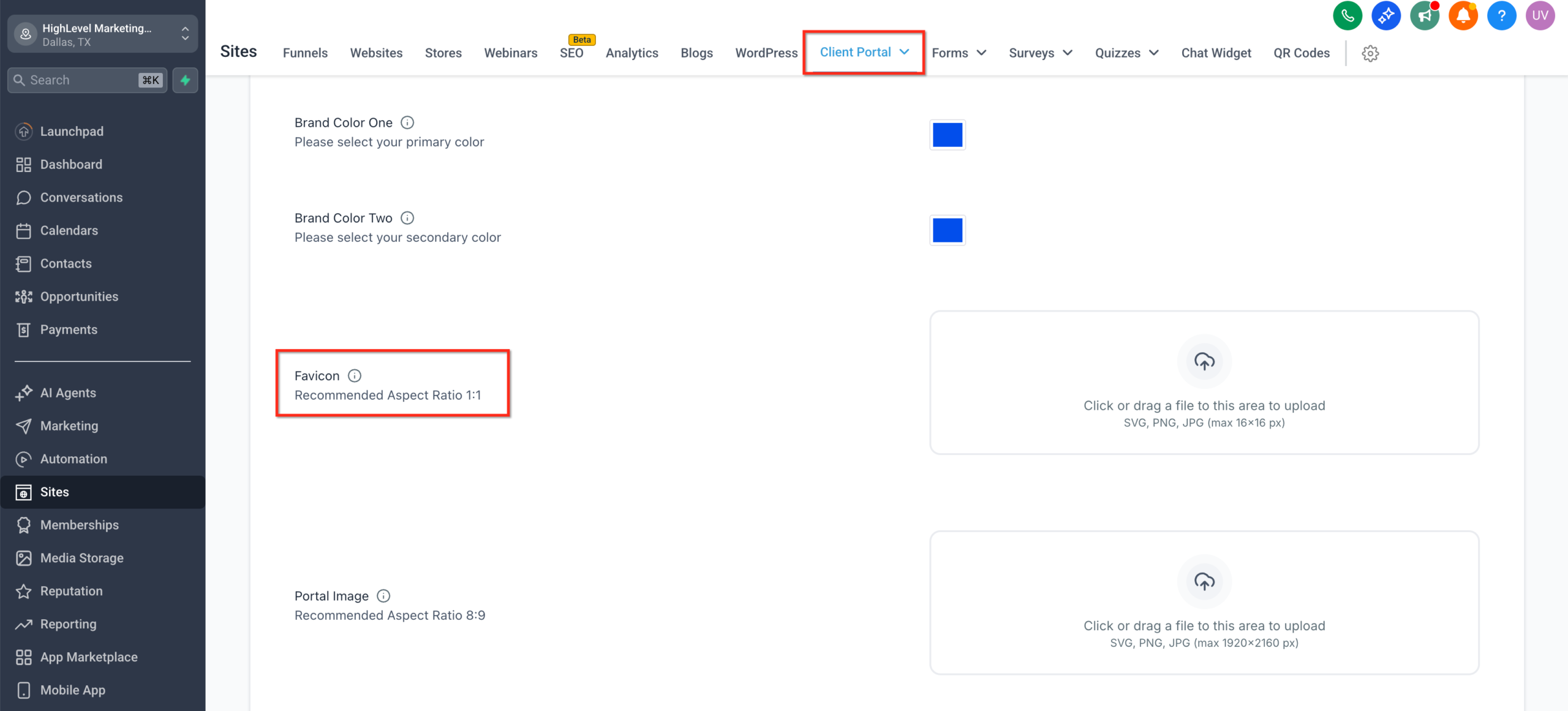
Client Portal: Customize the favicon for each sub-account’s Client Portal to match your brand. Path: Sub-account → Client Portal settings → Branding → Favicon.
Membership: Update the course site favicon via the theme customizer. Path: Sub-account → Memberships > Courses → Favicon.
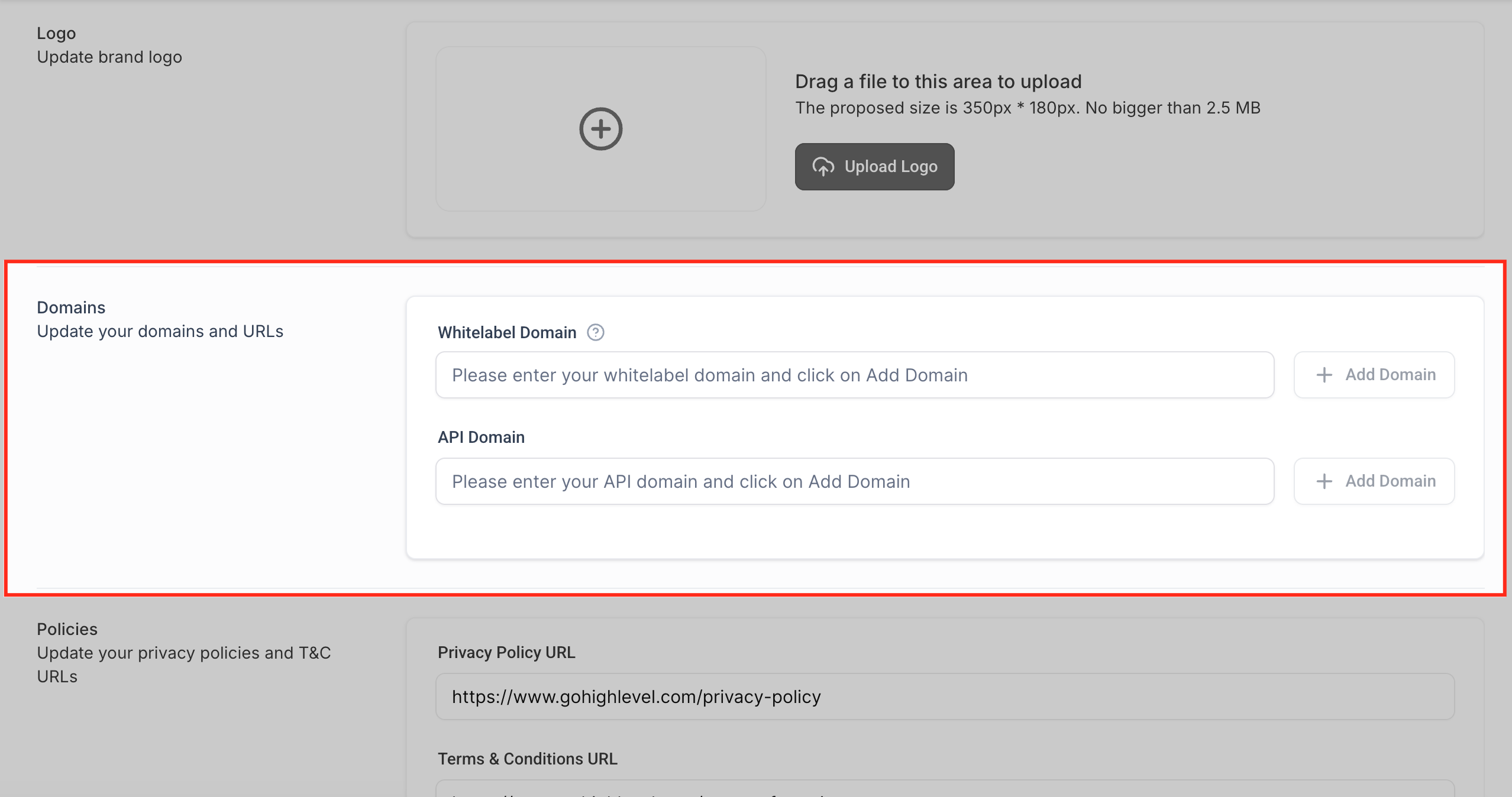
2. Configure Whitelabel Domains
Whitelabel domains remove most visible GoHighLevel branding from the client experience.
Common domains to configure:
- App/Login Domain – Where your clients log in to their accounts.
- Whitelabel Domain for Funnels / Sites – The base domain used for system-generated links.
- API Domain – Used for system-generated links (for example, password resets, calendar links) so they show your domain instead of GoHighLevel’s.
Typical pattern:
app.youragency.comfor the login/app portalgo.youragency.comorlinks.youragency.comfor funnels and system links
Follow GoHighLevel’s DNS instructions carefully when:
- Adding A records or CNAMEs at your DNS provider
- Pointing records to the endpoints GoHighLevel specifies
For deeper technical detail, GoHighLevel’s official guide on API domains is here: How to configure brand system-generated links (API Domain).
If DNS and SSL provisioning are not your thing, this is a great piece to delegate. Revset Labs regularly handles whitelabel and DNS configuration for agencies so they don’t burn cycles going back and forth with hosting and domain providers.
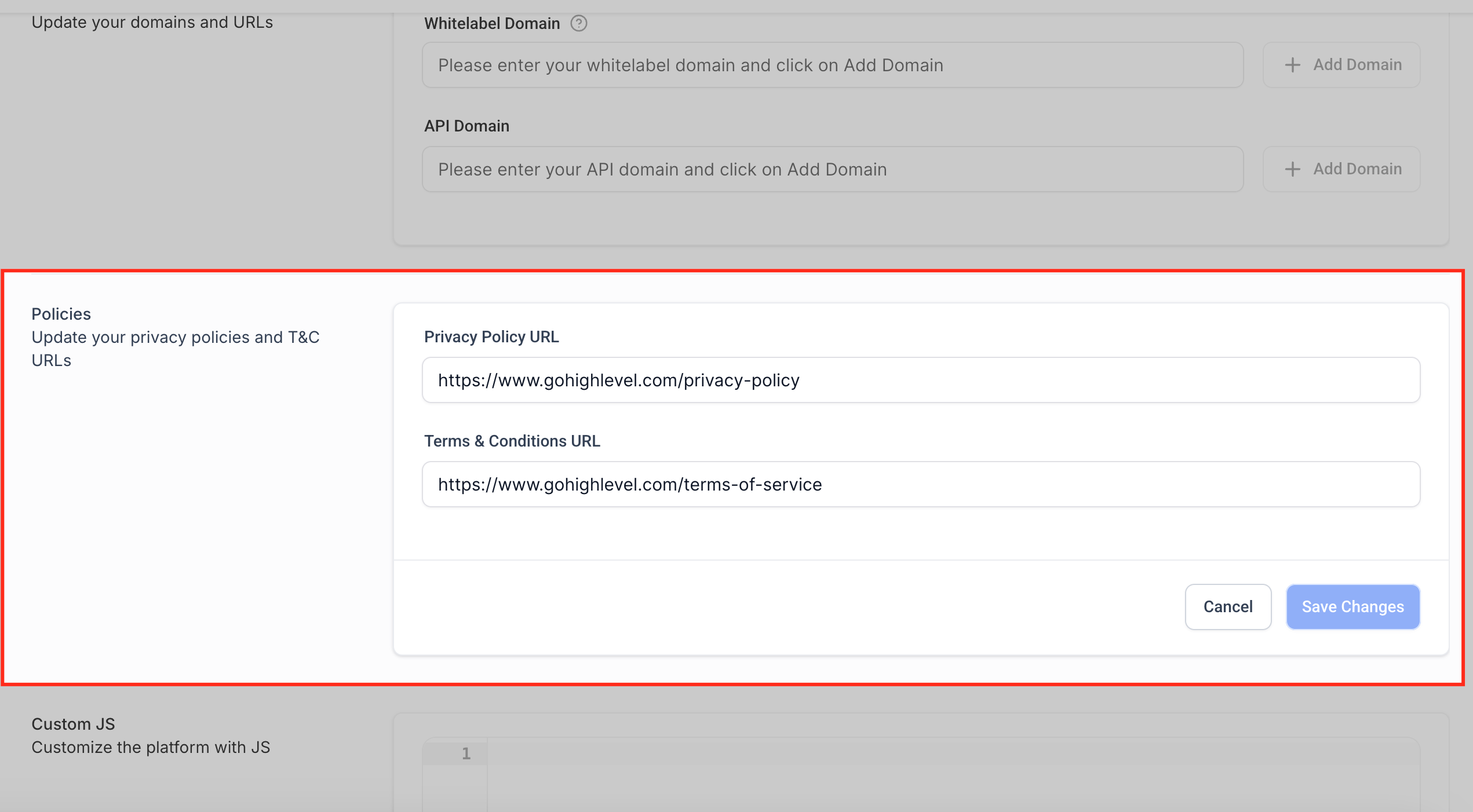
3. Add Legal Policy URLs
Most whitelabel setups include fields for Privacy Policy and Terms & Conditions URLs.
- Link to the canonical versions on your main site.
- Make sure they’re maintained by your legal or operations team.
These links typically appear in login, portal, or footer areas and are important for compliance and client trust.
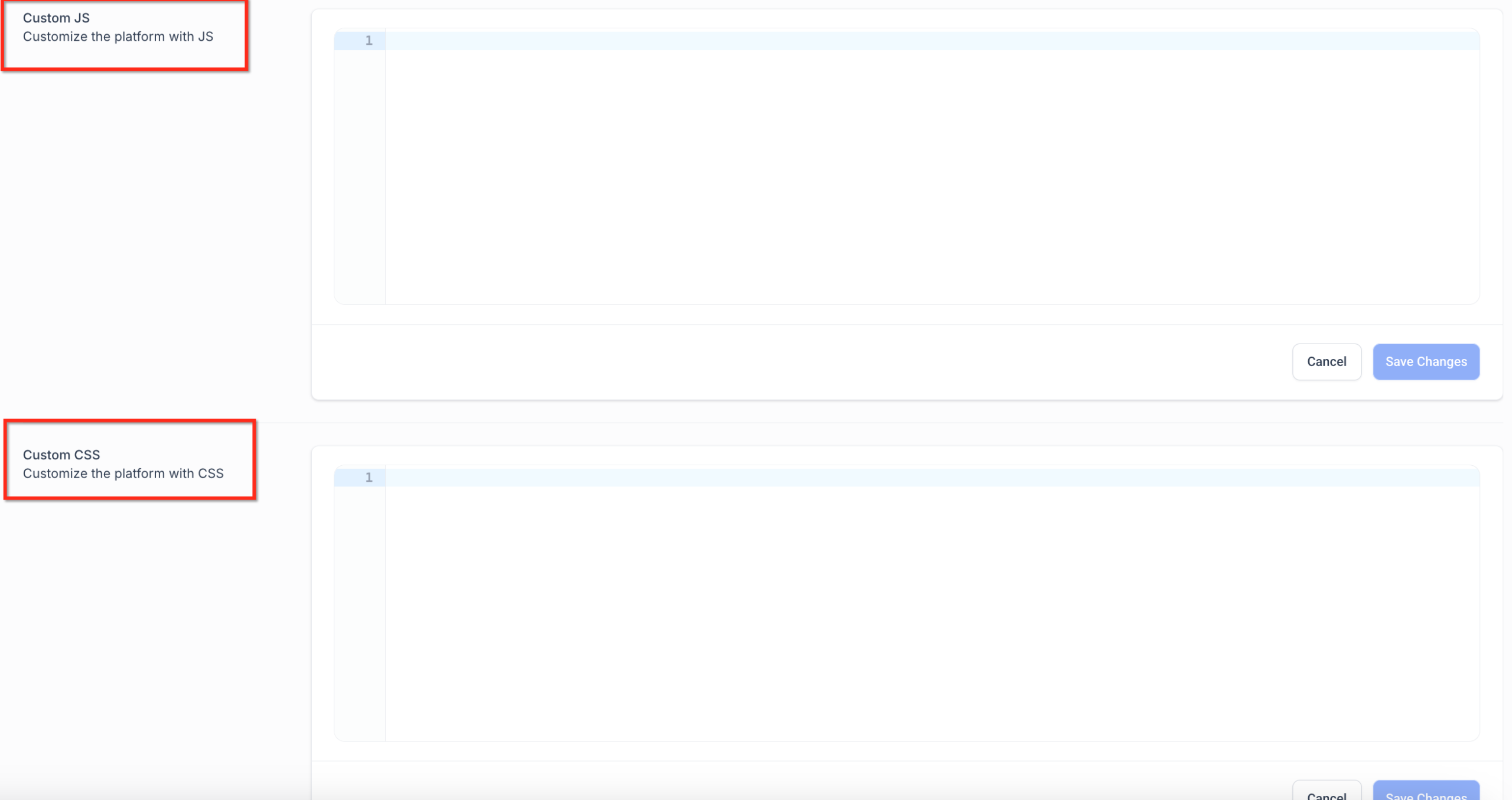
4. Use Custom Code Thoughtfully
Whitelabel settings may also allow custom JavaScript and CSS.
Use these sparingly to:
- Align fonts, colors, and spacing with your brand
- Add tracking scripts (for example, analytics pixels)
- Introduce light UI polish
Avoid:
- Large libraries that slow down load times
- Over-stylizing core UI elements that your team expects to behave in standard ways
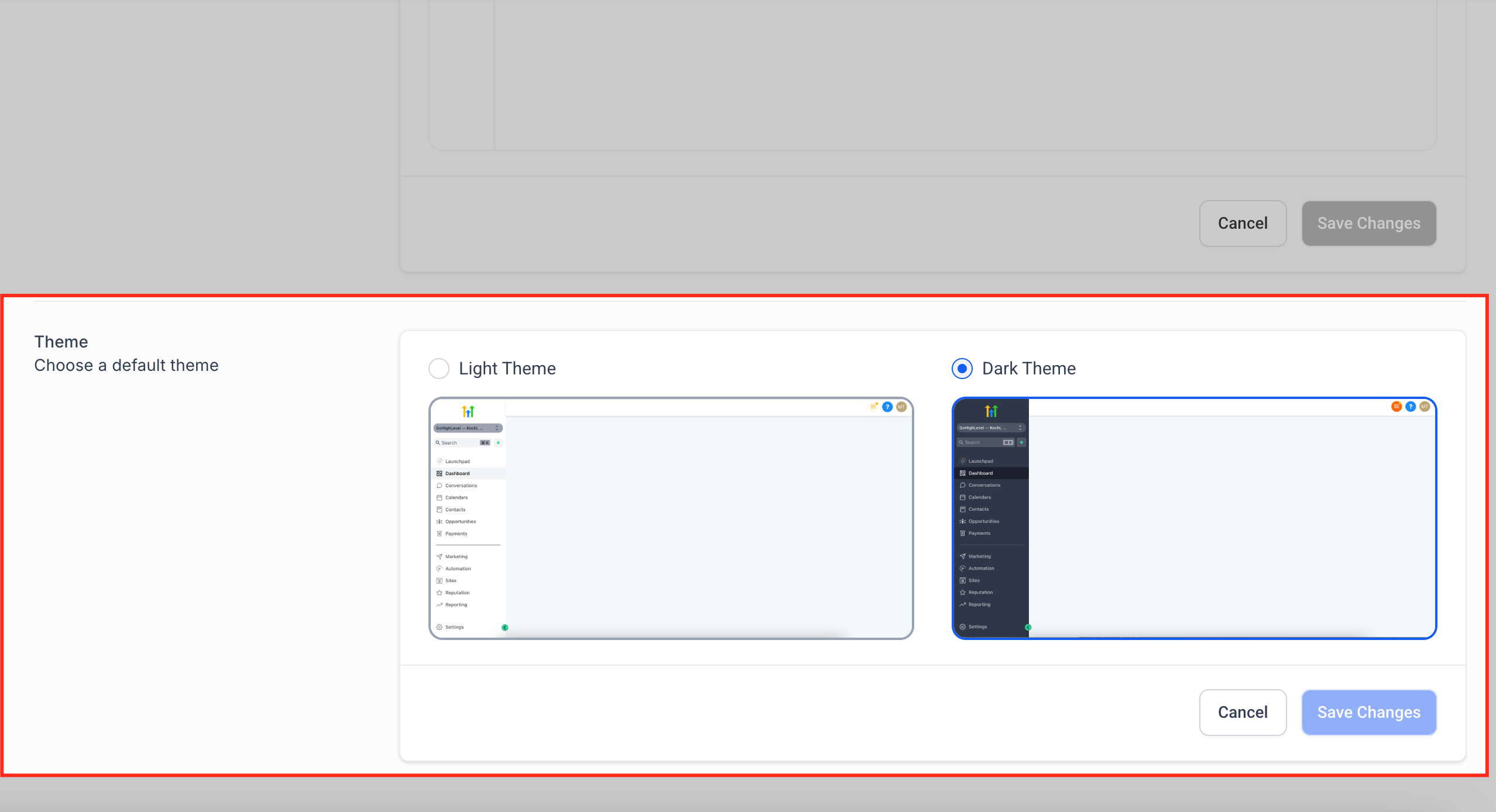
5. Theme Selection
Choose your agency dashboard’s default theme to match your brand or personal preference. This does not affect your sub-accounts’ dashboards—only your agency-level view.
- Light Mode – Clean, bright appearance.
- Dark Mode – Modern, high-contrast interface.
Step 3: Configure Security and Advanced Experience Settings
Once branding is locked in, move into security and advanced options.
1. Session and Security Preferences
Key settings you might see include:
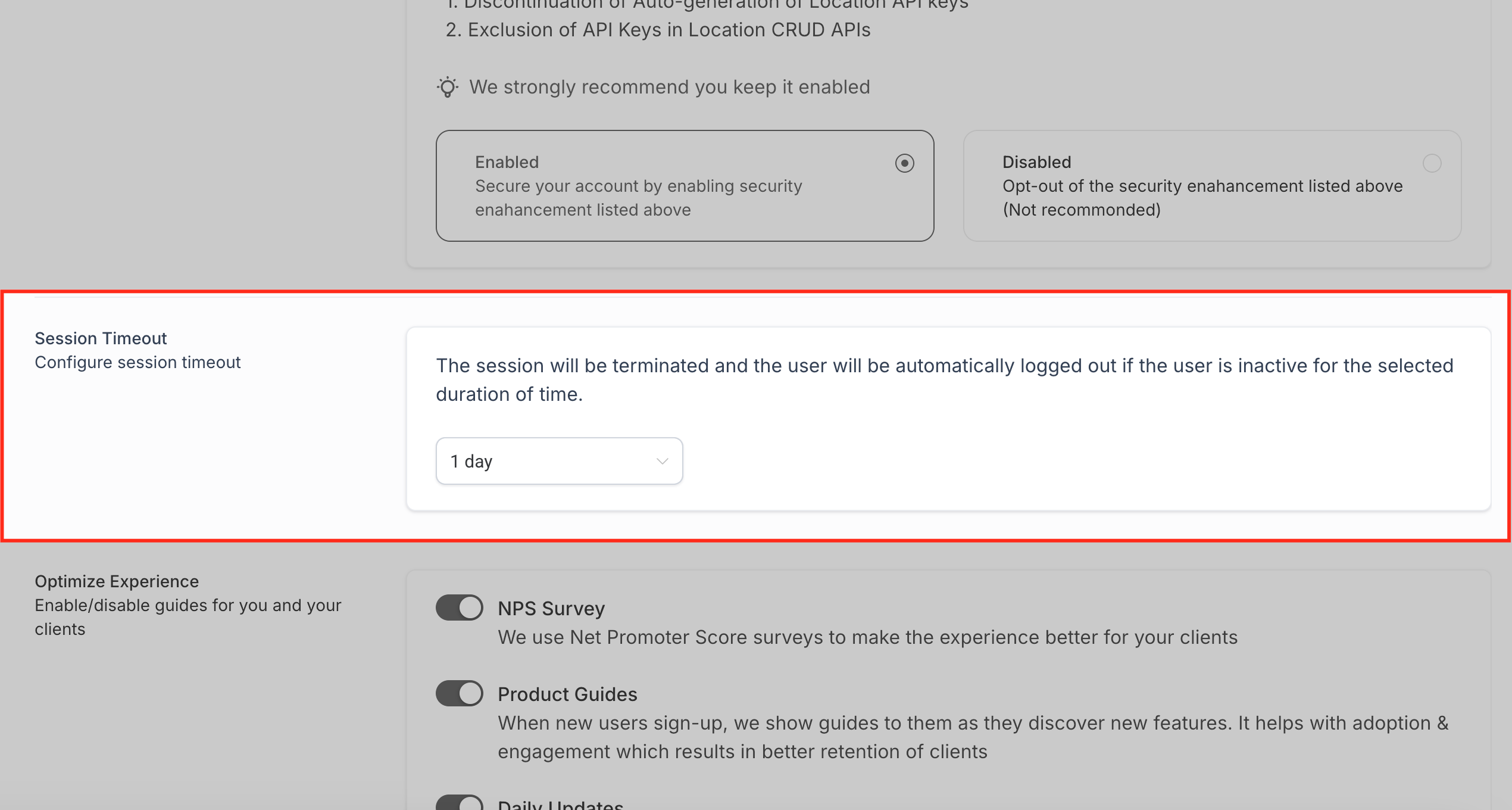
- Session timeout – How long a user can stay logged in without activity
- Enhanced security options – For protecting sensitive data and tightening access
Recommendations:
- Set a reasonable timeout (for example, 30–60 minutes of inactivity) that balances security with usability.
- Turn on enhanced security if you handle sensitive client data or have multiple contractors and VAs accessing accounts.
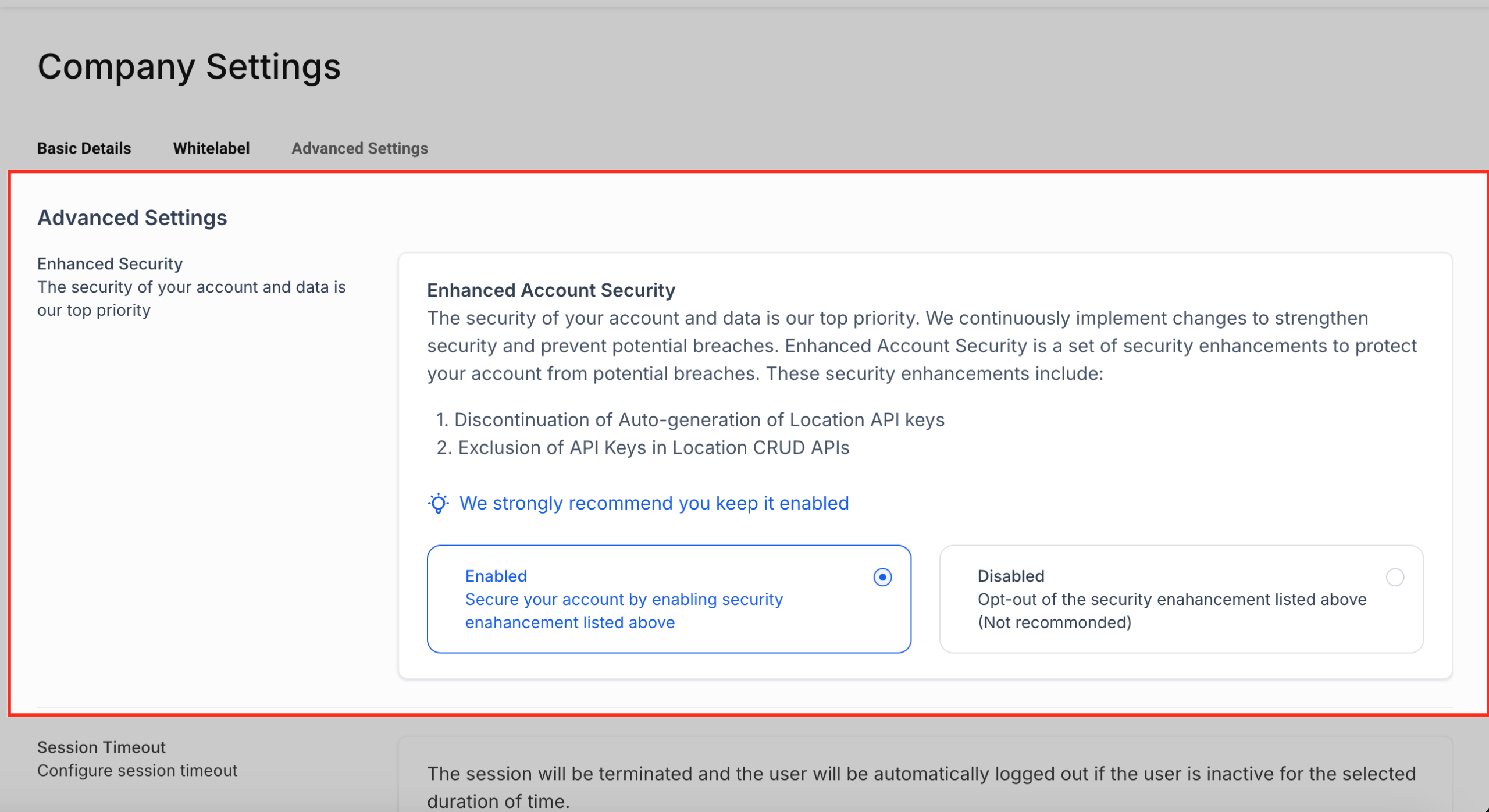
Be aware: some enhanced security options can impact older or legacy API keys. If you’ve integrated external tools into GoHighLevel, test those flows after you change security settings.
Available options typically include:
- 15 minutes
- 1 hour
- 4 hours
- 8 hours
- 12 hours
- 1 day
- 2 days
- 3 days
- Never
This is especially useful in shared office environments or when accessing HighLevel on public or team devices.
2. Optimize the Onboarding Experience
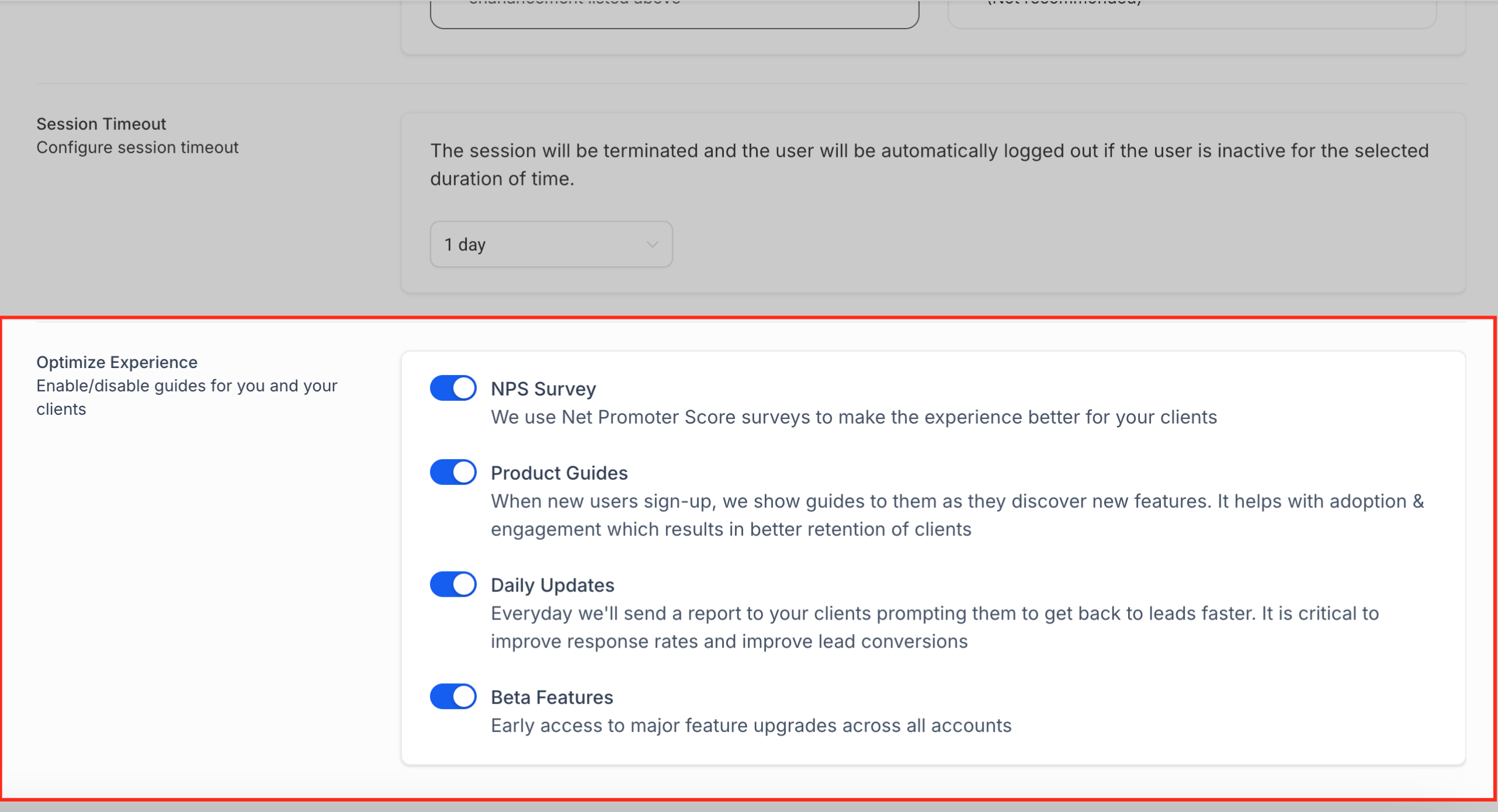
This section lets you turn on or off client-facing tools designed to improve onboarding, engagement, and feedback collection. These tools are designed to help clients understand the platform and take action faster.
Think of this as onboarding UX at the platform level. A smart configuration here reduces how many “Where do I click?” questions your team fields in support.
For more, visit Optimize Experience Features.
Revset Labs can help you connect these settings with your actual onboarding journeys—welcome emails, checklists, automated messages, and more—so clients feel supported from day one.
Step 4: Quick Setup Checklist
Use this checklist as a final pass before you move on to deeper automation work.
Agency Company Settings checklist:
-
Basic Details
- Business name, email, phone, and website set
- Address and time zone confirmed
- Relevant feature toggles enabled, unnecessary ones disabled
-
Whitelabel
- Logos and favicons uploaded
- Login/app domain configured
- Funnel/API domain configured and SSL active
- Privacy Policy and Terms & Conditions URLs added
-
Security & Advanced
- Session timeout configured
- Enhanced security reviewed and enabled where appropriate
- Onboarding/experience options set for new clients
Once this checklist is complete, the “plumbing” of your GoHighLevel agency account is in a strong place. Every new subaccount you spin up will inherit a cleaner, more professional foundation.
Want this entire setup (plus funnels, automations, and reporting) handled for you? Revset Labs can step in as your technical and strategic implementation partner while you stay focused on sales and client results.
Visual: The Agency Setup Process
Here’s a high-level view of the sequence you’ll follow:
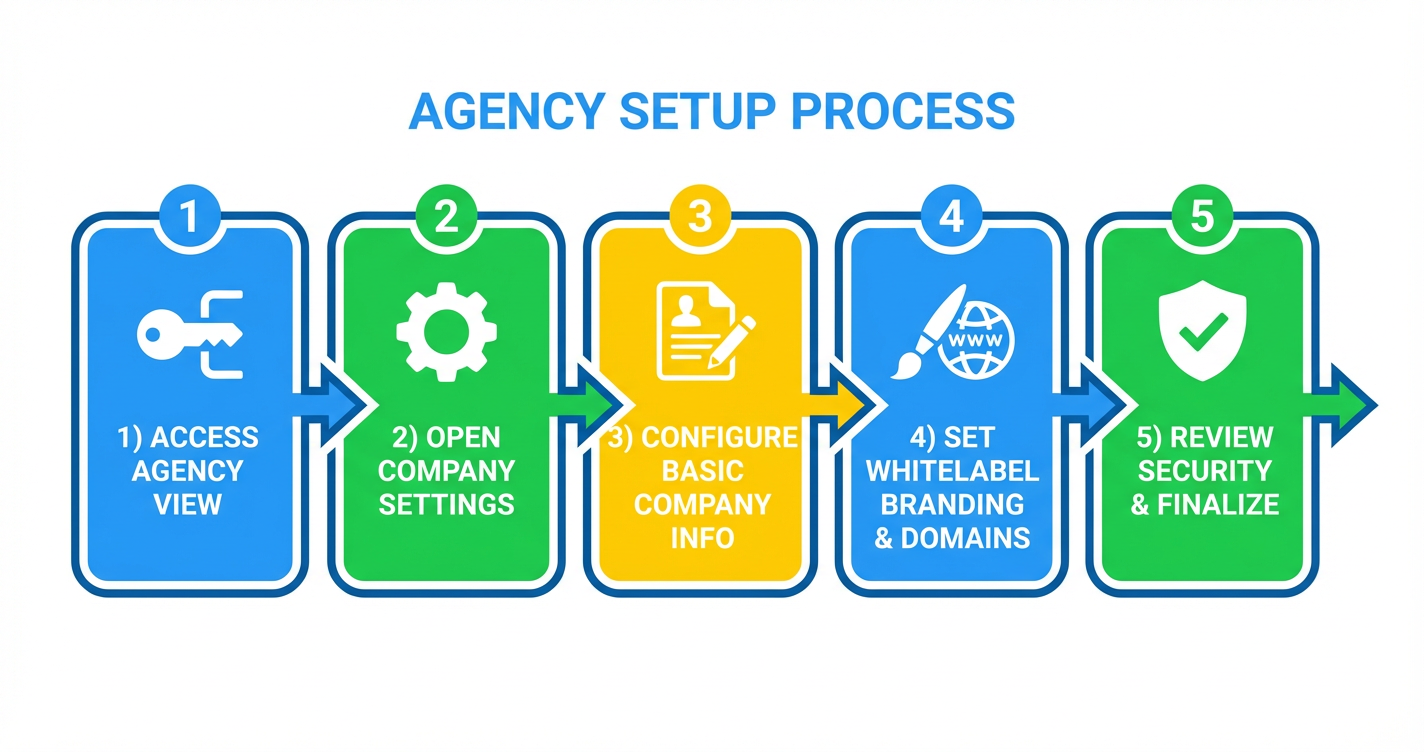
- Access Agency View
- Open Company Settings
- Configure basic company info
- Set whitelabel branding & domains
- Review security & finalize
You can reference this image during team training or SOP creation so everyone sets up new agencies the same way.
Frequently Asked Questions About Agency Company Settings
1. What’s the difference between Agency Company Settings and subaccount settings?
Agency Company Settings live at the top level of your GoHighLevel account. They control branding, domains, and defaults that apply across all subaccounts.
Subaccount settings are unique to each client or brand you manage. They affect things like individual pipelines, calendars, and campaign-specific settings.
A clean Agency Company configuration gives every subaccount a solid baseline so you don’t have to solve the same branding and security problems over and over.
2. How do I change my agency’s address later?
If your agency moves or you need to update details:
- Go to Agency View → Settings → Company.
- Update your address and any related contact information.
- Save your changes.
For more detail, you can also reference GoHighLevel’s official guide: How to change agency’s address in HighLevel.
3. Do I need to set up whitelabel domains before onboarding clients?
Strictly speaking, you can onboard clients without whitelabel domains—but they’ll see more GoHighLevel-branded URLs and interfaces.
For a premium, “our own platform” experience, configure whitelabel domains before large-scale onboarding. That way, from the first login, clients experience your agency’s brand and URLs.
4. What if I’m not comfortable with DNS or security changes?
You’re not alone—DNS, SSL, and security options are where most agencies get stuck.
You have two solid options:
- Lean on GoHighLevel support and documentation for technical steps.
- Bring in an implementation partner like Revset Labs to own this layer for you, document it, and plug it into your broader funnel and automation strategy.
Next Steps
Once your Agency Company Settings are dialed in, you’re ready to:
- Connect Stripe and payment tools
- Configure phone/SMS providers
- Build your first funnels, calendars, and automations
If you’re just getting started with GoHighLevel, now is the perfect time to lock in your foundation while the account is still simple.
- Spin up or upgrade your GoHighLevel account here: Claim your GoHighLevel free trial.
- If you’d like strategic help designing the systems around the tool, Revset Labs can help you design and implement done-for-you funnels, automations, and onboarding that actually convert.