
How to setup Replies in Mailgun

Getting replies flowing reliably from Mailgun into GoHighLevel is one of those small technical wins that makes a big difference.


Get a Free Trial of GoHighLevel

When it’s set up correctly, every time a contact hits Reply on an email you sent from GoHighLevel:

  • Mailgun receives the inbound email.
  • A receiving route forwards it to the correct webhook.
  • The reply shows up inside GoHighLevel Conversations on the right contact.

When it’s not set up correctly, replies disappear into Mailgun, never make it back to GoHighLevel, and your team has to stitch conversations together manually.

This guide walks you through exactly how to set up replies in Mailgun for GoHighLevel, how the routing flow works, and how to troubleshoot issues—plus where it makes sense to bring in Revset Labs, an AI Automation and Marketing Agency, if you want this wired into a larger revenue system.

If you don’t have a GoHighLevel account yet, you can spin one up and follow along in a live environment:

Start your GoHighLevel free trial


How replies flow from Mailgun into GoHighLevel

Before you change any settings, it helps to understand the high-level path a reply takes.

The happy-path looks like this:

  1. Outbound email is sent from GoHighLevel using your Mailgun domain.
  2. Your contact hits Reply in their inbox.
  3. Mailgun receives the inbound message on the sending domain.
  4. A Mailgun Receiving Route forwards that inbound email to the official GoHighLevel/LeadConnector webhook endpoint.
  5. The LeadConnector inbound webhook parses the message and attaches it to the correct contact + thread inside GoHighLevel Conversations.

If any of those steps are misconfigured—especially the receiving route and webhook URL—replies won’t ever appear in Conversations.

The rest of this article is about making sure each step is clean, predictable, and easy to debug.


Prerequisites

Before you touch routes or keys, double‑check these basics:

  • You’re already using Mailgun as your email service for the GoHighLevel location you care about.
  • You can log into both:
    • Your Mailgun account (with access to the relevant sending domain), and
    • Your GoHighLevel Agency account (with permission to view Email Services).
  • Your sending domain is verified and healthy (DNS records for SPF/DKIM are green in Mailgun).

If you’re still in the early setup stages and haven’t wired Mailgun into GoHighLevel yet, it’s worth pairing this article with the broader communication setup guide once it’s live on the Revset Labs site.


Step 1 – Confirm Mailgun is the active email provider for your sub‑account

First, make sure the replies you care about are actually flowing through Mailgun.

  1. Log into GoHighLevel and switch to Agency view.
  2. Go to Settings → Email Services.
  3. Under Location Settings, find the sub‑account you’re troubleshooting.
  4. Confirm that Mailgun is connected as the provider for that location (you should see a Mailgun API key entry, not just LeadConnector or another SMTP).

If Mailgun is not yet connected here, connect it first using your Mailgun API key. Only then will the reply routing in this article apply.


Step 2 – Configure the Mailgun Receiving Route

The most important part of getting replies into GoHighLevel is the Receiving Route inside Mailgun. This tells Mailgun what to do with inbound email for your domain.

2.1 Open Receiving settings for your Mailgun domain

  1. Log into Mailgun.
  2. Choose the domain you’re using with GoHighLevel (for example, mg.yourbrand.com).
  3. In the left navigation, go to Receiving or Routes (exact wording can vary by UI version).

You should see a list of existing routes for that domain.
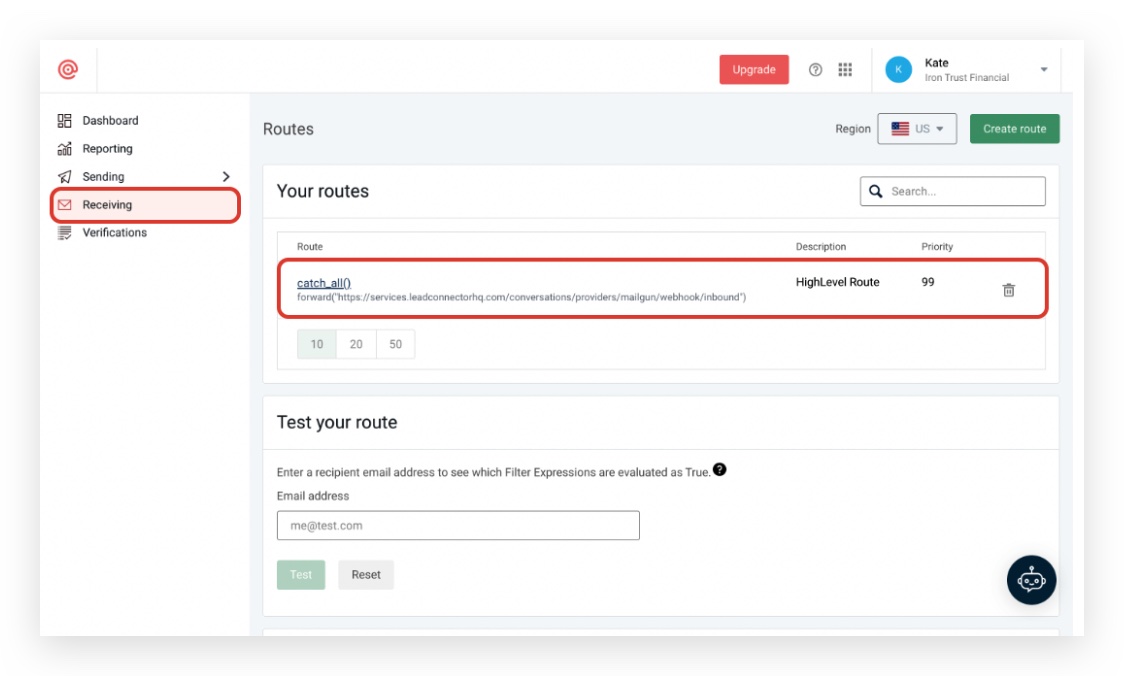
Mailgun Receiving tab showing a configured route with a webhook for LeadConnector
Mailgun Receiving Routes with a white-labeled webhook URL example for custom agency setups

2.2 Create (or verify) the HighLevel route

You want a route that looks conceptually like this:

  • Expression / Match: Catch‑all for inbound messages
  • Priority: 99
  • Action / Forward: Forward to the GoHighLevel/LeadConnector inbound webhook URL
  • Description: Something like HighLevel Route

In most GoHighLevel setups, the webhook URL looks like this:

https://services.leadconnectorhq.com/conversations/providers/mailgun/webhook/inbound

To create or fix this route:

  1. In Receiving / Routes, click Create Route (or edit the existing HighLevel route if you see one).
    Mailgun Receiving Routes list showing no configured routes and a prominent "Create Route" button
  2. Set the Expression type to a catch‑all (for example, match_recipient(".*@yourdomain.com") or the UI’s Catch All option).
  3. Set Priority to 99.
  4. Under Actions, choose to Forward and paste the LeadConnector inbound URL.
  5. Add a clear description such as HighLevel Route.
    Mailgun Create Route form filled with Catch All expression, Forward action pointing to LeadConnector webhook, Priority 99, and "HighLevel Route" description
  6. Save the route.

Mailgun will now forward any inbound mail for that domain to the GoHighLevel webhook so replies can be processed.

2.3 Clean up conflicting routes

If you have multiple routes that also try to handle the same inbound messages—especially other catch‑all routes—they can compete with each other.


Get a Free Trial of GoHighLevel

Review your routes and either:

  • Remove old or unused routes that forward to other systems, or
  • Narrow their match expressions so they only handle specific addresses (for example, support‑only inboxes) and let the HighLevel route handle everything else.

Fewer, clearer routes make troubleshooting much easier.


Step 3 – Reset the Mailgun API connection in GoHighLevel (if needed)

If you’ve corrected the route but replies still don’t show up in Conversations, the problem can sometimes be a stale or incorrect API key.

You can safely reset the Mailgun connection for the affected sub‑account:

  1. In Agency view, go back to Settings → Email Services.
  2. Under Location Settings, find the location that should be receiving replies.
  3. Click Edit next to the Mailgun configuration.
  4. Follow the prompt to delete / disconnect the existing API key.
  5. In a separate tab, open Mailgun, generate a fresh API key if needed, and copy it.
  6. Back in GoHighLevel, reconnect Mailgun for that location using the new key.

Once reconnected, give Mailgun a moment to sync. Your receiving route should continue to forward inbound messages to the same webhook URL.
Mailgun Receiving tab successfully displaying the newly created "HighLevel Route" entry after API key reset and reintegration


Step 4 – Test replies end‑to‑end

Now that the plumbing is in place, test the full flow.

4.1 Send a test email from GoHighLevel

  1. In GoHighLevel, open a test contact record.
  2. Make sure the contact email belongs to an inbox you can access.
  3. From the Conversations tab or email composer on that contact, send a short test email.
  4. Confirm the message arrives in the external inbox and that the From address uses your Mailgun domain.

4.2 Reply from the external inbox

  1. From the external inbox, click Reply (do not change the To address).
  2. Send a short reply such as “Test reply for Mailgun → GoHighLevel.”
  3. Wait a few moments, then refresh GoHighLevel.

You should see:

  • The reply appended to the original thread in Conversations.
  • The contact record updated with the new message.

If the reply does not appear:

  • Check Mailgun’s Logs for the inbound message.
  • Verify that the correct route handled it and forwarded to the webhook URL.
  • Confirm there are no 4xx/5xx errors on the webhook call.

Step 5 – Hardening deliverability and reliability

Routing is only part of the story. To keep replies flowing smoothly over time:

5.1 Keep your Mailgun domain healthy

  • Monitor bounce and complaint rates in Mailgun.
  • Use verified sending domains with SPF/DKIM properly set.
  • Warm up new domains gradually—don’t blast cold lists on a fresh domain.

5.2 Protect your reply‑to address

  • Avoid forwarding replies through multiple layers (for example, Mailgun → another provider → GoHighLevel).
  • Use a dedicated domain or subdomain for outbound campaigns that expect replies.

5.3 Standardize how your team sends email

  • Use GoHighLevel (not random inboxes) as the source of truth for outbound campaigns.
  • Reserve personal inboxes for 1:1, high‑touch threads that don’t need to log in Conversations, or connect them properly using the personal inbox features.

Revset Labs often helps teams design email sending architecture—domains, providers, and routing rules—so Mailgun + GoHighLevel stay healthy even as volume rises.


FAQs: Mailgun replies and GoHighLevel

Do I need a dedicated Mailgun domain to handle replies for GoHighLevel?
You don’t have to, but it’s strongly recommended. A dedicated sending domain or subdomain (for example, mg.yourbrand.com) makes deliverability management and troubleshooting much easier than mixing marketing traffic with your main corporate domain.

What URL should my Mailgun receiving route forward to?
For standard GoHighLevel setups, the receiving route should forward to:

https://services.leadconnectorhq.com/conversations/providers/mailgun/webhook/inbound

If GoHighLevel ever updates this endpoint, follow their latest documentation—but never forward inbound mail to arbitrary or untrusted URLs.

Can I have more than one Mailgun route on the same domain?
Yes, but you should be careful. Only one route should handle catch‑all traffic for the domain. If you need additional routes for specific addresses, use more precise match expressions so they don’t conflict with the HighLevel route.

Why are replies still not showing in GoHighLevel even after I set the route?
Check Mailgun’s Logs first. If you see the inbound message but no forwarding attempt, another route may be intercepting it. If you see forwarding attempts returning 4xx/5xx errors, the webhook may be blocked, mis‑typed, or temporarily unavailable. Re‑verify the URL and, if needed, reset your Mailgun API connection in GoHighLevel.

Will this setup affect my existing transactional emails or other apps that use Mailgun?
If you share a domain across multiple systems, changing routes can absolutely impact them. Where possible, isolate GoHighLevel traffic on its own Mailgun domain or subdomain so the HighLevel route is the only consumer of inbound mail there.


Where Revset Labs fits into your Mailgun + GoHighLevel stack

GoHighLevel and Mailgun together give you a powerful email engine—but they’re just the raw ingredients.

Revset Labs is an AI Automation and Marketing Agency that turns those ingredients into a revenue system. In practice, that can look like:

  • Designing your email infrastructure (domains, providers, DNS, routing) with deliverability in mind.
  • Implementing reply‑safe campaigns that route every conversation back into GoHighLevel.
  • Building workflows that:
    • Turn replies into pipeline opportunities automatically.
    • Notify the right team members when a high‑intent reply lands.
    • Kick off follow‑up sequences based on reply content.
  • Setting up dashboards so you can see which campaigns are generating genuine back‑and‑forth conversations—not just opens and clicks.

If you’d rather skip the trial‑and‑error phase and go straight to a clean Mailgun + GoHighLevel setup, Revset Labs can architect and implement the entire flow for you.

In the meantime, you can feel this setup in your own account by starting a trial and walking through the steps above:

Start your GoHighLevel free trial


Get a Free Trial of GoHighLevel

Leave a Comment

Your email address will not be published. Required fields are marked *

How to setup Replies in Mailgun

Getting replies flowing reliably from Mailgun into GoHighLevel is one of those small technical wins that makes a big difference.


Get a Free Trial of GoHighLevel

When it’s set up correctly, every time a contact hits Reply on an email you sent from GoHighLevel:

  • Mailgun receives the inbound email.
  • A receiving route forwards it to the correct webhook.
  • The reply shows up inside GoHighLevel Conversations on the right contact.

When it’s not set up correctly, replies disappear into Mailgun, never make it back to GoHighLevel, and your team has to stitch conversations together manually.

This guide walks you through exactly how to set up replies in Mailgun for GoHighLevel, how the routing flow works, and how to troubleshoot issues—plus where it makes sense to bring in Revset Labs, an AI Automation and Marketing Agency, if you want this wired into a larger revenue system.

If you don’t have a GoHighLevel account yet, you can spin one up and follow along in a live environment:

Start your GoHighLevel free trial


How replies flow from Mailgun into GoHighLevel

Before you change any settings, it helps to understand the high-level path a reply takes.

The happy-path looks like this:

  1. Outbound email is sent from GoHighLevel using your Mailgun domain.
  2. Your contact hits Reply in their inbox.
  3. Mailgun receives the inbound message on the sending domain.
  4. A Mailgun Receiving Route forwards that inbound email to the official GoHighLevel/LeadConnector webhook endpoint.
  5. The LeadConnector inbound webhook parses the message and attaches it to the correct contact + thread inside GoHighLevel Conversations.

If any of those steps are misconfigured—especially the receiving route and webhook URL—replies won’t ever appear in Conversations.

The rest of this article is about making sure each step is clean, predictable, and easy to debug.


Prerequisites

Before you touch routes or keys, double‑check these basics:

  • You’re already using Mailgun as your email service for the GoHighLevel location you care about.
  • You can log into both:
    • Your Mailgun account (with access to the relevant sending domain), and
    • Your GoHighLevel Agency account (with permission to view Email Services).
  • Your sending domain is verified and healthy (DNS records for SPF/DKIM are green in Mailgun).

If you’re still in the early setup stages and haven’t wired Mailgun into GoHighLevel yet, it’s worth pairing this article with the broader communication setup guide once it’s live on the Revset Labs site.


Step 1 – Confirm Mailgun is the active email provider for your sub‑account

First, make sure the replies you care about are actually flowing through Mailgun.

  1. Log into GoHighLevel and switch to Agency view.
  2. Go to Settings → Email Services.
  3. Under Location Settings, find the sub‑account you’re troubleshooting.
  4. Confirm that Mailgun is connected as the provider for that location (you should see a Mailgun API key entry, not just LeadConnector or another SMTP).

If Mailgun is not yet connected here, connect it first using your Mailgun API key. Only then will the reply routing in this article apply.


Step 2 – Configure the Mailgun Receiving Route

The most important part of getting replies into GoHighLevel is the Receiving Route inside Mailgun. This tells Mailgun what to do with inbound email for your domain.

2.1 Open Receiving settings for your Mailgun domain

  1. Log into Mailgun.
  2. Choose the domain you’re using with GoHighLevel (for example, mg.yourbrand.com).
  3. In the left navigation, go to Receiving or Routes (exact wording can vary by UI version).

You should see a list of existing routes for that domain.
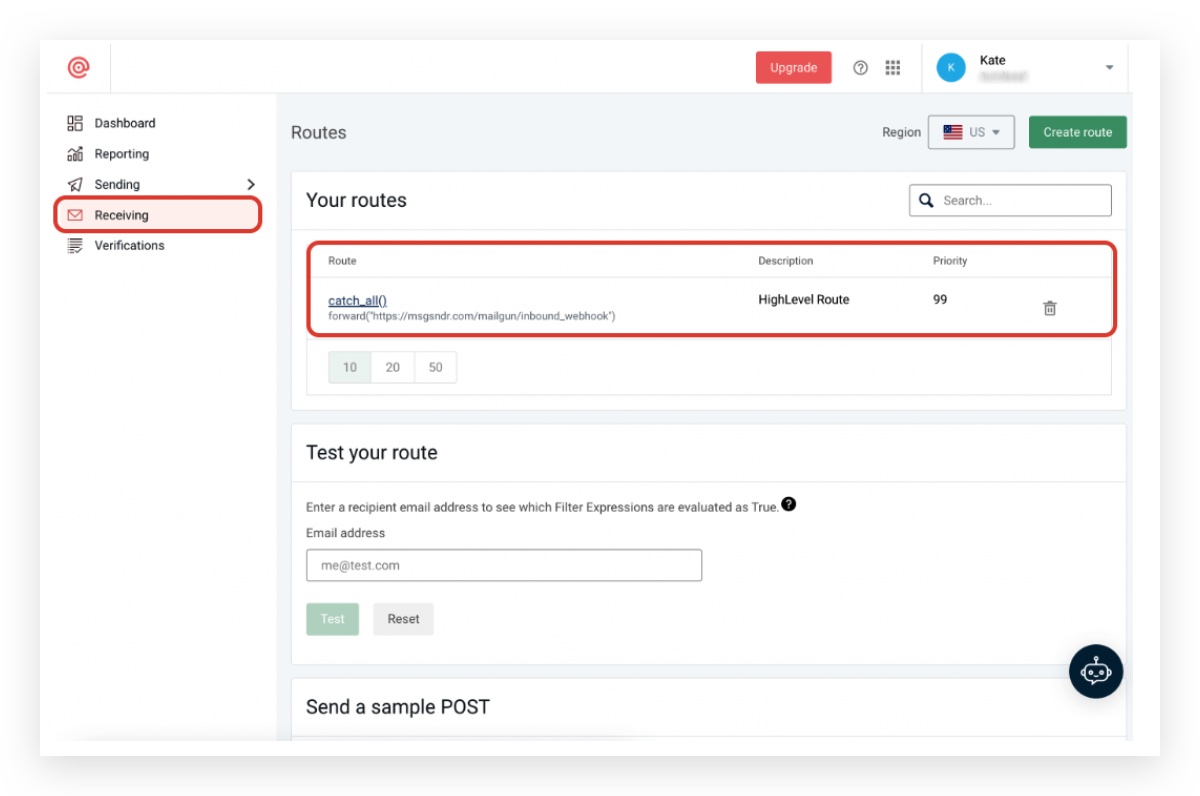
Mailgun Receiving tab screenshot displaying an example inbound webhook route configured for GoHighLevel, showing the action 'Forward' to the LeadConnector webhook URL.
Screenshot of a Mailgun receiving route configuration with a white-labeled webhook URL, demonstrating how agencies can set up client-specific inbound email routing for GoHighLevel.

2.2 Create (or verify) the HighLevel route

You want a route that looks conceptually like this:

  • Expression / Match: Catch‑all for inbound messages
  • Priority: 99
  • Action / Forward: Forward to the GoHighLevel/LeadConnector inbound webhook URL
  • Description: Something like HighLevel Route

In most GoHighLevel setups, the webhook URL looks like this:

https://services.leadconnectorhq.com/conversations/providers/mailgun/webhook/inbound

To create or fix this route:

  1. In Receiving / Routes, click Create Route (or edit the existing HighLevel route if you see one).
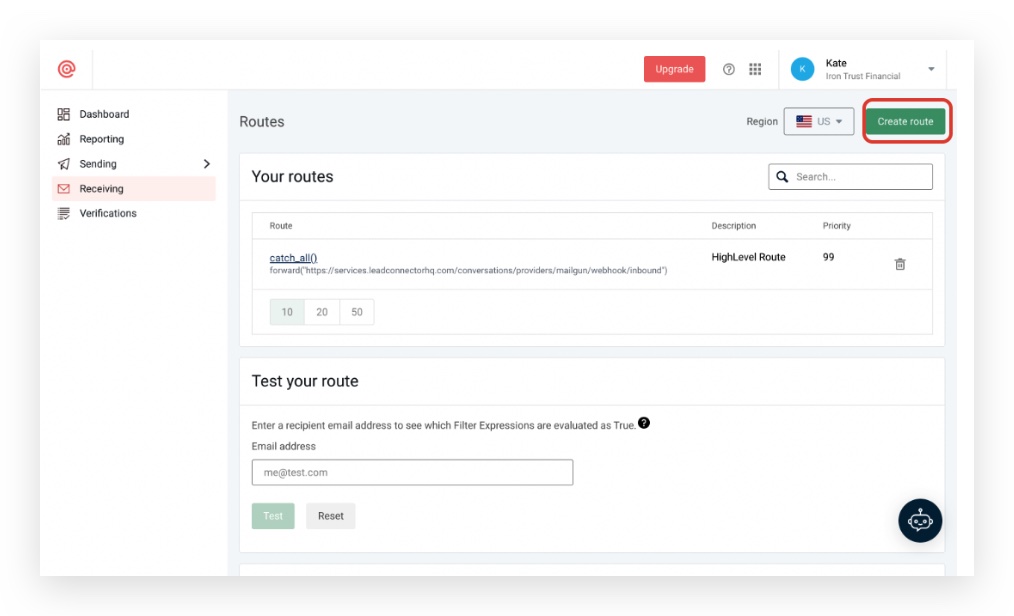
    Screenshot illustrating an empty Mailgun Receiving Routes list, indicating that no inbound email routes are currently defined, and highlighting the 'Create Route' button.
  2. Set the Expression type to a catch‑all (for example, match_recipient(".*@yourdomain.com") or the UI’s Catch All option).
  3. Set Priority to 99.
  4. Under Actions, choose to Forward and paste the LeadConnector inbound URL.
  5. Add a clear description such as HighLevel Route.
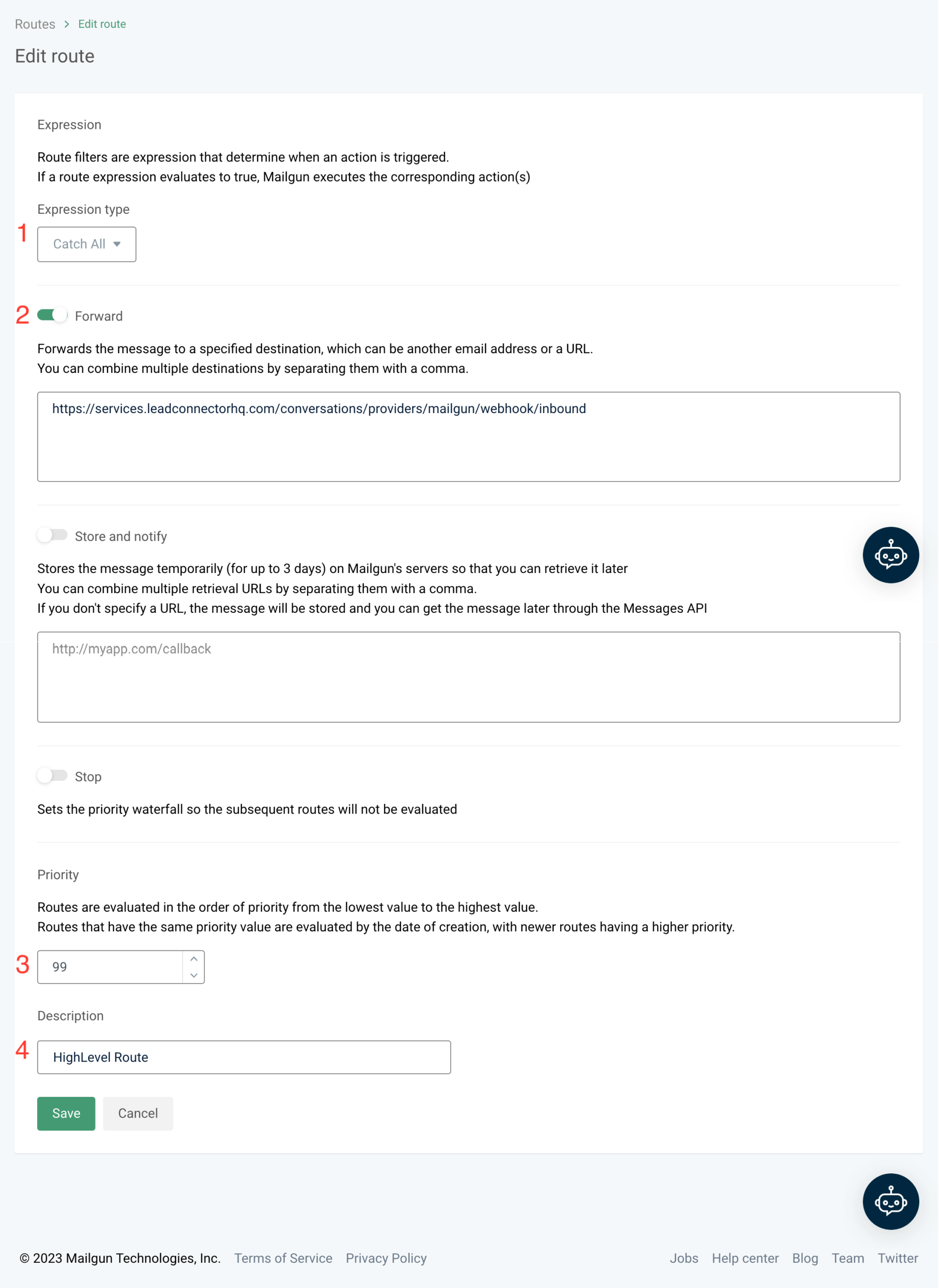
  6. Save the route.
    Detailed screenshot of the Mailgun 'Create Route' form completed, showing 'Catch All' expression, 'Priority 99', 'Forward' action set to the GoHighLevel inbound webhook, and 'HighLevel Route' description.

Mailgun will now forward any inbound mail for that domain to the GoHighLevel webhook so replies can be processed.

2.3 Clean up conflicting routes

If you have multiple routes that also try to handle the same inbound messages—especially other catch‑all routes—they can compete with each other.


Get a Free Trial of GoHighLevel

Review your routes and either:

  • Remove old or unused routes that forward to other systems, or
  • Narrow their match expressions so they only handle specific addresses (for example, support‑only inboxes) and let the HighLevel route handle everything else.

Fewer, clearer routes make troubleshooting much easier.


Step 3 – Reset the Mailgun API connection in GoHighLevel (if needed)

If you’ve corrected the route but replies still don’t show up in Conversations, the problem can sometimes be a stale or incorrect API key.

You can safely reset the Mailgun connection for the affected sub‑account:

  1. In Agency view, go back to Settings → Email Services.
  2. Under Location Settings, find the location that should be receiving replies.
  3. Click Edit next to the Mailgun configuration.
  4. Follow the prompt to delete / disconnect the existing API key.
  5. In a separate tab, open Mailgun, generate a fresh API key if needed, and copy it.
  6. Back in GoHighLevel, reconnect Mailgun for that location using the new key.

Once reconnected, give Mailgun a moment to sync. Your receiving route should continue to forward inbound messages to the same webhook URL.
Screenshot of the Mailgun Receiving Routes page after successful setup, confirming the presence and active status of the 'HighLevel Route' for inbound email replies.


Step 4 – Test replies end‑to‑end

Now that the plumbing is in place, test the full flow.

4.1 Send a test email from GoHighLevel

  1. In GoHighLevel, open a test contact record.
  2. Make sure the contact email belongs to an inbox you can access.
  3. From the Conversations tab or email composer on that contact, send a short test email.
  4. Confirm the message arrives in the external inbox and that the From address uses your Mailgun domain.

4.2 Reply from the external inbox

  1. From the external inbox, click Reply (do not change the To address).
  2. Send a short reply such as “Test reply for Mailgun → GoHighLevel.”
  3. Wait a few moments, then refresh GoHighLevel.

You should see:

  • The reply appended to the original thread in Conversations.
  • The contact record updated with the new message.

If the reply does not appear:

  • Check Mailgun’s Logs for the inbound message.
  • Verify that the correct route handled it and forwarded to the webhook URL.
  • Confirm there are no 4xx/5xx errors on the webhook call.

Step 5 – Hardening deliverability and reliability

Routing is only part of the story. To keep replies flowing smoothly over time:

5.1 Keep your Mailgun domain healthy

  • Monitor bounce and complaint rates in Mailgun.
  • Use verified sending domains with SPF/DKIM properly set.
  • Warm up new domains gradually—don’t blast cold lists on a fresh domain.

5.2 Protect your reply‑to address

  • Avoid forwarding replies through multiple layers (for example, Mailgun → another provider → GoHighLevel).
  • Use a dedicated domain or subdomain for outbound campaigns that expect replies.

5.3 Standardize how your team sends email

  • Use GoHighLevel (not random inboxes) as the source of truth for outbound campaigns.
  • Reserve personal inboxes for 1:1, high‑touch threads that don’t need to log in Conversations, or connect them properly using the personal inbox features.

Revset Labs often helps teams design email sending architecture—domains, providers, and routing rules—so Mailgun + GoHighLevel stay healthy even as volume rises.


FAQs: Mailgun replies and GoHighLevel

Do I need a dedicated Mailgun domain to handle replies for GoHighLevel?
You don’t have to, but it’s strongly recommended. A dedicated sending domain or subdomain (for example, mg.yourbrand.com) makes deliverability management and troubleshooting much easier than mixing marketing traffic with your main corporate domain.

What URL should my Mailgun receiving route forward to?
For standard GoHighLevel setups, the receiving route should forward to:

https://services.leadconnectorhq.com/conversations/providers/mailgun/webhook/inbound

If GoHighLevel ever updates this endpoint, follow their latest documentation—but never forward inbound mail to arbitrary or untrusted URLs.

Can I have more than one Mailgun route on the same domain?
Yes, but you should be careful. Only one route should handle catch‑all traffic for the domain. If you need additional routes for specific addresses, use more precise match expressions so they don’t conflict with the HighLevel route.

Why are replies still not showing in GoHighLevel even after I set the route?
Check Mailgun’s Logs first. If you see the inbound message but no forwarding attempt, another route may be intercepting it. If you see forwarding attempts returning 4xx/5xx errors, the webhook may be blocked, mis‑typed, or temporarily unavailable. Re‑verify the URL and, if needed, reset your Mailgun API connection in GoHighLevel.

Will this setup affect my existing transactional emails or other apps that use Mailgun?
If you share a domain across multiple systems, changing routes can absolutely impact them. Where possible, isolate GoHighLevel traffic on its own Mailgun domain or subdomain so the HighLevel route is the only consumer of inbound mail there.


Where Revset Labs fits into your Mailgun + GoHighLevel stack

GoHighLevel and Mailgun together give you a powerful email engine—but they’re just the raw ingredients.

Revset Labs is an AI Automation and Marketing Agency that turns those ingredients into a revenue system. In practice, that can look like:

  • Designing your email infrastructure (domains, providers, DNS, routing) with deliverability in mind.
  • Implementing reply‑safe campaigns that route every conversation back into GoHighLevel.
  • Building workflows that:
    • Turn replies into pipeline opportunities automatically.
    • Notify the right team members when a high‑intent reply lands.
    • Kick off follow‑up sequences based on reply content.
  • Setting up dashboards so you can see which campaigns are generating genuine back‑and‑forth conversations—not just opens and clicks.

If you’d rather skip the trial‑and‑error phase and go straight to a clean Mailgun + GoHighLevel setup, Revset Labs can architect and implement the entire flow for you.

In the meantime, you can feel this setup in your own account by starting a trial and walking through the steps above:

Start your GoHighLevel free trial


Get a Free Trial of GoHighLevel

Leave a Comment

Your email address will not be published. Required fields are marked *

Scroll to Top
60,000+ agencies trust HighLevel
GoHighLevel
Everything your
agency needs.
Free for 14 days. No credit card required.
23Hrs
47Min
00Sec
Start Free Trial →
Cancel anytime  ·  No credit card required
14 days free. No credit card. Start Free Trial
Ready to scale your agency? Most agencies see results in the first 30 days.
Start Free →
Your free trial
is still waiting.

Most agencies see results in the first 30 days. Takes 5 minutes to start.

Claim Free Trial →

START YOUR FREE 14-DAY TRIAL TODAY!

No Commitment. Cancel Anytime.

GET STARTED NOW