
Showing more than one GoHighLevel calendar on a single page is a common ask for agencies and businesses.

Maybe you:
- Offer different services with separate calendars (strategy calls, onboarding sessions, demos).
- Want each team member to keep their own calendar but give prospects one simple booking page.
- Don’t want the overhead of building and maintaining calendar groups for a handful of scenarios.
Good news: you can absolutely show multiple GoHighLevel calendars on one page without using calendar groups. In this guide, you’ll learn two reliable options, exactly when to use each, and a few ways to turn this into a cleaner, more automated booking experience.
If you’re still evaluating the platform, you can follow along in your own account by starting a trial here:
Start your free GoHighLevel trial
How to display more than one GoHighLevel calendar on a page
At a high level, you have two main approaches:
- Combine calendar IDs in a single calendar link so visitors can choose from multiple calendars on one hosted GoHighLevel page.
- Embed multiple appointment widgets on a funnel or website page so separate calendars appear side‑by‑side (or stacked) in your own layout.
Both options work without creating a formal Calendar Group inside GoHighLevel. The right choice depends on whether you prefer using the hosted booking page or a custom page/funnel.
Before you start, make sure you have:
- At least two existing calendars built in GoHighLevel.
- Clear names for each calendar (for example, "Sales Demo – Alex" and "Implementation Call – Team").
- Access to Settings → Appointments and your funnel or website editor.
Option 1: Use calendar links and combined calendar IDs
This approach keeps things simple: you use GoHighLevel’s own booking page, but tell it to load more than one calendar at the same time by combining their IDs.
Step 1 – Open each calendar link in a new tab
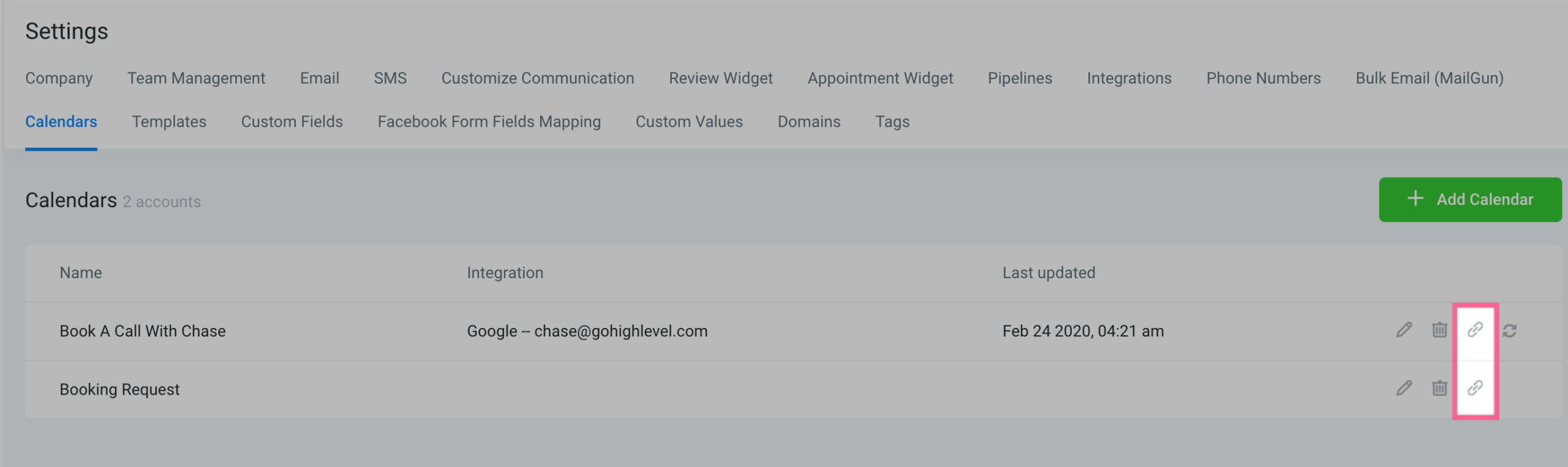
- In GoHighLevel, go to Settings → Calendars.
- Find the first calendar you want to include.
- Click the link icon to open its public booking link in a new tab.
- Repeat for the second (and third, if needed) calendar so each booking page is open in its own browser tab.
You’ll now have a few tabs open, each one showing a different calendar.
Step 2 – Copy the calendar IDs
Each calendar link includes a unique calendar ID in the URL.
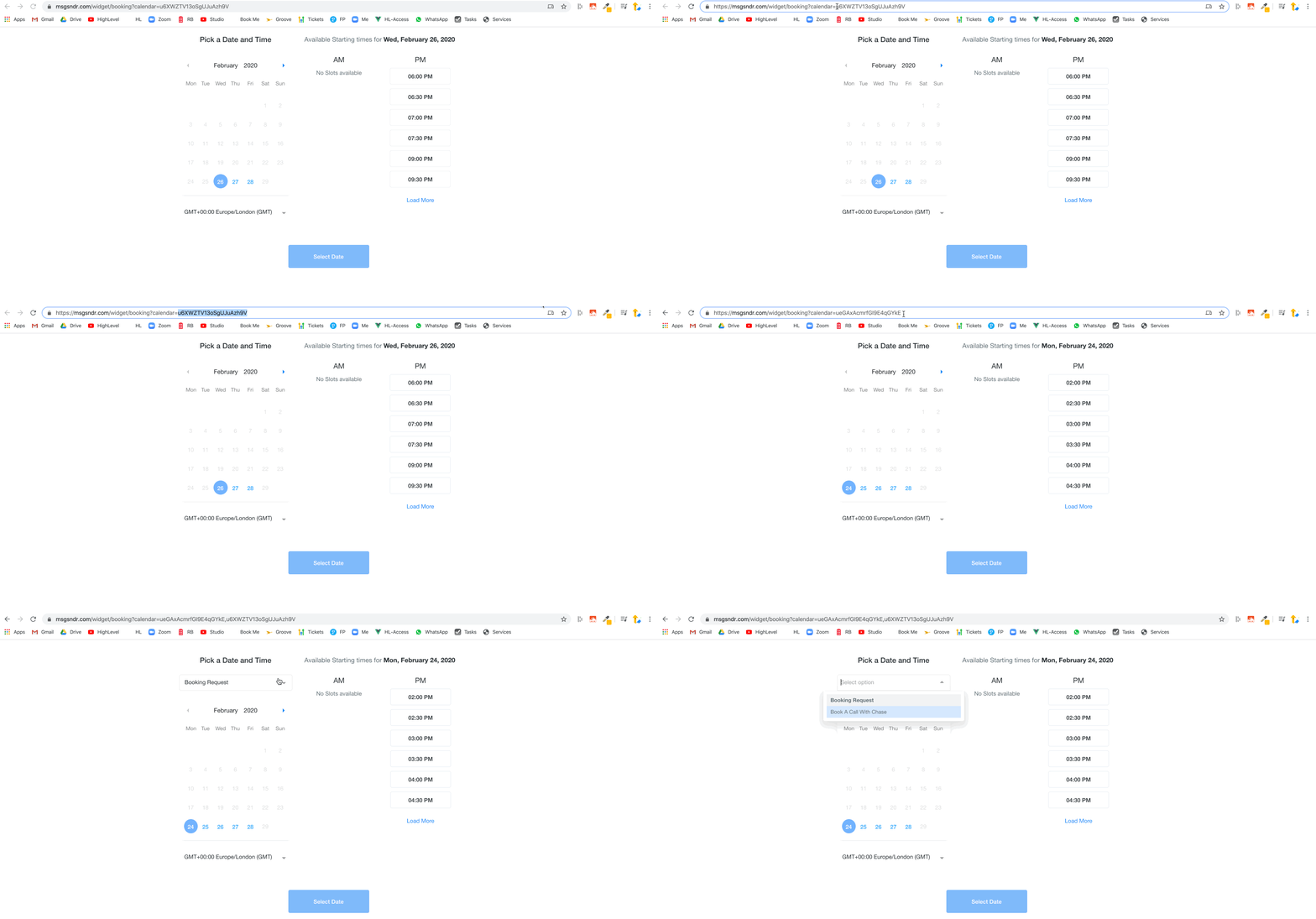
- In the first calendar tab, look at the URL in your browser.
- Copy the calendar ID segment (the string of letters/numbers that identifies this specific calendar).
- Paste that ID into a temporary note—you’ll use it again in a moment.
- Repeat this process for the other calendars you want to combine.
Tip: Keep calendar names and IDs organized in a doc or spreadsheet if you manage many calendars across teams.
Step 3 – Combine calendar IDs in one URL
Now you’ll tell GoHighLevel to treat multiple calendars as part of one combined view.
- Go back to the first calendar’s booking page tab.
- In the URL, locate the calendar ID.
- After the first calendar ID, type a comma
,. - Paste the second calendar ID right after the comma.
- If you’re including a third calendar, add another comma and paste the third ID.
- Press Enter (or Return) to reload the page.
When the page reloads, visitors will now see an interface that lets them view and book from multiple calendars on that single link—no calendar group required.
This method is great when you:
- Are happy using GoHighLevel’s hosted booking page design.
- Want a quick win with minimal setup.
- Need a single URL you can drop into emails, chat widgets, or funnels.
If you’d rather fully control the design and layout of your booking experience (for example aligning it to your brand or landing page), move on to Option 2.
Option 2: Embed multiple calendars on a funnel or website page
If you want more control over your layout, headlines, copy, and design, embed each calendar as its own widget on a funnel or site page. This is also the best choice when you want to visually separate calendar options (for example, "Sales Demo" vs "Partner Call") with different copy and CTAs.
The idea is simple:
- Copy the embed code for each calendar.
- Drop each embed into its own Custom JS/HTML element.
- Arrange those elements how you want on the page.
Here’s how to do it.
Step 1 – Copy the embed code for the first calendar
- In GoHighLevel, go to Settings → Appointment Widget.
- In the Calendar dropdown, choose the first calendar you want to display.
- Click the Embed Code tab.
- Copy the full embed code—you’ll paste this into your funnel or website.
Step 2 – Add the first calendar to your funnel page
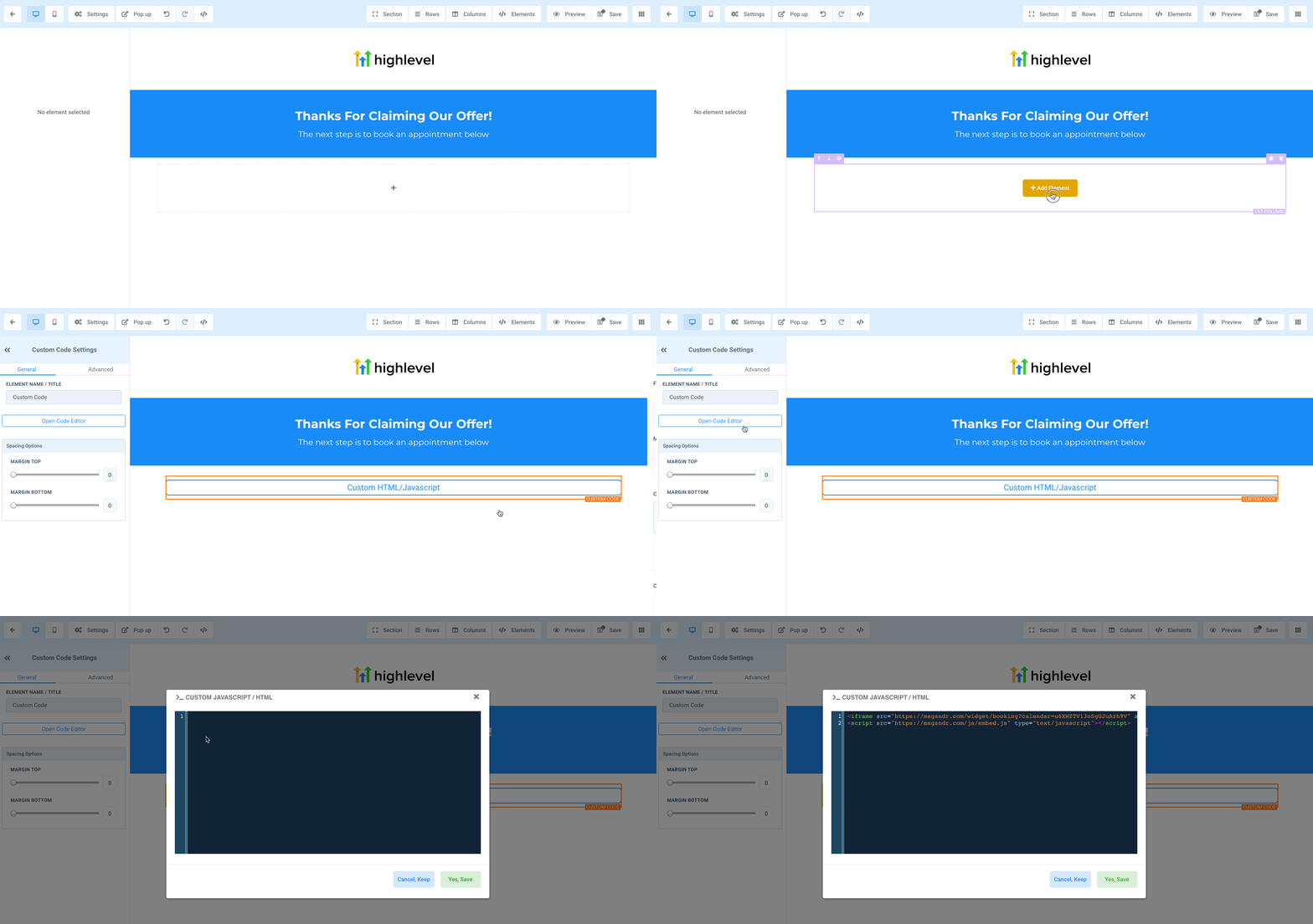
- Open the funnel or website page where you want multiple calendars to appear.
- Drag a Custom JS/HTML element onto the page.
- Click Open Code Editor.
- Paste the embed code you copied in the previous step.
- Save the element and preview the page—you should now see the first calendar.
Step 3 – Copy the embed code for the second calendar
- In a new browser tab, go back to Settings → Appointment Widget.
- Change the Calendar dropdown to your second calendar.
- Again, click the Embed Code tab.
- Copy the embed code for this second calendar.
Step 4 – Add the second calendar to the same page
- Return to your funnel/page editor.
- Drag another Custom JS/HTML element onto the same page (above, below, or beside the first one).
- Open the code editor for this element.
- Paste the embed code for the second calendar.
- Save and preview the page.
You now have two separate calendars visible on the same page—each with its own availability, booking rules, and confirmation settings.
Step 5 – (Advanced) Combine calendar IDs inside a single embed
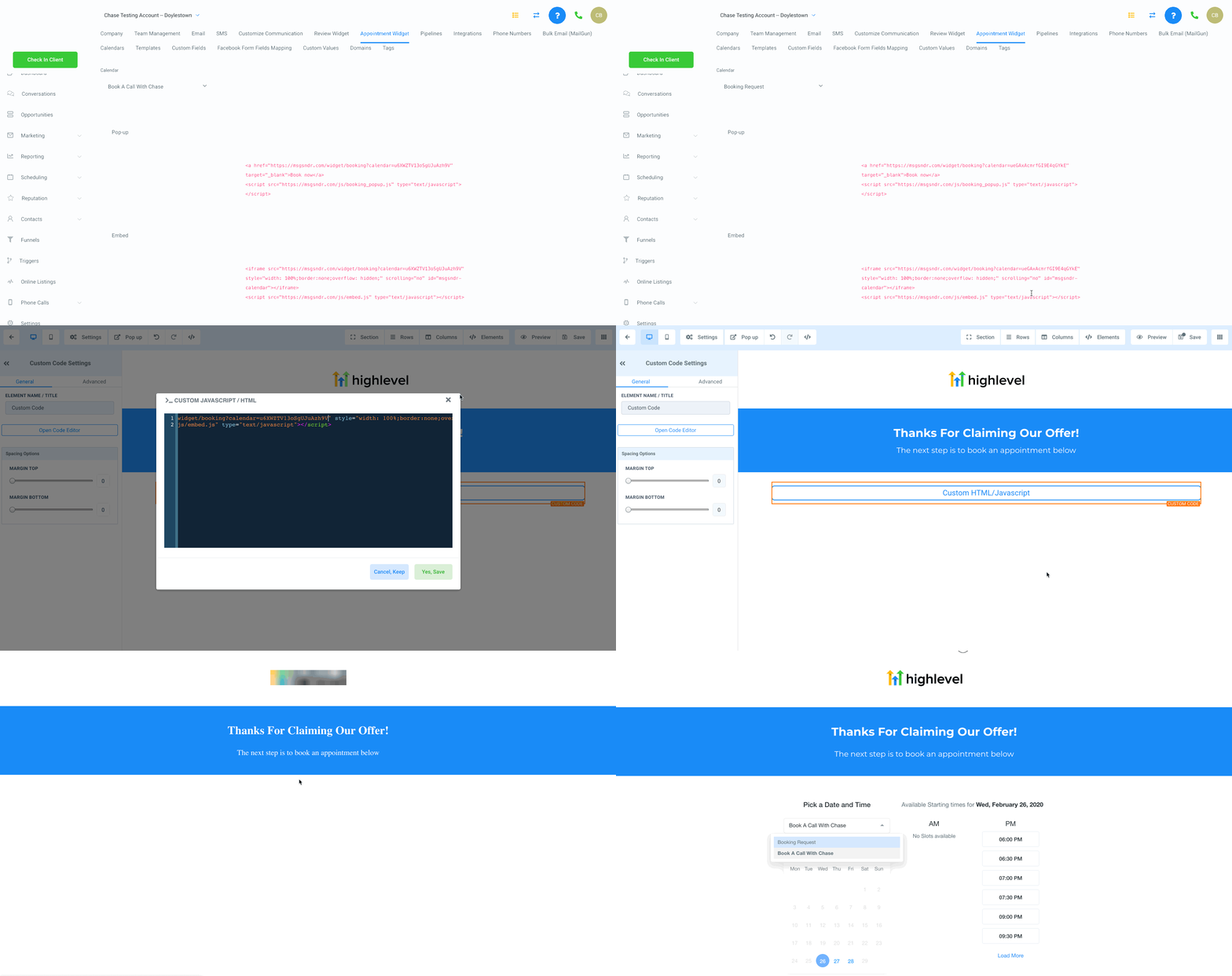
In some cases, you may prefer to use a single embed that references multiple calendar IDs.
- In the embed code you pasted, locate the parameter where the calendar ID appears.
- After the first calendar ID, add a comma and paste the second calendar ID.
- Save the changes and refresh your page.
This is similar to Option 1 but gives you more control over the surrounding page content and funnel structure.
Visual overview: from multiple calendars to one booking experience
Use this simple flow to think through your setup:
- Calendar A, Calendar B, Calendar C – you create and configure each calendar normally.
- Combine calendar IDs or embed multiple widgets – you either join IDs in a URL or paste multiple appointment widgets onto one page.
- Single funnel/page view – visitors see all of their options in one place and can pick the time that works best.
Which approach should you use?
Both methods give you a single booking experience with multiple calendars. The difference is in how much control you want.
Use combined calendar IDs (Option 1) if:
- You want the fastest possible setup.
- You’re okay with GoHighLevel’s default booking page design.
- You mainly need a clean link to drop into emails, SMS, or chat.
Use embedded widgets on a funnel page (Option 2) if:
- You want the booking experience to match your brand and funnel layout.
- You’d like to add context around each calendar (for example, who it’s for, expected call length, or pricing).
- You want to test different headlines, CTAs, and page layouts for conversion.
If you’re building full funnels with upsells, confirmation pages, and automated follow‑up, Option 2 is almost always the better long‑term play.
Pro tip: Whichever option you choose, keep the number of calendars reasonable. Too many options on one page can create decision fatigue and reduce bookings.
Turn your multi‑calendar page into a full booking system
Showing multiple calendars is just the first step. The real leverage comes from tying bookings into your CRM, pipeline, and campaigns.
Here are a few ideas you can implement directly inside GoHighLevel:
-
Tag contacts based on which calendar they use.
For example, tagCalendar–Sales-DemovsCalendar–Onboardingso you can trigger different follow‑up sequences. -
Move opportunities in your pipeline when a meeting is booked.
Automatically move leads to a "Booked" stage, assign owners, and set next‑step tasks. -
Trigger reminders and post‑meeting follow‑up.
Use workflows to send SMS/email reminders before the appointment and recap + next steps afterward. -
Route different calendars to different teams.
Sales calls can notify your sales channel, while onboarding calls alert your delivery team.
If you don’t yet have GoHighLevel but want this kind of end‑to‑end system, you can start here and follow along with this guide:
Try GoHighLevel and build your booking system
Where Revset Labs fits in
GoHighLevel gives you powerful tools for calendars, funnels, and automation. Revset Labs turns those raw tools into a clean, high‑converting booking experience.
As an AI Automation and Marketing Agency, Revset Labs can help you:
- Design a calendar strategy that matches your offers and sales process (who should own which calendar and when).
- Build multi‑calendar booking pages and funnels that convert, instead of just dropping widgets on a blank page.
- Wire in workflows, tags, and pipelines so every booking kicks off the right internal process automatically.
- Layer in AI summaries and automations (for example, summarizing calls, suggesting next steps, or alerting your team to no‑shows).
You can absolutely do everything in this guide yourself. If you’d rather skip the trial‑and‑error and ship a fully working system faster, Revset Labs can help you implement and optimize it.
FAQs: Multiple calendars in GoHighLevel without calendar groups
Can I show multiple GoHighLevel calendars on one page without a calendar group?
Yes. You can either combine calendar IDs in a single booking link or embed multiple appointment widgets on the same funnel or website page. Both options let visitors see several calendars from a single view.
Will bookings from different calendars still respect availability and conflicts?
Yes. Each calendar keeps its own availability and rules. As long as you set your availability correctly and use connected calendars (like Google or Outlook) where needed, GoHighLevel will prevent double‑booking per calendar.
Can I use multiple calendars on a WordPress or external site?
Yes. Use the embed code from Settings → Appointment Widget for each calendar and paste them into your WordPress (or other CMS) page using HTML blocks or a page builder, just like you would in a GoHighLevel funnel.
What’s the downside of not using calendar groups?
Calendar groups give you more built‑in logic for round‑robin and team scheduling. If you only have a few calendars or simple routing rules, combining IDs or embedding multiple widgets is enough. If you’re scaling a larger team, you may eventually want calendar groups for more advanced distribution.
Can I track which calendar produced each booking?
Yes. Every booking is tied to a specific calendar in GoHighLevel. You can use workflows to tag contacts, move opportunities, or notify specific team members based on the calendar that was booked.
If you’re ready to turn your calendars into a streamlined booking system that actually supports your funnel and sales process, start by getting your calendars into one clear experience—then layer in automation and optimization from there.
Launch or upgrade your GoHighLevel account.