
Why SMTP Providers Matter in GoHighLevel
If you rely on email to book calls, nurture leads, or deliver campaigns from GoHighLevel, your sending infrastructure is just as important as your copy.

That’s where SMTP providers come in. They’re the engines that actually deliver your emails from GoHighLevel into your contact’s inbox. When they’re set up correctly, you get reliable delivery and cleaner stats. When they’re not, you see bounces, spam folder issues, and confusing errors.
In this guide, you’ll learn how SMTP fits into your GoHighLevel setup, when you should use it (and when you shouldn’t), and what to watch out for so your emails keep landing where they should.
Quick reminder: if you’re not yet using GoHighLevel, you can spin up an account and follow along with a free GoHighLevel trial.
SMTP vs. Direct Integrations and LC Email
Before you start wiring in SMTP, it’s important to understand your options inside GoHighLevel:
- Direct integrations (Google / Outlook): For many small teams, connecting Google or Outlook directly is the simplest option. You don’t touch SMTP settings at all — GoHighLevel handles the connection for you.
- LC Email: If you’re sending higher volumes and want deliverability handled for you, LC Email is the built‑in bulk sending solution. It’s designed for marketing and automation at scale.
- Custom SMTP providers: This is the advanced path. You bring your own SMTP (like Amazon SES, SendGrid, or a custom mail server) and connect it to GoHighLevel for sending.
For most beginners, Revset Labs generally recommends:
- Start with direct integrations or LC Email if you just need reliable sending fast.
- Move to custom SMTP when you have a clear reason: strict IT/security requirements, existing infrastructure (e.g. SES), or very specific deliverability constraints.
If you’re not sure which path is right for you, that’s a great point to talk with Revset Labs about the bigger picture of your funnel and email volume.
Core Concepts: How SMTP Works With GoHighLevel
At a high level, the flow looks like this:
- GoHighLevel prepares and queues the email (from a workflow, campaign, or one‑off send).
- SMTP provider handles the actual delivery — authenticating, negotiating with recipient servers, and attempting delivery.
- Inbox (or spam folder) is where the result shows up, depending on your reputation and configuration.
This is exactly what the flowchart visual in this article shows: GoHighLevel → SMTP Provider → Inbox. When your SMTP is configured correctly, more messages complete that journey without hitting hard bounces or spam filters.
A few key implications:
- Your sender email address must match the SMTP account you’ve integrated.
- Your daily sending limits are controlled by the SMTP provider, not GoHighLevel.
- Some stats (like hard bounces) may not be available inside GoHighLevel when using SMTP; you’ll typically see open and click tracking only.
Prerequisites Before You Configure SMTP
Before touching any settings, make sure you have:
- A working GoHighLevel account with admin access.
- An SMTP provider account (for example Amazon SES, SendGrid, or another reputable service) with credentials ready.
- DNS access for your domain so you can set up SPF, DKIM, and ( ideally) DMARC.
- A clear answer to: Which email address and domain should we send from? (for example
notifications@yourdomain.com).
If you’re evaluating GoHighLevel and want to test SMTP as part of your trial, you can start a free GoHighLevel trial here and configure everything in a sandbox first.
Step 1 – Decide Whether SMTP Is Really Necessary
Not every business needs custom SMTP on day one. Ask yourself:
- Do we already have a dedicated email sending provider we want to keep using?
- Do we need strict control over IPs, warm‑up, and authentication?
- Is our IT/security team asking to keep sending centralized in an existing SMTP service?
If you answer yes to any of these, SMTP is a good fit.
If not, consider starting with LC Email or a direct Google / Outlook integration to minimize complexity. You can always migrate to SMTP later once your volume and strategy justify it.
Revset Labs often helps teams map out this decision during onboarding so they don’t over‑engineer their stack prematurely.
Step 2 – Gather Your SMTP Credentials
Most SMTP providers will give you:
- SMTP server (host): for example
smtp.yourprovider.comoremail-smtp.us-east-1.amazonaws.com. - Port: commonly 465, 587, or 25 (check your provider’s docs for the correct value).
- Username and password or API key: sometimes the access key / secret pair, sometimes a generated app password.
- Security method: TLS/SSL or STARTTLS.
Double‑check that:
- The sender email address you plan to use is authorized in the provider (verified domain or email).
- Any sending limits or warm‑up rules are understood — for example, new SES accounts often start in a sandbox with strict limits.
If you’re new to this, your SMTP provider’s “Getting Started” doc plus GoHighLevel’s own help guide on SMTP are essential references while you go.
Step 3 – Add an SMTP Provider Inside GoHighLevel
Once you’re confident SMTP is the right choice and you have credentials ready:
- Log in to your GoHighLevel agency view.
- Open the sub‑account where you want to configure email.
- Navigate to Settings → Email Services → SMTP Services.
- Click Add Service.
- Choose your SMTP provider type (for example, Amazon SES or “Other” for generic SMTP).
- Enter the credentials from Step 2: host, port, username, password, and security type.
- Save your settings.
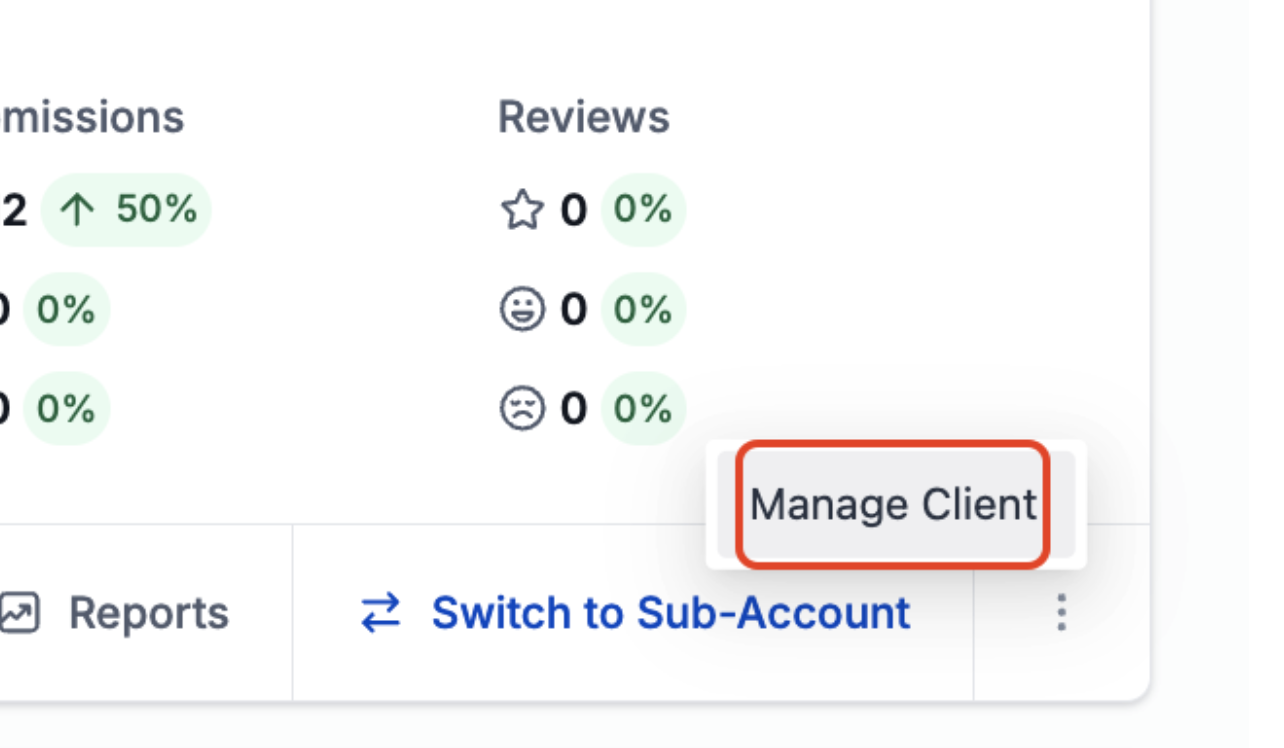
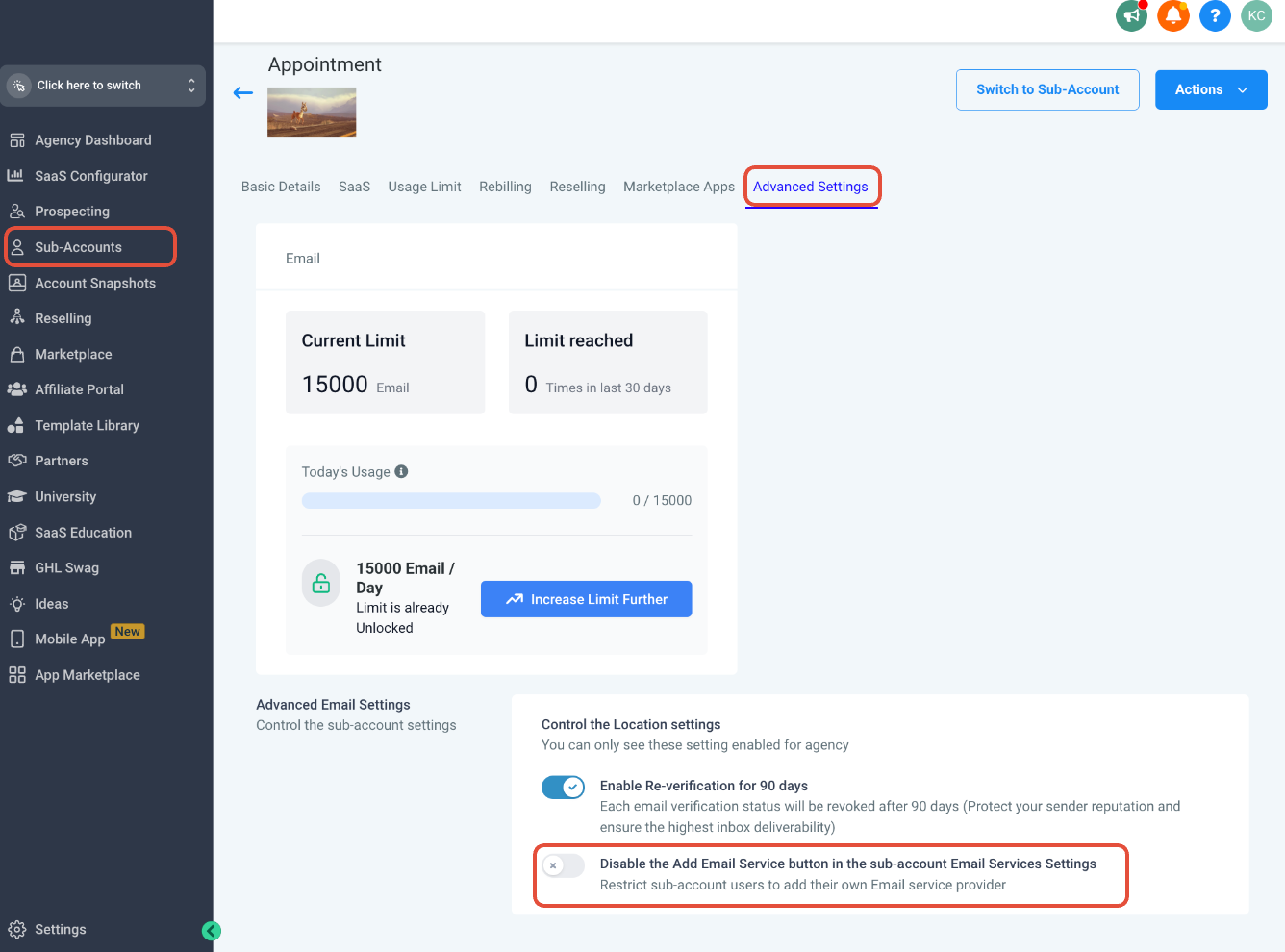
If you don’t see the Add Service button in the sub‑account, it may be disabled at the agency level. Switch to Agency View, go to Sub‑accounts → (three dots) → Manage Client → Advanced Settings, and make sure “Disable the Add Email Service button in the sub-account Email Services Settings” is turned off.
From here, GoHighLevel will attempt to connect to your SMTP provider using the supplied details.
Step 4 – Match the Sender Email to the SMTP Integration
One of the most common mistakes is using a different From address than the email account you just connected.
To avoid rejections and weird errors:
- Set the From email in your GoHighLevel campaigns, workflows, and bulk actions to the same email address configured in your SMTP provider.
- If you manage multiple brands or domains, create separate SMTP entries and From addresses for each, rather than reusing one address everywhere.

Whenever you send a test email and it fails, the very first thing to confirm is: Does this From email exactly match the SMTP account we integrated?
Step 5 – Configure Domain Authentication (SPF, DKIM, DMARC)
Simply plugging in SMTP credentials isn’t enough for long‑term deliverability. You should also:
- Add SPF records recommended by your SMTP provider so mailbox providers know your sending servers are allowed.
- Add DKIM records so emails are cryptographically signed and harder to spoof.
- Optionally set up DMARC to define how receiving servers should handle suspicious messages from your domain.
Most SMTP providers give you a set of DNS records to paste into your domain host. Once they’ve propagated, your authentication will pass more consistently, which:
- Improves inbox placement.
- Reduces the chance of being flagged as spam.
- Makes your reporting more reliable.
If DNS and email authentication are new territory for you, Revset Labs can help you deploy these records correctly and validate everything before you scale.
Step 6 – Understand Daily Limits and Statistics
Each SMTP provider enforces its own daily and per‑second sending limits. For example:
- Consumer Gmail accounts typically allow only ~100–150 messages per day from remote clients.
- Transactional providers like SendGrid or Amazon SES offer much higher limits, especially on paid plans, but may require warm‑up.
Inside GoHighLevel when using SMTP you’ll usually see:
- Open and click tracking (powered by GoHighLevel).
- Limited or no visibility into delivered vs. bounced metrics, depending on the integration.
That means if you hit provider‑side sending caps or deliverability issues, you may need to:
- Check your SMTP provider’s dashboards and logs for exact error codes.
- Adjust your sending schedule or warm‑up plan.
- Consider upgrading your plan or moving to LC Email if your volume and use case fit better there.
Step 7 – Test Your SMTP Setup Thoroughly
Before you roll out full campaigns:
- Create a simple test workflow or campaign that sends a short email from the new SMTP configuration.
- Send to a handful of test inboxes across providers (Gmail, Outlook, corporate inboxes).
- Confirm:
- Emails are delivered.
- The From name and email look correct.
- The message isn’t landing in spam for most inboxes.
- If delivery fails, use:
- Error messages in GoHighLevel.
- SMTP provider logs.
- Tools like mail‑tester or GlockApps (optional) to diagnose authentication and content issues.
Once short tests are passing, send a small warm‑up segment of real contacts before scaling up to your full list.
Step 8 – Common SMTP Issues (and How to Fix Them)
Here are some of the most frequent problems teams hit when connecting SMTP to GoHighLevel:
-
Wrong credentials or ports
Double‑check host, port, username, and password against your provider’s docs. A single typo can block everything. -
Sender email mismatch
The From address in GoHighLevel must be authorized in your SMTP provider (verified domain or email). If not, deliveries will fail or be heavily throttled. -
Hitting provider sending limits
If email volume suddenly stops, check whether you hit per‑day or per‑hour caps. Warm up slowly and request higher limits when appropriate. -
Stats don’t look complete
When using SMTP, expect to see open and click stats inside GoHighLevel but not granular bounce/delivery data. Use your provider’s reporting for the full picture. -
“Add Service” button missing
As mentioned earlier, ensure the Add Service control isn’t disabled in the sub‑account’s advanced settings at the agency level.
If you’d rather not debug all of this alone, Revset Labs can review your current setup, identify bottlenecks, and either tune your SMTP or recommend a simpler sending path inside GoHighLevel.
When to Consider LC Email Instead of SMTP
Custom SMTP is powerful, but it’s not always the best answer.
LC Email is often a better fit when:
- You want reliable, high‑volume sending without managing your own SMTP.
- You’d prefer GoHighLevel to own the infrastructure and monitoring, so you can focus on campaigns.
- You don’t have in‑house technical support for DNS, authentication, and deliverability.
A hybrid approach is also possible: some clients run transactional email via SMTP while using LC Email for marketing campaigns.
Revset Labs can help you decide which model makes sense for your funnel, list quality, and growth goals.
Next Steps: Turn Email Infrastructure Into Revenue
Once your sending setup is stable, the real leverage comes from what you build on top of it:
- Lead nurture sequences that turn cold leads into warm conversations.
- Onboarding and lifecycle campaigns that increase retention and expansion.
- Trigger‑based workflows that respond to behavior (sign‑ups, page visits, chat conversations) automatically.
If you’re just getting started with GoHighLevel, pair this article with foundational guides on setting up email, phone & SMS and creating and managing contacts so your CRM and communication channels work together from day one.
And if you’d like expert help designing the entire system — from SMTP settings to revenue‑driving automations — Revset Labs can build it with you on top of GoHighLevel.
You can launch GoHighLevel with a free trial today, then let Revset Labs turn that account into a dependable revenue engine.