
You’re only going to set Mailgun and Cloudflare up once for your GoHighLevel account—but if you rush it, you’ll fight deliverability issues for months.

This guide walks you through a clean, reliable setup for:
- Authenticating your domain with Mailgun using Cloudflare DNS
- Protecting your main domain reputation by using a subdomain
- Connecting Mailgun to GoHighLevel so campaigns actually land in the inbox
If you’re still evaluating GoHighLevel, you can follow along and implement this on a free trial: Start your GoHighLevel trial here.
Who this guide is for
This walkthrough is designed for:
- Agencies and service businesses running GoHighLevel
- Founders and marketers who manage their own DNS in Cloudflare
- Anyone who wants predictable deliverability instead of “hope it doesn’t hit spam”
You don’t need to be a sysadmin. You just need access to:
- Your Mailgun account (or the ability to create one)
- Your domain’s Cloudflare dashboard
- Your GoHighLevel account
If you’d rather have a team set this up end‑to‑end (including warmup, DMARC, and automation), Revset Labs can implement the whole stack for you as an AI Automation and Marketing Agency while you stay focused on offers and sales.
Before you start: what you need in place
Have these ready before making any changes:
- Root domain you own and control in Cloudflare (for example,
youragency.com). - Subdomain to dedicate to email sending (recommended), such as
mg.youragency.com,mail.youragency.com, orreplies.youragency.com. - Admin access to:
- Mailgun (for domains, DNS instructions, and API keys)
- Cloudflare (for DNS records)
- GoHighLevel (for Email Services configuration)
Why a subdomain?
Using a subdomain keeps your marketing mail reputation separate from your main domain. If a campaign goes sideways, your regular inbox (Gmail, workspace email, etc.) isn’t dragged down.
Step 1: Create and verify your Mailgun account
-
Sign up for Mailgun
Go to Mailgun’s signup page and create an account for your agency or client. -
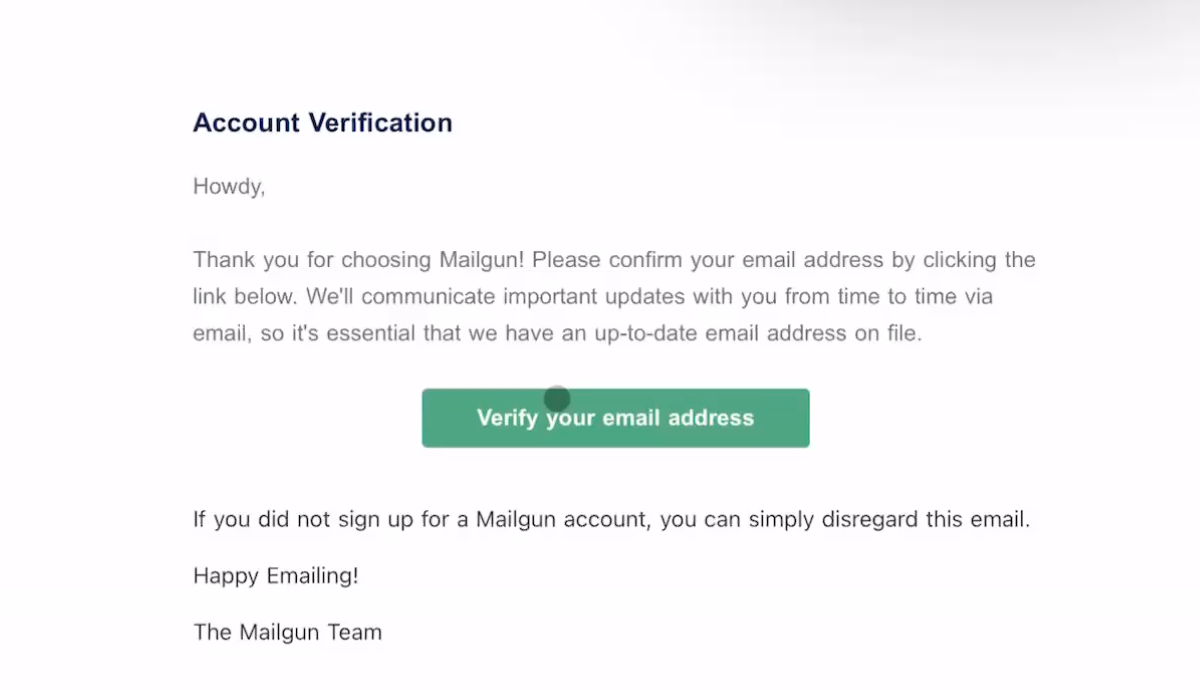
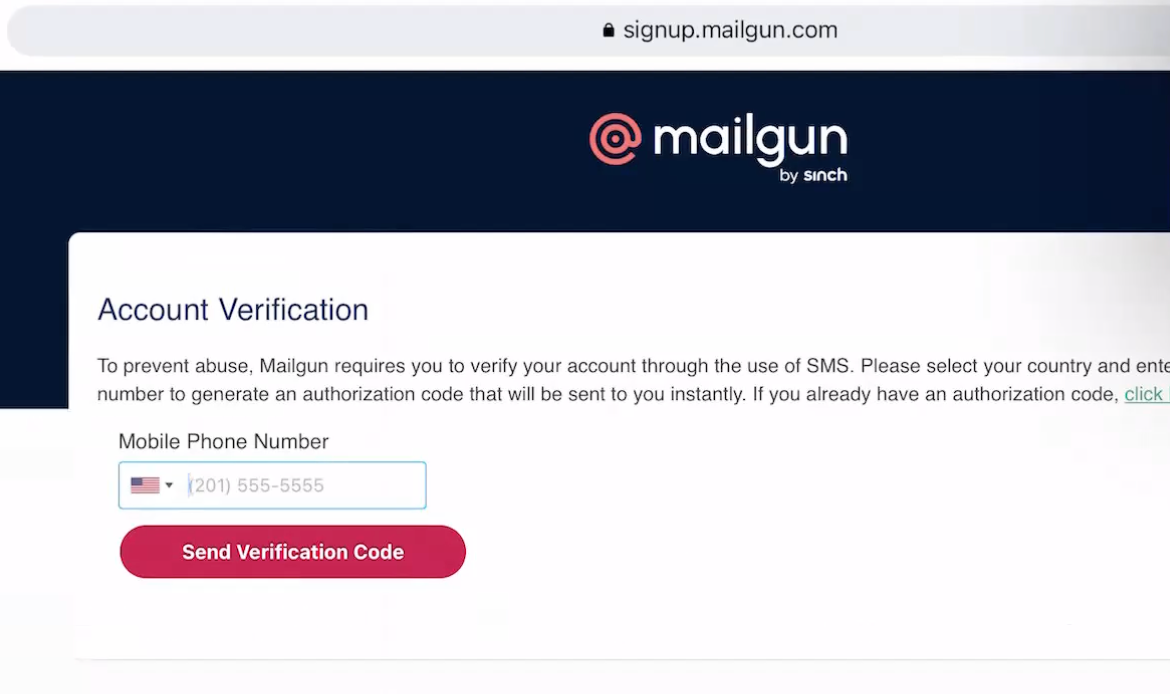
Verify your email
Check your inbox for Mailgun’s verification email and confirm your account.
-
Secure your login and API access
- Turn on 2FA for the Mailgun account owner.
- Decide where you’ll store API keys securely (password manager, vault, etc.).
When this is done, you’re ready to add the domain Mailgun will use with GoHighLevel.
Conversion tip: If you haven’t committed to GoHighLevel yet but want to test Mailgun + automations together, spin up a free account with this link: Launch your GoHighLevel free trial.
Step 2: Add your sending domain (or subdomain) in Mailgun
-
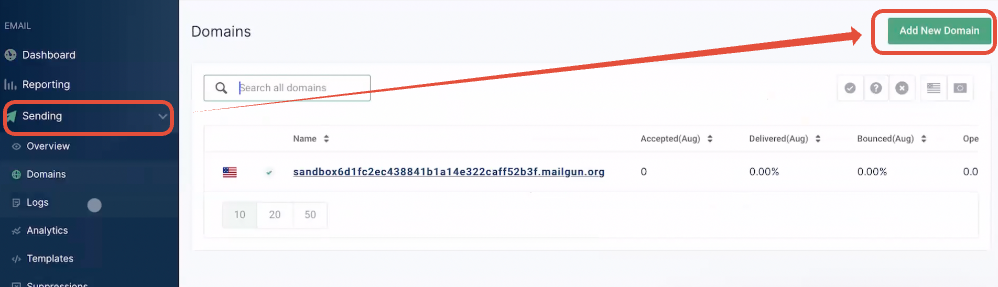
Go to Sending → Domains → Add New Domain in Mailgun.
-
Choose what you’ll connect:
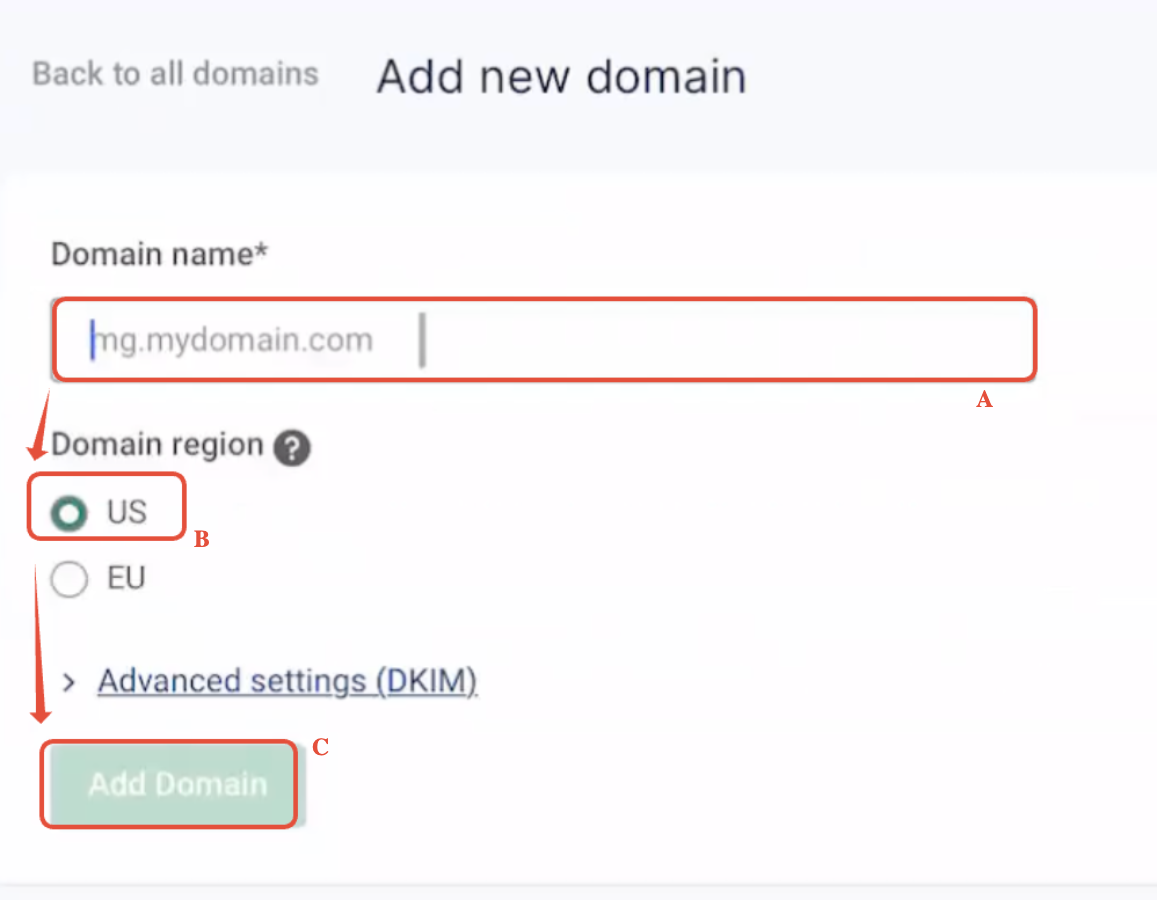
- Recommended: Subdomain (e.g.,
mg.youragency.com).- Keeps your main domain’s reputation cleaner.
- Easier to switch providers or configs later.
- Main domain (e.g.,
youragency.com) only if it’s not already handling email through Google Workspace, Microsoft 365, or similar.
- Recommended: Subdomain (e.g.,
-
Select the region correctly:
- Choose US region, not EU. GoHighLevel’s Mailgun integration expects US.
-
Confirm and add the domain.
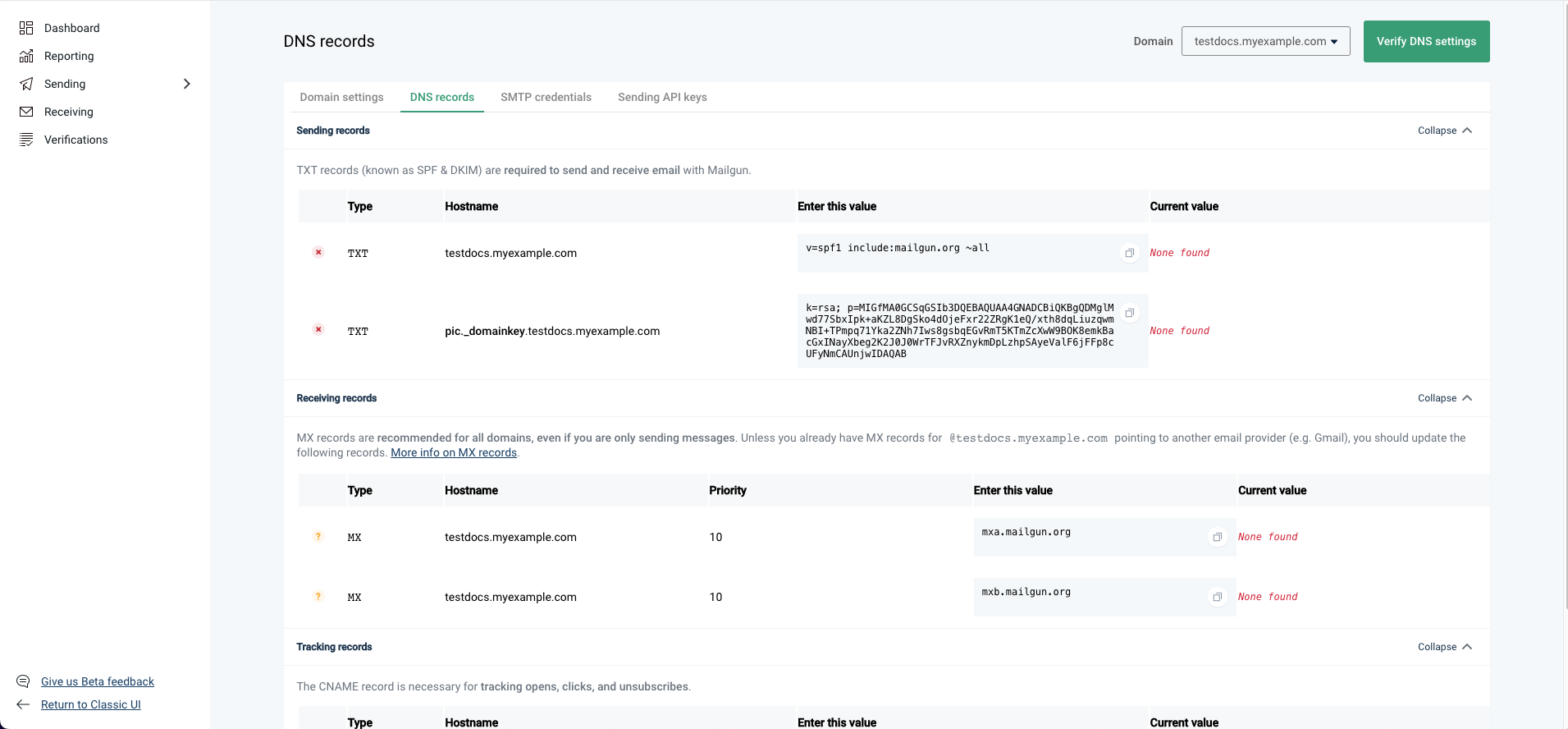
Mailgun will now generate the DNS records you need to add in Cloudflare:- TXT records (SPF and DKIM)
- MX records (for bounce handling and routing)
- Sometimes a CNAME or tracking record
Keep this page open—you’ll be copying these values into Cloudflare in the next step.
Step 3: Add Mailgun DNS records in Cloudflare
All the heavy lifting happens in Cloudflare. This is where you prove to receiving servers that Mailgun is allowed to send on behalf of your domain.
-
Open your domain in Cloudflare
- Log in to Cloudflare.
- Select the domain (or subdomain’s parent) you just added to Mailgun.
-
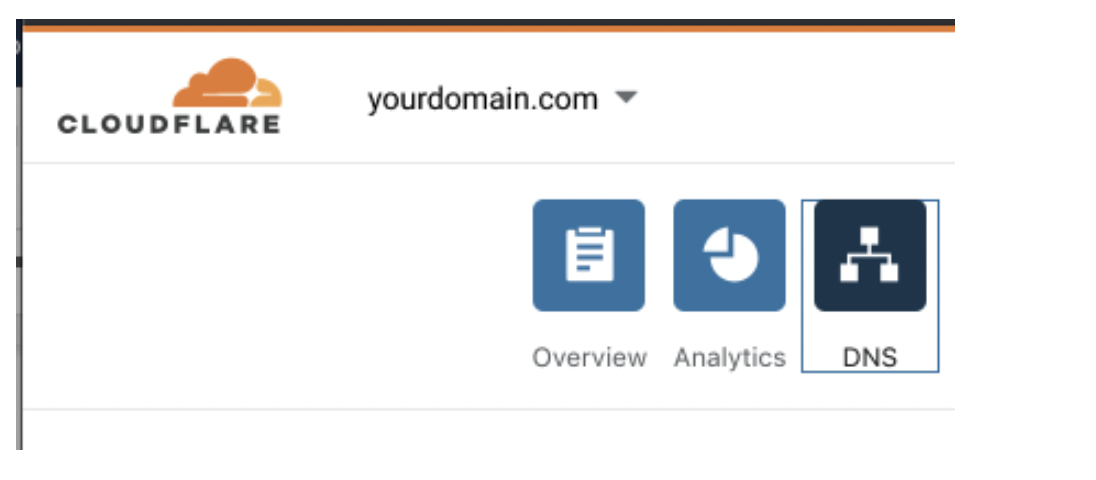
Go to the DNS tab.
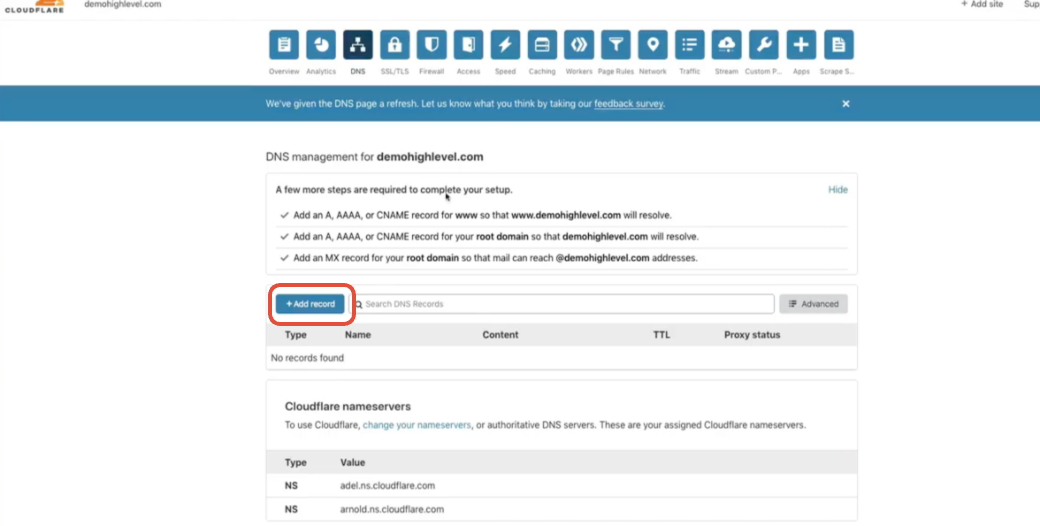
This is where you’ll add TXT, MX, and any CNAME records Mailgun provided.
-
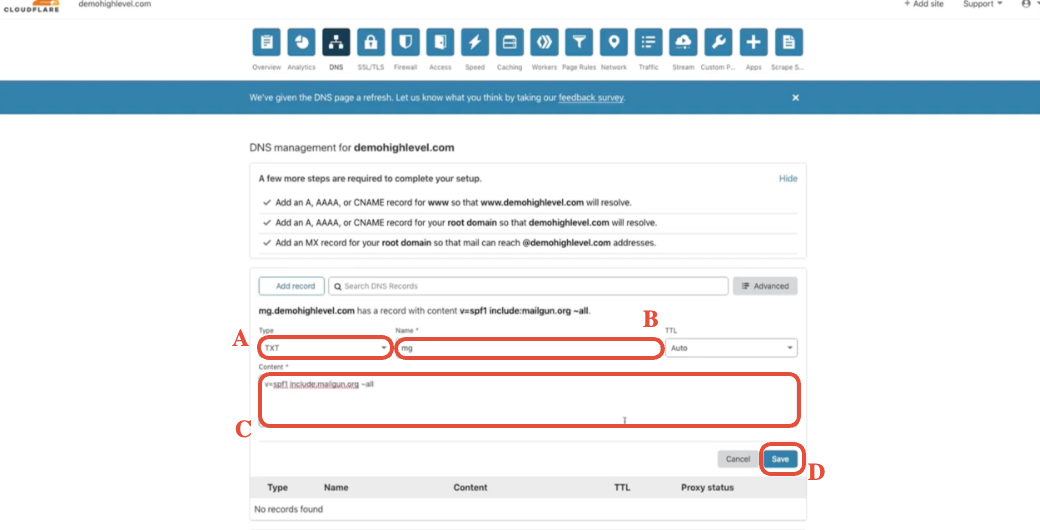
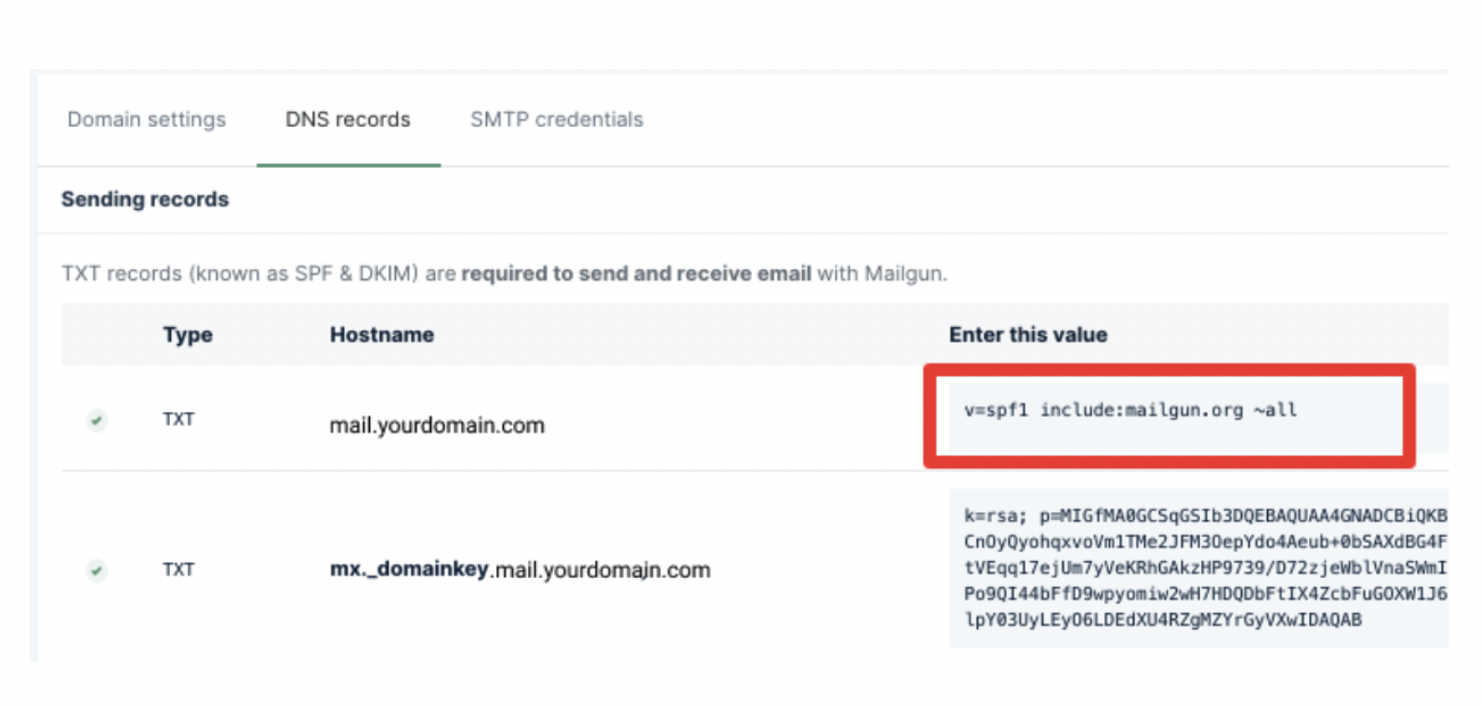
Add SPF TXT record (Mailgun usually labels this clearly):
- Type:
TXT - Name:
- For subdomains: the subdomain prefix (for example,
mg). - For root domains:
@.
- For subdomains: the subdomain prefix (for example,
- Content:
v=spf1 include:mailgun.org ~all(or the exact string Mailgun shows). - TTL: Auto.
- Type:
-
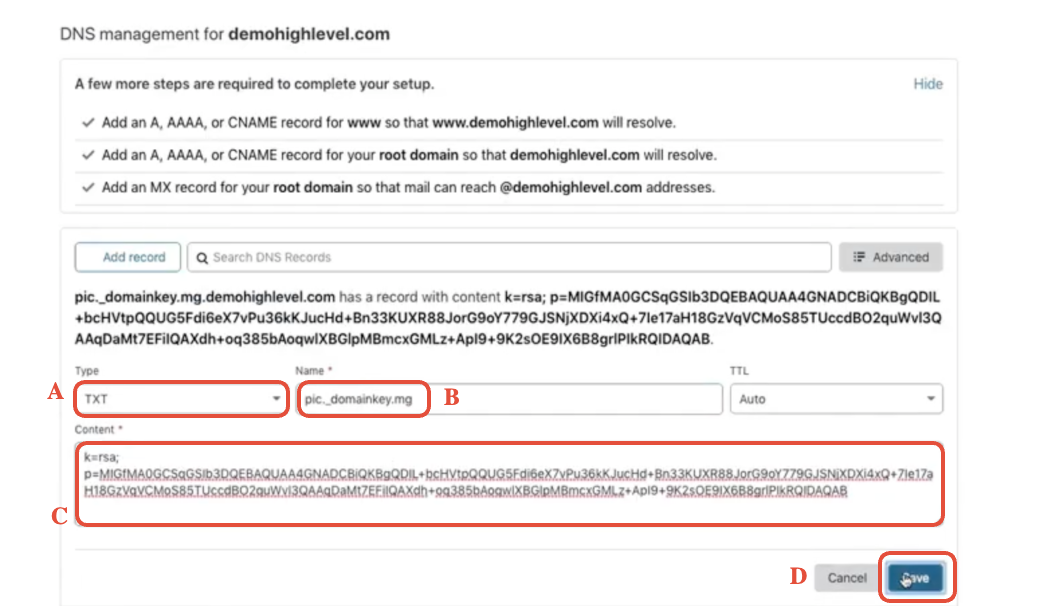
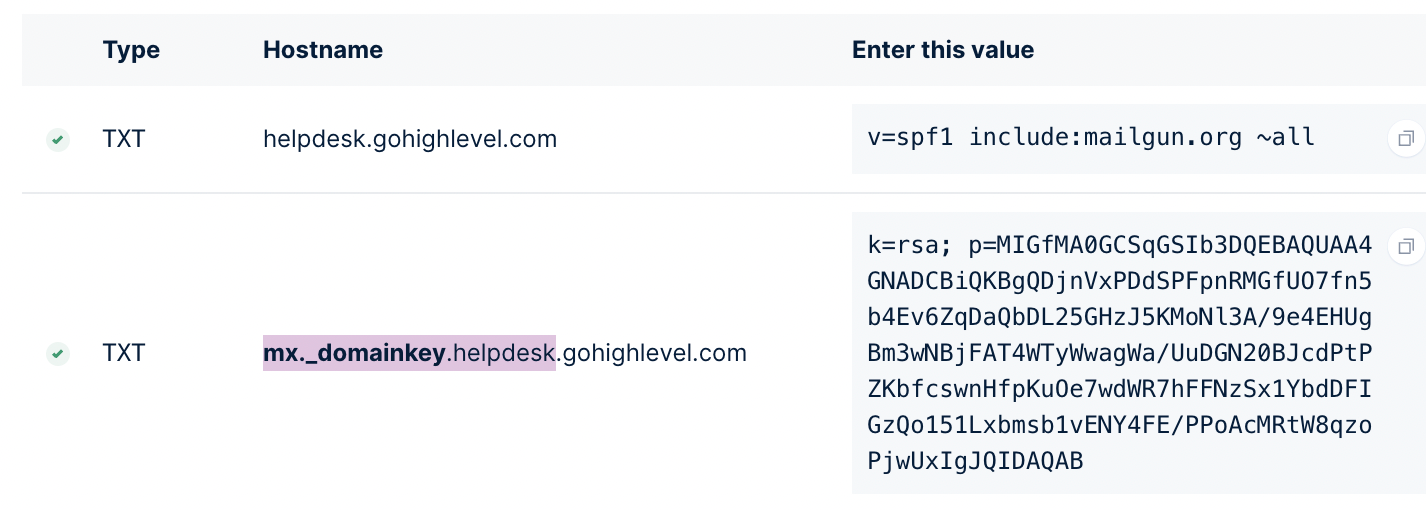
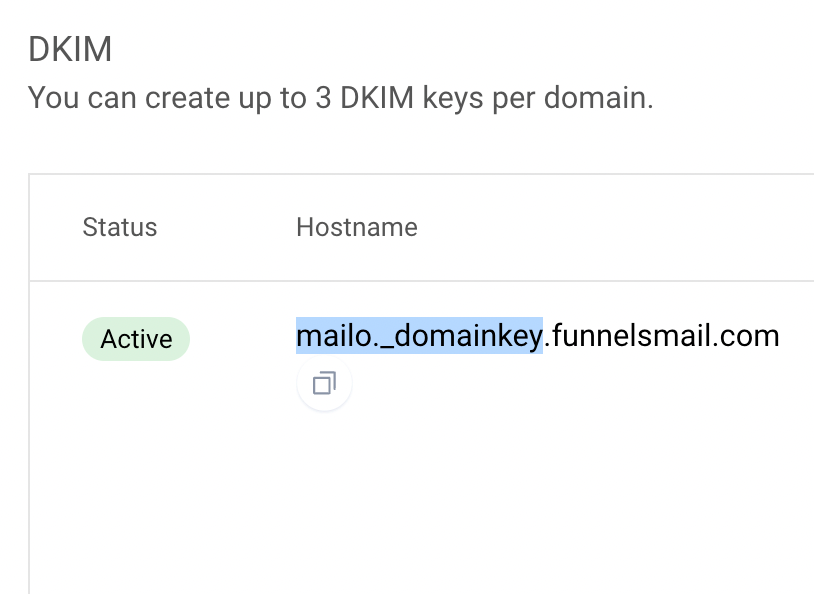
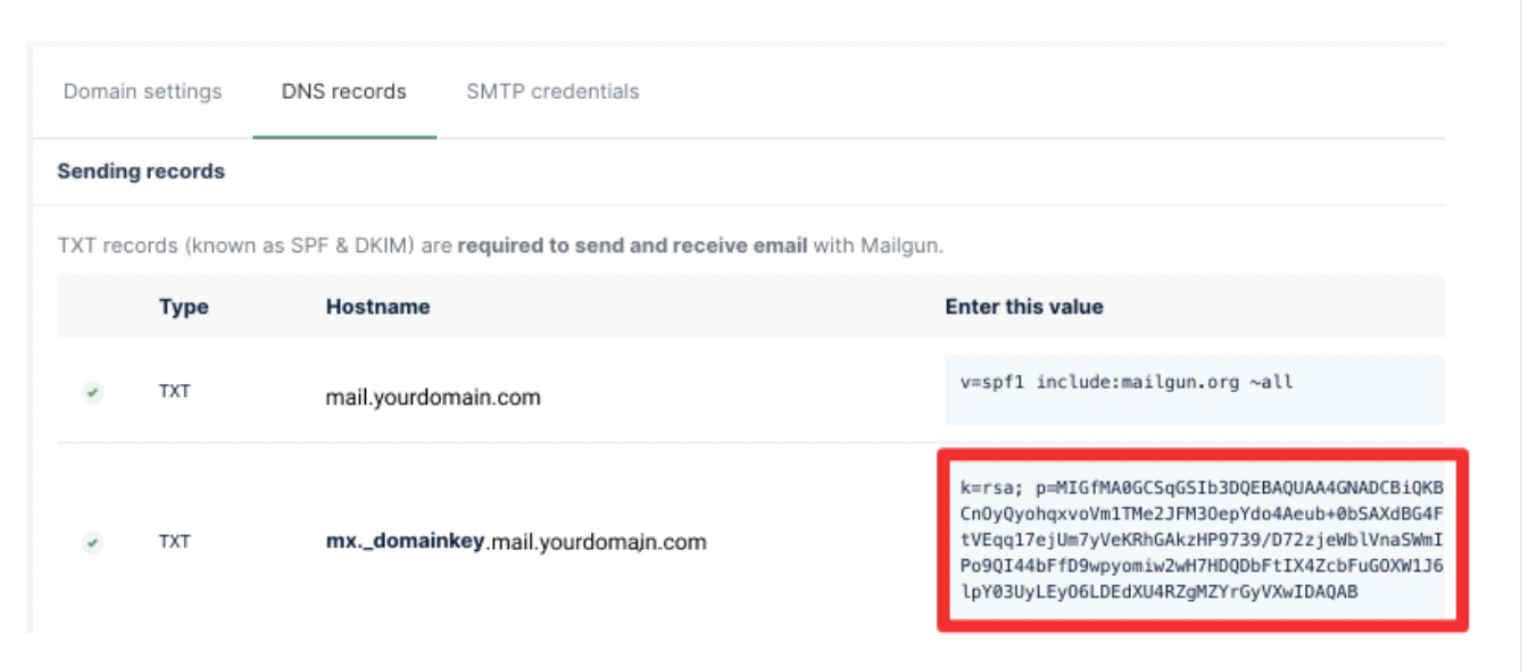
Add DKIM TXT record(s):
- Type:
TXT - Name: DKIM host Mailgun provides (for example,
mailo._domainkey.mg). - Content: the long DKIM key string from Mailgun.
- TTL: Auto.
- Type:
-
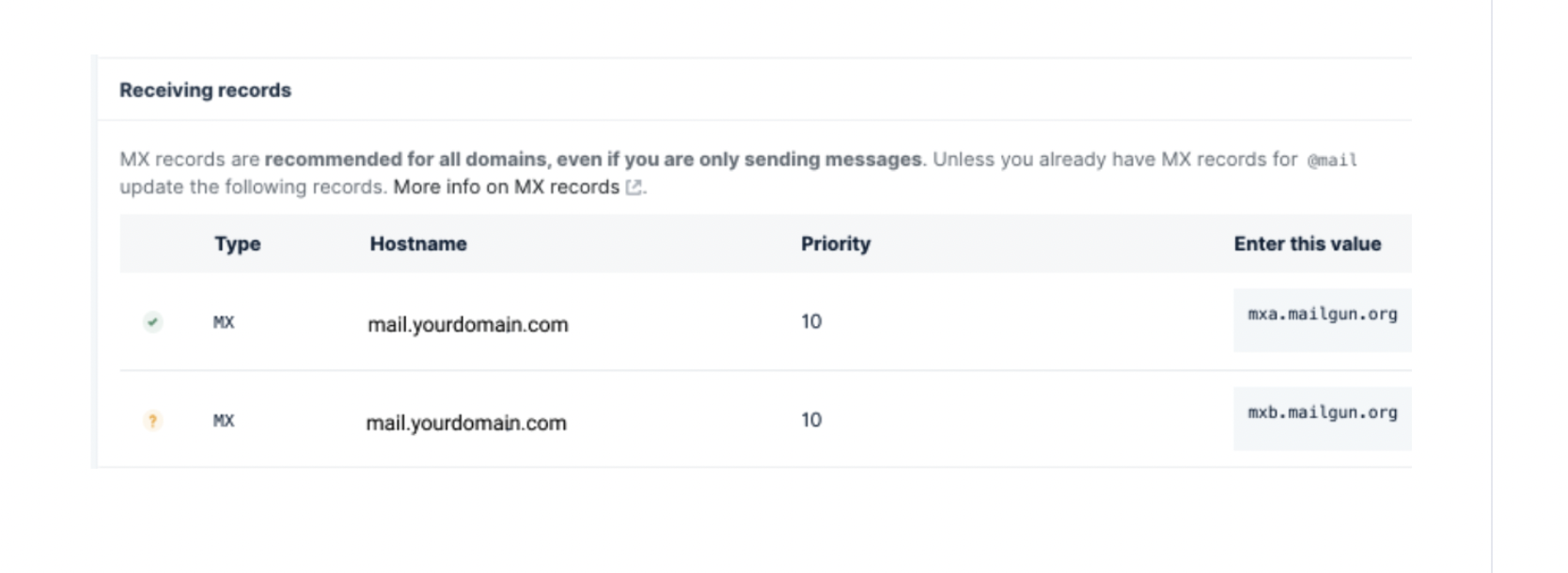
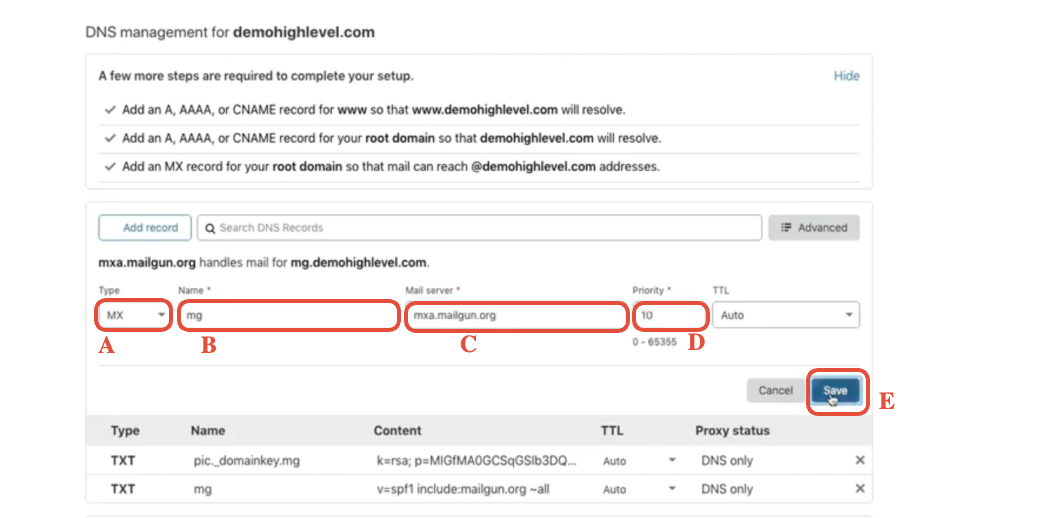
Add MX records for your sending domain or subdomain:
- First MX record
- Type:
MX - Name:
mg(or@if using main domain) - Mail server:
mxa.mailgun.org - Priority:
10
- Type:
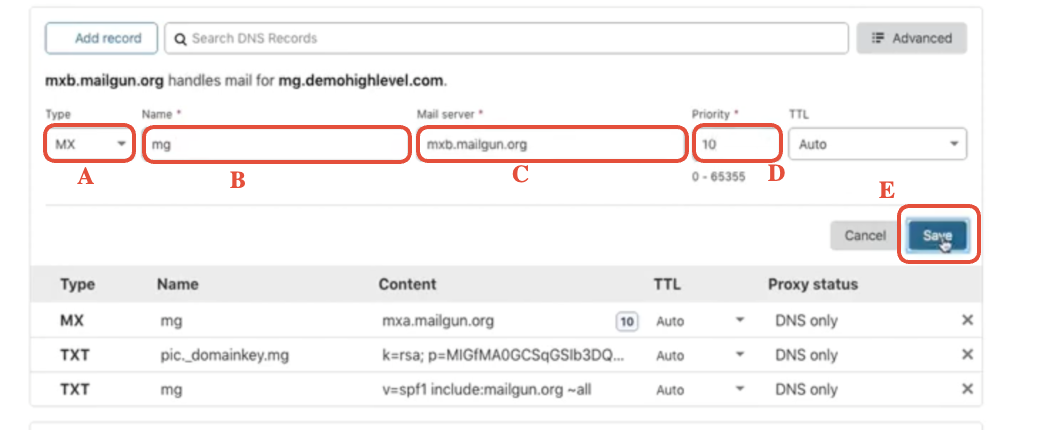
- Second MX record
- Type:
MX - Name: same as above
- Mail server:
mxb.mailgun.org - Priority:
10
- Type:
- First MX record
-
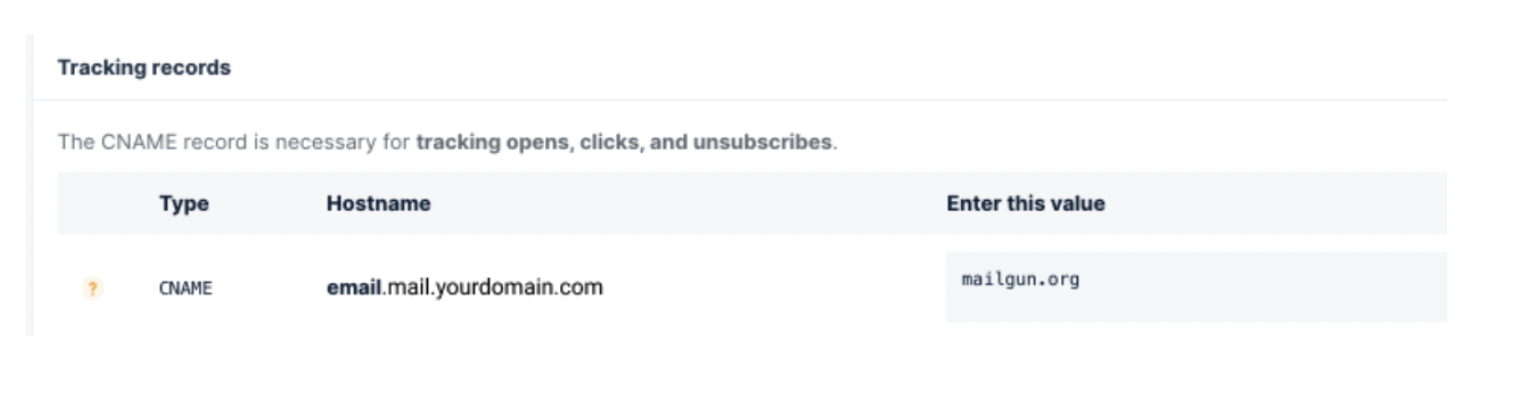
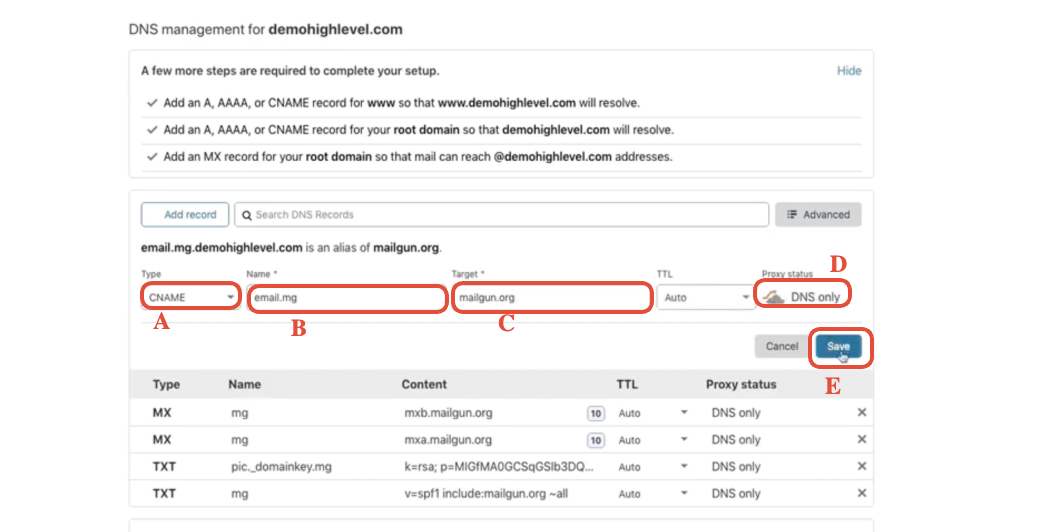
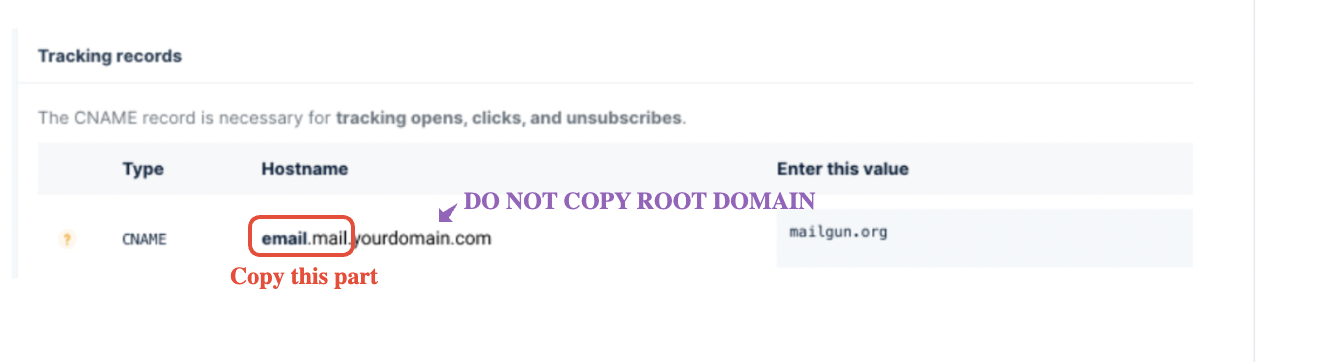
Add any required CNAME or tracking records:
Example:- Type:
CNAME - Name:
email - Target:
mailgun.org - TTL: Auto.
- Type:
-
Turn Cloudflare proxy off for Mailgun records.
For each Mailgun DNS record, make sure the Proxy status is set to “DNS only” (gray cloud, not orange). Proxied records can prevent Mailgun from verifying your domain.

Once all of these records are added, you’re ready to confirm them in Mailgun.
Step 4: Verify DNS in Mailgun
- Return to Mailgun → Sending → Domains, and select the domain you added.
- Click Verify DNS Settings.
- If you see missing or unverified records:
- Double‑check that every value matches exactly (hostnames, trailing dots, priorities, etc.).
- Confirm that Cloudflare is set to DNS only for those records.
- Give DNS time to propagate—this can take anywhere from a few minutes up to 24 hours depending on TTL.

When Mailgun shows green checkmarks for SPF, DKIM, and MX, your domain is authenticated and ready to plug into GoHighLevel.
If you’d like a team to audit your DNS once it’s live—and optimize sender reputation, list hygiene, and warmup sequences—Revset Labs can handle the deliverability strategy while you focus on building offers and funnels.
Step 5: Connect Mailgun to GoHighLevel
With your Mailgun domain fully verified, it’s time to wire everything into GoHighLevel so the platform can send on your behalf.
-
Grab your Mailgun Private API key:
- In Mailgun, go to Settings → API Security (or API Keys, depending on UI version).
- Copy the Private API Key.
-
Configure Mailgun in GoHighLevel:
- Log in to GoHighLevel.
- Go to Settings → Email Services.
- Choose Mailgun as your provider.
- Paste your Private API Key.
- Select the verified Mailgun domain from the dropdown.
- Save your changes.
-
Decide how you’ll use this domain:
- System emails (password resets, notifications)
- Marketing broadcasts and campaigns
- Pipelines and automation sequences triggered by workflows
If you want a done‑for‑you setup where your GoHighLevel account is wired for automations, lead routing, and multi‑channel campaigns from day one, Revset Labs can architect and implement your full funnel—Mailgun and Cloudflare included.
Ready to scale on GoHighLevel? Claim your GoHighLevel free trial and we’ll help you turn it into a revenue engine instead of “just another CRM.”
Step 6: Send test emails and validate deliverability
Never assume it works—send real‑world tests.
-
Send a test from Conversations:
- In GoHighLevel, go to Conversations.
- Compose a new email to a personal inbox you control (Gmail, Outlook, etc.).
- Send a simple message with a clear subject and short body.
-
Check where the email lands:
- Inbox: great—your DNS and integration are likely correct.
- Promotions or Updates: not a disaster, but you may want to warm the domain and improve engagement.
- Spam: check SPF, DKIM, and content (links, wording, attachments) and verify that you’re sending from the Mailgun‑verified domain.
-
Look at Mailgun logs:
- Confirm messages show as Delivered.
- Investigate any bounces or warnings (for example, authentication failures or DNS problems).
-
Add DMARC for extra protection (recommended):
- Create a TXT record at
_dmarc.yourdomain.com. - Start with a relaxed policy like:
v=DMARC1; p=none; rua=mailto:dmarc@yourdomain.com; pct=100 - Tighten this over time as you confirm everything is authenticating correctly.
- Create a TXT record at
Frequently asked questions about Mailgun + Cloudflare + GoHighLevel
Can I use my main domain with Mailgun?
Yes, but it’s not ideal if your main domain already sends normal business email through something like Google Workspace or Microsoft 365. Using a dedicated subdomain (for example, mg.youragency.com) isolates your marketing traffic and protects your primary inbox reputation.
What should I do if DNS verification fails?
First, make sure every record from Mailgun exists in Cloudflare exactly as shown:
- Hostnames match (no extra prefixes, no missing dots).
- Values have not been truncated (especially long DKIM keys).
- Proxy status is set to DNS only for Mailgun records.
Then wait for DNS to propagate (up to 24 hours) and click Verify DNS Settings again in Mailgun.
Why do I have to select the US region in Mailgun for GoHighLevel?
GoHighLevel’s Mailgun integration is built against Mailgun’s US region. If you choose the EU region, your API keys and domains may not connect correctly, and emails might fail or never send.
How do I find my Mailgun API key when the UI changes?
Mailgun occasionally shuffles its menus, but your Private API key will always live under a Settings / Security / API area. Look for:
- Private API Key (used by GoHighLevel)
- Public API Key (for front‑end tracking and validation)
Use the Private key only inside GoHighLevel’s Email Services screen.
What if I keep running into deliverability or technical issues?
That’s exactly where a specialist team pays off. Revset Labs can:
- Audit your current DNS, Mailgun, and GoHighLevel configuration.
- Set up and monitor warmup, list hygiene, and engagement flows.
- Build automations and campaigns that turn your inbox reach into real revenue.