
Custom meta tags are one of those tiny technical details in GoHighLevel that quietly decide how your funnels and websites show up in Google, how clean your links look on social, and how much control you have over what gets indexed.

Used well, they make your pages clearer, more clickable, and easier to manage at scale. Used poorly—or not at all—and you’re leaving search visibility and conversions on the table.
In this guide, you’ll learn exactly how custom meta tags work in GoHighLevel, when to use them, and a repeatable process you can hand to your team.
What are custom meta tags in GoHighLevel?
In simple terms, custom meta tags are extra HTML <meta> elements you attach to a page to give search engines, browsers, and social platforms more precise instructions.
GoHighLevel already gives you standard SEO fields (Title, Description, Slug), but custom meta tags let you go further:
- Control whether a page is indexed or followed by search engines.
- Fine‑tune how links look when shared on Facebook, LinkedIn, X, etc.
- Add verification tags for tools like Google Search Console.
- Pass custom data to scripts, integrations, or third‑party platforms.
A basic HTML meta tag looks like this:
<meta name="description" content="High-converting funnel for local businesses using GoHighLevel.">
In GoHighLevel, you don’t write the full HTML. Instead, you provide the Tag Name and Tag Content, and GoHighLevel renders the full <meta> tag in your page’s source.
For reference, here is a list of meta tags Google supports: https://developers.google.com/search/docs/crawling-indexing/special-tags
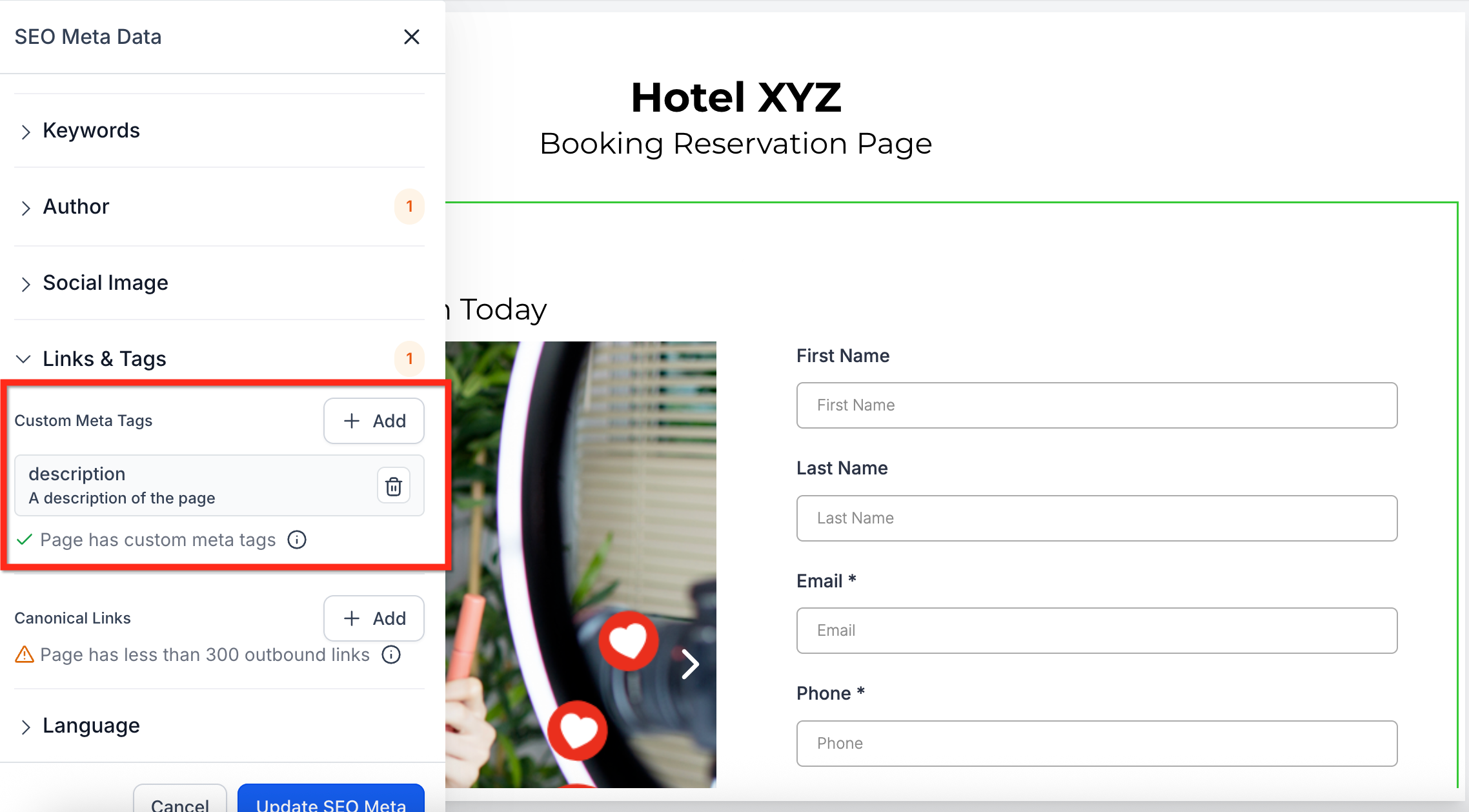
If you don’t have a GoHighLevel account yet and want to follow along step‑by‑step, you can start a free GoHighLevel trial here.
When should you use custom meta tags?
Custom meta tags are most useful when you need page‑level control beyond the basic SEO fields. Common scenarios:
-
Fine‑tuning search appearance
Override default titles or descriptions for very specific campaigns or pages. -
Controlling indexing behavior
Block search engines from indexing thank‑you pages, internal dashboards, or temporary promo funnels usingnoindexandnofollow. -
Improving social previews
Set Open Graph and Twitter tags so your links always show the right title, description, and image when shared. -
Verification and analytics
Add verification tags for Google Search Console, Meta, or other platforms without touching code. -
Advanced technical SEO
Handle edge cases like canonical URLs, language variations, or region‑specific tags.
For most small teams, you’ll primarily use custom meta tags to:
- Keep internal or low‑value pages out of Google’s index.
- Clean up how key links look when shared on social.
- Satisfy verification requirements from SEO and analytics tools.
Revset Labs often combines custom meta tags with GoHighLevel automations so every stage of your funnel—from ad click to booked call—is both trackable and search‑friendly.
Where SEO settings live in GoHighLevel
Before you start adding tags, it helps to know where everything lives inside GoHighLevel.
For funnels and websites:
- Go to Sites → Funnels or Sites → Websites in your GoHighLevel account.
- Open the specific Funnel or Website you want to work on.
- Click into the individual page or step you want to edit.
- Click the SEO Meta Data icon at the top of the editor.
Inside this panel you’ll see:
- Title – The page’s SEO title tag.
- Description – The meta description used in search results.
- URL Slug – The path segment for that page.
- Links and Tags – Where you’ll find Custom Meta Tags.
Think of the built‑in fields as the foundation, and custom meta tags as the advanced controls layered on top.
If you’re just setting up GoHighLevel, it’s worth optimizing your core SEO settings across all of your “money pages” first. You can start a free trial of GoHighLevel and build your funnels, sites, email, and SMS automations in one place instead of stitching together multiple tools.
Step‑by‑step: how to add custom meta tags in GoHighLevel
Follow this process any time you need to add, update, or remove a custom meta tag on a funnel or website page.
-
Open the page you want to edit
- Go to Sites → Funnels or Sites → Websites.
- Select the specific funnel or website.
- Click the page/step where you want to adjust SEO.
-
Open the SEO Meta Data panel
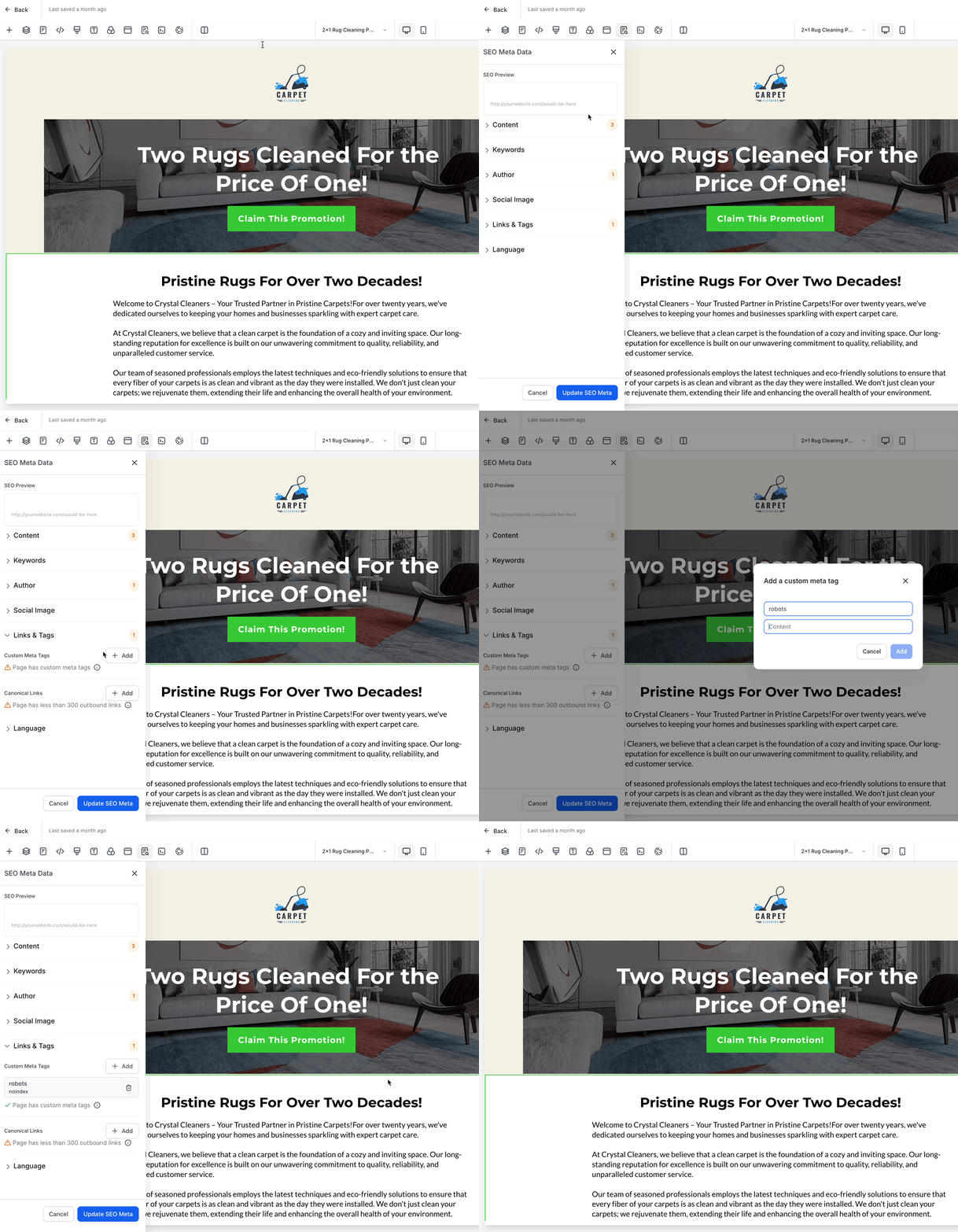
- In the page editor, click the SEO Meta Data icon at the top.
- Confirm your Title, Description, and Slug are accurate and keyword‑focused.
-
Locate the Custom Meta Tags section
- In the SEO Meta Data panel, scroll down to Links and Tags.
- Find the Custom Meta Tags area.
-
Add a new meta tag
- Click + Add next to Custom Meta Tags.
- In Tag Name, enter the meta tag’s
namevalue (for examplerobots,og:title,twitter:card). - In Tag Content, enter the
contentvalue you want for that tag.
-
Save your changes
- Click Add to insert the tag.
- When you’re done adding or editing tags, click Update SEO Meta to publish your changes for that page.
-
Verify the tag is live
- Open the page in your browser, right‑click, and choose View Page Source (or use DevTools → Elements).
- Search for your tag name (for example
robotsorog:title) and confirm it appears in the<head>.
Once you’re comfortable with this flow, you can standardize it across your funnels so every key page uses the same, well‑tested SEO structure.
If you’d rather have an expert team design your funnel structure, tracking, and SEO conventions for you, Revset Labs can help you implement a complete GoHighLevel setup—from meta tags to automations—so your entire system is built for conversions from day one.
Best‑practice examples of custom meta tags
Here are some practical tag patterns you can use directly in GoHighLevel.
1. Control indexing with robots
Use this on thank‑you pages, gated content, or internal dashboards you don’t want in Google.
- Tag Name:
robots - Tag Content:
noindex, nofollow
Rendered HTML:
<meta name="robots" content="noindex, nofollow">
Alternative for pages you want indexed but don’t want them to pass link equity:
- Tag Name:
robots - Tag Content:
index, nofollow
2. Improve social sharing with Open Graph tags
Control how your page looks when shared on Facebook, LinkedIn, or other platforms that read Open Graph.
Example set for a funnel landing page:
- Tag Name:
og:title
Tag Content:High-Converting Local Business Funnel Built in GoHighLevel - Tag Name:
og:description
Tag Content:Launch a done-for-you GoHighLevel funnel that turns cold traffic into booked appointments. - Tag Name:
og:image
Tag Content:https://your-domain.com/images/gohighlevel-funnel-preview.png
Rendered HTML:
<meta property="og:title" content="High-Converting Local Business Funnel Built in GoHighLevel">
<meta property="og:description" content="Launch a done-for-you GoHighLevel funnel that turns cold traffic into booked appointments.">
<meta property="og:image" content="https://your-domain.com/images/gohighlevel-funnel-preview.png">
3. Optimize for X / Twitter with twitter: tags
Twitter (X) has its own set of meta tags. If you get a lot of traffic from that channel, add these on key funnels.
- Tag Name:
twitter:card→summary_large_image - Tag Name:
twitter:title→ same as your SEO title - Tag Name:
twitter:description→ same as or slightly shorter than your meta description
Rendered HTML:
<meta name="twitter:card" content="summary_large_image">
<meta name="twitter:title" content="High-Converting Local Business Funnel Built in GoHighLevel">
<meta name="twitter:description" content="Launch a done-for-you GoHighLevel funnel that turns cold traffic into booked appointments.">
4. Add verification tags
Tools like Google Search Console, Meta Business, or analytics platforms often ask you to add a verification meta tag.
For example, Google Search Console might give you something like:
<meta name="google-site-verification" content="your-verification-code-here">
In GoHighLevel you would use:
- Tag Name:
google-site-verification - Tag Content:
your-verification-code-here
Once added and saved, return to the tool and click Verify.
5. Canonical URLs for duplicate content
If you occasionally reuse similar content across multiple funnels or pages, you can use a canonical tag to point search engines to the “main” version.
- Tag Name:
canonical - Tag Content:
https://your-domain.com/primary-page-url
Rendered HTML:
<link rel="canonical" href="https://your-domain.com/primary-page-url">
Set clear rules for your team about which URLs are canonical so you don’t send mixed signals to Google.
How custom meta tags fit into your broader SEO & funnel strategy
Meta tags by themselves don’t generate traffic—but they make every visitor you earn more valuable by:
- Increasing click‑through rates from search results.
- Keeping low‑value or internal pages out of the index.
- Making your brand look polished and consistent wherever links are shared.
Inside GoHighLevel, they plug into a bigger system:
- Funnels and websites optimized for the right keywords.
- Automations that follow up with every lead.
- Pipelines and opportunities that show what’s actually converting.
When you pair a solid SEO structure with high‑intent automations, you get a compounding effect: more right‑fit traffic and more of those visitors turning into booked calls and revenue.
If you want that system built for you, Revset Labs—an AI automation and marketing agency—can design and implement your GoHighLevel setup end‑to‑end: funnels, meta tags, tracking, automations, and reporting.
And if you’re not on the platform yet, you can start a free GoHighLevel trial here and let Revset Labs turn it into a revenue engine instead of just another tool.
Troubleshooting custom meta tags in GoHighLevel
Even with the right setup, you may hit a few common issues. Here’s how to handle them.
1. Google isn’t showing my updated meta description
- Google doesn’t update instantly—recrawling can take hours to a few days.
- Sometimes Google rewrites your description based on on‑page content. Make sure the visible copy on the page reinforces your intended message.
- Use URL Inspection in Google Search Console to request indexing and speed up the update.
2. My noindex page still appears in search
- Confirm the tag is spelled correctly:
robots→noindex, nofollow. - Check that other plugins or settings (for example, WordPress SEO plugins if you’re on the WordPress integration) aren’t overriding the directive.
- Remember that it can take some time for de‑indexing to take effect.
3. Social previews look wrong when I share the link
- Double‑check your
og:title,og:description, andog:imagetags for typos or outdated URLs. - Use the platform’s debugger (for example, Facebook Sharing Debugger) to clear the cache and re‑scrape the page.
- Make sure the
og:imageURL is accessible (no authentication required and served over HTTPS).
4. Tags are duplicated or conflicting
- Avoid setting the same tag both in a theme/plugin and as a custom meta tag. Choose one source of truth.
- For complex setups (for example, hybrid WordPress + GoHighLevel stacks), document exactly where each type of tag is managed.
If you’re running a high‑stakes funnel (paid traffic, aggressive lead goals, multiple platforms), this is where partnering with Revset Labs can pay off. We’ll map out your full stack, determine where tags should live, and automate as much of the SEO hygiene as possible.
Quick FAQ: GoHighLevel custom meta tags
How long does it take for Google to recognize my updated meta tags?
Anywhere from a few hours to a few days, depending on how often Google crawls your site. Use URL Inspection in Google Search Console to request a fresh crawl if you need faster updates.
Can I add multiple custom meta tags to a single page?
Yes. You can add as many tags as needed—robots, Open Graph tags, Twitter tags, verification tags, and more. Just avoid contradictory instructions (for example, index and noindex at the same time).
Will missing meta tags hurt my SEO?
Missing critical tags (like meta descriptions or Open Graph data) can lead to lower click‑through rates and messy social previews, which indirectly hurt performance. They’re not the only ranking factor, but they’re an easy win to get right.
What happens if I add a noindex tag?
Search engines like Google will be instructed not to index that page. It may still be crawled, but it won’t appear in search results once the directive is processed.
What’s the difference between the SEO Title field and a custom meta tag?
The built‑in Title field in GoHighLevel covers the standard <title> tag for the page. Custom meta tags are for additional, optional tags—things like robots, og:title, twitter:card, verification tags, and other specialized directives.