
 GoHighLevel (Step-by-Step)”>

Why you might want to hide the SMTP setup help doc link
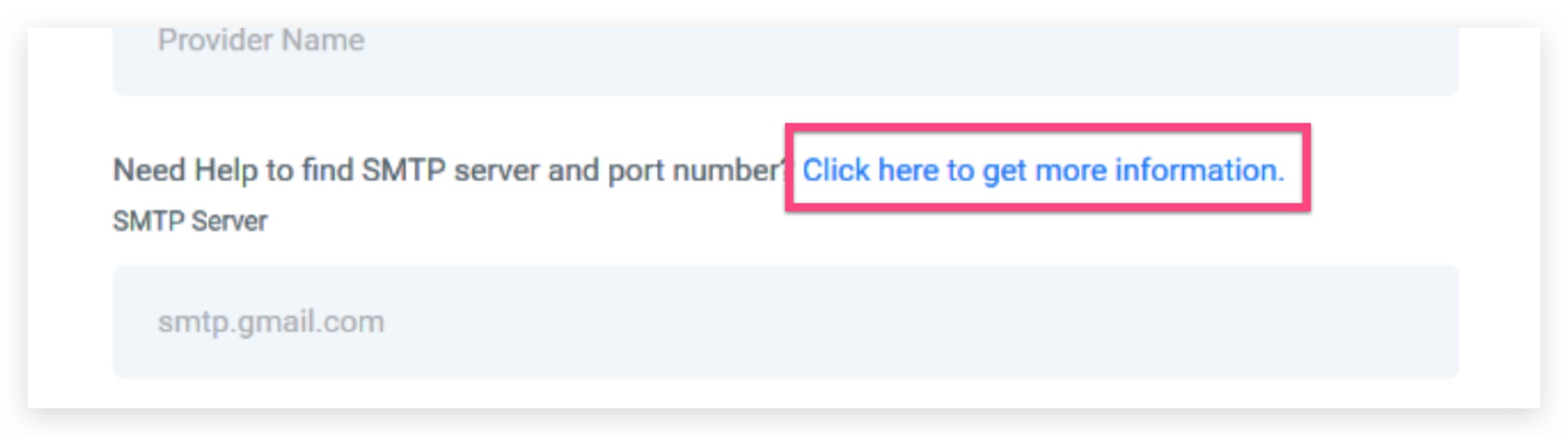
If you manage GoHighLevel sub-accounts for clients, you’ve probably noticed the SMTP Setup Help Doc link that appears inside the platform. It’s useful for DIY users, but it can also:
- Confuse non-technical clients who don’t need to touch SMTP at all.
- Encourage people to change core email settings you already configured.
- Generate extra support tickets when someone follows documentation that doesn’t match your agency’s standard operating procedures.
For a clean, white-labeled experience, many agencies prefer to hide that help doc link entirely while keeping full control of SMTP configuration behind the scenes.
In this guide, you’ll see exactly how to do that with a small CSS snippet inside your GoHighLevel agency settings—plus how to test it, roll it back, and fit this change into a more controlled support experience.
If you’re not on GoHighLevel yet and you want an all‑in‑one CRM, funnel builder, and automation engine built for agencies, you can start a free trial here:
Prerequisites and what this change actually does
Before you hide the SMTP setup help doc link, keep these points in mind:
- You need agency‑level access. Only an agency owner/admin can update company‑level Custom CSS.
- You’re hiding a UI element, not disabling SMTP. Email deliverability, SMTP provider, and authentication still work exactly as you’ve configured them—this change only removes a specific help link from view.
- Clients will no longer see that help link. They’ll rely on your own documentation or your team instead of HighLevel’s generic help doc for this area.
If you want to keep clients away from sensitive configuration screens but still let them enjoy powerful email automations, this approach is a simple, low‑risk improvement.
Step‑by‑step: hide the SMTP setup help doc link with Custom CSS
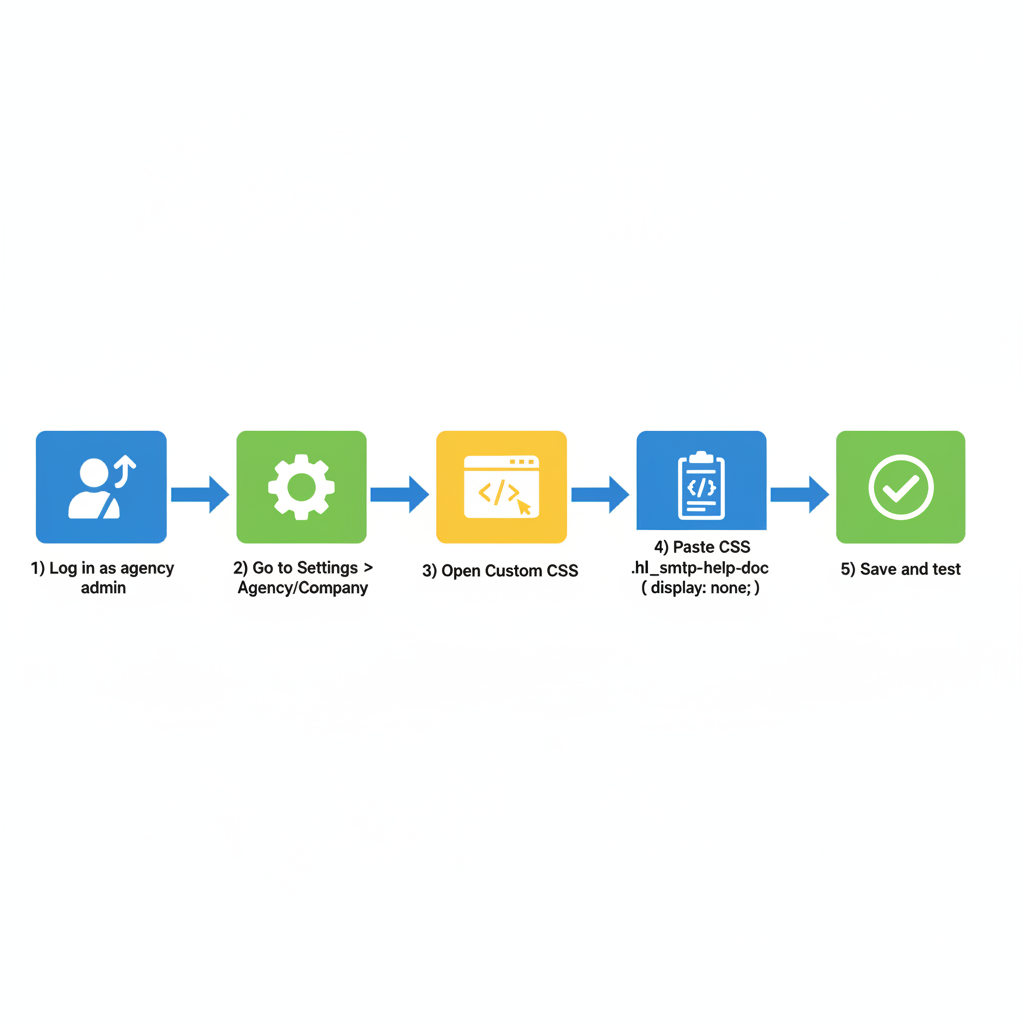
1. Log in as an agency admin
- Go to your agency GoHighLevel login.
- Sign in with an account that has access to Agency / Company settings.
If you’re an agency that hasn’t moved to GoHighLevel yet, you can spin up a trial account in a few minutes:
This gives you a sandbox environment where you can test UI changes like this before rolling them out to paying clients.
2. Open Agency / Company settings
- From the left‑hand menu, click Settings.
- Choose Agency Settings or Company (label may vary slightly depending on your view).
This screen controls branding, default configuration, and global customizations that apply across your sub‑accounts.
3. Locate the Custom CSS field
Scroll down the settings page until you see a field labeled Custom CSS.
- This field allows you to inject small CSS rules that adjust the HighLevel interface for everyone under your agency umbrella.
- The CSS you add here is loaded globally, so keep it clean, focused, and documented.
4. Add the CSS rule that hides the SMTP help doc link
In the Custom CSS field, paste the following snippet:
.hl__smtp-help-doc {
  display: none;
}
What this does:
- Targets the element responsible for displaying the SMTP Setup Help Doc link.
- Applies
display: none;, which removes it from the interface for your users.
If you already have other CSS in this field, simply add this rule below your existing styles and leave a short comment so future you (or your team) know what it’s for, for example:
/* Hide SMTP setup help doc link for all sub-accounts */
.hl__smtp-help-doc {
  display: none;
}
5. Save and test the change
- Click Save or Update Company at the bottom of the settings page.
- Open a sub‑account where the SMTP setup help doc link usually appears.
- Refresh the page and confirm the help doc link is no longer visible.
If the link is still visible:
- Double‑check that the CSS was saved correctly.
- Clear your browser cache or test in an incognito/private window.
- Confirm you’re logged into a sub‑account where the element exists.
How to undo the change (or temporarily show the link again)
If at any point you want to restore the SMTP setup help doc link:
- Go back to Settings → Agency / Company.
- Scroll to Custom CSS.
- Remove or comment out the CSS rule:
/* .hl__smtp-help-doc {
  display: none;
} */
- Save your changes and refresh the sub‑account view.
The help doc link should re‑appear immediately once the CSS rule is no longer active.
Best practices when hiding HighLevel help links
Hiding an in‑app help link is a simple UI tweak, but it touches your client experience and support process. A few best practices:
1. Replace it with better, agency‑specific guidance
If you hide the HighLevel help doc link, make sure you have your own explanation of how SMTP is handled:
- A short Loom video that walks clients through your policy
- A private knowledge base article that explains how you set up email sending
- A quick checklist in your onboarding portal
That way, clients don’t feel like help has disappeared—they’re simply being guided to your approved process.
2. Keep technical ownership of SMTP
For most agencies, the best approach is:
- You own the SMTP provider choice and setup.
- Clients own the content and campaigns.
By hiding the generic help link and centralizing SMTP decisions with your team, you reduce:
- Random changes that break deliverability
- Conflicting instructions from third‑party docs
- Back‑and‑forth support when something goes wrong
3. Document all Custom CSS tweaks
Over time it’s easy to forget which CSS rules control what. Treat your GoHighLevel Custom CSS like production code:
- Add comments above rules explaining why they exist.
- Keep a simple changelog inside the CSS field or in your internal docs.
- Review your CSS periodically to ensure it still matches your current UI and processes.
Where this fits into your GoHighLevel setup strategy
Hiding the SMTP setup help doc link is one small part of building a clean, controlled, white‑labeled GoHighLevel experience for your clients.
Paired with the rest of GoHighLevel’s feature set, you can:
- Standardize email sending and protect deliverability across all sub‑accounts.
- Present a streamlined interface that matches how you want clients to work.
- Layer on automations, funnels, and reporting that reinforce your agency’s value.
If you’re still evaluating platforms, GoHighLevel remains one of the most efficient ways to run an agency tech stack under one roof:
How Revset Labs can help
Revset Labs is an AI Automation and Marketing Agency that helps GoHighLevel agencies and business owners get real results from the platform—not just a login.
If you’d rather not spend hours inside settings screens and CSS fields, Revset Labs can:
- Design and implement a clean, white‑labeled HighLevel experience for your clients.
- Standardize SMTP, domains, and deliverability settings across accounts.
- Build automations, funnels, and reporting that tie directly to revenue.
Whether you’re just getting started with GoHighLevel or cleaning up an existing account, you don’t have to do it alone.
If you want done‑for‑you setup or strategic support around GoHighLevel, reach out to Revset Labs and we’ll help you turn configuration work into a streamlined, revenue‑focused system.