
Migrating from ClickFunnels to HighLevel is one of the highest-leverage moves you can make if you’re tired of duct-taping tools together. HighLevel gives you funnels, websites, CRM, email, SMS, automations, pipelines, and reporting in one place—so once you’re migrated, everything becomes easier to scale.

This guide walks you through a practical, step‑by‑step ClickFunnels to HighLevel migration that protects your revenue, avoids data loss, and gets you launching fast.
If you haven’t already, it’s a good idea to open your HighLevel account before you start migrating so you can test changes as you go. You can start a free HighLevel trial here.
Revset Labs is an AI automation and marketing agency that helps founders, agencies, and in‑house teams implement HighLevel systems end‑to‑end. Use this guide if you want to DIY your migration—and reach out to Revset Labs when you’d rather have experts handle the heavy lifting for you.
Before You Start: Plan Your ClickFunnels → HighLevel Migration
A bit of upfront planning will save you hours of rework later.
Clarify why you’re migrating. Common reasons include:
- Reducing SaaS spend by consolidating tools
- Getting a unified view of leads and customers
- Unlocking deeper automations and multi‑channel follow‑up
- Giving clients a white‑label experience
Decide what you will migrate now vs. later. For most teams, the "must‑move" assets are:
- Revenue‑critical funnels and order pages
- Core courses and memberships
- Payment integrations and products
- Email lists, automations, and broadcasts
- Contacts and deal pipelines
Create a quick migration spreadsheet. For each asset, capture:
- What it is (course, funnel, product, email sequence, list, etc.)
- Where it lives in ClickFunnels (URL, funnel name, workspace)
- Its current performance/priority
- Where it will live in HighLevel (funnel, workflow, pipeline, etc.)
Once you’ve mapped your assets, you’re ready to move through each section below.
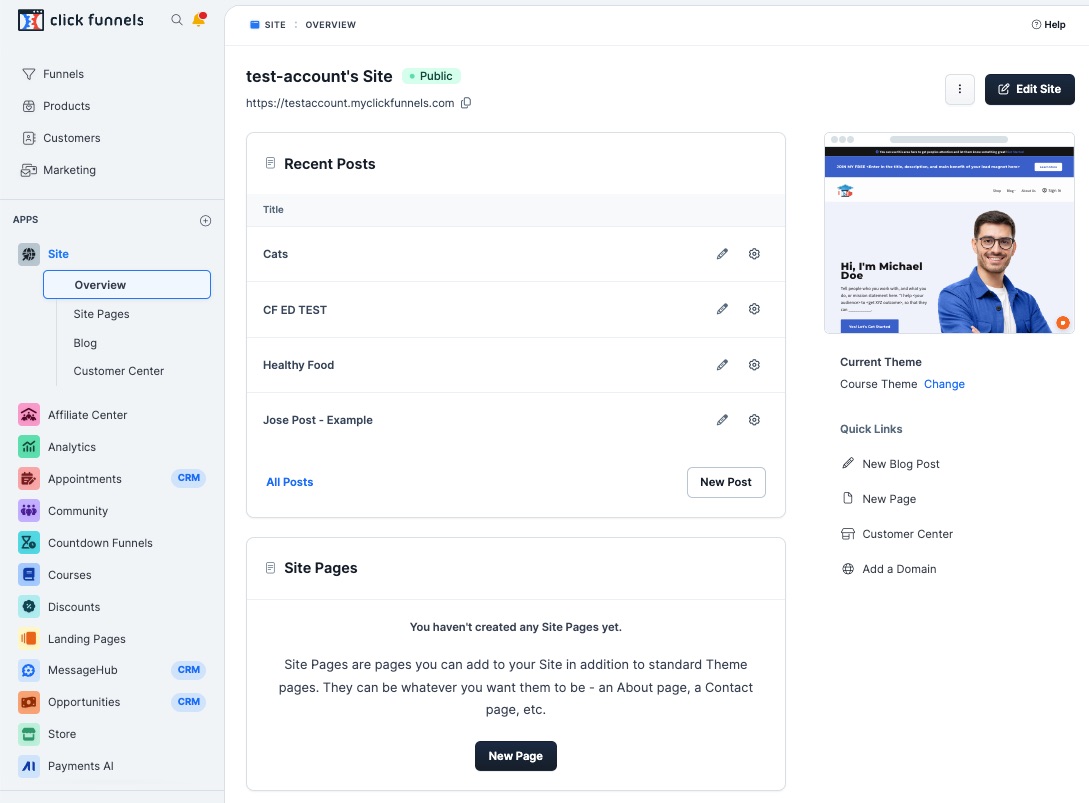
Classic ClickFunnels Menu
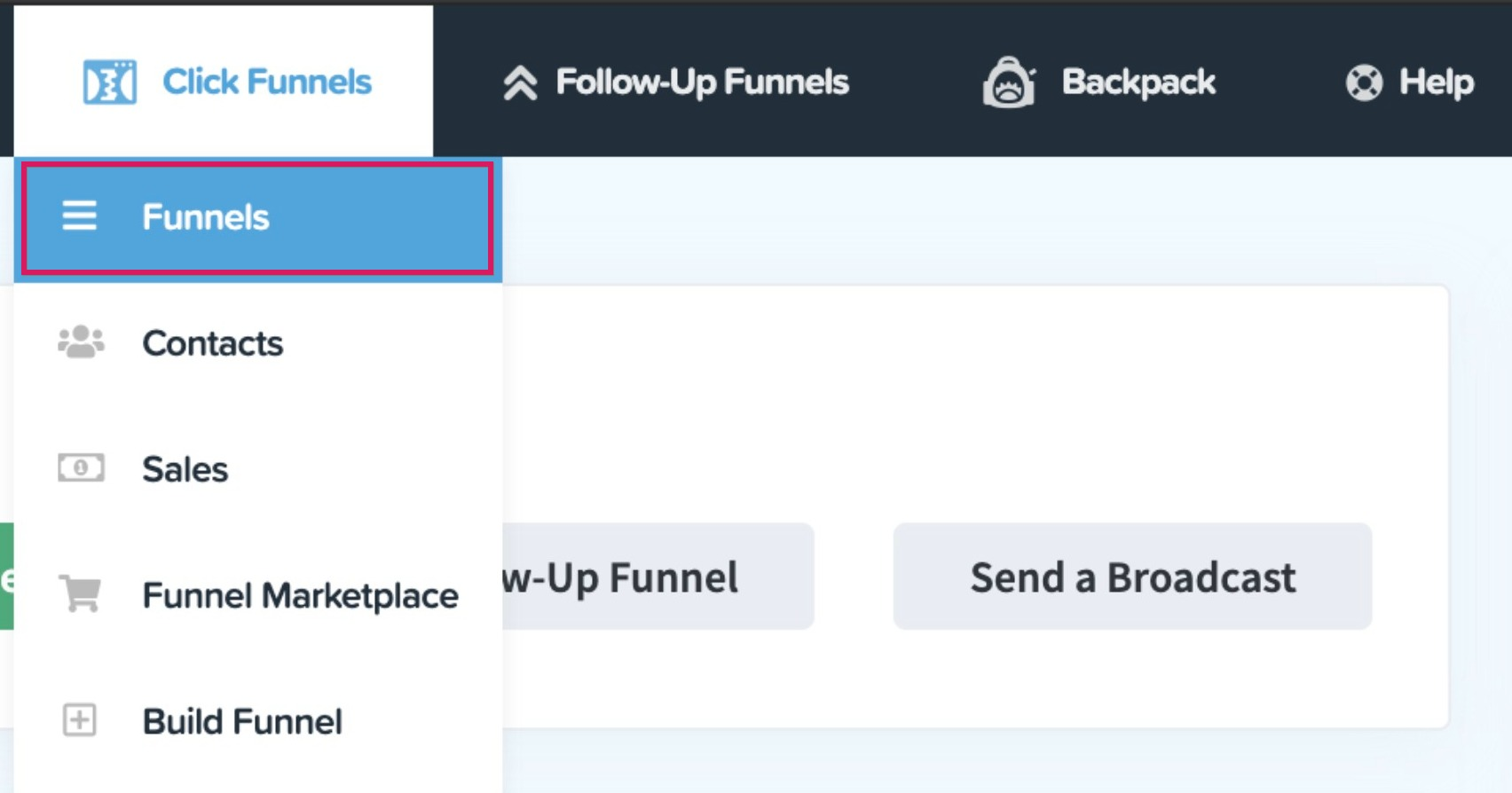
ClickFunnels 2.0 Menu
By default, only Funnels, Products, Customers, and Marketing are available. Users can add more apps like Opportunities, Sites, Automation, Courses, and Store.
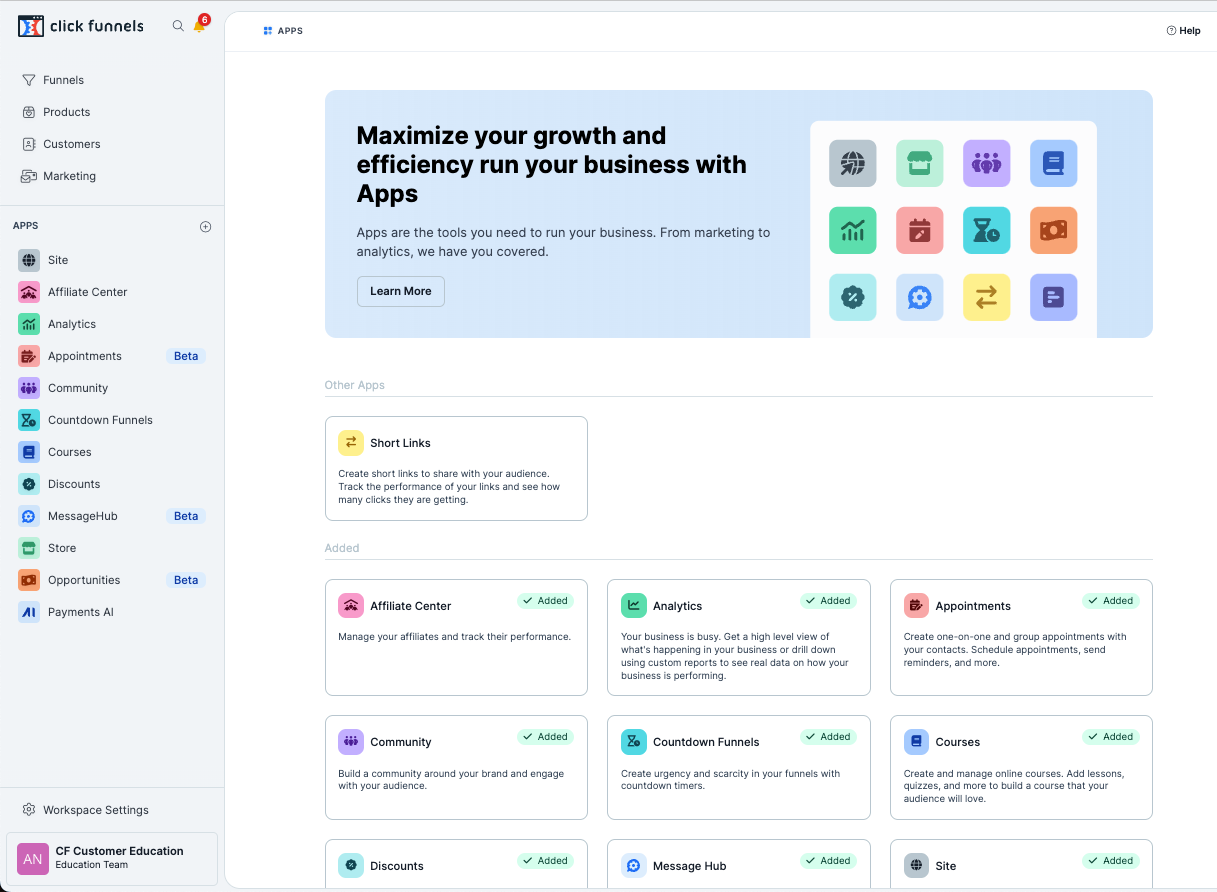
Step 1: Migrate Your ClickFunnels Courses to HighLevel
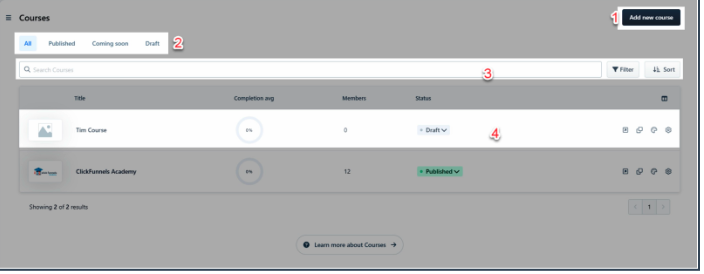
If you sell courses or memberships through ClickFunnels, migrate them first so students don’t lose access during the transition.
1. Document your existing course structure
In ClickFunnels 2.0 (or 1.0 if applicable):
- List every course and membership area you currently sell.
- For each course, capture:
- Course name and URL
- Modules/sections
- Lessons inside each module
- Quizzes, assignments, or assessments
- Downloadable assets (PDFs, slides, spreadsheets, etc.)
- Access rules (who gets access, for how long, and from which offers)
- Note any automations tied to course access (e.g., tags applied when a lesson is completed).
2. Rebuild courses in HighLevel
In HighLevel, use the Memberships / Courses area to recreate what you documented:
- Create a course for each ClickFunnels course.
- Rebuild modules and lessons with the same (or improved) layout.
- Upload videos and downloads from ClickFunnels.
- Re‑create quizzes and assessments if you use them.
- Configure access rules so the right offers and products unlock the right courses.
This is a great moment to clean up outdated lessons or combine content into clearer paths.
3. Test student experience and access
Before you migrate real students:
- Create a test contact in HighLevel.
- Grant access to your course the way a paying customer would get it (e.g., via product purchase or tag).
- Log in as that contact and verify:
- All lessons display correctly on desktop and mobile
- Progress tracking behaves as expected
- Any completion triggers (tags, workflows) fire properly
CTA: Once your first course is rebuilt, keep momentum going—spin up your full HighLevel account and test your student journey live.
Step 2: Migrate Products and Offers from ClickFunnels to HighLevel
Products are the bridge between your pages and your revenue. You want them mapped cleanly into HighLevel so reporting stays accurate.
1. Export products from ClickFunnels
- In ClickFunnels, head to your Products area.
- Filter or select the products you actually want to keep (retire old or unused offers).
- Export products to CSV where available, or document:
- Product name and type (one‑time, subscription, payment plan)
- Price and currency
- Trial periods, billing intervals, and terms
- Which funnels/checkout pages currently sell each product
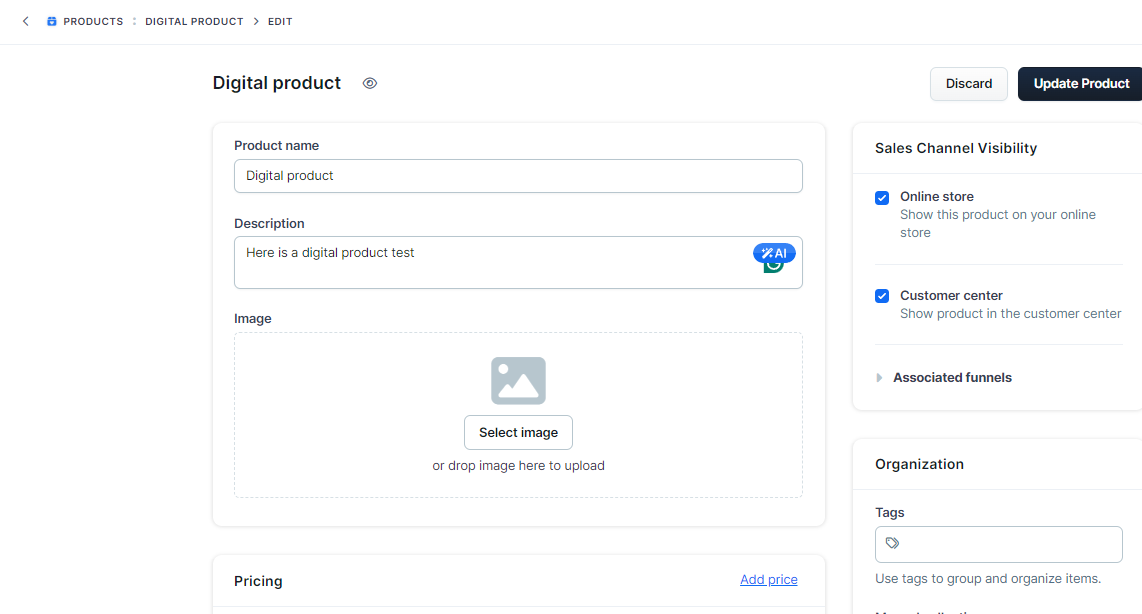
2. Create products in HighLevel
In HighLevel, go to Payments → Products and:
- Import a product CSV if you have one, or recreate products manually.
- Match product names closely to ClickFunnels so it’s easy to trace history.
- Map each product to the correct price, billing interval, and trial.
- Attach products to the funnels, order pages, or order forms you’ll rebuild in HighLevel.
3. Tie products to courses and automations
Where relevant:
- Link products to course access so a purchase unlocks the right membership.
- Trigger workflows when a purchase happens (e.g., onboarding emails, upsell offers, task creation for your team).
Step 3: Migrate and Reconnect Your Payment Integrations
Your payment gateway setup is what keeps cash flowing. Move this early and test it thoroughly.
1. Review your current payment stack
From ClickFunnels, note:
- Which payment gateways you use (Stripe, PayPal, etc.)
- Which products and funnels each gateway supports
- Any special settings (currency, tax handling, application fees)
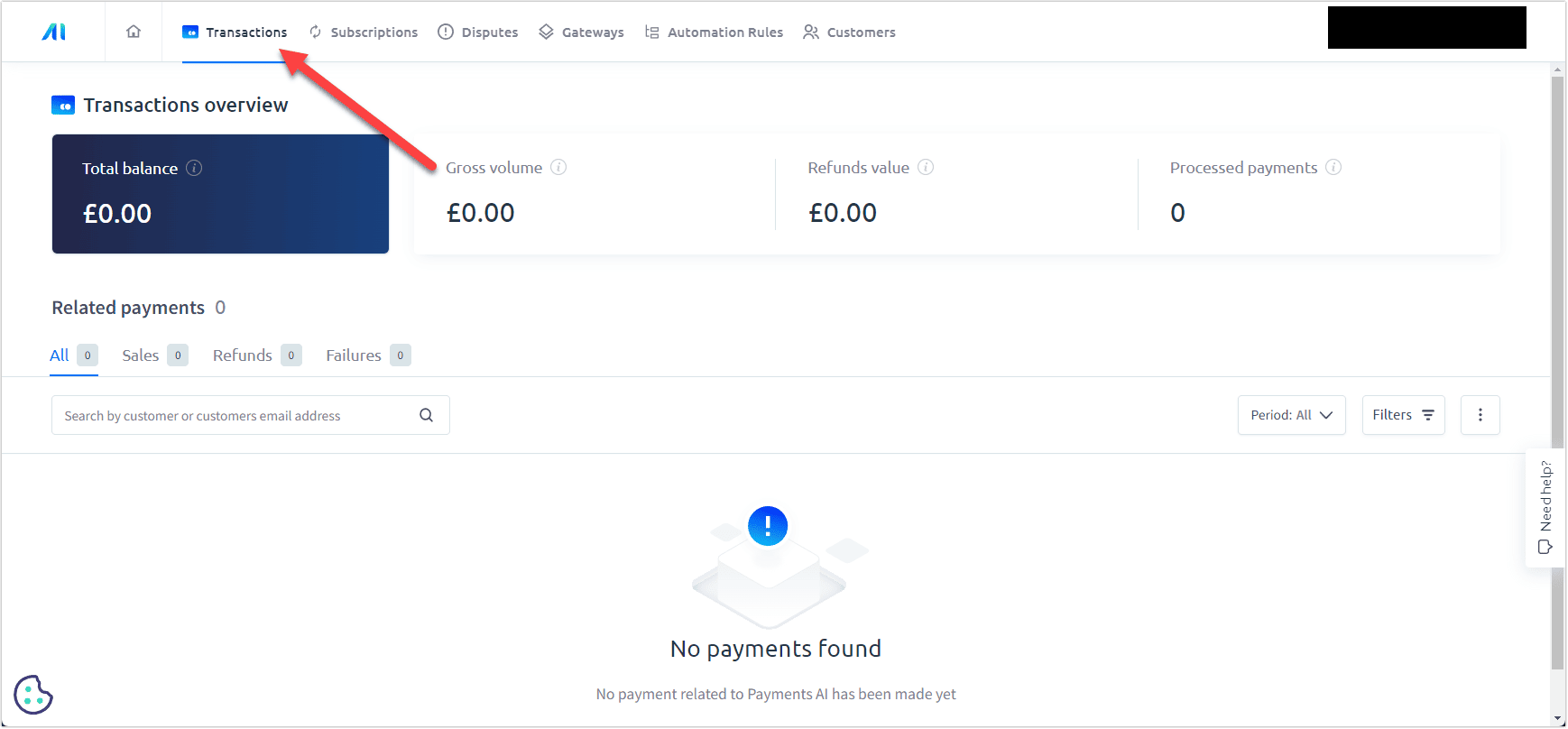
2. Connect gateways inside HighLevel
In HighLevel:
- Navigate to Settings → Integrations → Payments.
- Connect your Stripe, PayPal, or other gateways.
- Verify currencies, tax settings, and payout accounts.
- Map existing products in HighLevel to the right gateways.
3. Run small test transactions
Before sending real traffic:
- Place a low‑value test order through a HighLevel checkout page.
- Confirm the payment clears correctly.
- Verify the customer record, tags, and workflows update as expected.
- Check that invoices/receipts look the way you want.
If you’d rather have specialists wire everything together (especially if you process high volume), Revset Labs can help you design, migrate, and test your full HighLevel payments stack end‑to‑end.
Step 4: Import and Rebuild Websites & Funnels in HighLevel
This is where you move the visible parts of your ClickFunnels system—the pages your leads and buyers interact with.
1. Inventory your ClickFunnels funnels and pages
For each important funnel, record:
- Funnel name and live URLs
- Funnel goal (lead gen, application, low‑ticket acquisition, core offer, upsell, etc.)
- Steps in order (opt‑in, sales page, checkout, upsells, downsells, thank you)
- Traffic sources (ads, email, organic)
2. Use the HighLevel funnel importer where possible
HighLevel’s funnel importer can pull in many ClickFunnels pages automatically:
- In HighLevel, go to Sites → Funnels.
- Create a new funnel and add a new step.
- Name the step and paste the live ClickFunnels URL (not the share‑funnel URL).
- Let HighLevel import the layout and content, then clean up as needed.
Membership areas and complex custom scripts often need manual rebuilding, so plan extra time there.
3. Rebuild key funnels with optimization in mind
Whether you import or rebuild from scratch, use this migration as an excuse to upgrade:
- Tighten headlines, offers, and social proof.
- Standardize buttons and form styling across funnels.
- Add clear next steps on thank‑you pages (booking calls, joining communities, etc.).
CTA: When your first funnel is live in HighLevel and passing tests, you’re close to seeing value. Keep going with your free HighLevel trial and move the rest of your core funnels over.
Step 5: Rebuild Online Stores and Order Flows (E‑commerce)
If you use ClickFunnels as a lightweight store, you’ll want similar functionality in HighLevel.
1. Map your current store experience
- List your top‑selling products and bundles.
- Capture upsell and downsell flows.
- Note any order bumps, subscriptions, or add‑ons.
2. Recreate store funnels in HighLevel
In HighLevel:
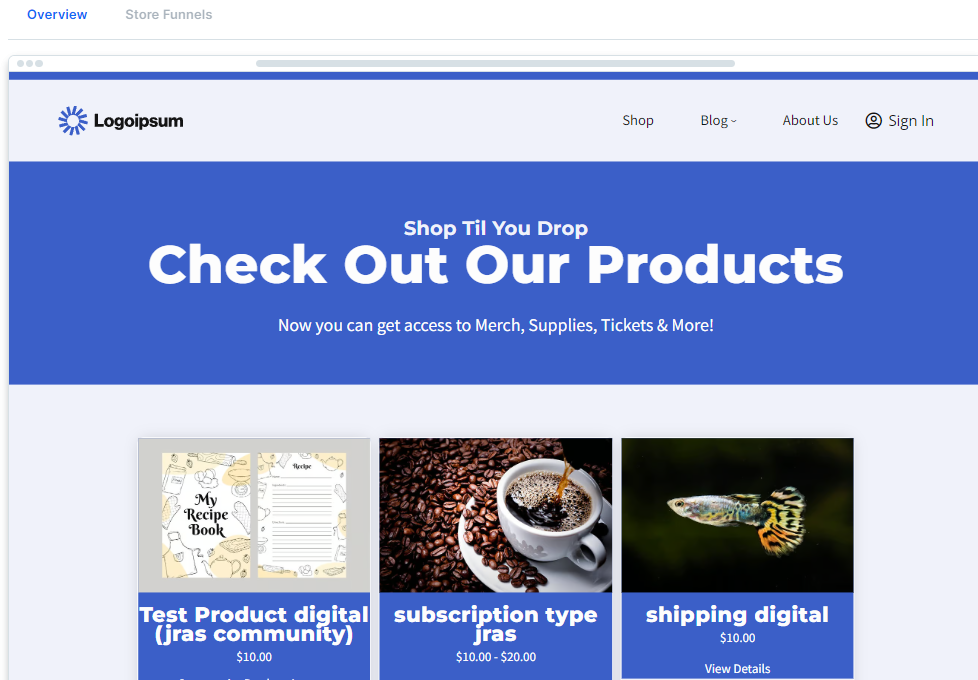
- Build a primary store or offer funnel that mirrors your ClickFunnels layout.
- Add product blocks that connect to the HighLevel products you created earlier.
- Rebuild order bumps, upsells, and downsells as separate steps.
- Configure taxes, shipping (if applicable), and receipts.
3. Align reporting and attribution
- Confirm orders are visible inside HighLevel reporting.
- Make sure UTM parameters and tracking pixels are firing correctly.
- Update any dashboards or spreadsheets you use to pull data from ClickFunnels.
Step 6: Migrate Email Marketing to HighLevel
Your email engine is a core asset. Migrating cleanly lets you pause ClickFunnels sooner without losing nurture sequences.
1. Export email assets from ClickFunnels
- Export contact lists and segments.
- Document key broadcasts and automations you want to keep.
- For each automation, outline the trigger, steps, delays, and goals.
2. Rebuild campaigns and automations in HighLevel
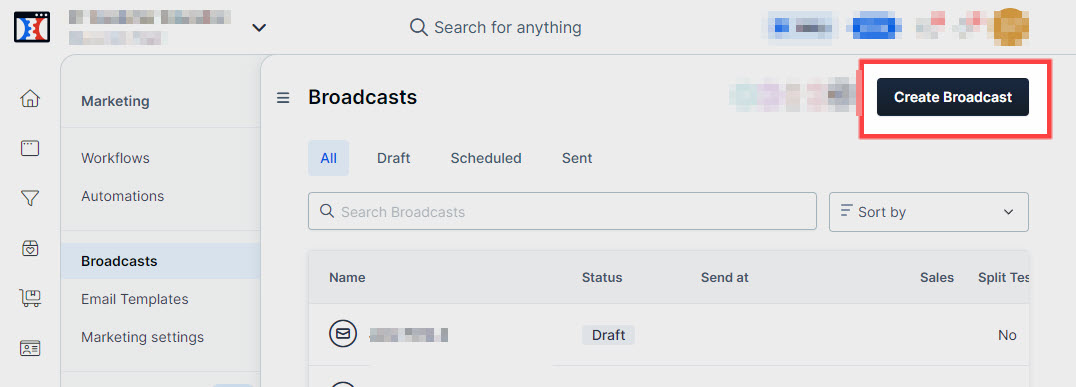
In HighLevel’s Marketing / Email area:
- Create email templates for your primary designs.
- Rebuild key nurture sequences and sales campaigns as workflows.
- Recreate triggers (tags applied, form submitted, purchase made, pipeline stage changed, etc.).
- Configure send windows, throttling, and unsubscribe behavior.
3. Warm up sending and test deliverability
- Send small batches to engaged segments first.
- Monitor open, click, and spam metrics.
- Adjust sending domains and authentication (SPF, DKIM) as needed.
CTA: HighLevel becomes much more powerful once email, SMS, funnels, and CRM live in the same place. If you’re not fully set up yet, finish your HighLevel onboarding with a free trial.
Step 7: Migrate Contacts and Lists from ClickFunnels to HighLevel
Contacts are the lifeblood of your business. Handle this step carefully to avoid duplicates and data loss.
1. Export contacts from ClickFunnels
- Go to your ClickFunnels contacts area.
- Filter down to the segments you care about (buyers, leads, active subscribers, etc.).
- Export contacts as CSV files, preserving:
- Name and email
- Phone number
- Tags and lists
- Funnel or product relationships
- Custom fields you rely on (e.g., niche, plan type, traffic source)
2. Clean and standardize your data
Before importing into HighLevel:
- Remove obvious duplicates and bounced addresses.
- Normalize country codes and phone formats.
- Decide which tags and custom fields you actually want to keep.
3. Import into HighLevel
In HighLevel Contacts:
- Upload your cleaned CSVs.
- Map ClickFunnels fields to HighLevel fields and tags.
- Import in logical batches (e.g., leads vs. customers) so you can apply different workflows.
Once contacts are in HighLevel, you can use smart lists, filters, and automations to segment more precisely than you likely did in ClickFunnels.
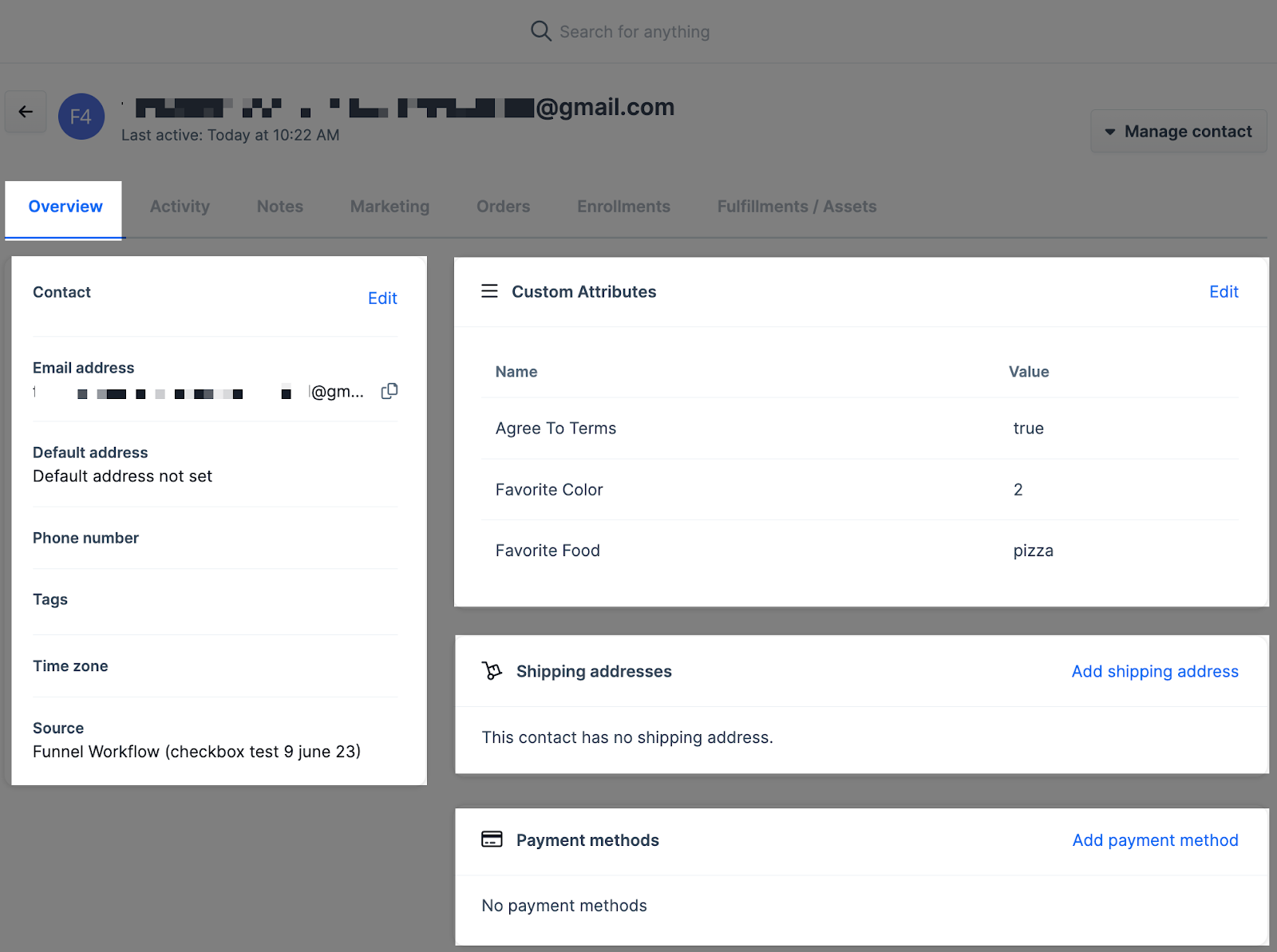
If you’d like a team that has done this many times to handle the heavy lifting—and to wire up post‑import automations—Revset Labs can design a complete contact migration and nurture strategy for you.
Step 8: Additional Considerations (Forms, Domains, Automations & More)
Beyond the obvious assets above, make sure you review these areas:
- Forms and surveys: Rebuild important ClickFunnels forms using HighLevel forms and surveys, then embed them on your new pages.
- Domains: Point your domains to HighLevel so funnels and sites load from the right URLs. Update any links in ads, emails, and social profiles.
- Webhooks and integrations: Recreate any third‑party integrations (Zapier, webhooks, native apps) inside HighLevel or retire what you no longer need.
- Pipelines and opportunities: If you track deals in ClickFunnels or another CRM, map those stages into HighLevel pipelines.
- Tracking and analytics: Reinstall pixels and tracking scripts on your new HighLevel pages and confirm conversions are being recorded.
Step 9: Frequently Asked Questions
Do I have to move everything from ClickFunnels at once?
No. Many teams start by moving a single revenue‑critical funnel and course into HighLevel, prove everything works, then migrate additional assets in waves.
How long does a ClickFunnels to HighLevel migration take?
For a lean setup (one core funnel, one course, a few automations), you can often complete the migration in a weekend. Complex setups with multiple workspaces, brands, and courses can take several weeks.
Can I automatically import my ClickFunnels funnels into HighLevel?
HighLevel’s funnel importer can pull in many ClickFunnels pages from a live URL, but it’s not perfect. Plan to review each page and manually rebuild complex membership areas or custom code blocks.
What should I test before fully switching over?
Test at least one full path from cold visitor to paid customer: link click → opt‑in → emails/SMS → sales page → checkout → payment → course access or deliverable. Fix any snags before sending all your traffic to HighLevel.
When can I cancel ClickFunnels?
Once you’ve:
- Migrated all mission‑critical funnels and checkout flows
- Rebuilt email sequences and automations you still need
- Imported and tested contacts and reporting
- Verified payments, access, and tracking in HighLevel
…you can safely cancel ClickFunnels or downgrade your plan.
Next Steps: Make HighLevel Your New Home Base
Once your ClickFunnels assets are fully migrated, HighLevel becomes your central command center for leads, customers, and revenue.
If you’re ready to:
- Consolidate tools into a single, powerful platform
- Automate follow‑up across email, SMS, and pipelines
- Give clients and team members a cleaner, more scalable system
…then now is the time to commit.
Start by activating or upgrading your HighLevel account here, then use this guide as your migration checklist.
And if you’d rather have a partner architect the whole thing—from mapping assets to rebuilding funnels and wiring automations—Revset Labs can help you implement a HighLevel setup that’s built for long‑term growth.