
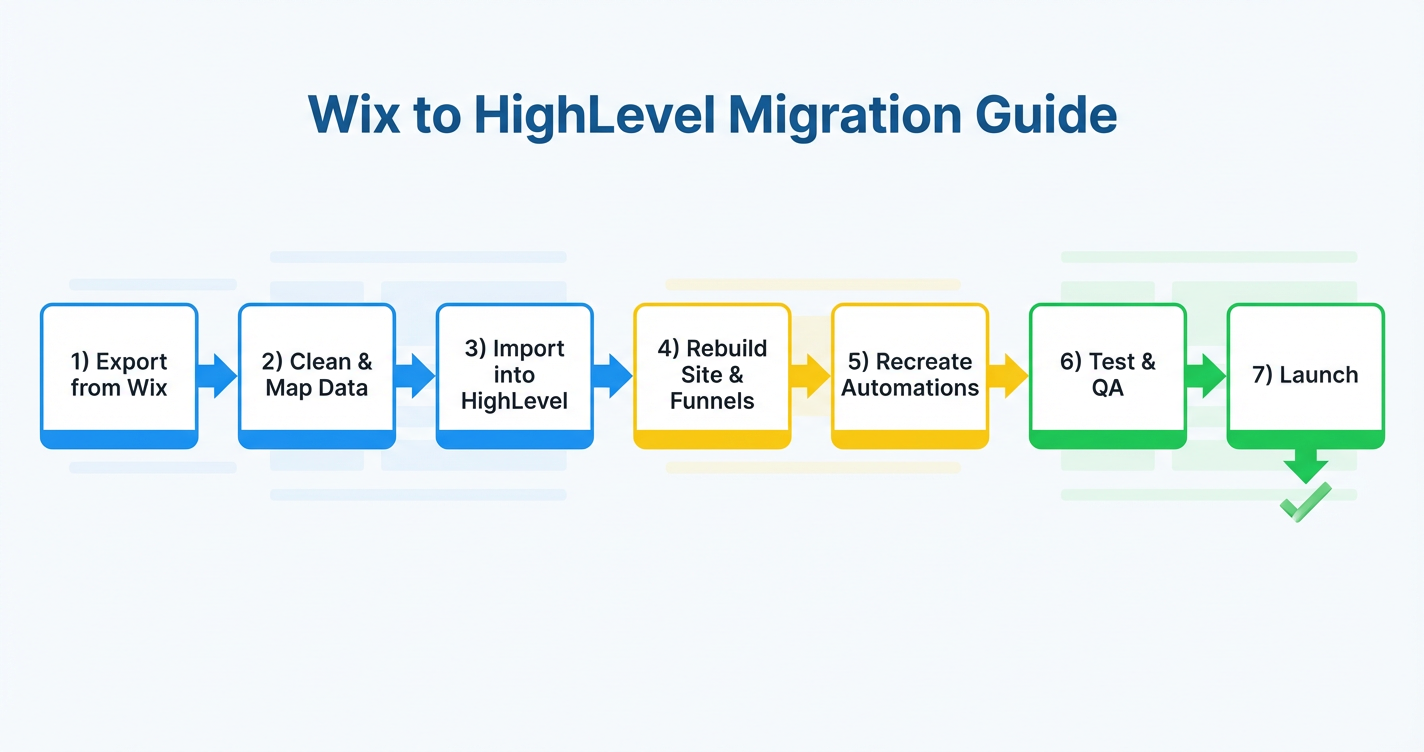

Moving your business from Wix to HighLevel can feel intimidating: you have live pages, paying customers, automations, and data you can’t afford to lose.
This guide walks you through a structured Wix to HighLevel migration plan so you can move everything that matters—contacts, pipelines, products, forms, websites, automations, and social content—without breaking funnels or confusing your audience.
If you don’t yet have a HighLevel account, you can start a free GoHighLevel trial here so you can work through each step as you read.
Note: This article is a strategic companion to HighLevel’s official Wix to HighLevel migration guide. Use that doc for screenshots and navigation, and this one for planning, best practices, and conversion strategy.
1. Migrate Contacts: Move Your People Before Your Pages
The safest way to migrate is to move people first, pages second. When your contacts, tags, and custom fields are in HighLevel, you can test forms, automations, and funnels on real data before switching traffic.
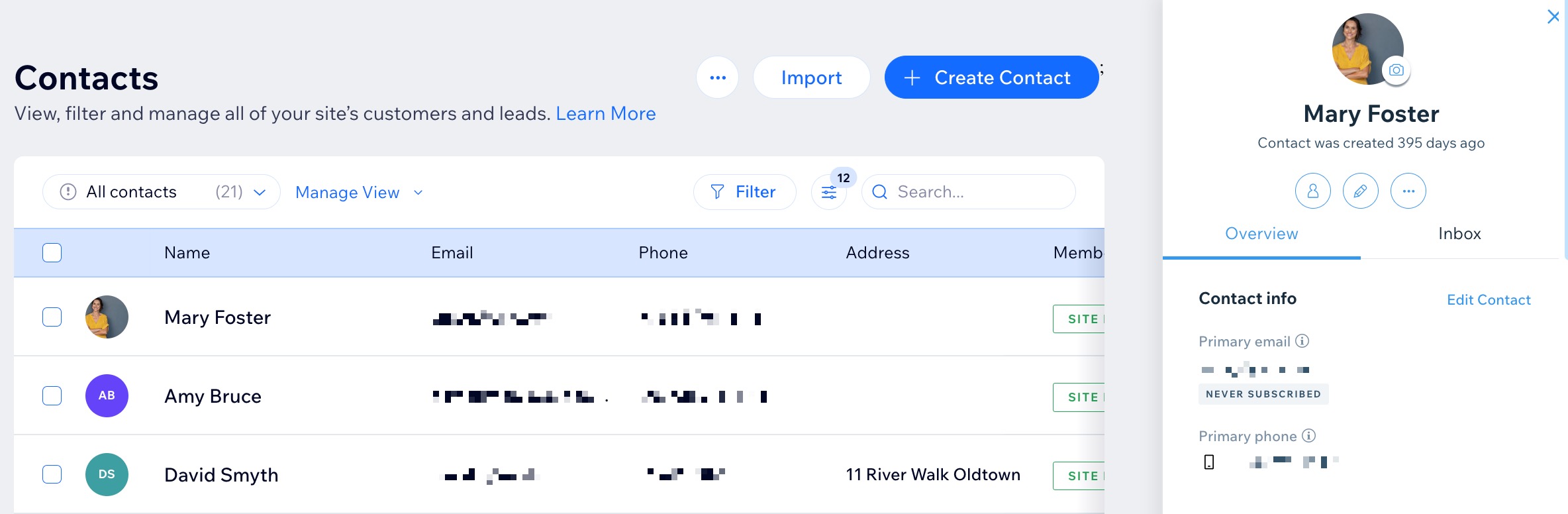
Step 1: Export contacts from Wix
- Log in to your Wix account and open the Contacts dashboard.
- Use filters or labels to segment important groups (customers, leads, subscribers).
- Click the More Actions menu and choose Export contacts.
- Export either All contacts or specific labeled groups as a CSV.

Save the CSV in a clearly named folder (for example,2026-02-wix-contacts-raw.csv).
Step 2: Clean and prepare the CSV for HighLevel
Before importing into HighLevel:
- Normalize date formats (use
YYYY-MM-DD). - Remove emojis, stray line breaks, and any characters that may break CSV parsing.
- Standardize phone numbers with a country code (for example,
+1 555 123 4567). - Decide which extra columns should become GoHighLevel custom fields (plan type, lifecycle stage, account manager, etc.).
In HighLevel:
- Go to Settings → Custom Fields.
- Create any custom fields you will need when mapping the import.
This is a great moment to rethink your CRM data model so it supports the automations you want instead of copying over years of clutter.
Step 3: Import contacts into HighLevel
- In HighLevel, go to Contacts.
- Click the Import icon.
- Upload your cleaned CSV.
- Map each column to the right contact field.
- Choose whether to create new contacts only or create and update existing contacts.
- Optionally add tags like
from-wixormigration-2026during import so you can easily find this cohort later.
Once the import is running, monitor for errors, download any error reports, fix issues, and re-import only the failed rows.
If you’d rather hand off the messy parts (data cleanup, field design, and imports), Revset Labs can run this entire migration for you while you focus on strategy.
And if you still need an account, spin up your free GoHighLevel trial now so you can bring your contacts into the new system as you read.
2. Recreate Pipelines (Wix Workflows) in HighLevel
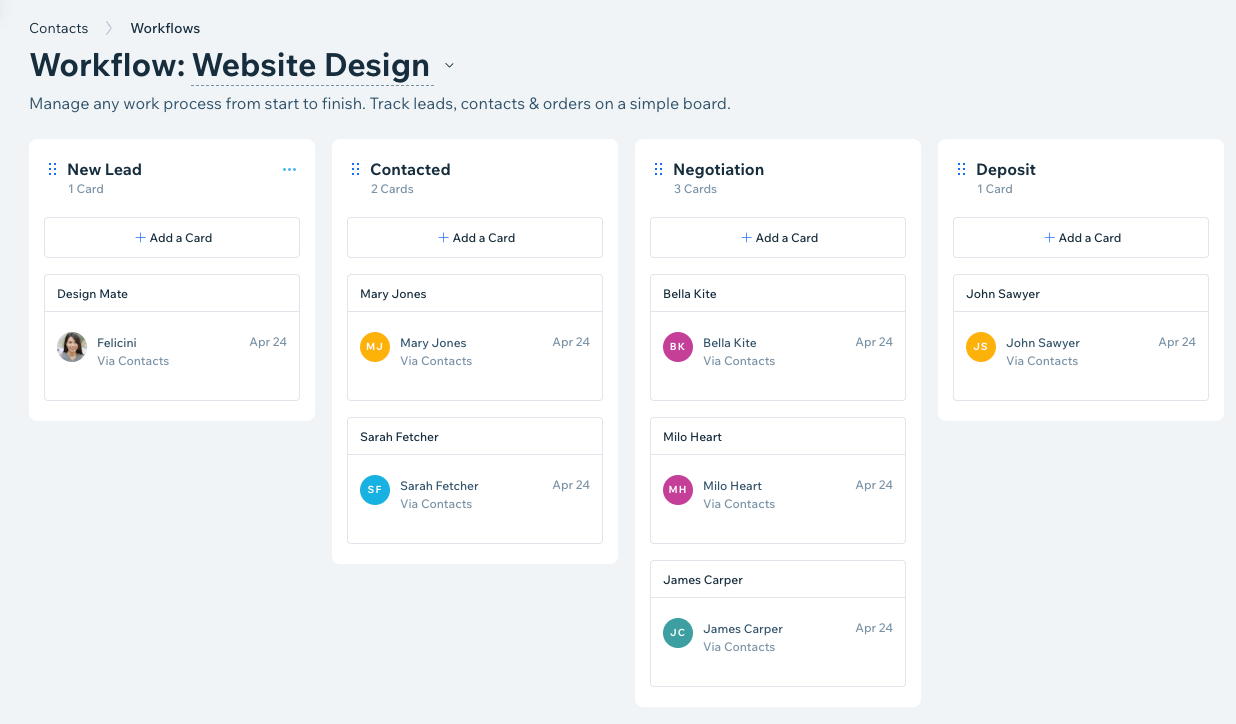
In Wix, your workflows and task boards often live in Wix Workflows. In HighLevel, the equivalent is Pipelines and Opportunities.
Your goal is not to copy the clutter but to rebuild a cleaner, higher-leverage pipeline that reflects how you actually sell today.
Step 1: Audit your Wix workflows
From your Wix dashboard:
- Open Workflows and list every pipeline you actively use.
- For each one, write down the stages (columns) in order.
- Note any automation rules tied to those stages (for example, emails, notifications, or tags).
This audit becomes your blueprint for HighLevel.
Step 2: Build pipelines in HighLevel
In HighLevel:
- Go to Opportunities → Pipelines.
- Click New Pipeline and name it clearly (for example,
Website Leads,Client Onboarding). - Add stages that mirror your Wix workflow columns, but improve where needed (combine redundant stages, rename vague ones like
In progress). - Set default probabilities and settings if you want to forecast revenue.
Step 3: Add or import opportunities
You can:
- Manually add high-value deals you’re actively working.
- Use contact filters plus Bulk Actions → Add to Pipeline to drop contacts into a stage.
- Tie your new HighLevel forms and funnels directly into pipeline stages so new leads appear in the right place automatically.
Once basic pipelines exist, you’ll connect them to automations in Step 6.
If you want help translating your messy real-world sales process into clean, automation-ready pipelines, Revset Labs can design and implement that structure inside HighLevel for you.
3. Migrate Products (Wix Stores) into HighLevel
If you sell products or services through Wix Stores, you’ll want equivalent Products inside HighLevel so you can take payments, run order bumps, and report on revenue.
Step 1: Export products from Wix
- From your Wix dashboard, open Store Products.
- Filter to active, revenue-generating products.
- Use the export option to download a Products CSV.
Make sure your export includes titles, descriptions, prices, SKUs, and any variants you care about.
Step 2: Import and configure products in HighLevel
- In HighLevel, go to Payments → Products.
- Click Import (if available) or add key products manually.
- Map columns such as name, price, SKU, and description.
- Decide which products will be sold via order forms, funnels, or invoices.

As you migrate, consider:
- Retiring low-performing SKUs instead of copying everything over.
- Creating simple package offers that align with your current funnels.
4. Migrate Forms and Submission Data
Forms are the bridge between anonymous visitors and contacts in your CRM. When you move from Wix to HighLevel, you’ll both rebuild forms and preserve submission history where it still matters.
Step 1: Export form submissions from Wix
- In Wix, go to your Form Submissions or similar reporting area.
- Export submissions for each important form as a CSV.
- Rename each file clearly (for example,
wix-contact-form-submissions.csv,wix-webinar-optins.csv).
These files give you historical context and allow you to retag or re-nurture past leads in HighLevel.
Step 2: Rebuild forms in HighLevel
- In HighLevel, go to Sites → Forms.
- Create new forms that match your most important Wix forms.
- Map fields to the contact fields and custom fields you defined earlier.
- Add routing: which pipeline stage, tags, or workflows should trigger when each form is submitted?
You can embed these forms on HighLevel pages, funnels, or even external sites.
Step 3: Import submissions where they still matter
For forms tied to long or high-value sales cycles (for example, demos, consultations):
- Import those CSVs into Contacts and tag them (for example,
wix-demo-form-legacy). - Drop them into appropriate lists or pipelines.
- Trigger a warm-up or reactivation sequence so they do not go cold during the migration.
5. Recreate Websites and Connect Domains
Your website is where most of the visible risk lives during migration. The key to a smooth move is to rebuild before you redirect.
Step 1: Export Content from Wix
- Log in to your Wix account and accessing your Wix dashboard.
- Export Website Content: Download images, videos, and documents from the Wix Media Manager to ensure you have all the necessary content for your migration.
- Save HTML/CSS: If you have used custom code on your Wix site, copy the HTML, CSS, and any custom scripts to preserve the design and functionality of your website.
Step 2: Rebuild your site in HighLevel
In HighLevel:
- Go to Sites → Websites and create a new site.
- Recreate your Wix layouts using HighLevel’s sections and templates.
- Replace any fragile, one-off design tricks from Wix with simpler, reusable components.
- Wire all forms, calendars, and CTAs to the HighLevel assets you created earlier.
Keep SEO in mind as you rebuild:
- Reuse or improve your H1s, meta titles, and meta descriptions.
- Preserve internal linking between key pages.
- Make sure your on-page copy still reflects your offers.
Step 3: Disconnect your Domain from Wix
- Log in to Wix
- Go to the Domains page.
- Click the Show More icon and select Unassign from This Site.

Step 4: Connect your Domain to HighLevel
- Login to HighLevel: Go to Settings > Domains > Add Domain. Enter the domain you need for your newly created site.
- Log in to Wix: Go to the Domains page. Click the Domain Actions icon next to the relevant domain.
- Select Manage DNS records.

Add DNS Records to Wix: Scroll to the record type you'd like to add (e.g. CNAME, TXT) and click + Add Record.

6. Recreate Wix Automations as HighLevel Workflows
Wix automations may send emails, assign tasks, or change statuses when a visitor fills out a form or buys a product. In HighLevel, the automation engine is Workflows, which is much more powerful.
Step 1: Inventory your Wix automations
For each existing Wix automation, capture:
- Trigger – what starts it (form submission, purchase, status change).
- Actions – emails, notifications, tag changes, stage moves.
- Timing – delays, conditions, and time windows.
This helps you avoid accidental gaps once you move traffic.
Step 2: Rebuild in HighLevel Workflows
In HighLevel:
- Go to Automations → Workflows.
- Create a new workflow for each major process (new lead nurture, onboarding, cart recovery, etc.).
- Choose triggers that mirror your Wix events (form submitted, contact tag added, opportunity entered stage, order purchased).
- Add actions like Send Email, Send SMS, Update Opportunity, Assign User, or If/Else branches.
Because HighLevel’s workflows can chain together multiple assets (forms, pipelines, calendars, SMS, emails), this is also your chance to upgrade your automations instead of just copying them.
When you’re ready to test, send internal test leads through each workflow before exposing it to live traffic.
If you’d like these workflows architected for you—from strategy to copy and builds—Revset Labs can design conversion-focused automations tailored to your funnel.
7. Recreate Social Posts and Marketing Campaigns
Wix often handles simple social sharing and email campaigns. HighLevel centralizes marketing in one place so you can see the full picture.
Step 1: Review your existing campaigns
From Wix (and your social accounts):
- Identify recurring campaigns (for example, weekly newsletters, launches, evergreen promos).
- Note which posts and emails drove the most engagement or revenue.
Step 2: Rebuild in HighLevel’s Social Planner and Campaigns
In HighLevel:
- Go to Marketing → Social Planner to reconnect your social profiles.
- Recreate successful campaigns as scheduled posts or reusable templates.
- Use Campaigns and Workflows for email and SMS follow-up tied to your new forms and funnels.
Where possible, attach campaigns to pipelines and opportunities so you can see direct revenue impact—not just clicks and opens.
8. Recreate AI Tools and Content
If you’ve been using Wix’s AI tools (for copy, design, or automation suggestions), you’ll want to rebuild equivalent or better systems in HighLevel.
HighLevel offers its own AI features and integrates well with external tools. As you migrate:
- Copy over winning email sequences, page copy, and ads into HighLevel templates.
- Use AI inside HighLevel to generate variations for subject lines, SMS copy, or follow-up sequences.
- Standardize tone and messaging so your brand feels consistent across new assets.
Instead of a one-time copy/paste exercise, treat this as a content upgrade phase: clarify your core offers, tighten messaging, and align every asset around a single customer journey.
9. Exporting and Recreating Other Data
Finally, sweep up any remaining pieces tied to your Wix setup:
- Booking or calendar tools that need to be replaced with HighLevel Calendars.
- Blog content that should eventually live on a HighLevel-powered site.
- Files and media you want to host elsewhere (for example, in HighLevel funnels or on a dedicated CDN).
- Analytics and tracking (migrating scripts to your new HighLevel pages and funnels).
Document what you are keeping, rebuilding, and retiring so you don’t drag bad habits and unused assets into your new stack.
Next Steps: Turn Your New HighLevel Account into a Growth Engine
A thoughtful Wix to HighLevel migration does more than copy what you had before—it gives you a cleaner, more automated, more measurable system to grow from.
To recap your high-level checklist:
- Move contacts first so data and targeting live in HighLevel.
- Rebuild pipelines and products to match how you sell today.
- Recreate forms, sites, and domains with redirects in place.
- Upgrade automations and campaigns using HighLevel Workflows.
- Migrate remaining data and tracking, then turn everything back on.
If you’re ready to see what HighLevel can do for your business, start your free GoHighLevel trial and use this guide as your migration roadmap.
And if you’d prefer an experienced team to handle the heavy lifting—data, funnels, automations, and QA—Revset Labs can manage your entire Wix to HighLevel migration and leave you with a clean, revenue-ready system.