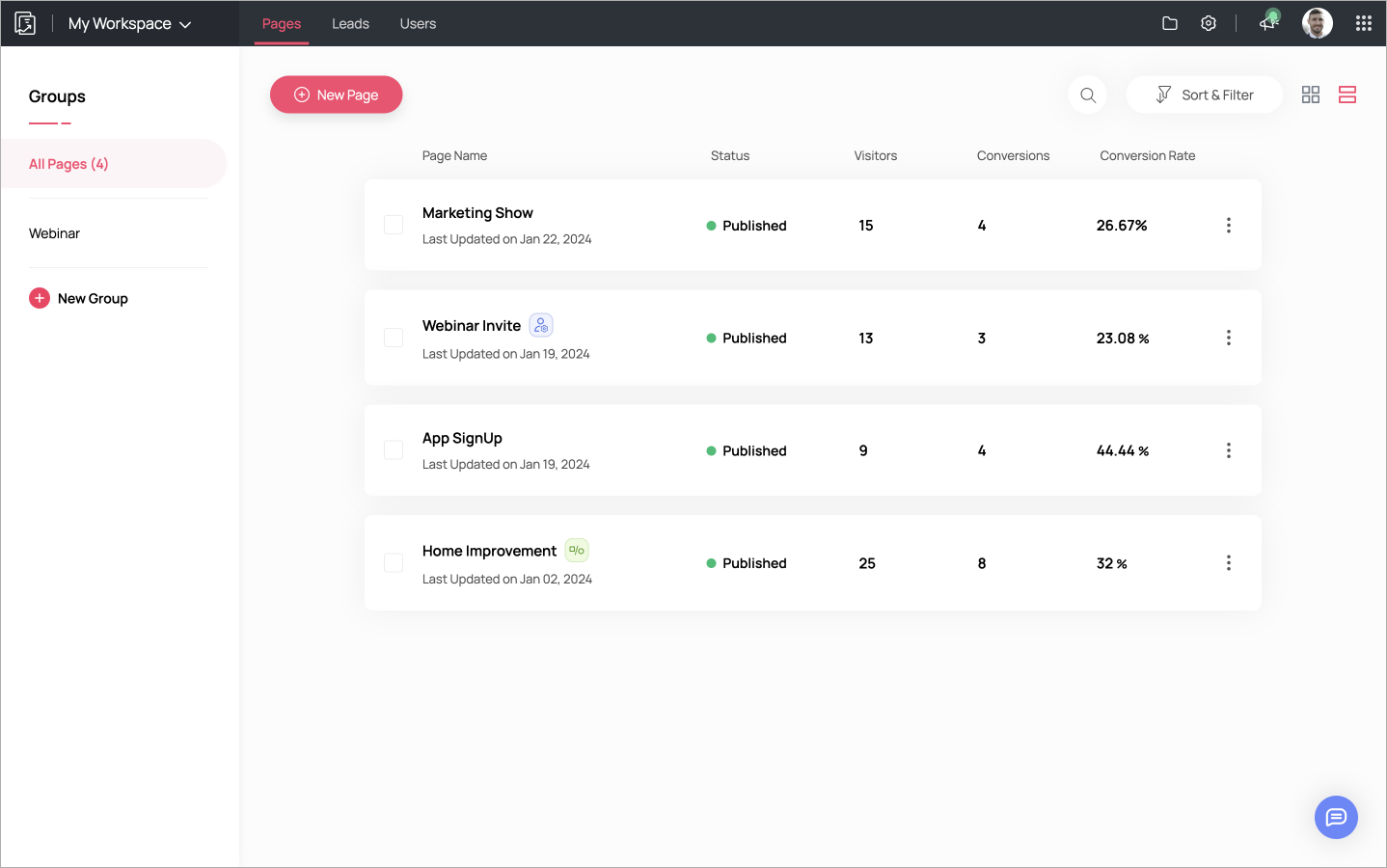
Migrating from Zoho to HighLevel doesn’t have to mean weeks of chaos, broken automations, and lost deals.

This guide walks you through a clean, low‑stress migration so you can move contacts, users, calendars, pipelines, forms, contracts, sites, automations, and analytics from Zoho into GoHighLevel while keeping the business running.
Along the way, you’ll see where GoHighLevel (HighLevel) can actually simplify what you were doing in Zoho—and where it makes sense to lean on Revset Labs if you want a done‑for‑you implementation.
Before you migrate: prep, backup, and choose your approach
Before touching any settings, make three key decisions:
- Scope – Are you moving just CRM data (contacts, deals, activities) or the full stack (sites, funnels, automations, analytics)?
- Timing – Will you migrate in one big cut‑over weekend or in phases (for example, contacts first, then pipelines, then automations)?
- Ownership – Who is responsible for each part of the move (data prep, technical setup, QA, and training)?
Non‑negotiables before you start
- Back up everything in Zoho. Export contacts, deals, activities, products, and any custom modules that matter to your revenue. Store the exports securely.
- Audit what’s actually in use. List the pipelines, views, workflows, blueprints, email templates, and reports your team uses daily. Ignore legacy clutter.
- Create your HighLevel account and locations. If you haven’t already, spin up HighLevel using your free trial: Start a free GoHighLevel trial. Set up your main location and users so you have a target to import into.
- Decide how much you’ll simplify. A migration is the perfect time to prune unused fields, dead pipelines, and over‑engineered workflows rather than copying them over 1:1.
If you want a migration plan that’s designed around your specific stack, Revset Labs can blueprint your Zoho → HighLevel move, design your new pipelines, and build the automations that turn HighLevel into a real revenue system instead of just another CRM.
Migration at a glance
At a high level, every Zoho → HighLevel migration follows the same flow:
- Prep & Backup
- Export from Zoho
- Clean & Map Data
- Import into HighLevel
- Rebuild Automations
- Test & Launch
Use this as your mental model as you work through each component below. The supporting flowchart image in this article visually maps out these stages so you can align your internal project plan to them.
Migrate Contacts from Zoho to HighLevel
Contacts are the foundation of your CRM. Get this wrong and every downstream pipeline, automation, and campaign suffers.
Step 1: Export contacts from Zoho
-
Prep your segments.
- In Zoho, note how you currently group people: lists, views, segments, statuses, and custom fields.
- Decide which of these should become tags or custom fields in HighLevel (for example,
Lead Source,Lifecycle Stage,Industry).
-
Export the data.
- In Zoho CRM, go to Setup → Data Administration → Export.
- Start a new export and choose the Contacts (and, if needed, Leads) module.
- Include all essential fields: name, email, phone, company, owner, lifecycle stage, source, and any fields you’ll want to keep in HighLevel.

-
Download the file.
- Once the export completes, download the CSV from the Export History table and store it where your team can access it for cleaning.

- Once the export completes, download the CSV from the Export History table and store it where your team can access it for cleaning.
Step 2: Prepare the CSV for HighLevel
Clean data here will save you hours of debugging later.
- Fix date formats. Convert all date fields (for example,
Created Time,Last Activity,Last Contacted) toYYYY-MM-DD. - Standardize values. Normalize fields like
Lead SourceandIndustryso you don’t end up with 10 variations of the same thing. - Remove junk characters. Strip emojis, extra line breaks, and unusual symbols that can break imports.
- Plan your custom fields. In HighLevel, go to Contacts → Settings → Custom Fields and create the text, dropdown, or date fields you’ll map into (for example,
Zoho Contact ID,Legacy Lifecycle Stage).
Step 3: Import contacts into HighLevel
- Log in to HighLevel and open the Contacts section.
- Click Import Contacts and upload your cleaned CSV.
- Map each CSV column to a HighLevel field, including your new custom fields.
- Apply tags as you import (for example,
Zoho Import,Customer,Lead, or previous list names). - Start a small test import first, validate it, then run the full import.
Step 4: Validate contact data in HighLevel
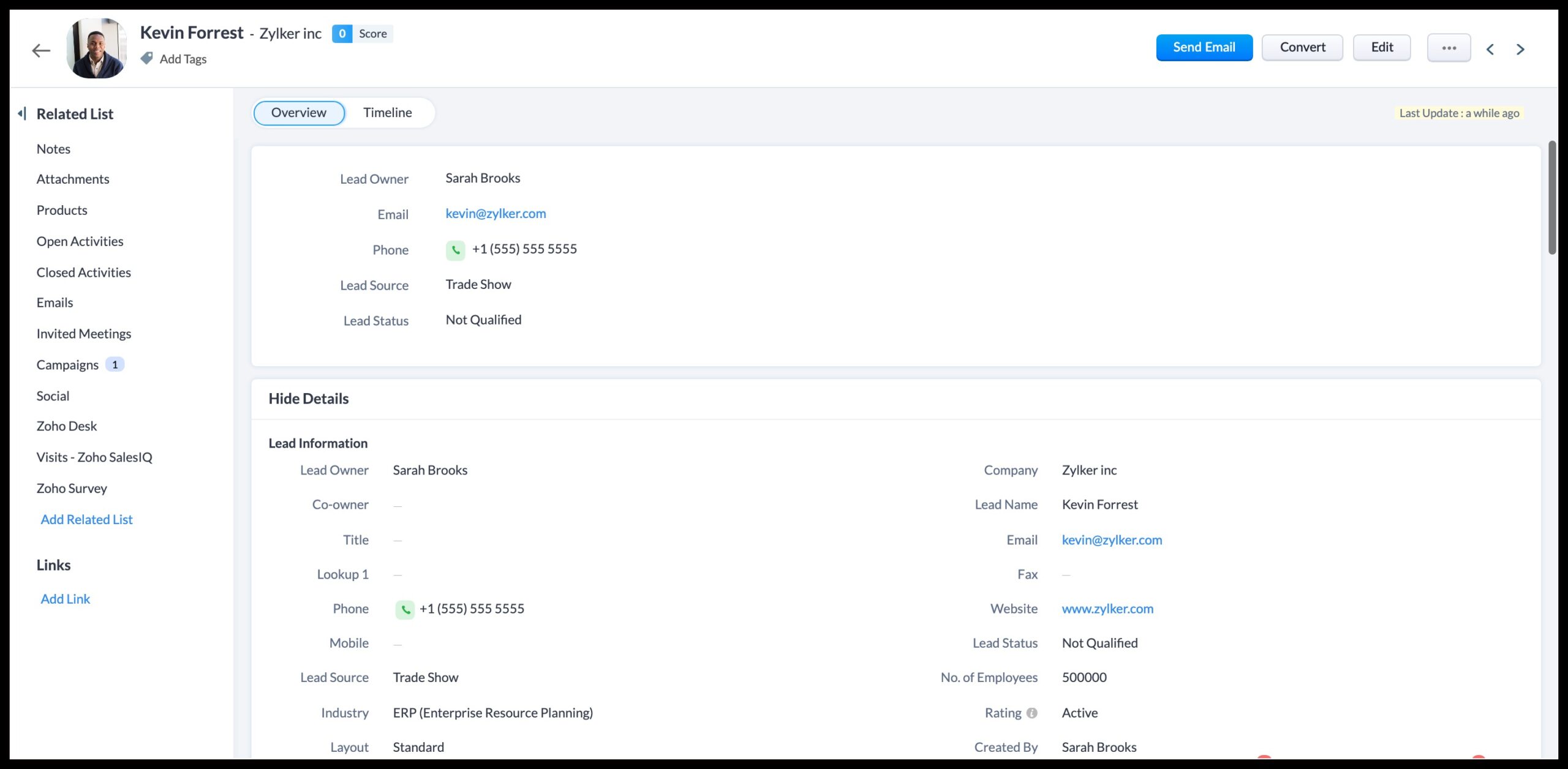
- Spot‑check records. Make sure email, phone, owner, and key metadata all came through correctly.
- Recreate smart lists. Use HighLevel Smart Lists based on tags and fields to replicate your key segments from Zoho.
- Compare counts. Ensure your total contacts by major segment (for example,
Customers,Leads) match between Zoho and HighLevel within an acceptable variance.
If you want to skip the CSV wrangling and field mapping, you can hand this entire piece to Revset Labs—we specialize in building clean, migration‑ready contact structures inside HighLevel.
Migrate Users to HighLevel
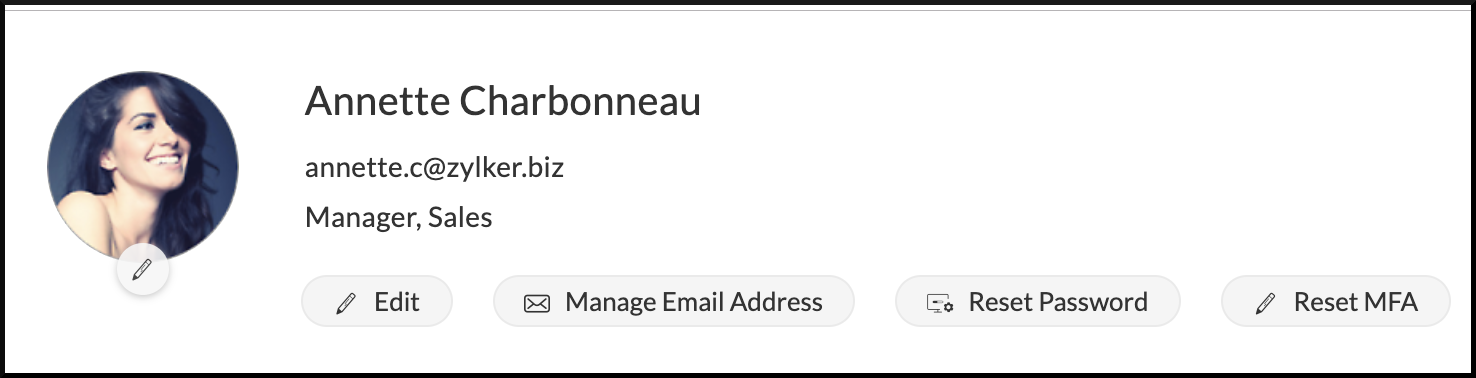
Your team needs the right access and ownership so tasks, opportunities, and conversations land with the right person.
Step 1: Inventory Zoho users and roles
- Export or list all Zoho users, their roles, and what they actually do (sales, success, marketing, admin).
- Note any special permissions or modules that only some users can access.


Step 2: Create users and roles in HighLevel
- In HighLevel, go to Settings → Team Management.
- Add team members with their work email addresses.
- Assign appropriate roles (for example, Admin, User, Agency staff) and limit access by location where needed.
- Map each Zoho owner to a HighLevel user so ownership of contacts and opportunities stays intact.
Step 3: Reassign ownership after imports
Once contacts and opportunities are in HighLevel, use filters and bulk‑edit tools to reassign records to the correct owners based on your mapping.
Migrate Calendars from Zoho to HighLevel
If your team books meetings out of Zoho, you’ll want HighLevel calendars live before you decommission anything.
Step 1: Document existing calendar flows
- How are meetings currently booked (links, embedded forms, manual)?
- Which calendars are tied to which users or teams (sales calls, onboarding calls, demos)?


Step 2: Set up HighLevel calendars
- In HighLevel, go to Settings → Calendars.
- Create round‑robin, class, or event calendars to match your Zoho setup.
- Connect each user’s Google or Outlook calendar so availability syncs correctly.
- Configure reminders (email/SMS) and confirmation pages.
Step 3: Replace Zoho calendar links
- Update booking links in your website, emails, and funnels to point to HighLevel calendar URLs.
- Run a quick test by booking internal meetings and confirming they appear correctly on connected calendars.
Using HighLevel for scheduling also unlocks automated follow‑up sequences directly from appointments—one of the easiest wins you’ll see from this migration.
Migrate Opportunities & Pipelines
This is where revenue visibility lives. Take the time to design pipelines that reflect how you want to sell, not just how Zoho was configured years ago.
Step 1: Map existing Zoho pipelines
- List each pipeline (for example,
New Business,Upsell,Renewals) and its stages. - Export Deals/Opportunities with fields like stage, amount, close date, probability, and owner.


Step 2: Design cleaner pipelines in HighLevel
- In HighLevel, go to Opportunities → Pipelines and create pipelines that mirror your real process.
- Keep stage names action‑oriented (for example,
Discovery Booked,Proposal Sent,Verbal Yes,Won,Lost). - Decide which stages should trigger automations (nurture, onboarding, win‑back).
Step 3: Import and validate opportunities
- Import opportunities via CSV or recreate only active deals if your Zoho data is very noisy.
- Map each opportunity to the right pipeline, stage, and owner in HighLevel.
- Filter by
Opendeals in Zoho so you’re not hauling over years of closed‑lost clutter.
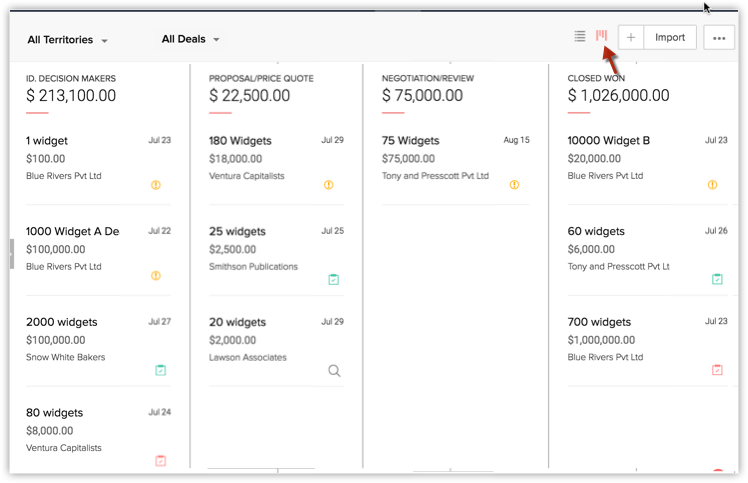
With HighLevel, you can tie pipelines directly into automations—think automatic task creation, reminders, and follow‑up sequences when a deal moves stage.
Migrate Forms
Forms are often the front door to your CRM. You’ll rebuild them in HighLevel so new leads flow directly into the right automations.
Step 1: Catalog Zoho forms
- List all live Zoho forms and where they appear (site pages, landing pages, pop‑ups).
- Note which lists or workflows each form feeds.
Step 2: Rebuild forms inside HighLevel
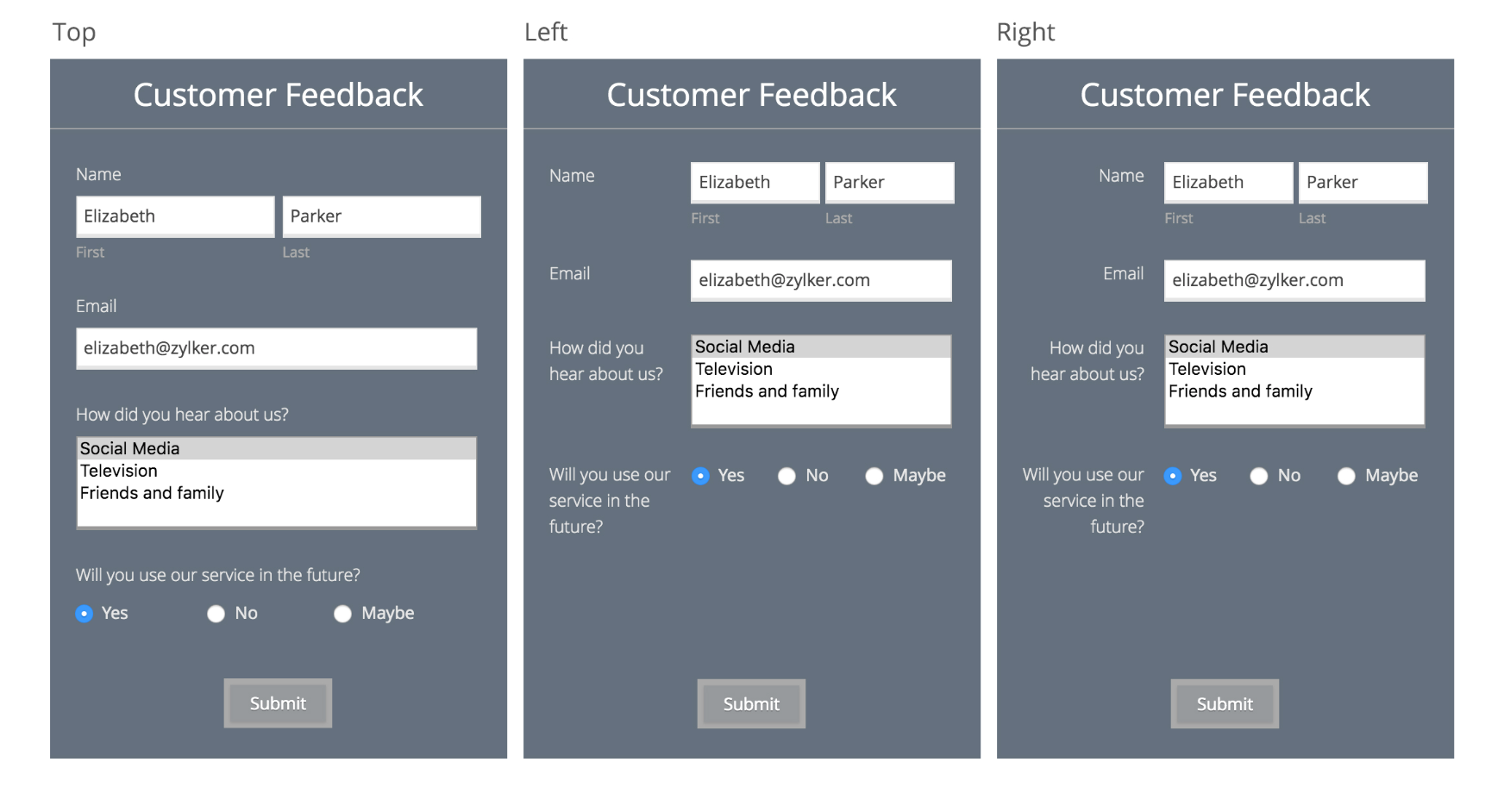
- In HighLevel, go to Sites → Forms or build forms directly inside Funnels/Websites.
- Recreate the necessary fields and add form validations where needed.
- Tag contacts and trigger specific workflows when a form is submitted (for example,
Lead Magnet – Zoho Migration Checklist).
Step 3: Swap embed codes
- Replace Zoho embed codes on your website and landing pages with HighLevel form or funnel URLs.
- Submit a few test entries and confirm they appear as contacts and opportunities in HighLevel.
If you want to turn every form into a complete follow‑up engine—email, SMS, and pipeline automation—Revset Labs can help you design those flows so you don’t just collect leads, you actually convert.
Migrate Contracts and Documents
Your proposals, agreements, and onboarding documents should keep working without forcing you to stay in Zoho.
Step 1: Audit document workflows
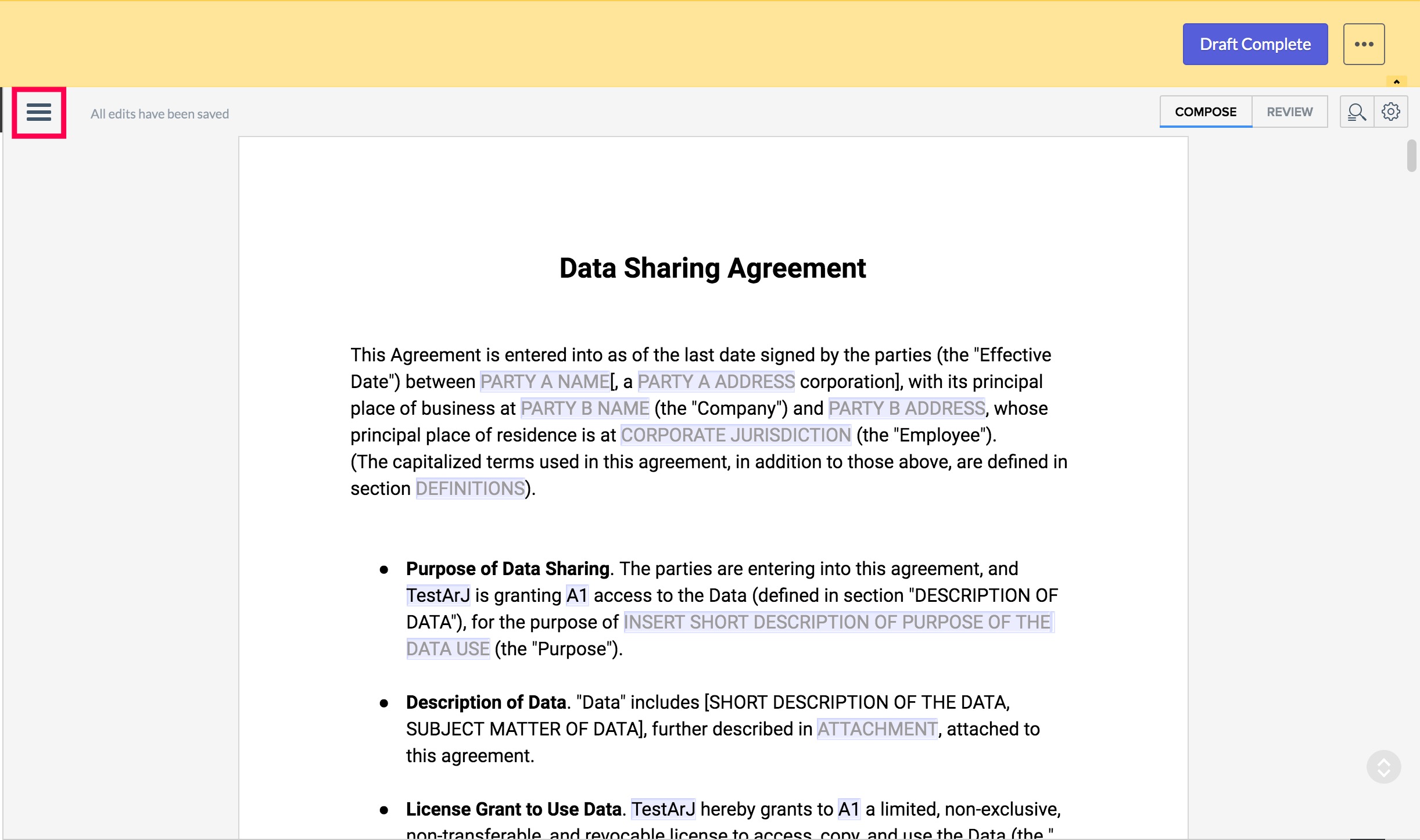
- Identify all templates and document tools you use with Zoho (for example, Zoho Writer, third‑party e‑signature tools).
- Note which ones are still needed versus what can be consolidated.
Step 2: Choose your document stack for HighLevel
- Decide whether you’ll keep your existing e‑signature provider or move to a new one that integrates cleanly with HighLevel.
- Store master templates in a central drive and link them from HighLevel pipelines, opportunities, or workflows.
Step 3: Connect documents to HighLevel workflows
- Use HighLevel automations to send proposal or contract emails when an opportunity hits a "Proposal" or "Ready to Close" stage.
- Add fields like
Contract Signed DateorMRRas custom fields so you can track subscription revenue inside HighLevel.
Migrate Websites
If you previously used Zoho Sites or related tools, you have two paths: rebuild pages in HighLevel or migrate to an external CMS and integrate.
Option 1: Rebuild key pages in HighLevel
- Identify your revenue‑critical pages (home, pricing, key landing pages).
- Recreate them in Sites → Websites or Sites → Funnels using HighLevel’s drag‑and‑drop builder.
- Reconnect forms, calendars, and tracking scripts (Facebook Pixel, Google Tag, etc.).
Option 2: Keep your existing CMS but integrate with HighLevel
- Use HighLevel forms, pop‑ups, or embedded calendars on your existing site.
- Send form fills and bookings into HighLevel via native integrations or webhooks.
Where most teams see the biggest win is consolidating scattered landing pages into HighLevel funnels that pair pages, forms, upsells, and automations in one place.
Migrate Automations
Zoho workflows rarely translate 1:1 into HighLevel—and that’s a good thing. HighLevel’s automation builder lets you often simplify complex, brittle logic.
Step 1: Inventory and prioritize Zoho workflows
- Export or document all workflows, blueprints, assignment rules, and autoresponders.
- Highlight the 10–20 automations that actively drive revenue (lead nurture, trial follow‑up, onboarding) and deprioritize minor ones.
Step 2: Redesign automations for HighLevel
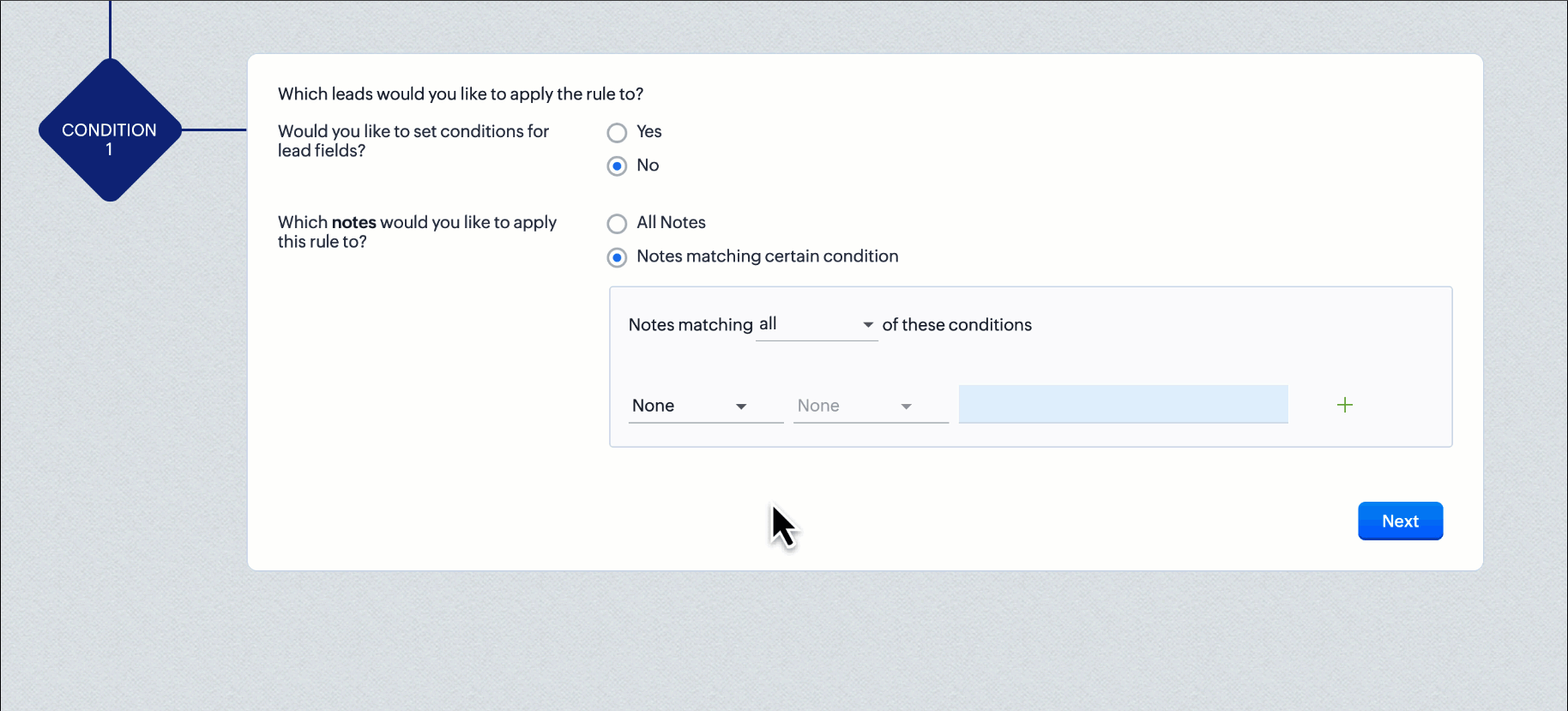
- In HighLevel, go to Automations and translate your most important workflows into Workflows.
- Trigger off tags, form submissions, pipeline stage changes, or appointment events.
- Replace scattered Zoho emails with centralized HighLevel email and SMS sequences.
- Use conditions and branches to route leads based on engagement, lifecycle stage, or deal progress.
Step 3: Test before turning off Zoho
- Run new HighLevel automations in parallel with Zoho for a short period (where feasible).
- Use test contacts and internal users to check messages, timing, and branching logic.
- Only disable Zoho workflows once the HighLevel versions are stable.
If you’d like help re‑imagining your automations instead of just porting them over, Revset Labs can architect full funnel workflows in HighLevel and connect them to your ads, site, and email list.
Migrate Analytics and Reporting
Finally, make sure leadership doesn’t lose visibility into pipeline and performance when you switch systems.
Step 1: Capture your baseline from Zoho
- Export key reports (pipeline by stage, conversion rates, campaign performance) so you know how things looked before the move.
- Decide which KPIs must be visible on day one in HighLevel.
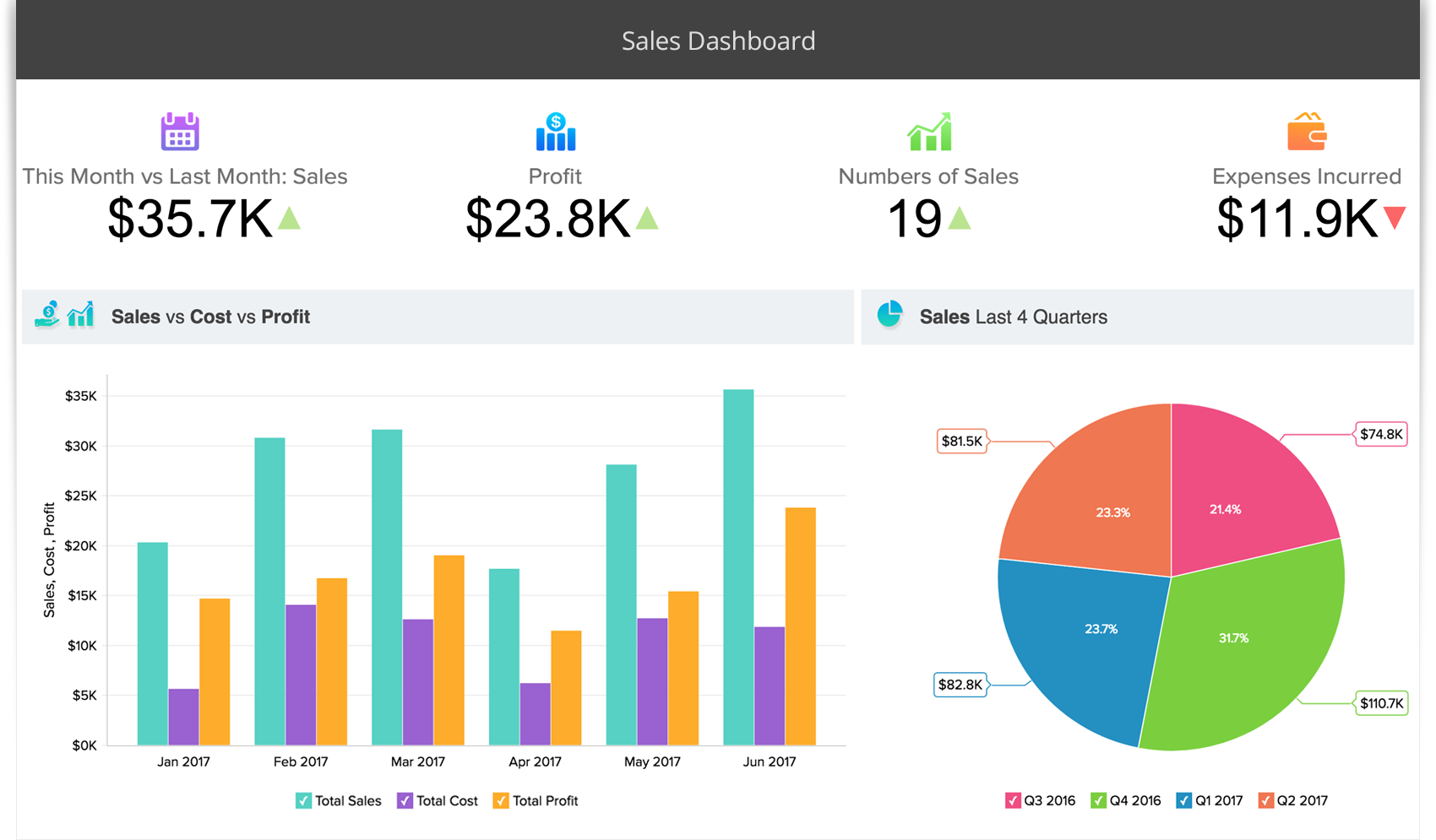
Step 2: Rebuild dashboards inside HighLevel
- Use HighLevel’s built‑in dashboards for pipeline, appointments, and funnel performance.
- Configure attribution tracking so you can see which sources drive leads and revenue.
- For advanced reporting, connect HighLevel to external BI tools or spreadsheets via integrations and APIs.
Step 3: Align your team around the new source of truth
- Train sales and marketing leaders on where to find their KPIs in HighLevel.
- Archive or phase out Zoho dashboards so there’s no confusion about "which report is right".
When to bring in expert help
A Zoho → HighLevel migration is more than a data import—it’s a chance to redesign how leads move, how deals are managed, and how follow‑up happens.
If you:
- Have multiple brands or locations to consolidate,
- Rely on complex Zoho blueprints and custom functions, or
- Want to use the migration to launch new funnels and campaigns,
then working with a partner can significantly reduce risk and time to value.
Revset Labs is an AI Automation and Marketing Agency that specializes in building revenue systems on GoHighLevel. We can:
- Audit your current Zoho setup and design a simpler, more profitable architecture in HighLevel.
- Handle the heavy lifting on imports, pipeline design, automation builds, and QA.
- Launch campaigns and nurture sequences that take advantage of HighLevel’s all‑in‑one stack.
If you’re ready to see what HighLevel can do for your business, start with a free trial here: Start your free GoHighLevel trial and then let Revset Labs turn it into a fully‑built growth engine.
Step 3: Disconnect your Domain(s) from Zoho
- Log in to Zoho: Sign in to Zoho Directory, then click Admin Panel in the left menu. Click the Custom Domain tab. Click Delete under the required custom domain name.
Step 4: Connect your Domain to HighLevel
- Login to HighLevel: Go to Settings > Domains > Add Domain. Enter the domain(s) you need for your newly created site.