
 GoHighLevel Migration Guide (Step-by-Step)”>

Moving your entire CRM from Salesforce to GoHighLevel can feel risky—especially when revenue-critical data, automations, and team workflows all depend on it.
The good news: with a clear plan, you can migrate in phases, protect data integrity, and end up with a simpler, more unified system that’s cheaper and easier to run.
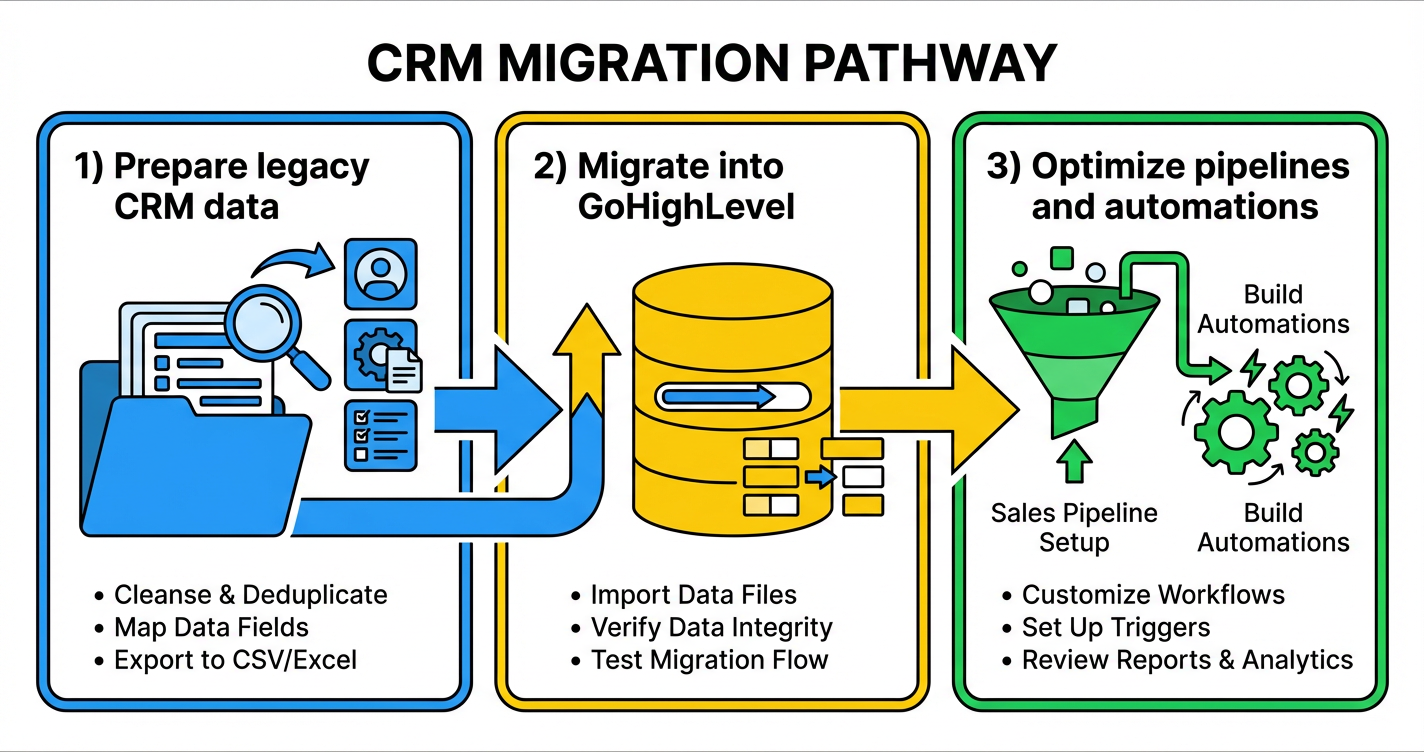
This guide walks you through a Salesforce → GoHighLevel migration pathway you can actually follow:
- Prepare and clean your Salesforce data
- Export core objects and import them into GoHighLevel
- Rebuild pipelines, sites, and automations
- Move documents, contracts, and forms
- Test everything end-to-end
- Train your team and run both systems in parallel
- Safely decommission Salesforce when you’re ready
If you don’t have a GoHighLevel account yet, you can start a free GoHighLevel trial and follow this guide as your implementation checklist. Revset Labs can then help you turn that account into a fully automated revenue engine.
1. Prepare Your Salesforce Data and Migration Strategy
A strong migration starts before you export a single record. The goal of this phase is to understand what you have, what you actually need in GoHighLevel, and what success looks like.
Step 1: Review your current Salesforce setup
Make a quick inventory of how you’re using Salesforce today:
- Core objects in use: Contacts, Leads, Accounts, Opportunities, Cases, Tasks, Campaigns, custom objects.
- Key fields and customizations: lifecycle stages, owner fields, custom picklists, validation rules.
- Automations: workflows, process builder flows, triggers, assignment rules, email alerts.
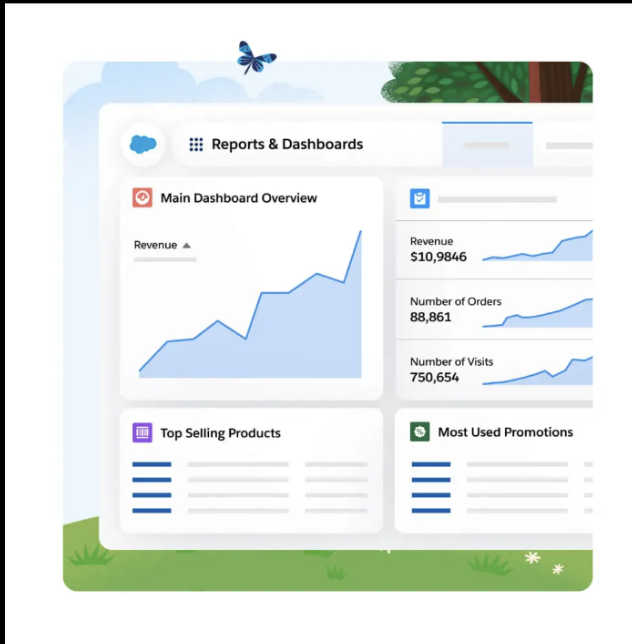
- Reports and dashboards: the views your team relies on day to day.
Flag anything that’s truly business-critical (for example renewal pipelines, onboarding workflows, NPS surveys) so you can prioritize those first in GoHighLevel.
Step 2: Define clear migration objectives
Answer a few strategic questions up front:
- Why are you moving? Common reasons: license cost, complexity, fragmented tools, slow iteration.
- What must not break? Examples: renewal reminders, opportunity stages, key integrations.
- What can you simplify? This is your chance to clean up fields, tags, and stages you no longer use.
Turn this into a one-page migration brief:
- Primary goal (for example: “Unify CRM + marketing automation in GoHighLevel and cut CRM costs by 40%”).
- Scope for phase one (objects, pipelines, and automations you’ll move first).
- Go-live window and any blackout dates.
When Revset Labs runs migrations, we always start with this brief so every decision ladders up to a clear outcome.
Step 3: Back up Salesforce before you change anything
Before you decommission or heavily modify Salesforce:
- Export all key objects (Contacts, Leads, Accounts, Opportunities, Activities, Campaigns, custom objects) to CSV.
- Save exports in a secure, versioned location.
- Capture screenshots or exports of reports and dashboards your leadership team cares about.
This backup becomes your safety net during the rest of the project.
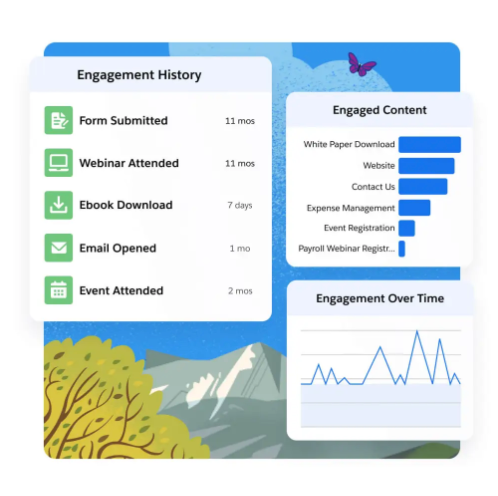
2. Export Salesforce Data and Import It into GoHighLevel
Now you’ll move the core records that power your sales and marketing engine.
Step 4: Export the right data from Salesforce
Start with the objects you know GoHighLevel can represent well:
- Contacts & Leads – people you’re engaging.
- Accounts / Companies – (if you work B2B) companies those people belong to.
- Opportunities / Deals – open and recently closed deals.
- Activities & Tasks – recent calls, emails, meetings.
- Campaign membership – tags you may want to recreate as segments.
Export these as CSV files with clear headers. While exporting:
- Remove obviously dead or duplicate records.
- Normalize values where you can (for example country codes, lifecycle stages).
- Note any fields that are rarely populated—you may not need to recreate them.
Step 5: Design your GoHighLevel data model
Before you import, map how Salesforce concepts translate into GoHighLevel:
- Salesforce Contacts/Leads → GoHighLevel Contacts
- Accounts → Companies (if used)
- Opportunities → Pipelines & Opportunities
- Tasks/Activities → Notes, tasks, and timeline activity
Decide which Salesforce fields become:
- Standard GoHighLevel fields (name, email, phone, company, pipeline stage).
- Custom fields (plan type, region, lifecycle score, implementation tier).
- Tags (high-level segments like
enterprise,webinar-2026,partner).
If you’re new to imports in GoHighLevel, you may find it useful to also read your internal Import Existing Contacts in GoHighLevel guide and align the field strategy across both projects.
Step 6: Import data into GoHighLevel in controlled batches
Instead of importing everything at once:
- Run a small test import (for example 50–200 records) into GoHighLevel Contacts.
- Map each CSV column to the right GoHighLevel field, creating custom fields where needed.
- Validate a sample of records in the UI to confirm names, phones, companies, and tags look right.
- Check downstream automations to be sure nothing unexpected fires.
Once the test batch looks good, you can:
- Import the rest of your contacts and companies.
- Import opportunity data and attach it to the right contacts/companies.
- Use tags and custom fields to mirror important segments from Salesforce.
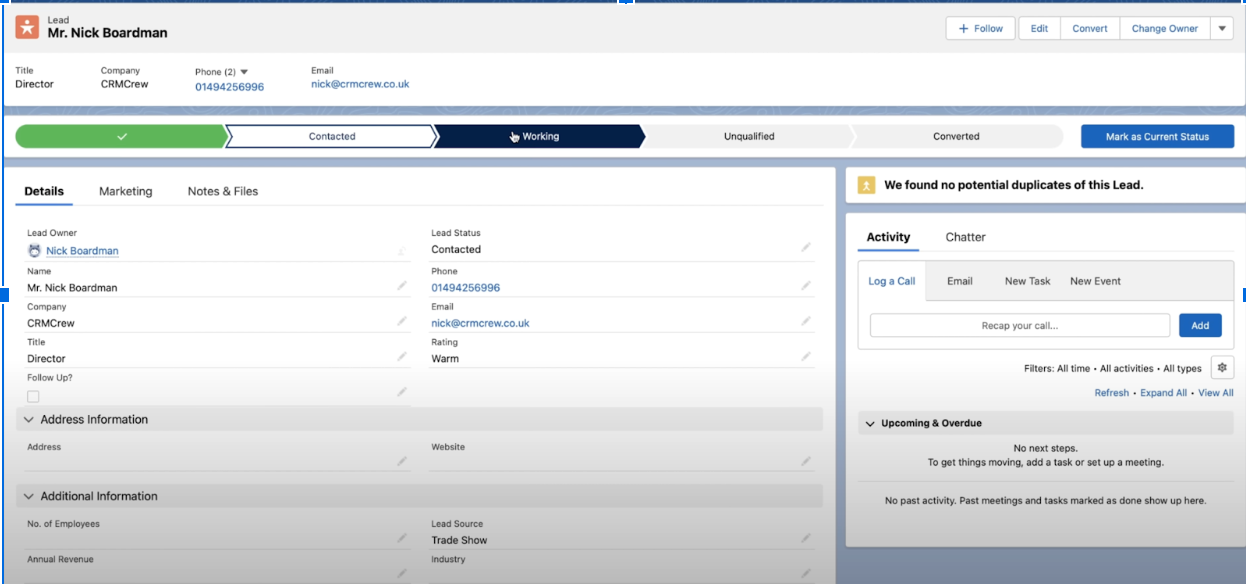
At this point, GoHighLevel should contain clean, structured copies of your Salesforce records.
If you’d like this step handled for you—including data cleanup and mapping—Revset Labs can manage the entire import while you keep running your day-to-day operations.
You can spin up GoHighLevel with a free trial and then loop us in once your account is ready.
3. Rebuild Pipelines, Sites, and Automations in GoHighLevel
With core data in place, you can now rebuild the systems that move deals forward.
Step 7: Recreate Salesforce opportunities as GoHighLevel pipelines
In GoHighLevel:
- Go to Opportunities → Pipelines and recreate your key Salesforce pipelines (New Lead, Sales, Renewals, Onboarding, etc.).
- Add stages that match how your team really sells today, not just the legacy Salesforce setup.
- Bulk-move imported opportunities into the correct pipelines and stages.
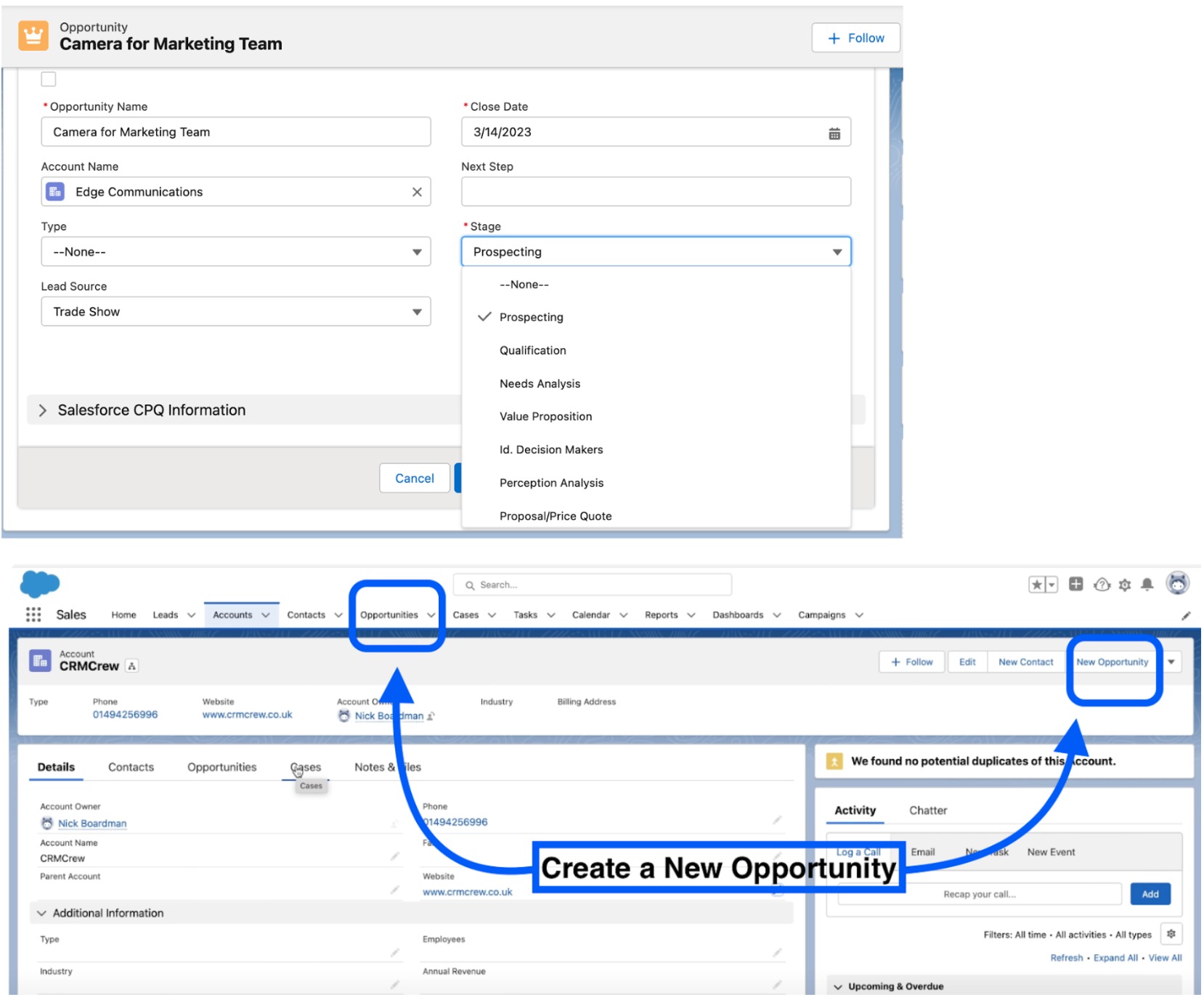
This ensures reporting and forecasting line up with what leadership is used to seeing—just in a cleaner UI.
Step 8: Rebuild landing pages and key journeys
Next, move your public-facing assets:
- Recreate core Salesforce-hosted pages as websites or funnels in GoHighLevel.
- Map forms and CTAs to the right pipelines, tags, and workflows.
- Make use of GoHighLevel’s built-in calendars, booking flows, and payment links where relevant.
Use this as a chance to simplify: retire low-converting pages, duplicate funnels, or dead-end offers that cluttered your Salesforce setup.
Step 9: Recreate critical automations as GoHighLevel workflows
List out the Salesforce automations that matter most:
- Lead capture and assignment
- New opportunity alerts
- Nurture sequences
- Renewal and churn-prevention workflows
Then, rebuild them in Automations → Workflows inside GoHighLevel using triggers like:
- Form submitted
- Pipeline stage changed
- Tag added/removed
- Appointment booked or missed
Because GoHighLevel combines CRM, marketing, and communications, many previously complex Salesforce integrations become simple, native triggers.
If you want a strategy-first rebuild (not just a 1:1 copy), Revset Labs can help you redesign these workflows so they match how you actually sell today.
4. Move Documents, Contracts, and Forms
Salesforce often powers more than just data—it also houses contracts, proposals, and forms.
Step 10: Transfer document templates
- Export key contract, quote, and proposal templates from Salesforce or your connected tools.
- Rebuild them in your chosen document or e-sign solution that connects well with GoHighLevel.
- Standardize merge fields so names, pricing, and dates are consistent.
Step 11: Set up e-signature and document tracking
If you previously used Salesforce-integrated e-sign tools:
- Configure e-signature for your new stack.
- Ensure signed documents are stored in the right place and linked back to contacts or opportunities.
- Test a full send–sign–store loop before rolling it out to the whole team.
Step 12: Recreate forms
- Rebuild key lead capture and onboarding forms as GoHighLevel forms or surveys.
- Map each submission to the right tags, custom fields, and pipelines.
- Redirect old Salesforce form endpoints to new GoHighLevel-powered pages.
5. Test Your Migration End-to-End
Before you even think about cancelling Salesforce, you need to prove that GoHighLevel can run the same business processes reliably.
Step 13: Test opportunities from lead to close
Walk a few sample deals through your new pipelines:
- Create or import a test lead.
- Move them through each stage while logging calls, emails, and notes.
- Generate any proposals or agreements they would usually receive.
- Mark the deal won or lost and confirm downstream reporting and automations behave as expected.
Step 14: Validate automations and messaging
For your most important workflows:
- Trigger them with test records.
- Confirm the right emails, SMS, and internal tasks are created.
- Check scheduling logic (time zones, business hours, delays).
Fix any gaps now, while you still have Salesforce running in the background.
6. Train Your Team and Run a Parallel Transition
Even the best migration fails if your team never fully adopts the new system.
Step 15: Train your team on GoHighLevel
- Host live walkthroughs focusing on their daily workflows.
- Provide short SOPs and loom-style videos for common tasks.
- Show side-by-side examples of "old way in Salesforce" vs. "new way in GoHighLevel".
Revset Labs often pairs this with a short hypercare period where we sit in your Slack or Teams, answering GoHighLevel questions in real time while habits are forming.
Step 16: Monitor and optimize during a parallel run
For a defined period (often 2–6 weeks):
- Keep Salesforce read-only or in light use while teams primarily work in GoHighLevel.
- Compare reports between systems to make sure numbers roughly align.
- Capture feedback on what feels faster, what feels harder, and where fields or stages need refinement.
Use this window to make final tweaks before pulling the plug on Salesforce.
7. Decommission Salesforce Safely
Once your team is confident in GoHighLevel and reporting checks out, you can phase out Salesforce.
Step 17: Finalize backups and documentation
- Take final exports of any objects you changed during the parallel run.
- Store copies of contracts and audit trails required for compliance.
- Document the final GoHighLevel setup (pipelines, workflows, fields) so new hires aren’t guessing.
Step 18: Turn off Salesforce in a controlled way
- Communicate a clear cutover date to your team.
- Ensure all new leads and deals are being created exclusively in GoHighLevel.
- Downgrade or cancel Salesforce licenses according to your contract terms.
After a short grace period, remove remaining access so people don’t drift back into the old system.
What’s Next: Turn Your New GoHighLevel Account into a Revenue Engine
Migrating from Salesforce to GoHighLevel is more than a cost-saving move—it’s a chance to redesign how leads, deals, and customers move through your business.
With your data, pipelines, and workflows now inside GoHighLevel, you can:
- Launch multi-channel nurture sequences that blend email, SMS, and calls.
- Build funnels and landing pages tightly connected to your pipelines.
- Trigger automations off nearly any action a contact takes.
If you want a partner to help you go beyond “lift and shift” and actually level up your funnel:
- You can launch GoHighLevel with a free trial here.
- Then work with Revset Labs, an AI automation and marketing agency, to design and implement the campaigns, workflows, and reporting that turn GoHighLevel into a predictable revenue system.