
When you jump on a Zoom call with HighLevel support, you’re usually trying to fix something fast—not troubleshoot your microphone, camera, or screen share.

This guide gives you a simple, repeatable Zoom troubleshooting flow specifically for HighLevel support calls so you can get issues resolved quickly and keep momentum in your account.
You can always reference HighLevel’s official troubleshooting guide as the source of truth. Here, we’ll walk through the same concepts with extra context, best practices, and a clear flow you can follow live on a call.
If you’re still exploring the platform, you can start a free GoHighLevel trial and use these steps any time you join a support session.
1. Troubleshooting Zoom audio and video issues
Most support calls stall because the other person can’t hear you, you can’t hear them, or your camera won’t cooperate. Work through these steps in order:
-
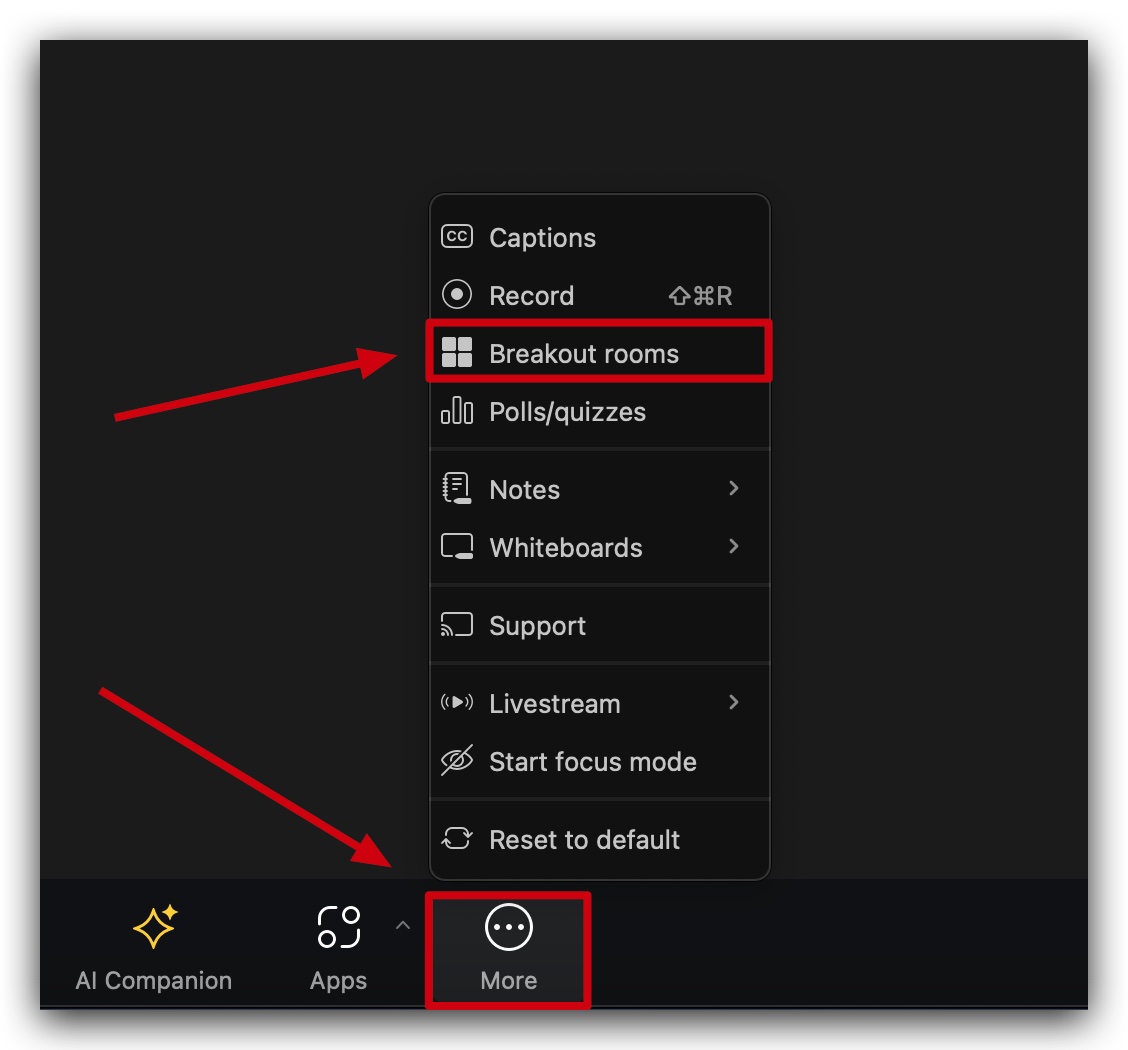
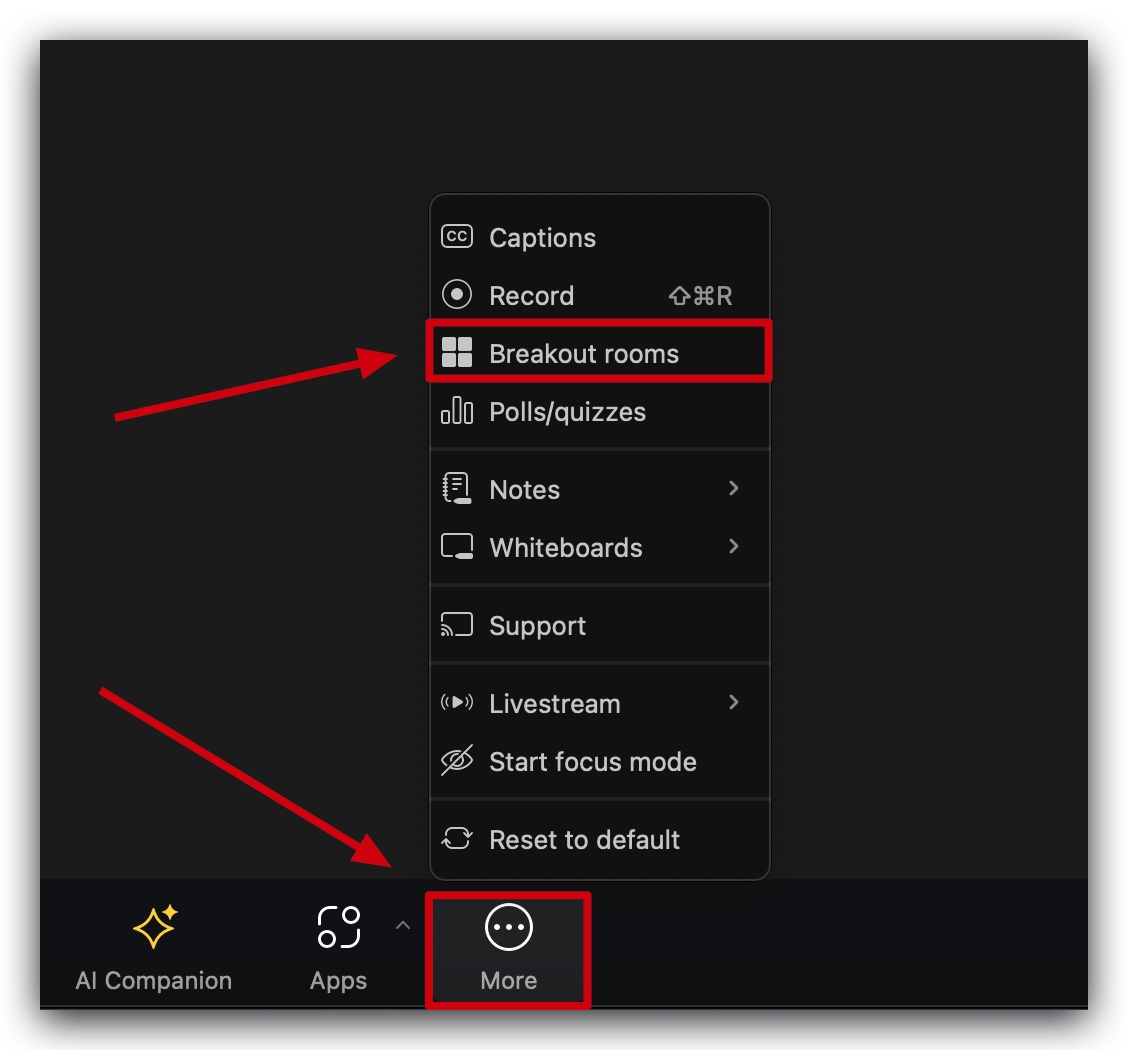
Move to a breakout room, then rejoin the main room
- Ask the agent to move you to a breakout room or leave/rejoin if prompted.
- This forces Zoom to refresh your session and often clears one-off audio/video glitches without needing to restart the entire app.
-
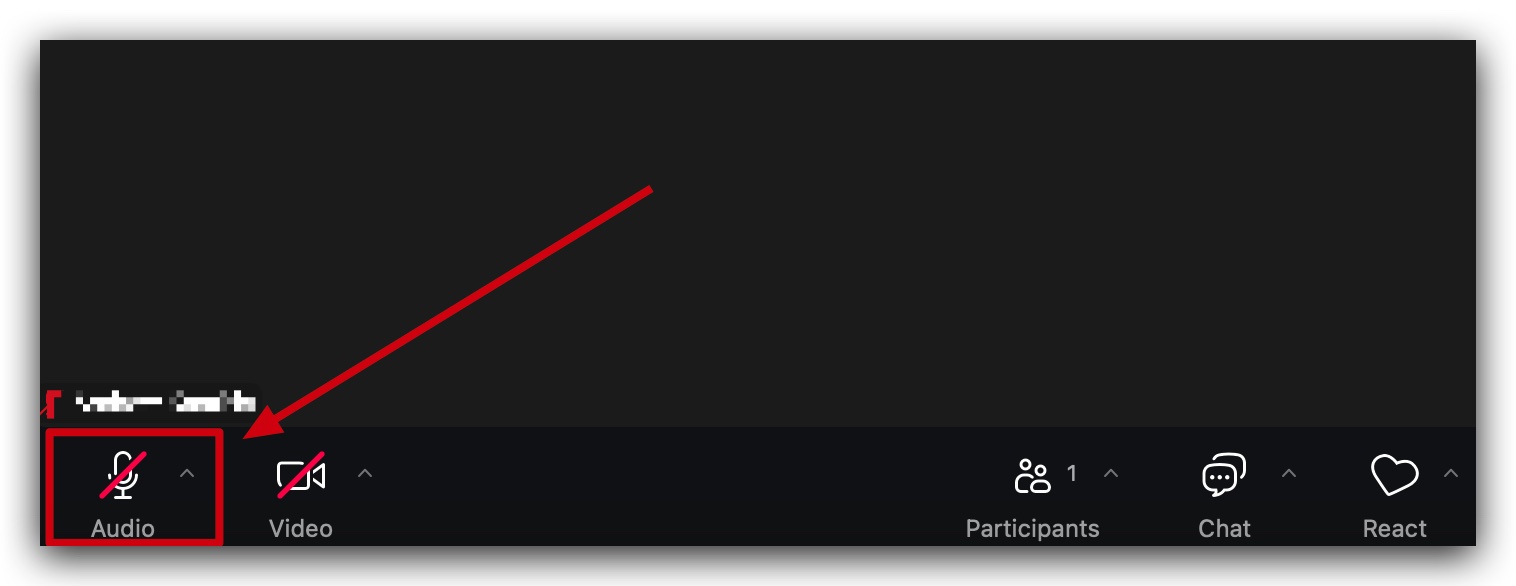
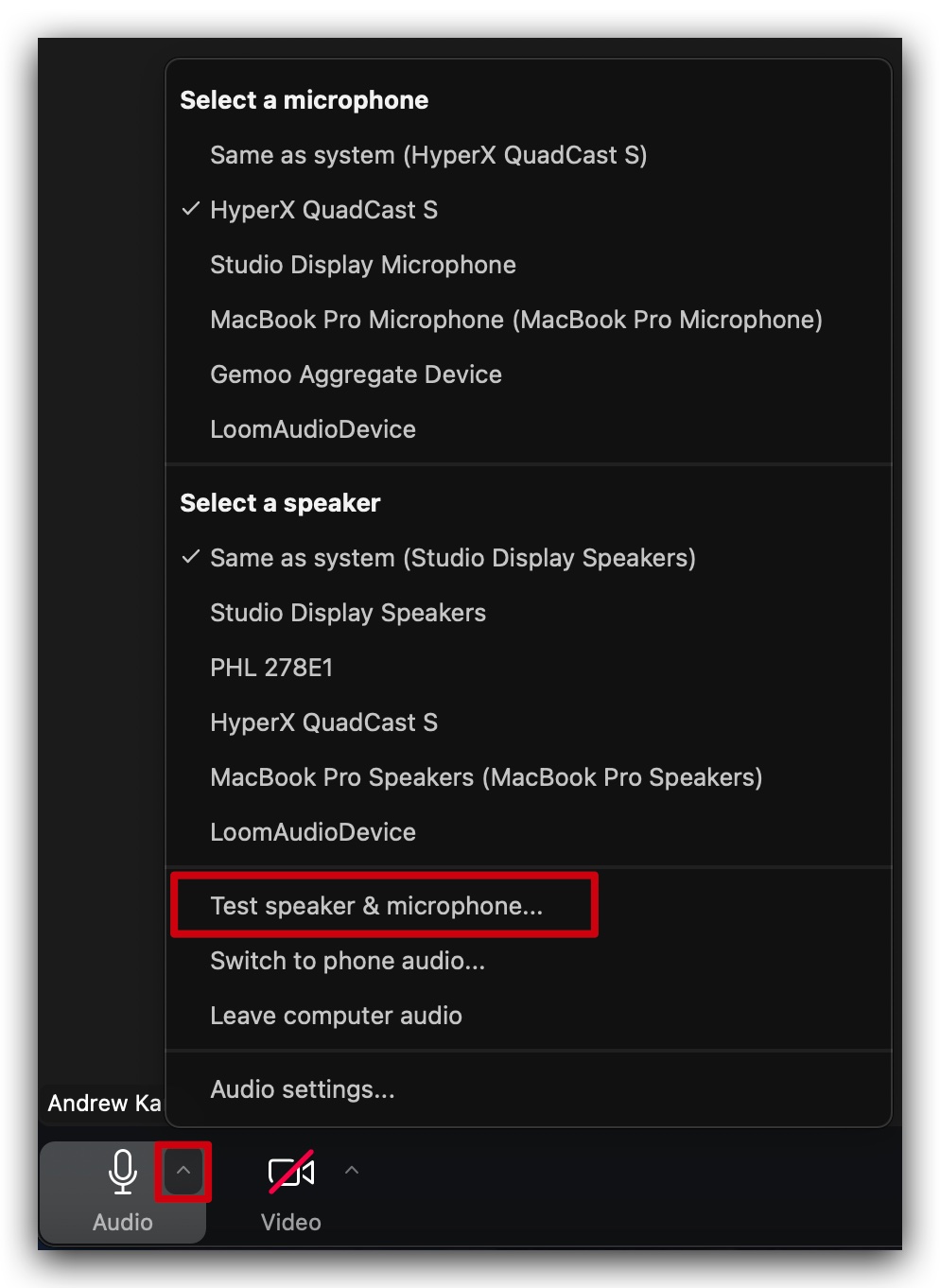
Confirm you’re not muted and the right mic/speakers are selected
- In Zoom, look at the microphone icon in the bottom-left corner. If it has a red slash, click it to unmute.
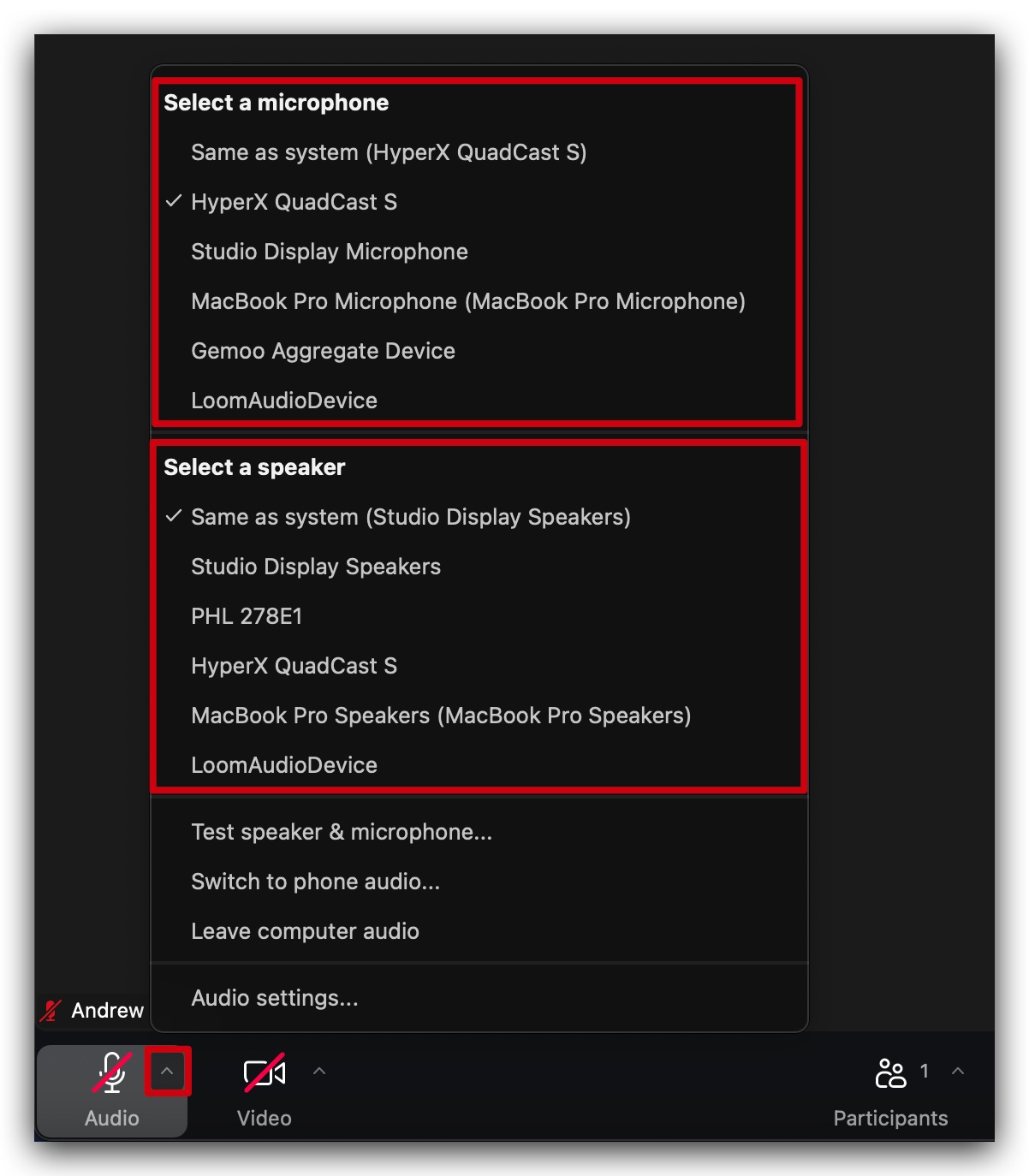
- Click the ^ arrow next to the mic icon and confirm:
- Microphone: the input you actually want to use (USB mic, headset, built-in mic).
- Speaker: your headphones or speakers—not an unused device.
-
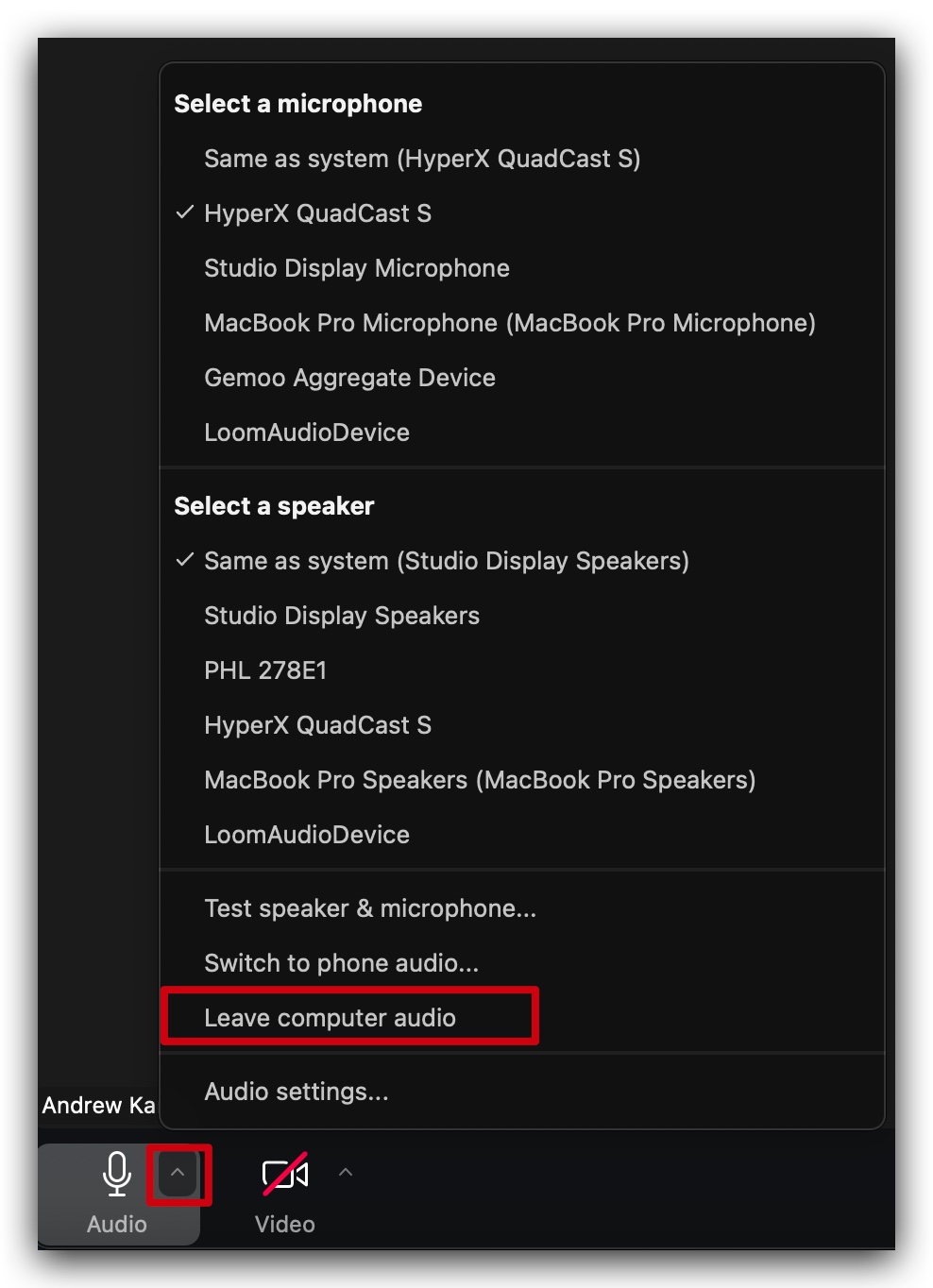
Disconnect and reconnect your computer audio
- Click the ^ arrow next to the mic icon.
- Choose Leave Computer Audio.
- Then click Join Audio again and pick the correct device.
- This is a quick “soft reset” that often fixes one‑sided audio or echo.
-
Test your microphone and speakers inside Zoom
- Go to Audio Settings from the ^ arrow next to the mic.
- Use Test Mic to record a short clip and play it back.
- Use Test Speaker to play a test sound and confirm your speakers are functioning.
- If either fails, switch to another device (for example, from Bluetooth to wired headphones) and test again.
-
Verify device-level audio settings
- On your computer, make sure the correct microphone and speakers are selected as the system default.
- Turn off or disconnect extra Bluetooth audio devices that might be “stealing” the audio.
- Close any apps that might be using your mic or camera (Teams, Google Meet, Loom, etc.).
-
Restart Zoom
- Fully quit Zoom (don’t just close the window) and reopen it.
- Rejoin the HighLevel support call via the Zoom app rather than the browser when possible—desktop gives you more control and fewer limitations.
-
Run a Zoom test meeting between calls
- Outside of your support session, use Zoom’s test meeting to verify your mic, speakers, and camera are all functioning correctly.
- This reduces the time you spend troubleshooting on future HighLevel calls.
If Zoom issues are slowing down your onboarding or implementation, consider centralizing your marketing and operations in a single platform. GoHighLevel gives you an all‑in‑one system for funnels, campaigns, and support so you can spend less time fighting tools and more time serving clients.
2. Fixing Zoom screen sharing issues in HighLevel support calls
Screen share is where most of the real problem solving happens—your support rep needs to see exactly what you see inside GoHighLevel. If sharing fails or is low quality, walk through these steps:
-
Refresh your Zoom session via a breakout room
- As with audio/video, moving to a breakout room and back to the main room can reset screen‑sharing permissions for your session.
- As with audio/video, moving to a breakout room and back to the main room can reset screen‑sharing permissions for your session.
-
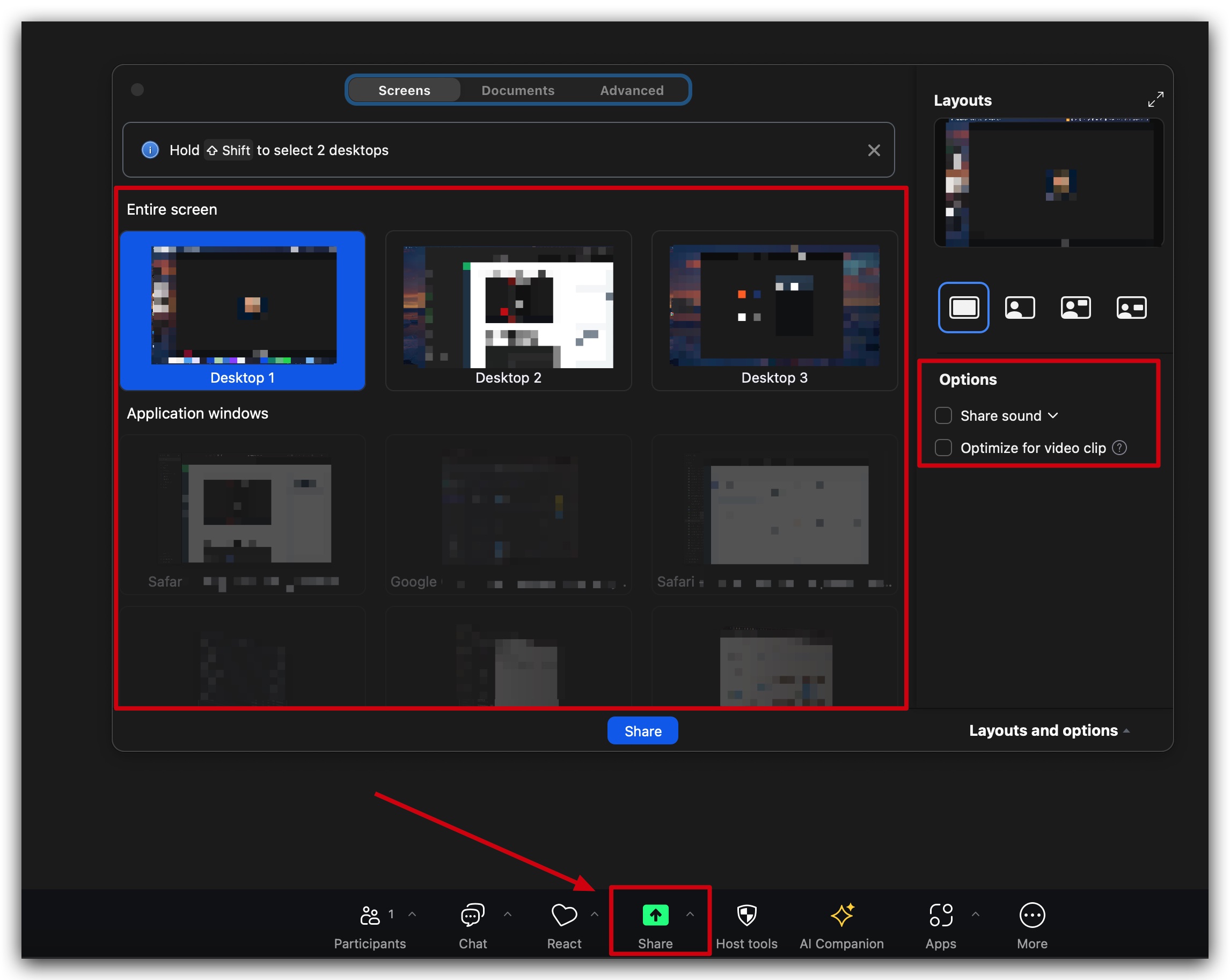
Make sure you’re sharing the right screen or window
- Click Share Screen in Zoom.
- Explicitly choose the correct monitor or the browser window running GoHighLevel.
- If you’re on multiple displays, label them so you know which one contains your HighLevel tab.
-
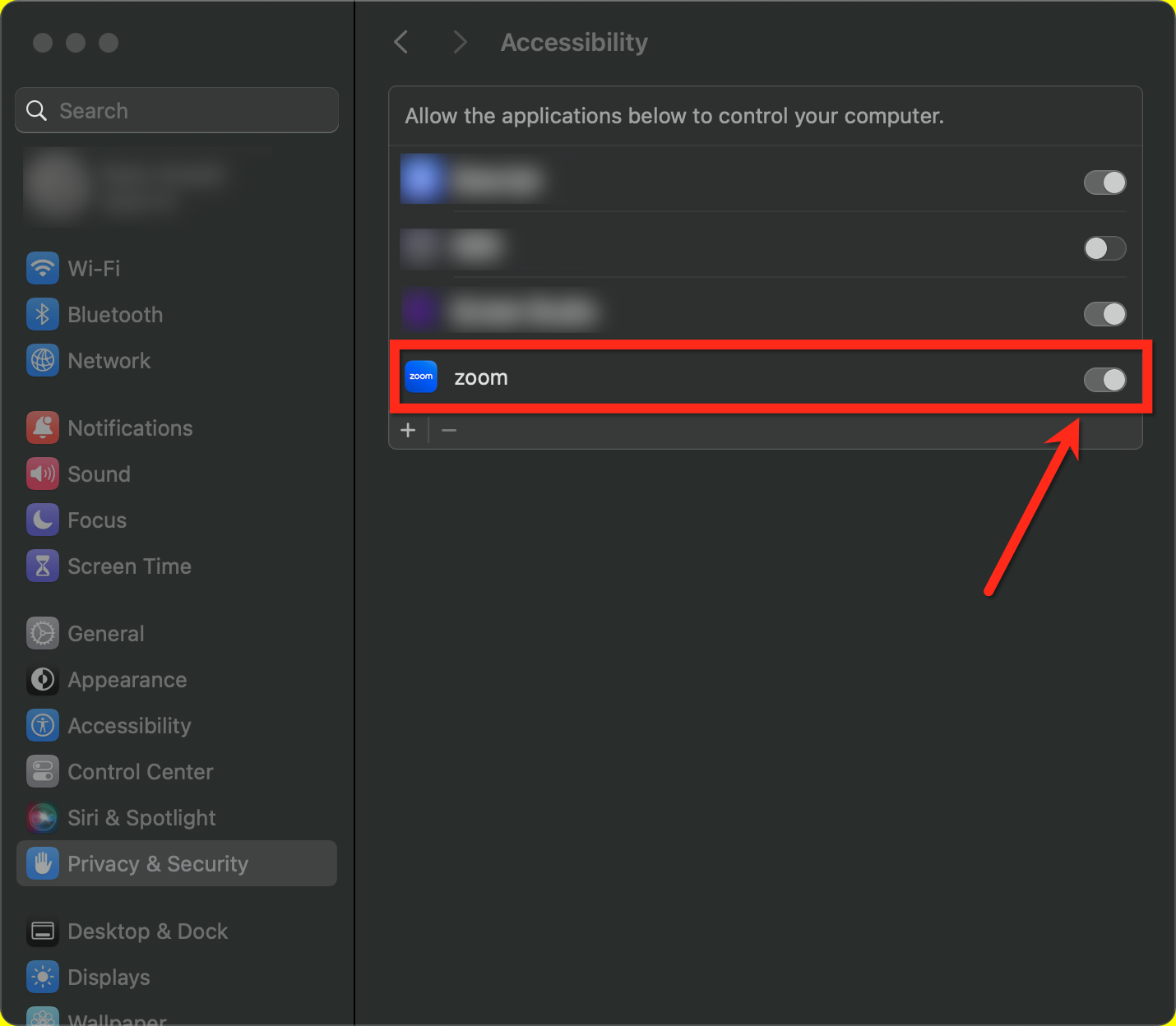
Check screen recording permissions on your device
- On Mac:
- Go to System Settings → Privacy & Security → Screen Recording.
- Ensure Zoom is enabled. If you change this, you may need to restart Zoom.
- On Windows:
- Confirm Zoom has permission to capture your screen and isn’t being blocked by antivirus or security software.
- Confirm Zoom has permission to capture your screen and isn’t being blocked by antivirus or security software.
- On Mac:
-
Restart your share if it’s frozen or laggy
- Click Stop Share.
- Wait a few seconds, then click Share Screen again.
- Close any extra programs streaming video or using heavy graphics (YouTube, video editors, games) to free up resources.
-
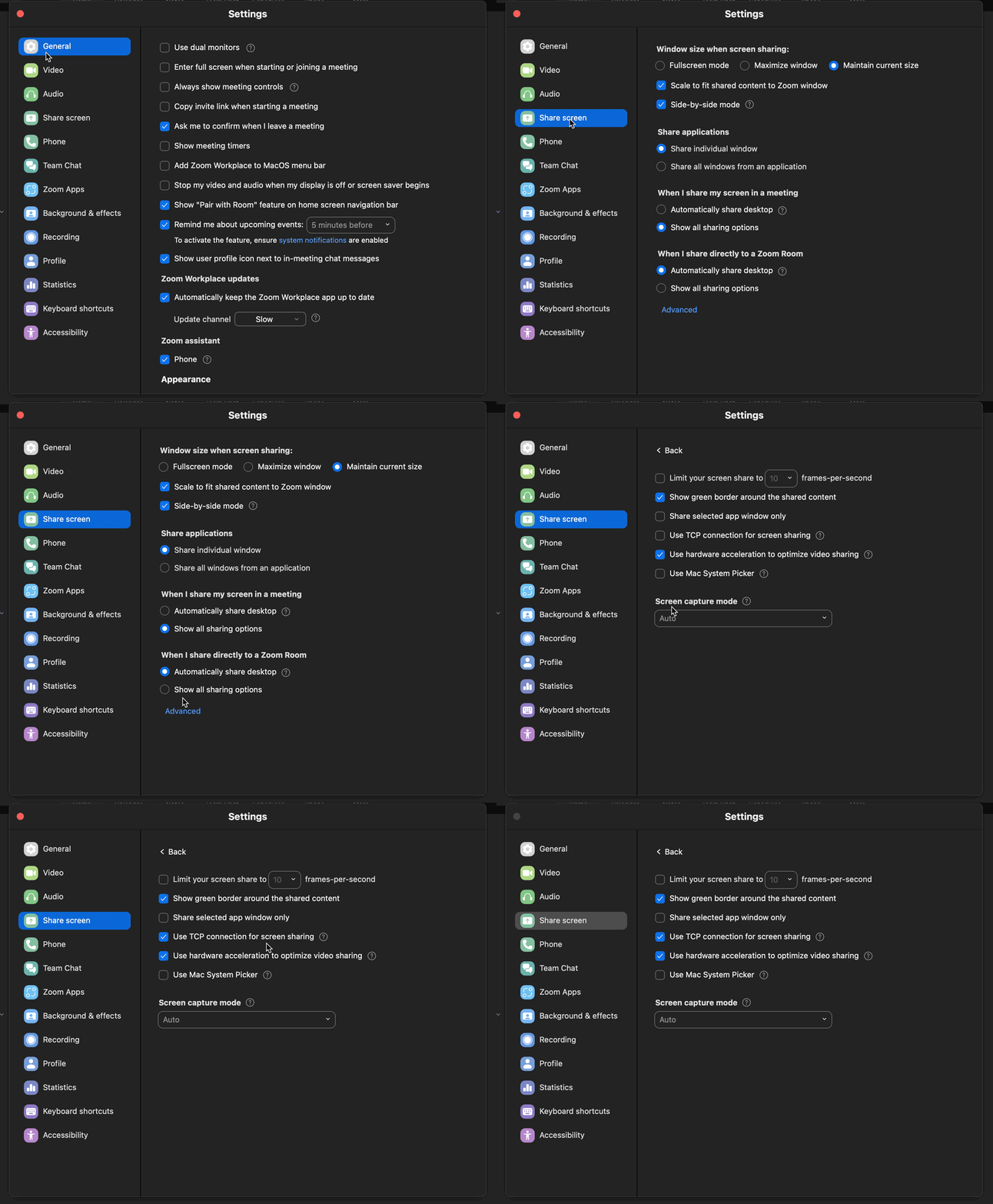
Enable TCP connection for more reliable sharing
- In Zoom settings, go to Share Screen → Advanced.
- Turn on the TCP connection option if available—this can stabilize sharing on some networks.
-
Check Your Network Connection
- Make sure you have a stable internet connection. Unstable or weak connections can cause screen sharing to lag or fail.
- Run a speed test via fast.com or speedtest.net to ensure a minimum speed of 50mbps for smooth Zoom performance.
-
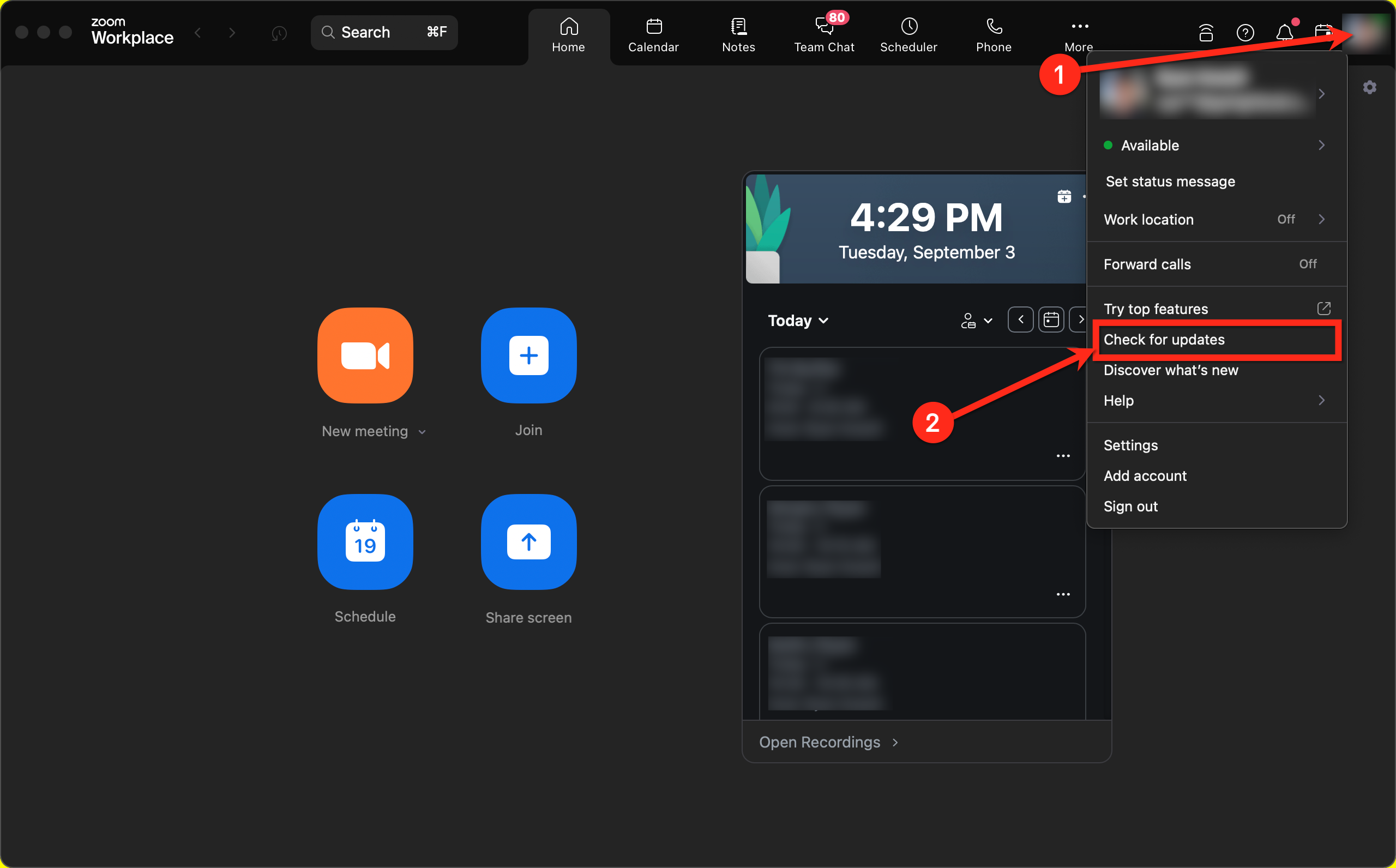
Update Zoom
- Ensure your Zoom application is up to date. Outdated versions may not support the latest features or might have bugs that affect screen sharing.
- Ensure your Zoom application is up to date. Outdated versions may not support the latest features or might have bugs that affect screen sharing.
Smooth screen sharing makes it much easier for HighLevel support to diagnose funnel issues, broken automations, or misconfigured integrations. The less time you spend fighting Zoom, the more time you have to shape the system that drives your revenue.
3. Getting Zoom annotations working again
Annotations are incredibly helpful when a support agent wants to circle the exact button, setting, or field you should click inside GoHighLevel.
If annotation tools aren’t appearing or don’t work:
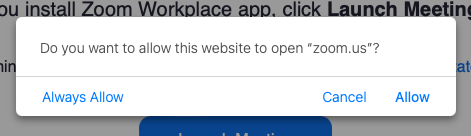
- Confirm you’re using the Zoom desktop app, not just the browser. Some annotation features are limited or unavailable in browser‑based sessions.
- Update Zoom to the latest version so you have access to all collaboration tools.
- Reinstall Zoom if annotations are still missing:
- Uninstall the app.
- Download the latest version directly from Zoom’s official website.
- Rejoin your HighLevel support call through the desktop app and test annotation again.
While annotations aren’t strictly required, they save a lot of back‑and‑forth during more complex troubleshooting—especially when you’re working on funnels, workflows, or multi‑step automations.
4. Pre-call checklist for smoother HighLevel Zoom sessions
Instead of fixing issues mid‑call, use a short checklist before important HighLevel sessions:
- Run a quick audio/video test in Zoom (mic, speakers, camera).
- Close unnecessary apps that use your camera, microphone, or a lot of bandwidth.
- Check your network: if calls have been unstable, restart your router and plug in via Ethernet where possible.
- Update Zoom so you’re not missing critical fixes or features.
- Log in to GoHighLevel ahead of time and open the specific pages you’ll be working on (pipelines, funnels, settings, etc.).
Doing this before you join support ensures you can spend your time with the HighLevel team solving actual business problems—not device issues.
If you’re just getting started with GoHighLevel, this is also a great time to think about how you’ll structure your automations, pipelines, and offers. When you’re ready, you can start your free GoHighLevel trial and build everything on a stable foundation.
5. FAQs: troubleshooting Zoom issues in HighLevel support calls
Why does moving to a breakout room sometimes fix Zoom issues?
Moving to a breakout room and then returning to the main session forces Zoom to refresh your session state. That refresh can reset audio, video, and screen‑sharing connections without requiring a full app restart.
How can I prevent recurring audio or video issues?
Keep your Zoom app updated, regularly test your mic and speakers before important calls, and avoid switching audio devices mid‑meeting. A stable internet connection (ideally wired) and closing other audio/video apps also go a long way.
Why does my screen share freeze or become choppy?
Screen sharing is sensitive to bandwidth and CPU usage. If your internet connection is weak or other programs are using a lot of resources, your share can lag or drop. Test your speed, pause downloads or streams, and close heavy apps before your HighLevel call.
Why do Zoom settings differ between Mac and Windows?
macOS and Windows handle privacy and security differently. On Mac, you often need to explicitly grant Zoom permission to record your screen or use your mic/camera in Privacy & Security settings. On Windows, antivirus or firewall tools may block Zoom until it’s whitelisted.
Why does restarting Zoom fix so many problems?
Restarting clears temporary cache files, resets device connections, and re‑establishes your link to Zoom’s servers. Many intermittent glitches—like one‑way audio or frozen video—disappear after a clean restart.
What if reinstalling Zoom still doesn’t solve the issue?
If you’ve worked through this guide and a fresh install of Zoom still doesn’t help, the problem may be deeper (device drivers, corporate security policies, or your network). At that point, let your HighLevel support rep know and consider escalating the issue to your IT team or Zoom support.
6. When to escalate and how HighLevel support can help
Sometimes the problem isn’t Zoom at all—it’s a complex HighLevel configuration issue that’s easier to solve with more context or a different channel.
Consider escalating when:
- You’ve followed this troubleshooting flow and Zoom is stable, but your underlying HighLevel issue still isn’t resolved.
- You’re working on mission‑critical automations, payment flows, or migrations and need a deeper technical review.
- You suspect a bug or edge case that may need engineering attention.
In addition to Zoom calls, HighLevel offers live chat, tickets, knowledge base articles, and other support channels, so you can always continue the conversation even if you have to drop off a call.
7. Turn smoother support calls into better systems with GoHighLevel and Revset Labs
Every smooth support call is an opportunity to improve how your business runs on GoHighLevel.
- Use troubleshooting sessions to refine how you structure pipelines, campaigns, and automations.
- Document fixes as standard operating procedures (SOPs) for your team so problems are solved once, not repeatedly.
- Look for patterns in the issues you bring to support—those patterns usually point to deeper system or offer design opportunities.
If you want a more done‑for‑you approach, Revset Labs can help. We’re an AI automation and marketing agency that specializes in building and optimizing GoHighLevel systems—so your funnels, follow‑ups, and reporting work reliably behind the scenes.
And if you’re not yet on the platform, you can start your free GoHighLevel trial here and use this guide as your go‑to Zoom troubleshooting checklist whenever you need help from the HighLevel support team.