
Importing new leads is important, but if your GoHighLevel wallet ever hits $0, SMS, calls, and emails can silently fail.

That’s what Auto Recharge and Smart Adjustment are designed to prevent.
Instead of logging in to top up your balance manually, you can:
- Automatically fund your wallet whenever it dips below a threshold.
- Let GoHighLevel scale your recharge amount as usage grows.
- Turn things off (or dial them back) cleanly when budgets or campaigns change.
This guide walks you through how GoHighLevel wallet Auto Recharge and Smart Adjustment work, how to set them up, when to disable them, and how to manage spend strategically so you never lose revenue to an empty wallet.
If you don’t yet have an account, you can spin up a free trial and follow along step by step: Start your GoHighLevel free trial.
How the GoHighLevel Wallet Fits Into Your Account
The GoHighLevel wallet is a shared balance used to pay for usage-based services such as:
- SMS and MMS sends
- Phone calls
- Some email sending costs
Every text, call, or email pulls a small amount from this wallet. For low-volume accounts, it’s easy to forget it exists—until a busy campaign drains it overnight.
That’s where Auto Recharge and Smart Adjustment come in:
- Auto Recharge keeps your wallet funded without someone babysitting it.
- Smart Adjustment automatically increases your recharge amount when your usage proves you’ve outgrown your current tier.
Configured well, these features give you:
- Fewer failed campaigns due to insufficient balance.
- Less time spent on manual top-ups.
- A cleaner billing rhythm as your account scales.
Auto Recharge: Set-It-and-Forget-It Wallet Funding
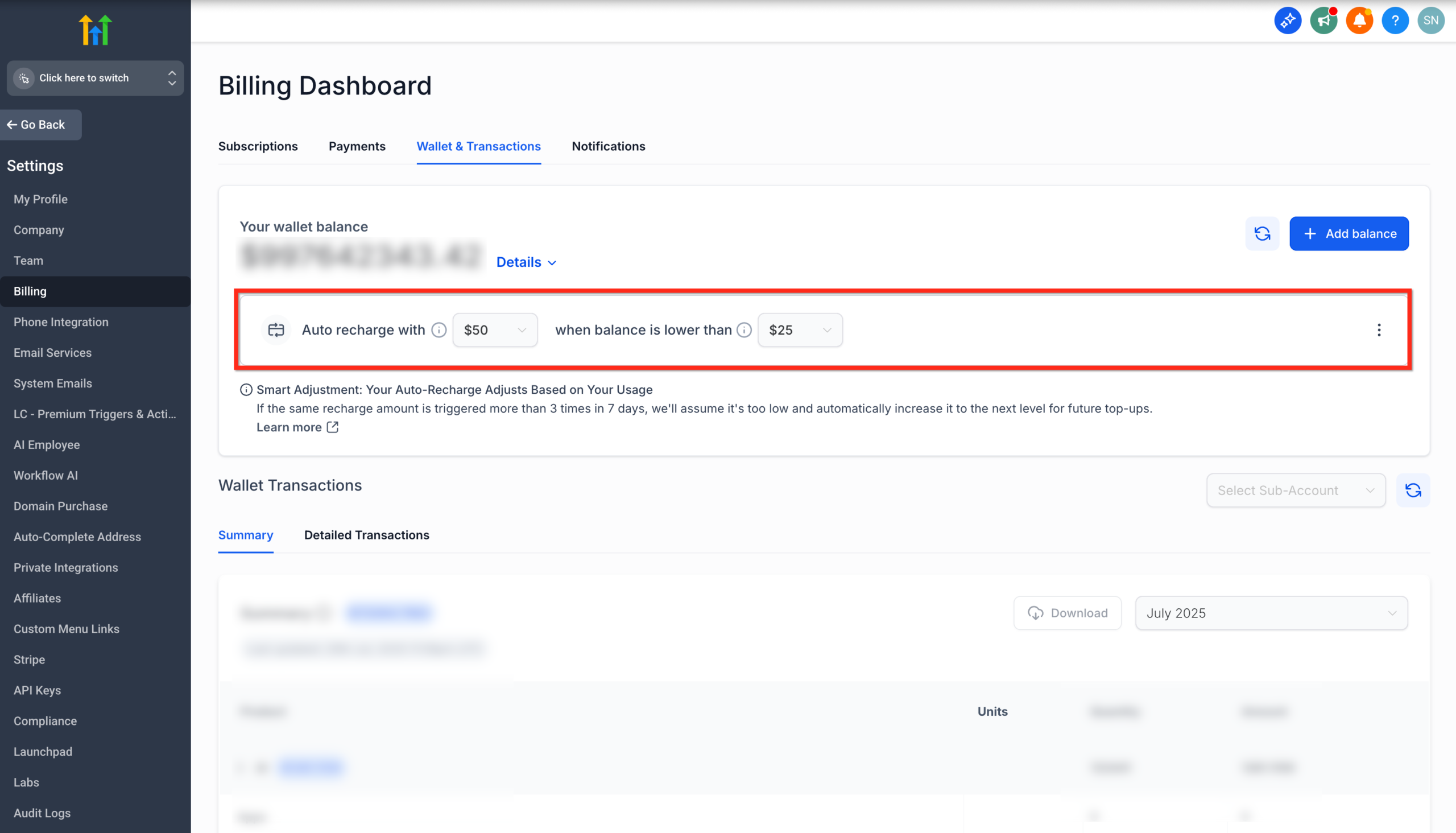
Auto Recharge tells GoHighLevel: “When my wallet balance drops below X, add Y dollars from my saved payment method.”
A simple example:
- Auto recharge amount: $200
- Trigger threshold: $50
When your wallet hits $49.99 or lower, GoHighLevel will automatically charge your saved card $200 and drop those funds into the wallet.
How to Set Up Auto Recharge
-
Open your Agency wallet
- Log in to your Agency account.
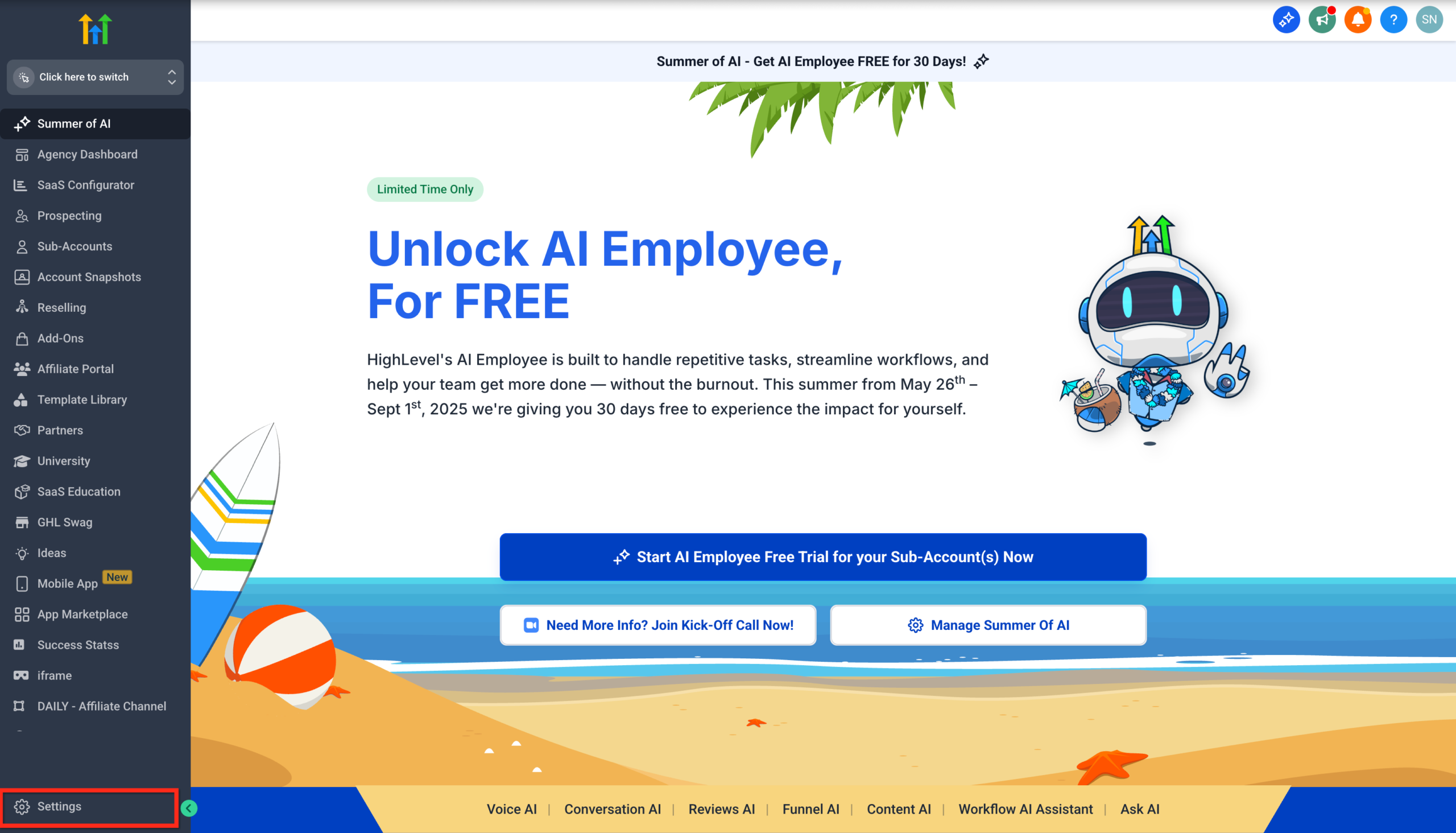
- Click Settings in the left sidebar.
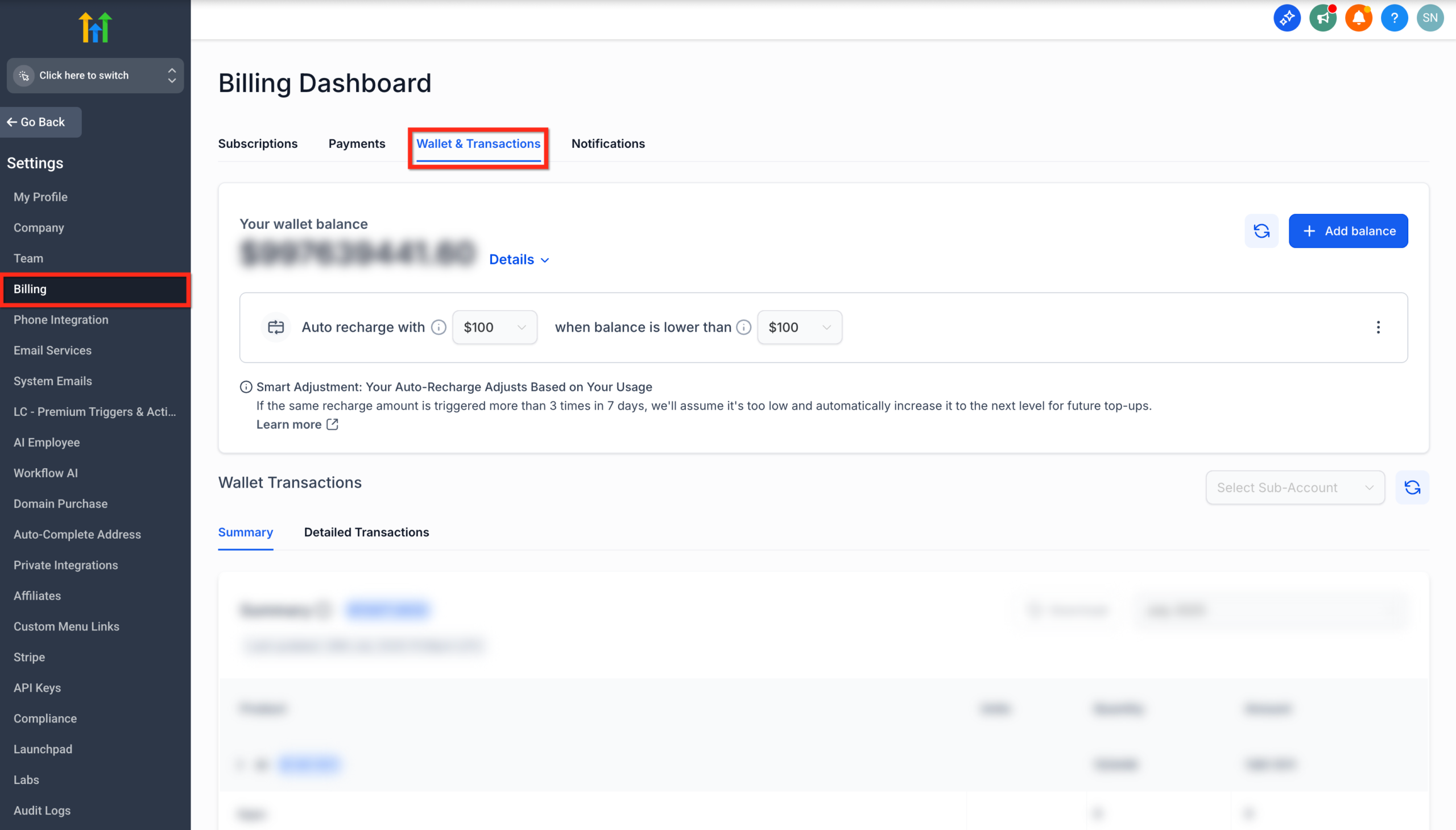
- Go to Billing → Wallet & Transactions.
-
Choose your recharge amount
In the Auto recharge with dropdown, pick how much GoHighLevel should add each time (for example $50, $200, $500, $1,000, depending on your usage). -
Set your balance threshold
In the Balance is lower than dropdown, choose the wallet amount that should trigger the recharge (for example $25, $50, $100).
-
Confirm your payment method
Make sure your card on file is up to date and has enough headroom to support your expected usage. -
Save and monitor the first few recharges
After enabling Auto Recharge, keep an eye on:- Wallet balance trends.
- Email notifications about successful charges.
- Any "card declined" messages.
If you’re launching a new funnel or ramping up ad spend, consider starting with a slightly higher recharge amount so you don’t trigger multiple small charges back-to-back.
Whenever you’re building or scaling campaigns and want someone else to design the backend systems, Revset Labs can help architect your GoHighLevel setup—wallet strategy, automations, and all.
Smart Adjustment: Automatic Scaling for High-Usage Accounts
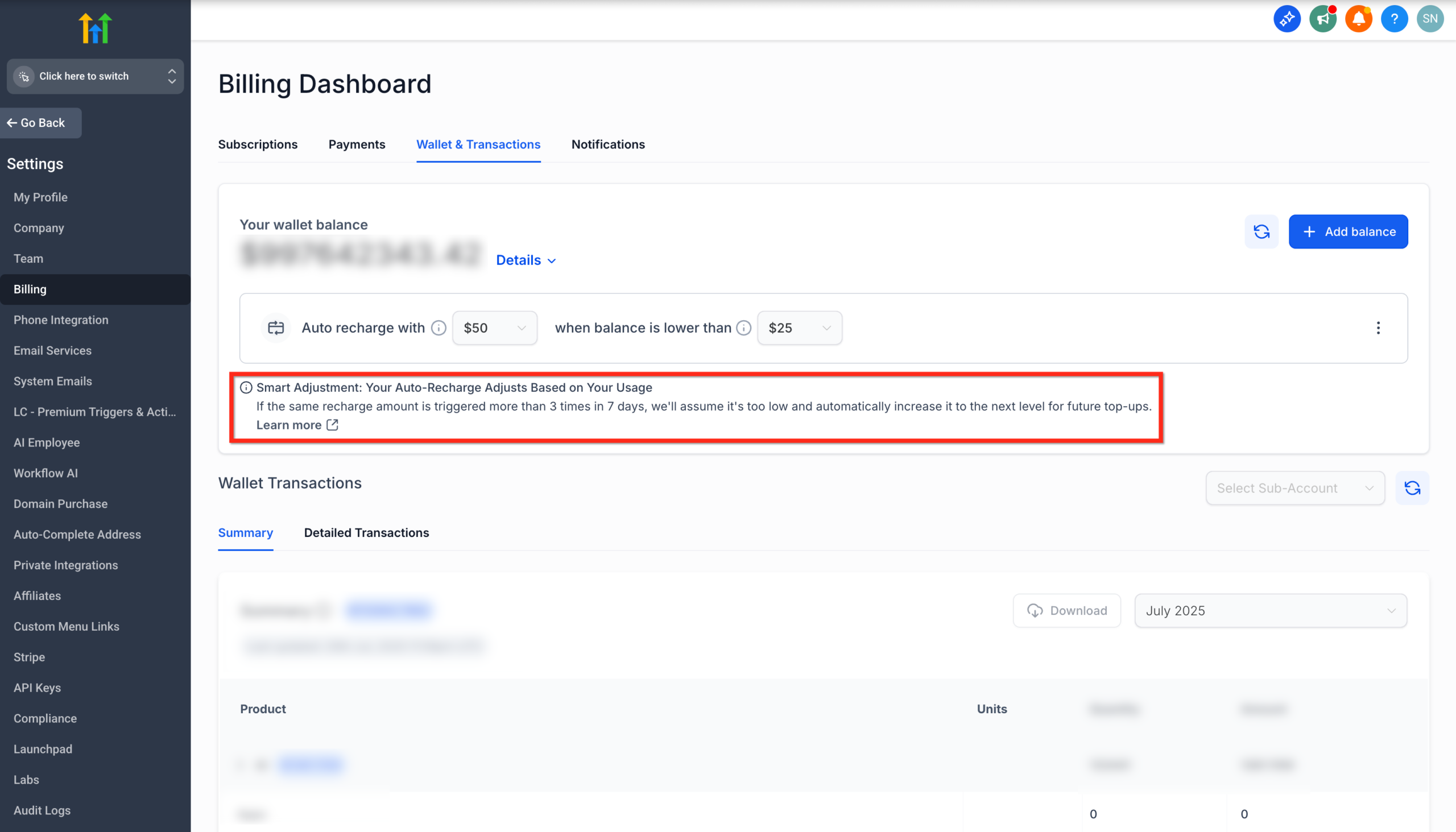
Smart Adjustment is an intelligent layer on top of Auto Recharge. Instead of leaving you stuck on a small recharge amount forever, it watches how often that amount is triggered.
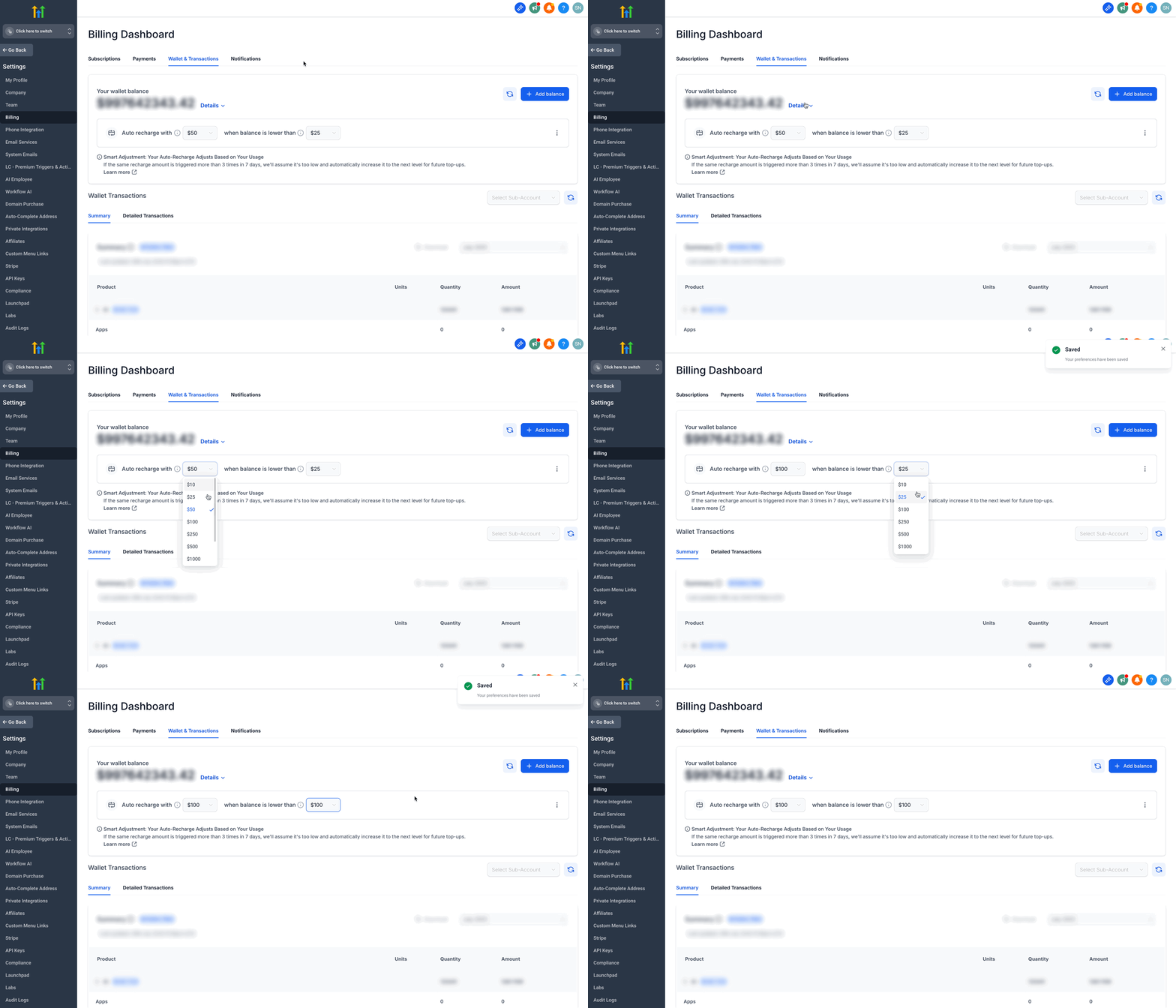
- If the same recharge amount is processed more than three times in any seven-day window, GoHighLevel will automatically move you to the next predefined recharge tier (for example, from $200 → $500 → $1,000).
- The goal: fewer small charges and fewer chances for card authorizations to fail when your usage spikes.
You still control:
- The threshold at which recharges occur (for example when the wallet hits $50).
- Whether Smart Adjustment is enabled at all.
Why Smart Adjustment Matters
As your sending volume grows, trying to keep a tiny recharge amount (like $20 or $50) leads to:
- Multiple charges per week.
- More opportunities for card declines or holds.
- More billing notifications cluttering your inbox.
Smart Adjustment recognizes that pattern and automatically steps you up to a higher recharge tier so your billing cadence matches your real usage.
Here’s a simple visual of the flow:
Step-by-Step: Configure Auto Recharge and Smart Adjustment
Use this checklist to get your wallet settings dialed in.
1. Decide on your baseline numbers
Before touching settings, estimate:
- Average weekly spend on SMS, calls, and email.
- Peak campaign spend (for launches, holidays, or promos).
A simple rule of thumb:
- Set your recharge amount to at least 1–2x your typical weekly spend.
- Set your threshold low enough to avoid constant recharges, but high enough that a failed payment doesn’t immediately pause everything.
2. Turn on Auto Recharge in GoHighLevel
- In Settings → Billing → Wallet & Transactions, locate the Auto Recharge section.
- Select your recharge amount from the dropdown.
- Select your "Balance is lower than" threshold.
- Confirm your payment method details.
- Save your changes.
GoHighLevel will now automatically top up your wallet whenever the balance dips below the threshold.
3. Let Smart Adjustment optimize your tier
With Smart Adjustment active:
- If GoHighLevel charges the same amount more than three times in seven days, it automatically moves you to the next recharge tier.
- You’ll see the new amount reflected in your Auto Recharge settings and in your billing emails.
This is especially powerful for agencies who:
- Add new sub-accounts quickly.
- Run large seasonal or evergreen campaigns.
- Don’t want to constantly edit wallet settings.
4. Use email alerts as an early warning system
Make sure billing emails are reaching the right people on your team. These notifications will tell you when:
- Auto Recharge succeeds or fails.
- Smart Adjustment bumps you into a higher tier.
- Your wallet is low or empty.
If you’d like a more advanced monitoring setup (for example, Slack alerts or internal dashboards when spend crosses certain thresholds), Revset Labs can help you layer automation on top of GoHighLevel’s native billing events.
How to Pause or Cancel Auto Recharge
There are times when you don’t want funds automatically flowing into your wallet—for example:
- You’re pausing campaigns while you rework strategy.
- A particular client has churned and you’re consolidating accounts.
- Finance wants tighter control over when charges occur.
Fortunately, you can easily disable both Smart Adjustment and Auto Recharge.
Disable Smart Adjustment (keep Auto Recharge fixed)
- Go to Settings → Billing → Wallet & Transactions.
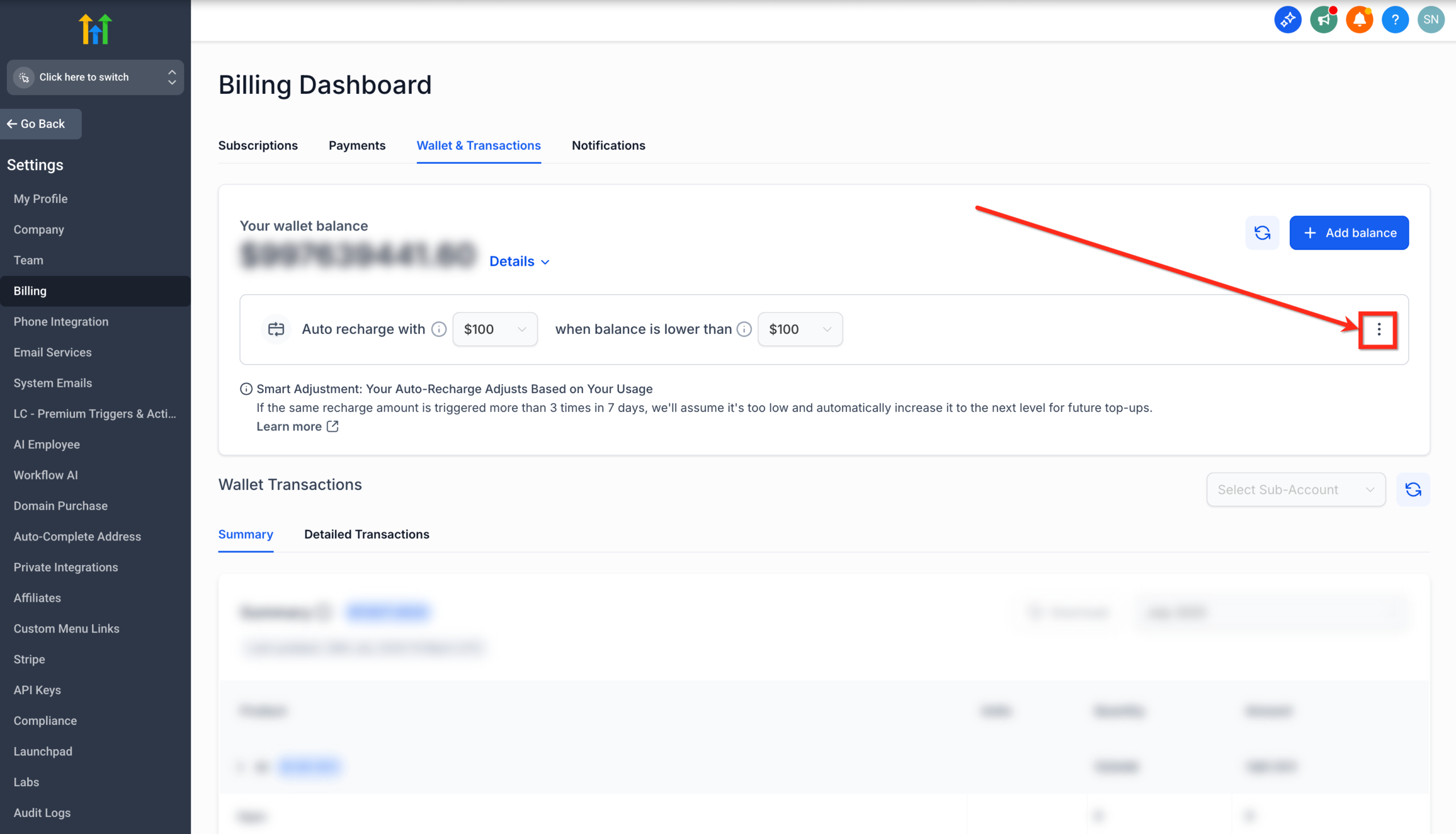
- In the Auto Recharge tile, click the three-dot menu on the right.
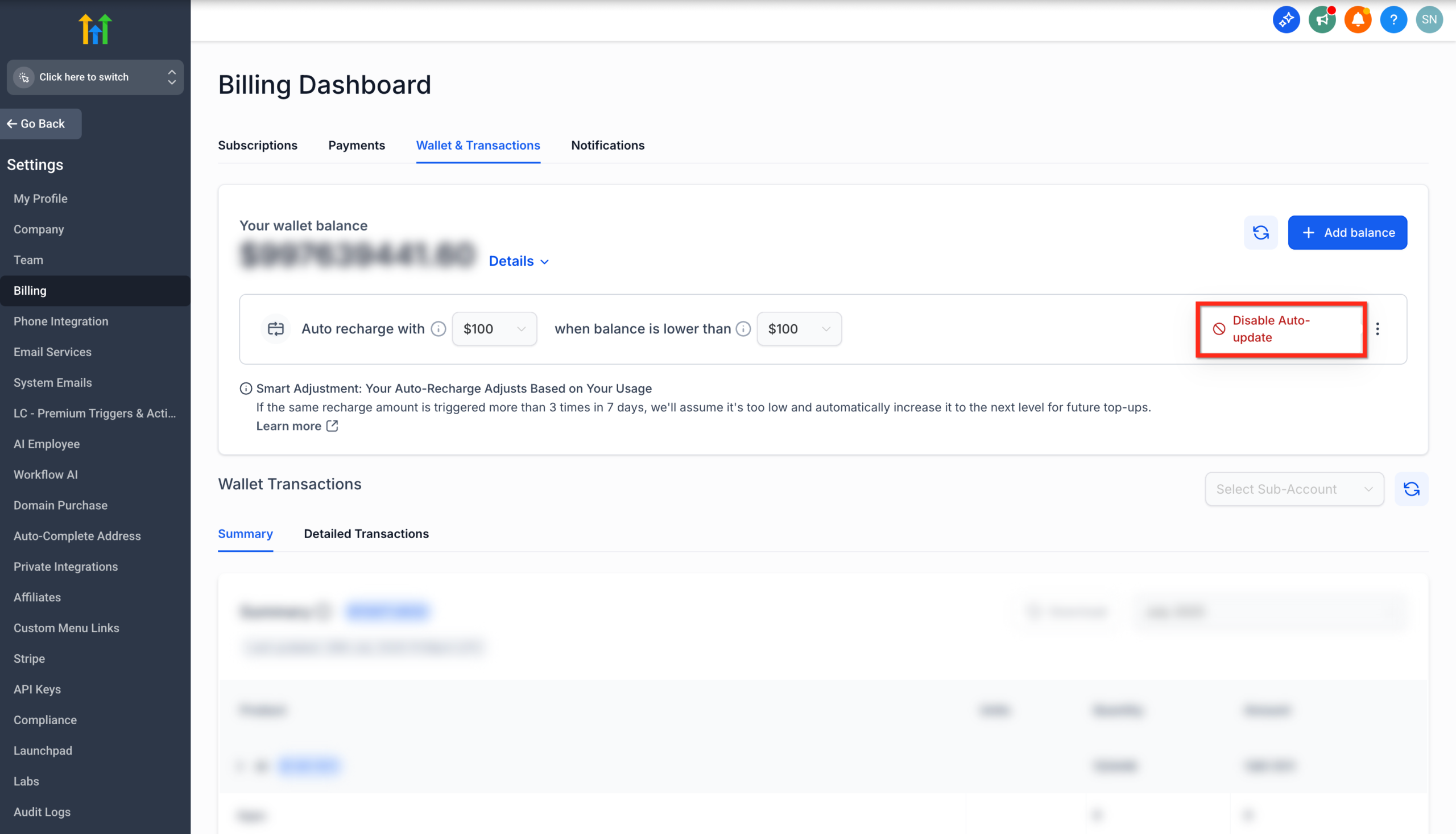
- Click Disable Auto-update.
- Confirm by clicking Yes.
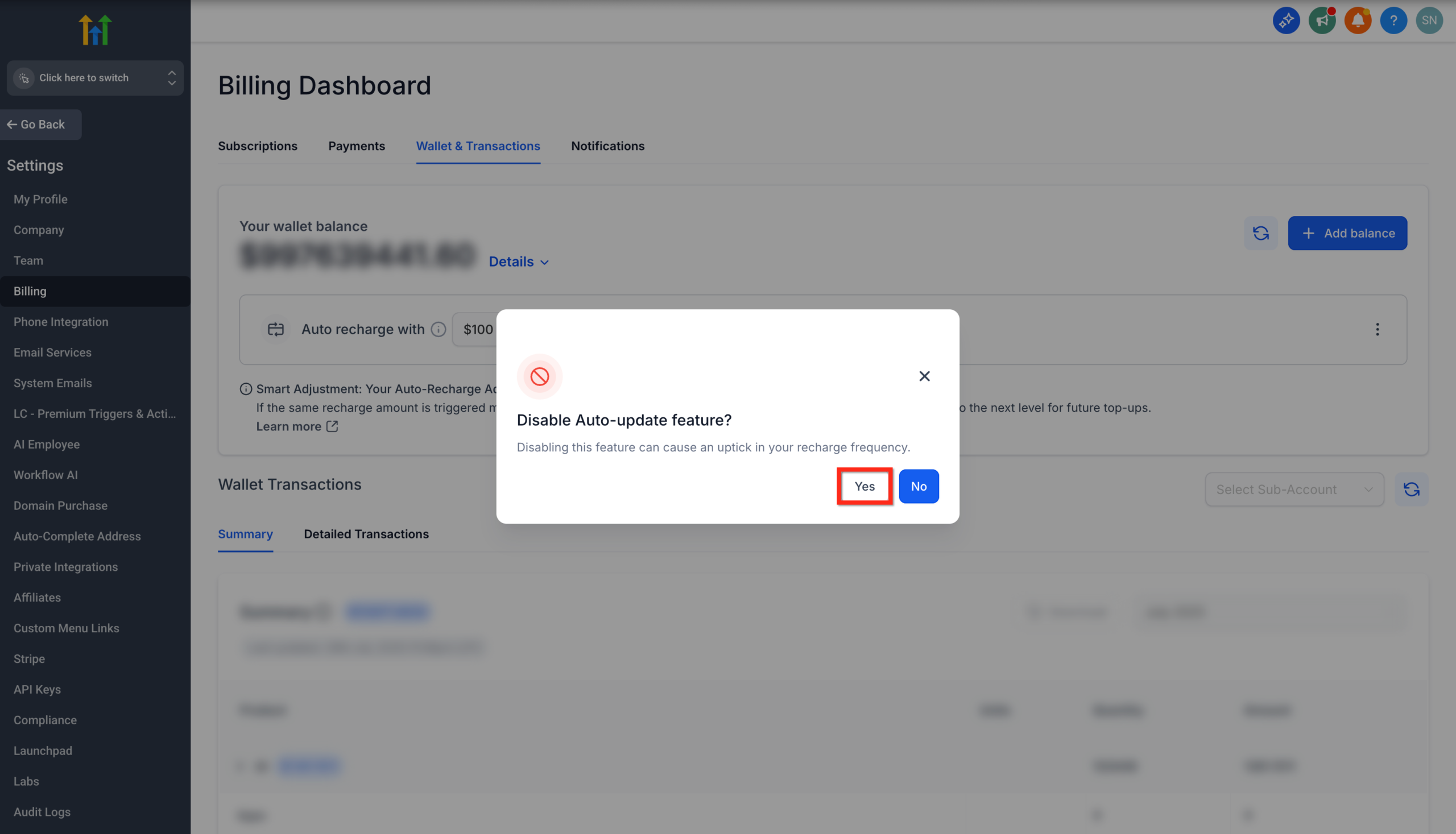
This keeps Auto Recharge on, but stops GoHighLevel from automatically increasing your recharge tier.
Turn off Auto Recharge entirely
- From the same Wallet & Transactions screen, locate the Auto Recharge section.
- Toggle Auto Recharge off, or select the option to Cancel/Disable Auto Recharge (wording may vary slightly as HighLevel updates the UI).
- Confirm the change.
From this point on, your wallet will only increase when you manually add funds. If the balance ever hits $0, SMS, calls, and other usage-based services may stop working until you top up.
Tip: If you disable Auto Recharge, create an internal process—like a weekly wallet review—to avoid accidental outages.
Best Practices for Wallet Management
To keep your GoHighLevel wallet reliable and predictable, use these practices:
-
Align wallet settings with business goals
High-churn or high-volume campaigns usually benefit from larger recharge amounts and more generous thresholds. Low-volume accounts can afford smaller settings but should still use Auto Recharge. -
Review usage monthly
Look at your actual spend in Wallet & Transactions and adjust tiers up or down. If Smart Adjustment has bumped you up but your volume has since dropped, you can always step back to a lower tier. -
Separate internal vs. client wallets where needed
Agencies juggling multiple brands may prefer isolated billing for certain high-spend clients. Structure your sub-accounts and wallet strategy accordingly. -
Keep one payment method clearly “primary”
Avoid cards that frequently hit limits or expirations. A stable card reduces the risk of failed recharges. -
Document who owns wallet decisions
Make it clear in your team who has authority to adjust Auto Recharge and Smart Adjustment so settings don’t get changed randomly.
When your wallet configuration matches your real-world usage, GoHighLevel becomes a dependable backbone for SMS, email, and call workflows—rather than a single point of failure.
How Revset Labs and GoHighLevel Work Together
Revset Labs is an AI automation and marketing agency that specializes in building revenue systems on top of GoHighLevel.
If you’d rather not think about wallet settings, billing thresholds, and automation triggers, our team can:
- Design wallet and notification strategies that fit your business model.
- Build automations that react to usage and billing events.
- Connect your campaigns, pipelines, and reporting so you always know what you’re spending and what you’re earning back.
You can start a GoHighLevel free trial, then partner with Revset Labs to turn it into a fully automated revenue engine.
FAQ: GoHighLevel Wallet, Auto Recharge & Smart Adjustment
How does GoHighLevel decide when to trigger Auto Recharge?
You choose a wallet threshold (for example $50). Whenever your balance falls below that amount, GoHighLevel charges your saved payment method for the configured recharge amount and deposits it into your wallet.
What is Smart Adjustment in the GoHighLevel wallet?
Smart Adjustment monitors how often your Auto Recharge amount is triggered. If the same amount is charged more than three times in any seven-day period, GoHighLevel automatically upgrades you to the next recharge tier so you have fewer, larger recharges instead of many small ones.
Can I disable Smart Adjustment but keep Auto Recharge on?
Yes. From Settings → Billing → Wallet & Transactions, open the Auto Recharge menu and choose Disable Auto-update. Auto Recharge will continue to function with your current amount and threshold, but it will no longer auto-increase to a higher tier.
How do I completely cancel Auto Recharge?
In the Wallet & Transactions screen, locate Auto Recharge and toggle it off (or choose the option to cancel/disable). After that, funds will only be added when you manually top up the wallet, so keep a close eye on your balance.
Will I be notified when Auto Recharge or Smart Adjustment runs?
Yes. GoHighLevel sends billing notification emails—such as successful charges, card failures, and Smart Adjustment tier changes—to agency owner admins by default. Make sure those notifications reach an inbox someone actually monitors.