
Connecting your personal inbox to GoHighLevel is one of the fastest ways to make sure every important 1:1 email actually shows up where you run your business – inside Conversations, pipelines, and automation.
Done right, you get a clean, centralized view of client communication without changing how you like to work in Gmail or Outlook.
In this guide, you’ll learn how to:
- Decide when a personal inbox is the right choice (and when a shared inbox is better)
- Connect Gmail or Outlook using GoHighLevel’s Email (2-way sync)
- Understand how two-way sync actually works behind the scenes
- Stay within provider limits so deliverability stays healthy
- Use simple automations to turn replies into opportunities and revenue
- Troubleshoot the most common connection and sync issues
Along the way, we’ll also show you how to use GoHighLevel’s free trial and how Revset Labs can help you wire this into a full revenue system.
If you don’t have GoHighLevel yet, you can start a free trial here: Start your GoHighLevel free trial.
Quick-start checklist: connect & test in under 10 minutes
If you just want the TL;DR, you can follow this flow and be live in a few minutes:
- Log into GoHighLevel and open Settings → My Profile for the user whose inbox you want to connect.
- Scroll to Email (2-way sync) and click Connect.
- Choose Gmail or Outlook and approve the permissions in the OAuth pop‑up.
- Back in GoHighLevel, confirm your email now appears under Email (2-way sync).
- Go to Conversations → New Message, pick a test contact, and send an email from your connected address.
- Reply from Gmail/Outlook and confirm the reply appears on the same thread in Conversations.
Once that loop works reliably, you can fine‑tune sending limits, automations, and team process.
Why connect your personal inbox to GoHighLevel?
Most founders, coaches, and agencies already live in their personal Gmail or Outlook inbox. The problem is that your CRM, pipelines, and automations live somewhere else.
Connecting your personal inbox to GoHighLevel closes that gap:
- Every important 1:1 email lives in one place – inside the contact record and Conversations.
- You keep your existing workflow – reply from Gmail/Outlook or from GoHighLevel, and the thread stays in sync.
- You get context before you reply – see notes, pipelines, and past activity right next to the email.
- You never lose track of a hot reply – because you can trigger tasks, opportunities, or automations from inside the same system.
- You stop tab‑hopping between inbox, CRM, and notes tools just to understand what’s going on with a lead.
If you’re still forwarding messages or copy‑pasting email threads into your CRM, two-way sync will feel like a huge upgrade.
When a personal inbox makes sense (and when it doesn’t)
A connected personal inbox is powerful, but it’s not the right tool for everything.
Great use cases for a personal inbox
Use a personal inbox when:
- You’re handling relationship‑driven deals (high‑ticket offers, consulting, agency retainers).
- Clients expect to talk to you by name, not a generic “team@” address.
- You’re replying to manual, 1:1 conversations – strategy questions, proposal follow‑ups, call recaps.
- You want replies to show up in both Gmail/Outlook and GoHighLevel Conversations without any manual work.
When a shared/system inbox is better
Don’t rely on your personal inbox for:
- Bulk campaigns and newsletters (use GoHighLevel’s email campaign and SMTP tools instead).
- Support queues that multiple team members handle.
- Transactional emails like password resets, receipts, or system alerts.
Think of your personal inbox as the human, high‑touch layer on top of GoHighLevel – not the engine for every email your business sends.
Prerequisites before you connect
Before you turn on two‑way sync, make sure you have:
- An active GoHighLevel account (or sub‑account) with access to Settings.
- A Gmail or Outlook email address you own and control.
- The ability to log into that inbox and approve permissions.
- Reasonable sending behavior (you’re not trying to blast hundreds of cold emails per day from this personal address).
If you’re just getting started with GoHighLevel, it’s worth pairing this with a clean contact database. Our guide on getting started with contacts shows you how to structure things so your inbox, pipelines, and automations all talk to each other.
Also keep in mind:
- Standard Gmail accounts typically allow around 500 sent emails per day. If you push that limit, messages can start to fail or be delayed.
- Attachments over 25 MB may not send reliably through Gmail.
Step-by-step: connect your personal inbox to GoHighLevel
The exact wording in the UI may change over time, but the core flow looks like this.
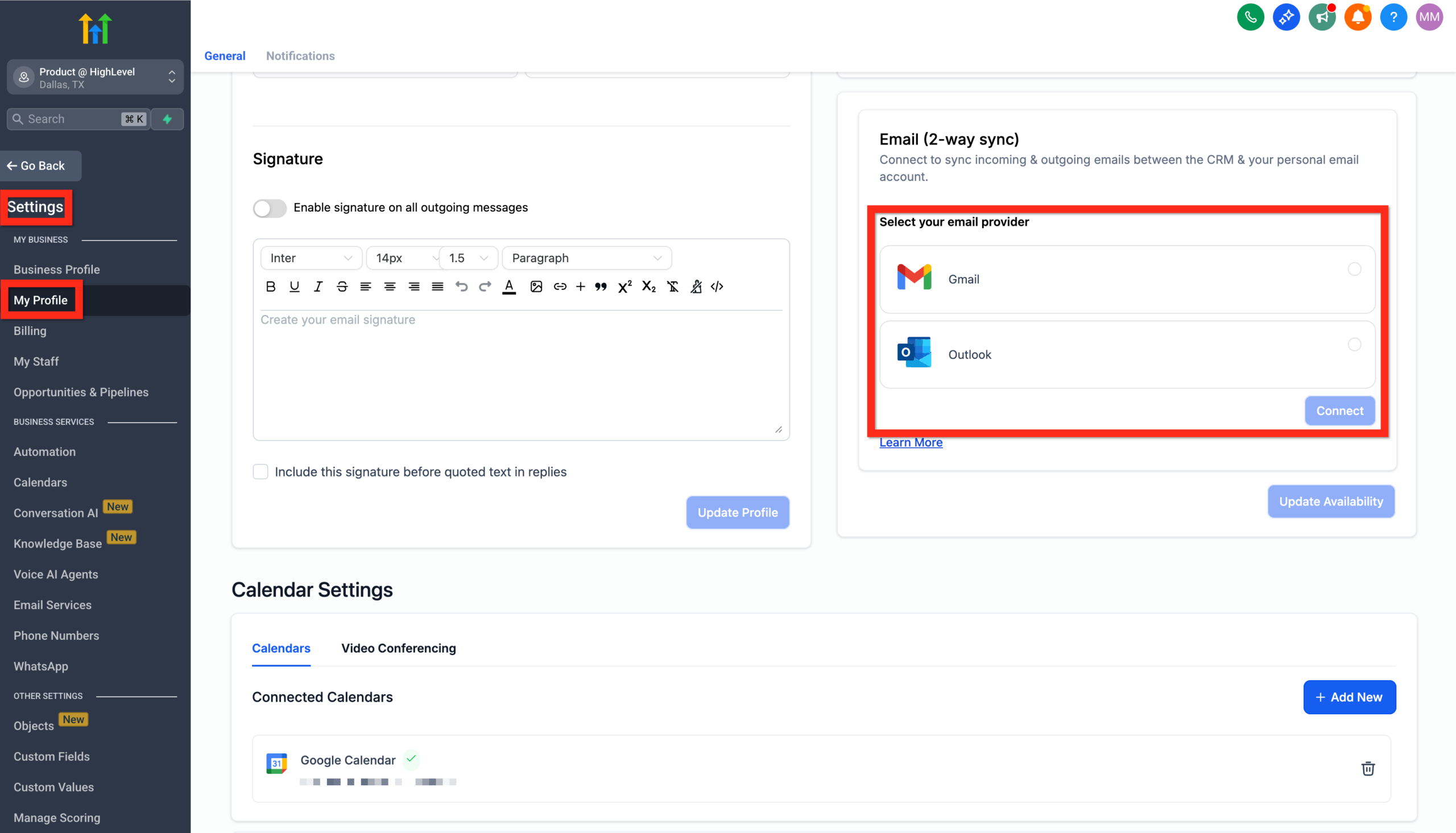
1. Open Settings → My Profile
- Log into your GoHighLevel account.
- In the left menu, click Settings.
- Choose My Profile for the user whose personal inbox you want to connect.
Tip: Each user can connect their own personal inbox. Make sure you’re in the right profile before you continue.
2. Click Email (2-way sync)
On the My Profile page, scroll until you see the Email (2-way sync) section.
Here’s where you control whether GoHighLevel can both:
- Send email using your personal inbox, and
- Read and match replies back to contacts in your CRM.
Click the button to start the connection process.
3. Choose Gmail or Outlook & connect
You’ll be prompted to choose which provider you’re connecting:
- Gmail (Google Workspace or standard Gmail)
- Outlook (including Microsoft 365 / Office 365)
Click the provider you use for your personal inbox, then press Connect.
A secure OAuth window will open in a new tab or pop‑up.
4. Authorize access securely
Google or Microsoft will ask you to confirm that you want to let GoHighLevel (via the LeadConnector app):
- Read and send email on your behalf.
- See basic profile information for your account.
Review the permissions, then click Allow or Accept.
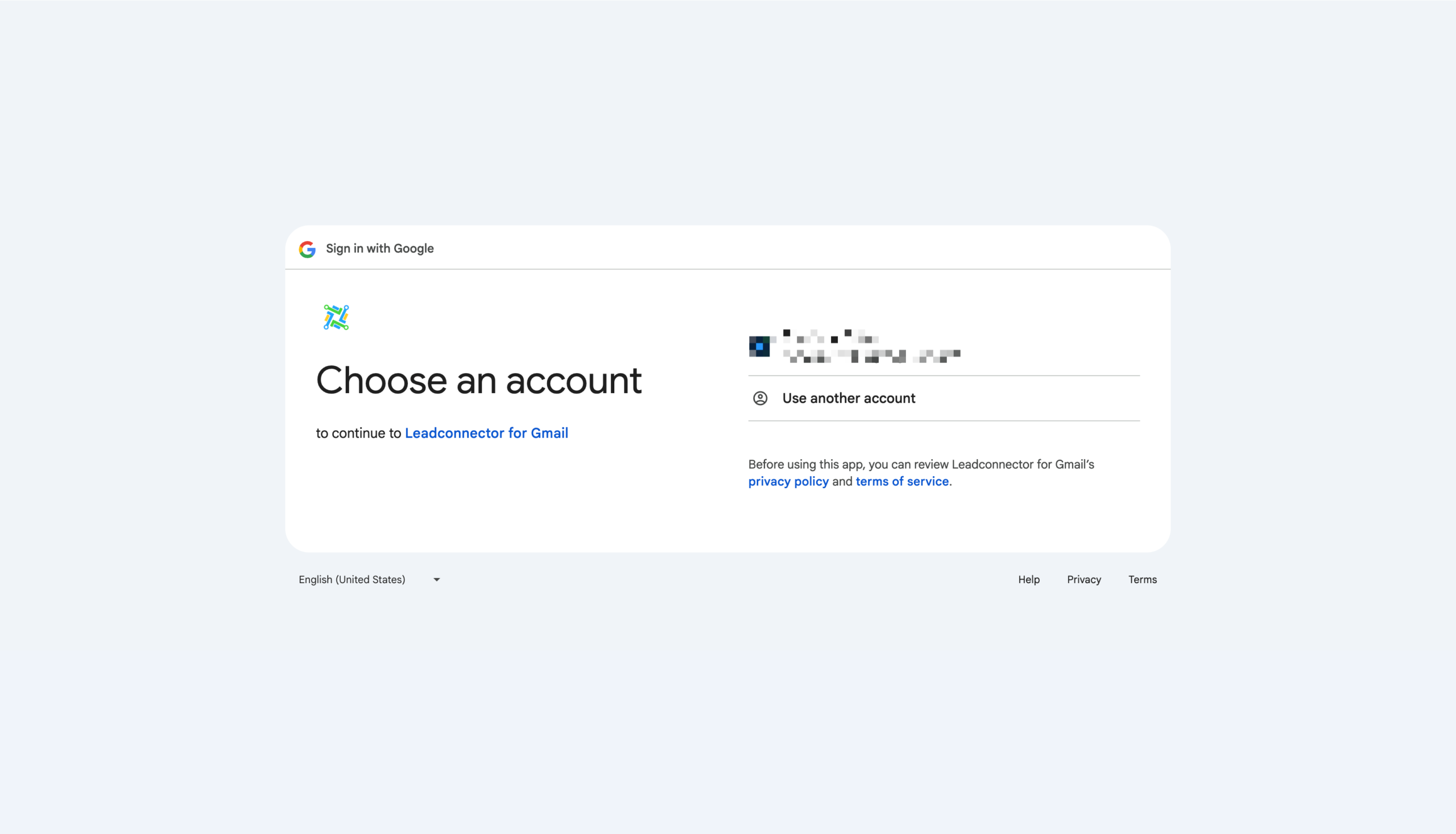
Once the connection is successful, your email address will appear under Email (2-way sync) in GoHighLevel. This is your confirmation that sync is active.
5. Send a quick test from Conversations
To confirm everything is working:
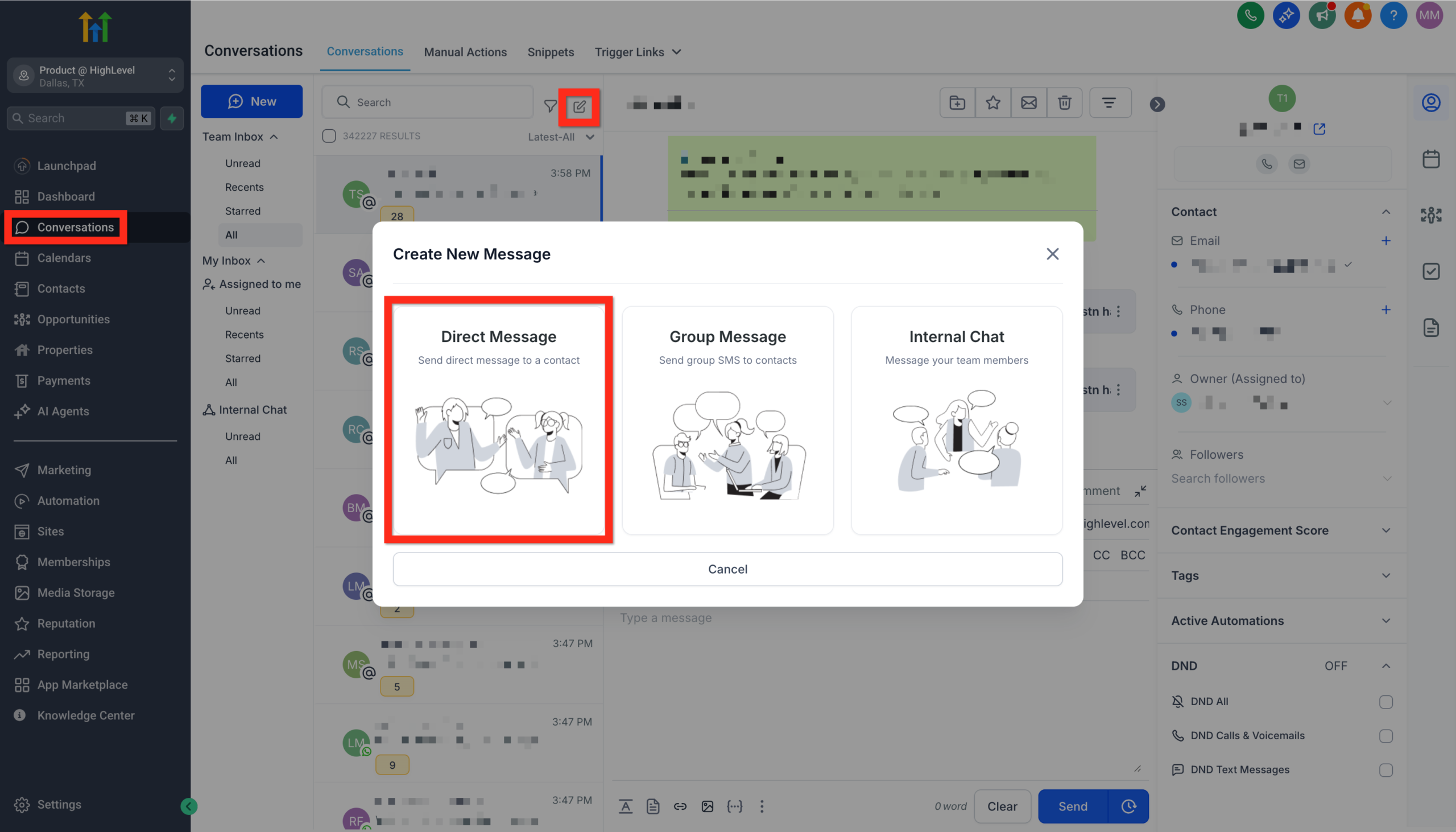
- Go to Conversations in GoHighLevel.
- Click the New Message (pencil) icon.
- Choose Direct Message
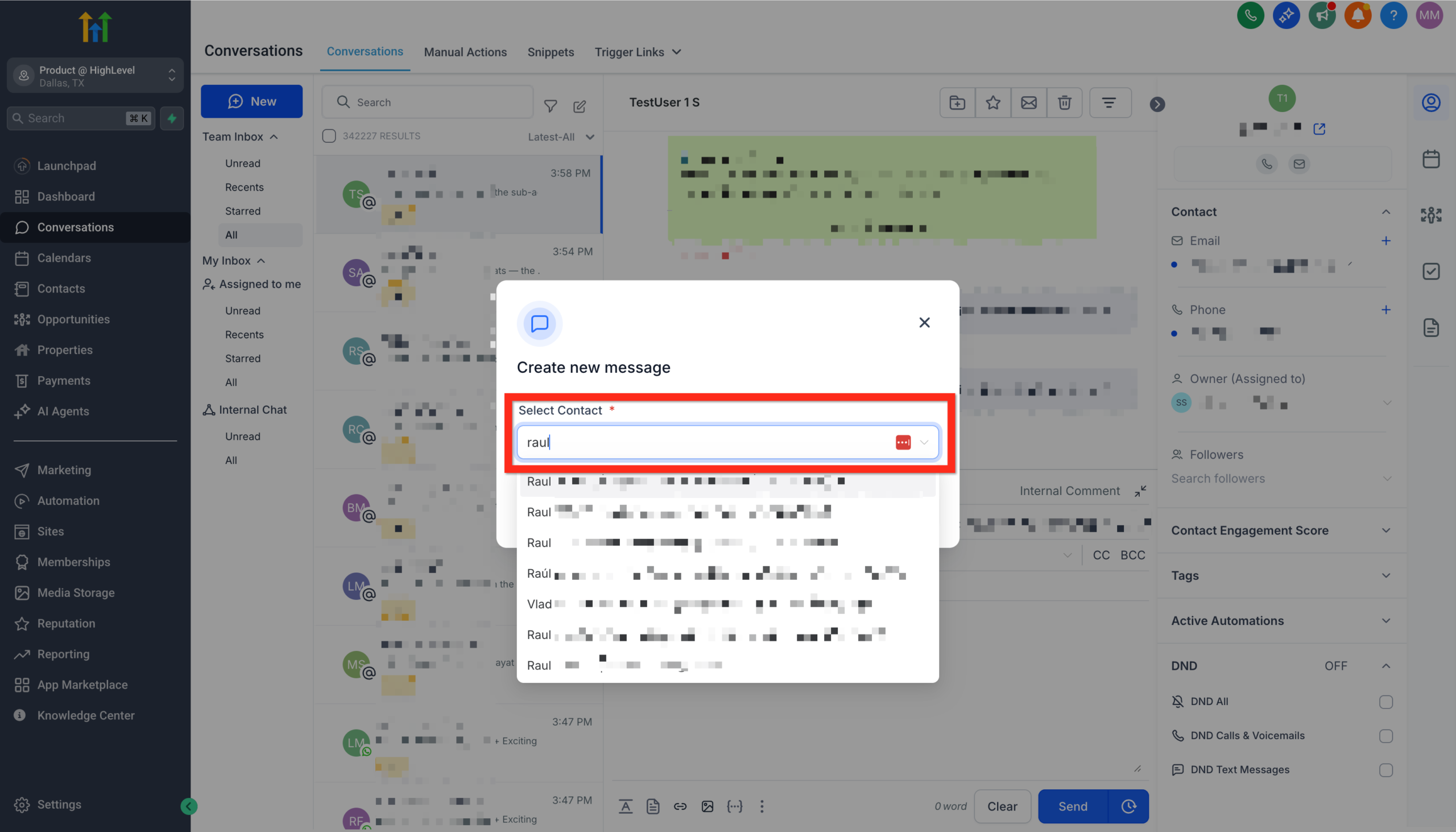
and pick a test contact (you can use a secondary email you control).
- Make sure your newly connected personal inbox is selected in the From field.

- Send a short test email.
Then, check your Gmail or Outlook inbox. You should see the message there, and any reply you send from Gmail/Outlook should appear back in Conversations on the same contact.
If you don’t see this behavior, disconnect and reconnect the inbox, double‑check permissions, and test again.
Provider-specific notes: Gmail vs Outlook
A few extra details worth knowing:
-
Gmail
- Standard Gmail accounts support roughly 500 sent emails per day; Google Workspace can be higher, but limits still apply.
- Attachments larger than 25 MB may fail; keep files smaller or use links when possible.
- Make sure the Google account you approve is the same one you actually use for client communication.
-
Outlook / Microsoft 365
- Some organizations lock down third‑party app access. If you see permission errors, you may need an admin to enable OAuth access for LeadConnector.
- Sending limits vary by plan and tenant configuration; if you’re doing heavier volume, confirm limits with your admin.
If you later change your primary email, use the Update or Disconnect options in Email (2-way sync) to switch safely instead of just changing passwords and hoping sync keeps working.
How two-way email sync actually works
Once your inbox is connected, GoHighLevel handles the heavy lifting so you don’t have to.
Outbound email behavior
- When you send an email from GoHighLevel, it’s sent through your connected Gmail or Outlook account.
- The message shows up in your regular Sent folder as if you sent it directly from Gmail/Outlook.
- GoHighLevel logs the email on the contact record and inside Conversations.
Inbound email behavior
- When a contact replies to a synced thread, GoHighLevel looks for a matching contact and attaches the message to that record.
- Replies appear in Conversations, and you can respond from either GoHighLevel or your email client – everything stays in sync.
- If someone emails you first and they already exist as a contact, that conversation can also be pulled into GoHighLevel.
- For brand new people, you can still log the conversation by including your GoHighLevel BCC address when you email them from Gmail/Outlook – that will create a contact and attach the thread.
History, limits, and edge cases
A few things to keep in mind:
- Provider limits still apply. For example, standard Gmail accounts typically allow around 500 sent emails per day. If you push that limit, messages can start to fail or be delayed.
- Attachment size matters. Large files (25 MB+ on Gmail) can cause sends to fail silently; use links for heavier assets.
- Sub‑account users aren’t synced. Emails from people who are also users inside the same GoHighLevel sub‑account may be intentionally excluded from sync.
- History is not a full backup. Two‑way sync is designed for active conversations, not as a complete archive of your entire inbox.
- You can always disconnect or update the connected email from Settings → My Profile → Email (2-way sync) if you change addresses.
Automation ideas once your inbox is connected
Connecting your personal inbox is step one. The real leverage comes when you combine it with GoHighLevel automations and pipelines.
Here are a few simple recipes you can implement:
- Create opportunities from buying signals
- When a contact replies with keywords like “ready”, “proposal”, or “next steps”, automatically:
- Create or update an opportunity in the right pipeline.
- Assign it to the correct owner.
- Move it to a “Qualified” or “Proposal Sent” stage.
- Task follow‑ups on quiet replies
- If someone opens an email but doesn’t reply within 2–3 days, trigger a task for the owner to follow up manually.
- Include the email thread in the task description so they have full context.
- Layer SMS after key replies
- When someone replies “Yes” to booking a call, automatically:
- Send an SMS with the booking link.
- Move them to a “Booked – Awaiting Call” stage.
- Tag and segment based on intent
- Use simple keyword rules to tag contacts as “Hot Lead”, “Needs Nurture”, or “Not a Fit”, then feed those tags into campaigns.
This is where GoHighLevel stops being “just another inbox” and becomes the engine that moves deals forward.
If you want to build these kinds of automations on a solid foundation, you can spin up a GoHighLevel account using this link and follow along: Try GoHighLevel free.
Best practices for using a personal inbox in GoHighLevel
Follow these guidelines to keep your inbox healthy and your CRM clean:
- Use personal inbox for high‑value 1:1 conversations. Strategies, proposals, negotiations, call recaps, and onboarding are all great fits.
- Use campaigns or automations for bulk. For broadcasts and automation‑driven nurturing, use GoHighLevel’s campaign tools tied to a proper sending domain.
- Keep one person responsible. A personal inbox should map to one owner, not a rotating team.
- Watch your daily sending volume. Staying well under Gmail/Outlook limits helps with deliverability and avoids account issues.
- Document your process. Decide when team members should reply from GoHighLevel vs directly from Gmail/Outlook so nothing slips through the cracks.
Whenever you’re ready to go beyond “just email” and start building full follow‑up systems, GoHighLevel can handle the automations, pipelines, and reporting behind the scenes.
Where this fits in your GoHighLevel funnel
Connecting your personal inbox is one piece of a larger system.
Once two‑way sync is live, you can:
- Log every important reply against the right contact and right pipeline stage.
- Trigger tasks or opportunities when someone replies with buying signals.
- Combine manual replies with automated workflows, so warm leads never stall out.
For example, you might:
- Import existing contacts into GoHighLevel.
- Set up simple pipelines and opportunities for each stage of your sales process.
- Connect your personal inbox so every “Yes, let’s talk” reply creates or updates the right opportunity.
From there, you can layer on call tracking, SMS follow‑ups, appointment booking, and even website chat without ever losing the email context.
Look for the rest of the Getting Started series (contacts, imports, pipelines, calendars, and more) to round out the system – especially guides like Getting Started: Create and Manage Contacts in GoHighLevel, Getting Started: Import Existing Contacts into GoHighLevel, and Getting Started: Set Up Pipelines and Opportunities in GoHighLevel.
How Revset Labs can help
Revset Labs is an AI Automation and Marketing Agency that lives inside GoHighLevel every day.
If you’d rather not piece all of this together alone, we can help you:
- Design a simple but effective sales funnel around your inbox and pipelines.
- Set up GoHighLevel, including contact structure, pipelines, calendars, and automations.
- Build intelligent follow‑up sequences that turn email replies into booked calls and revenue, not just more messages.
Whether you’re just getting started or migrating from another CRM, we can help you move quickly without breaking what already works.
If that sounds useful, reach out and mention that you read this guide on connecting your personal inbox – we’ll start with your current setup and map the fastest path to ROI.
Don’t have a GoHighLevel account yet? You can get started with a free trial here: Launch GoHighLevel with Revset Labs.
FAQ: Connecting your personal inbox to GoHighLevel
Do I need a personal inbox or a shared inbox in GoHighLevel?
Use a personal inbox when the relationship is tied to you as an individual – coaching clients, consulting engagements, or high‑ticket sales where people expect to see your name. Use a shared or support inbox when multiple team members need to jump in and handle replies.
Many teams run both: campaigns and support from shared addresses, and key sales conversations from personal inboxes.
Will my old emails sync into GoHighLevel after I connect?
Two‑way sync is primarily built for ongoing conversations, not as a full historical backup of your entire inbox. After you connect, new messages and replies with contacts in GoHighLevel will be synced going forward. Some recent history may appear, but you shouldn’t rely on this as a complete archive.
Which email providers are supported for 2-way sync?
GoHighLevel’s native two‑way sync supports Gmail and Outlook (including most Microsoft 365 accounts). If you’re using another provider, you can still log conversations by using GoHighLevel’s unique BCC address when sending from your email client, but that won’t behave exactly like full two-way sync.
Is it safe to connect my personal inbox to GoHighLevel?
Yes – the connection uses secure OAuth flows from Google and Microsoft. You’re granting GoHighLevel permission to read and send email on your behalf, and you can revoke that access at any time from either your email provider or inside Settings → My Profile → Email (2-way sync).
You still need to follow good practices around passwords, two‑factor authentication, and reasonable sending volume, but the integration itself is designed to be secure.